Ошибка 0x87dd001e возникает на Xbox One в тот момент, когда консоль теряет связь с беспроводным подключением к Интернету. Некоторые пользователи утверждают, что подобная проблема появляется совершенно случайно, другие — сразу после запуска консоли.
Содержание
- Причины ошибки 0x87dd001e на Xbox One
- Метод №1 Проверка состояния служб Xbox Live
- Метод №2 Перевод консоли в режим вне сети
- Метод №3 Аппаратный перезапуск Xbox One
- Метод №4 Вход в учетную запись после удаления MAC-адреса
- Метод №5 Сброс Xbox One до заводских настроек
Причины ошибки 0x87dd001e на Xbox One
Как правило, ошибка 0x87dd001e (и другие подобные ей) возникает из-за неполадок со службами Xbox Live. Возможно, на серверах проводится техническое обслуживание или произошла какая-то поломка. Если же это не проблемы Xbox Live, то, скорее всего, что-то не так с самой консолью, например, баг в работе ПО или глюк с сетевым статусом устройства.
Так или иначе все это можно проверить и исправить очень легкими шагами, с которыми вы сможете ознакомиться ниже.
Метод №1 Проверка состояния служб Xbox Live
Самая частая причина для появления ошибки 0x87dd001e — это неполадки на стороне служб Xbox Live. Технические обслуживания, поломки и даже DDoS-атаки на сервера Майкрософт — все это может вызывать проблемы у владельца Xbox One.
Перейдите по этой ссылке на страничку состояния служб Xbox Live. Попав на эту страницу, вы сразу поймете, нормально ли все работает или нет. Если с какими-то службами что-то не так, то вам не остается ничего другого, как ждать и надеяться, что Майкрософт вскоре разрешит неполадку (либо перевести консоль в режим вне сети).
Если же со всеми службами все нормально, то проблема, из-за которой возникает ошибка 0x87dd001e, находится на вашей стороне.
Метод №2 Перевод консоли в режим вне сети
Ок, со службами Xbox Live действительно что-то не так — как обойти ошибку 0x87dd001e на время этих неполадок и продолжить использовать Xbox One по ее прямому назначению? На самом деле, решение простое: достаточно перевести консоль в режим вне сети.
Верно, при этом вы потеряете доступ к сетевому функционалу Xbox One, однако, учитывая, что службы Xbox Live и так работают ненормально, это не так и важно — ошибка исчезнет и вы сможете поиграть в оффлайн-игры без каких-либо проблем.
Итак, чтобы перевести свою Xbox One в режим вне сети, выполните следующее:
- нажмите на кнопку Xbox в центре своего контроллера, чтобы открыть перед собой гид консоли;
- далее перейдите следующим путем:
- ↓Система
- ↓Настройки
- ↓Общие
- ↓Настройки сети
- выберите опцию «Отключиться от сети».
Пользуйтесь консолью и время от времени проверяйте состояние служб Xbox Live по ссылке в первом методе. Как только работоспособность служб восстановится, пройдите в вышеуказанные настройки консоли и выберите опцию «Подключиться к сети».
Метод №3 Аппаратный перезапуск Xbox One
Возможно, ошибка 0x87dd001e появилась по причине бага в работе программного обеспечения консоли Xbox One. А как решаются такие баги в ПО? Правильно, достаточно перезапустить устройство и его работа нормализуется.
Однако в случае этой ошибки нужно не просто выключить консоль, а выполнить так называемый аппаратный перезапуск. Для начала нажмите и удерживайте кнопку питания на передней панели консоли в течение десяти секунд, чтобы она полностью отключилась.
Теперь нажмите на кнопку Xbox на своем контроллере либо на кнопку питания на той же передней панели консоли, чтобы включить Xbox One. Если вы увидите зеленый логотип на подключенном экране, то у вас все получилось и аппаратный перезапуск завершен. Проверьте наличие ошибки 0x87dd001e.
Метод №4 Вход в учетную запись после удаления MAC-адреса
Оказывается, ошибка 0x87dd001e способна появляться на Xbox One из-за некорректного MAC-адреса для консоли. Проще говоря, вам нужно очистить выставленный MAC на своем Xbox One, перезапустить устройство и снова войти под своими данными в учетную запись. Для очистки MAC-адреса вам необходимо сделать следующее:
- нажмите на кнопку Xbox на своем контроллере, чтобы вызвать гид;
- далее пройдите следующим путем:
- ↓Система
- ↓Настройки
- ↓Общие
- ↓Настройки сети
- ↓Дополнительные параметры
- теперь выберите пункт «Дополнительный MAC-адрес» и опцию «Очистить»;
- далее перезагрузите свою Xbox One и проверьте наличие ошибки 0x87dd001.
Метод №5 Сброс Xbox One до заводских настроек
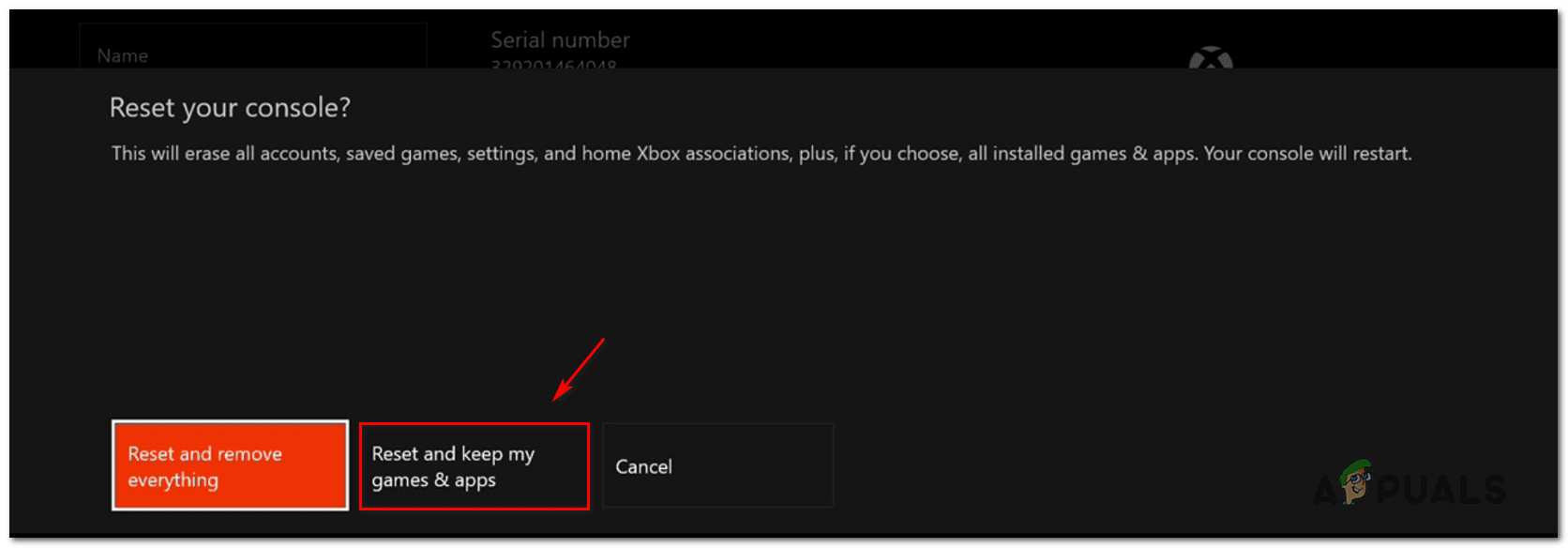
Ничего не помогло? Что же, пора тогда приниматься за сброс консоли Xbox One до заводских настроек. Не переживайте, у вас есть возможность сохранить все свои игры и приложения.
Для сброса своей Xbox One сделайте следующее:
- нажмите на кнопку Xbox на своем контроллере;
- перейдите этим путем:
- ↓Система
- ↓Настройки
- ↓Система
- ↓Сведения о консоли
- выберите опцию «Сбросить, сохранив мои игры и приложения».
Протестируйте консоль и посмотрите, была ли разрешена проблема. Если же ошибка 0x87dd001 все еще донимает вас, то вместо вышеуказанной опции выберите «Сбросить настройки и удалить весь контент», чтобы полностью полностью сбросить консоль и окончательно решить проблему.
Обновлено май 2023: перестаньте получать сообщения об ошибках и замедлите работу вашей системы с помощью нашего инструмента оптимизации. Получить сейчас в эту ссылку
- Скачайте и установите инструмент для ремонта здесь.
- Пусть он просканирует ваш компьютер.
- Затем инструмент почини свой компьютер.
Пользователи Xbox One сообщают, что они столкнулись с кодом ошибки 0x87dd001e после того, как консоль потеряла свои оси для беспроводной связи. Некоторые пользователи сообщают, что для них это делается случайным образом, в то время как другие говорят, что это происходит при каждом запуске консоли. Большинство заинтересованных пользователей продолжают испытывать проблему, даже если они пытаются восстановить соединение. Единственное, что кажется работающим — это перезапуск консоли.
Вы получите следующую ошибку на Xbox One или ПК:
0x87dd001e
Это означает, что у вас есть проблемы с подключением к сервисам Xbox.
Как исправить ошибку Xbox One 0x87dd001e:
Выберите Проверить подключение к сети.
Этот тест должен определить, есть ли у вас работающее интернет-соединение с Xbox One на сетевое устройство.
На ПК
- Запустите консольное приложение Xbox.
- Выберите «Настройки»> «Сеть».
- В разделе «Состояние сети» убедитесь, что в приложении отображается «Подключено».
Обновление за май 2023 года:
Теперь вы можете предотвратить проблемы с ПК с помощью этого инструмента, например, защитить вас от потери файлов и вредоносных программ. Кроме того, это отличный способ оптимизировать ваш компьютер для достижения максимальной производительности. Программа с легкостью исправляет типичные ошибки, которые могут возникнуть в системах Windows — нет необходимости часами искать и устранять неполадки, если у вас под рукой есть идеальное решение:
- Шаг 1: Скачать PC Repair & Optimizer Tool (Windows 10, 8, 7, XP, Vista — Microsoft Gold Certified).
- Шаг 2: Нажмите «Начать сканирование”, Чтобы найти проблемы реестра Windows, которые могут вызывать проблемы с ПК.
- Шаг 3: Нажмите «Починить все», Чтобы исправить все проблемы.

На Xbox One One
- Перезагрузите сетевое устройство (возможно, маршрутизатор).
- Проверьте ваше подключение к Xbox Live:
- Нажмите кнопку Xbox на вашем контроллере, чтобы открыть инструкции.
- Выберите Система> Настройки> Сеть> Настройки сети.
- Выберите Проверить сетевое соединение.
Если вы не получаете сетевых ошибок или не можете исправить отображаемые ошибки, вы можете столкнуться с другими проблемами в сети, которые вызывают Xbox One потерпеть неудачу или обновление системы не удалось. Эти вопросы могут быть следующими:
- Беспроводные помехи
- Высокая потеря пакетов
- Время задержки.
Переключение в автономный режим
Если с помощью метода 1 вы подтвердили, что действительно существует проблема с серверами Xbox Live, вы, скорее всего, можете полностью обойти ошибку 0x87dd001e, настроив консоль для работы в автономном режиме. Но помните, что это сильно ограничивает игровые возможности вашей консоли — как вы понимаете, не каждая игра с многопользовательским компонентом будет работать в автономном режиме.
Несколько пользователей Windows подтвердили, что код ошибки больше не появляется в автономном режиме. Но это неустойчивое решение — считайте его временным решением, пока Microsoft не решит проблемы с сервером.
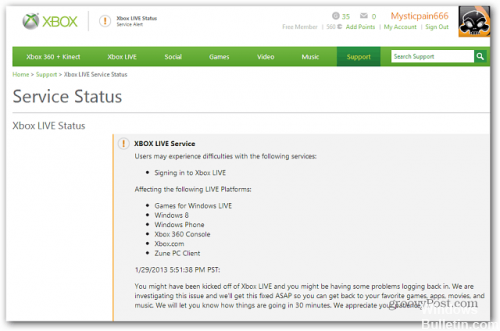
Прежде чем двигаться вперед и пробовать стратегии восстановления, которые работают в ситуациях, когда проблема возникает локально, мы должны убедиться, что проблема не находится под вашим контролем. Обратите внимание, что ошибка 0x87dd001e может возникнуть из-за временной проблемы с сервером Xbox.
Плановое обслуживание или DDoS-атака — это два жизнеспособных сценария, которые могут эффективно помешать вашей консоли подключиться к Интернету. Это случалось несколько раз в прошлом, поэтому, если вы считаете, что этот сценарий применим, продолжайте и проверьте, не является ли проблема с сервером причиной ошибки 0x87dd001e.
Заключение
Также помните, что многие проблемы внутри Xbox можно решить, полностью выключив консоль и отсоединив шнур питания, подождав около пяти минут, а затем снова подключив все.
https://support.xbox.com/en-US/xbox-one/errors/error-code-0x87DD001E
Совет экспертов: Этот инструмент восстановления сканирует репозитории и заменяет поврежденные или отсутствующие файлы, если ни один из этих методов не сработал. Это хорошо работает в большинстве случаев, когда проблема связана с повреждением системы. Этот инструмент также оптимизирует вашу систему, чтобы максимизировать производительность. Его можно скачать по Щелчок Здесь

CCNA, веб-разработчик, ПК для устранения неполадок
Я компьютерный энтузиаст и практикующий ИТ-специалист. У меня за плечами многолетний опыт работы в области компьютерного программирования, устранения неисправностей и ремонта оборудования. Я специализируюсь на веб-разработке и дизайне баз данных. У меня также есть сертификат CCNA для проектирования сетей и устранения неполадок.
Сообщение Просмотров: 341
На чтение 3 мин. Просмотров 2.4k. Опубликовано 15.08.2019
Ошибки на Xbox встречаются не так часто. Они действительно входят в многочисленные буквенно-цифровые коды, которые могут быть немного запутанными. Однако большинство из них легко решить, и, если вы регулярно оплачиваете подписку на Xbox Live, ошибки при входе в систему появляются редко. С другой стороны, если вы столкнетесь с ошибкой, например, 0x87dd0019, код ошибки . У нас есть несколько шагов, которые должны помочь вам решить эту проблему.
Содержание
- Как исправить ошибку входа 0x87dd0019 на Xbox
- 1: выключите и снова включите консоль
- 2. Проверьте состояние служб Xbox Live.
- 3: убедитесь, что ваше соединение не является проблемой
- 4: удалить и восстановить свою учетную запись
Как исправить ошибку входа 0x87dd0019 на Xbox
- Выключите и снова включите консоль .
- Проверьте состояние служб Xbox Live
- Убедитесь, что ваше соединение не является проблемой
- Удалите и восстановите свой аккаунт
1: выключите и снова включите консоль
Давайте начнем с простого решения, которое имеет тенденцию решать все виды проблем Xbox. Это полный сброс или выключение питания, и он обычно устраняет все мелкие ошибки в системе Xbox, в том числе ошибки входа, которые довольно распространены. Остановка – это больше, чем временная вещь, и она решается сама по себе. Однако, если есть что-то еще, энергетический цикл – это движение, чтобы решить его.
Вот как отключить питание консоли Xbox:
- Нажмите и удерживайте кнопку питания в течение 10 секунд.
- Подождите, пока консоль не выключится.
- Через минуту снова включите консоль и найдите изменения.
– СВЯЗАННО: Как исправить нечеткие проблемы с Xbox One
2. Проверьте состояние служб Xbox Live.
Как мы уже указывали, причина ошибок входа редко на стороне пользователя. Службы Xbox Live и выделенные серверы могут временно не работать из-за ошибки или технического обслуживания. Поэтому, прежде чем перейти к шагу по устранению неполадок, приведенному ниже, мы рекомендуем проверить состояние служб Xbox Live.
Вы можете найти статус на официальном сайте, здесь.
3: убедитесь, что ваше соединение не является проблемой

Плохое соединение, вероятно, единственное, что может вызвать ошибки при входе. Имея это в виду, мы предлагаем вам выполнить некоторые основные шаги по устранению неполадок, связанных с сетевым подключением. Некоторые из них должны устранить ошибку, в то время как другие могут помочь вам лучше понять причину.
- ЧИТАЙТЕ ТАКЖЕ: исправьте ошибку входа в Xbox 0x87dd000f с помощью этих 5 решений
Вот что вы можете попробовать исправить проблемы с подключением на Xbox:
- Убедитесь, что вы используете проводное соединение вместо беспроводного.
- Запустить диагностику
- Нажмите кнопку Xbox , чтобы открыть руководство.
- Выберите Настройки .
- Нажмите Все настройки .
- Выберите Сеть .
- Выберите Настройки сети .
- Выберите « Проверить сетевое подключение ».
- Установите статический IP-адрес
- Откройте Настройки, а затем Все настройки .
- Выберите Сеть .
- Откройте Настройки сети > Расширенные настройки .
- Запишите значения IP и DNS (IP, маска подсети и шлюз).
- В разделе «Дополнительные настройки» откройте Настройки IP .
- Выберите Manual .
- Оказавшись здесь, откройте DNS и запишите DNS .
- Введите значения, которые вы написали, и подтвердите изменения в Расширенные настройки .
- Restart Xbox
4: удалить и восстановить свою учетную запись
Наконец, мы можем только предложить удалить и повторно включить вашу учетную запись. После этого некоторым пользователям удалось устранить ошибку входа с помощью кода «0x87dd0019». Как мы уже говорили, это временная проблема, но если вы спешите, это может помочь. Кроме того, мы предлагаем выйти из всех устройств, использующих одну и ту же учетную запись Xbox Live, и войти снова.
С учетом сказанного, мы можем обернуть это. Если у вас есть какие-то дополнительные решения или вопросы, раздел комментариев ниже. Не стесняйтесь поделиться ими с нами.
by Milan Stanojevic
Milan has been enthusiastic about technology ever since his childhood days, and this led him to take interest in all PC-related technologies. He’s a PC enthusiast and he… read more
Updated on March 25, 2020
XINSTALL BY CLICKING THE DOWNLOAD FILE
This software will keep your drivers up and running, thus keeping you safe from common computer errors and hardware failure. Check all your drivers now in 3 easy steps:
- Download DriverFix (verified download file).
- Click Start Scan to find all problematic drivers.
- Click Update Drivers to get new versions and avoid system malfunctionings.
- DriverFix has been downloaded by 0 readers this month.
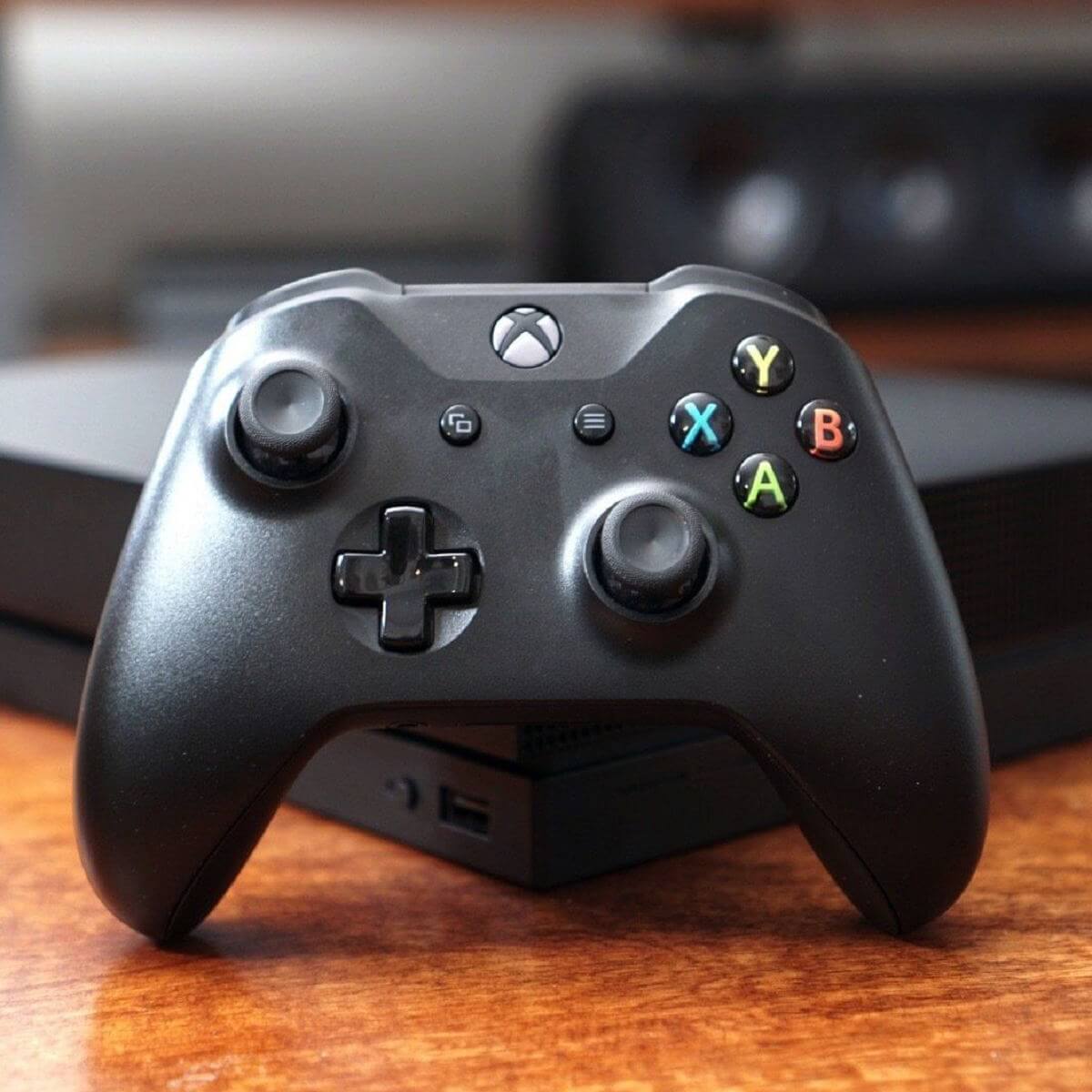
A number of people have reported seeing the Xbox One error 0x87dd001e after the console lost its axes to wireless. If you’re also experiencing this issue, you’re no doubt very frustrated. But don’t worry, it can be fixed.
Before moving forward and trying repair solutions that work in situations where the problem occurs locally, make sure you aren’t facing a temporary issue with the Xbox server. Once this option is ruled out, network status glitches and corrupted temporary folders step in as potential culprits.
Therefore, waste no more time and use the following solutions to resolve this problem.
What can I do when getting Xbox One error 0x87dd001e?
1. Perform a full power cycle of your console
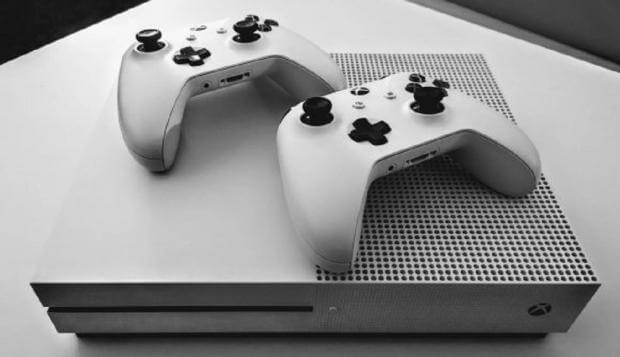
Firstly, you should power cycle your console. This procedure will successfully help you to eliminate the majority of temporary files that might cause this sort of issue, so you know what you have to do.
Immediately hold the Power button on the console for 10 seconds or until the power shuts down completely. Unplug the power cord from the back of the console. Plug the power cord back in after waiting around 5 minutes to ensure that the procedure is successful, then restart the console.
Do so by pressing the Xbox button on your console to turn it on and you should now see the green boot-up animation.
2. Reset the alternate MAC address
- Press the Xbox button to bring up the guide overlay.
- Then, select System > Settings.
- Choose All Settings from the context menu.
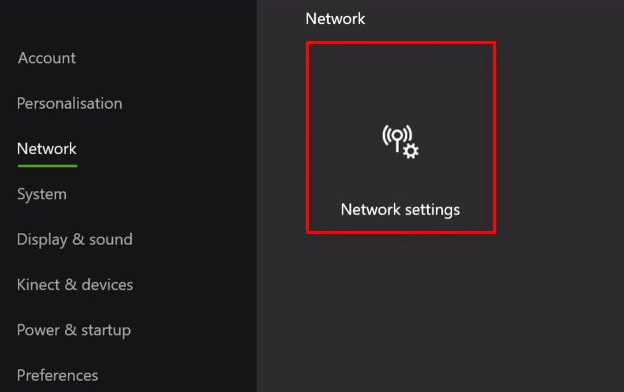
- Once you manage to get inside the Settings menu, go to Network settings.
- From the Network menu, move to the Advanced Settings menu on the left-hand side.
- With the Advanced settings menu selected, choose the Alternate MAC address from the list of available options.
- Don’t hesitate to hit the Clear button.
- Up next, hit the Restart button to apply the changes.
- At the next startup sequence, log-in with your account once again and see if the error persists.
So, if you still get the Xbox One error 0x87dd001e, then we strongly recommend that you clear the alternate MAC address from the Xbox One settings menu. This solution is effective if the ISP that’s being used is providing a dynamic IP.
You can’t open Xbox One guide? Take a look at this step-by-step procedure to find a solution.
3. Factory reset your Xbox One
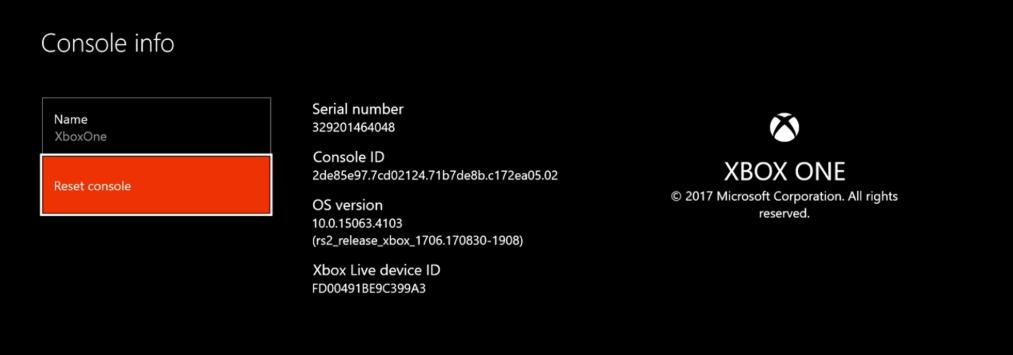
- Press the home button on your Xbox One controller.
- Navigate to the System Menu and select Settings.
- Go to System > Console info.
- Select Reset console next.
- At this point, you have the option to either Reset and remove everything or Reset and keep my games & apps (you may also cancel and back out if you’re undecided).
- Select the Reset and keep my games & apps section.
- Hit the X button to start the procedure.
- Once you’ve selected that, the console will proceed with erasing content, which could take several minutes.
- Your console will eventually restart automatically.
We have also managed to identify several user reports in which a factory reset resolved the issue entirely. The best part is that Microsoft makes this very easy to do, whether you want to keep your games and apps installed, or give your console a fresh start.
Anyway, if you choose to keep them installed, note that the procedure will still remove all personal files and associations from the console. All your saved games, achievements, settings, and accounts are though synced up with Xbox Live.
This happens automatically when connected to the Internet, so be sure to go online before initiating the reset. That’s a procedure you can apply any time things go awry, so bookmark this page as you never know when you might need to apply it again.
If you have any other questions or suggestions, don’t hesitate to let us know in the comments section below.
Still having issues? Fix them with this tool:
SPONSORED
Some driver-related issues can be solved faster by using a dedicated tool. If you’re still having problems with your drivers, just download DriverFix and get it up and running in a few clicks. After that, let it take over and fix all of your errors in no time!

Several Xbox One users are reporting that they are encountering the 0x87dd001e error code after the console loses axes to the Wireless. Some users are reporting that for them, this occurs randomly while others say that it happens at every console startup. The majority of affected users that the issue persists even if they attempt to log in again. The only thing that seems to work is a console restart.
What’s causing the 0x87dd001e Error?
We analyzed this particular issue by looking into various user reports and by testing out different repair strategies that other affected users have successfully used to get around this error code. As it turns out, several different scenarios might end facilitating the apparition of this issue. Here’s a shortlist with scenarios that might trigger this error code:
- Server issue – You may be seeing this error code due to a server issue that’s preventing the validation of your game library. This can happen due to a DDoS attack or due to a scheduled maintenance period. In this case, one way that will allow you to avoid the issue entirely is to switch your console mode to Offline mode.
- Network status glitch – This issue can occur in instances where your network status gets stuck into a limbo state (it’s neither online or offline). If this scenario is applicable, you should be able to resolve the issue by clearing the alternate MAC address.
- Corrupted temp folder – Judging by the various user reports, this particular fix can also be caused by one or more corrupted files that are stuck inside the Temp folder of your console. In cases like this, the easiest fix is to perform a power-cycling procedure which will clear the temp folders and drain the power capacitors, which will end up fixing the issue in most cases.
- Firmware issue – Under certain conditions, this particular issue can also surface due to a firmware glitch or some type of OS file that has become corrupted and is interfering with the library validation process. In situations like this one, the only viable fix that will not produce data loss is to perform a factory reset.
If you’re currently encountering the same error code and you’re looking for a viable fix, this article should provide you with several repair strategies. Down below, you’ll find several different fixes that have been confirmed to be effective by other users that were struggling to fix the very same error message.
If you want to be as efficient as possible, we encourage you to follow the instructions below in the same order that we arranged them in (via efficiency and severity). Eventually, you should stumble upon a fix that will resolve the issue regardless of the error code that’s causing the problem.
Let’s begin!
Method 1: Checking the status of Xbox servers
Before we move forward towards trying out some repair strategies that are effective in situations where the issue is occurring locally, let’s make sure that the problem is not beyond your control. Keep in mind that the 0x87dd001e error may be occurring due to a temporary Xbox server issue.
Scheduled maintenances or a DDoS attack are both viable scenarios that might effectively stop your console’s ability to connect to the internet. This happened in the past multiple times, so if you think this scenario is applicable, go ahead and investigate if a server issue is what’s causing the 0x87dd001e error.
To do this, simply visit this link (here) and see if any Xbox services that are being used by your console are currently affected by an outage period.
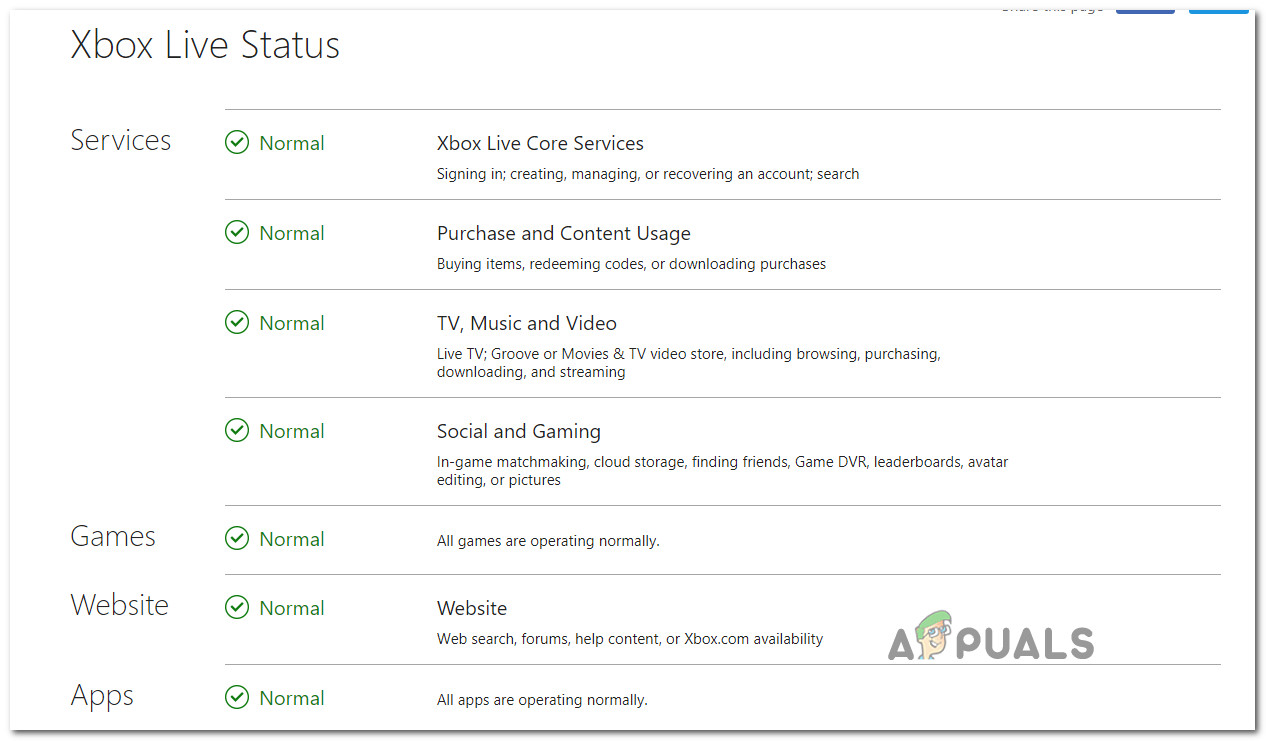
If the investigation above has revealed that there are indeed some server issues that might limit the online capabilities of your Xbox One console, move directly to the next method below to learn how to use your console in Offline mode.
If the verification you’ve just performed didn’t reveal any sever problems, skip the next method and move directly to Method 3 for step by step instructions on resolving a local issue.
Method 2: Switching to Offline Mode
If you’ve used Method 1 to confirm that there’s indeed a problem with the Xbox Live servers, you can most likely circumvent the 0x87dd001e error entirely by configuring your console to run in Offline Mode. But keep in mind that this will severely limit your console’s ability to play certain games – As you can imagine, every game with a multiplayer component will not work in Offline Mode.
Several Windows users have confirmed that the error code stopped occurring while Offline mode was enabled. But this is not a sustainable solution – think of it as a temporary workaround until Microsoft managed to fix the server issues.
Here’s a quick guide on switching your console mode to Offline mode to circumvent the 0x87dd001e error:
- With your Xbox One console open, press the Xbox button to open up the guide menu. Then, once you’re inside the newly appeared menu, navigate to Settings > System > Settings > Network.
- After you manage to access the Network menu, navigate to the Network settings menu, then choose the Go offline menu.

Going Offline on Xbox One - Once you get this far, your console should be already in Offline mode. All you have to do now is restart your console.
- After the next startup is completed, launch a game and see if the 0x87dd001e error returns.
Note: Once the server issue is resolved, you can exit Offline mode to start using the online features once again.

In case this method wasn’t applicable or you’ve followed it and you’re still encountering the 0x87dd001e error, move down to the next method below.
Method 3: Performing a power-cycling procedure
If the investigations you performed at the beginning are pointing towards a local issue, the most efficient way of resolving the 0x87dd001e error without any data loss is to perform a power cycle.
This procedure will manage to get rid of the majority of temporary files that might cause an issue of this kind. The most important thing is that the operating completely drains the power capacitors, which will end up resolving the vast majority of firmware-related issues that might trigger this error code.
We’ve managed to identify several user reports with affected users that have managed to resolve the issue entirely by following the instructions below. Here’s a quick guide on performing a power-cycling procedure on your Xbox One console to fix the 0x87dd001e error:
- Ensure that your console is fully powered on (it won’t work if from Hibernation mode).
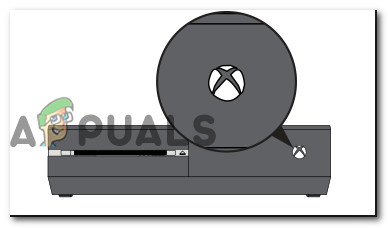
- Then, press the Xbox button (on the front of your console) and keep it pressed for about 10 seconds or until the front LED stops flashing. Once you see that the LED stops flashing, release the button.

Perform a hard reset on Xbox One - After the operation is complete, and your console is fully powered off, physically disconnect the cable from the power outlet and wait a full minute to ensure that the procedure is successful.
- Once that time period has passed, press the Xbox console button once again (don’t keep it pressed like before).
- During this startup sequence, keep an eye to see if the animation logo appears. If it does, take it as a confirmation that the power-cycling procedure was successful.

Xbox One starting the animation - After the startup sequence is complete, attempt to recreate the operation that was previously causing the 0x87dd001e error and see if the issue is now resolved.

If the same problem is still occurring, move down to the next method below.
Method 4: Logging in manually after cleaning the MAC address
As it turns out, this issue can also occur due to an improper alternate MAC address. This is confirmation that a network inconsistency can also be responsible for the miscommunication between the console and the Xbox servers.
Several affected users have reported that they managed to resolve the issue by accessing the Network menu and cleaning the alternate MAC address. After doing this and signing in with their account again at the next startup, the 0x87dd001e error stopped occurring for them. We noticed that this procedure is effective in instances where the ISP that’s being used is providing a dynamic IP.
Here’s a quick guide on clearing the alternate MAC address from the Xbox One settings menu:
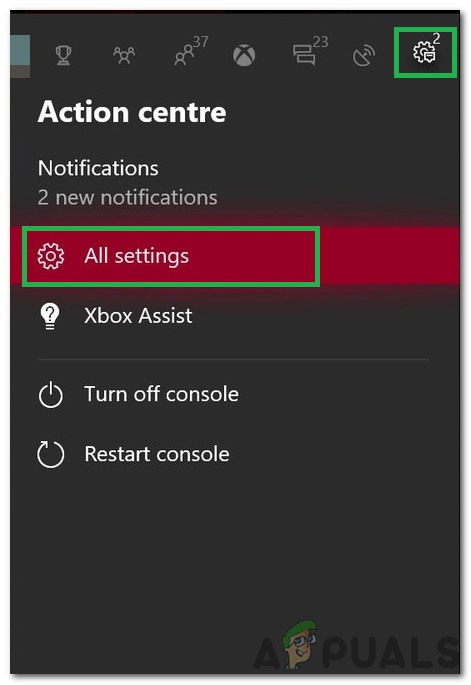
- Make sure that your console is fully turned on, then press the Xbox One button on your controller to open up the guide menu. Next, from the newly opened menu, navigate to the Settings icon and choose All Settings from the context menu.

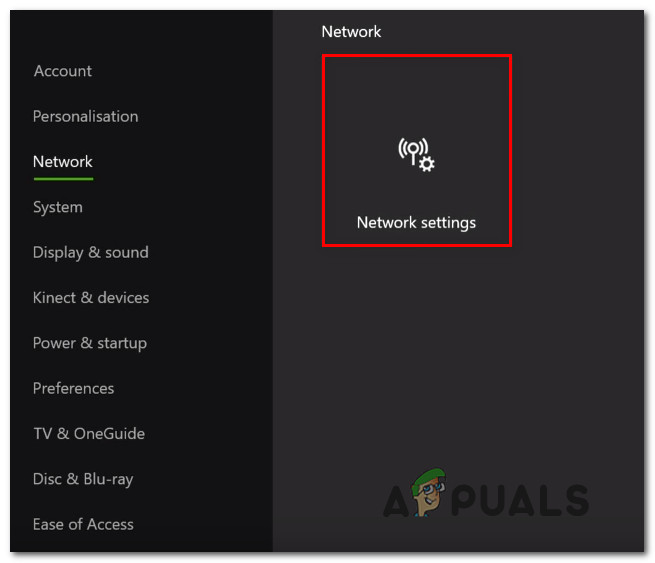
Clicking on “All Settings” - Once you manage to get inside the Settings menu, go to Network settings.

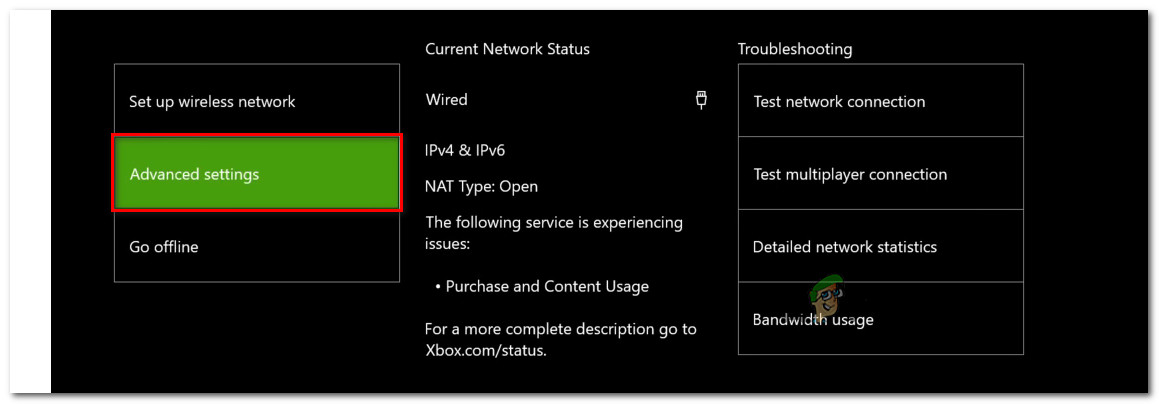
Accessing the Network Settings tab - From the Network menu, move to the Advanced Settings menu on the left-hand side.

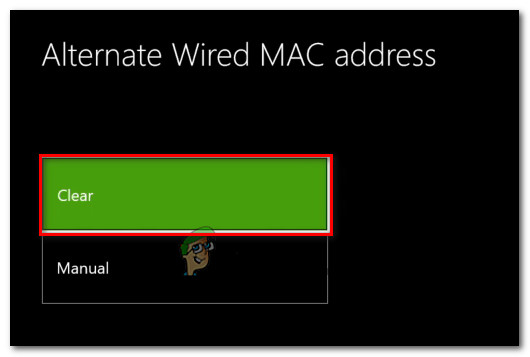
Accessing the Advanced settings menu of the Network tab - With the Advanced settings menu selected, select the Alternate MAC address from the list of available options. At the next menu, hit the Clear button, then access the Restart button to apply the changes.

Clearing the Alternate Wired MAC address - At the next startup sequence, log-in with your account once again and see if the error stops occurring.
If you’re still being signed out with the 0x87dd001e error, move down to the final method below.
Method 5: Performing a factory reset
if none of the potential fixes above have allowed you to resolve the issue and you’ve previously confirmed that the problem is only happening locally, you’re likely dealing with some type of firmware or software glitch that cannot be resolved conventionally. In cases like this, the only viable fix that will fix the problem is to perform a factory reset.
Some users that were also struggling to resolve the same problem have confirmed that they managed to fix the 0x87dd001e error by performing a factory reset. This procedure will end up replacing any corrupted data that might be responsible for the problem.
Keep in mind that this procedure doesn’t necessarily mean that you’ll lose your data. You can go for a soft reset that will only touch OS files – your apps, applications and your social account integrations will remain intact.
Here’s a quick guide on performing a soft reset on your Xbox One console:
- With your console fully turned on, press the Xbox button on your controller to bring up the guide menu. Once you’re inside, navigate to System > Settings > System > Console Info.
- Once you’re inside the Console Info menu, access the Reset console option from the left-hand side section of the screen.

Performing a soft factory reset - From the Reset console menu, select Reset and keep my games & apps sections and hit the X button to start the procedure.

Soft Resetting Xbox One Note: If you want to revert anything to the default, select Reset and remove everything instead.
- Once the process has been started, wait patiently until the operation is complete. As soon as the operation is finished, your console will restart automatically.
- At the next startup sequence, repeat the action that was previously causing the 0x87dd001e error and see if the problem is now resolved.