
Stuck with SQL Error 17051 “Server Evaluation Edition to Enterprise Edition”? We can help you.
Generally, we use the SQL Server evaluation edition for test purposes before deployments.
If the validity of the Evaluation period exceeds, then SQL Server will shut down and will not come online.
To keep it running we need to activate this SQL Server instance to a licensed version.
As part of your Server Management Services, we assist our customers with several SQL queries.
In this article, let us see how to upgrade SQL Server Evaluation edition to Enterprise, Standard, or Developer edition.
SQL Error 17051 “Server Evaluation Edition to Enterprise Edition”
Recently, one of our customers had his SQL Server Instances suddenly stop working and shut down automatically. The services were not back online.
In addition, it was even impossible to launch SQL Server Management studio.
On further check on windows event viewer, we saw multiple event IDs for SQL Server like Event ID 7024, Event ID 17051, etc.
If the SQL Server evaluation period expires, we will get this error.
In the event viewer, the event id 7024 says something wrong with the application SQL Server.
The SQL Server error log shows:
Error: 17051, Severity: 16, State: 1.
SQL Server evaluation period has expired.
We ensure the version of SQL Server is SQL Server Evaluation version on this database server. We can launch the property window of SQL Server service in SQL Server Configuration Manager to find it.
Then we upgrade the SQL Server evaluation edition to bring it online to work as before.
To start this, we need SQL Server setup files to perform this upgrade. Follow the below steps to activate the expired SQL Server evaluation version to either standard, enterprise, or developer edition.
Upgrade SQL Server Evaluation Edition to Enterprise Edition
- Initially, we decide on the edition, copy its setup files to the target SQL Server machine.
- Then we launch SQL Server Installation Center to run this upgrade. Run them using a sysadmin account.
- Double click on Setup.exe file to start the upgrade. We will get SQL Server Installation Center once we run setup.exe file.
- Click on the “Maintenance” tab and then click on the “Edition Upgrade” option.
- Once we click on Edition upgrade, we will have a screen to enter the product key of SQL Server.
- Verify the correct product key and click on Next to proceed.
- Then we will get a pop-up “Evaluation period has expired”. Click Ok to proceed.
- Next will be to accept the License Terms. Click Next after selecting the “I accept license terms” checkbox.
- Verify the SQL Server instance and click Next to proceed. Now the edition will show as Evaluation.
- Once we click Next, rules will be checked by the setup and we can see the progress bar.
The final window is to recheck and verify the details. Once done, click on the “Upgrade” button to start the upgrade.
Eventually, the process will end up with a new upgraded edition. We activate SQL Server to run it on our server and it upgrades the Enterprise edition.
In addition, we can check the new edition by launching the property window of the SQL Server service in the SQL Server Configuration window.
Now we can go ahead and launch SQL Server Management Studio and establish a database connection to check all details to ensure everything is perfect on the database server.
[Need help with the error? We are available 24*7]
Conclusion
In short, we saw an effective method to resolve SQL Error 17051.
PREVENT YOUR SERVER FROM CRASHING!
Never again lose customers to poor server speed! Let us help you.
Our server experts will monitor & maintain your server 24/7 so that it remains lightning fast and secure.
GET STARTED
var google_conversion_label = «owonCMyG5nEQ0aD71QM»;
In this article, we are going to Troubleshoot SQL Service Error. I recently had a client called me and told me that their application stopped working, and they did not know precisely the issue and asked me to investigate it and resolve the issue. As the client’s data center is far from my place, I decided to take the server remote access using VPN and started the investigation.
When I started accessing the app, the app was spitting out that the database was not accessible from the app server. So, I logged into the Microsoft SQL server and started checking the status of the service. I saw the SQL server instance on services not running, and when I tried to start the service, I get the following error. We are going to troubleshoot SQL Service Error 1051 in this article.
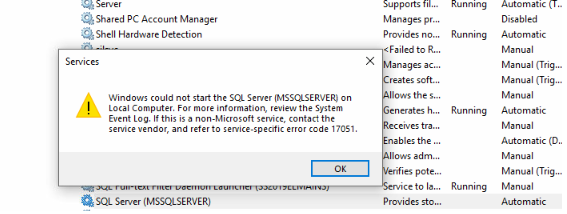
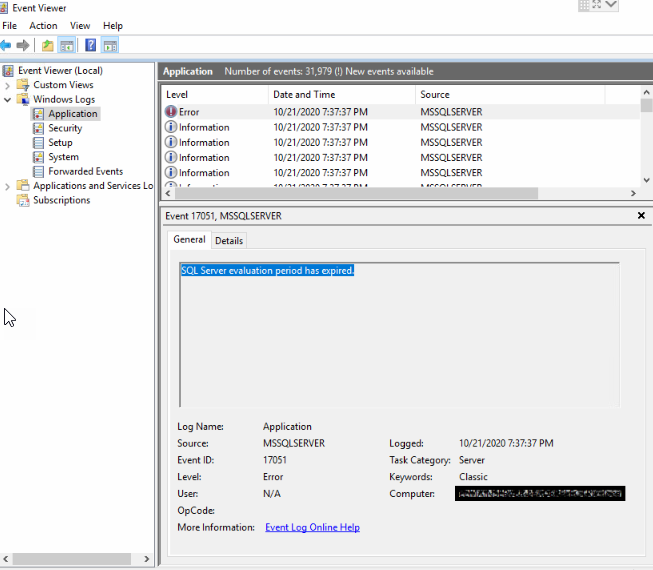
As mentioned in the services warning, I went to the system log on the MS SQL server and analyzed the records. I found that the MS SQL server was running on evaluation and stopped working after the evaluation period. So I confirmed license is the issue.
I pointed this to my client and requested them to arrange for the license and its product key.
Upgrade MS SQL server instance edition to Troubleshoot SQL Service Error
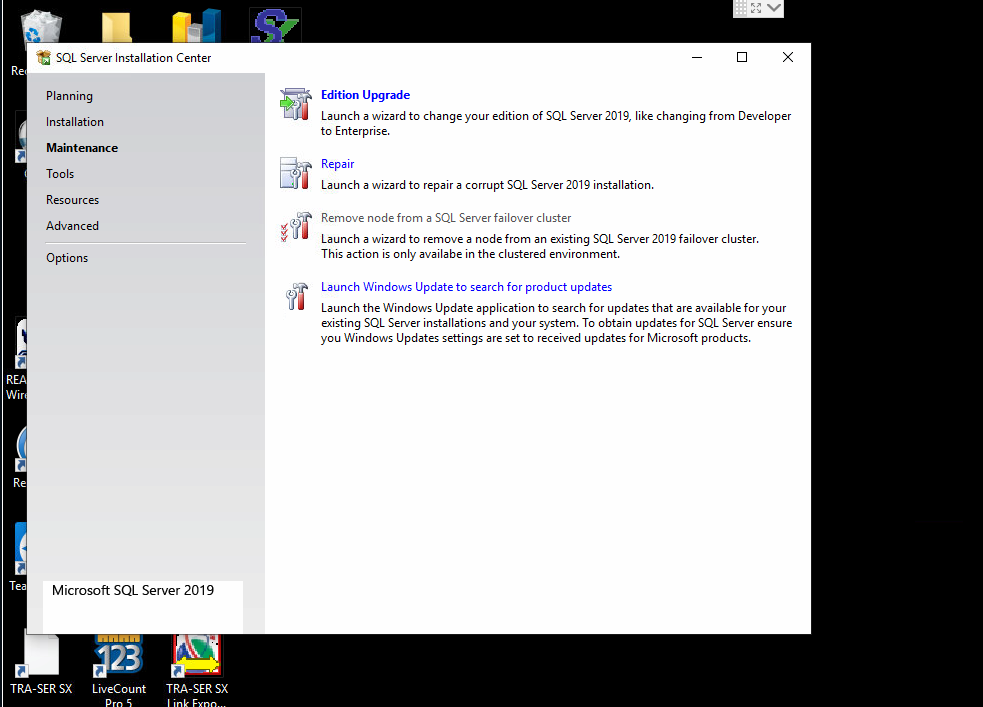
I got the license key and launched the SQL installation center from StartàMicrosoft SQL 2017àSQL installation center. You can launch this from launching setup.exe on MS SQL server installation media as well. Once the Installation center is launched, click Maintenance on the left side navigation and click Edition upgrade.
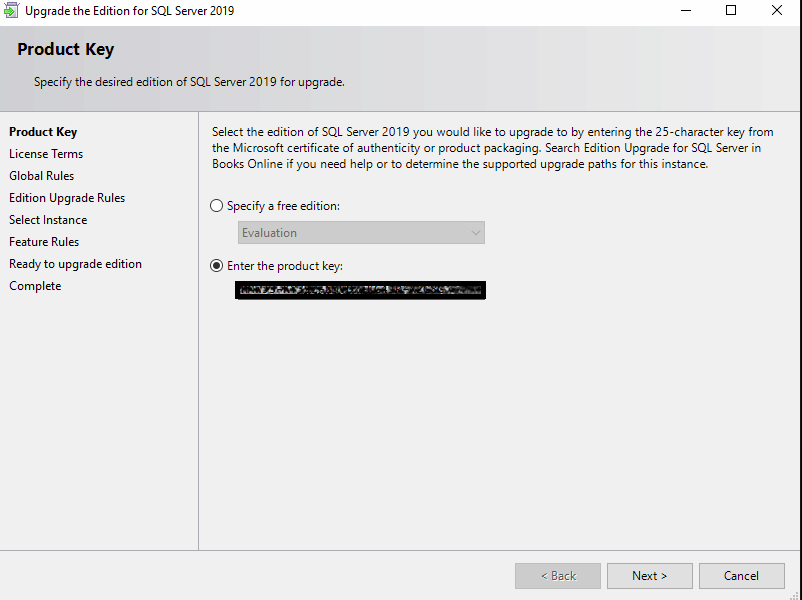
On the product key page, select ”Enter the product key,” and type the product key and click Next.
Accept the license terms and click Next.
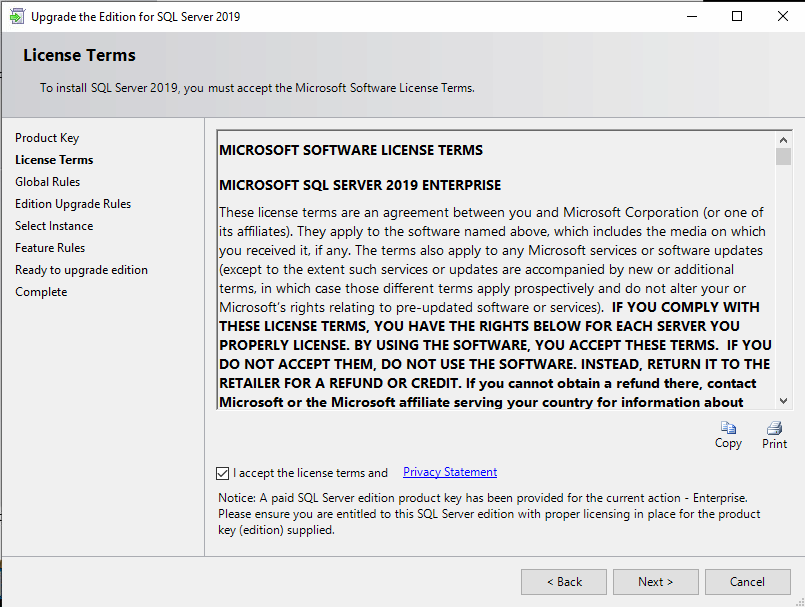
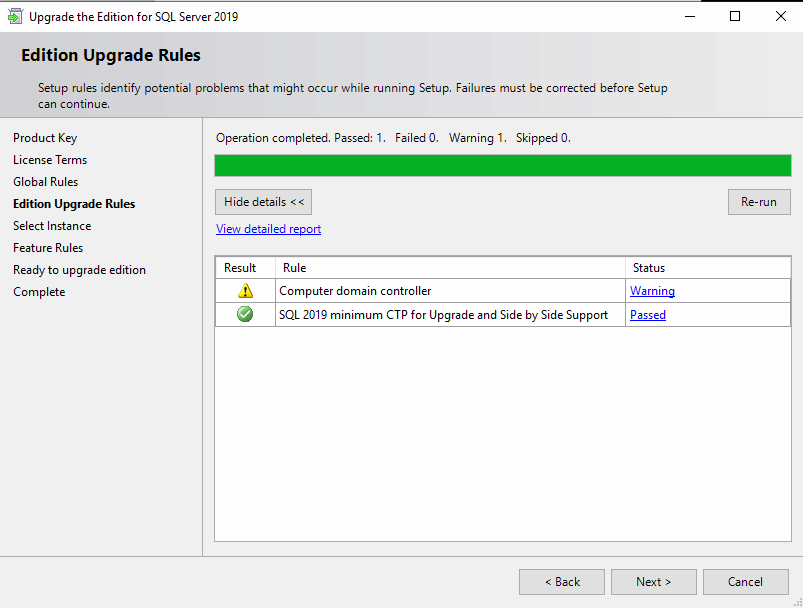
Verify the Edition upgrade rules do not have any error. The SQL server is installed on the domain controller in my environment, so ignore the warning and click on Next.
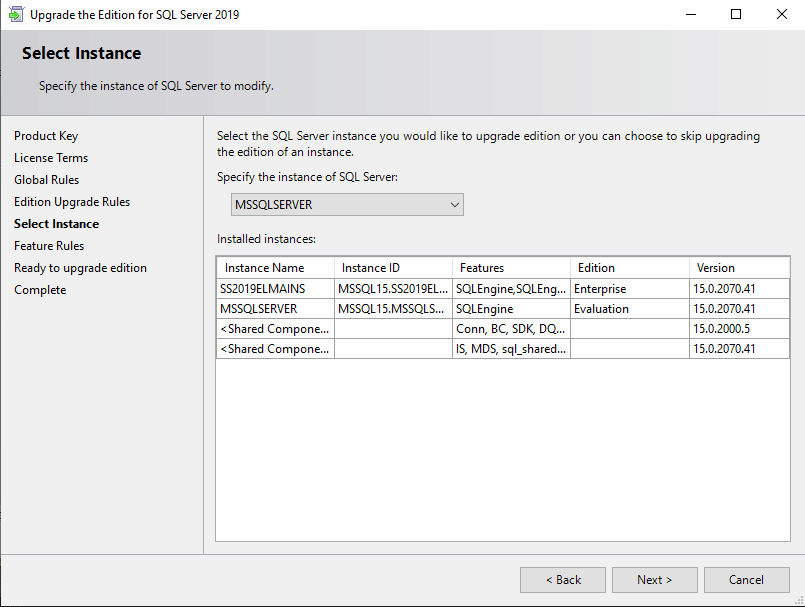
Select the instance you want to upgrade. You can see the instance name and select that instance. In this case, MSSQLSERVER instance, which pointed out with evaluation. Select the instance and click Next.
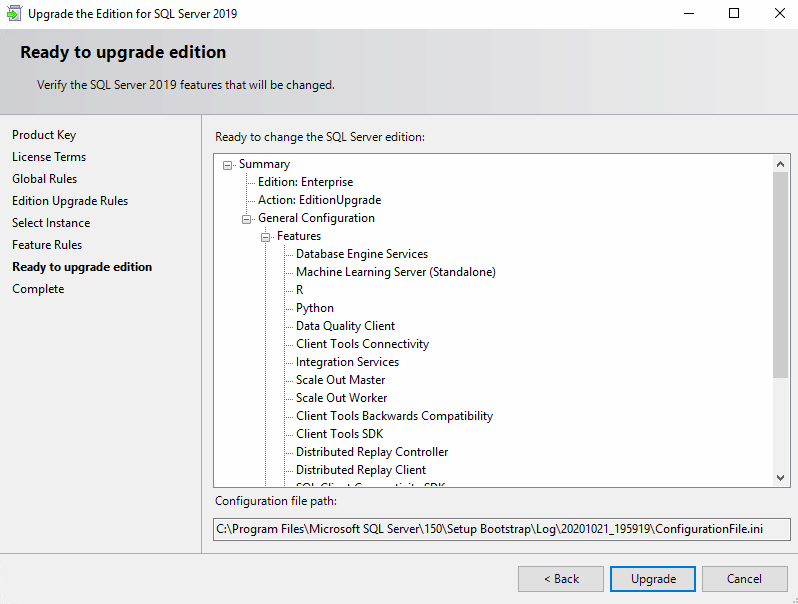
Once the ”Ready to upgrade edition” page click upgrade.
The upgrade process will take about 5 mins to complete; wait if it even takes more than that.
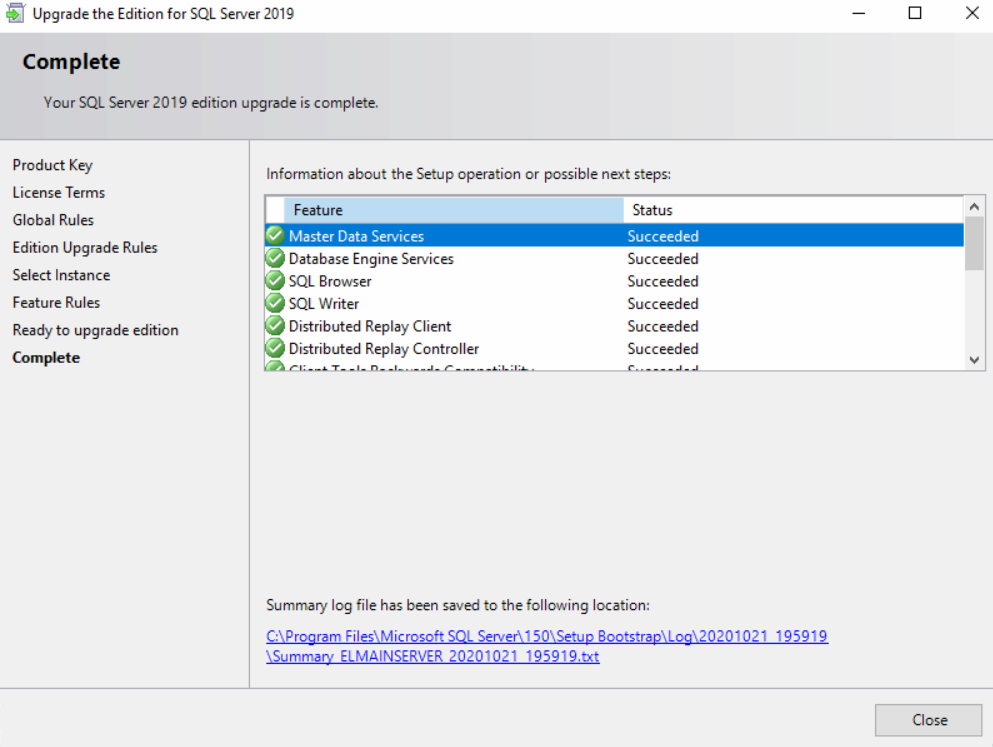
Once the upgrade is over, you will get a complete status. All succeeded with a green tick stating that Microsoft SQL edition upgraded.
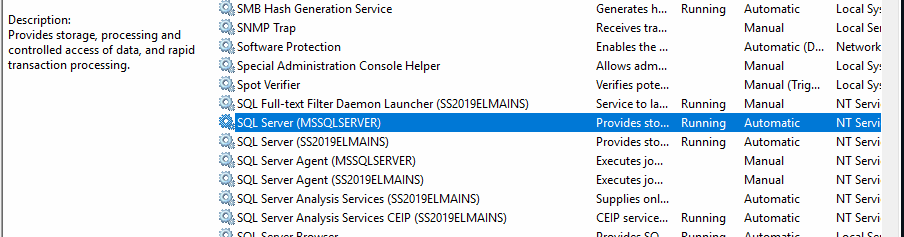
Now for to services and start the Microsoft SQL instance service, and you see the service running.
Conclusion:
In this article, we gone through troubleshooting the SQL server instance services not starting issue and upgrading the SQL server edition for a particular instance. If you want to learn more about MS SQL click here and for installation guidance click here.
I would like to hear from you if you come across any issues doing this or have any feedback to share. I look forward to sharing our thoughts in the comments section, and I sign off for now
Tested with SQL Server 2008 and 2012.
SQL Server might not start from all variety of reasons including permission issues, master database not available or corrupted, service account issues, etc. In this article I will talk about diagnose of failed service start and how to fix %%17051 error.
Diagnostic SQL Server service failed to start
General information are being logged into Event log whereas additional information are being logged into Error Log located by default in DRIVE_LETTER:Program FilesMicrosoft SQL ServerMSSQL10_50.MSSQLSERVERMSSQLLogERRORLOG
When SQL Server does not start which you would find out by simply looking into configuration manager

Then first place where you should start looking is the Event Log System category. Find an error generated by Service Control Manager.

Let’s take a look into the Error Log

Mind the row number 13 “SQL Server evaluation period has expired.” Now you have two options. Uninstall your evaluation copy of SQL Server or run Edition Upgrade – you will need to enter your Product Key during upgrade process.
Edition Upgrade
For Edition Upgrade you will need SQL Server setup files. In SQL Server Installation center navigate to Maintenance section and click Edition Upgrade.

Check whether all Setup Support Rules are marked as Passed and click OK.

Again check whether all Rules are marked as Passed or Not applicable and click Next.
In Product Key step change Radio Button to option Enter the product key and type in your key. If you are using a VLK SQL Server version a Product Key will be already entered at this point.

In next steps accept license terms, specify your instance you wish to upgrade, check edition upgrade rules and finally click Upgrade button.

I my case Upgrade and Back button had been gray for a few minutes. When the upgrade process is done you will see similar screen with link to Setup Boostrap Log.

Now you might need to start your SQL Server Services manually.

When you connect to your instance you may check your edition by running script bellow.
1
SELECT @@VERSION

Note for SQL Server setup files
Your setup files does not need to be at same Service Pack level as your instance (no need for slipstreaming). Also you can Edition Upgrade from Standard to Enterprise, Developer and/or Business Intelligence and vice versa between all versions.
- Remove From My Forums
-
Question
-
Hello Everyone,
A while ago my I installed SQL Server 2016. And it was working fine.
Suddenly when I was working with Transact SQL, my Server got disconnect automatically and not starting again even showing this error, I don’t know what do now. I have some important data in it.
«The request failed or the service did not respond in a timely fashion.
Consult the event log or other applicable error logs for details.»Please suggest something to solve this problem.
Any help and suggestions will be appreciated.
Thanks,
Akash
Answers
-
may be you have installed Evaluation edition and the period has expired. You need to upgrade to paid edition or simply
download and install developer edition for free or upgrade to developer edition. This is just a guess please look at event viewer for exact message
Cheers,
Shashank
Please mark this reply as answer if it solved your issue or vote as helpful if it helped so that other forum members can benefit from it
My TechNet Wiki Articles
MVP-
Marked as answer by
Friday, January 13, 2017 12:01 PM
-
Marked as answer by
-
Try to start SQL Server from the command prompt to see what the error message is.
Try this from a command prompt:
C:Program FilesMicrosoft SQL ServerMSSQL12.MSSQLSERVERMSSQLBinnSQLServr.exe -sSQL2012
Here the name of my instance is SQL2012
Messages will appear on the screen and give you a good indication of what the problem is.
-
Marked as answer by
akash_singhal
Friday, January 13, 2017 1:43 PM
-
Marked as answer by
пятница, 22 февраля 2013 г.
Ошибка запуска MS SQL 17051
«Не удалось запустить службу SQL Server на SQLSERVER. Подробности содержатся в журнале системных событий. Если эта служба разработана не в Майкрософт, обратитесь к разработчику службы, и сообщите специфический для этой службы код ошибки 17051»
Связана с проблемой с ключем.
Для решения —
Пуск — Все программы — Microsoft SQL Server 2008 R2 — Средства настройки = Центр установки SQL Server (64-разрядная версия)
После запуска — выбираем слева «Обслуживание» и далее «Обновление выпуска» . Вводим имеющийся ключ.
General information are being logged into Event log whereas additional information are being logged into Error Log located by default in DRIVE_LETTER:Program FilesMicrosoft SQL ServerMSSQL10_50.MSSQLSERVERMSSQLLogERRORLOG
When SQL Server does not start which you would find out by simply looking into configuration manager …

… Then first place where you should start looking is the Event Log – System category. Find an error generated by Service Control Manager.

Sometimes error codes are “G oogleable ” “Bingable” through the Error Log (path is mentioned above) messages are more verbose. Let’s take a look into the Error Log …

Mind the row number 13 “SQL Server evaluation period has expired.” Now you have two options. Uninstall your evaluation copy of SQL Server or run Edition Upgrade – you will need to enter your Product Key during upgrade process.
For Edition Upgrade you will need SQL Server setup files. In SQL Server Installation center navigate to Maintenance section and click Edition Upgrade.

Check whether all Setup Support Rules are marked as Passed and click OK.
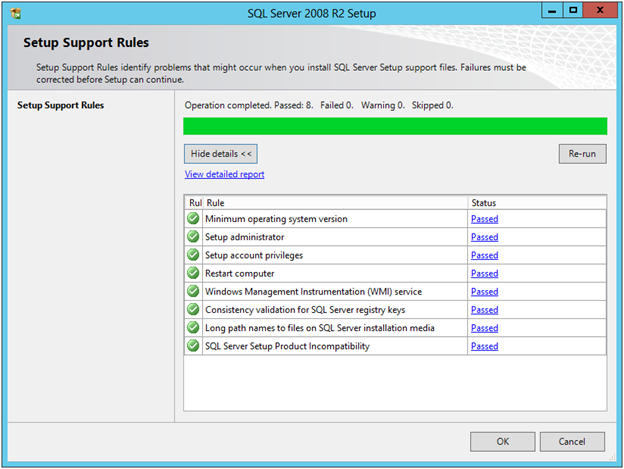
Again check whether all Rules are marked as Passed or Not applicable and click Next.
In Product Key step change Radio Button to option Enter the product key and type in your key.
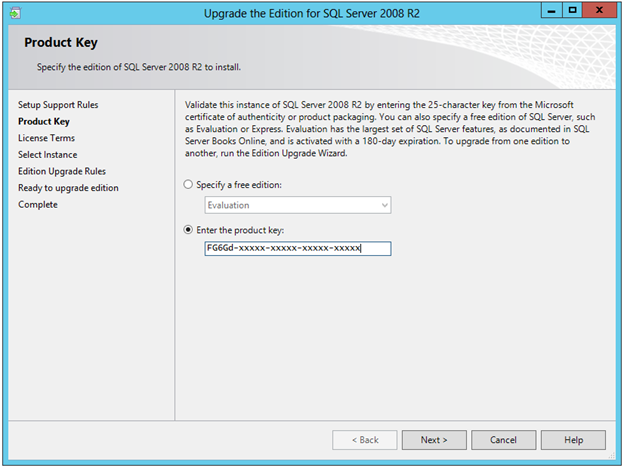
In next steps accept license terms, specify your instance you wish to upgrade, check edition upgrade rules and finally click Upgrade button.

I my case Upgrade and Back button had been gray for a few minutes. When the upgrade process is done you will see similar screen with link to Setup Boostrap Log.

Now you might need to start your SQL Server Services manually.

When you connect to your instance you may check your edition by running script bellow.

Your setup files does not need to be at same Service Pack level as your instance (no need for slipstreaming). Tested by myself 🙂
SQL DBA – Windows could not start the SQL Server… refer to service-specific error code 17051 – SQL Server Evaluation period has expired
Ok, one fine day you opened SSMS (SQL Server Management Studio) and tried to connect to a SQL Instance, but it is not getting connected. You are getting following error message on a popup box:
–> You may also get following error:
—————————
Microsoft SQL Server Management Studio
—————————
Evaluation period has expired. For information on how to upgrade your evaluation software please go to http://www.microsoft.com/sql/howtobuy
—————————
OK
—————————
–> Investigate
Go to RUN and type services.msc to open Services window and see that SQL Server services are not running. On starting the SQL Server service it is giving you following message with error code 17051:

Now as per the error message you open the Event Viewer and see that the Event with ID 17051, which shows SQL Server Evaluation period has expired under Details section:

Now, you recall that the Instance that you had installed was under Evaluation of 180 days, because you didn’t applied any Product Key. So, now how can you make it live again? All you need is a Product key of SQL Server and some clicks:
1. Open the SQL Server Installation Center and click on Maintenance link, and then click on Edition Upgrade: 
2. Now on the Upgrade window Click Next and you will reach the Product Key page, apply the Key and click Next: 
3. On the Select Instance page, select the SQL Instance that you want to fix and Click next. It will take some time and finally you will see a final window and click Upgrade: 
4. Finally you will see the successful window, click on Close button: 
–> But, if the above process fails at Engine_SqlEngineHealthCheck step or anywhere in between, then you can use following command line installation option to skip this specific rule to allow the upgrade process to complete successfully:
a) Open Command Prompt (CMD)
b) Go to the folder where SQL Server Setup, setup.exe file is located (like C:Program FilesMicrosoft SQL Server110Setup BootstrapSQLServer2012)
c) Apply following command: setup.exe /q /ACTION=editionupgrade /InstanceName=MSSQLSERVER /P >
The should be the 25 digit Key.
The above command line runs SQL Server setup in silent mode.
5. Now Restart the SQL Server Service for this Instance, and you will see it running fine.
–> Finally, go back to SSMS and now you can connect to the SQL Instance.