
Не удалось получить доступ к службе установщика Windows Installer — как исправить
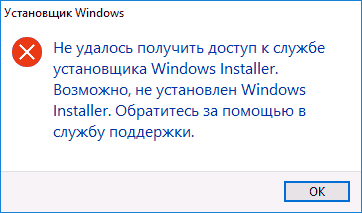
 При установке программ и компонентов Windows, распространяемых в виде установщика с расширением .MSI вы можете столкнуться с ошибкой «Не удалось получить доступ к службе установщика Windows Installer». С проблемой можно столкнуться в Windows 10, 8 и Windows 7.
В этой инструкции подробно о том, как исправить ошибку «Не удалось получить доступ к службе установщика Windows Installer» — представлено несколько способов, начиная с более простых и часто более эффективных и заканчивая более сложными.
Примечание: прежде чем приступать к следующим шагам, рекомендую проверить, а есть ли на компьютере точки восстановления (панель управления — восстановление системы) и использовать их, если они в наличии. Также, если у вас отключены обновления Windows, включите их и выполните обновление системы, часто это решает проблему.
Проверка работы службы «Установщик Windows», её запуск при необходимости
Первое, что следует проверить — не отключена ли служба «Установщик Windows» по какой-либо причине.
Для этого выполните следующие простые шаги
- Нажмите клавиши Win+R на клавиатуре, введите services.msc в окно «Выполнить» и нажмите Enter.
- Откроется окно со списком служб, найдите в списке «Установщик Windows» и дважды нажмите по этой службе. Если служба отсутствует в списке, посмотрите, есть ли там Windows Installer (это одно и то же). Если же нет и её, то о решении — далее в инструкции.

- По умолчанию, тип запуска для службы должен быть установлен в положение «Вручную», а обычное состояние — «Остановлена» (она запускается только в процессе установки программ).
- Если у вас Windows 7 или 8 (8.1), а тип запуска для службы Установщик Windows установлен в «Отключено», измените на «Вручную» и примените настройки.
- Если у вас Windows 10 и тип запуска установлен «Отключена», вы можете столкнуться с тем, что изменить тип запуска в этом окне нельзя (такое может быть и в 8-ке). В этом случае выполните шаги 6-8.
- Запустите редактор реестра (Win+R, ввести regedit).
- Перейдите к разделу реестраи дважды нажмите по параметру Start в правой панели.
- Установите для него значение 3, нажмите Ок и перезагрузите компьютер.


Также, на всякий случай проверьте тип запуска службы «Удаленный вызов процедур RPC» (от него зависит работа службы установщика Windows) — он должен быть установлен в «Автоматически», а сама служба — работать. Также на работу могут влиять отключенные службы «Модуль запуска процессов DCOM-сервера» и «Сопоставитель конечных точек RPC».
В следующем разделе описывается, как вернуть службу «Установщик Windows», но, помимо этого, предложенные исправления также возвращают и параметры запуска службы по умолчанию, что может помочь в решении проблемы.
Если нет службы «Установщик Windows» или «Windows Installer» в services.msc
Иногда может оказаться, что службы «Установщик Windows» отсутствует в списке служб. В этом случае вы можете попробовать восстановить её, использовав reg-файл.
Скачать такие файлы вы можете со страниц (на странице вы найдете таблицу со списком служб, скачайте файл для Windows Installer, запустите его и подтвердите объединение с реестром, после выполнения слияния, перезагрузите компьютер):
Проверьте политики службы установщика Windows
Иногда твики системы и изменение политик установщика Windows могут привести к рассматриваемой ошибки.
Если у вас Windows 10, 8 или Windows 7 Профессиональная (или Корпоративная), вы можете проверить, не были ли изменены политики установщика Windows следующим образом:
- Нажмите клавиши Win+R и введите gpedit.msc
- Перейдите к разделу Конфигурация компьютера — Административные шаблоны — Компоненты — Установщик Windows.
- Убедитесь, что для всех политик установлено «Не задана». Если это не так, дважды нажмите по политике с заданным состоянием и установите его в «Не задано».
- Проверьте политики в аналогичном разделе, но в «Конфигурация пользователя».

Если на вашем компьютере установлена домашняя редакция Windows, путь будет следующим:
- Зайдите в редактор реестра (Win+R — regedit).
- Перейдите к разделуи проверьте, есть ли в нем подраздел с именем Installer. Если есть — удалите его (правый клик по «папке» Installer — удалить).
- Проверьте наличие аналогичного раздела в
Если приведенные способы не помогли, попробуйте восстановить работу службы установщика Windows вручную — 2-й способ в отдельной инструкции Служба установщика Windows недоступна, также обратите внимание и на 3-й вариант, он может сработать.
А вдруг и это будет интересно:
Почему бы не подписаться?
Рассылка новых, иногда интересных и полезных, материалов сайта remontka.pro. Никакой рекламы и бесплатная компьютерная помощь подписчикам от автора. Другие способы подписки (ВК, Одноклассники, Телеграм, Facebook, Twitter, Youtube, Яндекс.Дзен)
Спасибо за правильное направление.
В службе при перезапуске выдавало ошибку, обратил внимание путь к файлу был неправильный исправил в реестре заработало!
Источник
[Ошибка:] Не удалось получить доступ к службе установщика windows installer
Всем привет! Спешу поделится полезной статьей и видео уроком на тему: «Как безопасном режиме удалить приложение?» если вылетает ошибка:
Не удалось получить доступ к службе установщика Windows Installer. Возможно не установлен Windows Installer. Обратитесь за помощью в службу поддержки

К данной ошибки и видео я подошел и решил описать после того, как мне на работу принесли ноутбук который после включение начинал тупить так, что даже выключение компьютера занимало около 20 минут. После включения я сразу увидел что в диспетчере задач было около 2000 тыс и количество росло каждую минуту, процесс которые плодили относились к Java. Было принято решение снести это приложение как и другие, но в безопасно режиме!
Запуск Windows Installer в обычном режиме Windows
Но отступлюсь от статьи и скажу, что если данная ошибка может возникает в обычной загрузке windows если она по какой то причине остановилась, то нужно зайти в службы и запустить Установщик Windows:

- нажимаем на клавиатуре комбинацию WIN+R (или пуск выполнить)
- вводим команду services.msc
- ищем в списке службу Установщик Windows
- Запускаем ее
- все
Но моя статья о том как это сделать в безопасно режиме, потому как там по умолчанию отключена данная служба.
Приступаем к решению проблемы с ошибкой —
Не удалось получить доступ к службе установщика Windows Installer (в безопасном режиме)
- Перезагружаем компьютер в безопасный режим
- Открываем реестр
- Ищем ветку [HKEY_LOCAL_MACHINESYSTEMCurrentControlSetControlSafeBootMinimal]
- Кликаем на ветке Minimal и выбираем пункт создать раздел
- и создаем раздел MSIServer
- Открываем Панель управления -> Администрирование -> службы
- Ищем службу ->Установщик Windows
- Запускаем ее
- Далее идем в панель Установка и удаление программ
- удаляем программы
- говорим спасибо или пишем в комментариях если не получилось или есть вопросы.
Ну и по нашим новым обычаям я выкладываю свое видео как это сделать, для тех кто не любит читать )))
The Windows Installer service could not be accessed
В данном видео Вы знаете как исправить ошибку: не получен доступ к windows installer, не удается получить доступ к windows installer, windows installer, windows installer не устанавливается, windows installer errors, windows installer запустить, доступ к службе windows installer, ошибка windows installer при установке, ошибка windows installer windows 7, ошибка пакета windows installer, служба windows installer, установщика windows installer
Источник
Не удалось получить доступ к службе установщика Windows Installer

Иногда происходит так, что при установке какой-либо программы вы получаете системное сообщение Windows о невозможности получить доступ к этой службе:
Не удалось получить доступ к службе установщика Windows Installer. Возможно, не установлен Windows Installer. Обратитесь за помощью в службу поддержки.
Для начала определимся что такое Windows Installer. Это системная служба, которая отвечает за установку, изменение и удаление программ, которые имеют расширение .msi. Существует несколько причин возникновения этой проблемы. Рассмотрим их ниже.
Первая причина, по которой может возникнуть эта ошибка кроется в ограничении ваших прав пользователя на данном компьютере. В этом случае следует попробовать установить программу с правами администратора (это делается через правый щелчок мыши по иконке приложения).
Вторая причина может скрываться в настройках системных служб, так что проверьте их. Делается это так: «Пуск» — «Панель управления» — «Система и безопасность» — «Администрирование» — «Службы».

В открывшемся окне «Службы (локальные)» в самом низу списка находим раздел «Установщик Windows» и дважды кликаем по этому пункту левой кнопкой мышки.

Откроется окно настройки службы установщика, нам нужна вкладка «Общие». В строке «Тип запуска» должно быть установлено «Вручную». И убедитесь в том, что в качестве исполняемого файла значится:
Вместо C может стоять, например, буква D — это буквы локальных дисков.
Теперь переходим на вкладку «Зависимости». В большом окне Данная служба зависит от следующих компонентов должно быть написано «Удаленный вызов процедур (RPC)», как на изображении ниже:

Третья причина может крыться сопоставлении программы для файлов с расширением .msi. Открываем меню «Пуск» — «Панель управления» — «Программы» — «Программы по умолчанию» — «Задать сопоставление». Если у вас сопоставление не задано, или там указан не Windows Installer, необходимо исправить это, как показано на картинке ниже:
Источник
- Remove From My Forums
-
Question
-
Error code: 0x80070641
Info: This Error will come while Deployment of the office patches
First Check Windows Installer Services.
Re -register the Windows Installer by following method.
Click Start, click Run, type msiexec /Unregister
(check service -It must be gone after above command.)
Then type msiexec /regserver
********************************
Regards,
Sohail Patel(MCSE,SMS2003)
-
Edited by
Tuesday, March 10, 2009 3:01 PM
-
Edited by
Answers
-
Run this command «msiexec /regserver» in the logon script and you are done.
Regds,»A journey of a thousand miles begins with a single step.»
-
Marked as answer by
Sohail Patel
Thursday, February 12, 2009 2:51 PM
-
Marked as answer by
- Remove From My Forums
-
Question
-
Error code: 0x80070641
Info: This Error will come while Deployment of the office patches
First Check Windows Installer Services.
Re -register the Windows Installer by following method.
Click Start, click Run, type msiexec /Unregister
(check service -It must be gone after above command.)
Then type msiexec /regserver
********************************
Regards,
Sohail Patel(MCSE,SMS2003)
-
Edited by
Tuesday, March 10, 2009 3:01 PM
-
Edited by
Answers
-
Run this command «msiexec /regserver» in the logon script and you are done.
Regds,»A journey of a thousand miles begins with a single step.»
-
Marked as answer by
Sohail Patel
Thursday, February 12, 2009 2:51 PM
-
Marked as answer by
Перейти к контенту
Windows находит обновления, но они не загружаются Несколько дней пробовал, еще раз пытался загрузить с компьютера значок обновлений на панели задач не пропадает.
Спасибо.
Отвечать
сейчас 1 из 4 обновлений ранее не устанавливалось. Это обновление безопасности для .NET Framework 1.1 SP1 в Windows XP, Windows Vista и версиях Windows Server 2008 для систем на базе x86 (KB2656370).
еще раз значок обновления на панели задач не пропадает.
Привет.
Попробуйте установить Microsoft .NET Framework 1.1 SP1 вручную.
Если проблема не исчезнет, выполните действия, указанные в KB976982 в базе знаний Microsoft.
Источник: https://answers.microsoft.com/ru-ru/windows/forum/all/why-not/d3950a21-24ec-4490-97a6-9e4eb56a02b7

0

0
01.12.2012, 16:38
Для решения этой проблемы советую сначала проверить службу Windows Installer.
Сделайте повторную регистрацию установщика Windows по следующей методике:
Нажмите кнопку Пуск, выберите пункт Выполнить, введите:
Msiexec / Unregister
(Проверьте услугу, она должна исчезнуть после этого).
Затем введите для повторной регистрации сервиса введите следующую команду в окно выполнить:
Msiexec / RegServer
0
0
01.12.2012, 19:35
Извините, не зарегистрировалась…Не помогает! Та же фигня. Неужели это из-за пиратской винды?
1
0
02.12.2012, 07:54
Не думаю, что это из-за пиратской винды. Вопрос, кстати, я не об этом писал, имелась ввиду регистрация службы Windows Installer в операционной системе.
Ну, а если способ не помог, то советую тогда попробовать запустить инсталлятор в режиме совместимости с Windows Vista, если у вас семерка на компе стоит.
0
0
02.12.2012, 10:40
Нет, у меня xp home edition. Installer обновила, что еще можно сделать?
Error Code 0x80070641 is natural for all the Windows Operating systems when anyone try to install windows updates. This occurs when Windows 11, Windows 10 or Windows 7 update system is broken or if there are any network related issues. In this article, we will explain about the numerous reasons for the appearance of this error 0x80070641 and what are the quick fix needed to resolve this Error code 0x80070641.
Causes of Windows Update Error Code 0x80070641
Regular justifications for this Error Code 0x80070641 are communication failure over the Internet with Microsoft update servers.
- Firstly, Do Windows Troubleshoot for Error Code 0x80070641.
- After that, Disable the proxy Internet connection and try to install the windows update again.

Disable proxy connection to fix Error Code 0x80070641
- Open Internet Explorer and click on Tools->Internet
- Go to Connections and LAN Settings
- Check if the Proxy server is disabled
The second case is with your Antivirus. In this procedure the proxy settings are enabled in settings of any security programs used. If you cannot find the procedure to stop it, you can ask our technicians on chat support to guide you.
Quick Solutions for Error Code 0x80070641
During updating if this failed Windows update services cause this error code 0x80070641
Follow the below mentioned steps to repair Windows services:
Repairing Windows update services is not possible like you repair any windows apps from the add/remove. There is some program that you need to follow through command lines. This requires the customer to have administrator rights on her/his computer. As per the Microsoft set of rules defined on various Knowledge based articles, the procedure simplified as mentioned here to reset your windows update services.
we request you to chat with our experts.
NOTE:
Following these process carefully will not make any effect to your personal data or programs and it just reset the Windows update services.
- Open Command Prompt as Administrator through right click

- Go to c:windows
- Rename software distribution folder to old
- Some cases it may not occur until you stop the windows update services
- To break that, you can run a command line net stop wuauserv and hit enter

- Next, Rename this folder software distribution to old
- Then you can restart the windows update service
- Write the command “Net start wuauserv” and hit enter

- Check for updates now


SFC Scan to Fix Error Code 0x80070641
SFC SCAN is the command line that we will use to do this procedure. I will give you the steps in detail on how to do this scan.
- Firstly, Go to the Command prompt as an Administrator
- Then type the below mentioned syntax on the command line window
- Enter SFC /SCANNOW
- Finally, Hit Enter


As a result, by following this process you will get a positive result stating that all the issues are resolved and other way the negative result could be that your Windows system is corrupted.
Final Solution
In this process, you should really work hard to reset windows or reinstall Windows operating system. Therefore, backing up data is the primary important thing in order to make sure you won’t lose your personal files.
In Conclusion,
If you face any problem doing this method, we advise you to choose a Technical Support from us to help you better. If you are still not able to resolve this Error Code 0x80070641 , we suggest you to chat with our experts. I am sure they will help you to get rid off it and You can also visit our website for more information.
More details for this method at https://support.microsoft.com/en-us/help/929135/how-to-perform-a-clean-boot-in-windows

Windows 10: Windows Installer problem Error error: 0x80070641
Discus and support Windows Installer problem Error error: 0x80070641 in Windows 10 Installation and Upgrade to solve the problem; I keep getting DPC watchdog violations and Whea uncorrectable error bsod in Windows 10
I try to install the nvidia drivers and nvidia experience and…
Discussion in ‘Windows 10 Installation and Upgrade’ started by AndreSavoie1, May 1, 2020.
-
Windows Installer problem Error error: 0x80070641
I keep getting DPC watchdog violations and Whea uncorrectable error bsod in Windows 10
I try to install the nvidia drivers and nvidia experience and it says I need microsoft vc distrobutable so I download that but I keep getting error 0x80070641 when trying to install.
-
WMPlayer win32 errorList the EXACT «blah, blah» you mention, here please… for ALL installation cases!
(Sound like a possible «DLL-Hell» issue, but «Windows File Protection» &/or «System File Protection» should have countered for this… no biggie, there’s ways around that too!)
*Smile
* I have to ‘step-out’ now, but imo, this is the track to pursue here, & we will when I get back… so, please list that data I request!
APK
-
atioglxx.dll OpenGL Error !
*** errors in the installer !!!
* manuel make *
_____________________
1.step :http://support.amd.com/us/kbarticles/Pages/CatalystAGPHotfix.aspx
Catalyst 9.9 Hotfix for Windows XP Professional and Home Edition
ati.com/drivers/hotfix/9-9_agp-hotfix_xp32_dd_ccc.exe
_____________________
2.step :( install *Smile
)C:ATISupport9-9_agp-hotfix_xp32_dd_ccc
_____________________
3.step :C:ATISupport9-9_agp-hotfix_xp32_dd_cccDriverXP_INFB_86849atioglxx.dl_
( X:….9-9_agp-hotfix_xp32_dd_cccDriverXP_INFB_ ,,,, atioglxx.dl_ )
_____________________
4.step :( ReName *Smile
)atioglxx.dl_ -> atioglxx.dll
_____________________
5.step :( Move *Smile
)atioglxx.dll -> C:WINDOWSsystem32
_____________________
6.step :restart PC ! OK *Smile
ATi OpenGL (atioglxx.dll) No-Errors ! *Big Grin
-
Windows Installer problem Error error: 0x80070641
Error when installing Win7
when Installing Windows 7 I get an error saying «»A required CD/DVD drive device driver is missing. If you have a floppy disk, CD, DVD, or USB flash drive, please insert it now. Note: If the windows installation media is in the CD/DVD drive, you can safely remove it for this step.» What should I do to get Windows to install?

Thema:
Windows Installer problem Error error: 0x80070641
-
Windows Installer problem Error error: 0x80070641 — Similar Threads — Installer problem Error
-
Solution to 0x80070641
in AntiVirus, Firewalls and System Security
Solution to 0x80070641: solution to 0x80070641 error code that pop up during python installation, remove or repair in window11
https://answers.microsoft.com/en-us/protect/forum/all/solution-to-0x80070641/88b7eee3-a233-4427-9ce4-c8ed1c413682
-
I tried installing the latest Microsoft VC Redist but it always prompts the error 0x80070641
in Windows 10 Gaming
I tried installing the latest Microsoft VC Redist but it always prompts the error 0x80070641: I tried everything, even resetting my pc but the problem still remains. I don’t know what to do anymore. The windows in place upgrade doesn’t properly work either so I’m out of options. please help, I just want to install this vc redist to play videogames and update my…
-
I tried installing the latest Microsoft VC Redist but it always prompts the error 0x80070641
in Windows 10 Software and Apps
I tried installing the latest Microsoft VC Redist but it always prompts the error 0x80070641: I tried everything, even resetting my pc but the problem still remains. I don’t know what to do anymore. The windows in place upgrade doesn’t properly work either so I’m out of options. please help, I just want to install this vc redist to play videogames and update my…
-
I tried installing the latest Microsoft VC Redist but it always prompts the error 0x80070641
in Windows 10 BSOD Crashes and Debugging
I tried installing the latest Microsoft VC Redist but it always prompts the error 0x80070641: I tried everything, even resetting my pc but the problem still remains. I don’t know what to do anymore. The windows in place upgrade doesn’t properly work either so I’m out of options. please help, I just want to install this vc redist to play videogames and update my…
-
Error 0x80070641 — I can’t install windows Microsoft Visual C++ Redistributables even…
in Windows 10 Gaming
Error 0x80070641 — I can’t install windows Microsoft Visual C++ Redistributables even…: So I tried to reset my laptop since it had an error before that involves windows file explorer. So basically whenever my laptop opens before it keeps on refreshing and I can’t do anything about it so I decided to reset my PC, now after resetting my PC I thought that…
-
Error 0x80070641 — I can’t install windows Microsoft Visual C++ Redistributables even…
in Windows 10 Software and Apps
Error 0x80070641 — I can’t install windows Microsoft Visual C++ Redistributables even…: So I tried to reset my laptop since it had an error before that involves windows file explorer. So basically whenever my laptop opens before it keeps on refreshing and I can’t do anything about it so I decided to reset my PC, now after resetting my PC I thought that…
-
Error 0x80070641 — I can’t install windows Microsoft Visual C++ Redistributables even…
in Windows 10 BSOD Crashes and Debugging
Error 0x80070641 — I can’t install windows Microsoft Visual C++ Redistributables even…: So I tried to reset my laptop since it had an error before that involves windows file explorer. So basically whenever my laptop opens before it keeps on refreshing and I can’t do anything about it so I decided to reset my PC, now after resetting my PC I thought that…
-
Nothing but errors and problems with Windows 10 install
in Windows 10 Installation and Upgrade
Nothing but errors and problems with Windows 10 install: This computer originally was working fine. But then it started getting weird symptoms. Colored lines would come across the browser, YouTube videos would pixelate, the browser would crash. I thought perhaps it was a video driver issue, so I installed a new driver. Still, the…
-
Install msi program error: Error 1720.There is a problem with this windows Installer package .
in Windows 10 Installation and Upgrade
Install msi program error: Error 1720.There is a problem with this windows Installer package .: [ATTACH]
Install msi program error: Error 1720.There is a problem with this windows Installer package .A script required for this install to complete could not be run. Contact your support personnel or package vendor.
Can’t find any way to solve this fault, please give a…
Users found this page by searching for:
-
0x80070641
,
-
0x80070641 error
Error Code 0x80070641 is natural for all the Windows Operating systems when anyone try to install windows updates. This occurs when Windows 11, Windows 10 or Windows 7 update system is broken or if there are any network related issues. In this article, we will explain about the numerous reasons for the appearance of this error 0x80070641 and what are the quick fix needed to resolve this Error code 0x80070641.
Causes of Windows Update Error Code 0x80070641
Regular justifications for this Error Code 0x80070641 are communication failure over the Internet with Microsoft update servers.
- Firstly, Do Windows Troubleshoot for Error Code 0x80070641.
- After that, Disable the proxy Internet connection and try to install the windows update again.
Disable proxy connection to fix Error Code 0x80070641
- Open Internet Explorer and click on Tools->Internet
- Go to Connections and LAN Settings
- Check if the Proxy server is disabled
The second case is with your Antivirus. In this procedure the proxy settings are enabled in settings of any security programs used. If you cannot find the procedure to stop it, you can ask our technicians on chat support to guide you.
Quick Solutions for Error Code 0x80070641
During updating if this failed Windows update services cause this error code 0x80070641
Follow the below mentioned steps to repair Windows services:
Repairing Windows update services is not possible like you repair any windows apps from the add/remove. There is some program that you need to follow through command lines. This requires the customer to have administrator rights on her/his computer. As per the Microsoft set of rules defined on various Knowledge based articles, the procedure simplified as mentioned here to reset your windows update services.
we request you to chat with our experts.
NOTE:
Following these process carefully will not make any effect to your personal data or programs and it just reset the Windows update services.
- Open Command Prompt as Administrator through right click
- Go to c:windows
- Rename software distribution folder to old
- Some cases it may not occur until you stop the windows update services
- To break that, you can run a command line net stop wuauserv and hit enter
- Next, Rename this folder software distribution to old
- Then you can restart the windows update service
- Write the command “Net start wuauserv” and hit enter
- Check for updates now
SFC Scan to Fix Error Code 0x80070641
SFC SCAN is the command line that we will use to do this procedure. I will give you the steps in detail on how to do this scan.
- Firstly, Go to the Command prompt as an Administrator
- Then type the below mentioned syntax on the command line window
- Enter SFC /SCANNOW
- Finally, Hit Enter
As a result, by following this process you will get a positive result stating that all the issues are resolved and other way the negative result could be that your Windows system is corrupted.
Final Solution
In this process, you should really work hard to reset windows or reinstall Windows operating system. Therefore, backing up data is the primary important thing in order to make sure you won’t lose your personal files.
In Conclusion,
If you face any problem doing this method, we advise you to choose a Technical Support from us to help you better. If you are still not able to resolve this Error Code 0x80070641 , we suggest you to chat with our experts. I am sure they will help you to get rid off it and You can also visit our website for more information.
More details for this method at https://support.microsoft.com/en-us/help/929135/how-to-perform-a-clean-boot-in-windows