
Решение ошибки 0x89240101 при запуске игр в Windows 10
Ошибка с кодом 0x89240101 может появляться при установке любых игр Xbox на компьютер с Windows 10, 11. Чаще же всего с ней сталкиваются игроки Age Of Empires 4, хотя встречаются упоминания и о GTA IV, V или других. Ошибка препятствует запуску игры. Похоже, проблема возникает и у тех, кто скачал ее через торрент, и у владельцев оригинальной версии игры. Это только подтверждает причину ошибки, которую мы нашли методом исключения. Вот, что нам известно об ошибке 0x89240101.
Очень многие пользователи сталкиваются с ошибкой 0x89240101 из-за непонимания того, что игра требует сервисы Xbox. Без официального приложения Xbox она отказывается работать. Скорее всего игра не может синхронизировать учетные данные с аккаунтом и поэтому выбивает ошибку. Возможно, существуют и другие причины ошибки, но подтвержденных случаев пока не известно, доказывающих это, пока нет.
Как исправить ошибку 0x89240101?
Способ исправления достаточно просто, его суть в том, что нужно просто установить Xbox приложение и уже через него запустить игру.
Пошаговая инструкция:
- Открываем Microsoft Store и в строку поиска вводим Xbox.
- На странице приложения нажимаем на кнопку «Установить».
- Запускаем Xbox, магазин должен найти и отобразить игру автоматически.
- Открываем игру и проверяем, работает ли она.
Совет! Если сервис Xbox уже установлен на компьютере, проверьте, что он обновлен до последней версии. Это тоже может быть проблемой.
К сожалению, данный способ применим только для тех, кто оплачивает Xbox Game Pass или купил игру через магазин Xbox. Иными словами, у вас должны быть права на использование игры. Тем, кто скачал Age Of Empires 4 через торрент, скорее всего придется искать версию с таблеткой или вырезанными сервисами Xbox.
На сегодняшний день у нас нет других подтвержденных решений ошибки 0x89240101 при запуске игр в Windows 10, 11. По этой причине мы нуждаемся в ваших отчетах о проделанной работе. Возможно, вы знаете другие способы исправления, тогда особенно важен ваш комментарий.
Вопрос
Проблема: как исправить ошибку 0x89240101 в Age of Empires IV?
Привет. Я установил Age of Empires IV, но она не запускается. Я получаю код ошибки 0x89240101. В чем может быть проблема?
Решенный ответ
Age of Empires IV — это стратегическая видеоигра в реальном времени, действие которой происходит в средневековье. Это четвертая часть серии Age of Empires, выпущенная 28 октября 2021 года для Windows. Он предлагает инновационные способы расширения империй на обширных ландшафтах с потрясающими визуальными эффектами 4K. Благодаря награде за лучшую симуляцию / стратегическую игру на Game Awards 2021, у нее есть преданные фанаты.
Однако у некоторых пользователей возникают проблемы после установки игры. Сообщается, что ошибка 0x89240101 появляется, когда пользователи пытаются запустить игру. Есть несколько причин, по которым вы можете столкнуться с этим. Несмотря на то, что Age of Empires IV не требует высоких характеристик ПК, вам все равно следует проверить, совместима ли ваша система.
Еще одна довольно частая причина, по которой пользователи испытывают проблемы с запуском игр, — это сторонние антивирусные программы и VPN.[1] Ваш пакет безопасности может рассматривать приложение как опасное и препятствовать его запуску. Могут быть другие приложения, мешающие процессу, поэтому откройте диспетчер задач и попробуйте завершить ненужные задачи одну за другой. Если это не поможет, в этом руководстве вы найдете 7 рекомендуемых решений для исправления ошибки 0x89240101.
Ошибки и сбои во время игры довольно распространены, так как обычно требуют огромного количества компьютерных ресурсов. Игра может не запуститься из-за нестабильности самой системы Windows, поэтому мы настоятельно рекомендуем сначала убедиться, что это не так. Самый простой способ устранить проблемы с Windows — использовать мощный инструмент для ремонта ПК. ReimageСтиральная машина Mac X9. Он может исправить большинство системных ошибок, реестра[2] проблемы, поврежденные файлы и очистите свой компьютер от файлов cookie и кеша[3] автоматически.
Если вы хотите продолжить с ручным руководством по исправлению ошибки 0x89240101 в Age of Empires IV, обязательно очень внимательно следуйте инструкциям:
Решение 1. Проверьте минимальные требования
Исправить это сейчас!Исправить это сейчас!
Для восстановления поврежденной системы необходимо приобрести лицензионную версию Reimage Reimage.
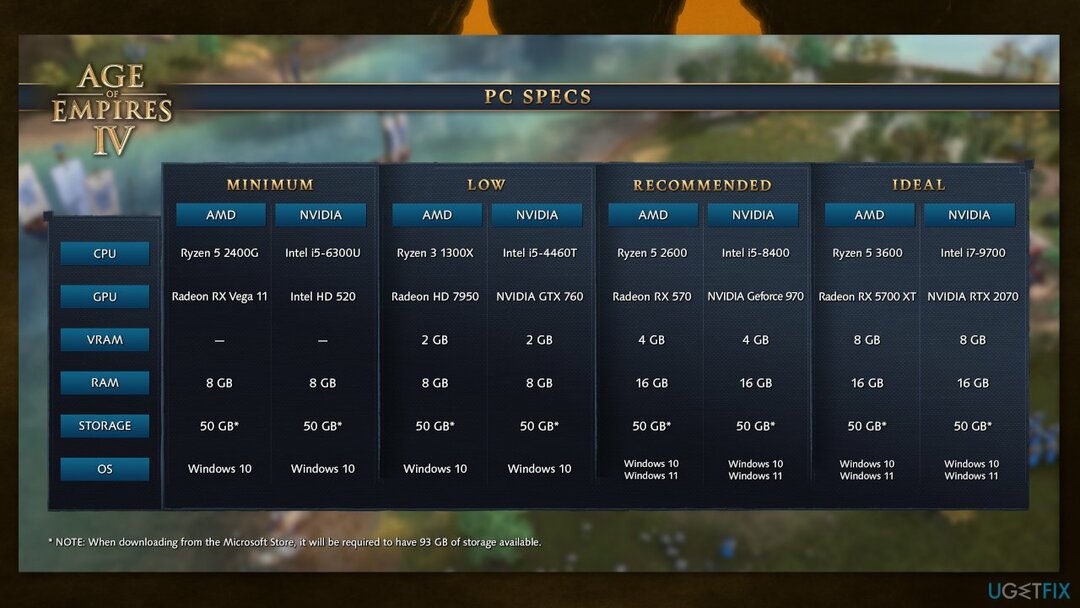
Прежде чем приступить к выполнению всех перечисленных ниже вариантов устранения неполадок, убедитесь, что игра совместима с вашим устройством и может выполнять как минимум минимальные требования:
| Операционная система | 64-разрядная версия Windows 10 или Windows 11 |
| Процессор | Intel Core i5-6300U или AMD Ryzen 5 2400G |
| объем памяти | 8 ГБ RAM |
| Графика | Intel HD 520 или AMD Radeon RX Vega 11 |
| DirectX | Версия 12 |
| Место хранения | 50 ГБ свободного места |
| Дополнительные замечания | Требуется процессор с поддержкой AVX |
Решение 2. Отключить стороннее антивирусное программное обеспечение
Исправить это сейчас!Исправить это сейчас!
Для восстановления поврежденной системы необходимо приобрести лицензионную версию Reimage Reimage.
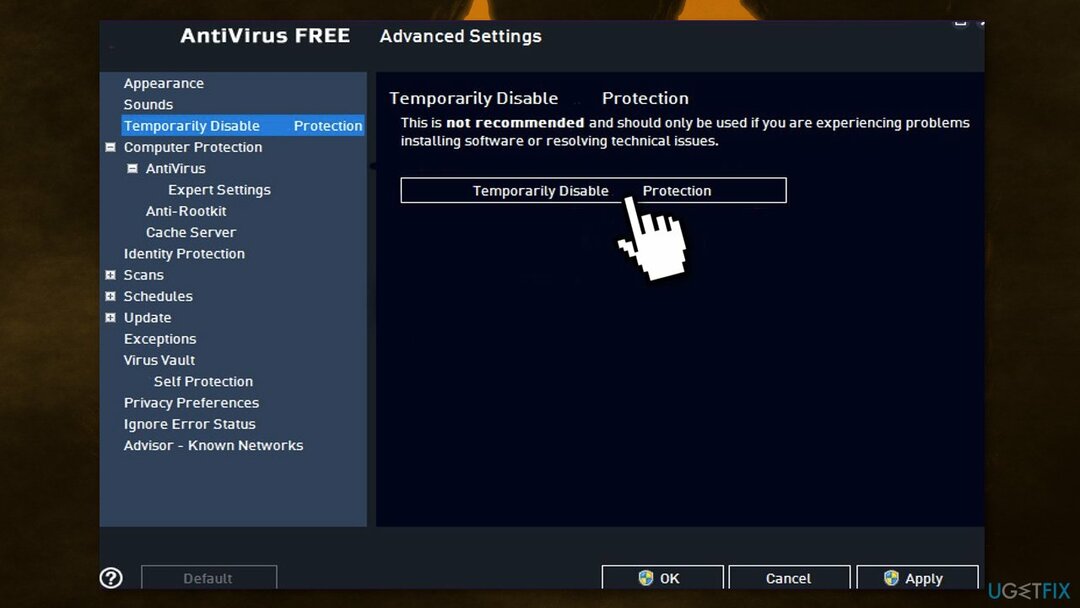
Некоторые программы безопасности могут конфликтовать с вашими приложениями, ошибочно воспринимая некоторые файлы как небезопасные. Таким образом, известно, что удаление программного обеспечения AV помогло некоторым пользователям при попытке исправить ошибку 0x89240101 в Age of Empires IV.
- Щелкните правой кнопкой мыши значок антивируса и выберите Запрещать
- Вы также можете двойной щелчок значок антивируса и найдите Запрещать вариант там
Решение 3. Обновить Microsoft App Store
Исправить это сейчас!Исправить это сейчас!
Для восстановления поврежденной системы необходимо приобрести лицензионную версию Reimage Reimage.
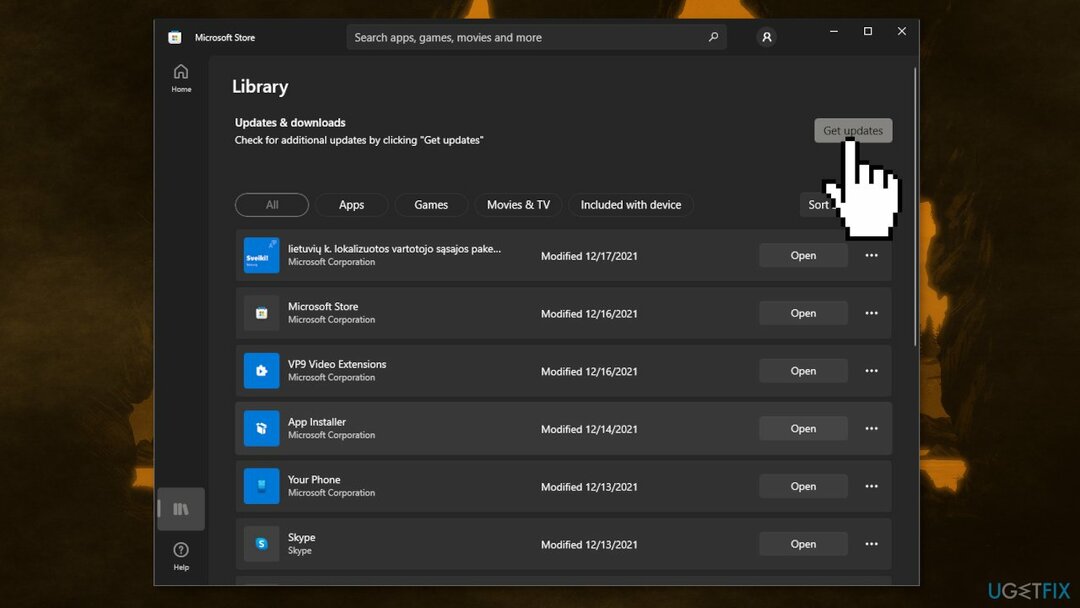
- Выберите Начинать кнопку и выберите Магазин Microsoft
- нажмите на Узнать больше, тогда Загрузки и обновления и Получать обновления
- Если доступно обновление для Microsoft Store, оно начнется автоматически.
Решение 4. Обновите Windows
Исправить это сейчас!Исправить это сейчас!
Для восстановления поврежденной системы необходимо приобрести лицензионную версию Reimage Reimage.
- Тип Обновления в поиске Windows и нажмите Входить
- В новом окне нажмите Проверить обновления
- Установите все доступное (в том числе необязательные обновления)
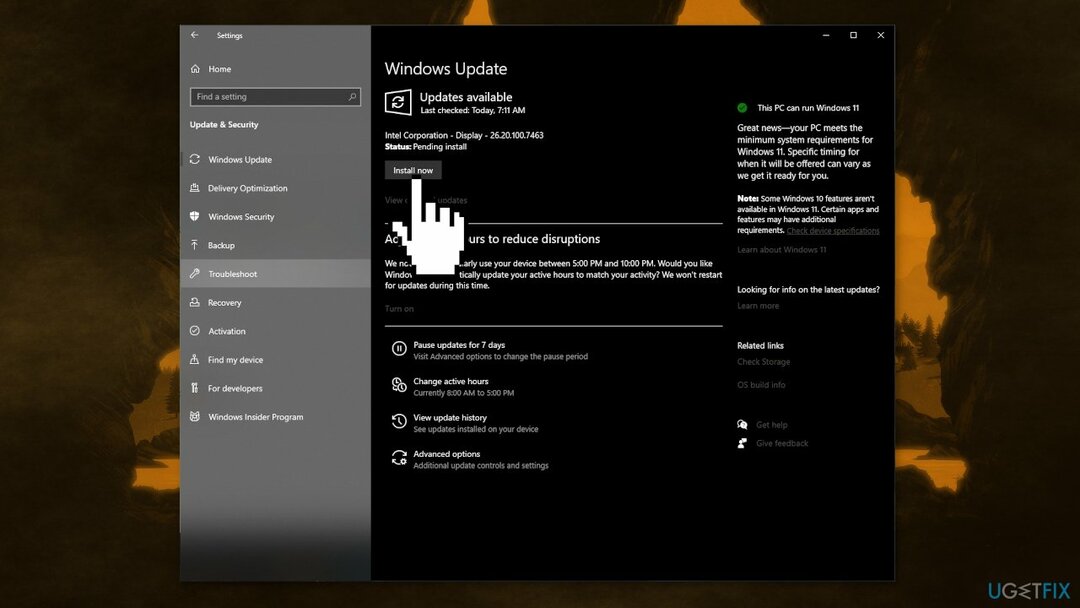
- Перезагрузить ваша система
Решение 5. Обновите драйверы графики
Исправить это сейчас!Исправить это сейчас!
Для восстановления поврежденной системы необходимо приобрести лицензионную версию Reimage Reimage.
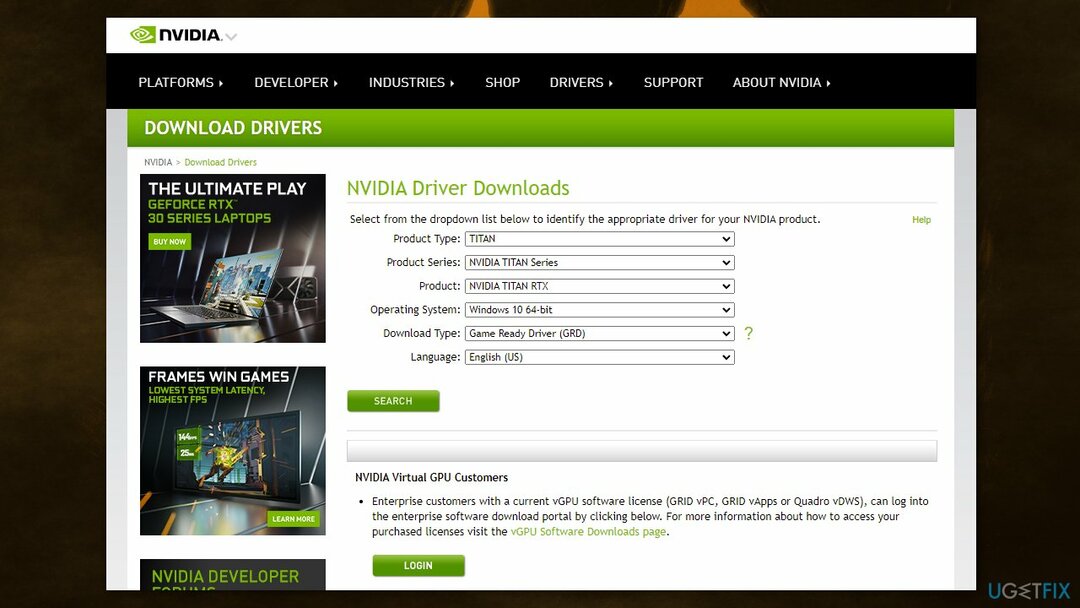
Люди говорили, что их игра продолжает вылетать при запуске, даже если они запускают ее на самом сложном видеокарты, потому что устаревший драйвер видеокарты может быть причиной того, что игра не может запуск. Мы настоятельно рекомендуем убедиться, что установлены последние версии драйверов графического процессора.
Не используйте Диспетчер устройств для этого процесса, так как он обычно не может найти последние обновления драйверов. Вместо этого перейдите на официальный сайт производителя вашего графического процессора и загрузите оттуда последние версии драйверов. Если вы не знаете, как это сделать, вы можете вместо этого использовать DriverFix программное обеспечение, способное делать это автоматически.
Решение 6. Проверить целостность игровых файлов
Исправить это сейчас!Исправить это сейчас!
Для восстановления поврежденной системы необходимо приобрести лицензионную версию Reimage Reimage.
Если сама игра повреждена, это также может привести к сбою при запуске или сбою в середине игры с FIFA 22. Вот шаги, чтобы проверить и восстановить поврежденные файлы в Steam и Origin:
- Запустить Стим клиент
- От БИБЛИОТЕКАщелкните правой кнопкой мыши на Эпоха Империй IV и выберите Характеристики
- Перейти к ЛОКАЛЬНЫЕ ФАЙЛЫ и нажмите на Проверить целостность файлов игры…
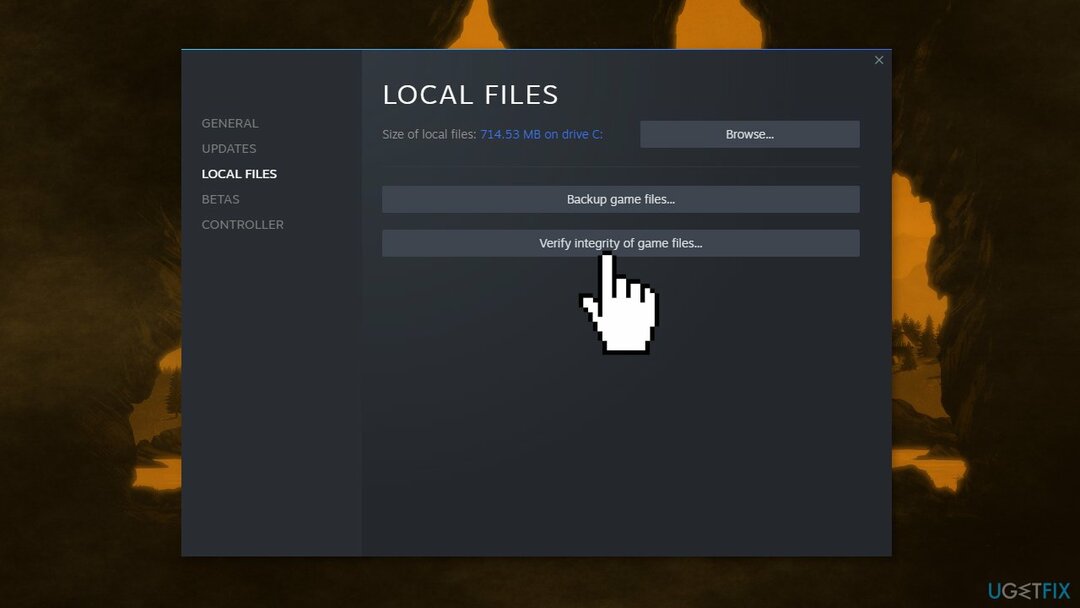
- Попробуйте запустить игру
Решение 7. Обновление распространяемых компонентов Microsoft Visual C ++
Исправить это сейчас!Исправить это сейчас!
Для восстановления поврежденной системы необходимо приобрести лицензионную версию Reimage Reimage.
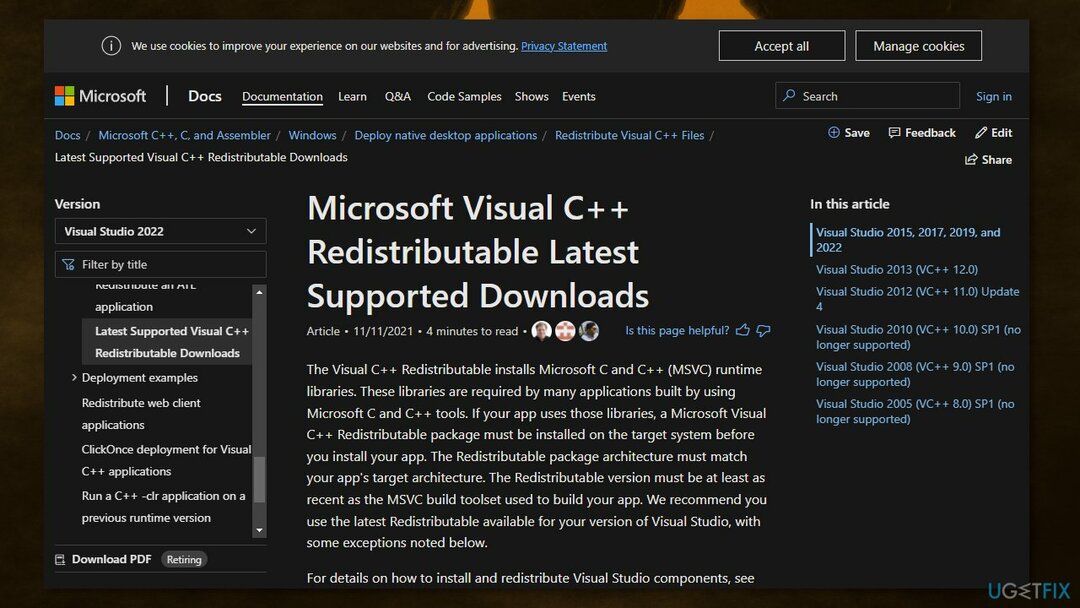
Распространяемые компоненты Visual C ++ — это программные пакеты, необходимые для правильной работы многих приложений. Если есть какие-либо отсутствующие или поврежденные распространяемые файлы, ваша игра может не запуститься. Распространяемые компоненты Visual C ++ можно скачать с сайта Microsoft.
Исправляйте ошибки автоматически
Команда ugetfix.com делает все возможное, чтобы помочь пользователям найти лучшие решения для устранения их ошибок. Если вы не хотите бороться с методами ручного ремонта, используйте автоматическое программное обеспечение. Все рекомендованные продукты были протестированы и одобрены нашими профессионалами. Инструменты, которые можно использовать для исправления ошибки, перечислены ниже:
Предложение
сделай это сейчас!
Скачать Fix
Счастье
Гарантия
сделай это сейчас!
Скачать Fix
Счастье
Гарантия
Совместим с Майкрософт ВиндоусСовместим с OS X По-прежнему возникают проблемы?
Если вам не удалось исправить ошибку с помощью Reimage, обратитесь за помощью в нашу службу поддержки. Сообщите нам все подробности, которые, по вашему мнению, нам следует знать о вашей проблеме.
Reimage — запатентованная специализированная программа восстановления Windows. Он диагностирует ваш поврежденный компьютер. Он просканирует все системные файлы, библиотеки DLL и ключи реестра, которые были повреждены угрозами безопасности.Reimage — запатентованная специализированная программа восстановления Mac OS X. Он диагностирует ваш поврежденный компьютер. Он просканирует все системные файлы и ключи реестра, которые были повреждены угрозами безопасности.
Этот запатентованный процесс восстановления использует базу данных из 25 миллионов компонентов, которые могут заменить любой поврежденный или отсутствующий файл на компьютере пользователя.
Для восстановления поврежденной системы необходимо приобрести лицензионную версию Reimage инструмент для удаления вредоносных программ.

Нажмите
Условия использования Reimage | Политика конфиденциальности Reimage | Политика возврата денег за товар | Нажмите
Чтобы оставаться полностью анонимным и не допустить, чтобы интернет-провайдер и правительство от шпионажа на вас, вы должны использовать Частный доступ в Интернет VPN. Это позволит вам подключаться к Интернету, оставаясь полностью анонимным, за счет шифрования всей информации, предотвращения трекеров, рекламы, а также вредоносного контента. Самое главное, вы остановите незаконную слежку, которую за вашей спиной проводят АНБ и другие правительственные учреждения.
Непредвиденные обстоятельства могут произойти в любой момент при использовании компьютера: он может выключиться из-за отключения электроэнергии, Может возникнуть синий экран смерти (BSoD) или случайные обновления Windows могут произойти на машине, когда вы ушли на несколько минут. минут. В результате ваши школьные задания, важные документы и другие данные могут быть потеряны. К восстанавливаться потерянные файлы, вы можете использовать Восстановление данных Pro — он ищет копии файлов, которые все еще доступны на вашем жестком диске, и быстро их извлекает.
Порядок запуска игры:
1. Удостоверьтесь что у вас установлен Microsoft Store и приложение Xbox (без них запустить игру не получится)
2. Включить Режим разработчика (Параметры — Обновление и безопасность — Для разработчиков — Режим разработчика (Вкл))
3. Запустите файл AoEIV.bat из папки Age of Empires IV, дождитесь окончания процесса, закройте окно
4. Запуск игры из меню Пуск
5. Войдите в аккаунт Xbox когда игра попросит об этом (используйте фейковый аккаунт)
6. Язык игры зависит от вашего языка системы
7. После всех произведенных манипуляций просто запускайте игру через Пуск.
============================================
▶ https://www.youtube.com/playlist?list… официальные мудаки (•̪●)
===========================================
▶ https://www.youtube.com/watch?v=HOqMa… Наши халявные акк ☝
===========================================
▶https://www.youtube.com/watch?v=TLY7W… музыка ♫
===========================================
▶https://www.youtube.com/playlist?list… официальные взломы игр ✌
============================================
✔https://www.youtube.com/channel/UCuCi… ( плейлисты) ✪
============================================
✔https://www.youtube.com/channel/UCuCi… (обсуждение)
============================================
✔https://www.youtube.com/channel/UCuCi…
(подписаться)
============================================
✔https://www.donationalerts.com/r/roma… ссылка на донат (если вам не слыжно) $
410013384266209 (Яндекс.Деньги yoomoney ) $
============================================
♥ СТАВЬ ЛАЙК И ПОДПИСЫВАЙСЯ ^_^
============================================
✔let’s play
Приятного просмотра
- Категория
- Установка и запуск
Question
Issue: How to fix 0x89240101 error in Age of Empires IV?
Hello. I installed Age of Empires IV but it does not launch. I receive an error code 0x89240101. What could be the problem?
Solved Answer
Age of Empires IV is a real-time strategy video game set in the Middle Ages. It is the fourth installment of the Age of Empires series and was released on October 28, 2021, for Windows. It features innovative new ways to expand empires in vast landscapes with stunning 4K visuals. With the award for Best Sim/Strategy Game at The Game Awards 2021, it has a loyal fanbase.
However, some users are experiencing issues after the installation of the game. The 0x89240101 error was reported to appear when users are trying to launch the game. There are multiple reasons why you could be experiencing this. Even though Age of Empires IV does not require high PC specs, you should still check if your system is compatible.
Another quite common reason why users experience issues with launching games is third-party antivirus software and VPNs.[1] Your security suite could be seeing the application as dangerous and preventing it from running. There could be other apps interfering with the process, so open your Task Manager and try ending unnecessary tasks one by one. If this does not help, you will find 7 recommended solutions to fix the 0x89240101 error in this guide.
Errors and crashes while gaming are quite common, as they usually require a huge amount of computer resources. The game might be unable to launch due to the instability of the Windows system itself, so we strongly recommend ensuring that it is not the case first. The easiest way to troubleshoot Windows issues is by employing a powerful PC repair tool RestoroMac Washing Machine X9. It can fix most system errors, registry[2] issues, corrupted files and clear your PC from cookies and cache[3] automatically.
If you want to proceed with the manual guide on how to fix 0x89240101 error in Age of Empires IV, make sure to follow the steps very carefully:
Solution 1. Check the Minimum Requirements
Fix it now!
Fix it now!
To repair damaged system, you have to purchase the licensed version of Restoro Mac Washing Machine X9.
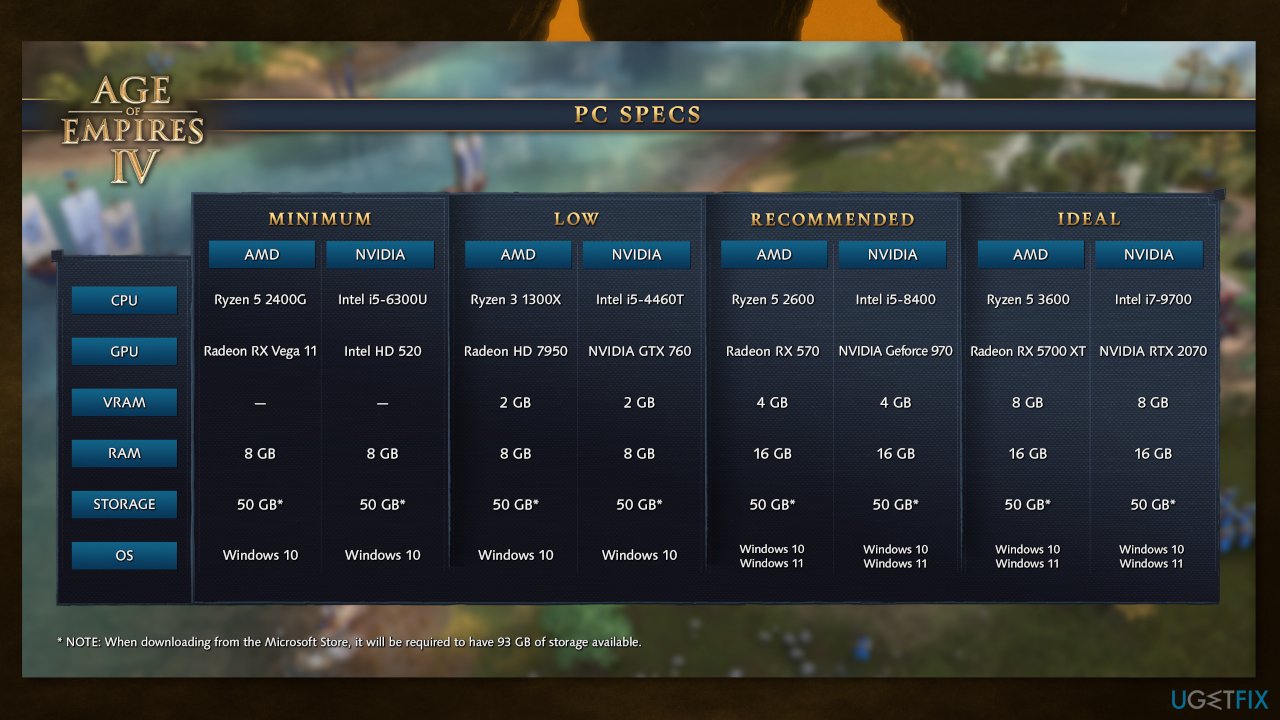
Before you proceed with all the troubleshooting options below, make sure that the game is compatible with your device and can run at least minimum requirements:
| Operating System | Windows 10 64 bit, or Windows 11 |
| Processor | Intel Core i5-6300U or AMD Ryzen 5 2400G |
| Memory | 8 GB RAM |
| Graphics | Intel HD 520 or AMD Radeon RX Vega 11 |
| DirectX | Version 12 |
| Storage | 50 GB available space |
| Additional Notes | CPU with AVX support required |
Solution 2. Disable Third-Party Antivirus Software
Fix it now!
Fix it now!
To repair damaged system, you have to purchase the licensed version of Restoro Mac Washing Machine X9.
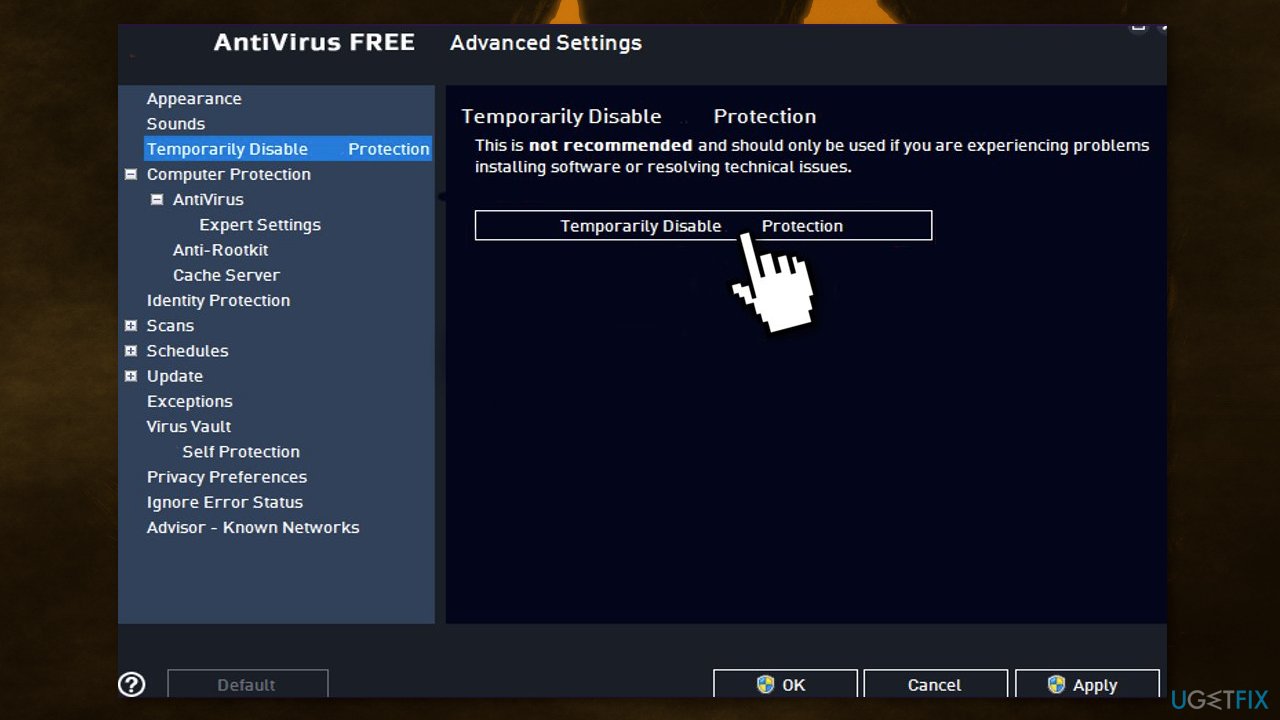
Some security programs might be conflicting with your applications, mistakenly perceiving some files as insecure. Thus, it is known that removing AV software helped some users when trying to fix the 0x89240101 error in Age of Empires IV.
- Right-click the antivirus icon and select Disable
- You can also double-click the antivirus icon and look for a Disable option there
Solution 3. Update Microsoft App Store
Fix it now!
Fix it now!
To repair damaged system, you have to purchase the licensed version of Restoro Mac Washing Machine X9.
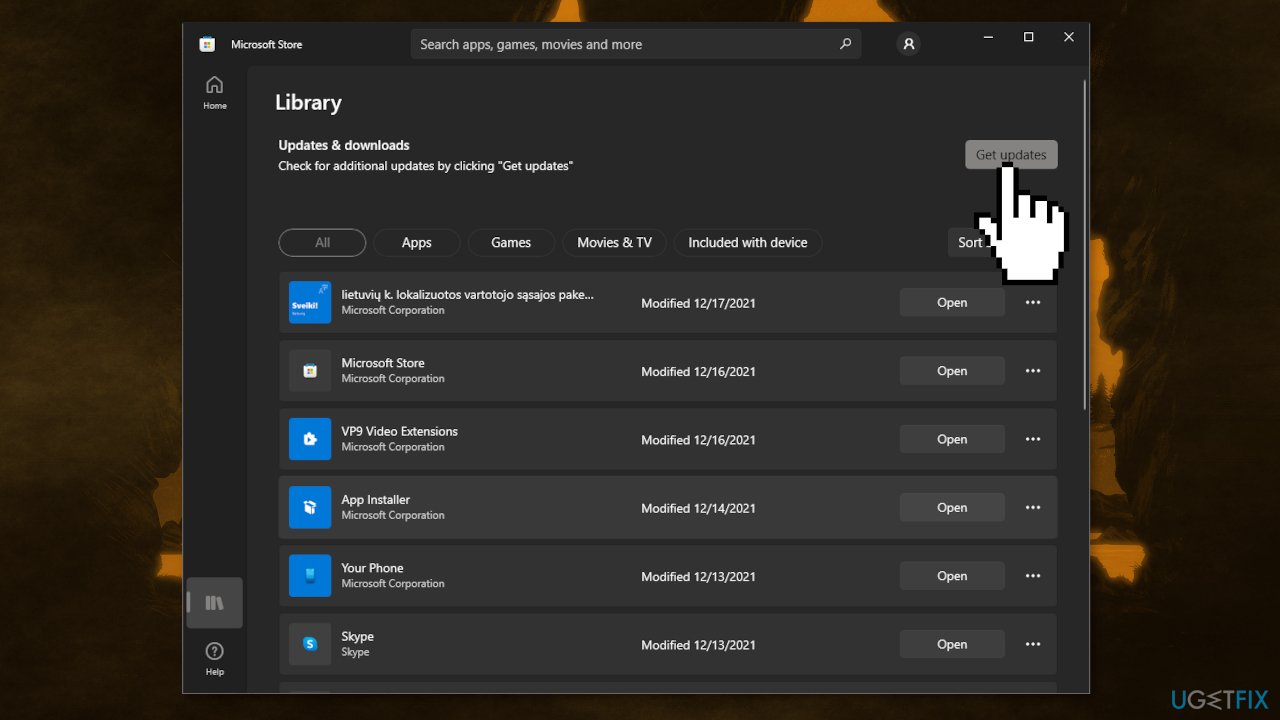
- Select the Start button, and select Microsoft Store
- Press on See more, then Downloads and updates and Get updates
- If an update for Microsoft Store is available, it will start installing automatically
Solution 4. Update Windows
Fix it now!
Fix it now!
To repair damaged system, you have to purchase the licensed version of Restoro Mac Washing Machine X9.
- Type Updates in Windows search and press Enter
- In the new window, click Check for updates
- Install everything available (including optional updates)
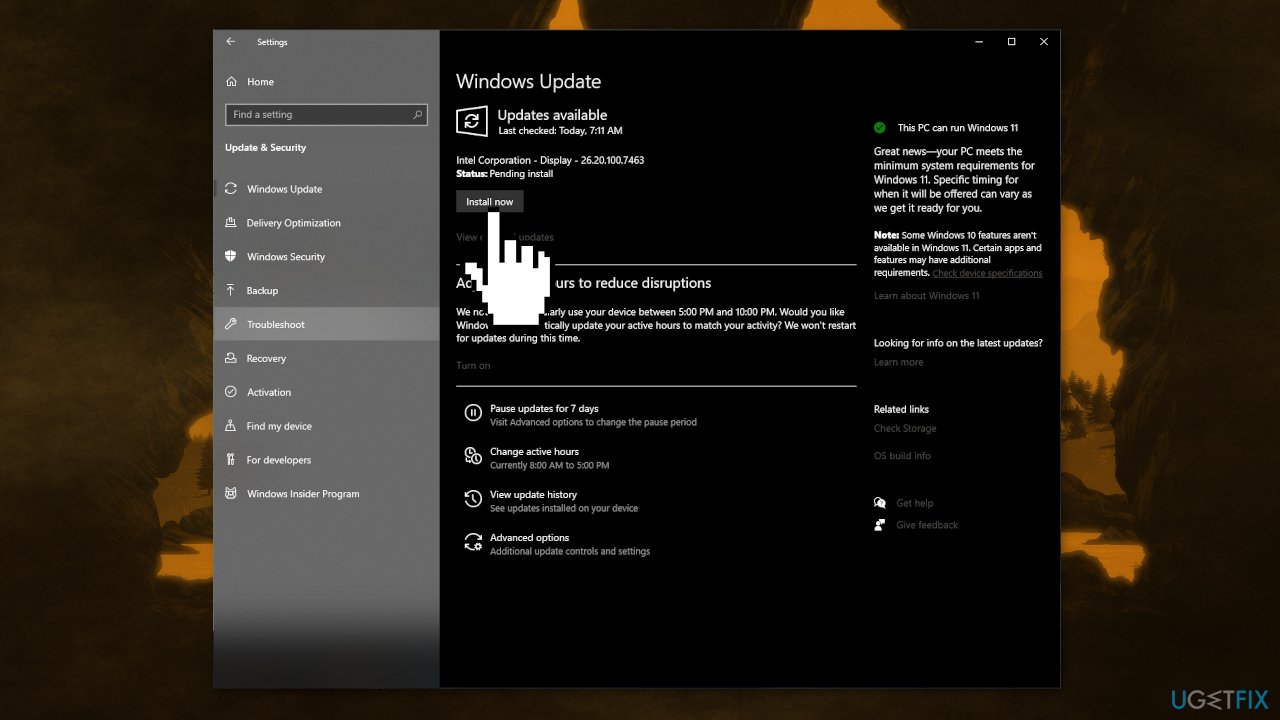
- Reboot your system
Solution 5. Update your Graphics Drivers
Fix it now!
Fix it now!
To repair damaged system, you have to purchase the licensed version of Restoro Mac Washing Machine X9.
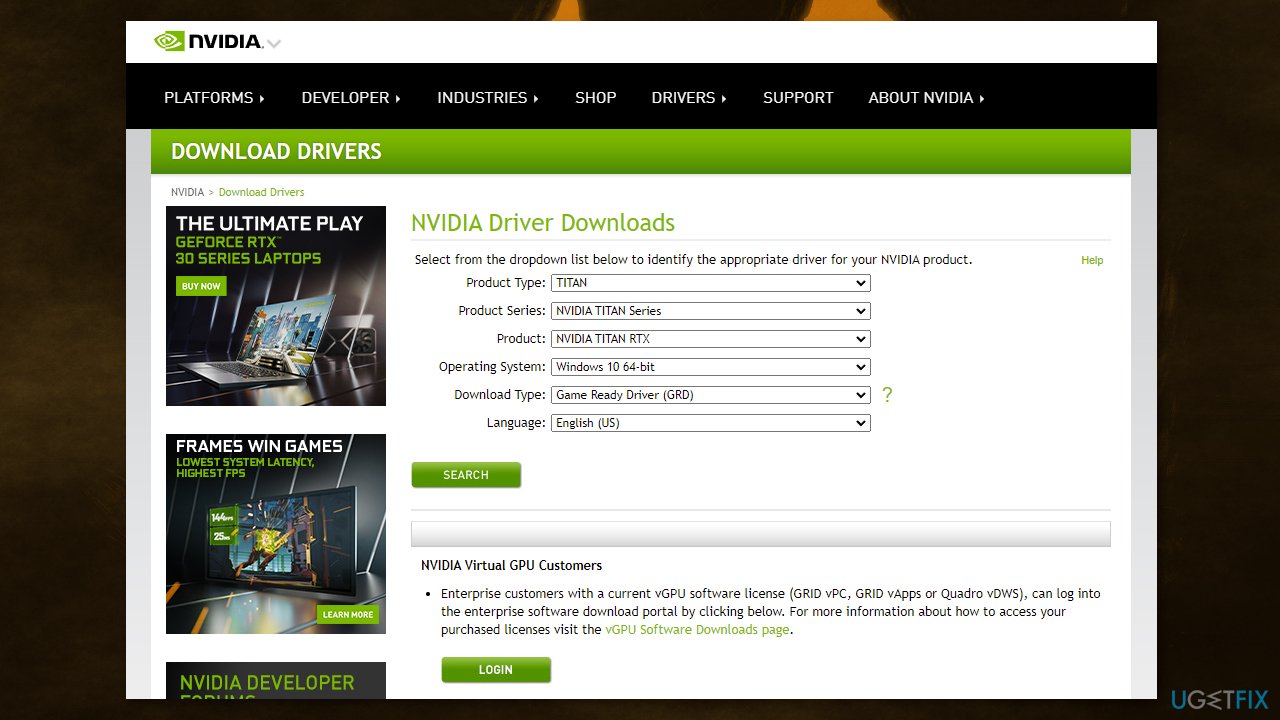
People said that their game keeps crashing on startup even if they run it on the most sophisticated graphics cards because an outdated graphics card driver could be the cause of the game not being able to launch. We strongly recommend making sure that the latest GPU drivers are installed.
Do not use the Device Manager for this process, as it commonly fails to find the latest driver updates. Instead, go to your GPU manufacturer’s official website and download the latest drivers from there. If you are not sure how to do that, you can instead employ DriverFix software that is capable of doing that for you automatically.
Solution 6. Verify Integrity of Game Files
Fix it now!
Fix it now!
To repair damaged system, you have to purchase the licensed version of Restoro Mac Washing Machine X9.
If the game itself is corrupted that could also lead to a crash at startup or a mid-game crash with FIFA 22. Here are the steps to check and repair corrupt files on Steam and Origin:
- Launch the Steam client
- From the LIBRARY, right-click on Age of Empires IV and select Properties
- Go to LOCAL FILES and click on Verify integrity of game files…
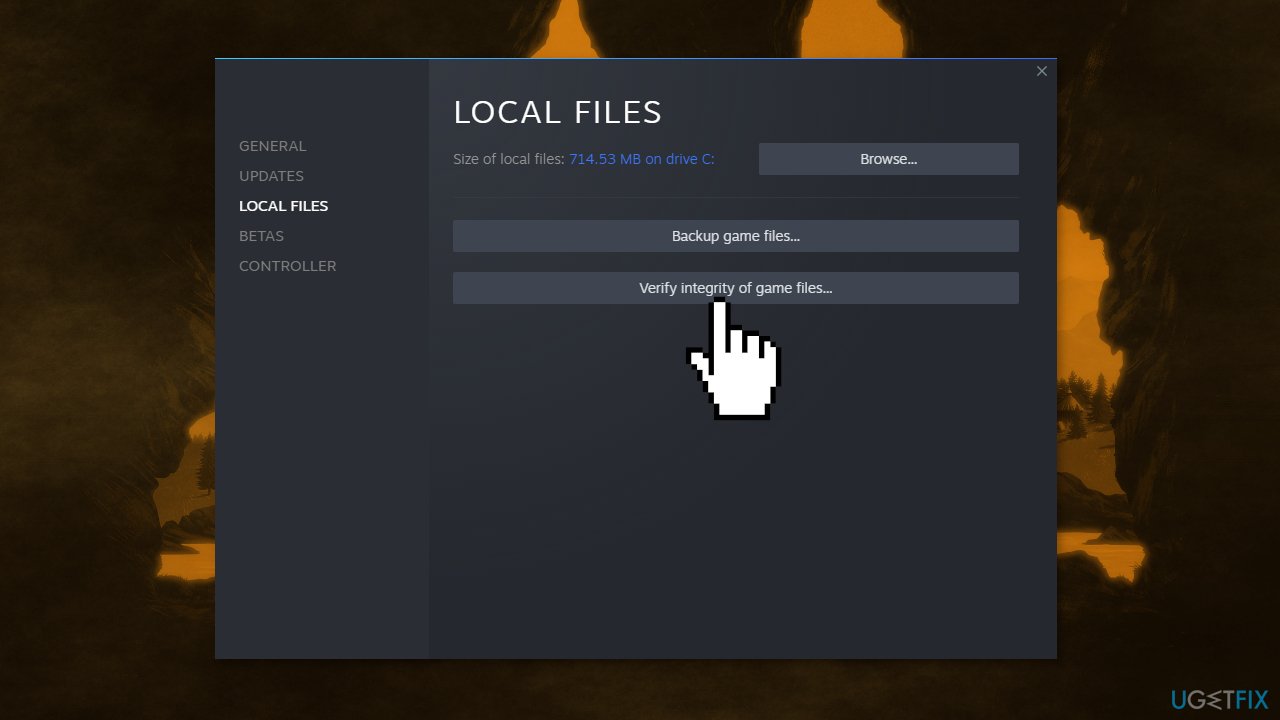
- Try to launch the game
Solution 7. Update Microsoft Visual C++ Redistributables
Fix it now!
Fix it now!
To repair damaged system, you have to purchase the licensed version of Restoro Mac Washing Machine X9.
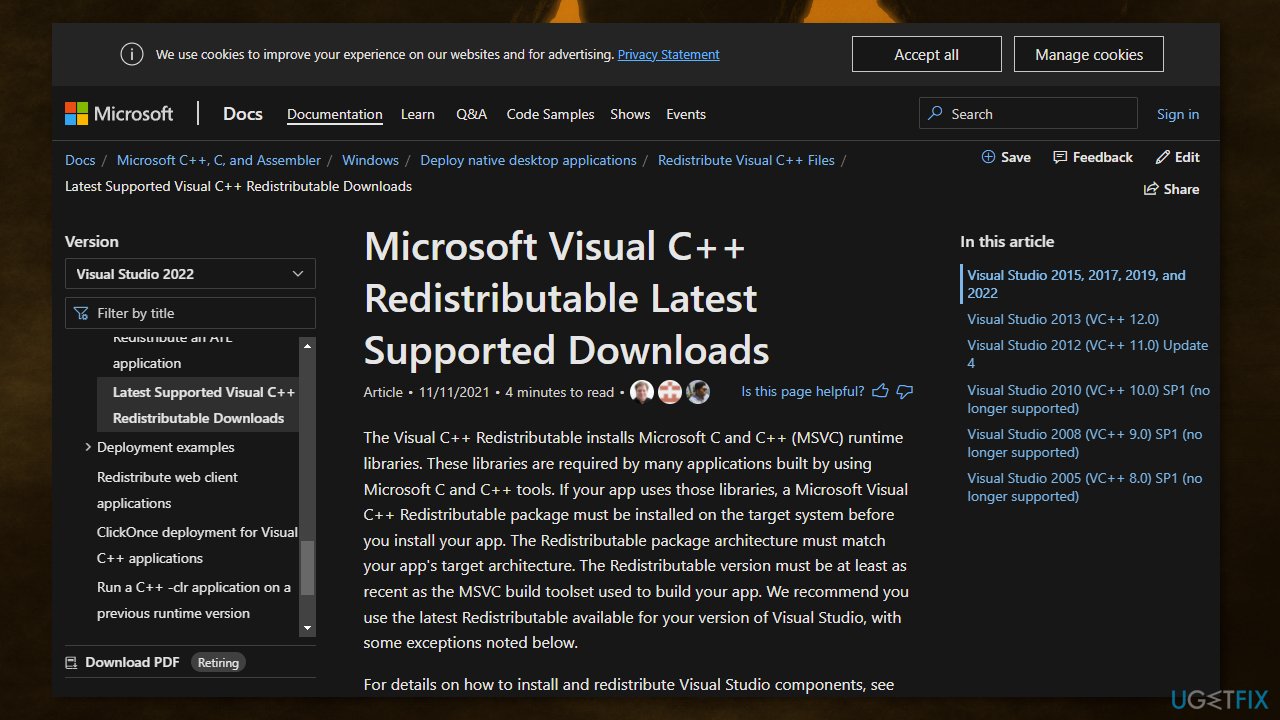
Visual C++ Redistributables are software packages required by many applications to function properly. If there are any missing or corrupted redistributables files, your game may not launch. You can download Visual C++ Redistributables from Microsoft.
Repair your Errors automatically
ugetfix.com team is trying to do its best to help users find the best solutions for eliminating their errors. If you don’t want to struggle with manual repair techniques, please use the automatic software. All recommended products have been tested and approved by our professionals. Tools that you can use to fix your error are listed bellow:
do it now!
Download Fix
Happiness
Guarantee
do it now!
Download Fix
Happiness
Guarantee
Compatible with Microsoft Windows
Compatible with OS X
Still having problems?
If you failed to fix your error using RestoroMac Washing Machine X9, reach our support team for help. Please, let us know all details that you think we should know about your problem.
Restoro — a patented specialized Windows repair program. It will diagnose your damaged PC. It will scan all System Files, DLLs and Registry Keys that have been damaged by security threats.Mac Washing Machine X9 — a patented specialized Mac OS X repair program. It will diagnose your damaged computer. It will scan all System Files and Registry Keys that have been damaged by security threats.
This patented repair process uses a database of 25 million components that can replace any damaged or missing file on user’s computer.
To repair damaged system, you have to purchase the licensed version of Restoro malware removal tool.To repair damaged system, you have to purchase the licensed version of Mac Washing Machine X9 malware removal tool.
To stay completely anonymous and prevent the ISP and the government from spying on you, you should employ Private Internet Access VPN. It will allow you to connect to the internet while being completely anonymous by encrypting all information, prevent trackers, ads, as well as malicious content. Most importantly, you will stop the illegal surveillance activities that NSA and other governmental institutions are performing behind your back.
Unforeseen circumstances can happen at any time while using the computer: it can turn off due to a power cut, a Blue Screen of Death (BSoD) can occur, or random Windows updates can the machine when you went away for a few minutes. As a result, your schoolwork, important documents, and other data might be lost. To recover lost files, you can use Data Recovery Pro – it searches through copies of files that are still available on your hard drive and retrieves them quickly.
Incompatible Microsoft Game Runtime causes the 0x89240101 error
by Taiba Hasan
A postgraduate in Computer Applications, she is an avid technical writer who loves to craft content revolving around Windows, Android, and emerging technologies like SaaS. With How-To and… read more
Updated on May 30, 2023
Reviewed by
Alex Serban

After moving away from the corporate work-style, Alex has found rewards in a lifestyle of constant analysis, team coordination and pestering his colleagues. Holding an MCSA Windows Server… read more
- 0x89240101 error code prevents you from launching or installing Age of Empires.
- You will encounter this error code if the minimum requirements of the games are not met.
- Update your system drivers and verify the integrity of the game files to get rid of the error code.
XINSTALL BY CLICKING THE DOWNLOAD FILE
This software will repair common computer errors, protect you from file loss, malware, hardware failure and optimize your PC for maximum performance. Fix PC issues and remove viruses now in 3 easy steps:
- Download Restoro PC Repair Tool that comes with Patented Technologies (patent available here).
- Click Start Scan to find Windows issues that could be causing PC problems.
- Click Repair All to fix issues affecting your computer’s security and performance
- Restoro has been downloaded by 0 readers this month.
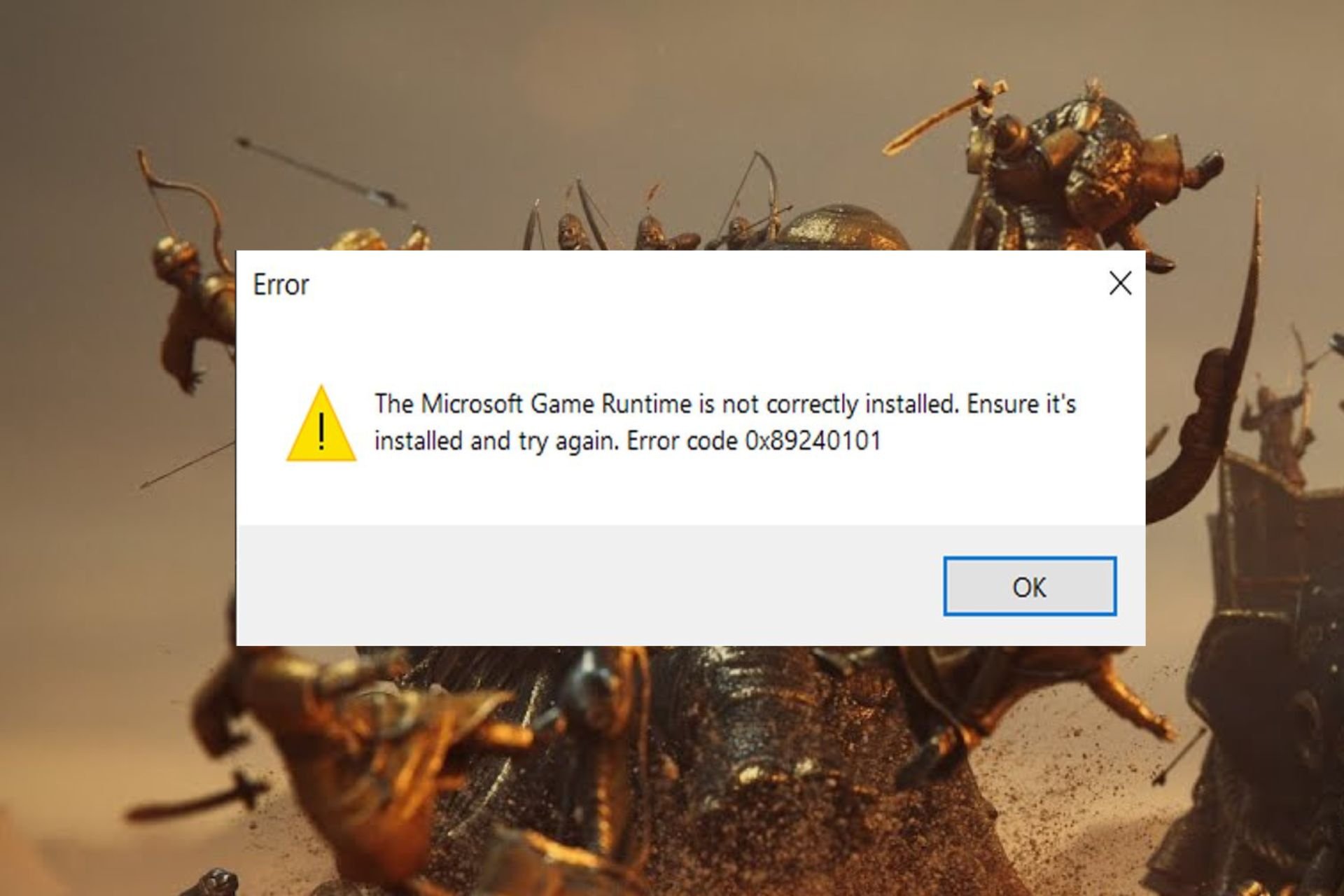
A lot of our readers playing the Age of Empires games have reported the error code 0x89240101 when trying to launch or download the real-time strategy video game on their computer. The error code follows a message: The Microsoft Game Runtime is not correctly installed. Ensure it’s installed and try again.
Why do I get the 0x89240101 error on Age of Empires?
Generally, the error code 0x89240101 occurs if the installation process of the runtime installer gets interrupted. However, some other reasons can be:
- Virus and malware – Virus and malware modify or delete the essential game files, which in turn induces this error upon launch.
- Corrupt user account – If the user account can gets corrupt because of a sudden power outage, the Age of Empires may fail to download on your PC.
- Outdated graphics driver – Graphic drivers are an essential requirement for gaming apps, and if they malfunction, this error code is inevitable.
- Conflicting apps – If there is a conflict between the system files and third-party utilities, Age of Empires may crash with the 0x89240101 error upon launch. Uninstalling such apps may help.
- Missing gaming services – Age of Empires may refuse to launch on your PC if the gaming services are not installed.
If you are also experiencing a crash issue at the time of game launch, the solutions recommended in this guide will prove effective in this situation.
How do I fix the error code 0x89240101 in Age of Empires?
Before you try the advanced solutions mentioned in this guide, make sure to perform the following actions:
- Install the Windows updates if any are available.
- Download the new updates for the game.
- Update the graphics driver for your PC.
- Create and sign into a new user account on your computer
- Scan your PC using antivirus software to get rid of the virus and malware.
If these workarounds could not alleviate the error at hand, move on to the next fixes.
1. Re-install the Microsoft Runtime installer
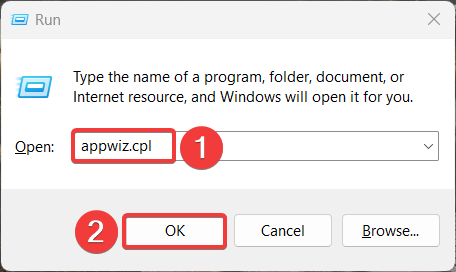
- Launch the Run dialog box using the Windows + R shortcut key, type the following command, and press Enter.
appwiz.cpl
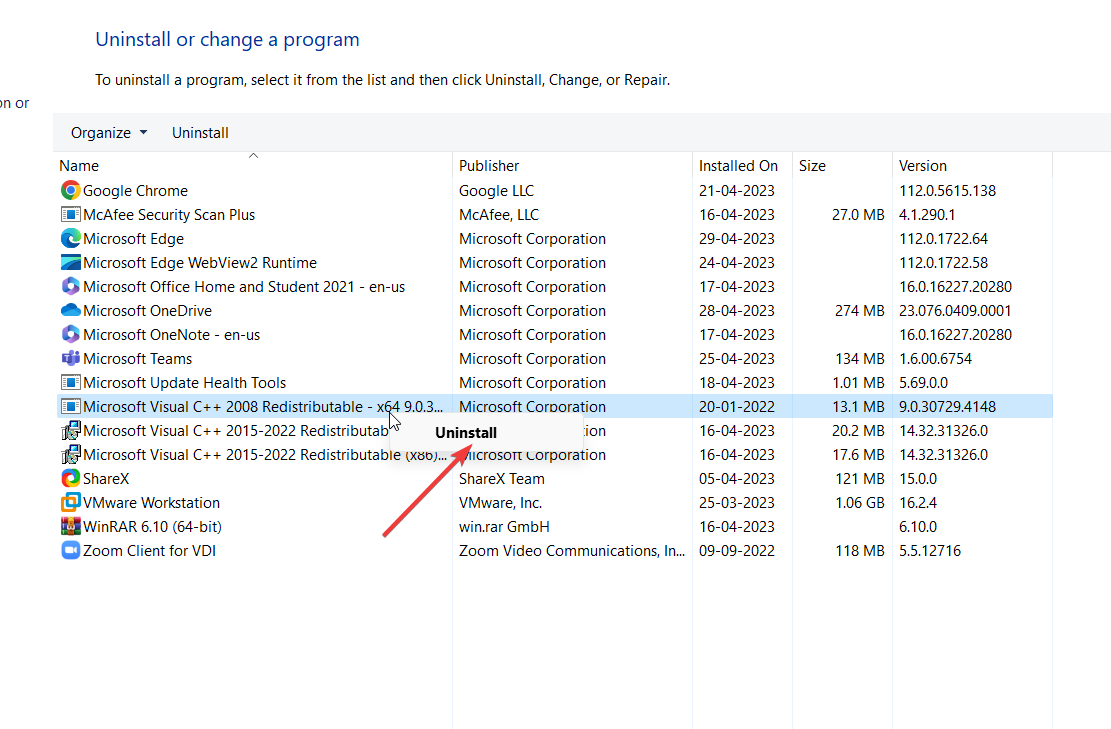
- In the Programs and Features window, right-click the Microsoft Visual C++ 2008 Redistributable and Microsoft Visual C++ 2015 Redistributable one at a time and choose Uninstall from the context menu.

- Follow the on-screen methods to uninstall these programs and restart your computer.
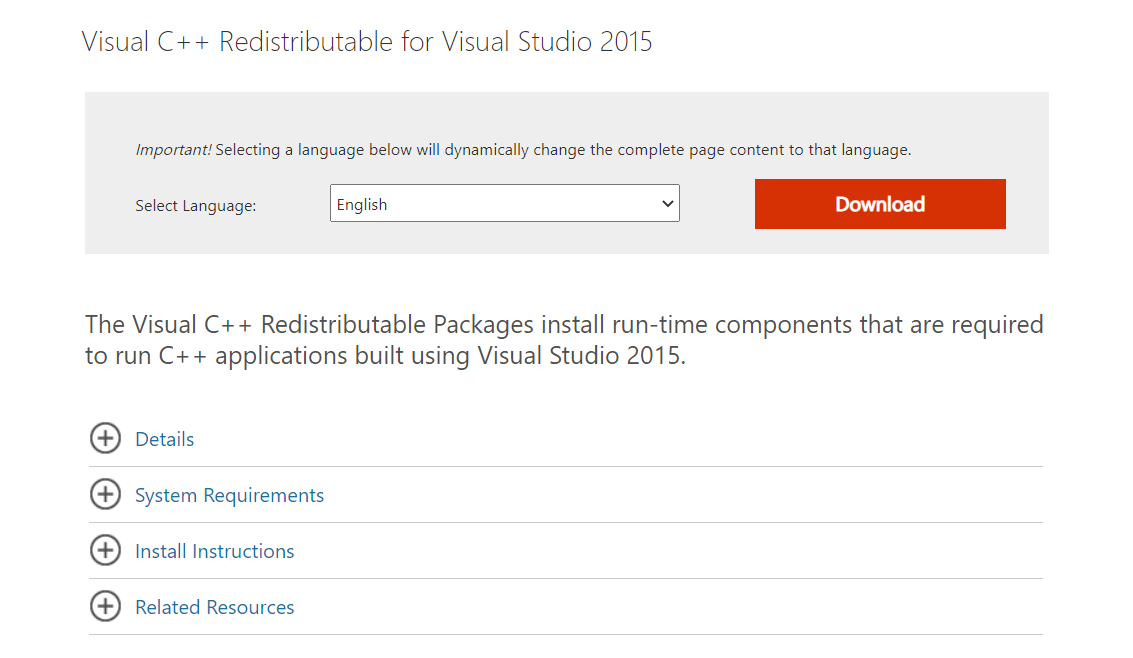
- Upon startup, visit the official Microsoft website and download the Visual C++ Redistributables for Visual Studio 2015.

- Then follow the on-screen prompts to install the software on your PC.
The error code 0x89240101 primarily occurs if the current version of Microsoft Visual C++ Redistributable has become corrupted or was not installed correctly.
2. Disable real-time protection
- Launch the Settings app using the Windows + I shortcut.
- Select Privacy & security from the left menu and then the Windows Security option from the right section.

- Click Virus and threat protection.

- Follow the Manage settings link present under the Virus and threat protection settings section.
- Toggle Off the switch for the Real-time protection feature.

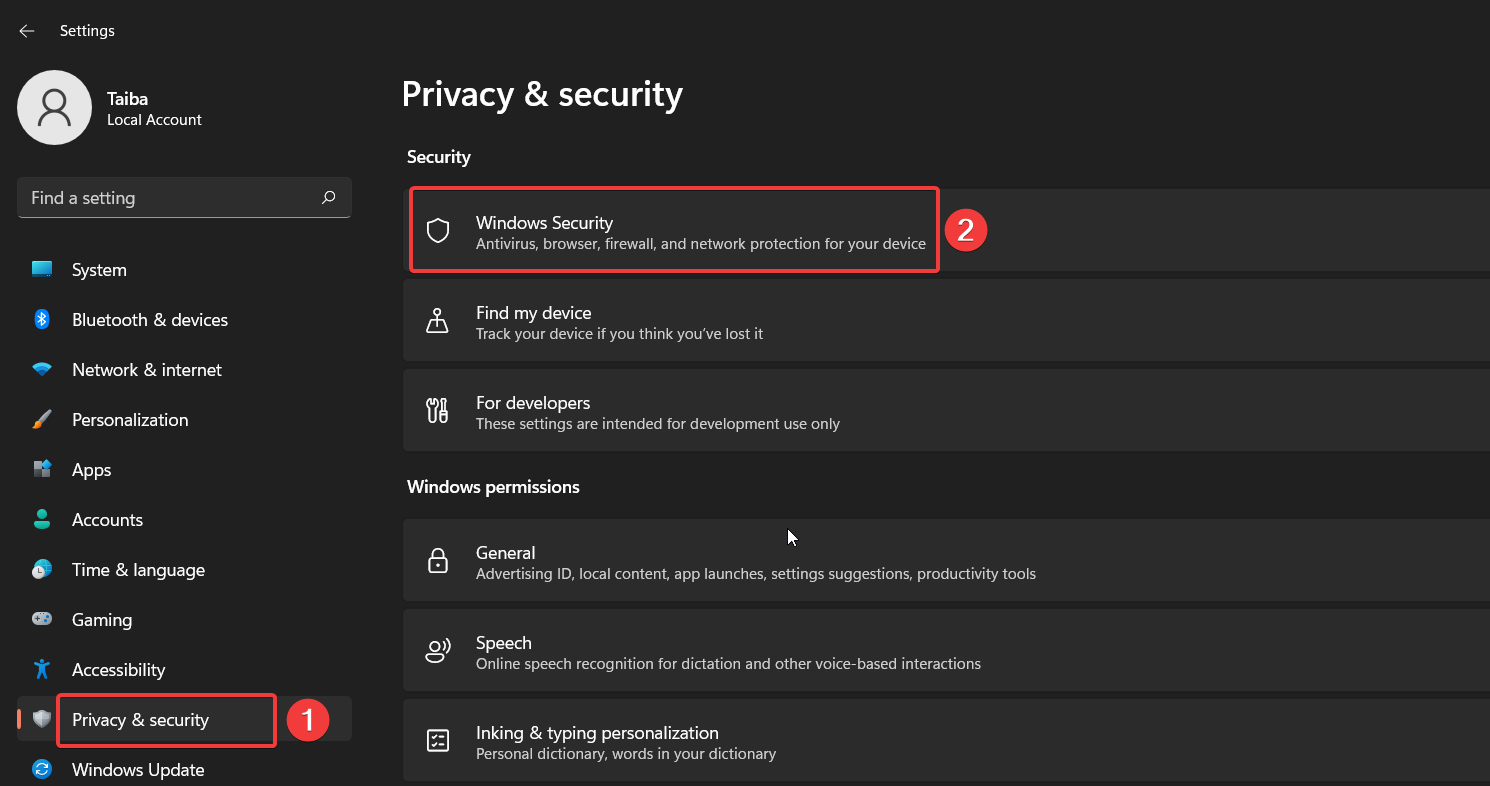
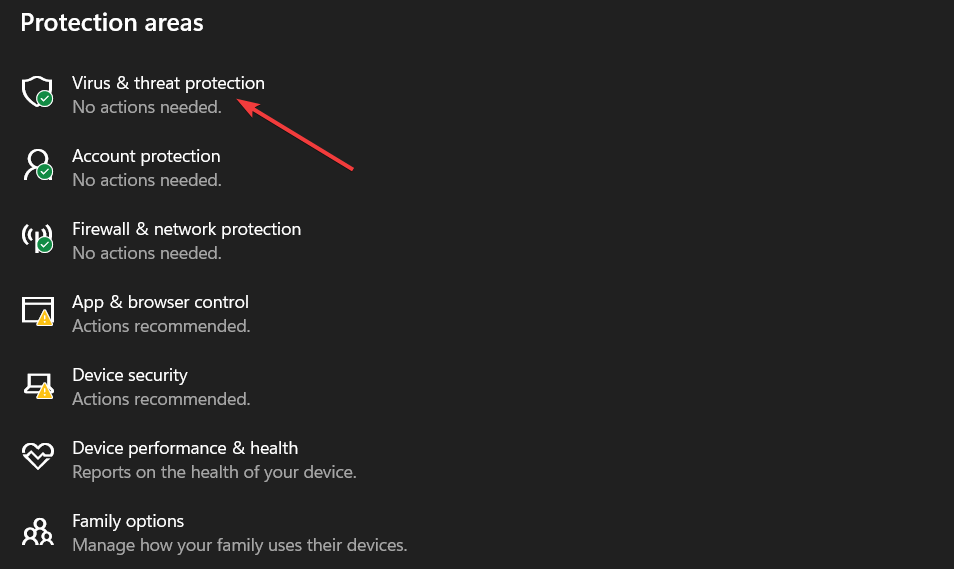
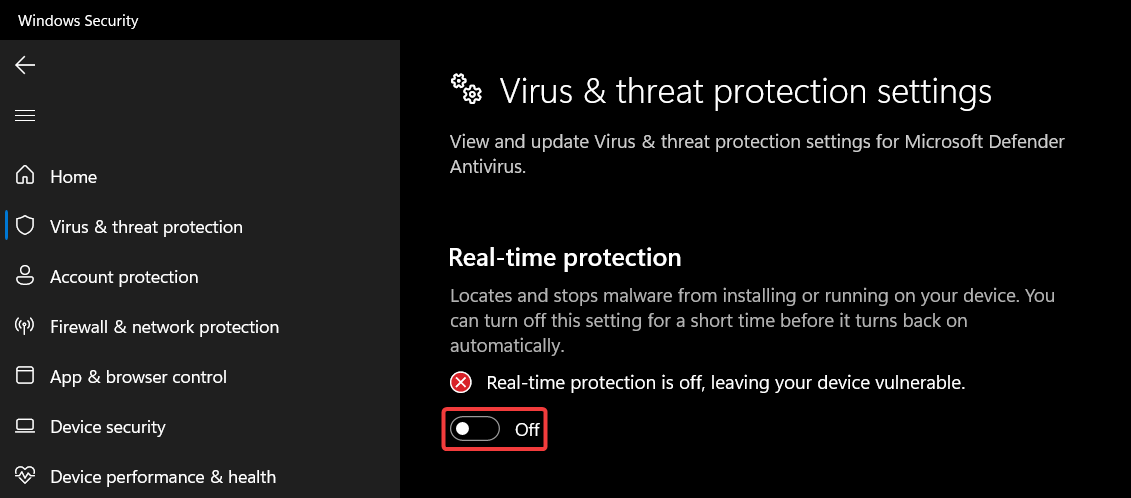
Age of Empires mail crash upon launch because Windows Defender may flag the game as a potential threat restricting it from running on your computer. You can turn off the real-time protection feature and try again.
If a third-party antivirus is installed on your computer, you can add the executable file to the list of exceptions to get past the 0x89240101 error code.
3. Run SFC and DISM scans
- Press the Start icon on the taskbar, type cmd in the search box on top, and click Run as administrator.

- Choose Yes on the User Action Control window to launch Command Prompt with administrative privileges.
- Type or paste the following command and press the Enter key to initiate the SFC scan.
sfc/scannow
- After the SFC scan gets completed, type or paste the following command to run the DISM tool.
DISM /Online /Cleanup-Image /Restorehealth
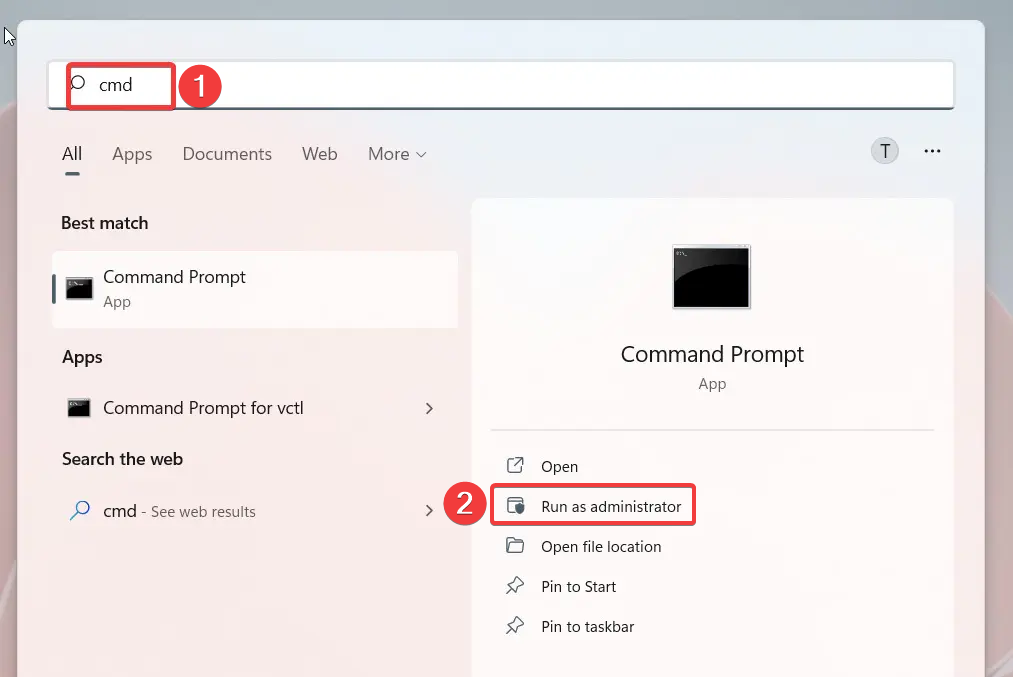
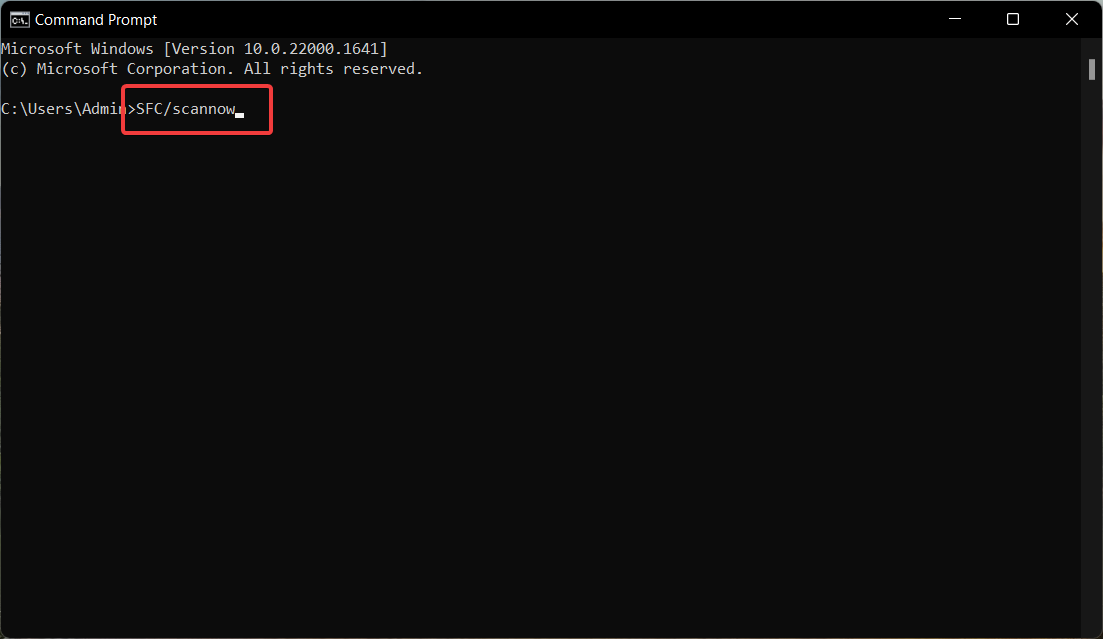
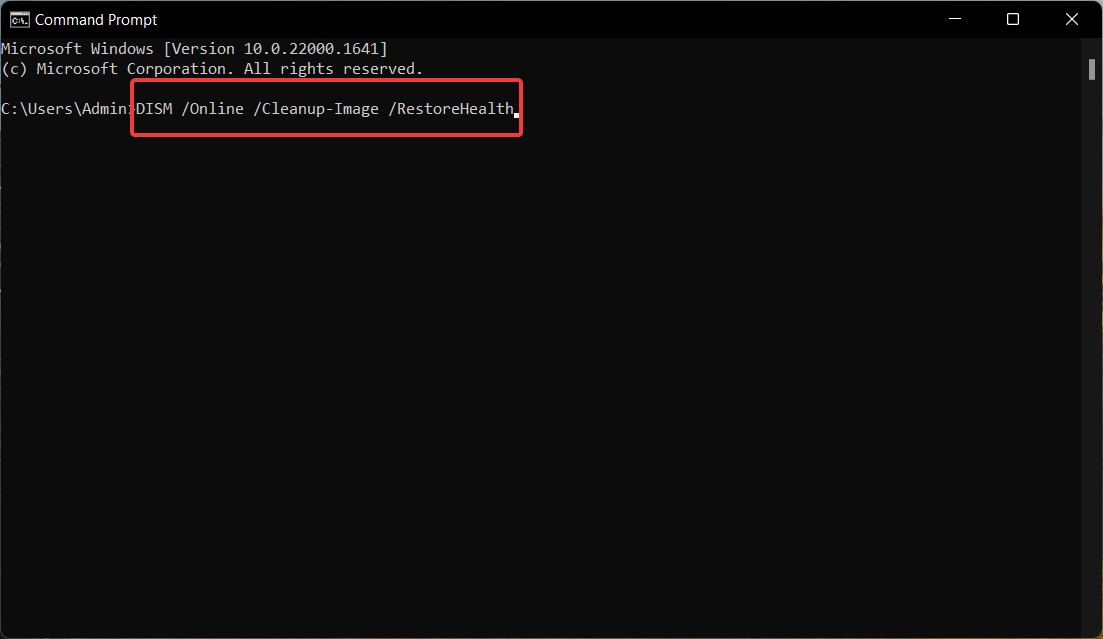
After the SFC and DISM scan finish running on your computer, restart your PC and visit the Microsoft Store to reinstall Age of Empires on your PC.
However, you have another solution if this Windows process seems too technical or doesn’t work for you.
We advise you to better utilize a system repair application like Restoro that will entirely scan your device and repair damaged files in one click.
⇒ Get Restoro
4. Run the Windows Store troubleshooter
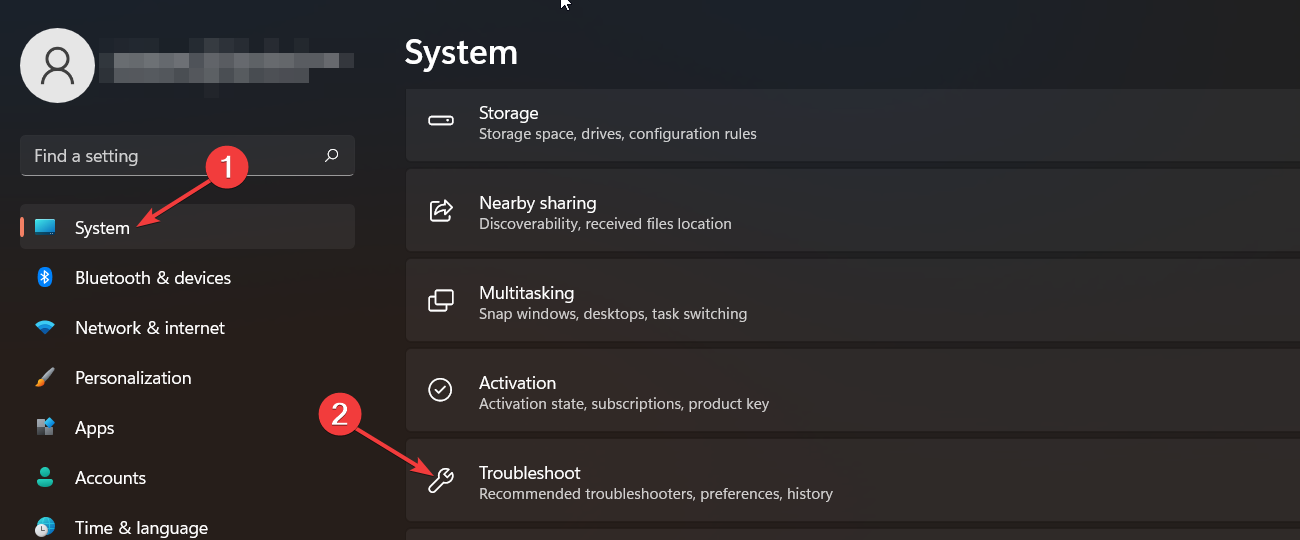
- Use the Windows + I shortcut key to launch the Settings app.
- Scroll down the System settings section and choose Troubleshoot option from the right.

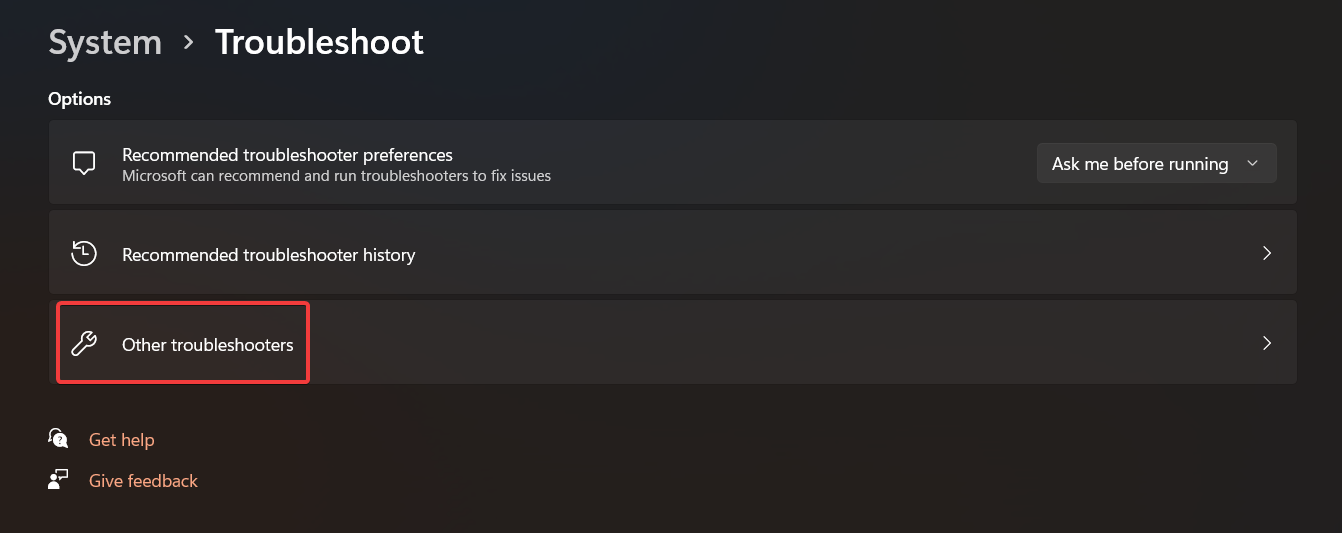
- Next, click the Other troubleshooters option located in the next window.

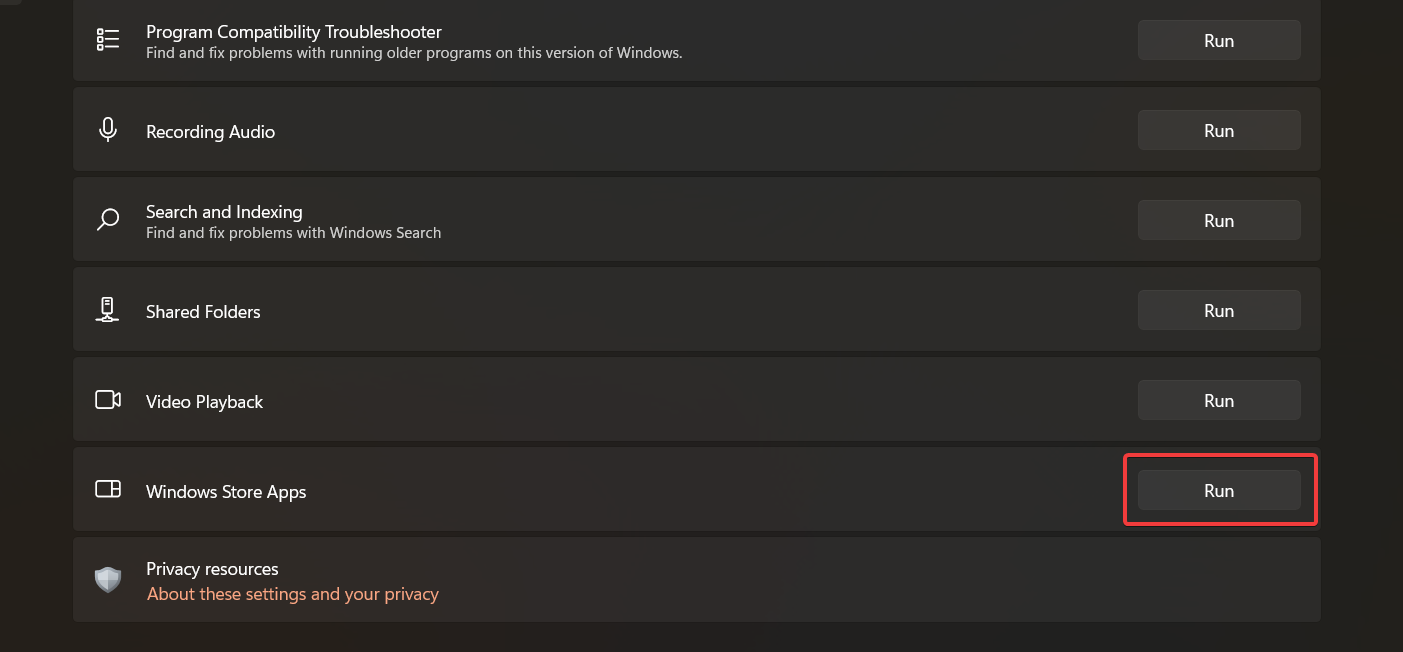
- Scroll down the list of all in-built troubleshooters available on your computer and press the Run button located next to Windows Store Apps.

5. Install Gaming Services
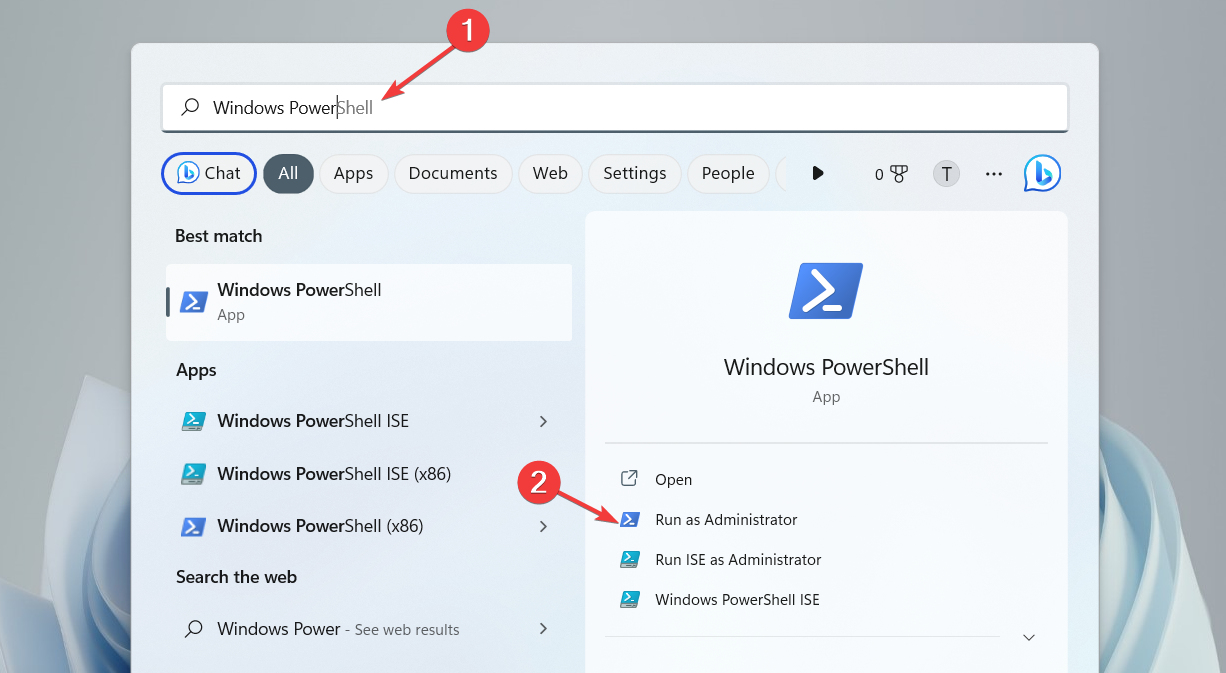
- Press the Windows key to launch the Start menu, type powershell in the search bar on top, and choose Run as administrator from the right section.

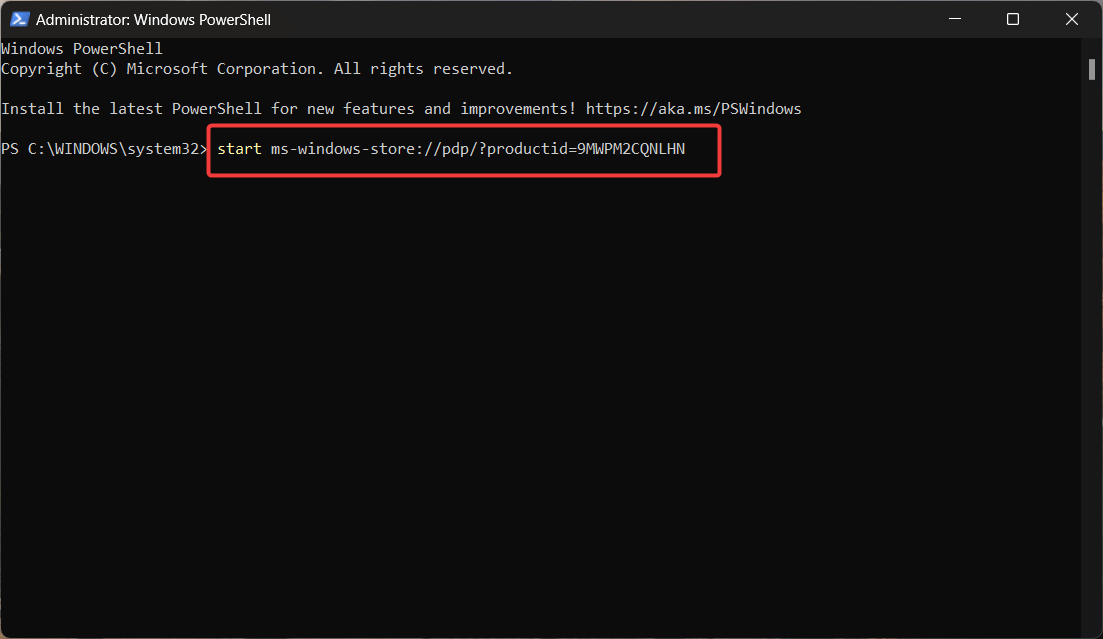
- Type or paste the following command in the Powershell window and press the Enter key.
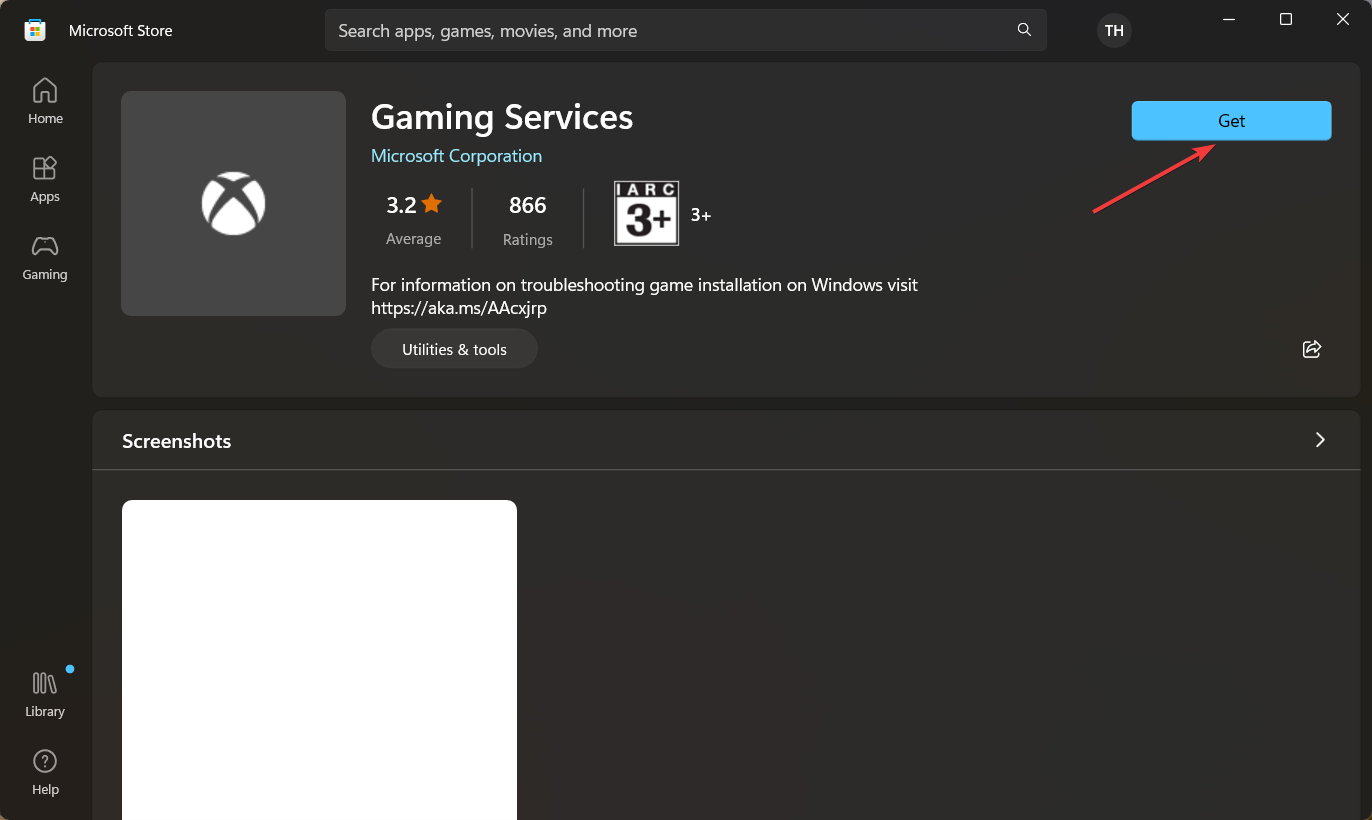
start ms-windows-store://pdp/?productid=9MWPM2CQNLHN - As soon as you will execute the command, Microsoft Store will launch on your PC with the Gaming Services. Press the Get button to initiate the download.

- After installing the Gaming Services, restart your PC and launch the Age of Empires on your system.
That’s pretty much it! Hopefully, you were successful in resolving the error code 0x89240101 using the methods listed here.
If you can’t change the graphics settings in Age of Empires 4, refer to this guide for possible solutions.
Which of the workarounds listed above did the trick for you? Do let us know in the comments section.
Still having issues? Fix them with this tool:
SPONSORED
If the advices above haven’t solved your issue, your PC may experience deeper Windows problems. We recommend downloading this PC Repair tool (rated Great on TrustPilot.com) to easily address them. After installation, simply click the Start Scan button and then press on Repair All.
