

AMD Ryzen — популярный компьютерный процессор, который используется во многих игровых ноутбуках. Однако мы столкнулись со многими жалобами пользователей, указывающими на то, что они сталкиваются с сообщением об ошибке AMDRyzenMasterDriver.SYS.
Эта ошибка блокирует доступ пользователей к своим компьютерам и выводит неприятный экран BSOD. ПК продолжает перезагружаться напрасно. К счастью, в этом руководстве мы предоставим вам множество решений, которые помогут вам устранить ошибку BSOD AMDRyzenMasterDriver.SYS. Давайте приступим к делу.
Что вызывает ошибку BSOD AMDRyzenMasterDriver SYS?
После некоторых исследований мы обнаружили причины появления сообщения об ошибке BSOD AMDRyzenMasterDriver.SYS на вашем ПК.
- Поврежденные системные файлы. Конечно, системные файлы важны для бесперебойной работы вашего ПК, и если они будут повреждены, вы столкнетесь с множеством проблем.
- Файл AMDRyzenMasterDriver.SYS поврежден. Основная причина, которая может вызвать ошибку AMDRyzenMasterDriver.SYS, заключается в том, что сам файл отсутствует на вашем ПК.
- Ваш компьютер не обновлен: запуск устаревшей версии Windows также может привести к неправильной работе вашей системы, поскольку некоторые программы могут работать со сбоями и вызывать ошибку BSOD.
- AMD Ryzen Master вызывает проблемы: переустановите определенные драйверы AMD и программное обеспечение Ryzen Master, чтобы устранить проблему AMDRyzenMasterDriver.SYS.
- Драйверы не обновлены. Вам также следует убедиться, что все драйверы на вашем ПК обновлены, поскольку устаревшие драйверы могут вызывать проблемы.
Давайте рассмотрим решения, которые помогут устранить ошибку AMDRyzenMasterDriver.SYS.
Как исправить ошибку AMDRyzenMasterDriver SYS?
1. Обновите свой компьютер
- Нажмите клавиши Win + I, чтобы открыть меню настроек.
- Нажмите на Центр обновления Windows слева.
- Выберите кнопку Проверить наличие обновлений.

- Если есть ожидающее обновление, нажмите кнопку «Загрузить и установить».
- Перезагрузите компьютер.

Вы должны убедиться, что на вашем компьютере установлено последнее обновление Windows. Не только последние обновления предоставляют новейшие функции, но также обновляют базу данных вирусов и вредоносных программ, которая обеспечивает защиту вашего ПК.
2. Исправить поврежденные системные файлы
- Нажмите клавишу Win, чтобы открыть меню «Пуск».
- Откройте командную строку от имени администратора.

- Введите приведенную ниже команду и нажмите Enter .
sfc /scannow - Дождитесь завершения процесса.
- Выполните приведенную ниже команду.
DISM /Online /Cleanup-Image /CheckHealthDISM /Online /Cleanup-Image /ScanHealthDISM /Online /Cleanup-Image /RestoreHealth - Перезагрузите компьютер.

Выполнение команд SFC Scan и DISM поможет исправить поврежденные системные файлы вашего ПК. Но они не так эффективны при работе с такими ошибками, как ошибка AMDRyzenMasterDriver.SYS.
В таком случае вам следует выбрать Fortect. С помощью этого инструмента вы можете исправить сбои системы, исправить ошибки файлов DLL, исправить ошибки BSOD, защитить свой компьютер от программ-вымогателей и вредоносных программ и многое другое.
3. Переустановите AMD Ryzen Master.
- Нажмите клавишу Win, чтобы открыть меню «Пуск».
- Откройте Панель управления.

- Нажмите «Программы и компоненты».

- Нажмите AMD Ryzen Master и нажмите кнопку «Удалить».

- Следуйте инструкциям на экране, чтобы удалить программу с вашего ПК.
- Перезагрузите компьютер.
- Посетите официальный сайт.
- Загрузите программу AMD Ryzen Master.
- Установите его и проверьте, решает ли это проблему или нет.


4. Запустите автоопределение драйвера AMD
- Посетите официальный сайт.
- Загрузите инструмент автоматического обнаружения драйверов AMD.
- Установите программу.

- Если для вашего устройства AMD доступны новые драйверы, инструмент установит их. Ниже представлены компоненты:

- Графика AMD Radeon серии RX
- Графика серии AMD Radeon PRO
- Чипсеты AMD Ryzen
- После установки компонентов перезагрузите ПК


5. Выполните восстановление системы
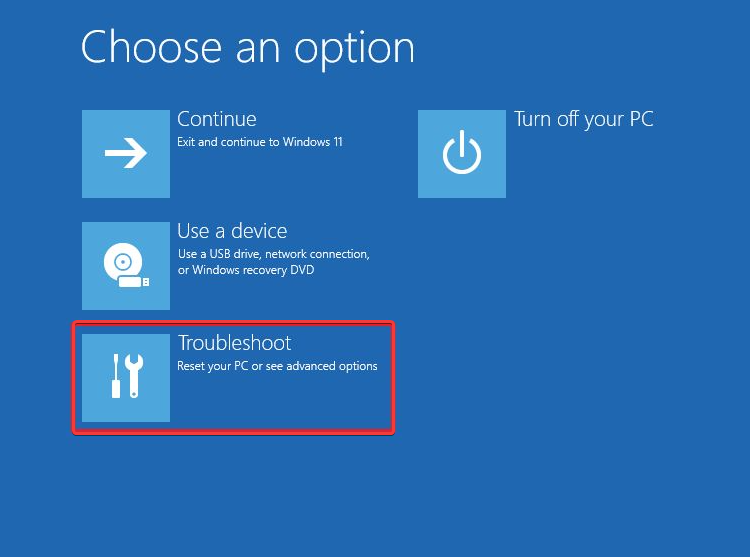
- Либо несколько раз включите и выключите компьютер, либо нажмите F11 клавишу во время загрузки ПК, чтобы войти в среду расширенного восстановления.
- Выберите Устранение неполадок.

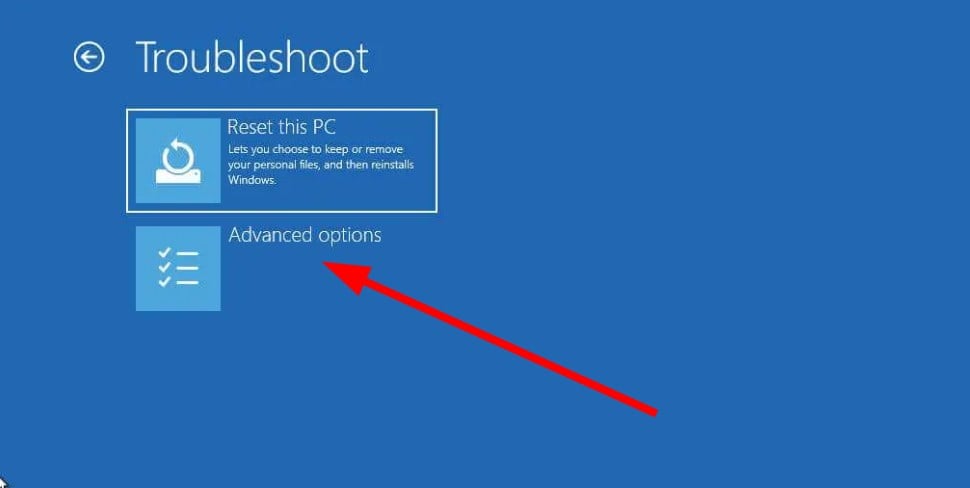
- Нажмите Дополнительные параметры.

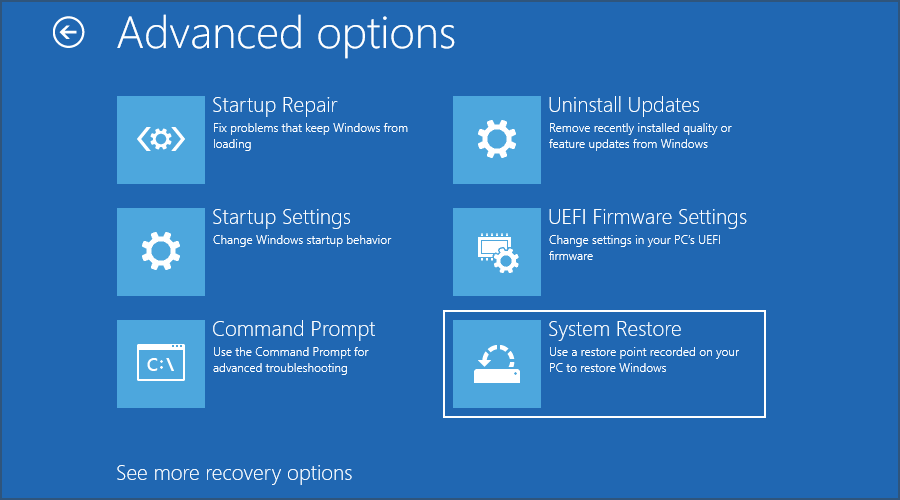
- Выберите вариант восстановления системы.

- Выберите свою учетную запись.
- Нажмите «Далее».
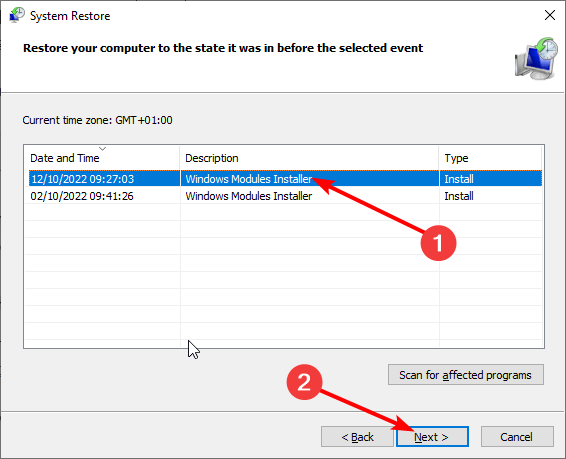
- Выберите точку восстановления и нажмите «Далее».
- Нажмите кнопку «Готово», чтобы начать процесс восстановления.


Если ваш компьютер застрял в цикле BSOD, вы можете выполнить описанные выше шаги и восстановить свой компьютер до состояния, когда все работало нормально.
Однако обратите внимание, что восстановление системы будет работать, если вы ранее создали точку восстановления.
6. Выполните восстановление при загрузке
- Несколько раз включите и выключите компьютер или нажмите F11 клавишу во время загрузки ПК, чтобы войти в среду расширенного восстановления.
- Выберите Устранение неполадок.
- Нажмите Дополнительные параметры.
- Выберите вариант восстановления при загрузке.


Это все от нас в этом руководстве.
Quickly fix Windows 11, 10, 8 and 7 errors with Outbyte PC Repair
Take the bull by the horns: identify and fix performance issues that may be affecting your PC.
Outbyte PC Repair is a comprehensive computer repair tool designed to solve a number of different system problems, clean up your disk, optimize performance, and improve privacy and security.

- Compatible with: Windows 11, 10, 8 and 7
- Trial: Free trial by category for at least 2 days*
- Full version: from $29.95 (for a 3-month subscription)
*Free trial allows you to fix all detected items in each category
Не стесняйтесь сообщить нам в комментариях ниже, какое из приведенных выше решений помогает исправить ошибку AMDRyzenMasterDriver SYS.
AMD Ryzen — очень популярный компьютерный процессор, который нашел значительную базу среди игровых ноутбуков. Однако несколько пользователей сообщили об ошибке «Синий экран смерти», связанной с файлом AmdRyzenMasterDriver.sys. Если вы столкнулись с этой ошибкой в своей системе, прочитайте эту статью, чтобы найти решения.
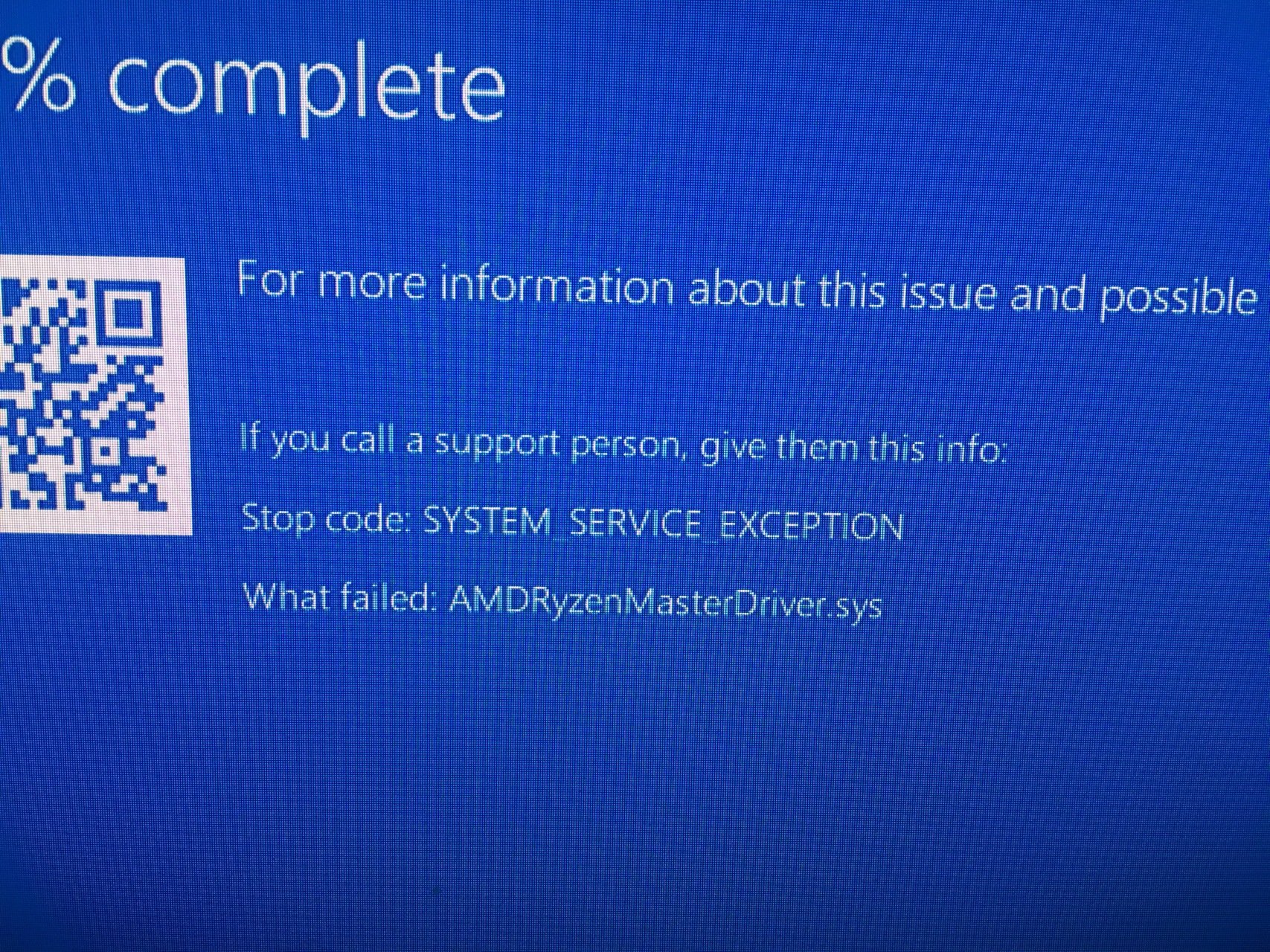
Эта ошибка в основном вызвана повреждением или отсутствием файла AmdRyzenMasterDriver.sys. Ошибка сопровождается рядом стоп-кодов, а именно:
Что такое AmdRyzenMasterDriver.sys?
Полное имя AmdRyzenMasterDriver.sys — AMD Ryzen Master Service Driver. Этот драйвер имеет решающее значение для работы процессора AMD. Если связанный файл отсутствует или поврежден, вы часто будете сталкиваться с ошибкой «Синий экран смерти» при работе в своей системе.
Если вы столкнулись с этой проблемой, попробуйте последовательно следующие решения, чтобы исправить синий экран с ошибкой AmdRyzenMasterDriver.sys:
- Запустите автоопределение драйвера AMD
- Запустите Центр обновления Windows, чтобы обновить драйверы
- Переустановите AMD Ryzen Master.
- Запуск и сканирование SFC и сканирование DISM
- Восстановите свою систему до предыдущей хорошей точки.
1]Запустите автоматическое определение драйвера AMD
Возможно, в вашей системе существует главный сервисный драйвер AMD Ryzen, но версия драйвера устарела. В этом случае вы можете либо загрузить набор драйверов с веб-сайта AMD, либо просто запустить инструмент AMD Driver AutoDetect. Последний предпочтительнее, так как он обновит все драйверы и устранит другие возможные проблемы с системой.
Исправлено: ошибки и проблемы установки драйвера AMD в Windows
2]Запустите Центр обновления Windows, чтобы обновить драйверы.
Лучший способ обновить все драйверы Windows одновременно — просто обновить Windows. Процесс обновления Windows будет отправлять все, от обновлений безопасности до обновлений драйверов. Однако иногда обновления драйверов могут быть частью дополнительных обновлений в Windows. В этом случае вам также придется установить дополнительные обновления для Windows. Процедура следующая:
- Щелкните правой кнопкой мыши кнопку «Пуск» и выберите «Настройки» в меню.
- В меню «Настройки» перейдите на вкладку «Центр обновления Windows» в списке слева.
- На правой панели выберите Дополнительные параметры.
- Выберите Дополнительные обновления.
- Установите любые необязательные обновления, которые вы заметите.
Читайте: Драйвер AMD продолжает давать сбой при игре в игры на ПК
3]Переустановите AMD Ryzen Master.
Если вы используете AMD Ryzen Master, загрузите и переустановите это программное обеспечение и посмотрите, поможет ли оно.
AMD Ryzen Master можно переустановить, как и любое другое приложение. Перейдите в окно «Программы и компоненты» и удалите приложение AMD Ryzen Master. Затем перезагрузите систему, чтобы завершить процедуру удаления. Наконец, вы можете переустановить его с amd.com. Драйверы будут работать только на совместимой системе.
4]Запуск и сканирование SFC и сканирование DISM
Поскольку основной причиной проблемы является отсутствие или повреждение файла AmdRyzenMasterDriver.sys, в первую очередь следует попытаться обновить существующий файл. Однако, если файл поврежден или отсутствует, единственным решением будет замена файла. Это можно сделать с помощью сканирования SFC. Процедура запуска сканирования SFC выглядит следующим образом:
- Найдите командную строку в строке поиска Windows.
- Нажмите «Запуск от имени администратора» на правой панели, чтобы открыть окно командной строки с повышенными привилегиями.
- Введите следующую команду в окне командной строки с повышенными привилегиями и нажмите Enter, чтобы запустить ее.
SFC/СКАНИРОВАНИЕ
Если сканирование SFC не может решить проблему, вы можете попробовать сканирование DISM. Сканирование DISM восстанавливает образ системы. Процедура запуска сканирования DISM выглядит следующим образом:
- Откройте окно командной строки с повышенными привилегиями, как указано ранее.
- В окне командной строки с повышенными привилегиями введите следующую команду и нажмите Enter, чтобы выполнить ее:
Dism /Online /Cleanup-Image /RestoreHealth
- Перезагрузите компьютер после завершения этих проверок.
Читайте: Windows продолжает устанавливать старые драйверы AMD
5]Восстановите систему до предыдущей точки восстановления.
Если вышеупомянутые решения не помогли, вы можете попробовать восстановить систему до ранее известной рабочей точки восстановления. Процедура восстановления системы следующая:
- Найдите Recovery в строке поиска Windows.
- Откройте окно «Восстановление» и выберите «Восстановление системы» из вариантов.
- Выберите точку восстановления и нажмите «Далее».
- Подтвердите точку восстановления и нажмите «Готово».
Если и процедура восстановления системы не поможет, то придется сбросить настройки системы на значения по умолчанию.
Читайте: Утилита AMD Cleanup помогает полностью удалить файлы драйверов AMD
Нужен ли мне AMD Ryzen Master?
AMD Ryzen Master — это приложение, и драйвер, который мы обсуждали, является частью этого приложения. Когда вы используете свою систему на процессоре AMD Ryzen, это приложение становится необходимым для повышения производительности. Серия AMD Ryzen более популярна среди геймеров, поскольку эта утилита предоставляет пользователям интерфейс для повышения параметров их системы.
Update all the AMD drivers on your PC to fix the issue
by Sagar Naresh
Sagar is a web developer and technology journalist. Currently associated with WindowsReport and SamMobile. When not writing, he is either at the gym sweating it out or playing… read more
Updated on April 3, 2023
Reviewed by
Alex Serban

After moving away from the corporate work-style, Alex has found rewards in a lifestyle of constant analysis, team coordination and pestering his colleagues. Holding an MCSA Windows Server… read more
- AMDRyzenMasterDriver.SYS error pops up when a file related to it goes missing.
- It can often lead to a BSOD error that will restrict you from accessing your PC.
- You may try to perform a system restore to resolve the problem.
XINSTALL BY CLICKING THE DOWNLOAD FILE
Fortect is a tool that checks your Windows OS for bad or corrupted system files. Once found, it can replace these versions with a fresh one from its repository with original Windows System files. Thus, it will restore your system to a fully functional state.Here is how to do it in 3 easy steps:
- Download and Install Fortect on your PC
- Launch the tool and Start scanning to find broken files that are causing the problems
- Right-click on Start Repair to fix issues affecting your computer’s security and performance
- Fortect has been downloaded by 0 readers this month.
AMD Ryzen is a popular computer processor that many gaming laptops use. However, we have encountered many user complaints that point out that they are facing the AMDRyzenMasterDriver.SYS error message.
This error blocks user access to their PCs and throws the frustrating BSOD screen. The PC keeps on restarting in vain. Thankfully, in this guide, we will give you a bunch of solutions that will help you resolve the AMDRyzenMasterDriver.SYS BSOD error. Let us get right into it.
What is causing the AMDRyzenMasterDriver SYS BSOD error?
After some research, we have found the reasons for triggering the AMDRyzenMasterDriver.SYS BSOD error message on your PC.
- Corrupt system files: Of course, system files are important for your PC to run smoothly, and if they get corrupt then you will face multiple issues.
- The AMDRyzenMasterDriver.SYS file is corrupt: The main reason that could trigger the AMDRyzenMasterDriver.SYS error is because the file itself is missing from your PC.
- Your PC isn’t updated: Running an outdated version of Windows can also cause your system to misbehave, as some programs may malfunction and cause the BSOD error.
- AMD Ryzen Master is causing problems: Reinstall certain AMD drivers and Ryzen Master software to fix AMDRyzenMasterDriver.SYS issue.
- Drivers aren’t up to date: You should also ensure that all drivers on your PC are updated because outdated drivers can cause issues.
Let us check out the solutions that will help resolve the AMDRyzenMasterDriver.SYS error.
How can I fix the AMDRyzenMasterDriver SYS error?
- What is causing the AMDRyzenMasterDriver SYS BSOD error?
- How can I fix the AMDRyzenMasterDriver SYS error?
- 1. Update your PC
- 2. Fix corrupt system files
- 3. Reinstall AMD Ryzen Master
- 4. Run AMD Driver AutoDetect
- 5. Perform System Restore
- 6. Perform Startup Repair
1. Update your PC
- Press the Win + I keys to open the Settings menu.
- Click on Windows Update on the left.
- Select the Check for updates button.
- If there is a pending update, hit the Download and Install button.
- Restart your PC.

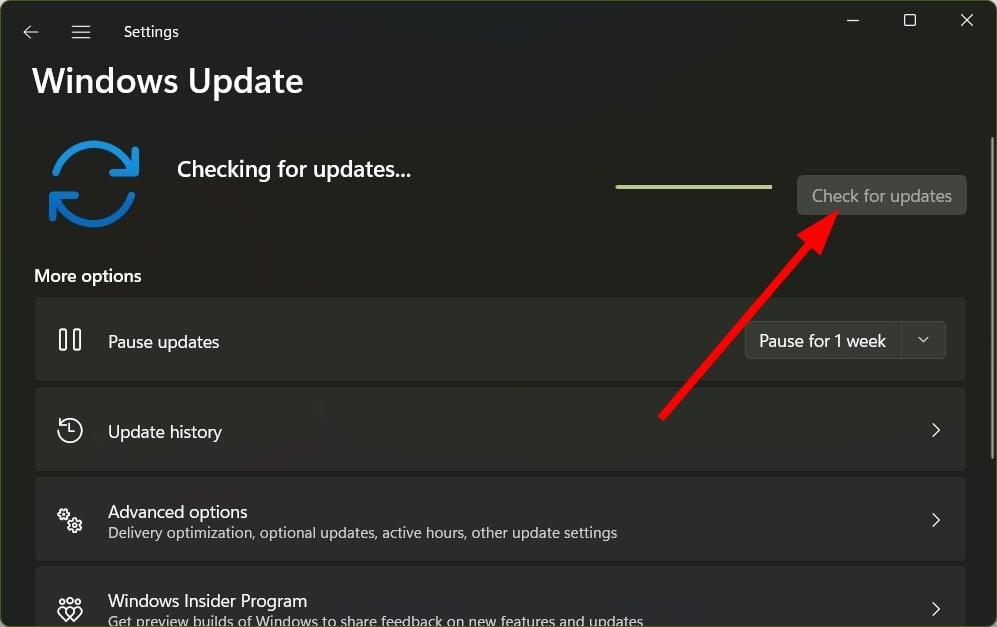
You should make sure that you are running the latest Windows update on your PC. Not only latest updates bring the latest features but also update the virus and malware database that keeps your PC protected.
2. Fix corrupt system files
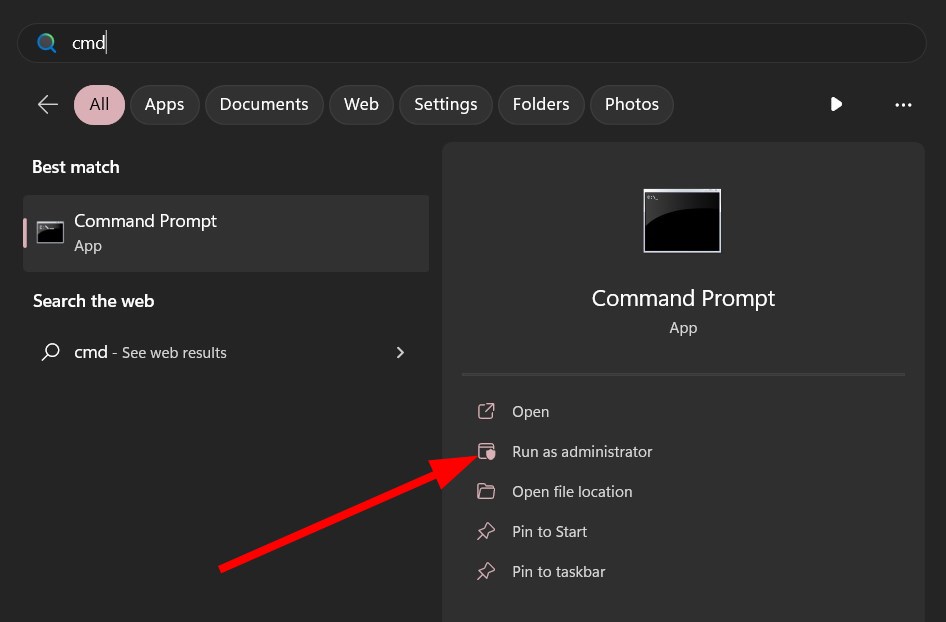
- Press the Win key to open the Start menu.
- Open Command Prompt as an admin.
- Type the below command and press Enter.
sfc /scannow
- Wait for the process to complete.
- Execute the below command.
DISM /Online /Cleanup-Image /CheckHealthDISM /Online /Cleanup-Image /ScanHealthDISM /Online /Cleanup-Image /RestoreHealth - Restart your PC.
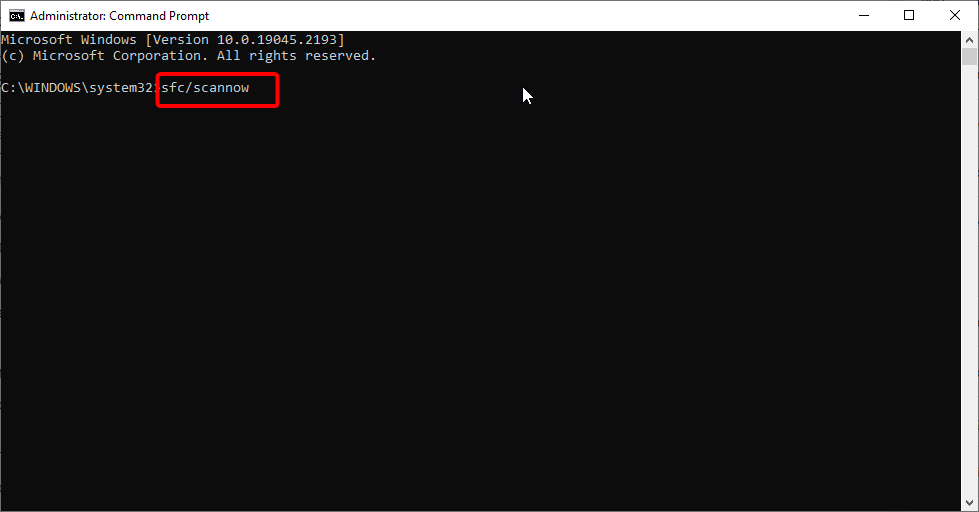
Running the SFC Scan and DISM commands will help fix your PC’s corrupt system files. But these aren’t that effective when dealing with errors such as AMDRyzenMasterDriver.SYS error.
In such a case, you should opt for Fortect. Using this tool, you can fix system crashes, fix DLL file errors, fix BSOD errors, protect your PC against ransomware and malware, and much more.
3. Reinstall AMD Ryzen Master
- Press the Win key to open the Start menu.
- Open Control Panel.
- Click on Programs and Features.
- Click on AMD Ryzen Master and hit the Uninstall button.
- Follow the on-screen prompts to uninstall the program from your PC.
- Restart your PC.
- Visit the official website.
- Download the AMD Ryzen Master program.
- Install it and check if this fixes the issue or not.
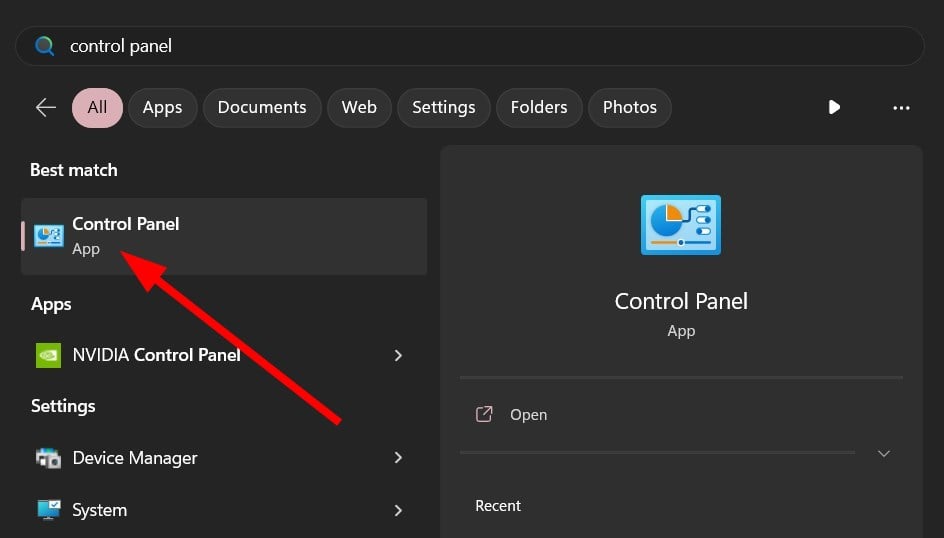
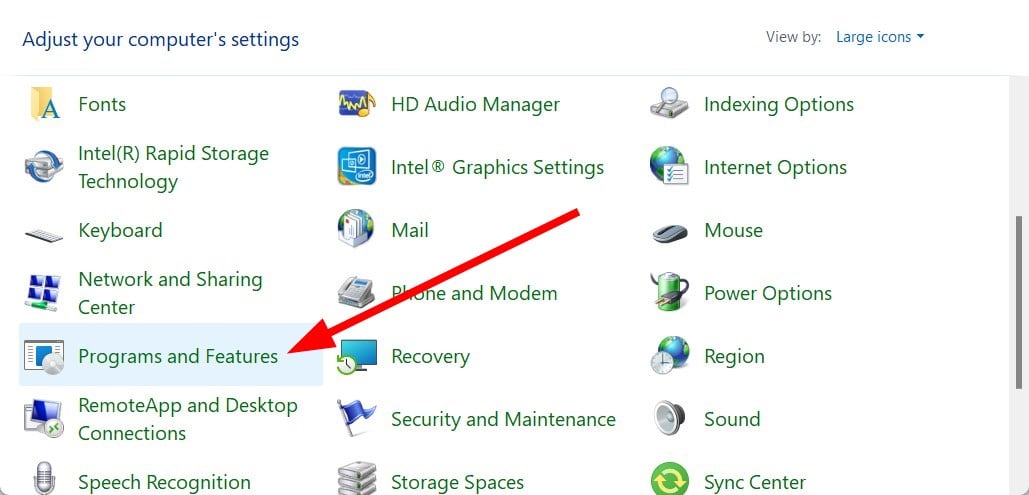
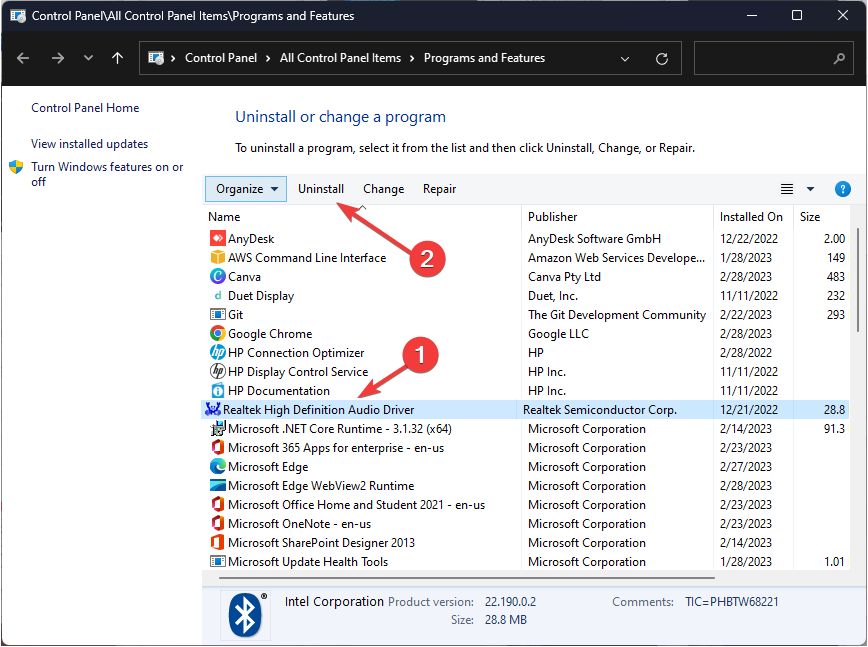
If some files related to the AMD Ryzen Master overclocking tool get corrupted or missing, you will face this AMDRyzenMasterDriver.SYS error.
4. Run AMD Driver AutoDetect
- Visit the official website.
- Download the AMD Driver AutoDetect tool.
- Install the program.
- If new drivers are available for your AMD device, then the tool will install them. Below are the components:
- AMD Radeon RX Series Graphics
- AMD Radeon PRO Series Graphics
- AMD Ryzen Chipsets
- After installing the components, restart your PC

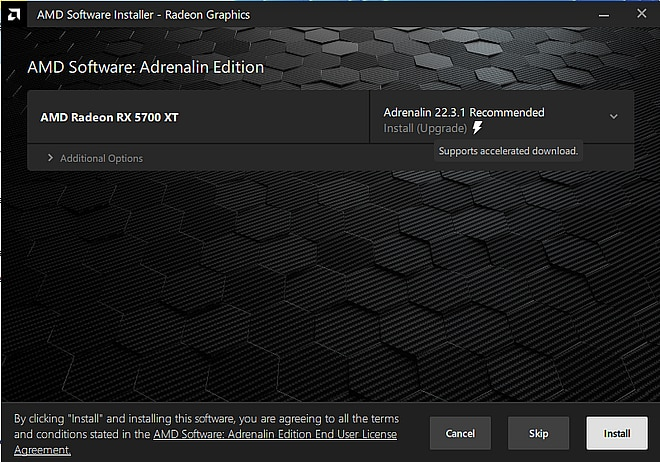
The chances are that the AMD Ryzen Master system drivers are on your PC, but the version is outdated. In such a case, you can use the AMD Driver AutoDetect tool to update all the related drivers and fix the AMDRyzenMasterDriver SYS error.
5. Perform System Restore
- Either repeatedly turn on and off your PC or press the F11 key when the PC is booting up to enter the Advanced Recovery environment.
- Select Troubleshoot.
- Click on Advanced options.
- Select System Restore option.
- Select your account.
- Click Next.
- Select the restore point and click Next.

- Hit the Finish button to begin the restore process.
Some PC issues are hard to tackle, especially when it comes to missing or corrupted system files and repositories of your Windows.
Be sure to use a dedicated tool, such as Fortect, which will scan and replace your broken files with their fresh versions from its repository.
If your PC is stuck in the BSOD loop, then you can follow the above steps and restore your PC to a state where everything was working normally.
However, do note that system restore will work, if you have previously created a restore point. If you aren’t sure how to do that, you should refer to our guide, which will help you create a system restore point on your PC.
6. Perform Startup Repair
- Repeatedly turn on and off your PC or press the F11 key when the PC is booting up to enter the Advanced Recovery environment.
- Select Troubleshoot.
- Click on Advanced options.
- Choose the Startup Repair option.
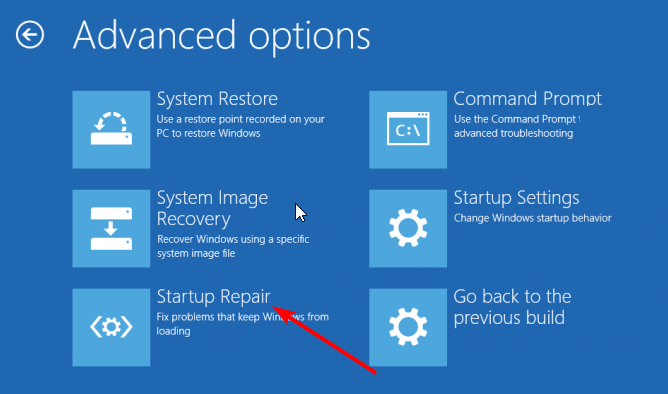
Perform the Startup Repair process to fix the issue of BSOD error. This will help negate any underlying issue if it is system-related and resolve the AMDRyzenMasterDriver SYS error.
That is it from us in this guide. AMD users have also reported facing the amdacpbus.sys BSOD error, which you can fix by following the solutions in our dedicated guide.
BSOD errors are also caused if you overclock your PC for a prolonged time. You can learn how you can easily underclock your PC.
If you are getting Windows cannot find AMD installer error, then you can refer to the solutions in our guide to resolve the problem.
Often AMD users complain of coming across Radeon Host Service high GPU usage error. You can resolve the problem by using the solutions in our guide.
You can also refer to our guide, which will help you learn how to stop AMD drivers from updating automatically.
Feel free to let us know in the comments below which one of the above solutions helps fix the AMDRyzenMasterDriver SYS error.
Still experiencing issues?
SPONSORED
If the above suggestions have not solved your problem, your computer may experience more severe Windows troubles. We suggest choosing an all-in-one solution like Fortect to fix problems efficiently. After installation, just click the View&Fix button and then press Start Repair.

The problem we are going to discuss in this post is Blue Screen error occurring with system failure and in majority of cases with reboot loop. During this issue, AmdRyzenMasterDriver.sys fails and prevents the computer from reaching the login screen. Instead, Blue Screen appears, shows a bugcheck code, and announces that the system is unable to start due to something serious.
Error message with this BSOD is What failed: AmdRyzenMasterDriver.sys and it is accompanied by a bug check code. This may be Secure_PCI_Config_Space_Access_Violation, System Thread Exception Not Handled, PAGE_FAULT_IN_NONPAGED_AREA, DRIVER_VERIFIER_DETECTED_VIOLATION, IRQL_NOT_LESS_OR_EQUAL.
AmdRyzenMasterDriver.sys refers to AMD Ryzen Master Service Driver which is a legitimate file and created by Advanced Micro Devices Inc. Common location of this file is c:program filesamdryzenmasterbin folder.
Here is how to fix AmdRyzenMasterDriver.sys Blue Screen Error BSOD in Windows 11 or 10 –
Way-1: Uninstall AMD Software and Asus AI Suite
BSoD error displayed here obviously occurs on the computers running AMD Ryzen and associated drivers. Asus AI Suite is the root cause of this issue which falls in conflict with AMD Ryzen drivers.
A similar condition arises when IOMAP64.sys blue screen error happens. Uninstalling the Suite and re-installing drivers will fix the AmdRyzenMasterDriver.sys error –
- Press Windows and R.
- Type appwiz.cpl.
- Hit the Enter key.
- On the Programs and Features window, select AI Suite 3 (or other version) and click on Uninstall.
- Select Yes on the prompt saying – “Are you sure you want to uninstall the AMD driver?”
- Follow the on-screen instructions and finish the removal.
- Restart and check whether AI Suite is uninstalled.
- Now again go to Programs Features, and select AMD Software.
- Click on Uninstall.
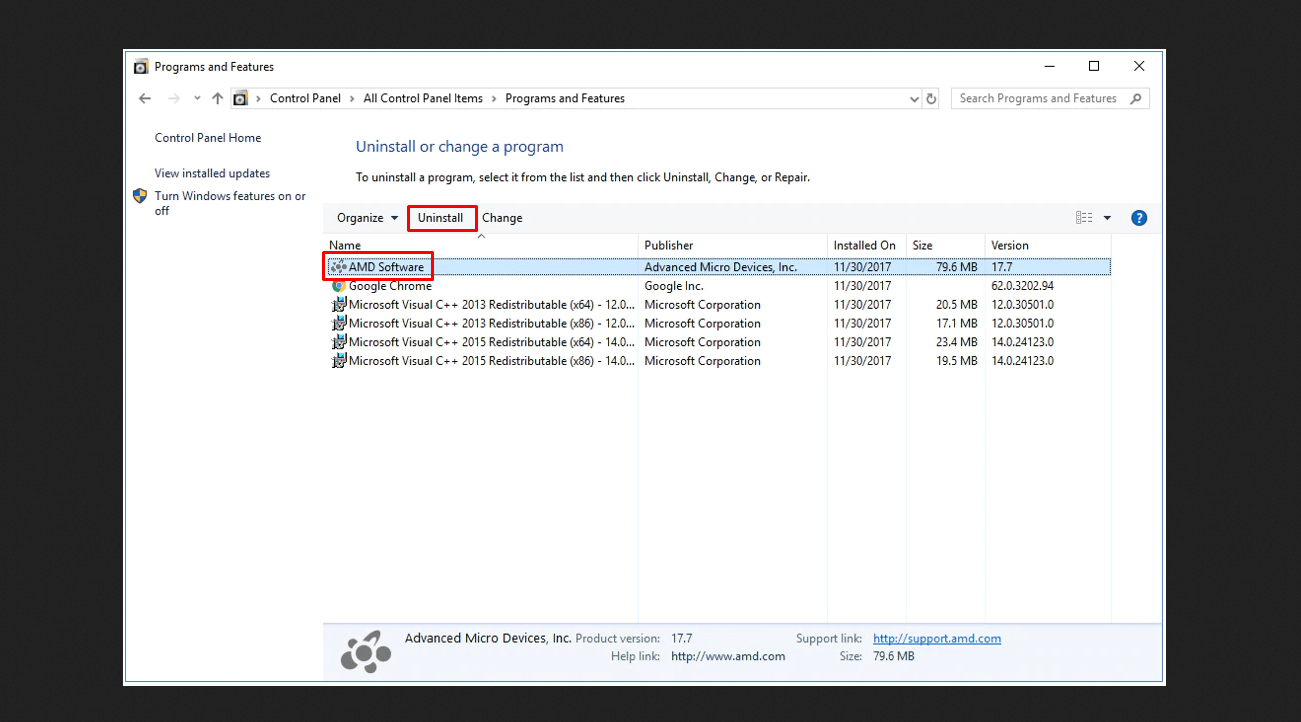
- Choose Yes on Confirmation pop-up.
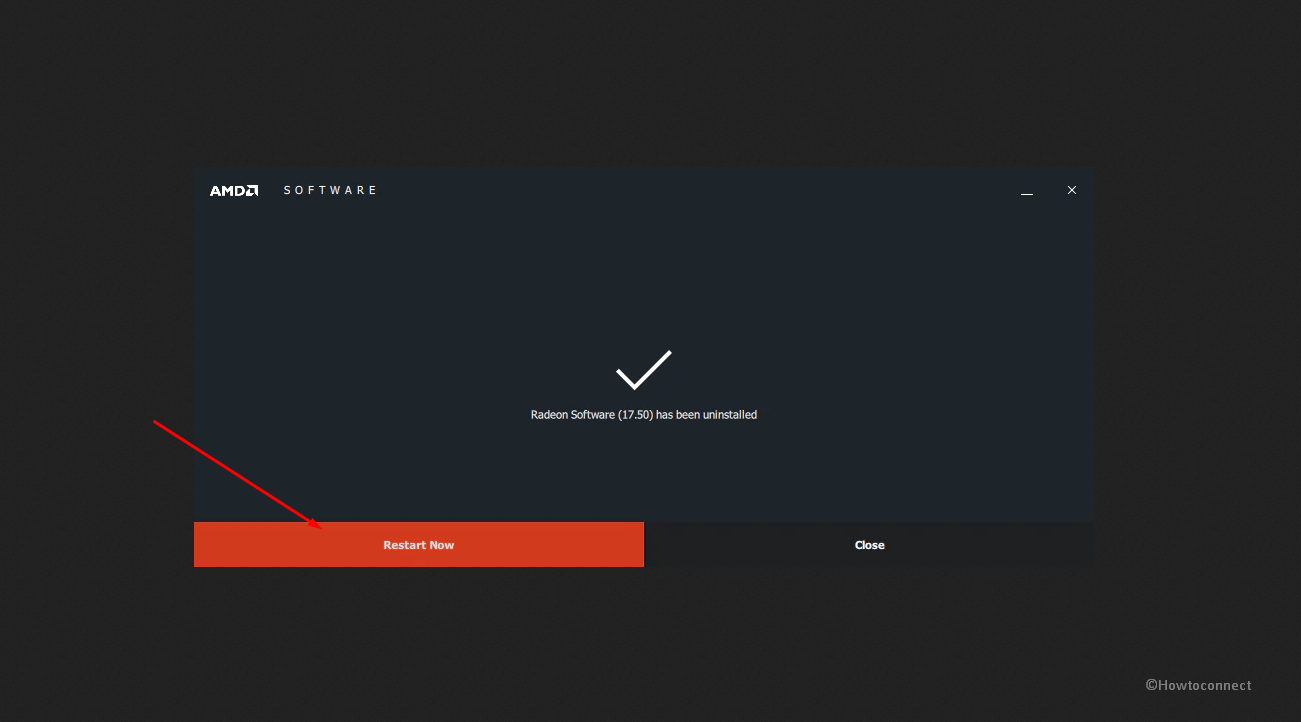
- The process will start deleting the software and its components. Screen may turn black intermittently for a maximum of 10 minutes due to the uninstallation.
- When the process is completed, you may come across the options to Restart now and Close.
- You need to select ‘Restart now’.
Now enable virtualization(SVM) via BIOS for AMD motherboards –
- Power on your computer and press F2 or Del.
- Then hold down F7 to enter into Advanced Mode. (Note that ROG series motherboard can straight away enter into Advanced Mode, no need to press F7).
- Select [Advanced] – [CPU Configuration].
- Now, set [SVM Mode] as [Enabled].
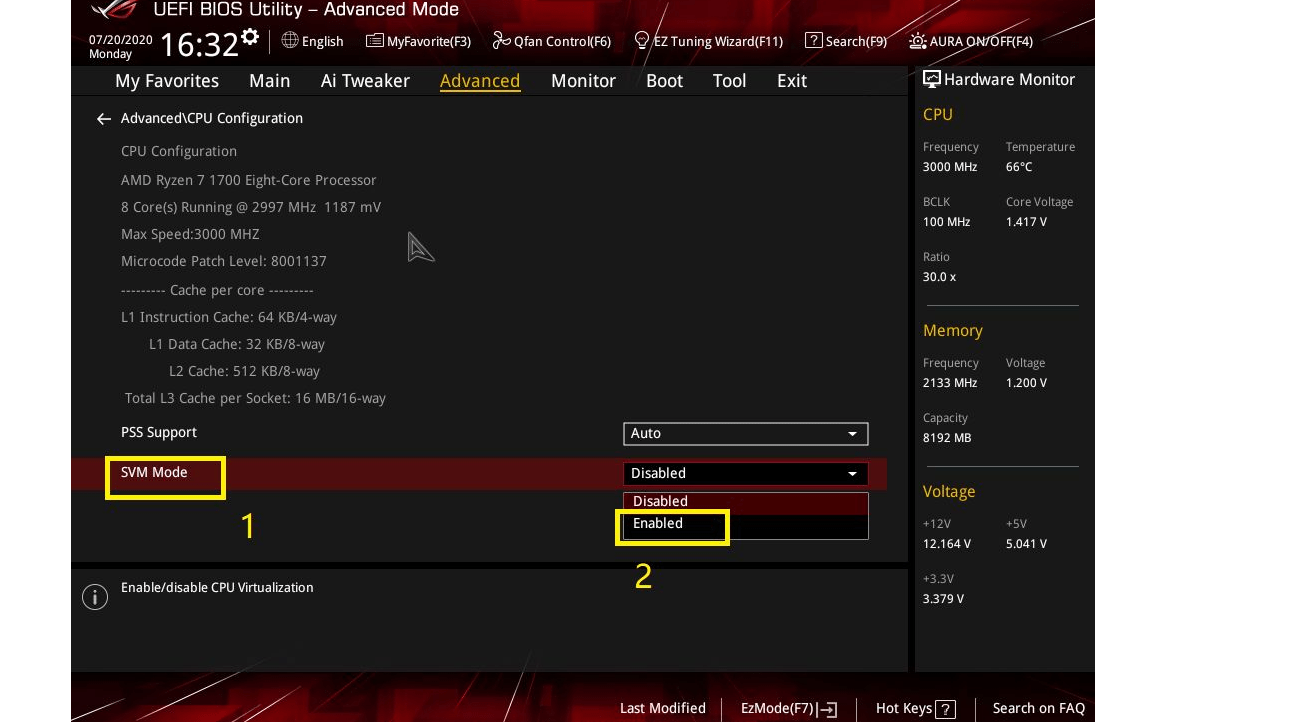
- Save changes and start the PC.
- Now go to AMD website and download the chipset drivers.
- Install the driver and reboot the device.
- You can start VMware if necessary.
Analyze the bug checking by following – How to Use BlueScreenView to Detect the Cause of Blue Screen
Way-2: Receive pending updates
When facing AmdRyzenMasterDriver.sys failed error with system crash there is always a chance for Windows 11 to get an update to officially fix the issue. Furthermore, Microsoft regularly pushes driver updates for OEM devices so follow the steps –
- Press Windows and I.
- Select Windows update from the right pane.
- Click on – Check for updates.
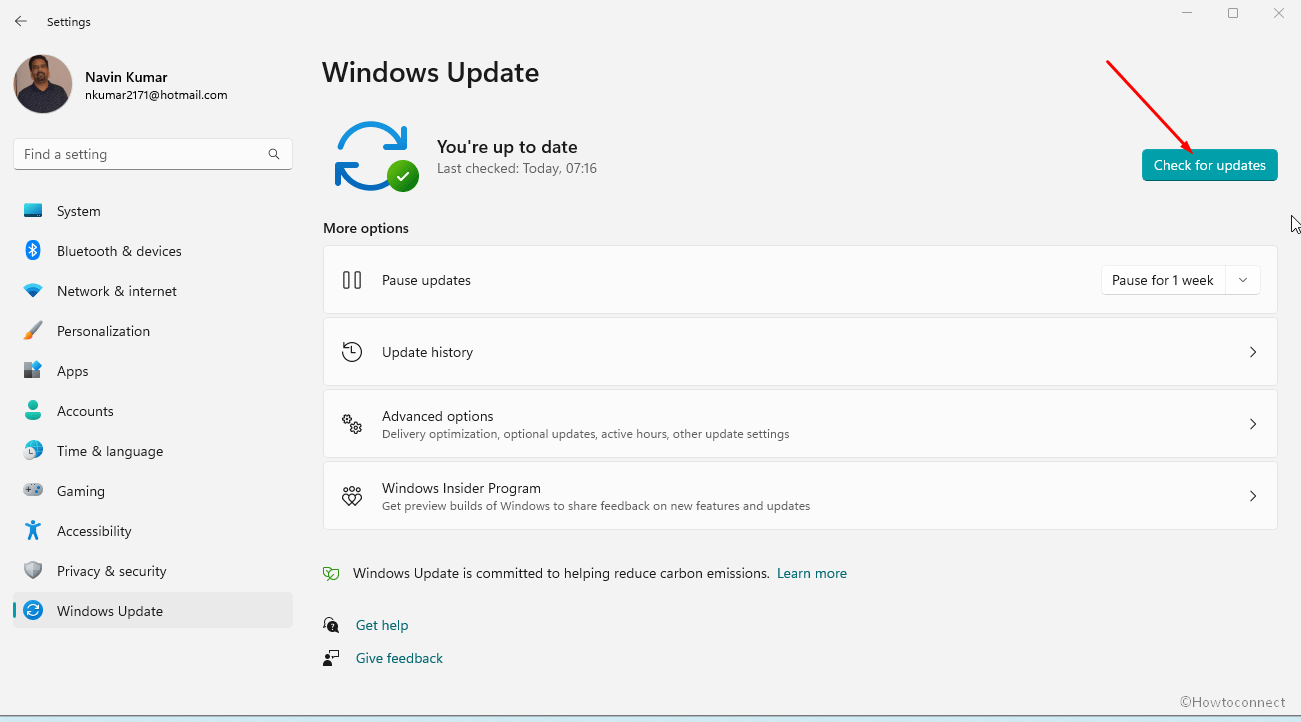
- System will scan for any pending updates and download if any are found.
- When you see a prompt to install, click on Restart now.
See what is crashing using – WhoCrashed: A Tool to analyze Dump and reveal culprit driver on Windows.
Way-3: Uninstall Windows update
Sometimes, the problem may trigger after installing the Windows update which carries bugs. Fortunately, you can fix AmdRyzenMasterDriver.sys by simply uninstalling the patch or build you have received –
- Click on Start and type updates.
- Press Enter to launch the Settings page.
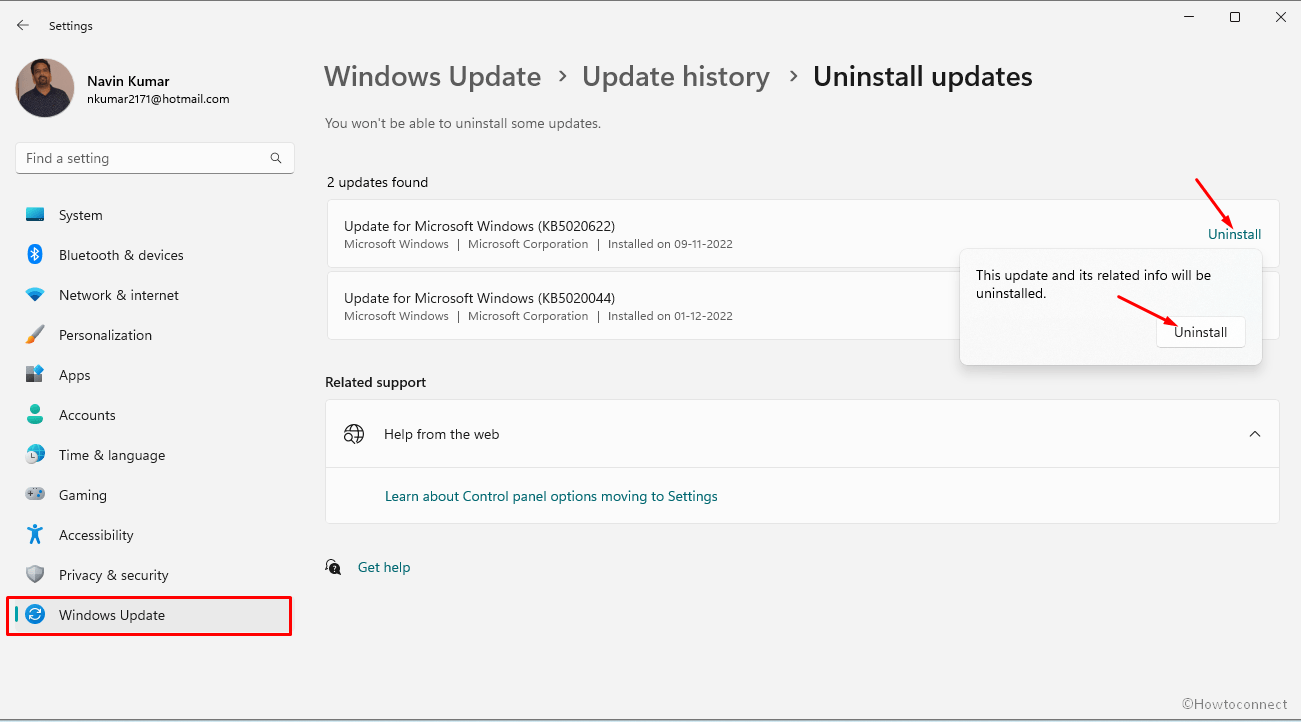
- Click on – Update history.
- From the next page, click on “Uninstall updates”.
- Locate the patch you have recently installed and click on Uninstall.
- Confirm the prompt.
Way-4: Run System File Checker and DISM utilities
BSOD generally troubles because of corrupted or missing system files or malfunctioned .wim and if this error also has the same reasons then the procedure is useful. This situation is generally created by third-party programs, malware or virus, old and incompatible drivers, and unnecessary changes in the system. To get rid of, follow –
- Click on Search and type cmd.exe.
- Select – Run as administrator.
- On the UAC prompt, choose Yes.
- On the command prompt, type –
SFC /Scannow.
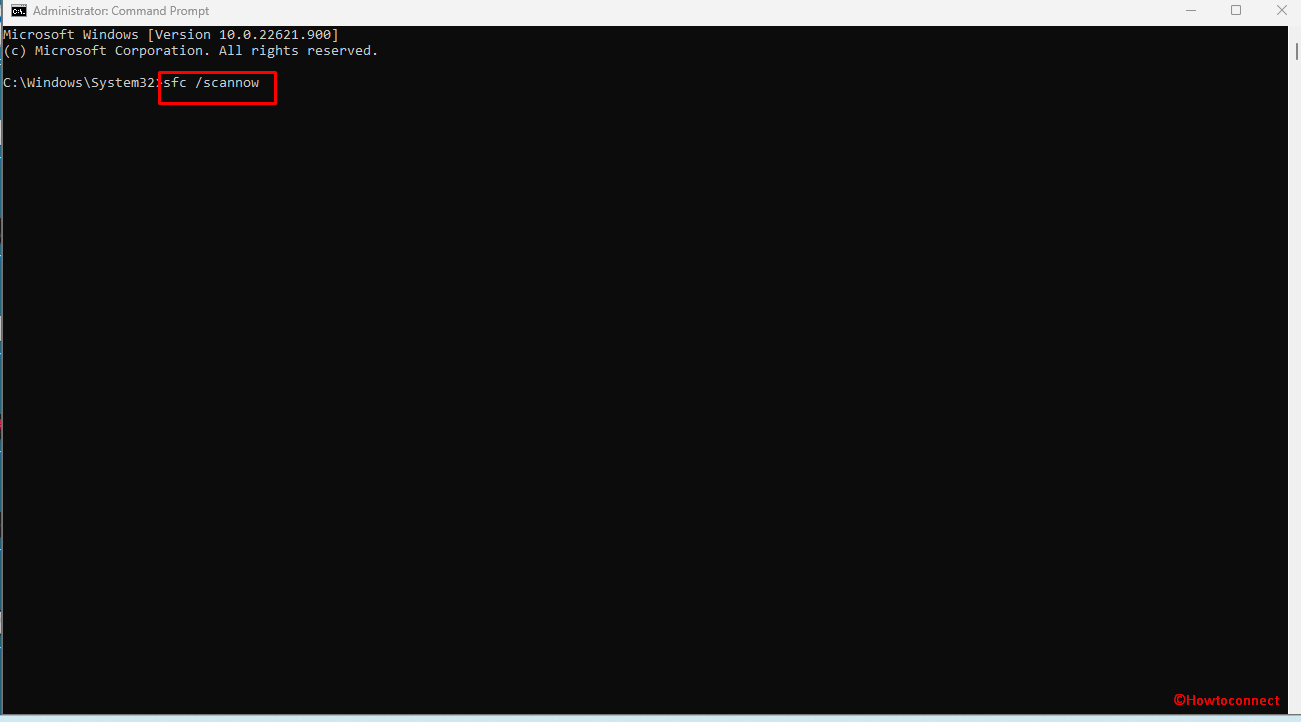
- Press Enter and allow the task to reach 100%.
- Reboot the PC and see if error is fixed.
- But, in case, the issue still persists open the command prompt again and type the following –
DISM /Online /Cleanup-Image /RestoreHealth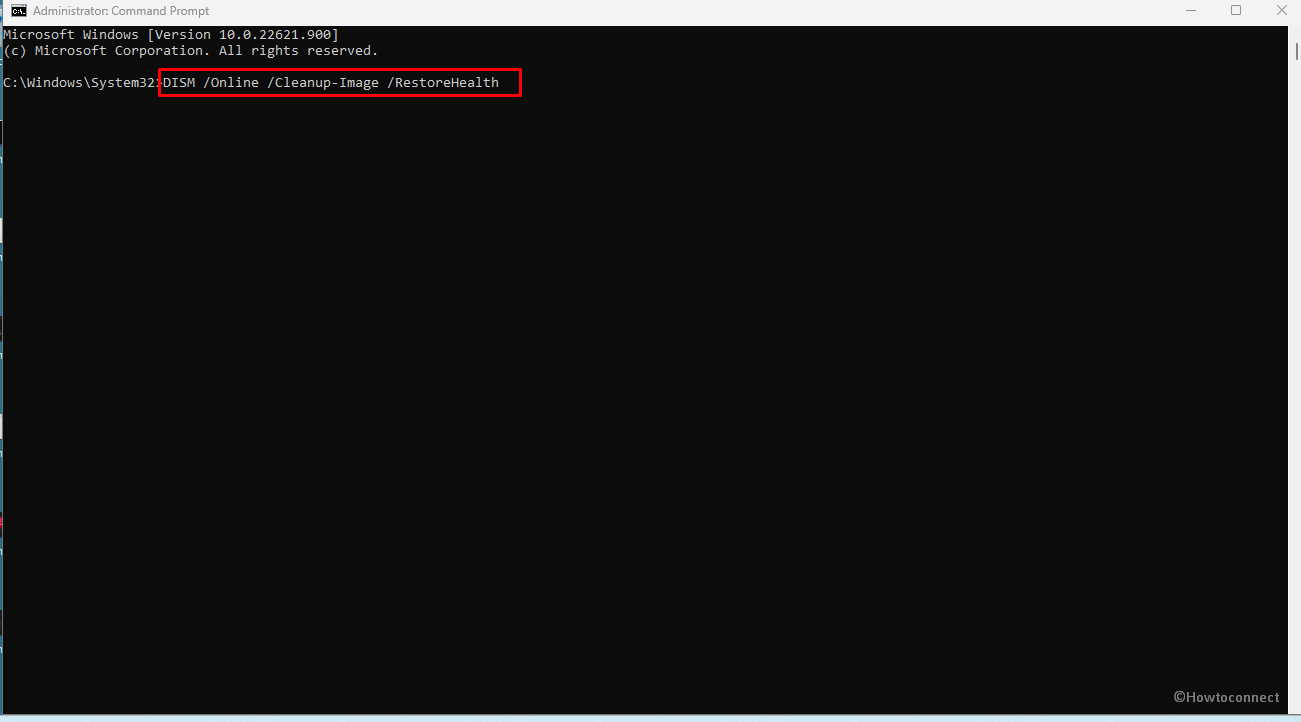
- Hit the Enter key and hold on for some extent of time until the Deployment Image Servicing and Management has finished its process. Reboot the machine.
See – Dump File Location Windows 11 or 10
Way-5: Perform System Restore
When trapped in reboot loop making system inaccessible to login with blue screen error, force your mind to recall whether you have made changes in the registry recently. System restore will help you in condition to undo the modifications and bring back flawless Windows. So step up with the below method –
- Press Windows+Q.
- Type rstrui.exe and hit the Enter key.
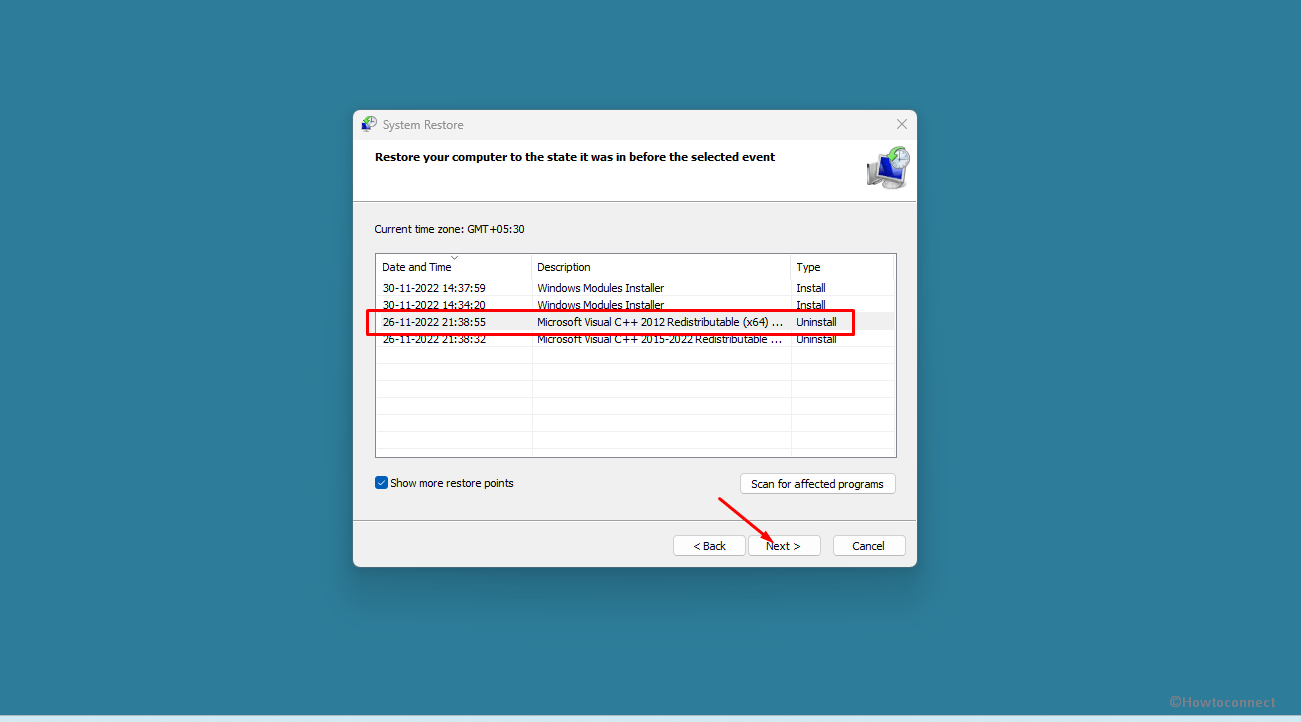
- On the System Restore wizard, check the option – Choose a different restore point.
- Select a Date & time from the list when the error was not generated. In case, you don’t find one then check the box for – Show more restore points.
- Click – Next.
- To confirm, select Finish.
- In the end, click on Yes to restore your system. Note that this process will take a long time so wait patiently until the restoration is finished perfectly.
Way-6: Clean install the version
If options run short hand and any of the above methods haven’t worked then don’t worry because clean install is still remaining. This installation process can solve the problem of the failed AmdRyzenMasterDriver.sys. so move forward with the steps –
- Open a browser and Search the keyword Windows 10/11 download.
- Open the official download page.
- Go to the Create Windows 11 Installation Media section.
- Click Download now.
- Once finished, double-click on it.
- On Windows 11 setup, select – Accept.
- Choose Language and Edition and click on – Next.
- Insert a USB Flash drive and check its option on Choose which media to use window.
- After the bootable media is created, reboot your computer and press a function key that can interrupt the boot sequence.
- Choose the USB Flash drive from boot device options.
- Follow the guide on the Windows 11 Setup and perform the installation.
See – How to Use Rufus to Install Windows 10.
Methods:
Way-1: Uninstall AMD Software and Asus AI Suite
Way-2: Receive pending updates
Way-3: Uninstall Windows update
Way-4: Run System File Checker and DISM utilities
Way-5: Perform System Restore
Way-6: Clean install the version
That’s all!!
Repair any Windows problems such as Blue/Black Screen, DLL, Exe, application, Regisrty error and quickly recover system from issues using Reimage.
AMD Ryzen is a very popular computer processor. However, some people encounter the “AMDRyzenMasterDriver.sys” error when using this software. This post from MiniTool provides you with multiple solutions to fix the error.
AMD Ryzen is a popular computer processor used in many gaming laptops. However, we have come across many user complaints that they are facing AMDRyzenMasterDriver.sys error message. What does the issue appear? The following are some possible reasons:
- Corrupted system files
- AMDRyzenMasterDriver.sys file is corrupt
- Your PC is not updated
- AMD Ryzen Master causing problems
- Drivers are not up to date
If you have an AMD-based system and you are currently experiencing the “AmdRyzenMasterDriver.sys crashes on your computer” issue. This article will show you a few different ways.
Method 1: Check for Updates
Check to see if any new versions of Windows are available, then update your Windows and restart your PC. After that, check if the “AMDRyzenMasterDriver.sys” issue has gone.
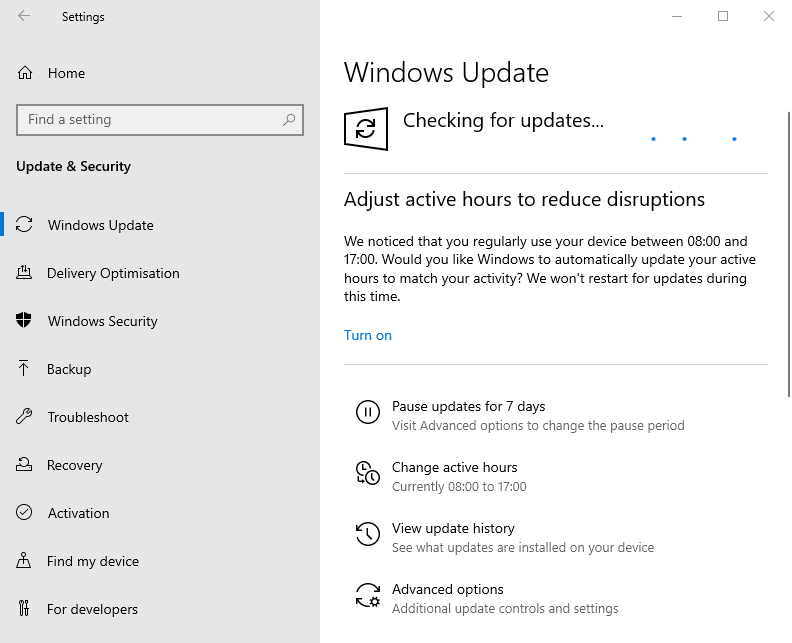
Step 1: Press the Windows + I keys together to open Settings.
Step 2: Go to Updates & Security.
Step 3: Click the Windows Update section, and click the Check for updates button to check if there are any new updates. Then Windows will search for available updates. Just follow the on-screen instructions to finish the process.
Method 2: Run System File Checker
If the problem persists, continue to the next method: use System File Checker. Sometimes, AMDRyzenMasterDriver.sys is caused by corrupted Windows system files. Here are the steps to fix it:
Step 1: Input command prompt in the Search box. Then right-click Command Prompt and select Run as administrator to open the command window.
Step 2: Type the command sfc /scannow and then press Enter.
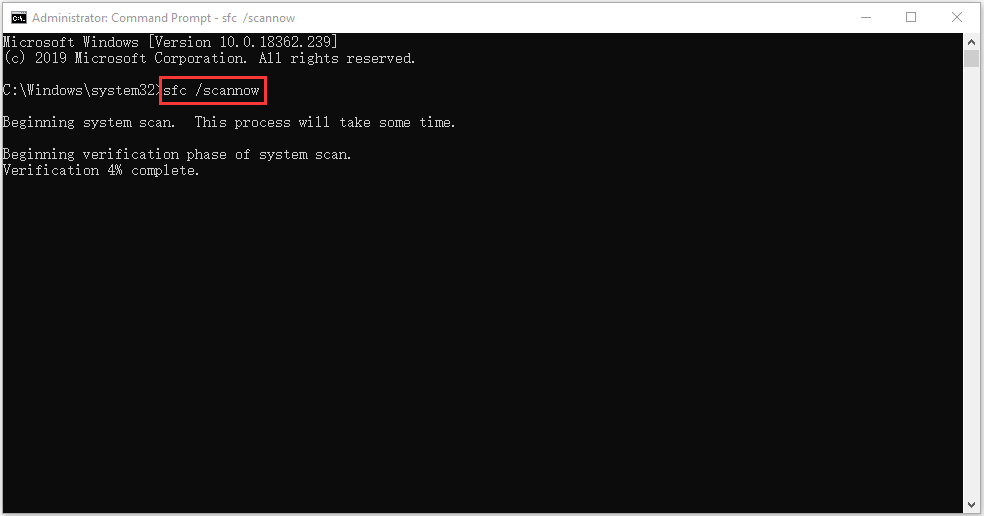
Wait patiently until the verification process 100% completes. Then reboot the computer to see whether the AMDRyzenMasterDriver.sys error still exists.
Tip: Please make sure there is a space between “sfc” and “/scannow”.
If the sfc /scannow command is unable to fix AMDRyzenMasterDriver.sys on Windows 10, you can run DISM to fix the Windows system image. So, type the correct command.
- Dism /Online /Cleanup-Image /CheckHealth
- Dism /Online /Cleanup-Image /ScanHealth
- Dism /Online /Cleanup-Image /RestoreHealth
After that, you can check whether you still encounter the issue.
Method 3: Run AMD Driver AutoDetect
The AMD Ryzen Master Service Driver may be present on your system, but an outdated version of the driver. In this case, you can download the driver set from the AMD website, or run the AMD Driver AutoDetect tool directly.
Method 4: Reinstall AMD Ryzen Master
If the above solutions are not working, you can try to reinstall AMD Ryzen Master. Follow the guide to do that:
Step 1: Type Control Panel in the Search box to open it.
Step 2: Go to Programs and Features. Find AMD Ryzen Master and right-click it to choose Uninstall.
Step 3: Then, follow the on-screen instructions to uninstall AMD Ryzen Master. Then, restart your PC.
Step 4: Then, go to its official website to download it.
Method 5: Perform a System Restore
If you have created a system restore point or system image backup with Windows snap-in tools, you can try using the restore point or image file to restore your computer to fix the AMDRyzenMasterDriver.sys BSOD error. Here are the steps for system restoration:
Step 1: In the search menu, input control panel and search for it, then open it.
Step 2: Click Recovery to continue.
Step 3: In the pop-up interface, please choose Open System Restore to continue.
Step 4: In the Restore system files and settings interface, you can click Next to continue.
Step 5: Choose the time to restore your computer to the state it was in the selected event and click Next to continue.
Step 6: You need to confirm the restore point and click Finish. After the system restore is finished, try to shut down your computer again.
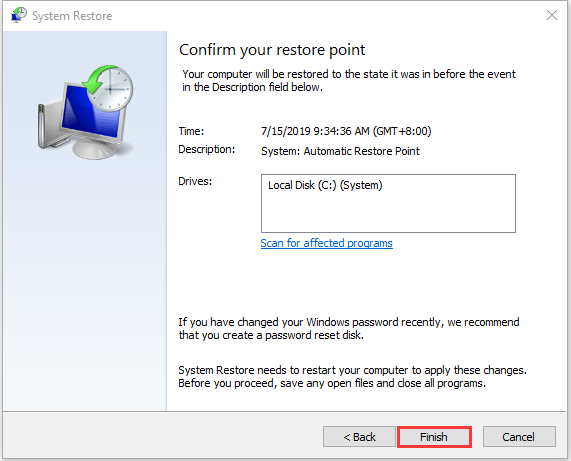
When the system restore process is finished, you can reverse your computer to a previous state. Then you can check if the error has gone.
Useful Suggestion: Back up Your System
After you fix the AMDRyzenMasterDriver.sys error, I have a suggestion for you. In case of something wrong with your system, it is recommended to back up your system in advance. Now, I will introduce a piece of free backup software for you — MiniTool ShadowMaker.
MiniTool ShadowMaker provides a one-click system backup solution. It supports backing up your system drive completely, including system partition, system reserved partition and EFI system partition. And you can image all of your data including computer settings, applications, drivers, system files, and boot files.
Now, you can download it to try the system backup.
Free Download
Step 1: Launch MiniTool ShadowMaker Trial Edition in Windows.
Step 2: Go to the Backup interface, and you can see system partitions are selected as the backup source.
Step 3: You only need to click DESTINATION to choose a path to save the system image file.
Step 4: Click Back Up Now to execute the backup task at once.

After that, you are advised to click Tools > Media Builder to create a bootable medium with a USB hard drive, USB flash drive, or CD/DVD disc.
Bottom Line
To sum up, this post tells you how to fix the AMDRyzenMasterDriver.sys error. If your PC is affected by the error, this post will help you diagnose and fix the issue by yourself.
In addition, it is recommended to create a system image with MiniTool ShadowMaker to better safeguard your computer. Thus, if you have any problem with MiniTool ShadowMaker, please feel free to contact us via the email [email protected] and we will reply to you as soon as possible.