Ошибка 6066 (она же — Dev error 6066) в CoD Modern Warfare указывает на проблему с отрисовкой игры. Другими словами, очень вероятно, что комп просто не тянет с такими параметрами графики.
Однако это, как говорится, еще не точно. Поэтому, когда в игре выскакивает ошибка 6066, то первым делом применяем самые стандартные в таких случаях меры: проверяем и обновляем драйвер видеокарты, поверяем и доустанавливаем обязательные обновления Windows 10, перезагружаем комп и перезапускаем игру с пониженным качеством графики.
Если не помогает, то далее рекомендуется выполнить следующее мероприятие:
- закрываем CoD полностью;
- находим и открываем папку игры и в ней — папку main;
- в папке main находим и удаляем четыре файла:
data0.dcache
data1.dcache
toc0.dcache
toc1.dcache
- перезагружаем комп, запускаем Modern Warfare и смотрим результат.
Должно сработать. В противном же случае придется еще немного повозиться. Значит, по порядку:
#1 — отключаем оверлеи Nvidia
GeForce Experience, напомним, не лучшим образом уживается с COD: Modern Warfare и Warzone. И ошибка 6066 (и не только она, но и еще некоторые «популярные» dev error) как раз и является одним из симптомов того, что приложения и игра конфликтуют.
Потому для проверки просто на время отключаем GeForce Experience:
- открываем приложение и идем в «Настройки«;
- далее переходим в раздел «Общие«;
- отключаем функцию «Внутриигровой оверлей«.
Не пропустите: Проблемы Call of Duty — что бывает, и как устранять
#2 — отключаем RTX в игре
К огромному сожалению, в CoD Modern Warfare предусмотрена только одна опция настройки трассировки лучей — Вкл/Откл. Поэтому вариантов как бы немного:
- запускаем игру;
- идем в настройки графики;
- скролим экран вниз до раздела «Свет и тени«
- и там отключаем опцию «Трассировка лучей DirectX«.
После этого пробуем поиграть. Если снова видим Dev error 6066, то тогда, возможно, стоит попробовать еще поработать с видеопамятью компа.
#3 — Ошибка 6066 в CoD Modern Warfare — проверяем состояние VRAM
… на предмет возможности увеличить объем видеопамяти для обработки CoD. Для этого сначала перепроверяем общий объем доступной VRAM: Win+I > «Система» > «Дисплей» > ссылка «Дополнительные параметры дисплея» > ссылка «Свойства видеоадаптера для дисплея», далее в следующем окне смотрим значение в строке «Доступно графической памяти«.
После этого, если видеокарта позволяет, можно попробовать увеличить объем VRAM. Сделать это можно так:
- перезагружаем комп и заходим в BIOS (сразу после начала загрузки жмем подряд несколько раз кнопку F2 или F12 или Del);
- в BIOS аккуратно ищем и открываем раздел с названием вроде «Advanced options» и в нем (или в не в нем) ищем подраздел с названием «Graphics Settings», «Video settings», «Advanced Chipset Setup» и т.п.
- в подразделе с параметрами распределения видеопамяти находим и активируем строку «VRAM size» (или с похожим названием) и в меню устанавливаем значение «512MB«;
- перезагружаем комп.
Снова тестируем результат. Если всё сделано правильно, но игра по-прежнему выдает ошибку 6066, то далее остается только полностью её переустановить. Пока так…
[irp]
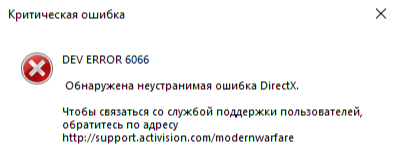
Вот полное руководство о том, как исправить ошибку Dev 6066 в Call of Duty Modern Warfare и Warzone. Многие пользователи Modern Warfare и Warzone жаловались на ошибку разработчика 6066 при попытке запустить игру. При срабатывании вы получите следующее сообщение об ошибке:
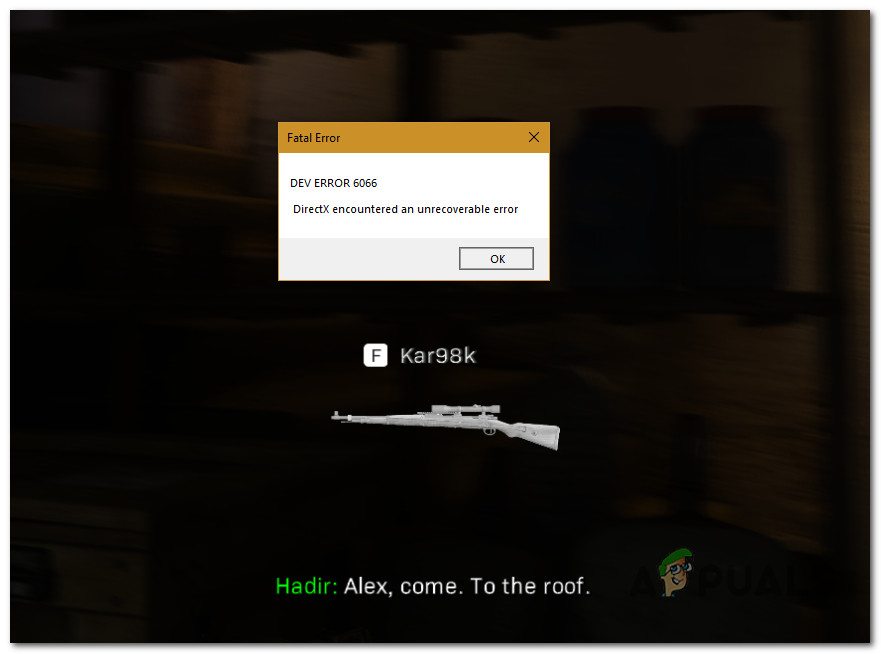
ОШИБКА РАЗРАБОТЧИКА 6066
DirectX обнаружил неисправимую ошибку
Теперь, если вы также получаете ту же ошибку в Warzone или Modern Warfare, мы вам поможем. В этом посте мы обсудим несколько исправлений, которые помогли пользователям избавиться от этой ошибки. Таким образом, вы также можете попробовать эти исправления и устранить ошибку.
Что такое ошибка Dev 6066 Warzone?
Dev Error 6066 in Warzone error — это ошибка запуска, возникающая при попытке открыть игру. Эта ошибка может быть результатом множества факторов. Это может быть вызвано устаревшей ОС, устаревшими графическими драйверами, отсутствием видеопамяти, конфликтами с фоновыми приложениями и разгоном. Другими потенциальными причинами той же ошибки могут быть поврежденные файлы игры или поврежденные установочные файлы.
Как исправить ошибки разработчиков в Warzone?
Исправления для устранения ошибок Dev в Warzone полностью зависят от кода ошибки, который вы получаете. Каждый код ошибки указывает на другую причину ошибки. Если вы получаете код ошибки 6066, вы можете попробовать обновить Windows, увеличить VRAM, закрыть фоновые приложения, отключить разгон, отключить игровые оверлеи или переустановить игру.
Вот исправления, которые вы можете попробовать, чтобы избавиться от DEV ERROR 6066, DirectX обнаружил неисправимую ошибку в Modern Warfare и Warzone:
- Обновите Windows, а также графические драйверы.
- Увеличьте видеопамять.
- Обновите DirectX.
- Закройте ненужные фоновые приложения.
- Отключить разгон.
- Отключите внутриигровые оверлеи.
- Проверьте целостность файлов игры.
- Переустановите игру.
1]Обновите Windows, а также графические драйверы.
Эта ошибка может быть вызвана проблемами несовместимости между вашей ОС и игрой. Следовательно, первое, что вы должны сделать, это убедиться, что вы установили все последние обновления Windows и ваша система обновлена. Если нет, обновите Windows до последней сборки, чтобы исправить ошибку. Чтобы обновить систему Windows, просто перейдите в «Настройки» > «Центр обновления Windows» и нажмите кнопку «Проверить наличие обновлений», чтобы загрузить и установить последние обновления.
Кроме того, вы также должны убедиться, что в вашей системе установлены последние версии графических драйверов. Известно, что неисправные и устаревшие графические драйверы вызывают подобные ошибки. Итак, вам нужно обновить графические драйверы, чтобы исправить ошибку. Чтобы обновить драйверы карты графического процессора, вы можете использовать следующие методы:
- Используйте функцию «Необязательные обновления», доступную в разделе «Настройки» > «Центр обновления Windows». Здесь вы можете найти все оптимальные обновления, включая обновления драйверов. Итак, загрузите и установите их, чтобы обновить графические драйверы.
- Вы также можете загрузить последнюю версию графического драйвера с официального сайта производителя устройства.
Посмотрите, поможет ли обновление Windows и графических драйверов исправить ошибку. Если вы уже используете последнюю версию Windows и драйверов, проблема может быть связана с какой-то другой основной причиной. Итак, вы можете попробовать следующее потенциальное исправление, чтобы устранить ошибку.
2]Увеличьте видеопамять
Увеличение VRAM может помочь вам избавиться от имеющейся ошибки, как утверждают разработчики и затронутые пользователи. Для бесперебойной работы Warzone требуется минимум 8 ГБ ОЗУ. Итак, если на вашем ПК не хватает памяти во время игры, увеличьте виртуальную память, чтобы исправить ошибку. Это делается путем преобразования секторов жесткого диска в виртуальную память. Вот как вы можете это сделать:
- Во-первых, нажмите кнопку поиска на панели задач и в поле поиска введите дополнительные параметры системы.
- Теперь из появившихся результатов выберите «Просмотреть дополнительные параметры системы», чтобы открыть окно «Свойства системы».
- Затем на вкладке «Дополнительно» нажмите кнопку «Настройки» в разделе «Производительность».
- После этого перейдите на вкладку «Дополнительно» в новом диалоговом окне и нажмите кнопку «Изменить».
- Затем снимите флажок Автоматически управлять размером файла подкачки для всех дисков и выберите диск, на котором установлена ваша игра.
- Теперь выберите «Пользовательский размер» и введите значение больше 2 ГБ для обоих Начальный размер и Максимальный размер.
- Затем нажмите кнопку «Применить» > «ОК», чтобы применить вышеуказанные изменения.
- Наконец, перезагрузите компьютер и посмотрите, исправлена ли ошибка или нет.
Если вы все еще сталкиваетесь с той же ошибкой, попробуйте следующее потенциальное исправление, чтобы устранить ошибку.
Читайте: исправьте код ошибки 664640 в Call of Duty Modern Warfare или Warzone
3]Обновить DirectX
Поскольку ошибка может быть вызвана устаревшей версией DirectX, обновите DirectX, чтобы исправить ошибку. Просто загрузите самую последнюю версию DirectX с сайта Microsoft.com, а затем установите ее. Посмотрите, исправит ли это ошибку для вас.
4]Закройте ненужные фоновые приложения
Вы можете получить эту ошибку, если у вас слишком много приложений, работающих в фоновом режиме. Есть вероятность, что приложения мешают работе Warzone или Modern Warfare. Следовательно, рекомендуется отключить все фоновые приложения, чтобы исправить ошибку. Вы можете открыть Диспетчер задач и на вкладке «Процессы» выбрать приложение, которое хотите закрыть. После этого нажмите кнопку Завершить задачу кнопку, чтобы закрыть его. Сделайте это для всех других приложений, а затем посмотрите, исправлена ошибка или нет.
Читайте: исправьте ошибку Dev 6034 в Call of Duty, Modern Warfare и WarZone.
5]Отключить разгон
Разгон — это удобная функция, позволяющая ускорить работу вашего ПК. Однако у некоторых пользователей это также вызывает проблемы со стабильностью приложений и игр. Итак, если у вас включен разгон, попробуйте отключить его, войдя в BIOS вашей материнской платы. Посмотрите, исправит ли это ошибку для вас. Если вы не используете разгон и по-прежнему получаете ошибку, попробуйте следующее возможное исправление, чтобы устранить ее.
Читайте: COD Modern Warfare DEV ERROR 6068, 6065, 6165, 6071.
6]Отключите внутриигровые оверлеи.
Эта ошибка также может быть результатом внутриигровых оверлеев. Следовательно, если сценарий применим, отключите внутриигровые наложения, а затем проверьте, исправлена ли ошибка или нет. Вы можете отключить счетчик FPS в Modern Warfare, выполнив следующие действия:
- Во-первых, перейдите в меню «Параметры» игры и перейдите на вкладку «Общие».
- Теперь отключите переключатель «Кадры в секунду» (FPS) в разделе «Телеметрия».
- Далее попробуйте перезапустить игру и посмотреть, исправлена ли ошибка.
Если у вас есть видеокарта GeForce, вы можете отключить оверлей GeForce Experience Share в игре, выполнив следующие действия:
- Во-первых, запустите GeForce Experience и перейдите в его настройки.
- Теперь отключите переключатель «Поделиться», перейдя на вкладку «Общие».
- Затем перезапустите игру и проверьте, исправлена ли ошибка Dev 6066 или нет.
Вы также можете попробовать отключить внутриигровые параметры наложения в таких приложениях, как Steam, Discord и т. д., и посмотреть, сработает ли это для вас. Если нет, вы можете попробовать следующее потенциальное исправление, чтобы избавиться от ошибки.
Читайте: исправьте высокую загрузку ЦП Modern Warfare Warzone на ПК.
7]Проверьте целостность файлов игры
Другой потенциальной причиной этой ошибки могут быть отсутствующие или поврежденные игровые файлы Call of Duty: Modern Warfare или Warzone. В этом случае вы можете попробовать проверить целостность файлов игры, чтобы исправить ошибку. В Battle.net, средстве запуска игр, есть специальная опция, позволяющая сканировать и исправлять поврежденные игровые файлы. Вот шаги, чтобы использовать эту функцию:
- Во-первых, запустите программу запуска Battle.net и нажмите на проблемную игру, например, Call of Duty: Modern Warfare или Warzone.
- Теперь рядом с кнопкой «Воспроизвести» будет значок шестеренки/настроек; вам нужно нажать на него.
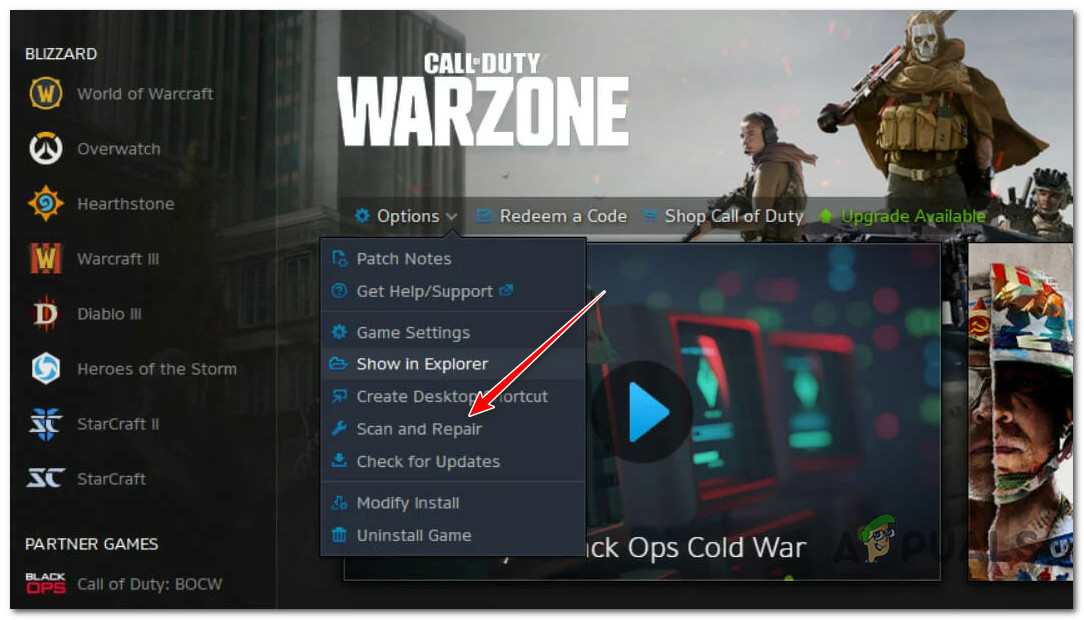
- Затем из доступных вариантов выберите параметр «Сканировать и восстановить» и позвольте ему проверить и восстановить файлы игры.
- После этого попробуйте перезапустить игру и проверьте, устранена ли ошибка сейчас.
Если вы все еще получаете ту же ошибку, есть еще одно исправление, которое вы можете попробовать. S. перейти к следующему исправлению.
См.: Исправление ошибки разработчика CoD Warzone 5476 или 6635.
8]Переустановите игру
Если ни одно из вышеперечисленных исправлений вам не помогло, последнее исправление, которое вы можете попробовать, — это переустановить игру. Есть вероятность, что вы имеете дело с поврежденными установочными файлами игры. Итак, чтобы исправить ошибку, удалите игру, а затем переустановите ее. Вы можете выполнить следующие шаги, чтобы сделать это:
- Во-первых, откройте программу запуска игр Battle.net и выберите проблемную игру.
- Теперь нажмите на значок шестеренки рядом с кнопкой «Воспроизвести».
- Затем выберите опцию «Удалить», а затем подтвердите удаление игры.
- После завершения процесса перезагрузите компьютер.
- Наконец, откройте Battle.net, а затем переустановите игру, чтобы проверить, исправлена ли ошибка.
Надеюсь, это поможет!
Как исправить неисправимую ошибку DirectX?
Пользователи ПК, столкнувшиеся с Modern Warfare (CoD) ОШИБКА РАЗРАБОТЧИКА 6XXX, DirectX столкнулся с неисправимой ошибкой во время игры в Windows 11/10, можете попробовать наши рекомендуемые ниже решения в произвольном порядке и посмотреть, поможет ли это решить проблему.
- Проверить статус сервера Activision
- Обновите графический драйвер
- Запустите Modern Warfare с правами администратора
- Установите высокий приоритет процесса Call of Duty
- Отключить функцию кроссплея
- Сканировать и восстанавливать игровые файлы
- Изменить масштаб видеопамяти
- Удалите и переустановите CoD Modern Warfare
Теперь прочитайте:
Данная ошибка встречается после очередного обновления Warzone, и нигде не написано как ее исправить. Проверка целостности игры через Battle.net не помогает, советуют просто переустановить игру… Но ведь это не дело?
Мне удалось натыкать решение!
Как исправить
Для этого вам потребуется перейти в папку с установленной игрой, а именно по пути:
Call of Duty Modern Warfaremain
В этой папке вам нужно будет удалить 4 файла.
А именно:
– data0.dcache
– data1.dcache
– toc0.dcache
– toc1.dcache
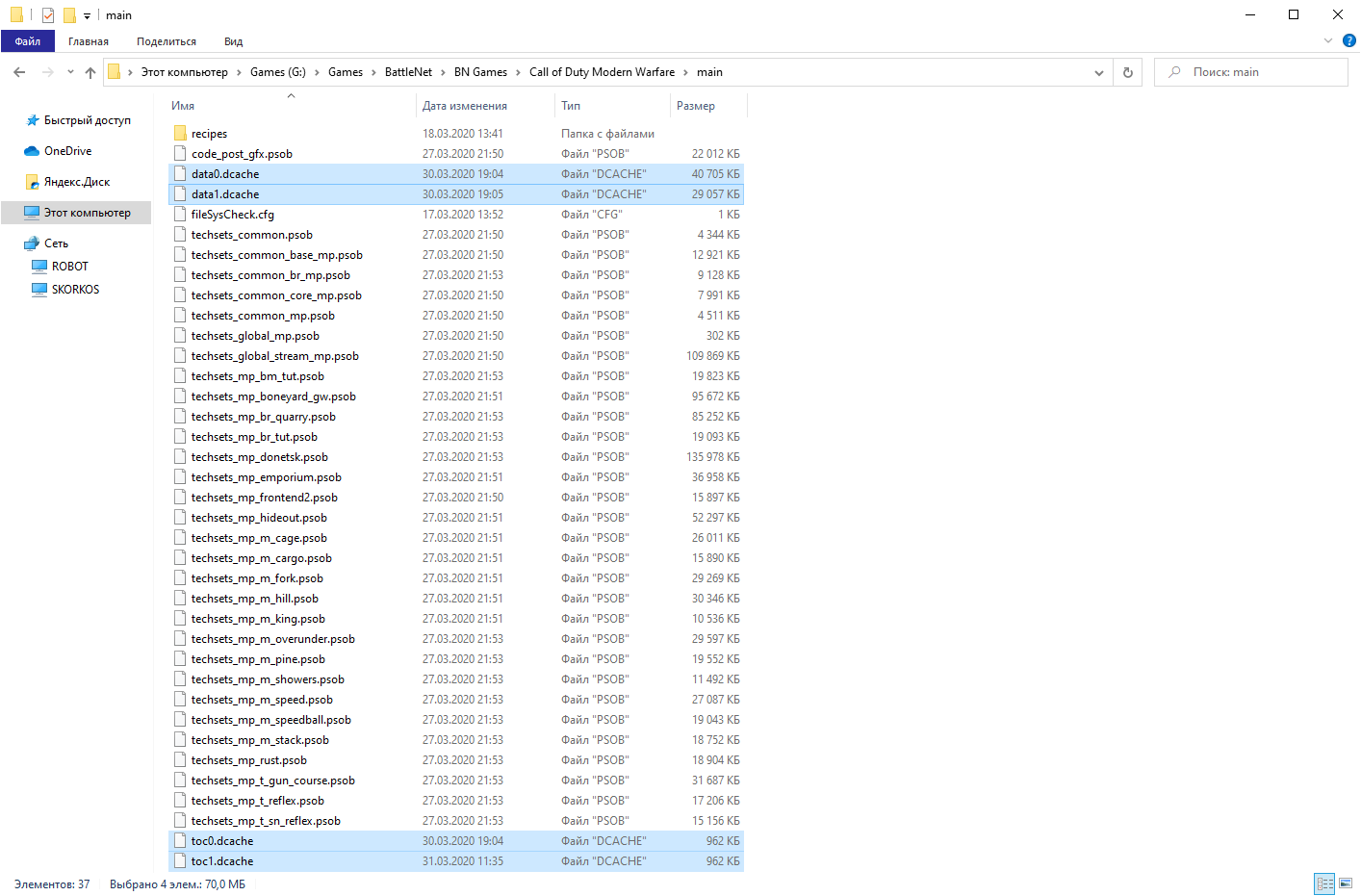
После того как вы их удалите можете перезаходить в игру. Warzone немного подумает и предложит вам перезайти для завершения обновления.
Помогло? Оставляйте комментарии!
Warzone players recently start complaining about they are getting Dev error 6066 on Warzone.
This error usually encounters at the time of the launch. This error usually happens when there is a connectivity issue or your game files are corrupted.
Don’t worry about it!
The CPU Guide brings you the best working solution to solve Dev Error 6066.
Solution 1: Check the Server Status
Before trying anything, we recommend it to check the server status of Warzone 2.0
If the servers are down, then this is the main cause behind Dev error 6066 or any other error popping up.
To confirm the server status, you can go to support Activision where they update the players about upcoming maintenance or any technical issue on the server.
If the servers are working fine then follow the next solution.
Read More: Call of Duty Modern Warfare 2 Not Launching Issue On Windows 11/10
Solution 2: Scan and Repair Via Battle.Net
Sometimes the software you are using to play Warzone 2.0 may have some corrupted files.
Which lead to Warfare Dev Error 6066.
How do you scan and repair in modern warfare?
So here is how you scan and repair in COD Warzone 2.0:
- Make sure the COD Modern Warfare 2 is not running in the background.
- Launch Battle.net and select Game from the top menu.
- Click on COD Warzone 2.0.
- Now click on Options and select Scan & Repair.
- Click on Begin Scan.
- After the process is complete restart your PC.
- And launch your MW2 again.

If this didn’t help you solve then follow the next solution.
Solution 3: Keep your PC Updated
Sometimes your outdated PC is the main cause of the Outdated Wi-Fi Drivers on Windows 11/10.
Outdated drivers in your PC or your current Windows version cannot support the new connectivity parameter of your internet.
As you update your Windows, all the drivers are updated too and this will fix the cannot connect to the server.
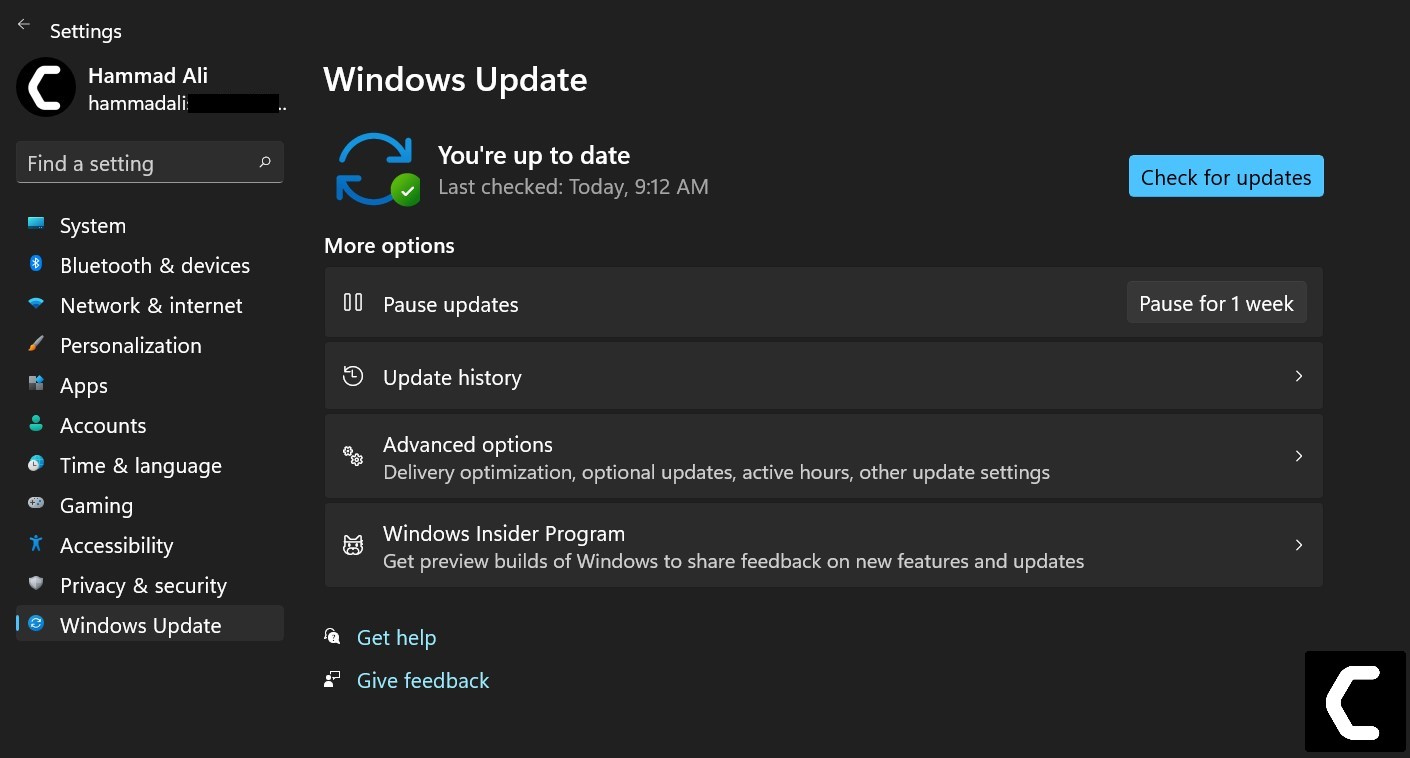
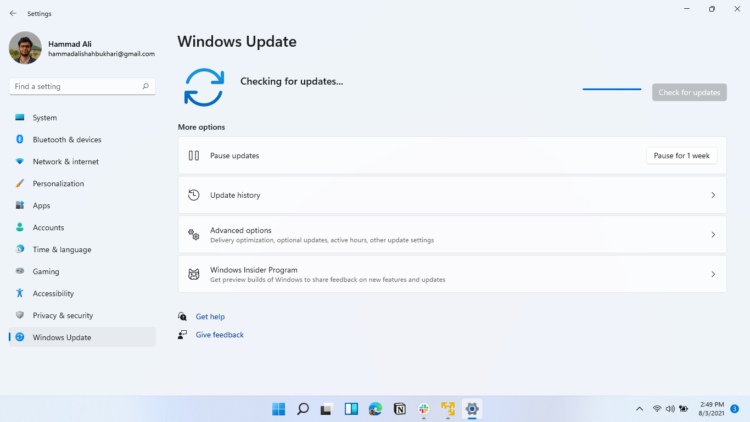
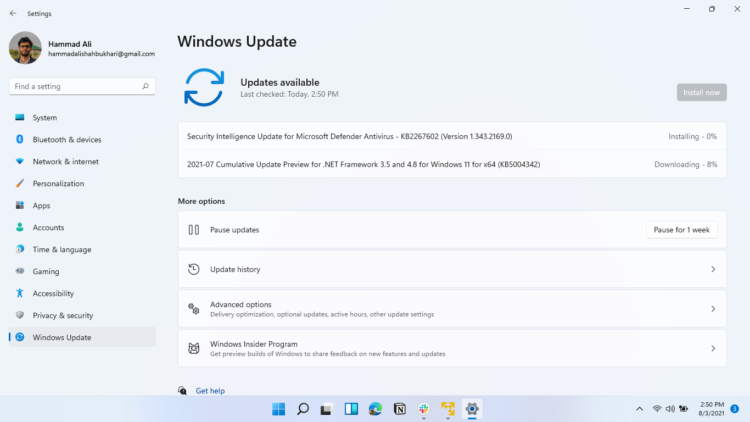
So, here is how you can update your PC:
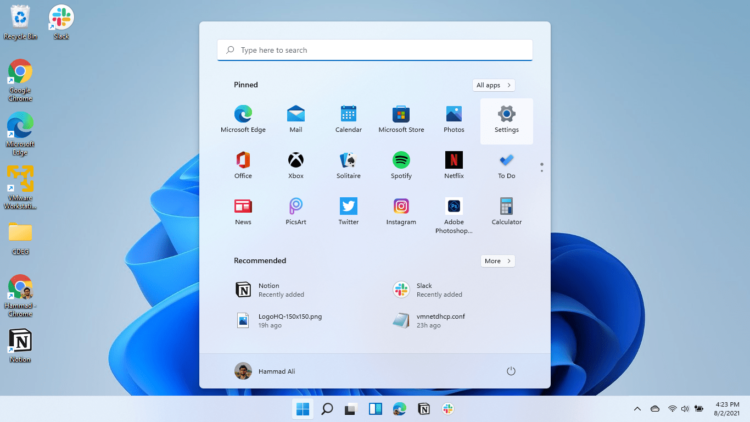
- Click on the Windows icon

- Click on the Settings icon
- A new window will pop up
- Select Windows Update from the left menu

- The new window will pop up
- Then click on Check for updates
- If there is any update, it will start updating the PC
- After the updating is done check if the COD Warzone 2.0 is solved or not.
If updating your system didn’t work out then try closing unwanted programs.
Solution 4: Close Unwanted Programs on Windows 11/10
If the above solution didn’t work, then closing unwanted programs will help you to eliminate Dev Error 6066 on COD Warzone.
If there are too many programs running in the background that are using too much internet/RAM/Disk and causing the COD Multiplayer Not Working error.
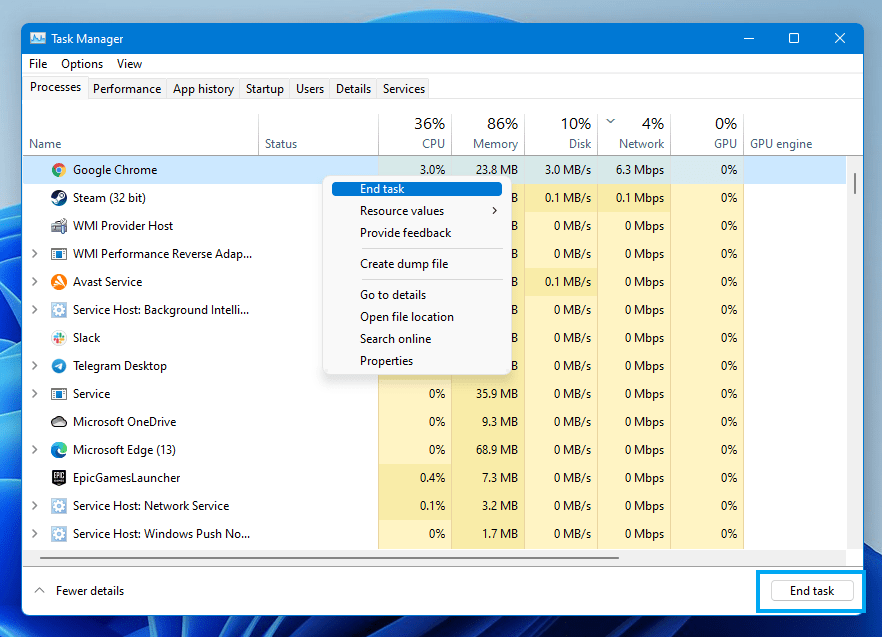
So, let’s close unwanted programs:
- Press Ctrl + Shift + ESC keys to open Task Manager
- Now check which program is using more Network
- Right-click on that program and select End task

- And check if the error is solved or not.
If you are still unable to summon someone in your world, then it’s time to verify your game file to check if you have any corrupted files.
Solution 5: Update Graphics Card Driver with Windows Update
Updating the graphic drivers will help you have a better and more stable graphical experience.
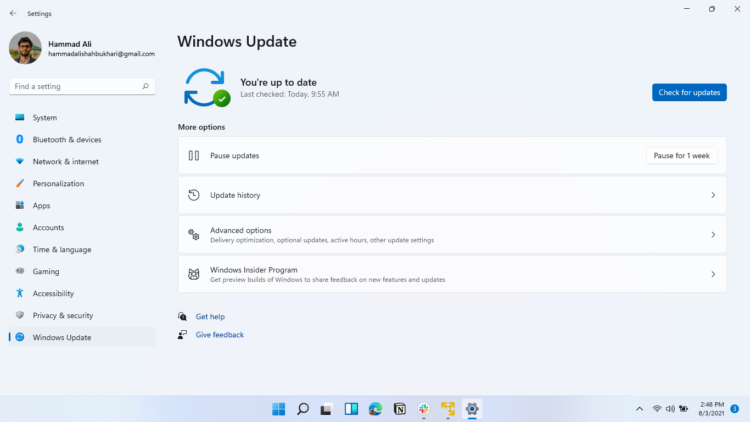
Here is how you can update drivers via optional updates:
- Click on the Windows icon
- Click on the Settings icon
- A new window will pop up
- Select Windows Update from the left menu
- The new window will pop up
- Now select Advanced options
- Click on Optional updates

- A new window will open
- Click on the drop-down button for Driver updates
- Now, select your desired drivers
- Now press the Download & Install button
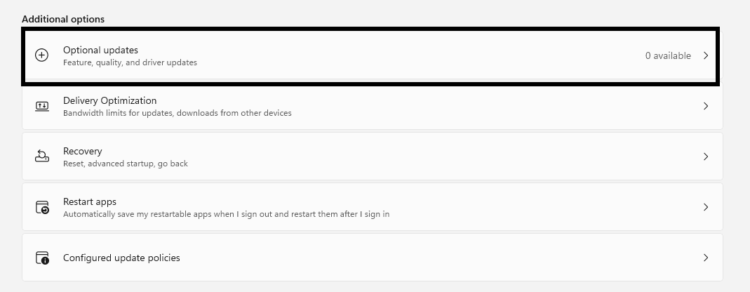
If you cannot update your drivers through Windows Update, then you can try updating the Graphics Drivers through Device Manager.
Solution 6: Update Graphics Card Driver
We can update outdated graphic drivers in multiple ways.
If you cannot update your graphic drivers by updating Windows, you can try updating through the Device Manager too which in return will fix Dev Error 6066.
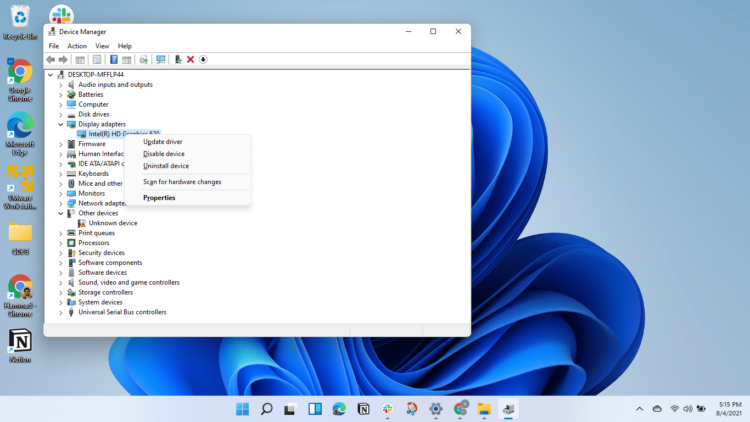
Here is how you can update drivers through Device Manager:
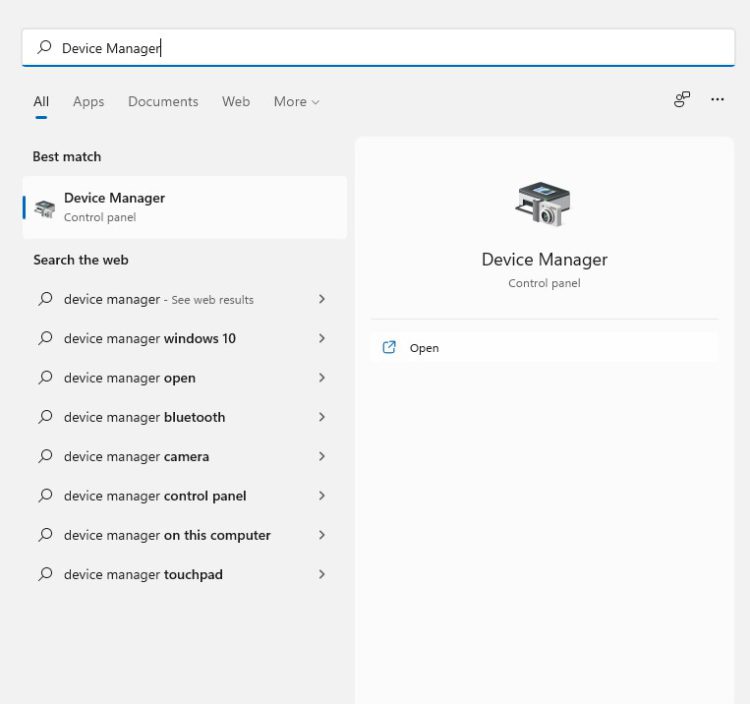
- Click on the Search icon
- Type Device Manager

- Click to open Device Manager
- Then select the Display adapters
- A further menu will open
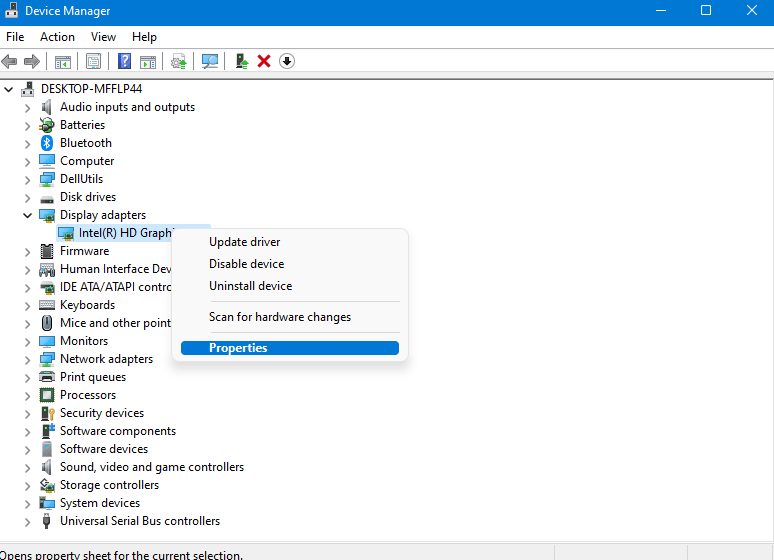
- Right-click on the graphic card name
- Click on the Update driver
Rolling Back the Driver:
If you experiencing the COD Dev Error 6066 issue after updating your graphic drivers, then you can roll back the driver’s recent update.
Here is how you can roll back drivers:
- Click on the Search icon
- Type Device Manager
- Click to open Device Manager
- Then select the Display adapters
- A further menu will open
- Right-click on the graphic card name
- Click on the Properties

- A graphic card properties Windows will open
- Navigate to the Driver Tab
- There is an option for “Roll Back Drivers”. Click on it
- If the option of “Roll Back Drivers” is greyed out, this means that the driver did not update recently.
Solution 7: Disable Antivirus Software
Sometimes the third-party antivirus you installed is preventing you to play Call of Duty Warzone.
So, you need to disable the antivirus for a few minutes to check if the antivirus is preventing COD MW2 Dev error 6066.
In order, to disable the antivirus follow the step below :
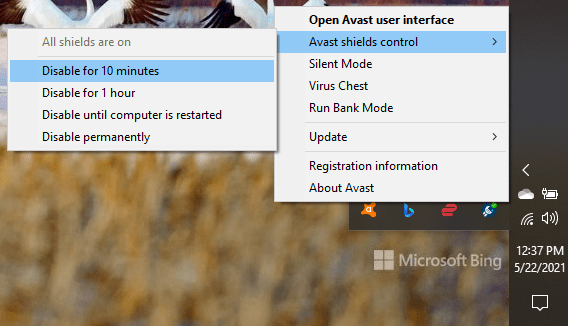
- Select the arrow button on the taskbar a Small menu will open.
- Then click left on the Avast antivirus icon.
- The setting menu will open and select ” Avast shield control “
- In a further menu, you will select the “ 10 minutes option“
- Now restart the game.
Switch to better anti-virus if the antivirus is causing the COD Dev Error 6066.
Solution 8: Switch To Better Antivirus
If the above solution shows that your antivirus is causing the COD Warfare 2 Dev error 6066 “Multiplayer Not Working” Error then it’s time to change the antivirus.
The CPU Guide brings you the best-discounted deals on Top Tier Antivirus.
I am listing down some Best Anti-Virus with Exclusive discounted offers for The CPU Guide readers.
- Vipre (Save up to $100)

- Esset (25% off)

- AVG Ultimate

- Kaspersky (up to 30%off)
![[Solved] Elden Ring Easy Anti Cheat Launch Error 30005](data:image/svg+xml,%3Csvg%20xmlns='http://www.w3.org/2000/svg'%20viewBox='0%200%20750%20381'%3E%3C/svg%3E)



![[Solved] Elden Ring Easy Anti Cheat Launch Error 30005](https://www.thecpuguide.com/wp-content/uploads/2021/08/Screenshot-2021-08-24-124811-e1629791340991.png)
Hope all the solutions help you solve the Warzone Dev 2.0 Error
If you have any queries or suggestions, feel free to share your experience with us in the comments section down below or you can reach us on our social handles
Dev Error 6066 is encountered when Call of Duty: Warzone players attempt to launch the game on PC or when they’re in the middle of a multiplayer game. The issue is exclusive to PC and is confirmed to appear on both Windows 10 and Windows 11.
Before troubleshooting, you should first ensure that your GPU has enough VRAM to support the rendering of COD Warfare. If your system specs are sufficient, other potential causes include a potential 3rd party interference, game file corruption, outdated GPU drivers, unstable overclocking or a situation where a second monitor is forcing the game to run on the integrated GPU.
Here’s are several confirmed fixed that should help you fix the issue:
1. Check the minimum specifications
Before you move to more down to all the other confirmed fixes below, start by cross-referencing your PC specks against the minimum requirements of Call of Duty Warzone.
Start by consulting the image below and check if you meet the minimum GPU, CPU, RAM, HDD, and Network requirements.
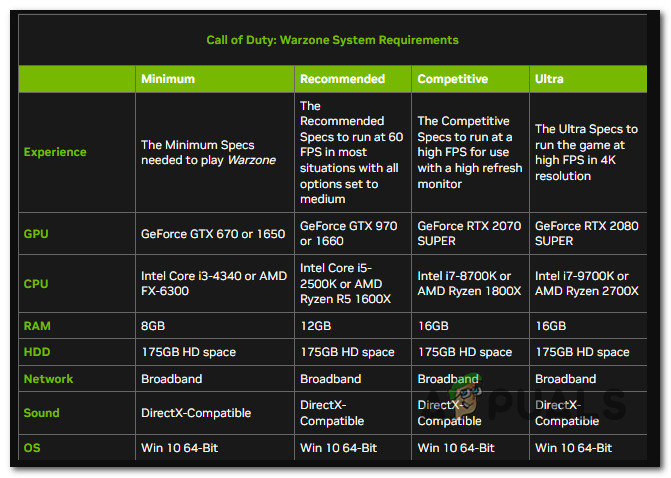
If everything looks good, dive deeper into your GPU specs before moving down to the next method below.
One of the most common causes that will trigger this 6066 DEV error is insufficient VRAM.
Note: Remember that VRAM is a special type of RAM designed specifically for GPU. It has nothing to do with regular RAM.
Call of Duty Warzone requires a minimum of 2 GB of VRAM to function properly on Windows 10 and Windows 11. If your GPU is below that threshold, you will not be able to get past the 6066 DEV error even if you follow every other fix featured below.
Here’s a quick guide on checking the available VRAM on your current GPU:
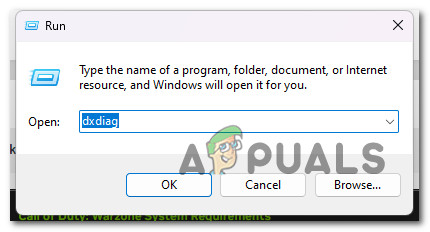
- Press the Windows key + R to open up a Run dialog box.
- Next, type ‘dxdiag’ inside the text box, then press Ctrl + Shift + Enter to open up the DirectX Diagnostic tool with admin access.

Open the DirectX Diagnostics tool - Click Yes to grant admin access when the User Account Control (UAC) is prompted.
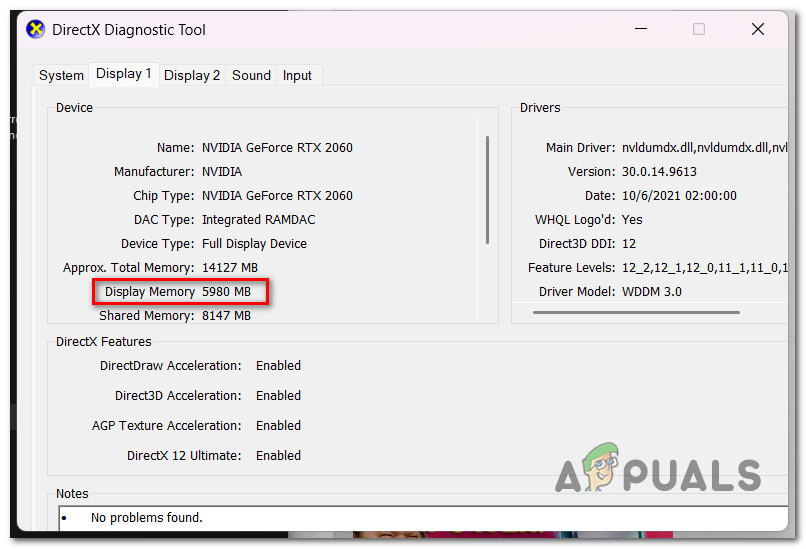
- Inside the DirectX Diagnostic Tool, use the vertical menu at the top to click on Display 1 (or the main display you use when attempting to play the game).
- With the main display selected, go under Device and check the Display Memory count.

Checking the available display memory Note: If the Display Memory count is over 2000 MB, you are above the threshold, and your GPU should be able to handle the game. If not, you will not be able to play the game unless you upgrade to a better GPU. There are modded drivers that might help you if you’re just below the limit, but our recommendation is to avoid them since most of them are riddled with malware, and the game experience will be poor since your specs are below the recommended values.
If your GPU has more than enough available VRAM to play the game, but you’re still experiencing the 6066 DEV error, move to the first fix below.
2. Perform a Clean boot
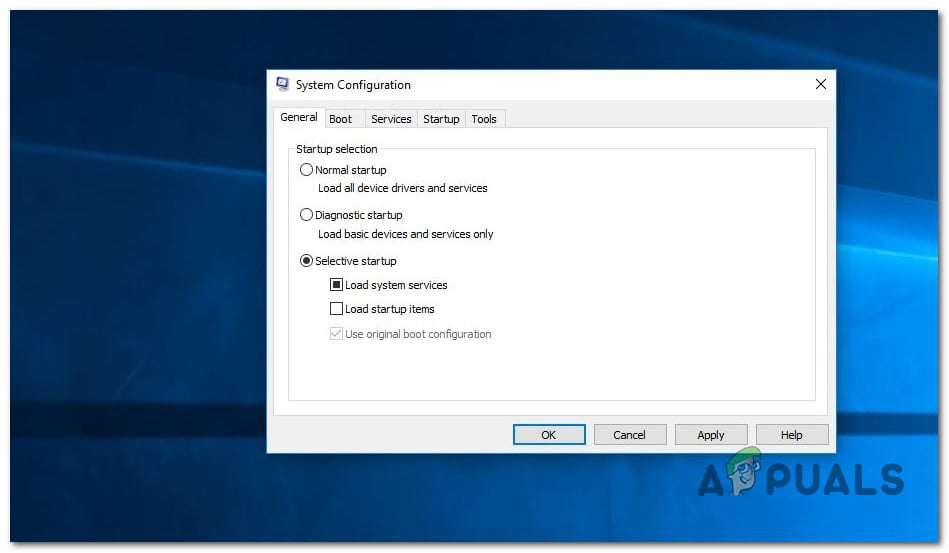
Call of Duty Warzone may be affected by a huge variety of third-party programs, making it challenging to pinpoint the exact origin of the problem. Overlay programs, system optimization suites, and overprotective security suites are at the top of the list.
Because of this, the best course of action is to discover the culprits by restarting your computer in clean mode and determining whether the problem is still present.
Note: A clean boot will force your PC to start without third-party services and processes.
If the issue no longer occurs while in clean boot mode, it’s clear that a 3rd party process or service is some home triggering the 6066 DEV error.
For detailed instructions on achieving a clean boot state on Windows 11, follow the steps outlined in this article. If you’re on Windows 10 still, use this guide instead.
Once a clean boot state is achieved, launch COD Warzone and see if the issue is still occurring.
If you can launch the game normally, start re-enabling all the processes 3rd party processes that you previously disabled until you successfully identify the culprit.
If the problem is still occurring even when you clean boot, move down to the next method below.
3. Scan & Repair the Call of Duty: Warzone
If you already made sure that there’s no interfering process or service causing this issue, the next thing you should troubleshoot is a potential file corruption affecting the game.
Fortunately, you can use the Scan & Repair feature on Battle.Net to scan & repair your game installation folder in case it’s affected by file corruption. This operation will examine every game file & associated dependency and replace every corrupted file with a healthy equivalent.
Follow the instructions below to begin a Warzone game repair procedure using the in-game Battle.Net settings:
- Make sure Call of Duty is turned off and not running in the background.
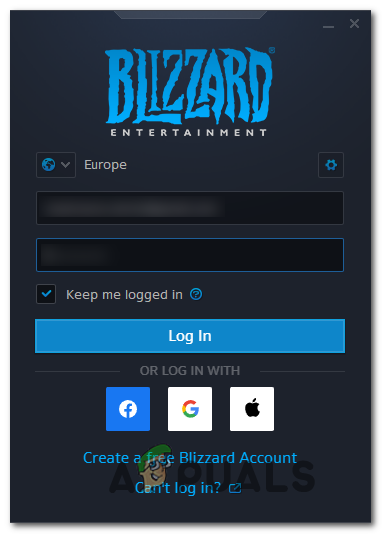
- Open Battle.Net and sign in with the game-related username and password.

Sign into your Battle.net account - In the left-hand section of the main Battle.Net interface, pick the game you want to choose.
- Select Scan and Repair from Settings (the gear symbol) to check the file integrity and fix Call of Duty (from the context menu that just appeared).

Scan and Repair Warzone - Confirm the procedure at the next screen, then wait patiently while the scan and repair are completed.
When the process is finished, restart the game to see if the problem has been fixed.
If the problem still exists, scroll down to the next suggested solution below.
4. Unplug the second monitor (if applicable)
If you’re using a two-monitor setup, you can expect to deal with this issue as you launch the game on a monitor using the integrated GPU (instead of the dedicated solution).
This issue is frequent with laptop models that are automatically wired to use the dedicated GPU on the main display and the integrated GPU on the secondary display. If you configured the game to run on the secondary display on a setup like this, you would most likely experience the error 6066 as the integrated GPU doesn’t have the required VRAM to render the game.
One simple fix in this particular case is to unplug the secondary display. This will automatically force the game with the most powerful GPU available.
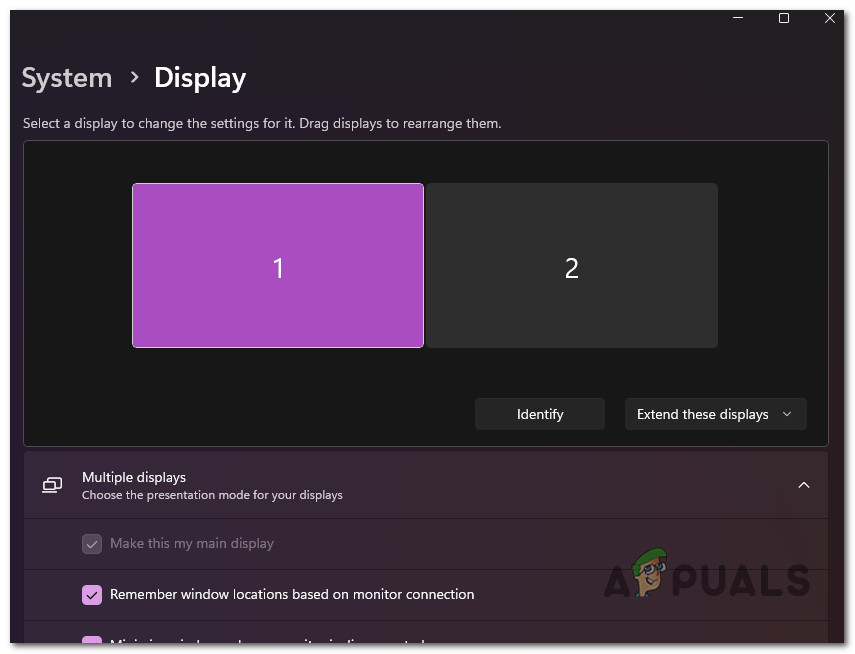
Note: If this method is successful, reconfigure the game to run on your main display, so the primary GPU is used.
If this fix was not applicable or it didn’t fix the issue, move down to the next method below.
5. Update the GPU driver to the latest version
If you haven’t updated your GPU drivers in a while, there’s a chance you are seeing the 6066 DEV error code because you are missing a new physics module dependency that Call of Duty Warzone requires.
This issue is confirmed to occur with both Nvidia and AMD graphic cards.
If you get this error a couple of seconds after you launch the game, it’s likely that your GPU drivers are out of date, and the game can’t run without the required dependencies.
You can address this problem by updating both the GPU drivers and the physics module that controls how the game works.
If you haven’t updated your GPU drivers recently, delete your current GPU drivers and reinstall the most recent ones before trying to run COD Warzone again:
- Press the Windows key + R to open the Run box.
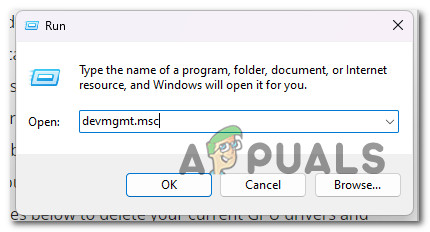
- Type “devmgmt.msc” into the run text box and press the Enter key to get to Device Manager.
Open up Device Manager - Once you’re in Device Manager, scroll down through the list of installed devices to expand the drop-down menu for Display Adapters.
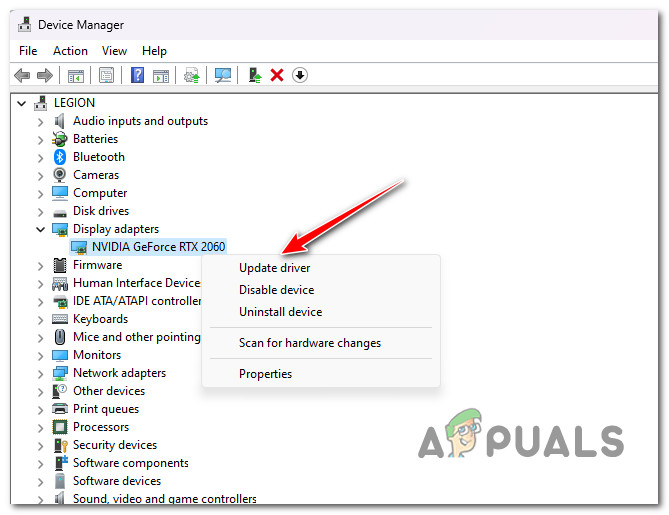
- Update the driver by clicking on Update driver after right-clicking on your GPU card.

Update the GPU Driver Note: If your computer has both a dedicated GPU and an integrated GPU, you need to update the drivers for both.
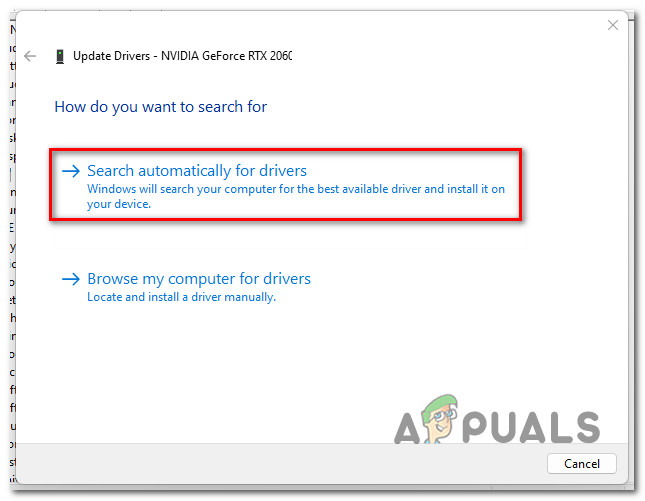
- Choose the option “Search automatically for new driver software” from wizard that just appeared.

Searching for drivers automatically - If the scan is done and a new driver version is recommended, follow the instructions on the screen to install it via Device Manager.
- Restart your computer and launch COD: Warzone again and see if the Dev Error 6066 is now fixed.Note: If Device Manager couldn’t find a new GPU driver version, you’ll need to use the proprietary software that came with your graphics card to update your current graphics drivers. Use one of the following tools depending if you have an NVIDIA or AMD graphics card:
GeForce Experience – Nvidia
Adrenalin – AMD
If the same kind of problem is still happening or if your GPU drivers are already up to date, move on to the next method.
6. Revert overclocking (if applicable)
If you are using MSI Afterburner (or similar overclocking software) and have overclocked your GPU, you might get the COD Warzone 6066 DEV error because your system is unstable.
If you are actively overclocking your GPU, you might be able to fix the issue by reverting all overclocked frequencies to their original settings.
If you’re using MSI Afterburner, you can get rid of the profiles you’ve previously made.
Note: Before you delete the profiles you’ve made in the MSI Afterburner app, take a screenshot or write down the settings you’ve made in case you need them later.
Follow the steps below to revert any GPU overclocking made inside MSI Afterburner:
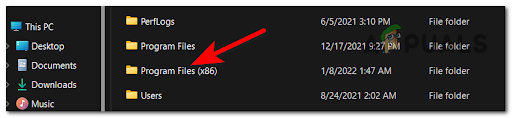
- Open File Explorer and go to the disk where you installed MSI Afterburner. Then go to the Program Files (x86) folder (or wherever you have the app installed).

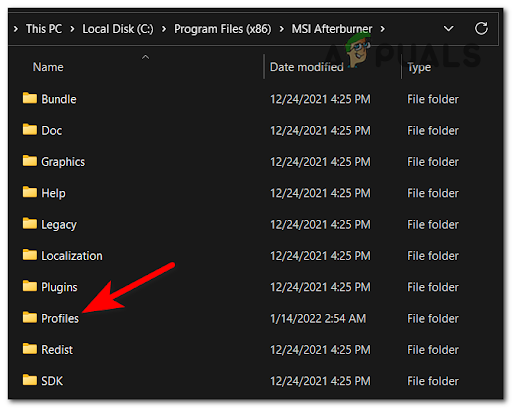
Accessing the Program Files menu - Open the MSI Afterburner folder and go to the Profiles folder.

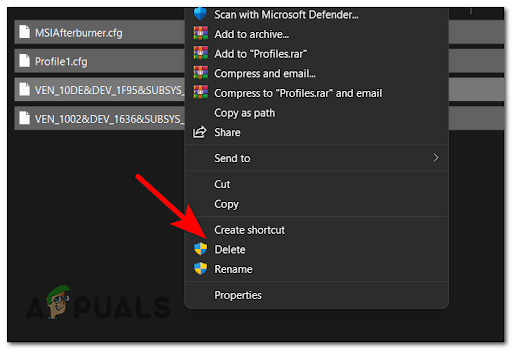
Accessing the Profiles menu - Choose all the files inside the Profiles folder and delete them.

Deleting the Contents of the Profile menu - Now restart your computer to allow the overclocked values to revert to their defaults and see if the 6066 DEV error is fixed.