
We use cookies to enhance your browsing experience, serve personalized ads or content, and analyze our traffic. By clicking «Got it», you consent to our use of cookies.

About Mzfinance.badlogin.macappstore_message
Mzfinance.badlogin.macappstore_message is a Mac error that typically appears whenever the user tries to log in to their Apple ID that uses two-factor authentication. The Mzfinance.badlogin.macappstore_message error seems to only show up on older Macs running on older macOS releases.
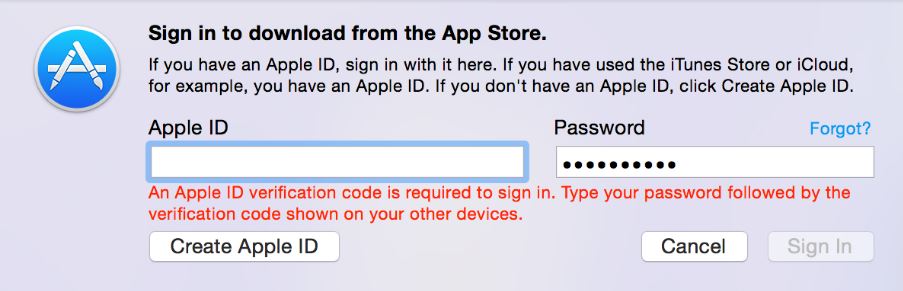
There’s very little information circulating the Internet about the Mzfinance.badlogin.macappstore_message error. It seems that not many users encounter it, which is probably due to its relation to older macOS versions. Some users report seeing this error on Macs that run on macOS Mavericks and Yosemite, which are both rarely seen nowadays.
The error mainly appears when a user who has an Apple ID with two-factor authentication attempts to log in to their Apple ID on a Mac that is running on such an older macOS release. Apparently, what causes the error to appear is the lack of support for two-factor authentication on those older operating systems, and so, rather than asking you to provide your second form of authentication, the system macOS would simply show this error. Luckily, there’s an easy way of circumventing this problem and it won’t require you to disable your two-factor authentication.
Mzfinance.badlogin.macappstore_message fix
To Fix Mzfinance.badlogin.macappstore_message request a code for logging in on another device. After that, you need to add that code at the end of your password and use them both to log in.
Here is exactly how this is supposed to happen:
- First, attempt to log in to your Apple ID account on the older Mac using your Apple ID password.
- When the error comes up (the text of the error may differ depending on the exact macOS version that you are using) choose the Login on another device option.
- Your Mac should now give you a login code – write down that code on a piece of paper, so you don’t have to memorize it.
- Now try to log in again, but this time type your password and then, right next to it (without typing a space), type the login code you wrote down. Using both the password and the login code should allow you to enter your AppleID even on a macOS release that doesn’t support two-factor authentication.
If for some reason this method doesn’t work, you can always try disabling the two-factor authentication of your Apple ID, but for this, you will need another device, through which you could do this. Also, it’s strongly advised to restore the two-factor authentication afterward, as this is an important security measure intended to keep your Apple ID account safe and secure.

Martina Nikolova
Martina likes to get into nitty-gritty of tomorrow’s tech, from product design across to security based solutions. A long time mac user and developer, she has the expertise and strives to give new insight
How to add the code and its keep sending it to me everytime I try to sign in ? . Should I add the old code ?
Once it works the first time, you don’t have to input the 2FA again (until the cookies expire, which from what I’ve seen is a good while)
Update: after dissecting the ipatool binary cookies created after a successful install, I’ve found the cookies expiration date is exactly 6 months after the successful login
Update (again): I was wrong, the cookies do expire after 6 months, but ipatool hit me with the verification code issue again (24 hours after applying the fix) I guess this fix is really temporary
FINAL UPDATE: I usually keep the IPATOOL_EMAIL & IPATOOL_PASSWORD environment variables set, so this third try I decided to leave the 6 digit auth code appended to my password indefinitely, and after 3 days now I haven’t run into any issues, so it seems this is a really effective workaround for the time being.
Looks like no one’s replied in a while. To start the conversation again, simply
ask a new question.
Currently having issues with my Macbook Air (2012) Yosemite (10.10.5)
My apple ID works on all of my Apple devices execpt for my Macbook air. I’m trying to update the software but cannot log into App Store, iTunes, Ibooks etc. I’m getting this message «MZFinance.BadLogin.MacAppStore_message»
Could anyone help!
MacBook Air (13-inch Mid 2012),
OS X Yosemite (10.10.5)
Posted on May 6, 2017 3:55 AM
I spoke to Apple and they said to try opening a new user on the same laptop and try updating from that account. ( Which did nothing)
Then spoke to someone else and they said to put your apple id password and the 6 digit verification code togther.
That worked and have had no issue since. Hope that helps.
Posted on May 6, 2017 3:51 PM
MZFinance.BadLogin.MacAppStore_message

25 мая 2022
1124628
Как просто установить удалённый «Сбербанк Онлайн» на айфон
Возвращаем «санкционные» приложения.
Простая ситуация: после покупки нового айфона хочется установить все привычные приложения. Раньше всё было просто: можно было настроить телефон как новый и скачать всё нужное вручную из App Store, либо восстановить из бекапа.
Но после того, как начались «санкционные» активности, а вслед за ними Apple удалила из App Store приложения «Сбербанк Онлайн», «Аэрофлот» и ряд других, у пользователей начались проблемы.
Во-первых, удалённые из App Store приложения скачать нельзя. Во-вторых, даже если они у вас были ранее установлены, то нельзя перенести их со старого устройства на новое штатными инструментами Apple.
К счастью, осталась лазейка, которой можно воспользоваться, поэтому вот инструкция. Метод был опробован на практике, когда жена «переезжала» на новый айфон.
Инструкция по установке
Нужно установить приложение iMazing на компьютер. Оно работает как на macOS, так и на Windows.
После установки программа предложит приобрести платную версию. Покупать не обязательно, хотя дополнительных возможностей много. Но главное, что и без покупок необходимая для переноса приложений функция работает. Так что запускаем пробную версию.
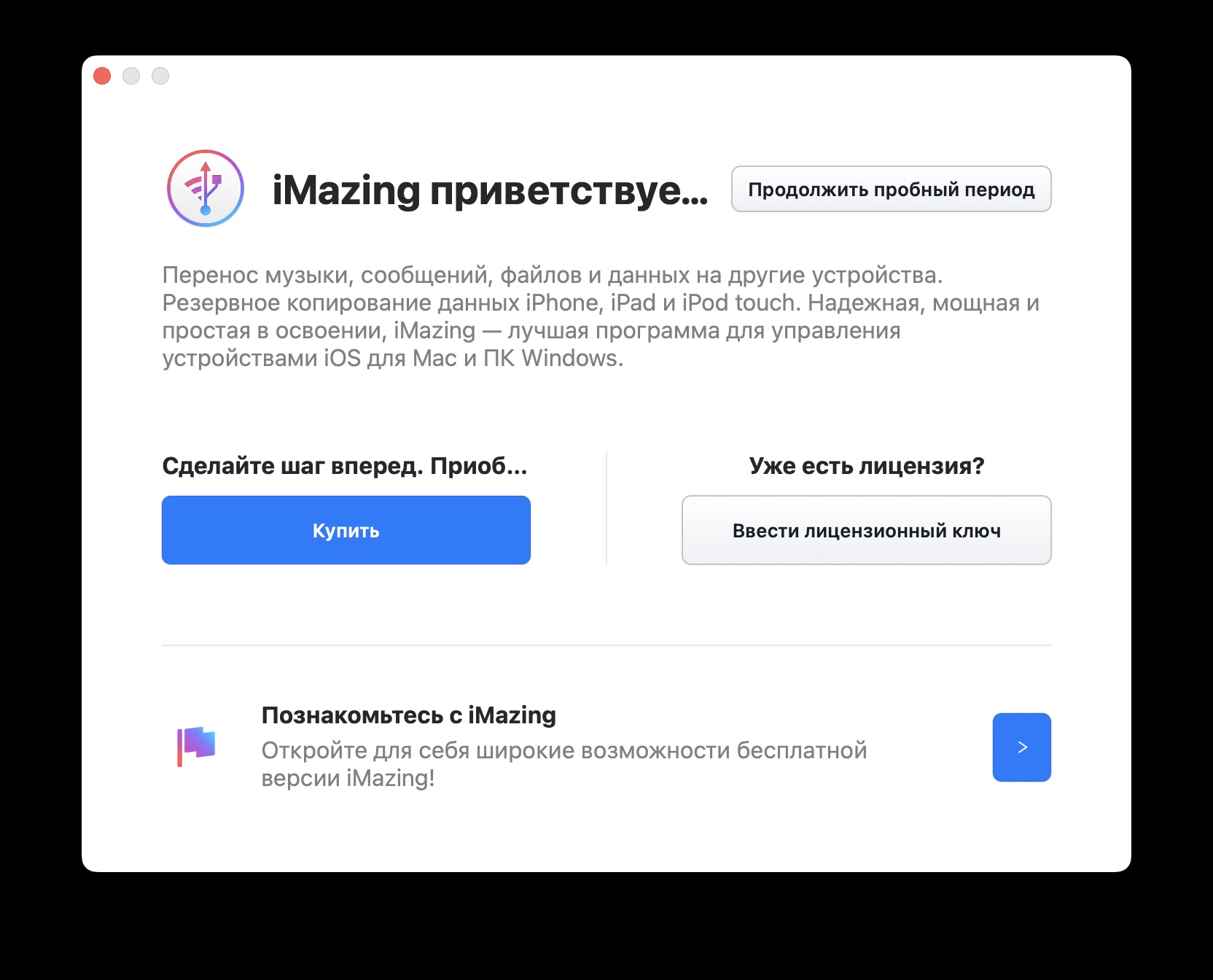
Подключаете новое устройство к компьютеру, нажимаете «Доверять».
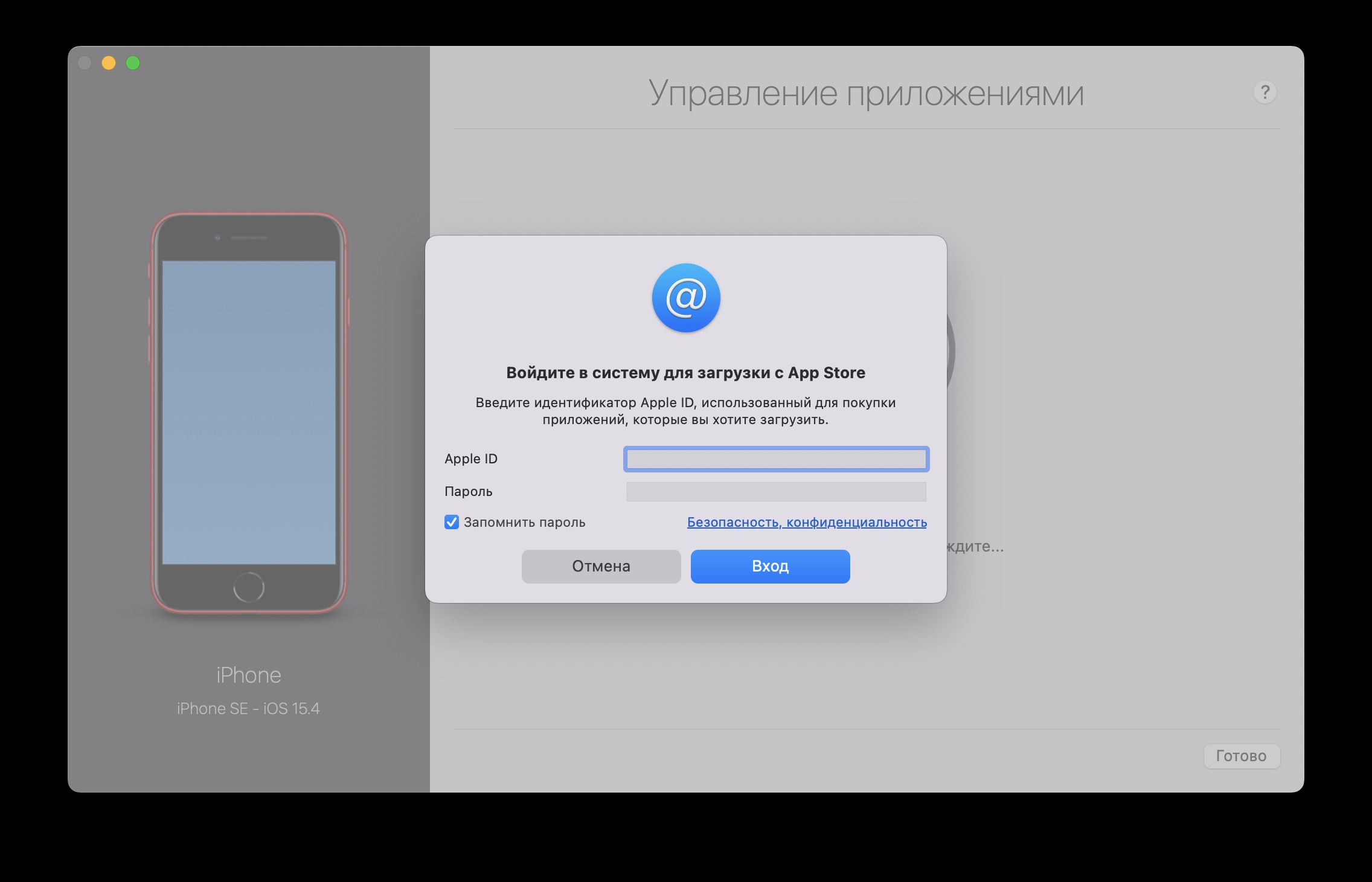
Выбираете в программе раздел «Управление приложениями». Тут указываете свой Apple ID и пароль от учётной записи. Если подключена двухфакторная авторизация, то нужно будет указать код, который получите при попытке входа в свою учётную запись.
Выбираете вкладку «Медиатека», там в поиске забиваете нужное приложение, а затем кликаете на кнопку «Установить».
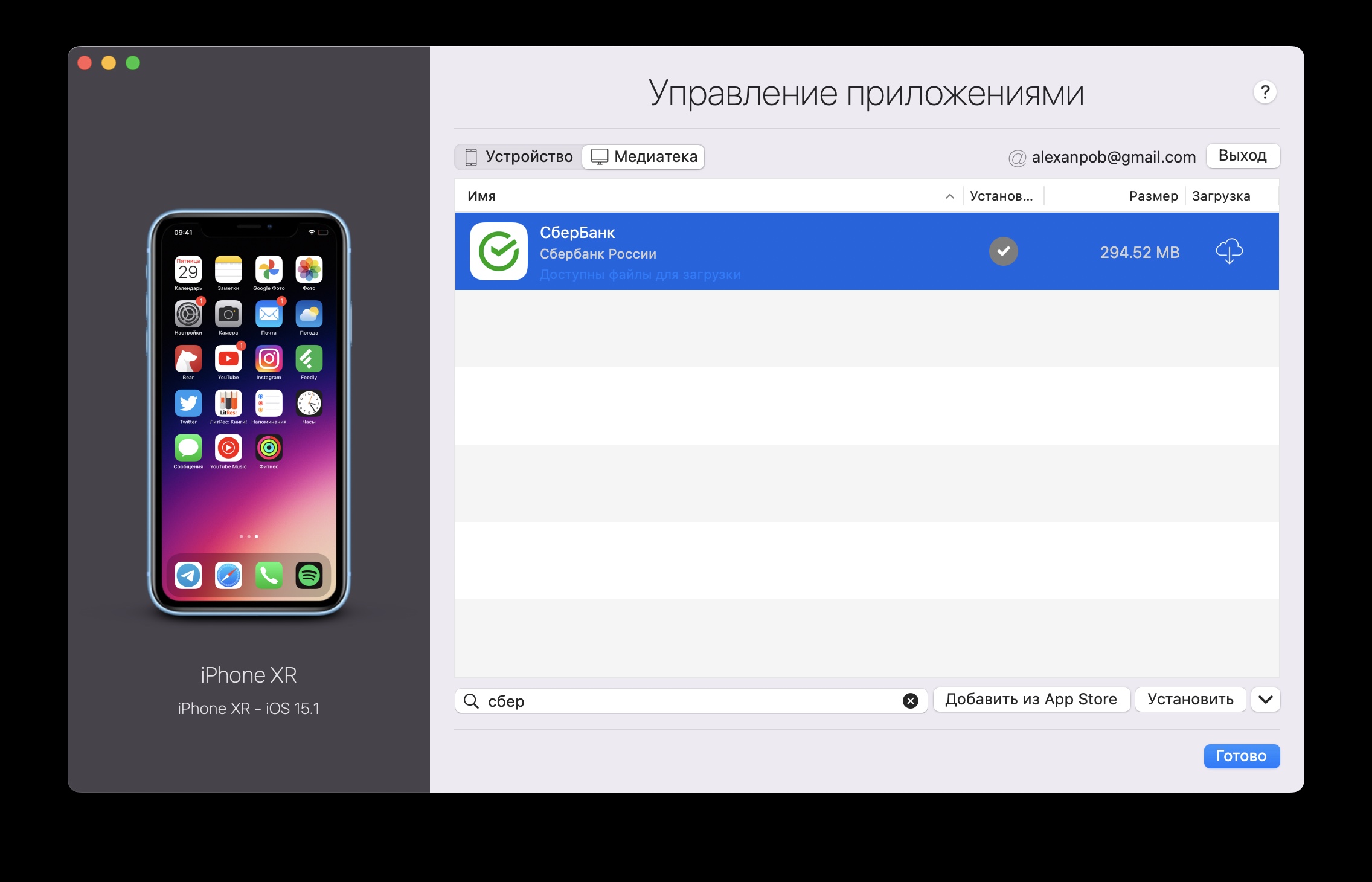
Остаётся подождать минутку — и всё, приложение появится в устройстве. По мере необходимости можно повторить операцию со всеми приложениями.
В целом процесс простой и без подводных камней. Добавлю на всякий случай, что приложение привязано к учётной записи App Store. Иными словами, если хотите помочь другу и установить на его айфон приложение «Сбера», ранее закачанное на вашу учётку, то придётся ввести данные учётной записи на его устройстве. Иначе запустить не получится.
Тонкости перехода
Бывает, что iMazing не находит нужное приложение через поиск. В таком случае решение проблемы будет следующим. Берёте свой старый айфон, где приложение установлено, через функцию «Управление приложениями» загружаете в библиотеку приложений. Затем берёте новый айфон и устанавливаете его, скопировав софт по вышеуказанной инструкции.
Возможен такой вариант, когда скопировали все свои данные со старого айфона на новый через встроенные возможности iOS или из бекапа. Тогда в телефоне видно иконки «санкционных» приложений, но они запускаться не будут. В таком случае смело удаляйте их из нового телефона и переустанавливайте по инструкции.
Я думаю, что может возникнуть вопрос, насколько безопасно указывать данные от учётной записи Apple в приложении iMazing. Программа существует достаточно долго, и негатива в её адрес я не видел, но, как обычно говорят в таких случаях, действуйте на свой страх и риск.
По крайней мере, не придётся платить за операцию умельцам, которые берут около 1500 рублей за перенос одного приложения со старого айфона на новый.
Apple отключила возможность установки «Сбера» на iPhone
I get the above error message when trying to sign in to my Apple ID when trying to do a fresh install of OSX on my mac mini. It is an old version of OSX (Mavericks).
Seems to be very little info on the web about this error in this situation in particular.
asked May 8, 2017 at 9:41

Mavericks does not support asking for two-factor authentication. However, you don’t need to disable two-factor authentication to log in to services which don’t support it.
- Attempt to log in as usual. You will receive an error message which may vary depending on the service and version of OS you are using.
- Choose to allow the login on another device and note the code given.
- Append the code to your password, then log in again.
answered May 8, 2017 at 16:44

grg♦grg
195k44 gold badges339 silver badges465 bronze badges
1
I seemed to get this error because the mavericks Apple ID sign in popup doesn’t know how to handle 2 factor authentication that is associated with my Apple ID. All you need to do is temporarily disable 2FA by signing in here and under the security section click edit and disable 2FA from there.
It’s advisable to reactivate 2FA once you are done setting everything up and updated.
answered May 8, 2017 at 9:41
FonixFonix
1431 silver badge7 bronze badges
You must log in to answer this question.
Not the answer you’re looking for? Browse other questions tagged
.
Not the answer you’re looking for? Browse other questions tagged
.