
07.09.17 — 18:58
Имеется:
Windows Server 2012 х64
На нем Office 2013 x64
На нем 1С Сервер х64
Пытаюсь выгружать в файл Ексель.
Excel = Новый COMОбъект(«Excel.Application»);
Excel.Displayalerts = 0;
Книга = Excel.WorkBooks.Add();
И вот на этой строке вылезает сообщение:
Ошибка при вызове метода контекста (Add)
Книга = Excel.WorkBooks.Add();
по причине:
Произошла исключительная ситуация (Microsoft Excel): Приложению Microsoft Excel не удается открыть или сохранить документы из-за нехватки памяти или места на диске.
• Чтобы освободить память, закройте ненужные книги или программы.
• Чтобы освободить место на диске, удалите с этого диска ненужные файлы.
Для эксперимента попробовал открыть существующий файл:
Excel.Workbooks.Open(«D:Temp111»);
Открывает…
Подозреваю что при попытке создания нового файла, Excel обращается куда то, куда доступа у юзера USR1CV8 (под которым работает 1С) нет.
Подскажите что делать?
1 — 07.09.17 — 19:00
Второй день бьюсь, весь инет перерыл …
2 — 07.09.17 — 19:21
(0) на msdn — проверь есть ли параметры у Workbooks.Add(), может нужен параметр, что создаём?
3 — 07.09.17 — 19:25
(2) В файловой базе этот код полностью работает. Так что проблема именно с доступами из 1С:Сервер в Ексель.
4 — 07.09.17 — 19:38
(3) скорее в TEMP, проверь права доступа на ту папку, которая прописана в общей системной переменной
5 — 07.09.17 — 19:46
4+ или залогинься в винду с USR1CV8
6 — 07.09.17 — 19:48
В «Настройка DCOM» в свойствах Excel прописал «Разрешения на запуск и активацию» пользователя USR1CV8.
А вот на вкладке «Удостоверение» прописать этого пользователя не дает. Ругается «код ошибки 80070569 выбранный режим входа для для данного пользователя не предусмотрен».
Какие еще права надо дать USR1CV8? В какую группу его засунуть?
7 — 07.09.17 — 19:50
(5)Пробовал. Дал ему «Пользователи удаленного рабочего стола» и зашел удаленно под USR1CV8. Вручную запустил Ексель, создал книгу, нормально создалось. Запустил 1С, попробовал выгрузить в Ексель, результат тот же.
8 — 07.09.17 — 19:52
(7) на tmp дал права то?
9 — 07.09.17 — 19:53
(6) Интерактивный вход в систему в групповых политиках вроде
10 — 07.09.17 — 19:54
Ну и проверить, что служба сервера 1С работает не из-под «локал систем»
11 — 07.09.17 — 20:09
Попробовал так. Дал USR1CV8 еще и права Администратор.
Зашел под ним. В «Настройка DCOM» в свойствах Excel на вкладке «Удостоверение» поставил «Текущий пользователь».
И заработало …
Получается, надо в «Удостоверение» прописать USR1CV8.
12 — 07.09.17 — 20:14
(9) Забрал у USR1CV8 права Администратор.
Зашел в «Локальная политика безопасности — Локальные политики — Назначение прав пользователя». Правильно?
В списке нашел «Запретить локальный вход» и там был USR1CV8. Убрал. Все равно не дает прописать его в «Удостоверение».
Что еще нехватает?
13 — 07.09.17 — 20:19
(10)служба сервера 1С работает под USR1CV8
14 — 07.09.17 — 20:20
(8)Какую именно tmp надо проверить?
15 — 07.09.17 — 20:36
Под пользователем USR1CV8 создай новую книгу в excel руками, скорее всего тебе предложит какой нибудь диалог типа создавать конкретно под этим пользователем.
16 — 07.09.17 — 20:55
17 — 08.09.17 — 07:20
(15)Пробовал. Зашел под USR1CV8, создал книгу, сохранил. Закрыл Ексель. Снова открыл. Никаких вопросов не задает. Открыл книгу, изменил, сохранил. Все нормально.
(16)Спасибо! Я уже нарыл в инете эту информацию, только по частям. Теперь заново, пошагово все проделал.
В результате COMОбъект(«Excel.Application») создается. Но потом, при создании книги Книга = Excel.WorkBooks.Add(); выдает:
Ошибка при вызове метода контекста (Add) Книга=Excel.WorkBooks.Add();
по причине:
Произошла исключительная ситуация (Microsoft Excel): Приложению Microsoft Excel не удается открыть или сохранить документы из-за нехватки памяти или места на диске.
• Чтобы освободить память, закройте ненужные книги или программы.
• Чтобы освободить место на диске, удалите с этого диска ненужные файлы.
18 — 08.09.17 — 14:25
Попробуй создать каталоги, может поможет, но не факт
Папки
C:WindowsSysWOW64configsystemprofileDesktop
C:WindowsSystem32configsystemprofileDesktop
19 — 08.09.17 — 14:49
(17) Documents and Settings — смотрел?
20 — 09.09.17 — 09:37
Может квоты установлены для пользователя ОС службы агента
Birmingem
21 — 13.09.17 — 10:39
В общем, так и не победил эту проблему.
Отказался от формирования Ексель файла на сервере (по рекомендации микрософта  ).
).
Теперь на сервере собираю данные, складываю в несколько массивов и передаю на клиента.
И файл Ексель создаю на клиенте.
Changing the policy settings is a quick and easy way to fix this
by Henderson Jayden Harper
Passionate about technology, Crypto, software, Windows, and everything computer-related, he spends most of his time developing new skills and learning more about the tech world. He also enjoys… read more
Updated on May 3, 2023
Reviewed by
Alex Serban

After moving away from the corporate work-style, Alex has found rewards in a lifestyle of constant analysis, team coordination and pestering his colleagues. Holding an MCSA Windows Server… read more
- Error code 0x80070569 appears when doing a live migration for Hyper-V in Windows Server.
- The error can occur due to user rights issues in the GPO Policy.
- Running the gpupdate /force command in the Command Prompt may be a viable option.
XINSTALL BY CLICKING THE DOWNLOAD FILE
This software will repair common computer errors, protect you from file loss, malware, hardware failure and optimize your PC for maximum performance. Fix PC issues and remove viruses now in 3 easy steps:
- Download Restoro PC Repair Tool that comes with Patented Technologies (patent available here).
- Click Start Scan to find Windows issues that could be causing PC problems.
- Click Repair All to fix issues affecting your computer’s security and performance
- Restoro has been downloaded by 0 readers this month.
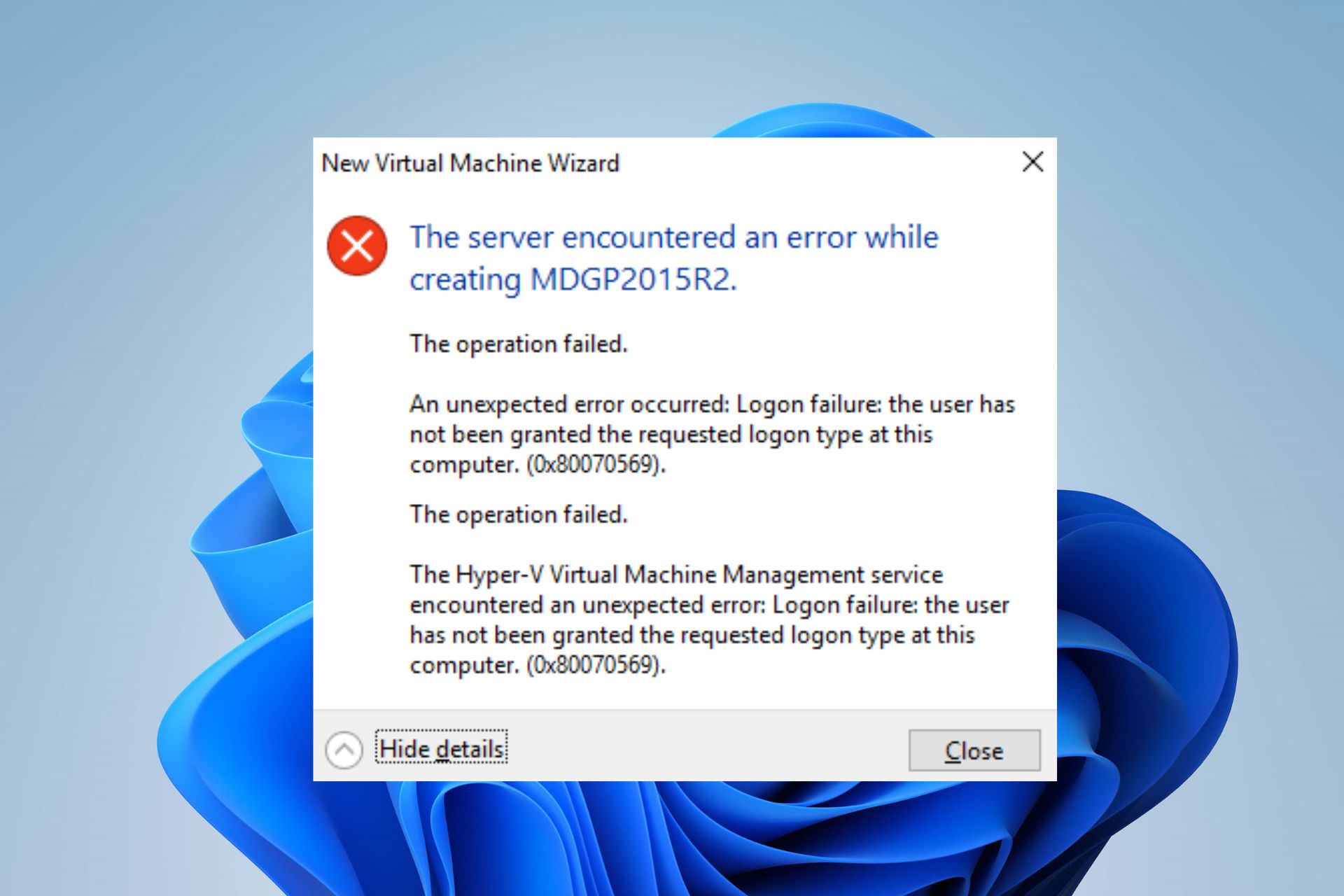
Many of our readers have reported Error 0x80070569 that occurs when they try to start the virtual machine in Hyper-V Manager. The error can occur for many reasons, and it can be difficult to deal with. However, this guide is dedicated to providing solutions to resolve the error.
Also, you may be interested in our article about Hyper-V Error 0x8009030e and some steps to fix it on your PC.
What is the 0x80070569 error?
The error code 0x80070569 can appear with two varying error messages;
- (‘VM_NAME’ failed to start worker process: Logon Failure: The user has not been granted the requested logon type at this computer.)
- Failed to create Planned Virtual Machine at migration destination: Logon failure: the user has not been granted the requested logon type at this computer.
The error occurs when the virtual machines can’t start or when you can’t do a live migration for a Hyper-V virtual machine in Windows Server.
What causes the error code 0x80070569?
Some factors that can cause the error are:
- Permission errors in the GPO policy – The error can appear when there is a configuration issue relating to the permissions of the GPO policy. Also, it can be that the NT Virtual MachineVirtual Machines special identity doesn’t have the Log on as a service right on the Hyper-V host computer.
- Connection issues between Hyper-V computer and the domain – You can also encounter the error code 0x80070569 if the Hyper-V computer is lost or can’t establish a connection to the domain. Issues such as a credentials mismatch can cause logon errors.
Fortunately, you can follow some basic steps to resolve the issue. As we go further into this article, we’ll discuss them.
How can I fix the error code 0x80070569?
Before trying the advanced steps, follow the preliminary checks below:
- Fix issues regarding Hyper-V authorization to connect on your PC.
- Disable Firewall services for antivirus software.
If the error persists, run the following steps:
1. Run gpupdate /force on the Hyper-V host
- Sign in to the machine as a Domain Administrator.
- Go to the Server Manager console and install the Group Policy Management feature.
- Follow the on-screen instructions to complete the installation.
- Open the GPMC MMC snap-in and navigate to the policy that manages User Rights.
- Right-click on the policy and select Edit from the drop-down menu, then include the following in the entries for Log on as a service:
NT Virtual MachineVirtual Machines - Exit the Policy editor.
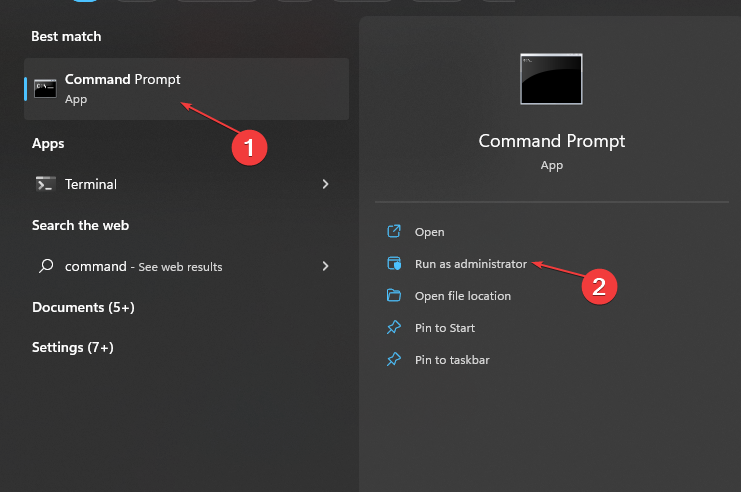
- Left-click the Start button, type Command Prompt, and select the Run as administrator option.

- Click Yes on the User Account Control prompt.
- Copy and paste the following in the command bar and press Enter to run it:
gpupdate /force
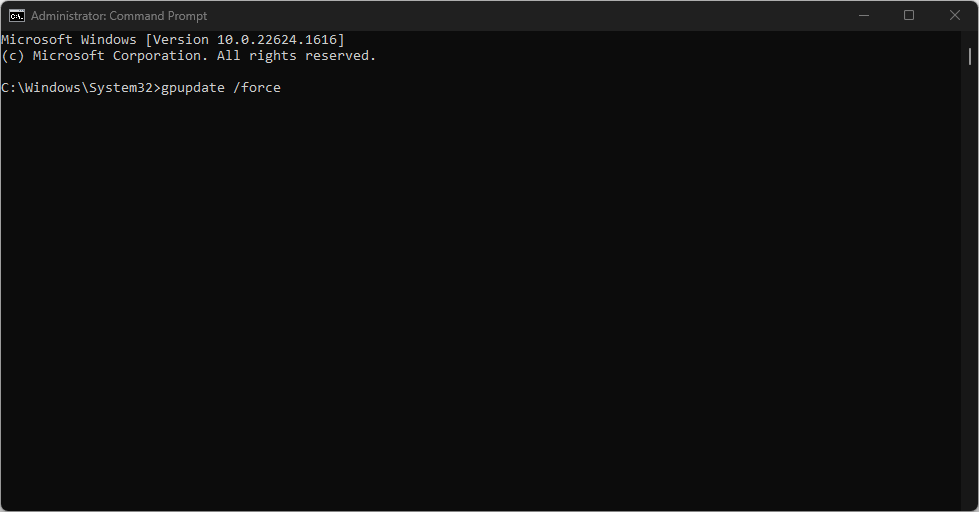
Running the above command will refresh the policy and remove the user permissions that the policy has added. Hence, the user rights defined in the local security policy will take effect and resolve the permissions issue.
- Fix: Windows Update May Have Automatically Replaced AMD
- Compname is Not Accessible: 3 Ways to Fix it
- Windows Migration Assistant Not Working? Fix it in 7 Steps
2. Edit the Group Policy Editor
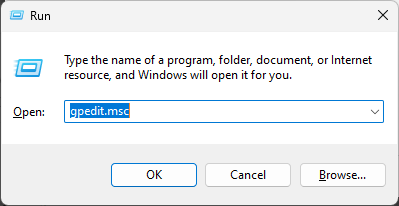
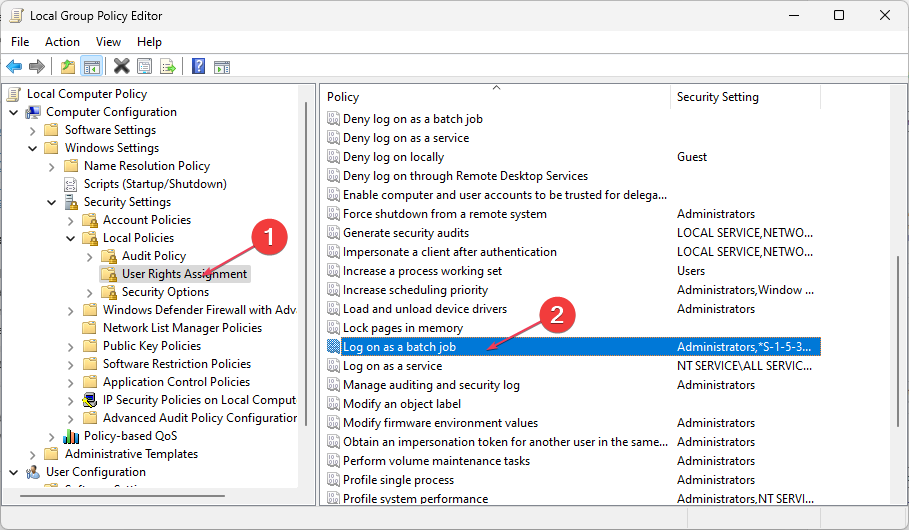
- Press the Windows + R keys, type gpedit.msc, and click OK to open the Group Policy Editor.

- Navigate through this path:
Computer ConfigurationWindows SettingsSecurity SettingsLocal PoliciesUser Rights Assignment - Double-click on Log on as a batch job.

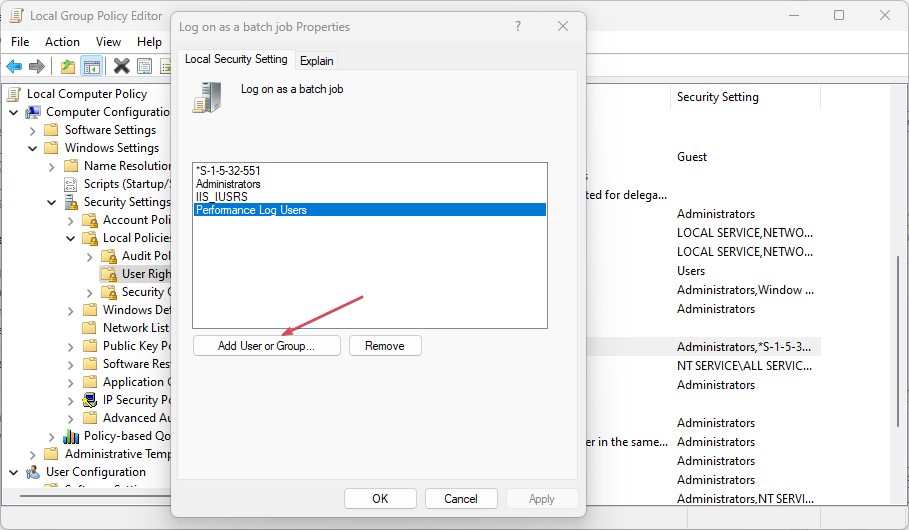
- Click on Add User or Group button.
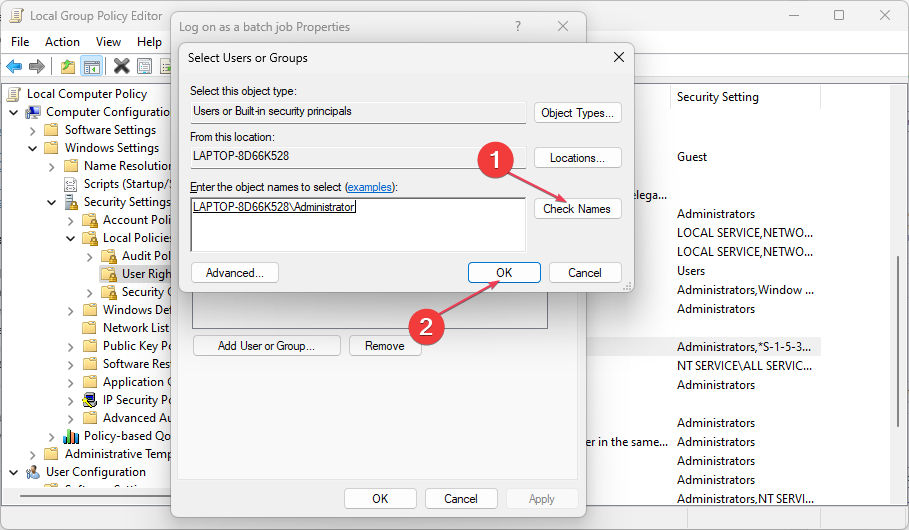
- Enter Administrator into the empty space, click Check Names, and click OK.
- Now, select Apply and click OK.
Alternatively, you can check our comprehensive guide on how to install Hyper-V on Windows 11.
Also, read about what to do if Virtualization support is disabled in the Firmware on your PC.
What solution worked for you? Let us know in the comments below.
Still having issues? Fix them with this tool:
SPONSORED
If the advices above haven’t solved your issue, your PC may experience deeper Windows problems. We recommend downloading this PC Repair tool (rated Great on TrustPilot.com) to easily address them. After installation, simply click the Start Scan button and then press on Repair All.

- Remove From My Forums
-
Вопрос
-
Помогите пожалуйста! Сервер ввел в домен (server 2012 r2) , установил Hyper-V, пытаюсь создать новую виртуальную машину, мне выдает вот такое:
Служба управления виртуальными машинами Hyper-V обнаружила непредвиденную ошибку: Вход в систему не произведен: выбранный режим входа для данного пользователя на этом компьютере не предусмотрен. (0x80070569).
Устанавливать пытался из под админской учетки!
Ответы
-
Ничего не делал, машина создалась без ошибок сейчас, как это понимать?
Вы сегодня избранный. Возможно некоторые сервисы не стартовали. В любом случае, перезагрузка у вас должна была быть, как минимум, одна.
Roman Levchenko, MVP, MCSE, MCSA, MCITP, MCTS, VCP6-DCV http://www.rlevchenko.com
-
Предложено в качестве ответа
6 июля 2016 г. 20:04
-
Помечено в качестве ответа
Petko KrushevMicrosoft contingent staff, Moderator
25 июля 2016 г. 10:46
-
Предложено в качестве ответа
Windows 10 предлагает функцию песочницы, которая предлагает одноразовую виртуализированную среду рабочего стола, в которой пользователь может запускать временные команды и действия. Он работает на платформе виртуализации Hyper-V. Тем не менее, если вы получаете код ошибки 0x80070569 когда вы запускаете Sandbox, этот пост поможет вам решить проблему.
Не удалось запустить Windows Sandbox — 0x80070569
Ошибка может содержать дополнительное предупреждение, например «Ошибка входа в систему: пользователю не предоставлен запрошенный тип входа в систему на этом компьютере. » или же «Application Guard перестал работать. Пожалуйста, попробуйте снова открыть свою работу. » при запуске Application Guard в Защитнике Windows (WDAG).
Ошибка связана с разрешением пользователя, и это необходимо исправить.
1]Обновите групповую политику для компьютера домена или добавьте еще раз
Если компьютер подключен к домену, то высока вероятность, что компьютер Hyper-V потерял или имеет неполное подключение к домену. Это может быть из-за несоответствия учетных данных. Если это не так, то это может быть из-за ошибки в унаследованной политике GPO.
Обновить групповую политику
Администратор домена может использовать функцию управления групповой политикой из консоли диспетчера сервера и установить правильную групповую политику на компьютер. Затем ему нужно будет обязательно отредактировать политику, чтобы включить Виртуальная машина NT Виртуальные машины в записях для Войдите в систему как сервис. Сделано, закройте редактор политик и используйте ‘gpupdate / force ‘ на главном компьютере Hyper-V для обновления политики.
Удалить / снова добавить компьютер в домен
Администратор домена может удалить и снова добавить компьютер в домен. Он обязательно обновит все, а разрешения, включая учетные данные, проверены и верны.
Связанное чтение: Песочница Windows не загружается, не открывается или не работает.
2]Перезапустите службы Windows, связанные с песочницей Windows
Откройте оснастку «Службы», набрав services.msc в строке «Выполнить» (Win + R), а затем нажмите клавишу ввода. Найдите следующие службы, щелкните правой кнопкой мыши и выберите «Запустить» или «Перезапустить службу».
- Служба виртуализации сети
- Виртуальный диск
- Диспетчер виртуальных машин Hyper-V
- Вычислительная служба узла Hyper-V
- Услуги диспетчера контейнеров
- Служба контейнера Application Guard
- Удаленный вызов процедур (RDC)
Убедитесь, что вы не изменили тип запуска, и оставьте значение по умолчанию, поскольку политики Windows в основном управляют ими.
Я надеюсь, что за публикацией было легко следить, и вы смогли решить, что песочница Windows не смогла запустить ошибку 0x80070569.
Если больше ничего не работает, а ваш компьютер является частью домена, лучше всего связаться с вашим ИТ-администратором, чтобы решить проблему дальше.
Download PC Repair Tool to quickly find & fix Windows errors automatically
Windows 10offers a Sandbox feature that offers a disposable virtualized desktop environment where a user can run temporary commands and actions. It is powered by the Hyper-V virtualization platform. That said, if you are getting an error code 0x80070569 when you launch Sandbox, then this post will help you resolve the problem.
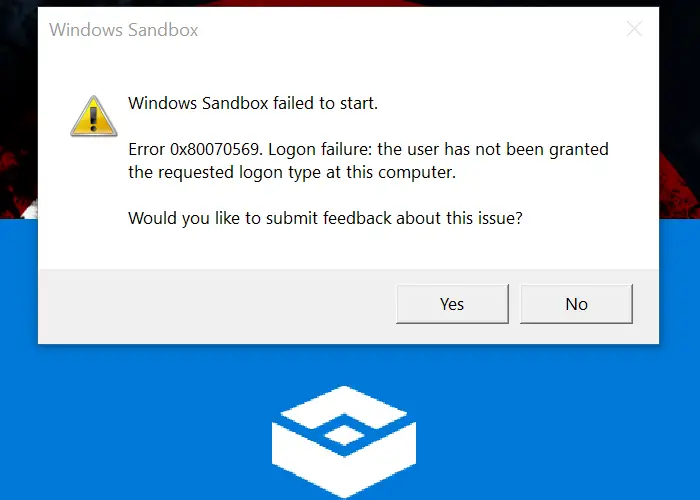
The error can carry additional warning such as “Logon failure: the user has not been granted the requested logon type at this computer.” or “Application Guard has stopped working. Please try to open your work again.” when you launch Windows Defender Application Guard (WDAG).
The error is related to the permission of the user, and that should be fixed.
1] Update Group Policy for Domain Computer or Add again
If the computer is connected to a domain, then the chances are the Hyper-V computer has lost or has an incomplete connection to the domain, It can be because of credentials mismatch. If that’s not the case, then it could be because of error in inherited GPO Policy.
Update Group Policy
A domain administrator can use the Group Policy Management feature from the Server Manager console and install the correct group policy to the computer. Then he will have to make sure to edit the policy to include NT Virtual MachineVirtual Machines in the entries for Log on as a Service. Done that close the policy editor, and use ‘gpupdate /force’ command on the Hyper-V host computer to refresh policy.
Remove/Add computer to Domain again
A domain administrator can remove and add the computer again to the domain. It will make sure to refresh everything, and the permissions, including credentials, are verified and correct.
Related read: Windows Sandbox not loading, opening or working.
2] Restart Windows Services Associated with Windows Sandbox
Open Services snap-in by typing services.msc in the Run prompt (Win + R), and then press the enter key. Find the following services, and right-click and then choose Start or Restart the service.
- Network Virtualization Service
- Virtual Disk
- Hyper-V Virtual Machine Manager
- Hyper-V Host Compute Service
- Container Manager Services
- Application Guard Container Service
- Remote Procedure Call (RDC)
Make sure not to change the startup type, and leave as default as Windows Policies mostly manage them.
I hope the post was easy to follow, and you were able to resolve the Windows Sandbox failed to start 0x80070569 error.
If nothing else works out, and your computer is part of a domain, it would be best to connect with your IT admin to resolve the issue further.
READ: Windows Sandbox failed to start Error 0x80070002.

Ashish holds a Bachelor’s in Computer Engineering and is a veteran Windows and Xbox user. He has work experience as a Database and Microsoft.NET Developer. He has been a Microsoft MVP (2008-2010) and excels in writing tutorials to improve the day-to-day experience with your devices.