
Способ 1: «Очистка кэша и данных»
Этот метод заключается в очистке кэша и данные «Диспетчера загрузки». Чтобы избавиться от ошибки 926 нужно выполнить следующие действия:
1. Зайдите в раздел Настройки >> Перейдите в «Приложения» >> Далее выберите «Все» >> Найдите Диспетчер загрузки >> Откройте его меню и нажмите последовательно «Очистить кэш» и кнопку «Стереть данные».
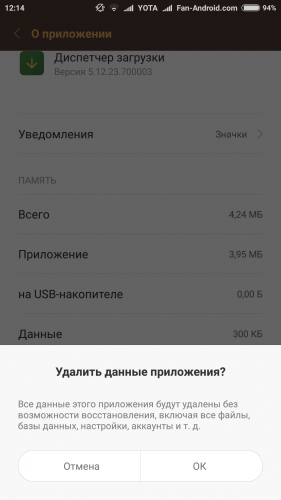
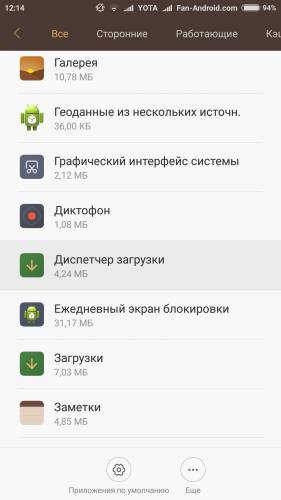
2. Перезагрузите телефон после выполнения этих действий.
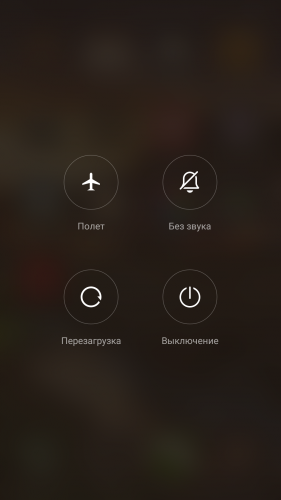
3. Теперь попробуйте загрузить из Google Play нужное вам приложение.
4. Если на экране вновь возникает сообщение о неудавшейся загрузке и ошибке 926, придется испробовать другой способ устранения проблемы.
Способ 2: «Очистка кэша и данных сервисов Google»
Этот метод схож с предыдущим, только очистить придется данные и кэш сервисов Google. Порядок действий следующий:
1. Зайдите в раздел Настройки >> Перейдите к «Приложениям» или «Менеджеру приложений» >> Выберите «Все» и найдите там сервисы Google (Google Services Framework)
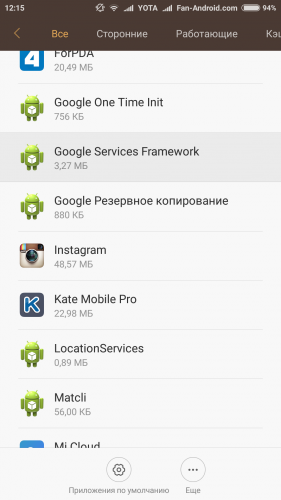
2. Откройте меню сервисов Google, нажмите «Стереть данные» и «Очистить кэш».
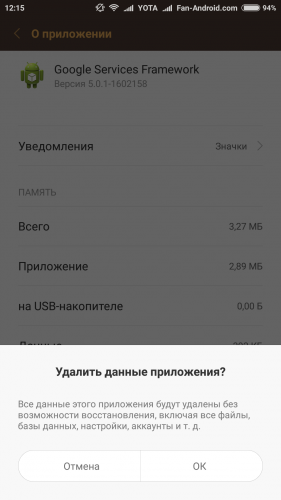
3. Перезагрузите телефон.
Вполне вероятно, на этот раз проблема будет решена, загрузка приложений возобновится в штатном режиме, и ошибка 926 вас больше не побеспокоит. Если все же и этот метод оказался неэффективным для вашего Android-устройства, то вы можете попробовать третий способ, который обычно позволяет справиться с большинством проблем, возникающих при загрузке приложений из Play Market, в том числе и с ошибкой 926.
Способ 3: «Очистка кэш и данных Google Play Маркет»
Для сброса кэш и данных Google Play понадобятся следующие действия:
1. Зайдите в раздел Настройки >> Перейдите в «Приложения» >> Далее выберите «Все» >> Найдите Google Play Маркет и выберите его.
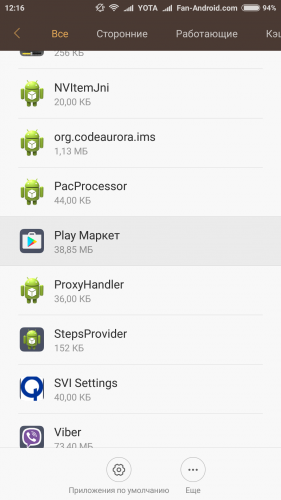
2. Первая из трех предлагаемых кнопок — Принудительная остановка. Нажмите ее для прекращения работы приложения.
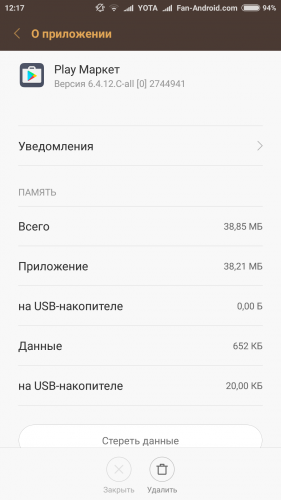
3. Выполните очистку кэша и данных.
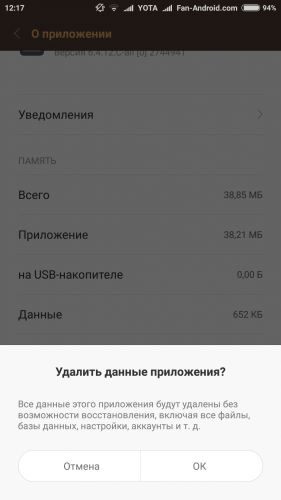
4. Как только вы это сделаете, перезагрузите Android-устройство и попытайтесь загрузить приложение. Ошибка должна исчезнуть.
Некоторым пользователям бывает достаточно просто перезагрузить «Диспетчер загрузки», чтобы избавиться от ошибки 926. Другим приходится пройти все три способа. Возможно, вы нашли собственный метод борьбы с проблемой и готовы поделиться им с другими посетителями сайта. Мы с благодарностью примем любую свежую идею и готовы обсудить ее в комментариях.
Пару дней назад я решил загрузить несколько новых приложений на мой Андроид смартфон. Выбрав нужные приложения и игры в Плей Маркет, я нажал на «Установить», но загрузка данных программ завершилась неудачно с сообщением «App could not be downloaded due to an Error 926» («Приложение не может быть загружено в связи с ошибкой 926»). Я был удивлён таким поворотом событий (ранее у меня в Play Market такого не случалось), и решил повторить скачивание, получив аналогичный к предыдущему отрицательный результат. Перепробовав разные варианты, я нашёл методы, позволяющие избавиться от ошибки с кодом 926 в Плей Маркете, и ниже я вас с ними познакомлю.

Содержание
- Что это за ошибка 926 в Google Play?
- Когда происходит данная ошибка?
- Метод №1. Очищаем данные «Download Manager»
- Метод №2. Очищаем «Google Service Framework»
- Метод №3. Очищаем Google Play Store
- Заключение
Что это за ошибка 926 в Google Play?
Специалисты относят «ошибку с кодом 926» («error 926») к серверным ошибкам от Google Play Store, делающие невозможной загрузку различных приложений из данного сайта. В своей работе данная ошибка аналогична ошибкам ряда 920, 921, 922, 923, 924, 925, 926, 927, и возникает при попытках скачать или обновить какое-либо приложение из Play Market на Android.
Основной причиной возникновения ошибки, по мнению специалистов, является некорректное обновление самого приложения Google Play. Чтобы исправить ошибку 926 нужно выполнить ряд действий, указанных ниже.
Когда происходит данная ошибка?
Код ошибки 926 обычно случается с новым купленным устройством, при создании аккаунта Google, при первом запуске системных обновлений, при загрузке приложений из Плей Маркет, а также после инсталляции определённых приложений.
Три метода по решению проблемы. Ниже приведены три основных метода, позволяющие эффективно избавиться от ошибочки 926 в Гугл Плей. Итак.
Метод №1. Очищаем данные «Download Manager»
- Идём в «Настройки», затем выбираем «Приложения», далее жмём на «Все».
- Ищем «Менеджер загрузок» («Download Manager»), выбираем его, заходим в его настройки и жмём «Очистить кеш» («Clear cache») и «Стереть данные» («Clear data»).
- Затем перезагружаем наш смартфон или планшет.

После перезагрузки заходите в Play Market и попытайтесь загрузить приложение. Если всё прошло удачно, тогда проблема решена. Если нет, тогда пробуем следующие варианты.
Метод №2. Очищаем «Google Service Framework»
Данный метод аналогичен к предыдущему, только здесь очищаем данные приложения Google Service Framework. Не забудьте перезагрузить ваш девайс.

Метод №3. Очищаем Google Play Store
Если второй метод не помог, попробуем очистить «Google Play Store» .
- Опять идём в «Приложения», выбираем «Все», ищем «Google Play Маркет» («Google Play Store») и очищаем данные.
- После очистки жмём на «Остановить» приложение.
- Перезагружаемся. Сейчас всё должно отлично работать.

Из-за того, что у всех разные причины возникновения данной ошибки, у 10% пользователей ошибка после проделанных действий ошибка не исчезнет. В этом случае нужно предпринимать следующие более углублённые действия описанные здесь.
Заключение
Код ошибки 926 в Play Market – одна из регулярно встречающихся ошибок владельцев Андроид устройств, которая проявляет себя при попытке загрузки различных приложений из Плей Маркет. К счастью, процесс её устранения не занимает много времени, очистив данные и кеш нескольких приложений можно полностью от неё избавиться. Если у вас случилось подобное, тогда просто следуете советам, изложенным в данной статье, и после перезагрузки вашего смартфона продолжайте наслаждаться его качественной и надёжной работой. Удачи.
Вход
Быстрая регистрация
Если вы у нас впервые:
О проекте
FAQ
ГЛАВНАЯ
ВОПРОСЫ
ТЭГИ
СООБЩЕСТВО
НАГРАДЫ
ЗАДАТЬ ВОПРОС
|
1
Даксплячи Учлинзайх 7 лет назад
Ошибка 926 Андроид/Play Market — как исправить, что делать? тэги: play market, как исправить, ошибка
категория:
компьютеры и интернет ответить комментировать
в избранное 1 ответ: старые выше новые выше по рейтингу 0
Mor 6 лет назад Для начала можно попробовать просто перезагрузить андроид устройство. Если не помогло можно очисить кеш и данные в диспетчере загрузок. Тоже самое проделать и с плей маркетом. Перезагрузить смартфон. Также можно попробовать очистить мусор программой SD Maid. Еще можно удалить аккаунт Google в устройстве после чего зайти вновь. автор вопроса выбрал этот ответ лучшим комментировать
в избранное
ссылка
отблагодарить Знаете ответ? |
Смотрите также: Как исправить ошибку Internal Server Error в minecraft? Как исправить ошибку FAILED TO BIND TO PORT в minecraft? Как исправить ошибку 403 в плей маркете? Как зайти в play market и исправить ошибку? «Too many requests in 1 hour» в ChatGPT, как исправить ошибку? Как исправить ошибку при запуске IE: Точка входа не найдена? Как исправить ошибку в экзаменационном бланке ЕГЭ? Как исправить ошибку службы при разрешении общего доступа к интернету? Как исправить ошибки в рассказе «Кое-что о животноводстве»? Что значит ошибка 101 в Плей Маркет? Как устранить ошибку 101 Play Market? |


|
Есть интересный вопрос? Задайте его нашему сообществу, у нас наверняка найдется ответ! |
Делитесь опытом и знаниями, зарабатывайте награды и репутацию, заводите новых интересных друзей! |
Задавайте интересные вопросы, давайте качественные ответы и зарабатывайте деньги. Подробнее.. |
Статистика проекта за месяц
Новых пользователей: 4202
Создано вопросов: 15343
Написано ответов: 36433
Начислено баллов репутации: 868149
ВОПРОСЫ
Свежие
С бонусами
Без ответов
Задать вопрос
Пульс проекта
СООБЩЕСТВО
Авторы
Награды
Тэги
Наши модераторы
Сейчас online
НАШ ПРОЕКТ
О проекте
Правила
Как заработать?
Партнерская программа
РЕСУРСЫ
Наш блог
Обратная связь
FAQ
Помогите нам стать лучше
Telegram-канал
- Remove From My Forums
-
Question
-
Hi there,
I am getting following error msg :
Database ‘msdb’ cannot be opened. It has been marked SUSPECT by recovery. See the SQL Server errorlog for more information. (Microsoft
SQL Server, Error: 926)Please help me to resolve the issue.
Tried already starting & stopping the service but no Luck.
Regards,
TFS Queries
All replies
-
Starting and stopping service would not help, if you have backup of msdb database I strongly suggest to restore it. The restore is simple and would be performed like any database. If you want details follow
This Blog.
Most probable cause of corruption is rouge disk or storage subsystem please check and fix it.
Cheers,
Shashank
Please mark this reply as answer if it solved your issue or vote as helpful if it helped so that other forum members can benefit from it
My TechNet Wiki Articles
MVP
-
Hi Nagendra Kumar Singoti,
According to your description, my understanding is that you cannot connect to ‘msdb’ database due to Error 926. If anything is misunderstood, please tell me.
SQL error code 926 occurs when the database files are marked as suspect due to failed recovery process which brings it to a consistent transactional state. This can occur during the following operations:
A) Improperly attached a database into SQL Server
B) By using the RESTORE database or RESTORE LOG procedures
C) Starting up an instance of SQL ServerYou could first inspect the SQL Server error log and determine the cause of the error. If the recovery failed because of a persistent I/O error, a torn page, or other possible hardware problem, resolve the underlying hardware problem and restore the database
by using a backup. If no backups are available, you could consider the repair options of DBCC CHECKDB.Please refer to the follow steps to solve the issue.
1.Get the backup of msdb database from another SQL server instance2.restore it on the error machine.
Please make sure that the versions for the source and destination servers are the same. You would set the database to single-user mode before you can restore it. But this method may cause some data loss of the database.
Best Regards
Puzzle
MSDN Community Support
Please remember to click «Mark as Answer» the responses that resolved your issue, and to click «Unmark as Answer» if not. This can be beneficial to other community members reading this thread. If you have any compliments or complaints to
MSDN Support, feel free to contact MSDNFSF@microsoft.com- Edited by
Friday, September 7, 2018 8:56 AM
- Edited by
-
2. Or you could use the following script to repair msdb database.
USE MASTER
GO
SP_CONFIGURE 'ALLOW UPDATES',1 RECONFIGURE WITH OVERRIDE
GO
UPDATE SYSDATABASES SET STATUS =32768 WHERE NAME='msdb'
Go
sp_dboption 'msdb', 'single user', 'true'
Go
DBCC CHECKDB('msdb')
Go
update sysdatabases set status =28 where name='msdb'
Go
sp_configure 'allow updates', 0 reconfigure with override
Go
sp_dboption 'msdb', 'single user', 'false'
Go
Are you sure this is actually going to repair corrupt MSDB, I doubt it is just fooling system tables by changing status
Cheers,
Shashank
Please mark this reply as answer if it solved your issue or vote as helpful if it helped so that other forum members can benefit from it
My TechNet Wiki Articles
MVP
-
Are you sure this is actually going to repair corrupt MSDB, I doubt it is just fooling system tables by changing status
I agree. It is a horrifying suggestion, and even more so since it comes from a Microsoft employee.
Thankfully, it is completely harmless. Since nothing will happene if you try it. For starters, the procedure sp_dboption does not exist on SQL 2017. Nor can you update sysdatabases since it is a view. (And to update sysem tables there are some extra procedures
which thankfully were left out.)You would have to be on SQL 2000 to be able to (ab)use this script.
Erland Sommarskog, SQL Server MVP, esquel@sommarskog.se
-
Thank you for pointing out that.
Best Regards
Puzzle
MSDN Community Support
Please remember to click «Mark as Answer» the responses that resolved your issue, and to click «Unmark as Answer» if not. This can be beneficial to other community members reading this thread. If you have any compliments or complaints to
MSDN Support, feel free to contact MSDNFSF@microsoft.com- Edited by
Puzzle_Chen
Friday, September 7, 2018 9:55 AM
- Edited by
-
Run the following query to reset the database status:
EXEC sp_resetstatus ‘DB_Name’;
Note: Only sysadmin access can perform this task.
Summary:
This blog discusses error 926 that occurs while working on SQL Server 2008 R2. It also provides solutions on how to deal with SQL Server 2008 R2 Error 926. You can also try Stellar Repair for MS SQL software to restore your database without downtime and data loss. Try the demo version of the software to preview all the recoverable database objects.

Contents
- About SQL Server Error 926
- Following are some operations that result in SQL error 926:
- How to Fix SQL Server 2008 R2 Error 926?
- Alternative Solution to Fix SQL Server 2008 R2 Error 926
- Conclusion
About SQL Server Error 926
Suppose you write an SQL query and are ready to execute it in SQL Server 2008 R2; but as you input the code, you get the following error message:
Database ‘msdb’ cannot be opened. It has been marked SUSPECT by recovery. See the SQL Server errorlog for more information. (Microsoft SQL Server, Error: 926).
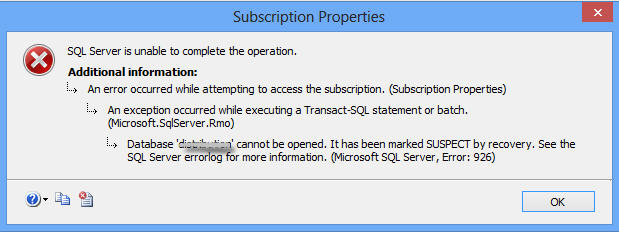
Figure 1 – Microsoft SQL Server, Error: 926 Message
The above error message indicates that ‘database is marked as suspect due to failed recovery process’, which prevents the database from opening. So, you will need to repair or recover MS SQL database from suspect mode to make it accessible again.
Following are some operations that result in SQL error 926:
- Starting up a SQL Server instance
- SQL database is not attached properly
- Using the RESTORE database or RESTORE LOG commands
How to Fix SQL Server 2008 R2 Error 926?
Check the SQL Server error log to identify what caused the error. If the recovery failed due to an I/O error (a torn page) or any other hardware issue, try resolving the hardware issue first to fix the error. If this doesn’t work, there must be some form of database corruption. In that case, try restoring the database from the last known database backup.
If you don’t have recent backup or the backup is corrupt, set the database in EMERGENCY mode and try the DBCC CHECKDB repair operations. Doing so will help you restore access to the database marked as suspect. But, before attempting this solution, try the following tricks to fix Microsoft SQL Server 2008 R2 Error 926 MSDB:
- Refresh the SQL connection.
- Disconnect and reconnect the SQL connection.
- Restart the service for MSSQLSERVER.
- Restart the SQL Server Management Studio (SSMS).
- Restart your desktop.
If none of the above tricks help resolve the error, perform these steps:
Step 1: Use EMERGENCY Mode to Repair a Suspect Database
Open a new query window in SSMS, and then run the following commands:
Note: You can also use the ‘sp_resetstatus’ stored procedure to turn off the suspect flag on a database. For detailed information, refer to this link.
ALTER DATABASE DB_Name SET EMERGENCY;
This command puts the database in EMERGENCY mode. In this mode, users only get read-only permission to access the database.
Note: Members of the sysadmin fixed server can only access this right.
DBCC CHECKDB (‘DB_Name’);
The above command helps check the integrity of all database objects.
ALTER DATABASE DB_Name SET SINGLE_USER WITH ROLLBACK IMMEDIATE;
The command sets the database in ‘single user mode’.
DBCC CHECKDB (‘DB_Name’, REPAIR_ALLOW_DATA_LOSS);
This DBCC CHECKDB command will help repair the errors in SQL Server 2008 R2.
ALTER DATABASE DB_Name SET MULTI_USER;
With this command, the SQL Server database will be set in multi-user mode, allowing multiple users to access the database.
After executing all of the above commands, check if you can access the database. If you can, put the db back in normal mode.
Read this: Recover SQL Database from Emergency Mode to Normal Mode
If this step fails, proceed with the next step.
Step 2 – Move and Detach MSDB File
You can try to recover suspect MSDB database by moving and detaching the MSDB data and log files. For this, you can use SQL Server Management Studio (SSMS) or T-SQL:
Using SSMS
- Open Object Explorer in SSMS, right-click the connected SQL Server instance and then click Stop.
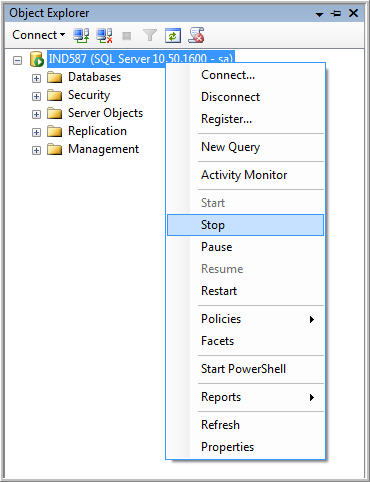
Figure 2 – Stop SQL Server Instance
2. Open Control panel, browse and select administrative tools, and then click Services.
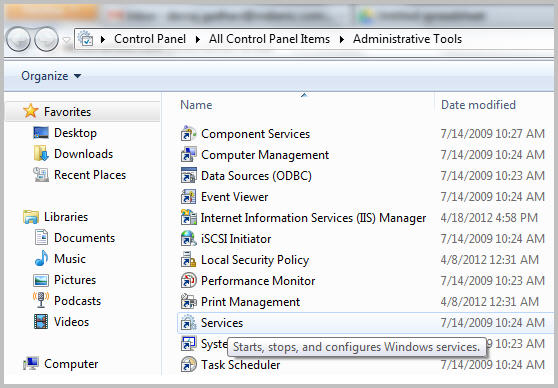
Figure 3 – SQL Server Services
3. In ‘Services’ dialog box, locate and right-click on SQL Server (MSSQLSERVER), and then click Stop.
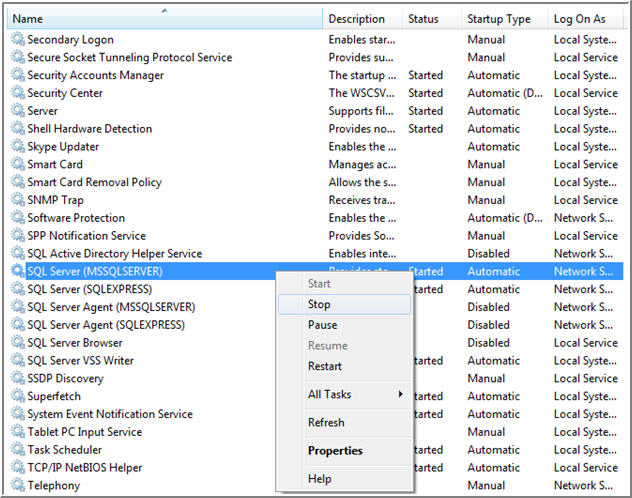
Figure 4 – Stop SQL Server Service
4. Open C:Program FilesMicrosoft SQL ServerMSSQL10.MSSQLSERVERMSSQLDATA.
5. Move the MSDB data file (.mdf) & log file (.ldf) to any other folder or location.
6. Copy the .mdf and .ldf files from the new location to their original location by browsing the following path:
C:Program FilesMicrosoft SQL ServerMSSQL10.MSSQLSERVERMSSQLDATA
7. Restart SQL Server Service.
8. Refresh the database, and detach the MSDB file.
Using T-SQL
You can also recover the MSDB database in suspect mode by executing the below T-SQL query:
EXEC sp_resetstatus ‘db_name’ ALTER DATABASE db_name SET EMERGENCY DBCC CHECKDB (‘db_name’) ALTER DATABASE db_name SET SINGLE_USER WITH ROLLBACK IMMEDIATE DBCC CHECKDB (‘db_name’, REPAIR_ALLOW_DATA_LOSS) ALTER DATABASE db_name SET MULTI_USER
Note: Replace db_name with the name of your database marked as suspect.
The above code will turn off the suspect flag on the database and put it in emergency mode. Next, it will bring the database to single-user mode, repair it, and will put the database to multi-user mode.
Limitations of Resolving SQL Server Error 926 Manually
There are a few downsides to using the aforementioned manual workarounds to resolve SQL error 926:
- DBCC CHECKDB may fail to effectively repair a large-sized, severely corrupt SQL database.
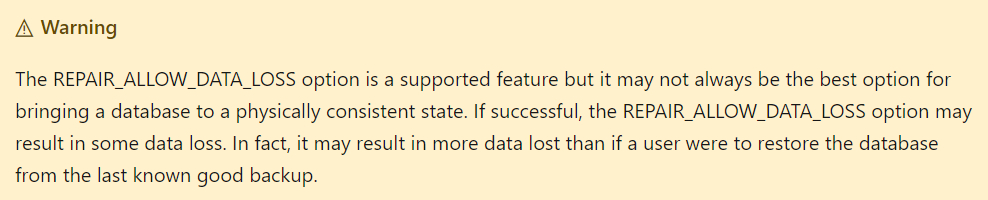
- DBCC CHECKDB ‘REPAIR_ALLOW_DATA_LOSS’ command may cause some data loss.
- Loss of data integrity.
- The above steps may take too much time to resolve the Microsoft SQL server error 926.
Alternative Solution to Fix SQL Server 2008 R2 Error 926
SQL database recovery software can resolve any error, including error 926 in SQL Server causing databases to become inaccessible.
Also, the SQL database repair software can help you overcome the limitations of the above-discussed solutions, here’s how:
- It specializes in the repair and recovery of large-sized, severely corrupt SQL Server databases.
- Laced with powerful algorithms, the software can parse a SQL database and reconstruct all its objects into their original state.
- Maintain the integrity of database structure and its objects.
- Reduces the manual efforts and time a user spends in making SQL Server databases and objects accessible.
- Recommended by Microsoft SQL MVPs. Check the MVP review from here.
You can download the demo version of the SQL database repair software to ascertain its effectiveness.
Key Features of Stellar Repair for MS SQL
- Repairs corrupt MDF and NDF files
- Supports all versions of SQL Server
- Recovers all database objects, including tables, indexes, triggers, rules, keys, etc.
- Allows recovery of deleted SQL Server records
- Supports multiple file saving options like MS SQL, CSV, HTML, and XLS
- Capable of resolving all type of corruption errors.
Conclusion
You can use manual fixes and software to deal with SQL Server 2008 R2 Error 926. While the manual fixes may help you fix the error, they may take considerable time and effort in resolving the error. This increases server downtime, leading to productivity loss and chances of data loss. However, using SQL repair software may help you restore the database in minimal time without the fear of losing any data.
About The Author

Priyanka
Priyanka is a technology expert working for key technology domains that revolve around Data Recovery and related software’s. She got expertise on related subjects like SQL Database, Access Database, QuickBooks, and Microsoft Excel. Loves to write on different technology and data recovery subjects on regular basis. Technology freak who always found exploring neo-tech subjects, when not writing, research is something that keeps her going in life.
Best Selling Products

Stellar Repair for MS SQL
Stellar Repair for MS SQL is an enterpri
Read More
Stellar Toolkit for MS SQL
3-in-1 software package, recommended by
Read More
Stellar Converter for Database
Stellar Converter for Database is an eff
Read More
Stellar Repair for Access
Powerful tool, widely trusted by users &
Read More
Posted: January 6, 2015 by Virendra Yaduvanshi in Database Administrator
Tags: Database MSDB cannot open, Database suspect by recovery, MSDB marked as suspect, MSDB problem, MSDB stuck, SQL error 926, SQL Server error 926, SQL server instance starting problem in SSMS, SSMS Error, SSMS error 926
It’s very rare but may be happen with us ,even we are trying to connect SQL Instance using sysadmin login and SSMS through error saying Database ‘msdb’ cannot be opened. it has been marked suspect by recovery.
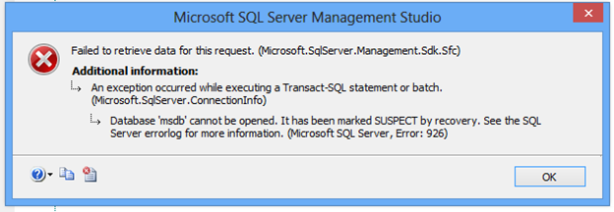
The error 926 commonly lead to inconsistencies in SQL database and affect it file format. The main factor is the due to corruption of the SQL MDF database file like hardware malfunctioning or less disk space on file system. The reason can be find to digging SQL Server Error Log.
We can use sp_resetstatus‘msdb’ at very initial stage, if problem not get resolved find more information using
DBCC CHECKDB.
Anyway MSDB has information on backups, jobs, dts/ssis etc, so it has not very frequent changes, so restoring last night backup work.
Other simplest way, if you are ready to bear/handle the loss of backup,jobs,dts/ssis information, Just simply find the MSDB’s MDF and LDF file named as stop the SQL server Instance service, rename both MDF and LDF files. Take a copy from running SQl server’s instance MDF and LDF file and copy it to problematic instance’s location where previously msdb db filename changed. (Note : To copy MDF and LDF files from running instance, first we have to stop that instance). After copying MDF n LDF files, just restart SQL server instance service and problem will got resolved.
Get Rid of Suspect SQL Server Error 926 and 945
SQL Server databases can experience a lot of issues with its integrity and if there is any inconsistency with the database in its Read or Write operation can cause a fatal error. SQL Server error 926 and 945 also belong to such error types where certain associated files are either missing or has some other issues. The case is rare but can happen while connecting the SQL Instance using SA login. What happens is when you try to connect it, an error message is thrown depicting that the ‘msdb’ cannot be opened and it is marked as suspect. Both of SQL error 926 and error 945 are caused due to different reasons. We will discuss about these errors one by one.
SQL Error 926
Severity Level 14
Error Message: SQLDatabase ‘%.*ls’ cannot be opened. This database is marked as SUSPECT by recovery. Refer SQL Server errorlog for more details.
Description:
Such type of error resembles that the database has integrity issues and that is why the database is marked as SUSPECT. It might have failed the recovery process which brings the database to consistent state. SQL Server Error 926 can be displayed while performing the mentioned operations like; while starting the Microsoft SQL Server instance, or while attaching any database or while performing RESTORE or RESTORE LOG procedures.
Error Resolution:
SQL Error 926 can be rectified at user’s end and the database can be then accessed without any error. As soon as this error message is detected, one can check for Microsoft SQL Server error log and check for the root cause for SQL Server error 926 to occur. In case recovery was not possible due to other reasons like I/O error, hardware issue, or torn page, etc.
For such error one can consider the integrity check utility DBCC CHECKDB which will report the error and provide a solution for it. One can opt to restore the backup if updated backup is available. In case backup is not available or the integrity check tool is unable to resolve the problem, one can contact primary support provider or can also contact the error logs for SQL Server.
SQL Server Error 945
Error 945
Severity Level 16
Error Message:
SQL Server Database ‘%.*ls’ is not opening because of inaccessible files. This can also be caused if there is not enough disk space or memory on the system then also this error can be generated. See the error log of SQL Server for more details.
Description:
SQL server error 945 is displayed when the database is marked as IsShutdown. This error occurs when a database cannot be recovered due to missing files. The error can also be caused as some resource error was not corrected successfully.
SQL Server Error 945 Resolution:
Check if database is flagged as IsShutdown with DATABASEPROPERTY. Afterwards, you can examine the cause of error by checking the errorlog and perform below mentioned steps;
If data/log files are missing;
- Search for the missing files, and bring the database OFFLINE.
- Use ALTER DATABASE in order to bring it ONLINE.
If log space is not enough;
- Utilize sp_add_log_file_recover_suspect_db() for adding new log file.
Database will be recovered and will be mounted online.
In case memory is not sufficient;
While recovering the multiple databases, this error can be displayed. One can retry the operation which might fix this issue.
- Try the operation again with ALTER DATABASE for bringing the .db OFFLINE.
- Then utilize ALTER DATABASE for bringing .db ONLINE.
Common Solutions – SQL Server Error 926& 945
Both the SQL Server error 926 and error 945 can be correct by these following steps:
Hardware Issues:
Windows system can have system issues and if there is corruption problem, databases mounted on the system will also be inaccessible. In such condition one can contact the Microsoft product service provider and fix the components.
Fetch Database from Backup:
In case users are having an updated backup of the SQL databases then one can easily restore the databases from the backup. Once the databases are restored, erroneous messages will not be displayed.
Repair Solution:
The very first step which must be taken is trying the inbuilt integrity check DBCC CHECKDB command. This integrity utility will check if there is any error issue and will report it to you and if the error still persist after applying above mentioned procedures then one can also go with third party utilities to recover SQL database from suspect mode and fix SQL Server error 926.
Problem: I have got this problem in local instance of SQL Server 2008 R2 on my machine. There are several databases on this instance. But I am not able to see any of them from the object explorer.
I am able to query my databases from the new query window. But not able to see any of them.
Whenever I try to explore the databases I get this error :
Database ‘msdb’ cannot be opened. It has been marked SUSPECT by recovery. See the SQL Server errorlog for more information. (Microsoft SQL Server, Error: 926).
I have tried
- Refreshing the connection
- Reconnecting the connection
- Restarting the service Sql Server (MSSQLSERVER).
- Restarting the SQL Server Management Studio
- Restarting my machine
I have also tried combinations of above, but nothing works.
My operating system is Windows 7 Ultimate (64 bit).
SQL Server Management Studio Version is 10.50.2500.0.
Solution 1
- Open new query window
EXEC sp_resetstatus 'DB_Name';(Explanation :sp_resetstatusturns off the suspect flag on a database. This procedure updates the mode and status columns of the named database insys.databases. Also note that only logins having sysadmin privileges can perform this.)ALTER DATABASE DB_Name SET EMERGENCY;(Explanation : Once the database is set to EMERGENCY mode it becomes a READ_ONLY copy and only members of sysadmin fixed server roles have privileges to access it.)DBCC checkdb('DB_Name');(Explanation : Check the integrity among all the objects.)ALTER DATABASE DB_Name SET SINGLE_USER WITH ROLLBACK IMMEDIATE;(Explanation : Set the database to single user mode.)DBCC CheckDB ('DB_Name', REPAIR_ALLOW_DATA_LOSS);(Explanation : Repair the errors)ALTER DATABASE DB_Name SET MULTI_USERDetails;(Explanation : Set the database to multi user mode, so that it can now be accessed by others.)
Solution 2
- In Object Explorer –> The opened connection item –> rightclick –> Stop

- Open Control Panel –> Administrative Tools –> Services
- Select
Sql Server (MSSQLSERVER)item from services –> rightclick –> Stop - Open C:Program FilesMicrosoft SQL ServerMSSQL10.MSSQLSERVERMSSQLDATA
- Move
MSDBData.mdf&MSDBlog.ldfto any other place - Then Copy this Files Again from new place and put it in older place
C:Program FilesMicrosoft SQL ServerMSSQL10.MSSQLSERVERMSSQLDATA
- In opened connection in object Explorer –> rightclick –> Start
- Then Refresh DataBase.
- Then you can Detach the MSDB File
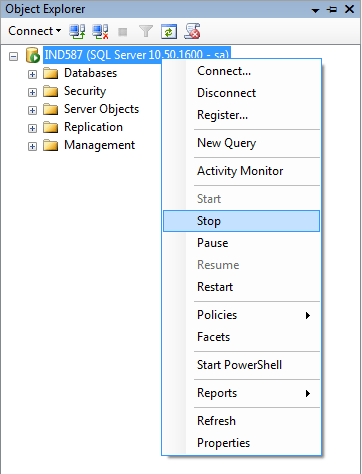
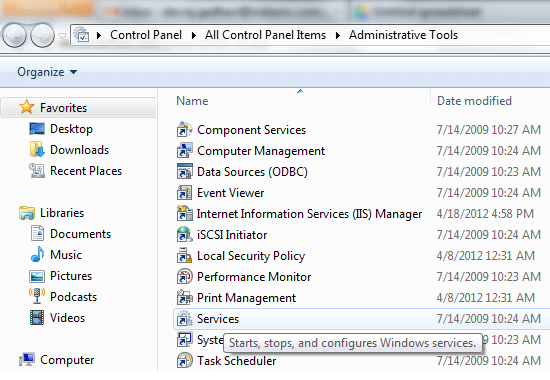

The 2nd solution worked for me.
Note : I had to get “msdb” database mdf and ldf files from another working machine to get it working.
———————————————————————————————————-
database ‘msdb’ cannot be opened. it has been marked suspect by recovery 2008 error code 926
Repair SQL Server Database marked as Suspect or Corrupted
I am using SQL server 2008, i got suddenly today an error while i was accessing database from visual studio the error is database ‘msdb’ cannot be opened. it has been marked suspect by recovery 2008 error code 926
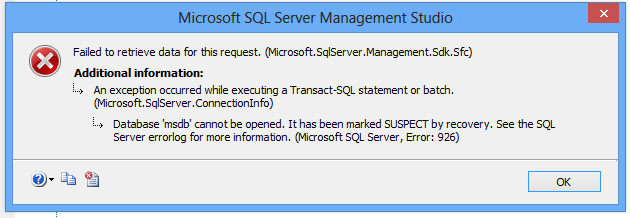
don’t know what to do to get out from this type of error. any one have any idea please let me know
There can be many reasons for a SQL Server database to go in a suspect mode when you connect to it – such as the device going offline, unavailability of database files, improper shutdown etc. Consider that you have a database named ‘test’ which is in suspect mode
You can bring it online using the following steps:
-
Reset the suspect flag
-
Set the database to emergency mode so that it becomes read only and not accessible to others
-
Check the integrity among all the objects
-
Set the database to single user mode
-
Repair the errors
-
Set the database to multi user mode, so that it can now be accessed by others
Here is the code to do the above tasks:

Here’s the same code for you to try out
EXEC sp_resetstatus ‘test’
ALTER DATABASE test SET EMERGENCY
DBCC CheckDB (‘test’)
ALTER DATABASE test SET SINGLE_USER WITH ROLLBACK IMMEDIATE
DBCC CheckDB (‘test’, REPAIR_ALLOW_DATA_LOSS)
ALTER DATABASE test SET MULTI_USER
The fastest way is to restore the MSDB database, but if it’s your first time doing that, here’s an easier shortcut.
- Restore the MSDB backup onto an existing (working) database server, but use a different database name than MSDB. The restore should go quickly (because MSDB is typically very small), and you can then verify that your objects are in there.
- Detach the database, and copy the mdf/ldf files over to the broken instance.
- Move the broken mdf/ldf files somewhere for safekeeping, and replace them with your newly restored mdf/ldf files.
Start the SQL Server instance again, and you’re set.
One gotcha – in step 1, make sure you’re restoring onto the same version of SQL Server. If the broken server is SQL Server 2005, don’t do the restore on SQL Server 2012, because the SQL 2005 instance won’t be able to attach databases that have been touched by a newer version of SQL Server.
How to recover a corrupted msdb database in SQL Server 2008?
One of our clients’ SQL Servers got corrupted. we were forced to uninstall all instances and all SQL Server programs in add/remove programs and then reinstall SQL Server because their backups were failing and useless.
I was able to re-attach the user databases but now I need to recover the SQL Server agent jobs, so first I tried creating a user database to hold the old msdb data called MSDBData_OLD, stopping the SQL Server service, replacing the .mdf file with the corrupted msdb’s .mdf file and deleteing the .ldf file, which would normally result in the database getting marked SUSPECT, and I could take it from there, but when I start the service again and click the database it says:
The database MSDBData_OLD is not accessible (ObjectExplorer)
Next I tried attaching with the log file and I got this:

Finally, I tried simply attaching the msdb database as a user database, but when I do, I get:
File activation failure. The physical file name “D:SQLMSSQL10_50.MSSQLSERVERMSSQLDATAMSDBLog.ldf” may be incorrect. The log cannot be rebuilt because there were open transactions/users when the database was shutdown, no checkpoint occurred to the database, or the database was read-only. This error could occur if the transaction log file was manually deleted or lost due to a hardware or environment failure.
D:SQLMSSQL10_50_.MSSQLSERVERMSSQLDATAMSDBLog.ldf is the path of the old and restored SQL Server msdb database log file.
We are running SQL Server 2008 R2 64 bit SP1.
Is there any way to recover from this or am I forced to rebuild the jobs from scratch?

Практически у каждого в наши дни есть смартфон, и больше половины гаджетов работают на Android. Операционная система от Google зарекомендовала себя как надёжный продукт, удобный в использовании и нетребовательный к «начинке» телефона. Но даже в этой ОС и её основной платформе для приложений (Play Market) могут возникать ошибки.
Причины возникновения ошибок
В любой системе есть место ошибкам. Хотя бы потому, что невозможно создать интерфейс и прописать все классы таким образом, чтобы полностью исключить неполадки. В Play Market, как и в любой сложной системе, могут возникать сбои, если в его работе имели место некоторые несоответствия. Неполадки можно разделить на группы:
- ошибки сети;
- ошибки приложений;
- несоответствие приложения и системы;
- старая версия ОС Android или Play Market;
- ошибки кэша;
- ошибки устройства и др.
По каждой из вышеописанных причин могут выявиться те или иные ошибки, которые препятствуют полноценной установке и работе приложений, получаемых из сервиса Google Play.
Что обозначает код ошибки
Под кодом ошибки подразумевают фактическое присваивание имени возникшей неполадке. Для того чтобы пользователь ориентировался в том, что случилось, почему это произошло и как это исправить, все возможные события пронумерованы или проименованы. Это необходимо для расшифровки: чтобы не выписывать кусок программного кода, в котором пользователь ничего не поймёт, вся информация сводится к короткому названию.
Таблица: типичные ошибки Play Market и способы их решения
| Код ошибки | Описание ошибки |
| 498 | Одна из часто появляющихся ошибок в работе Play Market. Она означает, что Магазину не удалось скачать запрашиваемое приложение по какой-либо из причин:
Попробуйте другой механизм доступа в интернет, поменяйте сеть WiFi или просто подождите. Возможно, проблема решится сама по себе. |
| 902 | Код ошибки означает, что в данный момент приложение Play Market обновляется и не может вести обслуживание пользователя по скачиванию программ и игр на телефон. В этом случае самым правильным решением юзера будет просто подождать, пока сервисы Google не обновятся, и повторить попытку по установке. Магазин может приводить себя в актуальное состояние от минуты до нескольких часов, в зависимости от скорости интернета и производительности гаджета. Вторым вариантом возникновения данной ошибки может быть случай, когда это приложение уже было установлено на устройстве, но при удалении возникли неполадки, из-за чего оно полностью не удалилось из системы. Достаточно деинсталлировать старую программу и заново установить желаемое. |
| 903 | Ошибка 903 означает, что в устройстве произошли события, которые каким-либо образом повлияли на синхронизацию вашего аккаунта с приложением Play Market. Возможно, были удалены или стали недоступны некоторые cookie-файлы. Необходимо перелогиниться в аккаунте Google. |
| 905 | Ошибка 905 возникает, когда пользователь намеревается скачать или обновить приложение. К сожалению, из-за постоянного расширения Магазина некоторые сервисы могут давать сбои, особенно на этапе установки приложения. Ошибки с кодом 905 означают, что одно из обновлений повредило некоторые элементы программы. Соответственно, лечение проходит откатом. |
| 906 | Ошибка с кодом 906 говорит о том, что ваш аккаунт рассинхронизировался с приложением. Причиной тому может быть неудачное обновление программы или операционной системы. Убрать ошибку можно, пересинхронизировав данные устройства. |
| 907, 963 | Весьма распространённые, практически идентичные ошибки. Коды 907 и 963 свидетельствуют о том, что при попытке загрузить или установить приложение возникла непредвиденная ситуация. Зачастую проблема решается повтором процесса: ещё раз запустите процедуру работы с приложением после перезагрузки устройства. Если неполадка не исчезла, придётся очистить кэш или удалить карту памяти из телефона. |
| 911 | Ошибка 911 означает проблемы сети. Возможно, вы используете сеть, в которой закончилась сессия интернета, и необходимо авторизоваться повторно. Проблемы могут быть и в самой сети: блокированы сервисы Google. Решить эту проблему просто: попробуйте подключиться к другой беспроводной сети или оператору мобильной связи. Помните о лимитированности некоторых тарифных подключений: за большие объёмы скачанных данных могут взыскиваться дополнительные средства. |
| 919 | Код 919 означает, что в телефоне закончилась память. Решение простое: очистите ваш девайс от мусора и ненужных приложений. Перенесите фотографии на карту памяти, на компьютер или в любое облако. Если же места для приложения достаточно, то исправить ошибку можно стандартными способами:
|
| 920 | Ещё одна из стандартных ошибок под кодом 920. Возникает при неудачных обновлениях Магазина или проводимых через него приложений. Лечение стандартное: удалить кэш, а если это не помогло, удалить аккаунт и залогиниться после перезагрузки. |
| 921 | Ошибка 921 свидетельствует о проблемах с аккаунтом. Обычно помогает удаление и повторная авторизация профиля Google. В остальных случаях проблема может исчезнуть сама с течением времени. |
| 923 | Код ошибки 923 сигнализирует о том, что на телефоне наблюдаются неполадки кэша. В отличие от предыдущих ошибок, эта проблема серьёзная и, возможно, затрагивает весь смартфон. Потому недостаточно почистить кэш одного лишь приложения Магазина, нужно удалить кэш всего устройства в режиме recovery. |
| 924 | Очередная ошибка приложения Play Market под кодом 924, решением которой является удаление обновлений и кэша или удаление и восстановление аккаунта. |
| 926 | Ошибку 926 относят к сервисным неполадкам Google. Основное отличие этой ошибки от всех вышеописанных заключается в том, что в большинстве случаев достаточно удалить данные и кэш одного только апплета Google Service Framework. Если это действие не помогло, дополнительно стоит очистить службы Google Play Store и Download Manager. |
| 927 | Ошибка с кодом 927 является чуть ли не самой распространённой. Получить её можно как при загрузке приложений, так и во время обновления программ и игр. Исправить неполадку в работе можно стандартным способом: почистить кэш Магазина или удалить аккаунт Google. |
| 940 | Событие с кодом 940 возникает при попытке загрузить приложение на телефон. Нередко проблему можно решить, просто перезагрузив устройство и повторив попытку. Если же это не помогло, необходимо очистить кэш приложений:
|
| 941 | Ошибка 941 может возникать при попытке скачивания приложений, которые совсем недавно добавились в Магазин. Иногда проблема исчезает сразу же при повторной загрузке программы на смартфон. Но если вы не хотите ждать, необходимо очистить кэш Магазина. |
| 960 | Ошибка 960 относится к ошибкам соединения с интернетом или сервисом Play Market. Для её решения достаточно сменить подключение: попробовать другую WiFi сеть или 3G/4G подключение оператора. |
| 961 | У ошибки с кодом 961 есть два возможных пути устранения. Первым делом нужно попробовать удалить аккаунт Google, после чего перезагрузить телефон и снова авторизоваться в своём профиле. Второй метод — очистка кэша через recovery. |
Видео: как исправить ошибки Play Market
Магазин Google имеет весьма специфическую систему работы. Если вы столкнулись с неполадками, прежде чем пытаться устранить проблему, совершите три действия:
- повторите скачивание;
- попробуйте другой тип подключения или отличную от нынешней WiFi-сеть;
- перезагрузите телефон и ещё раз попробуйте скачать искомое приложение.
Возможно, уже эти манипуляции с гаджетом приведут к устранению неполадок. Если проблема осталась, необходимо переходить к более радикальным мерам.
Удаление кэша сервисов Google
Удаление кэша Магазина и сервисов Google — самый популярный метод решения проблем, возникающих при скачивании приложений из Play Market. Это также универсальный способ для устранения почти всех ошибок. Исключениями являются только сбои соединения и памяти устройства.
- Заходим в настройки телефона, выбираем пункт «Приложения».

Выбираем пункт «Приложения» - Переходим во вкладку «Все», находим Play Market и открываем его настройки.

Переходим во вкладку «Все», открываем Play Market - Щёлкаем по кнопкам «Стереть данные» и «Очистить кэш». После того как процесс удаления завершится, желательно перезагрузить девайс и повторить установку приложения.

Удаляем кэш и перезагружаем устройство - Проводим аналогичные процедуры для программ:
- «Менеджер загрузок» (Download Manager, «Диспетчер загрузки»);
- Google Services Framework;
- сервисы Google Play.


Фотогалерея: приложения, которые нужно очистить для исправления ошибок Play Market
Удаление аккаунта Google
Удаление аккаунта также является лечением от многих ошибок: 903, 919, 920, 921, 924 и некоторых других. При этом не переживайте за сохранность своих данных. Любая информация об аккаунте хранится на серверах Google.
- Открываем настройки, в графе «Уч. записи» находим пункт Google, щёлкаем по нему.

Выбираем аккаунт Google - Кликаем на свою учётную запись.

Кликаем на нужную учётную запись - Вызываем настройки и выбираем пункт «Удалить уч. запись», после чего подтверждаем операцию.

В настройках выбираем «Удалить уч. запись» - Перезагружаем смартфон и снова входим в свой аккаунт.


Синхронизация данных устройства проходит аналогичным путём, только вместо пункта об удалении нажмите «Синхронизировать». После этого все данные устройства обновятся до необходимого статуса.
Удаление обновлений Play Market
Иногда случается, что обновления Play Market устанавливаются со сбоями. Это может спровоцировать обрывающееся интернет-соединение или запущенная в этот момент игра, которая мешает процессору корректно заменить файлы. Для решения необходимо удалить обновления приложения и после повторить процедуру скачивания.
- Переходим по пути: «Настройки» — «Приложения» — Play Market.

Открываем приложение Play Market - Нажимаем кнопку «Удалить обновления».

В настройках приложения Play Market удаляем обновления


Видео: как удалить обновление Play Market
Очистка кэша в режиме recovery
Очистка кэша через recovery как инструмент исправления неполадок применяется нечасто. С помощью этого метода можно избавиться от ошибок с кодом 923, 961 и некоторых других.
Использовать меню recovery неопытным пользователям не рекомендуется хотя бы потому, что можно случайно очистить или удалить что-то важное, вернуться к заводским настройкам или отключить некоторые элементы гаджета.
- Выключаем телефон. Затем зажимаем кнопки питания и громкость вверх (работает для большинства устройств; в некоторых моделях смартфонов необходимо зажимать кнопку вниз или обе клавиши громкости) и дожидаемся, пока гаджет подаст сигнал о включении, обычно это происходит в течение 1–2 секунд.
- При помощи кнопок громкости переставляем курсор на пункт Wipe cache partition и клавишей питания запускаем команду в действие. Ожидаем, пока программа закончит работу, и перезагружаем телефон обычным способом.
Видео: как очистить кэш в режиме recovery
Если при работе в Google Play возникает ошибка, это не так уж страшно. Большинство неполадок исправляются самыми простыми манипуляциями, без обращения к специалисту.
- Распечатать
Здравствуйте! Меня зовут Алексей. Мне 27 лет. По образованию — менеджер и филолог.
Оцените статью:
- 5
- 4
- 3
- 2
- 1
(2 голоса, среднее: 5 из 5)
Поделитесь с друзьями!