
Microsoft Teams — это онлайн-инструмент для создания видеоконференций, который упрощает удаленную работу в реальном времени и позволяет обмениватся файлами, видео и т.д.
Программа MS Teams иногда выдает код ошибки CAA7000a. Это ошибка, связана с сетью, которая в основном возникает при использовании версии Teams для компьютера. В этой инструкции мы рассмотрим различные способы устранения ошибки Microsoft Teams CAA7000a.
РЕКОМЕНДУЕМ:
Как изменить виртуальный фон в Microsoft Teams
Содержание
- Как исправить код ошибки Microsoft Teams CAA7000a
- Авторизация на сайте
- Проблемы с сетью
- Очистка кеша DNS
- Переустановка Microsoft Teams
- Заключение
Для исправления ошибки вы можете сделать следующее:
Авторизация на сайте
Самое быстрое решение — войти в свою учетную запись Microsoft Teams через веб-приложение.
Вы можете войти в свою учетную запись MS Teams, перейдя по адресу https://teams.microsoft.com/. Если это не решит вашу проблему, попробуйте следующие способы.
Проблемы с сетью
Код ошибки Microsoft caa7000a также может возникнуть из-за ошибки связанных с сетью. Лучше всего проверить это — войдя в MS Teams через мобильное приложение.
Если вы не можете войти с помощью своих учетных данных через мобильное приложение MS Teams, то есть вероятность, что это проблема интернета. Вы можете связаться с вашим системным или сетевым администратором, чтобы найти возможные исправления и поддержку.
Очистка кеша DNS
Другой причиной ошибки CAA7000a может быть кэш DNS операционной системы.
Чтобы удалить кэш DNS Windows, откройте окно командной строки с правами администратора.
Шаг 1: Вы можете сделать это, набрав «cmd» в строке поиска.
Шаг 2: Щелкните правой кнопкой мыши на вкладке «Командная строка» и выберите «Запуск от имени администратора».
Шаг 3: В окне командной строки введите следующее и нажмите Enter:
<strong>ipconfig /flushdns</strong>
Шаг 4: Перегрузите компьютер
Это обновит кэш DNS.
РЕКОМЕНДУЕМ:
Как очистить кэш Microsoft Teams
Переустановка Microsoft Teams
Причиной ошибки caa7000a может быть поврежедение файлов программы. Для многих пользователей, столкнувшихся с этой ошибкой, сработала переустановка Microsoft Teams. Вот как вы можете удалить и переустановить MS Teams.
Шаг 1: Введите «Удалить» в строке поиска и нажмите «Установка и удаление программ».
Шаг 2: Нажмите, чтобы выделить программу Microsoft Teams.
Шаг 3: Нажмите на вкладку удаления программы.
Шаг 4: После того, как программа полностью удалена, перезагрузите компьютер.
Шаг 5: Теперь загрузите последнюю версию программы с официального сайта. Нажмите сюда, чтобы загрузить.
Шаг 6: Перейдите в папку с загруженным файлом и установите его.
Шаг 7: После завершения установки войдите используя свои учетными данными.
Код ошибки caa7000a должен исчезнуть сейчас.
Заключение
Приведенные в статье способы устранения ошибки Microsoft Teams caa7000 должные помочь. Но если вы используете офисный компьютер, лучше всего связаться с вашим системным администратором и попросить найти решение.
РЕКОМЕНДУЕМ:
Как убрать Microsoft Teams из автозагрузки
Если вы знаете другой способ исправлением, пожалуйста, напишите в комментариях ниже.
 (1 оценок, среднее: 5,00 из 5)
 Загрузка…
Microsoft Teams — это онлайн-инструмент для создания видеоконференций, который упрощает удаленную работу в реальном времени и позволяет обмениватся файлами, видео и т.д.
Программа MS Teams иногда выдает код ошибки CAA7000a. Это ошибка, связана с сетью, которая в основном возникает при использовании версии Teams для компьютера. В этой инструкции мы рассмотрим различные способы устранения ошибки Microsoft Teams CAA7000a.
РЕКОМЕНДУЕМ:
Как изменить виртуальный фон в Microsoft Teams
Содержание
- Как исправить код ошибки Microsoft Teams CAA7000a
- Авторизация на сайте
- Проблемы с сетью
- Очистка кеша DNS
- Переустановка Microsoft Teams
- Заключение
Для исправления ошибки вы можете сделать следующее:
Авторизация на сайте
Самое быстрое решение — войти в свою учетную запись Microsoft Teams через веб-приложение.
Вы можете войти в свою учетную запись MS Teams, перейдя по адресу https://teams.microsoft.com/. Если это не решит вашу проблему, попробуйте следующие способы.
Проблемы с сетью
Код ошибки Microsoft caa7000a также может возникнуть из-за ошибки связанных с сетью. Лучше всего проверить это — войдя в MS Teams через мобильное приложение.
Если вы не можете войти с помощью своих учетных данных через мобильное приложение MS Teams, то есть вероятность, что это проблема интернета. Вы можете связаться с вашим системным или сетевым администратором, чтобы найти возможные исправления и поддержку.
Очистка кеша DNS
Другой причиной ошибки CAA7000a может быть кэш DNS операционной системы.
Чтобы удалить кэш DNS Windows, откройте окно командной строки с правами администратора.
Шаг 1: Вы можете сделать это, набрав «cmd» в строке поиска.
Шаг 2: Щелкните правой кнопкой мыши на вкладке «Командная строка» и выберите «Запуск от имени администратора».
Шаг 3: В окне командной строки введите следующее и нажмите Enter:
<strong>ipconfig /flushdns</strong>
Шаг 4: Перегрузите компьютер
Это обновит кэш DNS.
РЕКОМЕНДУЕМ:
Как очистить кэш Microsoft Teams
Переустановка Microsoft Teams
Причиной ошибки caa7000a может быть поврежедение файлов программы. Для многих пользователей, столкнувшихся с этой ошибкой, сработала переустановка Microsoft Teams. Вот как вы можете удалить и переустановить MS Teams.
Шаг 1: Введите «Удалить» в строке поиска и нажмите «Установка и удаление программ».
Шаг 2: Нажмите, чтобы выделить программу Microsoft Teams.
Шаг 3: Нажмите на вкладку удаления программы.
Шаг 4: После того, как программа полностью удалена, перезагрузите компьютер.
Шаг 5: Теперь загрузите последнюю версию программы с официального сайта. Нажмите сюда, чтобы загрузить.
Шаг 6: Перейдите в папку с загруженным файлом и установите его.
Шаг 7: После завершения установки войдите используя свои учетными данными.
Код ошибки caa7000a должен исчезнуть сейчас.
Заключение
Приведенные в статье способы устранения ошибки Microsoft Teams caa7000 должные помочь. Но если вы используете офисный компьютер, лучше всего связаться с вашим системным администратором и попросить найти решение.
РЕКОМЕНДУЕМ:
Как убрать Microsoft Teams из автозагрузки
Если вы знаете другой способ исправлением, пожалуйста, напишите в комментариях ниже.
(1 оценок, среднее: 5,00 из 5)
Загрузка…
Can someone help me understand Teams error caa7000a? Here’s some content from the Teams log for context.
Wed Feb 05 2020 09:30:55 GMT-0500 (Eastern Standard Time) <16328> — error — ssoerr -Needs to do login window promise. Login failed with error:Error: 0�
�:
Wed Feb 05 2020 09:30:55 GMT-0500 (Eastern Standard Time) <16328> — event — wiaError: {}, status: failure, scenario: fda60763-f2c9-4034-b89f-e51cc814e403, scenarioName: desktop_wia, name: desktop_wia, step: stop, sequence: 1, delta: 1547, scenarioDelta:
1547, elapsed: 3015, stepDelta: 1547, vdiMode: 0, eventpdclevel: 2, Scenario.Name: desktop_wia, Scenario.Step: stop, Scenario.Status: failure,
Wed Feb 05 2020 09:30:55 GMT-0500 (Eastern Standard Time) <16328> — info — SSO requires credential. Status: caa2000c. Windows auth. caa90002 diag:1
Wed Feb 05 2020 09:30:55 GMT-0500 (Eastern Standard Time) <16328> — info — SSO: SSO requires credential. Status: caa2000c. Windows auth. caa90002
Wed Feb 05 2020 09:30:56 GMT-0500 (Eastern Standard Time) <16328> — event — Microsoft_ADAL_api_id: 13, Microsoft_ADAL_correlationId: b655a1db-7142-4442-bbfd-ba746cdd683b, Microsoft_ADAL_response_rtime: 796, Microsoft_ADAL_api_error_code: caa2000c, vdiMode:
0, eventpdclevel: 2,
Wed Feb 05 2020 09:30:56 GMT-0500 (Eastern Standard Time) <16328> — info — https://api.spaces.skype.com: Login status caa2000c diag:1
Wed Feb 05 2020 09:30:56 GMT-0500 (Eastern Standard Time) <16328> — info — SSO: Acq token failed with:caa2000c
Wed Feb 05 2020 09:30:56 GMT-0500 (Eastern Standard Time) <16328> — info — AuthStateService: nativeWamEnabled:false
Wed Feb 05 2020 09:30:56 GMT-0500 (Eastern Standard Time) <16328> — info — Showing login window. correlationId:b655a1db-7142-4442-bbfd-ba746cdd683b
Wed Feb 05 2020 09:30:56 GMT-0500 (Eastern Standard Time) <16328> — event — status: abandoned, scenario: 5bbf49ae-7fb9-4329-8eb8-d4bd6e1a8d1e, scenarioName: desktop_app_load, name: desktop_app_load, step: stop, sequence: 1, delta: 3607, scenarioDelta:
3607, elapsed: 3813, stepDelta: 3607, vdiMode: 0, eventpdclevel: 1, Scenario.Name: desktop_app_load, Scenario.Step: stop, Scenario.Status: abandoned,
Wed Feb 05 2020 09:30:56 GMT-0500 (Eastern Standard Time) <16328> — info — Go ahead and log in. diag:0
Wed Feb 05 2020 09:30:56 GMT-0500 (Eastern Standard Time) <16328> — info — adalsso:statusChanged to: Go ahead and log in.
Wed Feb 05 2020 09:30:56 GMT-0500 (Eastern Standard Time) <16328> — info — Login UI in progress for upn. diag:1
Wed Feb 05 2020 09:30:56 GMT-0500 (Eastern Standard Time) <16328> — info — SSO: (Login Window) Login UI in progress.
Wed Feb 05 2020 09:30:56 GMT-0500 (Eastern Standard Time) <16328> — event — panelview: Panel.Type: loginWindow, Panel.Region: modal, Panel.LaunchMethod: login, DataBag.AuthStack: ADAL, Panel.ViewId: bc05acd9-a4ca-4c1e-805c-f49facb1a54c, vdiMode: 0,
eventpdclevel: 2,
Wed Feb 05 2020 09:32:36 GMT-0500 (Eastern Standard Time) <16328> — info — emit status indicator state change from undefined to Unknown
Wed Feb 05 2020 09:32:36 GMT-0500 (Eastern Standard Time) <16328> — info — Clearing taskbar overlay icon
Wed Feb 05 2020 09:32:36 GMT-0500 (Eastern Standard Time) <16328> — info — Added Unknown (current state: undefined -> Unknown)
Wed Feb 05 2020 09:32:36 GMT-0500 (Eastern Standard Time) <16328> — info — StatusIndicatorStateService initialized
Wed Feb 05 2020 09:32:36 GMT-0500 (Eastern Standard Time) <16328> — event — name: initialize_status_indicator, vdiMode: 0, eventpdclevel: 2,
Wed Feb 05 2020 09:32:36 GMT-0500 (Eastern Standard Time) <16328> — event — panelaction: Action.Outcome: launch, Action.Gesture: click, Action.Scenario: openTrayIconMenu, Action.ScenarioType: other, DataBag.StatusIndicatorState: Unknown, vdiMode: 0,
eventpdclevel: 2,
Wed Feb 05 2020 09:32:44 GMT-0500 (Eastern Standard Time) <16328> — event — panelaction: Action.Outcome: launch, Action.Gesture: click, Action.Scenario: openTrayIconMenu, Action.ScenarioType: other, DataBag.StatusIndicatorState: Unknown, vdiMode: 0,
eventpdclevel: 2,
Wed Feb 05 2020 09:35:56 GMT-0500 (Eastern Standard Time) <16328> — event — Microsoft_ADAL_api_id: 176, Microsoft_ADAL_correlationId: 74f1266a-78dd-42ea-924e-88b5532864fa, Microsoft_ADAL_response_rtime: 300052, Microsoft_ADAL_api_error_code: caa7000a,
vdiMode: 0, eventpdclevel: 2,
Wed Feb 05 2020 09:35:56 GMT-0500 (Eastern Standard Time) <16328> — info — Could not login user — status: caa7000a diag:1
Wed Feb 05 2020 09:35:56 GMT-0500 (Eastern Standard Time) <16328> — error — SSO: ssoerr — (Login Window) Could not login user — status: caa7000a
Wed Feb 05 2020 09:35:56 GMT-0500 (Eastern Standard Time) <16328> — info — AuthStateService: nativeWamEnabled:false
Wed Feb 05 2020 09:35:56 GMT-0500 (Eastern Standard Time) <16328> — error — SSO: ssoerr — SSO Uber catch
Wed Feb 05 2020 09:35:56 GMT-0500 (Eastern Standard Time) <16328> — info — Set upn window user upn
Wed Feb 05 2020 09:35:56 GMT-0500 (Eastern Standard Time) <16328> — info — Modern authentication failed here, but you’ll still be able to sign in. Your status code is caa7000a. diag:0
Wed Feb 05 2020 09:35:56 GMT-0500 (Eastern Standard Time) <16328> — info — adalsso:statusChanged to: Modern authentication failed here, but you’ll still be able to sign in. Your status code is caa7000a.
Wed Feb 05 2020 09:35:56 GMT-0500 (Eastern Standard Time) <16328> — info — Sso failed, updating cookie settings. Status:caa7000a diag:1
Wed Feb 05 2020 09:35:56 GMT-0500 (Eastern Standard Time) <16328> — error — SSO: ssoerr — Fallback to webauth. Err:true
by Teodor Nechita
Eager to help those in need, Teodor writes articles daily on subjects regarding Windows, Xbox, and all things tech-related. When not working, you may usually find him either… read more
Updated on December 21, 2022
- Microsoft Teams is one of the first software solutions that come to mind when talking about collaboration platforms
- When encountering sign-in issues, Microsoft Teams will display all kinds of errors but they can be quite confusing
- If you can’t sign in to Microsoft Teams, especially when you’re in a hurry to join an important meeting, can be nerve-wrecking. This guide which is part of our troubleshooting hub will help you fix this issue
- Visit our Microsoft Teams Hub for additional guides, as well as tips and tricks to expand your Teams skills
XINSTALL BY CLICKING THE DOWNLOAD FILE
This software will keep your drivers up and running, thus keeping you safe from common computer errors and hardware failure. Check all your drivers now in 3 easy steps:
- Download DriverFix (verified download file).
- Click Start Scan to find all problematic drivers.
- Click Update Drivers to get new versions and avoid system malfunctionings.
- DriverFix has been downloaded by 0 readers this month.
When it comes to talking with colleagues and coordinating your workforce, nothing beats a collaborative tool in this day and age. One good example is Microsoft Teams, a well-rounded collaborative tool that has all the features you may ever need in order to get in touch and manage your projects.
However, one core aspect of Microsoft Teams is the fact that you need to log into it using your credentials, and that doesn’t always go too smoothly.
For example, users have reported getting an error code caa7000a when trying to sign in:
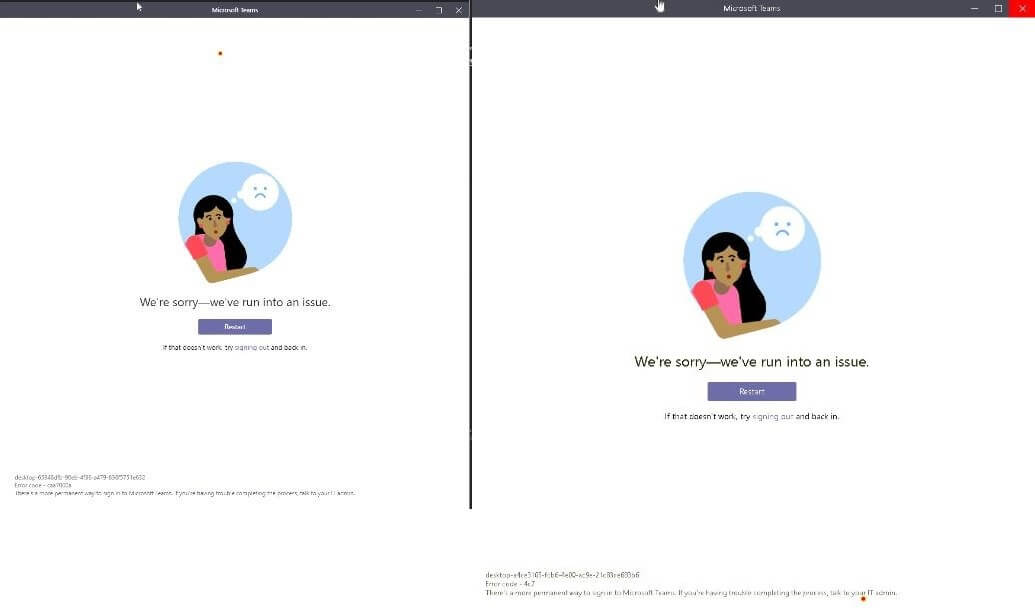
There exact reason why this error code may appear is not yet known. However, there are a few things you could try in order to bypass it.
How do I fix Microsoft Teams Error Code: caa7000a? 

1. Reinstall Microsoft Teams
One solution that helped even the original poster of the issue was a complete reinstall of Microsoft Teams:
Did a clean uninstall of Teams including the app data and credentials. did the trick 🙂
If you encounter issues attempting a complete and clean reinstall of Microsoft Teams, check out this in-depth article on the matter.
2. Check for connectivity issues
2.1 Network-related issues
Sometimes Microsoft Teams might Error Code: caa7000a simply because the overall network has issues. If that is the case, just do the following:
- Check network issues
- If you have any issues, then change network connection
- Additionally, you could switch to a cellular network
2.2. Client-related issues
There are plenty of variables that you need to consider if you are experiencing Error Code: caa7000a. Check the lsit below for some of the most common causes:
- If you cannot sign in using the downloaded client, you could always just use the web client.
- If the web client doesn’t work either, check the smartphone app
- Try updating Microsoft Teams
- Try repairing your Microsoft Office Suite
- This will also repair Microsoft Teams
- Make sure your client is not blocked by any VPN
- Make sure your Firewall settings and antivirus settings don’t block Microsoft Teams
By following any of these steps, you should no longer encounter Microsoft Teams Error Code: caa7000a any more, or any other similar issues for that matter.
If you know of any other fix for this issue that we may have missed out on, share it in the comments section below so that other users can try it, as well.
Still having issues? Fix them with this tool:
SPONSORED
If the advices above haven’t solved your issue, your PC may experience deeper Windows problems. We recommend downloading this PC Repair tool (rated Great on TrustPilot.com) to easily address them. After installation, simply click the Start Scan button and then press on Repair All.

Newsletter
by Teodor Nechita
Eager to help those in need, Teodor writes articles daily on subjects regarding Windows, Xbox, and all things tech-related. When not working, you may usually find him either… read more
Updated on December 21, 2022
- Microsoft Teams is one of the first software solutions that come to mind when talking about collaboration platforms
- When encountering sign-in issues, Microsoft Teams will display all kinds of errors but they can be quite confusing
- If you can’t sign in to Microsoft Teams, especially when you’re in a hurry to join an important meeting, can be nerve-wrecking. This guide which is part of our troubleshooting hub will help you fix this issue
- Visit our Microsoft Teams Hub for additional guides, as well as tips and tricks to expand your Teams skills
XINSTALL BY CLICKING THE DOWNLOAD FILE
This software will keep your drivers up and running, thus keeping you safe from common computer errors and hardware failure. Check all your drivers now in 3 easy steps:
- Download DriverFix (verified download file).
- Click Start Scan to find all problematic drivers.
- Click Update Drivers to get new versions and avoid system malfunctionings.
- DriverFix has been downloaded by 0 readers this month.
When it comes to talking with colleagues and coordinating your workforce, nothing beats a collaborative tool in this day and age. One good example is Microsoft Teams, a well-rounded collaborative tool that has all the features you may ever need in order to get in touch and manage your projects.
However, one core aspect of Microsoft Teams is the fact that you need to log into it using your credentials, and that doesn’t always go too smoothly.
For example, users have reported getting an error code caa7000a when trying to sign in:
There exact reason why this error code may appear is not yet known. However, there are a few things you could try in order to bypass it.
How do I fix Microsoft Teams Error Code: caa7000a?
1. Reinstall Microsoft Teams
One solution that helped even the original poster of the issue was a complete reinstall of Microsoft Teams:
Did a clean uninstall of Teams including the app data and credentials. did the trick 🙂
If you encounter issues attempting a complete and clean reinstall of Microsoft Teams, check out this in-depth article on the matter.
2. Check for connectivity issues
2.1 Network-related issues
Sometimes Microsoft Teams might Error Code: caa7000a simply because the overall network has issues. If that is the case, just do the following:
- Check network issues
- If you have any issues, then change network connection
- Additionally, you could switch to a cellular network
2.2. Client-related issues
There are plenty of variables that you need to consider if you are experiencing Error Code: caa7000a. Check the lsit below for some of the most common causes:
- If you cannot sign in using the downloaded client, you could always just use the web client.
- If the web client doesn’t work either, check the smartphone app
- Try updating Microsoft Teams
- Try repairing your Microsoft Office Suite
- This will also repair Microsoft Teams
- Make sure your client is not blocked by any VPN
- Make sure your Firewall settings and antivirus settings don’t block Microsoft Teams
By following any of these steps, you should no longer encounter Microsoft Teams Error Code: caa7000a any more, or any other similar issues for that matter.
If you know of any other fix for this issue that we may have missed out on, share it in the comments section below so that other users can try it, as well.
Still having issues? Fix them with this tool:
SPONSORED
If the advices above haven’t solved your issue, your PC may experience deeper Windows problems. We recommend downloading this PC Repair tool (rated Great on TrustPilot.com) to easily address them. After installation, simply click the Start Scan button and then press on Repair All.
Newsletter
Некоторые пользователи ПК сообщают о проблеме, при которой они сталкиваются с ошибкой с кодом caa7000a при попытке входа в приложение Microsoft Teams для настольных ПК в Windows. 11 или компьютер с Windows 10. Этот пост призван помочь затронутым пользователям найти наиболее подходящие решения для устранения проблемы.
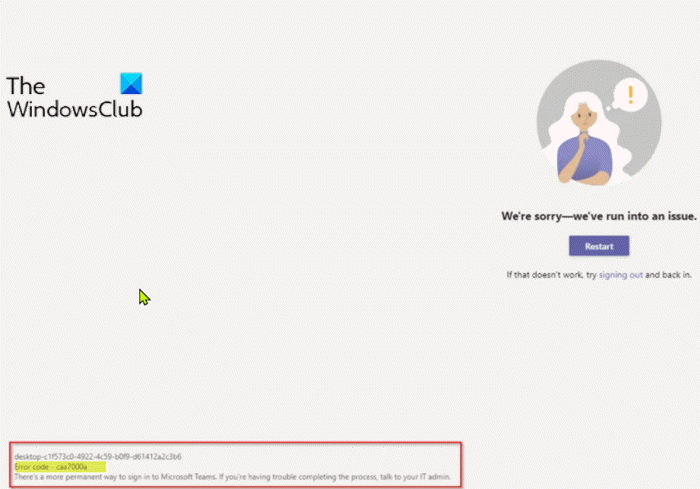
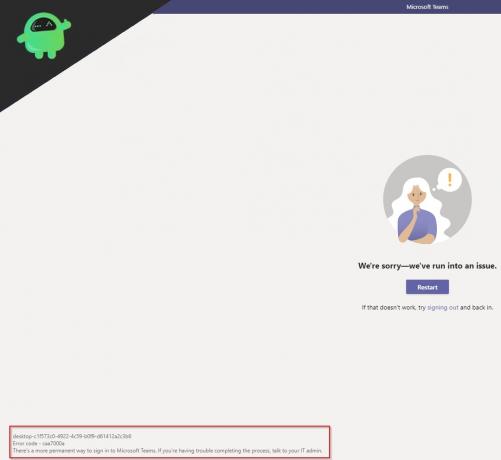
При возникновении этой проблемы вы получите следующее сообщение об ошибке:
Код ошибки-caa7000a
Есть более постоянный способ входа в Microsoft Teams. Если у вас возникли проблемы с завершением процесса, обратитесь к своему ИТ-администратору.
Что такое код ошибки caa7000a Microsoft Teams?
Если вы столкнулись с кодом ошибки caa7000a Microsoft Teams на вашем ПК с Windows, это просто означает, что есть ошибка, связанная с сетью, и в основном она возникает на настольном клиенте Teams, что делает программное обеспечение практически непригодным для использования.
Пользователи ПК, столкнувшиеся с этой проблемой в системе Windows 11/10, могут попробовать наши рекомендуемые ниже решения в произвольном порядке и посмотреть, поможет ли это решить проблему.
Временно отключите программное обеспечение безопасности Запустите Microsoft Teams с правами администратора Запустите команды в режиме совместимости Очистить учетные данные Windows Устранение неполадок с подключением Wi-FiУдалить и переустановить Teams Используйте веб-версию Teams
Давайте взглянем на описание процесса, связанного с каждым из перечисленных решений.
1] Временно отключите программное обеспечение безопасности
Стороннее программное обеспечение безопасности особенно могут мешать попытке входа в Teams, что приводит к возникновению этого кода ошибки caa7000a Microsoft Teams. В этом случае вы можете отключить программное обеспечение безопасности и посмотреть, поможет ли это. Вы также можете убедиться, что Teams разрешен через брандмауэр Windows. Если вы используете специальный брандмауэр, обратитесь к руководству по эксплуатации.
Как правило, чтобы отключить антивирусное программное обеспечение, найдите его значок в области уведомлений или на панели задач на панели задач (обычно в правом нижнем углу) рабочего стола). Щелкните значок правой кнопкой мыши и выберите вариант отключения или выхода из программы.
2] Запустите Microsoft Teams с правами администратора
Некоторые затронутые пользователи сообщили, что им удалось решить проблему на вручную, запустив команды с правами администратора. Если это не сработало, попробуйте следующее решение.
3] Запускайте команды в режиме совместимости
Для этого решения необходимо запустить команды в режиме совместимости и посмотреть, поможет ли это. Если это не помогло, перейдите к следующему решению.
4] Очистить учетные данные Windows
Если вы можете войти в Teams на другом компьютере с Windows, скорее всего, учетные данные находятся на другом другом компьютере. компьютер поврежден. В этом случае вы можете очистить учетные данные Windows на проблемном ПК и посмотреть, решит ли это проблему. В противном случае попробуйте следующее решение.
5] Устранение проблем с подключением Wi-Fi
Поскольку это ошибка сети, вы можете устранить проблемы с подключением Wi-Fi на своем ПК с Windows 11/10. Вы также можете подать в суд на это руководство о том, как исправить проблемы с сетью и подключением к Интернету. Если ничего не работает, подумайте о переключении на подключение к сети Ethernet.
6] Удалите и переустановите Teams
Для этого решения необходимо удалить приложение Microsoft Teams, очистить содержимое папки AppData Teams, перезагрузить компьютер, а затем загрузите и установите последнюю версию приложения Teams на свой ПК с Windows 10/11.
Чтобы очистить/удалить содержимое папки AppData Teams, выполните следующие действия:
Нажмите клавишу Windows + R , чтобы вызвать диалоговое окно «Выполнить». В диалоговом окне «Выполнить» введите указанную ниже переменную среды и нажмите Enter.% Appdata% В этом месте найдите (может потребоваться показать скрытые файлы/папки) папку Teams.-щелкните папку и выберите Удалить . Подтвердите любые дополнительные запросы. Закройте проводник.
7] Используйте веб-версию Teams
В крайнем случае, если до сих пор у вас ничего не помогло, лучшим решением будет использование веб-версии Microsoft Teams. на team.microsoft.com . Веб-версия работает, и вы можете запускать команды для нескольких клиентов.
Надеюсь, это поможет!
Как исправить что-то не так с Microsoft Teams?
Если вы столкнулись с ошибкой Microsoft Teams «Что-то пошло не так» на вашем устройстве с Windows 11/10, вы можете следовать этим инструкциям, чтобы устранить проблему: Выключите и снова включите маршрутизатор. Проблемы с сетью часто можно решить, перезапустив маршрутизатор. Проверьте свои учетные данные для входа. Ошибка «Что-то пошло не так» может быть результатом неправильного ввода информации для входа. Удалите учетные данные для входа из Windows. Проверьте статус службы.
Почему у меня возникает сбой в Microsoft Teams?
Иногда вы можете заметить сбой Microsoft Teams, или, может быть, иногда приложение Teams зависает из-за сбоя и цикла запуска. Чтобы устранить эту проблему, обновите приложение, снова войдите в систему и обновите драйвер видеокарты. Кроме того, попробуйте открыть Teams из предыдущей версии.
Почему ссылка Teams не работает?
Если вы заметили, что ссылка Teams не работает на вашем ПК с Windows 11/10, она Скорее всего, эта проблема вызвана кешем приложения. Чтобы решить эту проблему, вы можете попробовать очистить кеш, обновить приложение и проверить результаты. Если ничего не работает, просто скопируйте ссылку и вставьте ее в новую вкладку.
Связанное сообщение : Как исправить ошибку Microsoft Teams caa70007.
Many users reported that when they try to launch or log in to Microsoft Teams, they face an error code caa7000a. In this article, we will try to fix Microsoft Teams Error Code caa7000a.
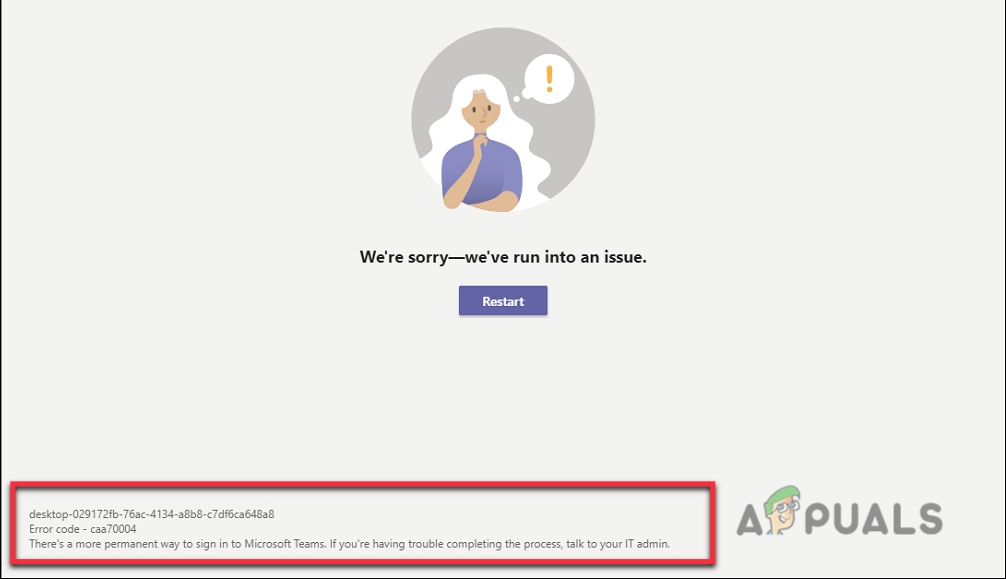
Here are some reasons why Microsoft Teams Error code caa7000a occurs;
- Corrupt Cache files: This error usually occurs because of Microsoft Teams’ corrupt cache files. These files help in accessing data effectively. Cache memory acquires more space that may corrupt the files. Because of this, the apps do not launch properly. To fix this issue, you can reinstall the app or clear the cache.
- App Glitches: These glitches stuck the app on the launching loop. Many users found bugs or glitches when they try to start the Teams app. These glitches may be because of poor internet connection, crashed files, or less storage. You can fix this issue by troubleshooting or updating the app.
- Poor Internet connection: Internet speed directly affects the Teams performance. Videos and voice quality drop. MS Teams require a specific bandwidth. If the bandwidth is less than the requirements then it won’t launch. To fix this issue, you can shift to some other network or router. You can shift to Mobile data as well.
1. Disable the Antivirus software
Sometimes, the Anti-software interferes during the Microsoft Teams launching. It causes an Error Code caa7000a. This third-party software considers some apps files as a bug. They do not load these files and cause launching issues. So, you can disable these Anti-virus software for a while. Here are some steps that will help you in resolving this issue;
- Go on the right side of the Taskbar. Here you will find the icon of third-party software.
- Right-click on the icon. Now click on the Disable Then restart Your system.
- Now relaunch the Microsoft Teams. (Note: Once you fix the problem, enable the Anti-virus software. They maintain the health of your system and secure your computer from malicious attacks.
2. Fix the Network Connectivity issues
Microsoft Teams Error Code caa7000a is a connectivity error. So, it is important to check the internet connection. You can resolve it by network troubleshooting method. SO, here are some steps that will help you out in fixing this issue;
- Open the Windows settings and go to System.
- Scroll down and click on the Troubleshoot option from the left side of the screen.
- Select other troubleshooters. You will find the Internet connection option on the top.
- Press Run. It will detect the problem and resolve it.

Fix the Network Connectivity issues

3. Clear Microsoft Teams Cache Files
Cache files help in loading the Microsoft Teams. This is a storage area for temporary tasks you perform on your system. When this storage fills, it crashes the files of the app and does not load the Teams. So, here few steps to clean the cache;
- First of all, if the MS Team stream is open go and close the Microsoft Teams.
- Go to the right side of the Taskbar and right-click on the Teams icon. Click on the quit option.
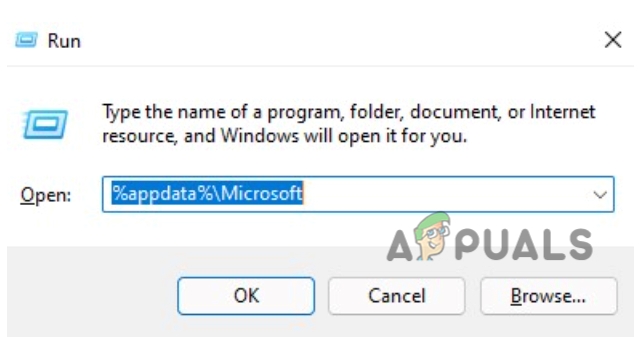
- Once the MS team is closed, press Window Key + R and type %appdata%Microsoft.

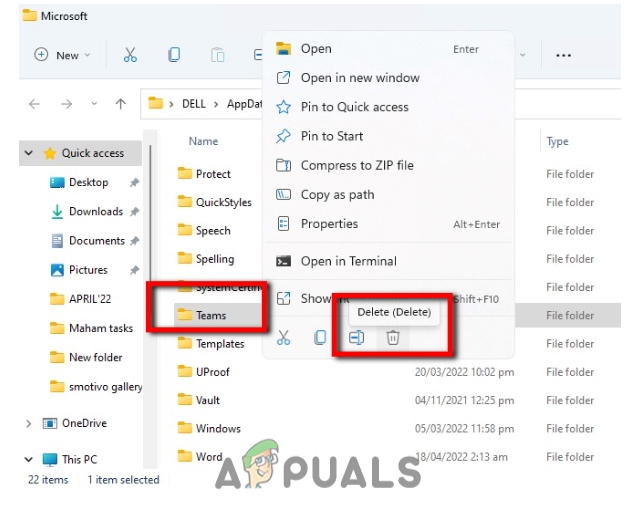
Clear Microsoft Teams Cache Files - Press Enter. Microsoft Folder will open. Go and right-click on the Teams Option.
- Press Delete. Now Relaunch the MS Teams.

Clear Teams Cache Files to Fix Fix Microsoft Teams Error code caa7000a - This time Teams will ask you to go ahead and log in to your account.
4. Run the Compatibility Troubleshooter
When the above method does not fix the fix Microsoft Teams Error Code caa7000a then you can use this solution. It is a built-in function and can fix compatibility problems automatically. So, follow these steps to run the compatibility troubleshooter;
- Close the MS team stream properly. Now click on the Magnifying glass from the taskbar and type Microsoft teams.
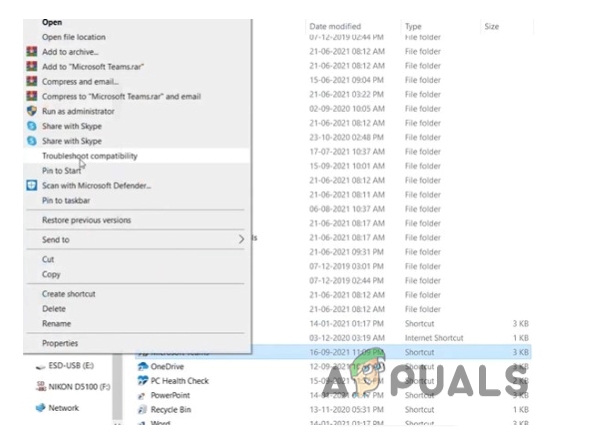
- Right-click on the Teams app and select the Open in file location option.
- Now, right-click on the Microsoft Teams and click on Compatibility Troubleshooting.

Run the Compatibility Troubleshooter to fix Microsoft Teams Error Code caa7000a. - Once troubleshooting is complete, it should fix the error message.
5. Run the program in Compatibility mode
Microsoft Teams has its specifications and requirements. When you update your windows, it usually does not support previous versions of apps. In this case, compatibility mode helps to set the windows version according to the app. So, here are some steps you can follow to run the program in compatibility mode.
- Type Microsoft Teams in the Window search box. Then right-click on it and select open in a file location.
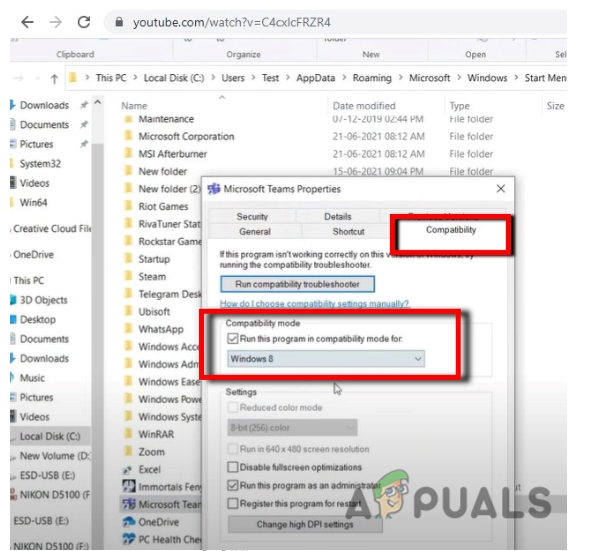
- Now again right-click on the Microsoft Teams and select the Properties option.
- So, from here press the compatibility tab and go ahead and put a check on the box which says Run this program in compatibility mode.

Run the program in Compatibility mode - Select windows mode. Click on Apply and then press Ok
- Try to relaunch the Microsoft Teams.
6. Run Microsoft as an Administrator
When several programs run on your system at a time, at that time your system does not focus on a single program. For this, you need to run the required program as an administrator. Then your system will give more access to this program. So, the following steps will help you in this method;
- So, again go to the start menu and type Microsoft teams on the search bar.
- Right-click on Teams and select the option of Open in a file location.
- Again right-click on the Microsoft Teams and then click on Properties.
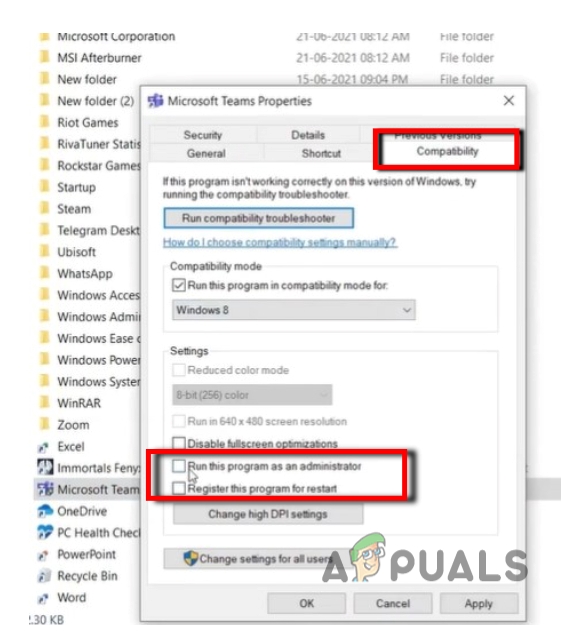
- Click on the compatibility option and put a check on the option which says, Run this program as an administrator.

Run Teams as an Administrator to fix Microsoft Teams Error Code caa7000a. - Press Apply tab, click on Ok, and launch the Microsoft Teams again.
7. Clear Microsoft Teams cache from Credential Manager
Every user has the credential to sign in to the apps, networks, and websites. Credential Manager helps in viewing and deleting these saved credentials. You can clean these so, can re-login to the Microsoft Teams. So, follow these steps;
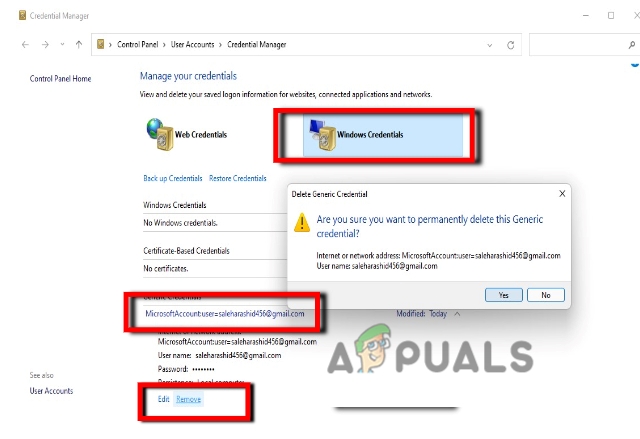
- Go to the Start Menu and type Credential Manager.
- Now select the Windows Credential. Now click on the Microsoft account user =
- Click on the Remove option and press yes. Similarly, scroll down and delete all the entries starting with Microsoft Account Users=

Clear Microsoft Teams cache from Credential Manager - Now try to launch your MS Teams again. This time you need to add your User ID and Password.
8. Uninstall ad Re-installation of Microsoft Teams
During the installation of apps, there are various chances to lose important files. This is mainly because of a slow internet connection or third-party software. This software considers a few files as a bug and stops their installation. So, in this case, you have re-install the app. The followings steps will help you in the re-installation process;
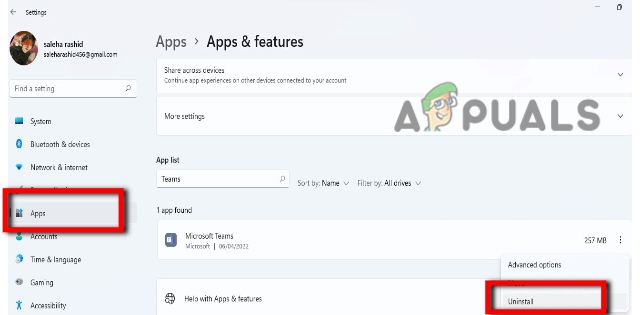
- Right-click on the Start Menu and select Settings.
- Select App and then go to App & Features Over here find Microsoft Teams.
- Click on the three-dotted Icon, present in front of MS Teams.
- Click on Uninstall After uninstallation is done, restart your computer.

Uninstall ad Re-installation of Microsoft Teams - So, to re-install this game you can search for Microsoft Teams website and download it online from there.
- After, reinstallation launch the Microsoft Teams and enter your Email ID and password to connect with the app.
9. Use the Web Version of Microsoft Teams
In case, if the problem is still there, you can use the web version of Microsoft Teams. The web version only needs a fast internet connection. You will not face any issues regarding missing files, Third-party software interference, etc. So, simply follow these steps to use the web version.
- Go to google and type Microsoft teams.
- Open the original website of MS Teams. Here click on Sign in.

Use the Web Version of Microsoft Teams - Enter your Email ID and password. Once you log in, you can start using the web version of Microsoft Teams. Error caa7000a will not occur in the web version. But for this you need to have a good internet connection and programs running in the background should be closed.


Saleha Rashid
I’m Saleha Rashid, an Environmental Engineer by profession. I have graduated from the University of Engineering and Technology, (U.E.T Lahore) I have had a passion for Technology since early childhood. I enjoy writing about technology and fixing issues related to Android and Windows. I am a Hardware geek with a passion for android gaming. I love to write articles to help people solve their problems regarding software and hardware.
Microsoft Teams — это инструмент для совместной работы в Интернете, который упростил удаленную работу с помощью совместной работы в реальном времени, обмена файлами, голосовых и видеозвонков, и так далее Программное обеспечение MS Teams иногда генерирует код ошибки CAA7000a. Это ошибка, связанная с сетью, и в основном она возникает в настольном клиенте MS Teams, что делает программу непригодной для использования. В этом руководстве мы рассмотрим различные методы, которые помогут нам избавиться от этой ошибки.
Бывают случаи, когда код ошибки caa7000a становится неприятным. Возможно, вам придется перейти к важному сеансу видео, которому препятствует эта ошибка. Итак, вот что вы можете попробовать:
1. Войдите в систему через веб-клиент.
Самое быстрое из возможных решений — войти в свою учетную запись Microsoft Teams через веб-приложение.
О коде ошибки caa7000a сообщалось как о проблеме с настольным клиентом Microsoft Teams.
Вы можете войти в MS Teams по адресу адрес https://teams.microsoft.com/ и войдите в систему, используя свои учетные данные MS Teams. Если это не решит вашу проблему, попробуйте следующее.
2. Проблемы с сетевыми службами и их устранение.
Код ошибки Microsoft caa7000a также может возникать, но имейте в виду, что это происходит редко из-за ошибки в сетевых службах поставщика.
Лучше проверить, можете ли вы подключиться к MS Teams через мобильное приложение.
Если вам не удается войти в систему со своими учетными данными через мобильное приложение MS Teams, это может быть проблемой на стороне поставщика. Вы можете связаться с системным или сетевым администратором, чтобы найти возможное решение и поддержку.
3. Очистите кеш DNS.
Другой возможный виновник ошибки CAA7000a может быть связан с сетью, поэтому рекомендуется обновить кеш DNS вашего компьютера.
Чтобы удалить кеш DNS Windows, откройте окно командной строки с правами администратора.
- Вы можете сделать это, набрав » CMD »В строке поиска.
- Щелкните правой кнопкой мыши вкладку «Командная строка» и выберите » Запуск от имени администратора ».
В окне командной строки введите следующее и нажмите Enter:
ipconfig / flushdns
Это обновит кеш DNS. Также может потребоваться перезагрузка.
4. Переустановите Microsoft Teams.
Хотя не имеет значения, какова причина (поврежденные файлы и т. Д.), Похоже, что чистая установка Microsoft Teams сработала для многих пользователей, столкнувшихся с этой ошибкой. Вот как вы можете удалить и переустановить MS Teams.
- Тип » деинсталляция »В строке поиска нажмите» Добавить или удалить программы ».
- Щелкните, чтобы выделить программы Microsoft Команды .
- Щелкните вкладку Деинсталлятор.
- Как только программа будет полностью удалена, запустить снова твой компьютер.
- Скачать Maintenant последняя версия Microsoft Teams с официального сайта. Нажмите здесь, чтобы загрузить .
- Перейдите к местоположению загруженного файла и установить это .
- После завершения установки соединять вы с вашими учетными данными. Код ошибки caa7000a должен исчезнуть.
заключение
Вот несколько способов исправить код ошибки Microsoft caa7000a для Microsoft Teams. Однако важно учитывать, что это ошибка, вызванная сетевыми службами. Прежде чем приступить к использованию перечисленных здесь методов, лучше всего обратиться к системному администратору и попросить решение. Часто вы получите помощь сразу же, и вам не придется терпеть боль прохождения всех этапов. Если вы знаете обходной путь или исправление, которое мы не перечислили, не стесняйтесь давать нам чаевые или делиться ими с сообществом в разделе комментариев ниже.

Когда мы говорим о программном обеспечении для совместной работы, Команды Microsoft приходит на ум первым. Таким образом, пользователи часто сталкиваются с проблемами из-за большой базы пользователей и нагрузки на серверы. Но редко мы видим проблемы, но иногда проблема вызывает большую боль в рабочее время. Сегодня мы обсудим одну из таких проблем, которая заставляет пользователей ломать голову. После этих ошибок Microsoft выпустила несколько обновлений, но в отличие от того, что мы думали, обновление оказалось беспомощным для решения этих проблем. Так что, если вы здесь, вероятно, вы столкнулись с той же проблемой с кодом ошибки caa7000a.
В большинстве случаев команды отображают множество кодов ошибок, что затрудняет понимание проблемы. Но сегодня мы собираемся обсудить код ошибки caa7000a, который является скорее ошибкой, чем кодом ошибки. Так что понимать и делать это самому будет удобнее. Давайте начнем.
Оглавление
- 1 В чем проблема?
-
2 Как исправить ошибку Microsoft Teams с кодом caa7000a?
- 2.1 Исправление 1: переустановите Microsoft Teams
- 2.2 Исправление 2: проверьте наличие проблем с сетевым подключением
- 2.3 Исправление 3: проблемы с клиентом
- 3 Вывод
В чем проблема?
Проблема простая, но тревожная. Когда вам нужно присоединиться к важному собранию или голосовой конференции, Teams не позволит вам войти и отобразит код ошибки caa7000a. Этот код ошибки отображается не только при попытке присоединиться к собранию, но и во время чата. И самый пугающий — во время презентации. Код ошибки caa7000a на самом деле является кодом ошибки сетевого подключения, который означает, что Microsoft Teams не может подключиться к сети.
Видя этот код ошибки, пользователь чувствует себя беспомощным, потому что все знают, что означает презентация, а неправильная презентация может просто все испортить. Так что, если вы столкнулись с той же проблемой, это руководство для вас. Мы собрали лучшие исправления, которые помогут вам больше не получать эти коды ошибок в ближайшем будущем. Перейдем к нашим исправлениям.
Как исправить ошибку Microsoft Teams с кодом caa7000a?
Исправление кода ошибки Microsoft Teams — это легкая прогулка, если вы четко понимаете всю процедуру. Мы обсудим простые исправления, и вы сможете сделать их самостоятельно без чьей-либо помощи. Не забудьте применить их в том порядке, который мы здесь обсуждаем. Итак, приступим к нашим исправлениям.
Исправление 1: переустановите Microsoft Teams
Одним из лучших решений для устранения проблемы с кодом ошибки caa7000a является удаление Microsoft Teams и продолжение переустановки. Следуйте инструкциям, если вам нужна помощь в удалении.
- Откройте проводник на панели задач.
- Затем в правом верхнем углу щелкните вкладку Компьютер.
- На компьютере откройте вкладку «Удалить или изменить программу».
- Найдите Microsoft Teams и удалите его.
- Теперь загрузите Microsoft Teams из официальная страница продукта
- И дважды щелкните установщик и следуйте инструкциям на странице.
Выполнение новой установки поможет решить эту ошибку с кодом caa7000a. И надеюсь, больше не появится. Перейдите к следующему исправлению, чтобы продолжить работу с руководством
Исправление 2: проверьте наличие проблем с сетевым подключением
Как мы знаем, код ошибки caa7000a — это код ошибки подключения, поэтому рекомендуется проверить наличие проблем с подключением к сети в системе. Для этого выполните следующие действия.
- Прежде всего, проверьте, стабильно ли ваше интернет-соединение. Вы можете найти решение проблем с сетью Вот
- Вы можете попробовать другие подключения, например, мобильную точку доступа
- Затем вы также можете устранить неполадки с настройками сети во встроенном средстве устранения неполадок.
Попробовав все это, ваша проблема будет решена. Если это не помогает, переходите к следующему исправлению.
Исправление 3: проблемы с клиентом
Есть несколько причин, которые приводят к коду ошибки caa7000a, и большинство из них являются собственными проблемами клиента. Выполните следующие шаги, чтобы решить их соответствующим образом.
- Если ваше приложение вызывает эту проблему, вы можете проверить онлайн-интерфейс Microsoft Teams в браузере.
- Если ваш веб-клиент не работает, попробуйте мобильные приложения.
- Вы можете восстановить Microsoft Teams из Microsoft Office Suite
- Убедитесь, что вы не используете VPN, поскольку VPN всегда вызывают проблемы с приложениями.
- Вы также можете проверить, работает ли ваш антивирус или брандмауэр, для этого добавьте команды в список исключений.
Вы можете попробовать весь этот метод, чтобы исправить ошибку с кодом caa7000a. Сделав все это, один из всех наверняка решит вашу проблему. И в ближайшие несколько дней Microsoft выпустит обновления патчей, которые, наконец, исправят ваши проблемы с клиентом.
Похожие сообщения:
- Режим «Не беспокоить» не работает в Microsoft Teams во время презентации: как исправить?
- Как исправить, если файл Microsoft Teams продолжает показывать заблокированную ошибку?
- Microsoft Teams не удаляется, он продолжает переустанавливаться: как удалить?
- Как связать команды Slack и Microsoft?
Вывод
Это руководство было призвано помочь пользователям, которые сталкиваются с кодом ошибки caa7000a в своем приложении Microsoft Teams. Надеемся, это руководство было для вас полезным. Если у вас есть какие-либо вопросы или отзывы, не стесняйтесь оставлять комментарии ниже, указав свое имя и адрес электронной почты. Точно так же ознакомьтесь с нашими Советы и хитрости iPhone, Советы и хитрости для ПК, а также Советы и хитрости для Android для получения дополнительных советов и рекомендаций. Благодарю вас.
Анубхав Рой — студент-инженер-информатик, который проявляет огромный интерес к миру компьютеров, Android и других вещей, происходящих в мире информации и технологий. Он обучен машинному обучению, науке о данных и является программистом на языке Python с Django Framework.
Can someone help me understand Teams error caa7000a? Here’s some content from the Teams log for context.
Wed Feb 05 2020 09:30:55 GMT-0500 (Eastern Standard Time) <16328> — error — ssoerr -Needs to do login window promise. Login failed with error:Error: 0�
�:
Wed Feb 05 2020 09:30:55 GMT-0500 (Eastern Standard Time) <16328> — event — wiaError: {}, status: failure, scenario: fda60763-f2c9-4034-b89f-e51cc814e403, scenarioName: desktop_wia, name: desktop_wia, step: stop, sequence: 1, delta: 1547, scenarioDelta:
1547, elapsed: 3015, stepDelta: 1547, vdiMode: 0, eventpdclevel: 2, Scenario.Name: desktop_wia, Scenario.Step: stop, Scenario.Status: failure,
Wed Feb 05 2020 09:30:55 GMT-0500 (Eastern Standard Time) <16328> — info — SSO requires credential. Status: caa2000c. Windows auth. caa90002 diag:1
Wed Feb 05 2020 09:30:55 GMT-0500 (Eastern Standard Time) <16328> — info — SSO: SSO requires credential. Status: caa2000c. Windows auth. caa90002
Wed Feb 05 2020 09:30:56 GMT-0500 (Eastern Standard Time) <16328> — event — Microsoft_ADAL_api_id: 13, Microsoft_ADAL_correlationId: b655a1db-7142-4442-bbfd-ba746cdd683b, Microsoft_ADAL_response_rtime: 796, Microsoft_ADAL_api_error_code: caa2000c, vdiMode:
0, eventpdclevel: 2,
Wed Feb 05 2020 09:30:56 GMT-0500 (Eastern Standard Time) <16328> — info — https://api.spaces.skype.com: Login status caa2000c diag:1
Wed Feb 05 2020 09:30:56 GMT-0500 (Eastern Standard Time) <16328> — info — SSO: Acq token failed with:caa2000c
Wed Feb 05 2020 09:30:56 GMT-0500 (Eastern Standard Time) <16328> — info — AuthStateService: nativeWamEnabled:false
Wed Feb 05 2020 09:30:56 GMT-0500 (Eastern Standard Time) <16328> — info — Showing login window. correlationId:b655a1db-7142-4442-bbfd-ba746cdd683b
Wed Feb 05 2020 09:30:56 GMT-0500 (Eastern Standard Time) <16328> — event — status: abandoned, scenario: 5bbf49ae-7fb9-4329-8eb8-d4bd6e1a8d1e, scenarioName: desktop_app_load, name: desktop_app_load, step: stop, sequence: 1, delta: 3607, scenarioDelta:
3607, elapsed: 3813, stepDelta: 3607, vdiMode: 0, eventpdclevel: 1, Scenario.Name: desktop_app_load, Scenario.Step: stop, Scenario.Status: abandoned,
Wed Feb 05 2020 09:30:56 GMT-0500 (Eastern Standard Time) <16328> — info — Go ahead and log in. diag:0
Wed Feb 05 2020 09:30:56 GMT-0500 (Eastern Standard Time) <16328> — info — adalsso:statusChanged to: Go ahead and log in.
Wed Feb 05 2020 09:30:56 GMT-0500 (Eastern Standard Time) <16328> — info — Login UI in progress for upn. diag:1
Wed Feb 05 2020 09:30:56 GMT-0500 (Eastern Standard Time) <16328> — info — SSO: (Login Window) Login UI in progress.
Wed Feb 05 2020 09:30:56 GMT-0500 (Eastern Standard Time) <16328> — event — panelview: Panel.Type: loginWindow, Panel.Region: modal, Panel.LaunchMethod: login, DataBag.AuthStack: ADAL, Panel.ViewId: bc05acd9-a4ca-4c1e-805c-f49facb1a54c, vdiMode: 0,
eventpdclevel: 2,
Wed Feb 05 2020 09:32:36 GMT-0500 (Eastern Standard Time) <16328> — info — emit status indicator state change from undefined to Unknown
Wed Feb 05 2020 09:32:36 GMT-0500 (Eastern Standard Time) <16328> — info — Clearing taskbar overlay icon
Wed Feb 05 2020 09:32:36 GMT-0500 (Eastern Standard Time) <16328> — info — Added Unknown (current state: undefined -> Unknown)
Wed Feb 05 2020 09:32:36 GMT-0500 (Eastern Standard Time) <16328> — info — StatusIndicatorStateService initialized
Wed Feb 05 2020 09:32:36 GMT-0500 (Eastern Standard Time) <16328> — event — name: initialize_status_indicator, vdiMode: 0, eventpdclevel: 2,
Wed Feb 05 2020 09:32:36 GMT-0500 (Eastern Standard Time) <16328> — event — panelaction: Action.Outcome: launch, Action.Gesture: click, Action.Scenario: openTrayIconMenu, Action.ScenarioType: other, DataBag.StatusIndicatorState: Unknown, vdiMode: 0,
eventpdclevel: 2,
Wed Feb 05 2020 09:32:44 GMT-0500 (Eastern Standard Time) <16328> — event — panelaction: Action.Outcome: launch, Action.Gesture: click, Action.Scenario: openTrayIconMenu, Action.ScenarioType: other, DataBag.StatusIndicatorState: Unknown, vdiMode: 0,
eventpdclevel: 2,
Wed Feb 05 2020 09:35:56 GMT-0500 (Eastern Standard Time) <16328> — event — Microsoft_ADAL_api_id: 176, Microsoft_ADAL_correlationId: 74f1266a-78dd-42ea-924e-88b5532864fa, Microsoft_ADAL_response_rtime: 300052, Microsoft_ADAL_api_error_code: caa7000a,
vdiMode: 0, eventpdclevel: 2,
Wed Feb 05 2020 09:35:56 GMT-0500 (Eastern Standard Time) <16328> — info — Could not login user — status: caa7000a diag:1
Wed Feb 05 2020 09:35:56 GMT-0500 (Eastern Standard Time) <16328> — error — SSO: ssoerr — (Login Window) Could not login user — status: caa7000a
Wed Feb 05 2020 09:35:56 GMT-0500 (Eastern Standard Time) <16328> — info — AuthStateService: nativeWamEnabled:false
Wed Feb 05 2020 09:35:56 GMT-0500 (Eastern Standard Time) <16328> — error — SSO: ssoerr — SSO Uber catch
Wed Feb 05 2020 09:35:56 GMT-0500 (Eastern Standard Time) <16328> — info — Set upn window user upn
Wed Feb 05 2020 09:35:56 GMT-0500 (Eastern Standard Time) <16328> — info — Modern authentication failed here, but you’ll still be able to sign in. Your status code is caa7000a. diag:0
Wed Feb 05 2020 09:35:56 GMT-0500 (Eastern Standard Time) <16328> — info — adalsso:statusChanged to: Modern authentication failed here, but you’ll still be able to sign in. Your status code is caa7000a.
Wed Feb 05 2020 09:35:56 GMT-0500 (Eastern Standard Time) <16328> — info — Sso failed, updating cookie settings. Status:caa7000a diag:1
Wed Feb 05 2020 09:35:56 GMT-0500 (Eastern Standard Time) <16328> — error — SSO: ssoerr — Fallback to webauth. Err:true
by Teodor Nechita
Eager to help those in need, Teodor writes articles daily on subjects regarding Windows, Xbox, and all things tech-related. When not working, you may usually find him either… read more
Updated on December 21, 2022
- Microsoft Teams is one of the first software solutions that come to mind when talking about collaboration platforms
- When encountering sign-in issues, Microsoft Teams will display all kinds of errors but they can be quite confusing
- If you can’t sign in to Microsoft Teams, especially when you’re in a hurry to join an important meeting, can be nerve-wrecking. This guide which is part of our troubleshooting hub will help you fix this issue
- Visit our Microsoft Teams Hub for additional guides, as well as tips and tricks to expand your Teams skills
XINSTALL BY CLICKING THE DOWNLOAD FILE
This software will keep your drivers up and running, thus keeping you safe from common computer errors and hardware failure. Check all your drivers now in 3 easy steps:
- Download DriverFix (verified download file).
- Click Start Scan to find all problematic drivers.
- Click Update Drivers to get new versions and avoid system malfunctionings.
- DriverFix has been downloaded by 0 readers this month.
When it comes to talking with colleagues and coordinating your workforce, nothing beats a collaborative tool in this day and age. One good example is Microsoft Teams, a well-rounded collaborative tool that has all the features you may ever need in order to get in touch and manage your projects.
However, one core aspect of Microsoft Teams is the fact that you need to log into it using your credentials, and that doesn’t always go too smoothly.
For example, users have reported getting an error code caa7000a when trying to sign in:
There exact reason why this error code may appear is not yet known. However, there are a few things you could try in order to bypass it.
How do I fix Microsoft Teams Error Code: caa7000a?
1. Reinstall Microsoft Teams
One solution that helped even the original poster of the issue was a complete reinstall of Microsoft Teams:
Did a clean uninstall of Teams including the app data and credentials. did the trick 🙂
If you encounter issues attempting a complete and clean reinstall of Microsoft Teams, check out this in-depth article on the matter.
2. Check for connectivity issues
2.1 Network-related issues
Sometimes Microsoft Teams might Error Code: caa7000a simply because the overall network has issues. If that is the case, just do the following:
- Check network issues
- If you have any issues, then change network connection
- Additionally, you could switch to a cellular network
2.2. Client-related issues
There are plenty of variables that you need to consider if you are experiencing Error Code: caa7000a. Check the lsit below for some of the most common causes:
- If you cannot sign in using the downloaded client, you could always just use the web client.
- If the web client doesn’t work either, check the smartphone app
- Try updating Microsoft Teams
- Try repairing your Microsoft Office Suite
- This will also repair Microsoft Teams
- Make sure your client is not blocked by any VPN
- Make sure your Firewall settings and antivirus settings don’t block Microsoft Teams
By following any of these steps, you should no longer encounter Microsoft Teams Error Code: caa7000a any more, or any other similar issues for that matter.
If you know of any other fix for this issue that we may have missed out on, share it in the comments section below so that other users can try it, as well.
Still having issues? Fix them with this tool:
SPONSORED
Some driver-related issues can be solved faster by using a dedicated tool. If you’re still having problems with your drivers, just download DriverFix and get it up and running in a few clicks. After that, let it take over and fix all of your errors in no time!