Сертификат содержит тот же серийный номер, как и другой сертификат
Вы можете увидеть следующую ошибку при попытке получить доступ к странице конфигурации роутера:
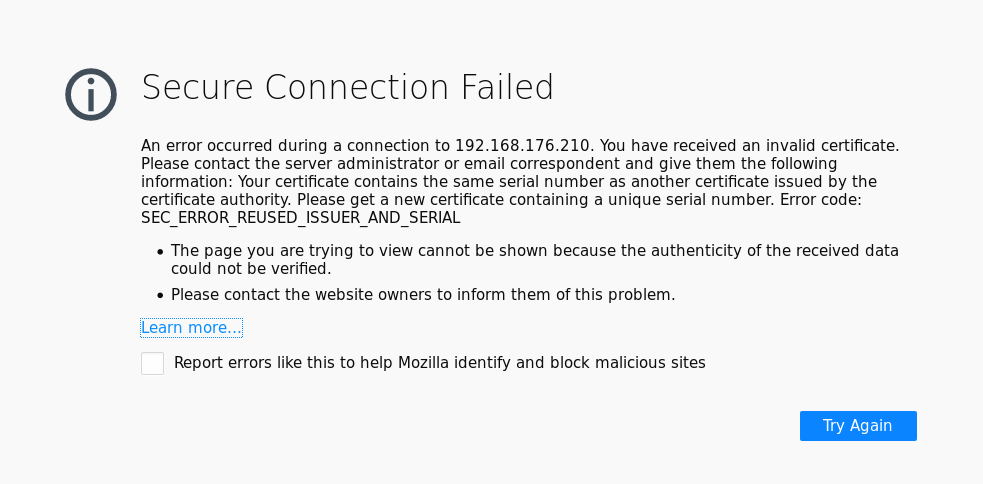
Страница ошибки будет включать сообщение Этот сертификат содержит тот же серийный номер, что и один из других сертификатов, выданных тем же центром сертификации. Пожалуйста, получите новый сертификат с уникальным номером. Код ошибки: SEC_ERROR_REUSED_ISSUER_AND_SERIAL. В этой статье описана причина этой проблемы и как её обойти.
Причина
Старые роутеры иногда ошибочно пересоздают свои сертификаты безопасности вместо того, чтобы сохранять тот же в течение всего времени жизни устройства. Если вы добавили постоянное исключение безопасности для своего роутера и если пересоздание сертификата совершено неправильно, Firefox будет определять такое изменение как возможную атаку.
Решение
Долгосрочное решение для старых роутеров — связаться с вендором вашего устройтсва и посмотреть, есть ли обновления для него, которые решают эту проблему.
Обходное решение
Если вы уверены, что атаки нет, то можете обойти проблему, удалив ранее сохранённое исключение, созданное тем же сервером или устройством.
Скорее всего, исключение с дублирующим серийным номером будет располагаться на вкладке Сервера. Просмотрите те, что вы добавили; игнорируйте те, в которых в качестве сервера оказано *, т.к. это глобальные записи недоверенных серверов, добавленны Firefox.
Чтобы удалить старое исключение:
-
На Панели меню в верхней части экрана щёлкните и выберите .
Нажмите кнопку и выберите .Нажмите кнопку и выберите .
- Выберите панель .
- Прокрутите до раздела Сертификаты.
- Щёлкните по Просмотр сертификатов, чтобы открыть окно Управление сертификатами.
- В окне Управление сертификатами перейдите на вкладку .
- Найдите элемент, который относится к сайту, генерирующему ошибку. Обратите внимание на Центр сертификации (CA) для этого сервера — имя CA отображается над именем сайта.
- Щёлкните по сертификату сервера, который относится к сайту, генерирующему ошибку, и нажмите Удалить….
- Щёлкните OK, когда появится сообщение об удалении исключения.
- Перейдите на вкладку .
- Щёлкните на элемент, относящийся к CA, который вы запомнили ранее, и нажмите Удалить или Не доверять….
- Щёлкните OK, когда появится сообщение об удалении исключения.
- Щёлкните OK, чтобы закрыть окно Управление сертификатами.
- Закройте страницу . Любые внесённые изменения будут сохранены автоматически.
 и выберите .
 и выберите .
Эти прекрасные люди помогли написать эту статью:

Станьте волонтёром
Растите и делитесь опытом с другими. Отвечайте на вопросы и улучшайте нашу базу знаний.
Подробнее
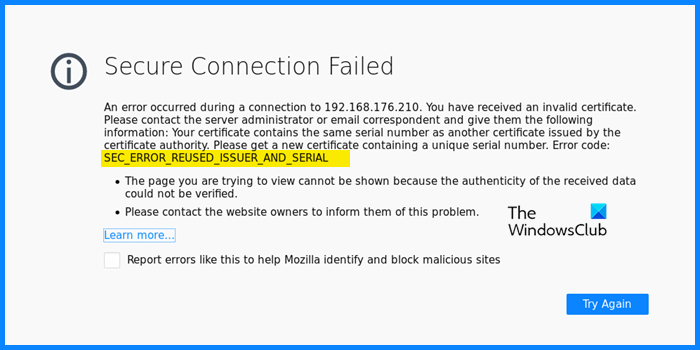
Многие пользователи сообщают, что когда они пытаются получить доступ к веб-сайту или локальному веб-серверу, они видят предупреждение SEC ERROR REUSED ISSUER AND SERIAL. Обычно об этой проблеме сообщается в браузере Firefox, но аналогичная ошибка может наблюдаться и в Chrome, Opera и Edge. Код ошибки сопровождается следующим сообщением об ошибке.
Безопасное соединение не удалось
Ошибка или произошла во время подключения к . Вы получили недействительный сертификат. Пожалуйста, свяжитесь с администратором сервера или корреспондентом электронной почты и сообщите им следующую информацию. Ваш сертификат содержит тот же серийный номер, что и другой сертификат, выданный центром сертификации. Получите новый сертификат, содержащий уникальный серийный номер. Код ошибки: SEC_ERROR_REUSED_ISSUER_AND_SERIAL
В этой статье мы подробно поговорим об этом и посмотрим, что вы можете сделать, чтобы избавиться от этой проблемы.
Почему я продолжаю получать сообщение об ошибке безопасного подключения?
Существуют различные «Ошибка безопасного соединения» ошибки, но ради этой статьи мы поговорим об ошибке SEC_ERROR_REUSED_ISSUER_AND_SERIAL. Обычной причиной этой проблемы является коррупция. И кеш вашего браузера, и сертификат могут быть повреждены, что в результате может вызвать у вас проблемы. Посмотрим, что нужно делать в таком случае.
Проблема также может быть из-за вашего маршрутизатора. Вы или администратор могли настроить маршрутизатор так, чтобы он блокировал некоторые веб-сайты. Об этих и некоторых других причинах и пойдет речь в этой статье. Итак, не теряя времени, давайте перейдем к руководству по устранению неполадок.
Если вы видите сообщение об ошибке SEC_ERROR_REUSED_ISSUER_AND_SERIAL, Ошибка безопасного подключения в Firefox, ознакомьтесь со следующими решениями для решения проблемы.
- Перезапустите браузер и систему
- Удалить сертификаты
- Очистить данные браузера и кэш
- Разрешите ваш браузер через брандмауэр
- Проверьте свой маршрутизатор
Поговорим о них подробно
1]Перезапустите браузер и систему.
Прежде всего, перезапустите браузер и посмотрите, работает ли он. Это особенно полезно, если проблема возникает из-за сбоя. Если перезапуск браузера не помогает, попробуйте перезагрузить систему. Многие процессы, которые могут мешать работе вашего браузера, остановятся после перезапуска.
2]Удалить сертификаты
Сообщение об ошибке говорит о недействительном сертификате. Однако мы не знаем, о каком сертификате идет речь. Поэтому здесь мы будем действовать методом проб и ошибок. Что нам нужно сделать, так это отключить сертификаты один за другим, пока вы не наткнетесь на недействительный сертификат, упомянутый в сообщении об ошибке.
Удалить недействительные сертификаты в Firefox
- Откройте Firefox > Настройки (после нажатия на три горизонтальные линии).
- Идти к Конфиденциальность и безопасность.
- В разделе «Сертификаты» нажмите «Просмотр сертификатов».
- Выберите сертификат и нажмите Удалить.
Удалить недействительные сертификаты в Chrome
- Откройте Chrome и перейдите в его настройки (просто вставьте chrome://settings и нажмите Enter).
- Идти к Безопасность и конфиденциальность > Безопасность > Управление сертификатами.
- Выберите один сертификат и нажмите Удалить.
Удалите недействительные сертификаты в Edge.
Идти к edge://settings > Конфиденциальность, поиск и службы > Управление сертификатами. Выберите сертификат и нажмите Удалить.
Удалить недействительные сертификаты в Opera
- Запустите Opera и перейдите в настройки.
- Нажмите «Дополнительно».
- Идти к Конфиденциальность и безопасность > Безопасность.
- Выберите Управление сертификатами.
- Выберите сертификат и нажмите Удалить.
После удаления проблемного сертификата ваша проблема должна быть решена.
3]Очистить данные просмотра и кеш
Поврежденный кеш и данные просмотра также могут вызвать указанный код ошибки. Чтобы решить эту проблему, нам нужно очистить кеш. Вы должны знать, что это не удалит ваши личные данные и настройки, поэтому в этом нет ничего плохого. Идите вперед и очистите кеш и данные просмотра Firefox, Chrome, Edge или Opera. Затем перезагрузите компьютер и проверьте, сохраняется ли проблема.
4]Разрешите браузеру проходить через брандмауэр (временный обходной путь)
Ваш брандмауэр может заблокировать некоторые сайты, если посчитает их вредоносными. Однако, если вы уверены, что сайт, к которому вы пытаетесь получить доступ, является подлинным, попробуйте разрешить браузеру доступ через брандмауэр. Это может сработать для вас, также рекомендуется затем удалить приложение из белого списка, иначе ваш компьютер будет подвержен риску заражения.
5]Проверьте свой маршрутизатор
Одной из причин, по которой вы видите эту ошибку, является неправильно настроенный маршрутизатор. Это блокировка сайта, который вы считаете нормальным, есть два решения для разных сценариев. Если вы вручную заблокировали эти сайты, возможно, сейчас самое время их разрешить. С другой стороны, если вы не имеете никакого отношения к этому сайту, обратитесь к своему администратору или интернет-провайдеру и попросите их предоставить обновление, которое решит эту проблему.
Мы надеемся, что ваша проблема будет решена с помощью этих решений.
Как исправить ошибку безопасного подключения?
Secure Connection Failed — это та скобка, под которой находятся различные ошибки, такие как SSL_ERROR_HANDSHAKE_FAILURE_ALERT, SEC_ERROR_REUSED_ISSUER_AND_SERIAL, и т. д. Итак, чтобы решить ее, вы должны сначала определить свой код ошибки, а затем использовать его для поиска точных решений. если ваш код ошибки — тот, о котором говорится в этой статье, следуйте этим решениям, чтобы устранить его.
Ниже приведены некоторые другие распространенные коды ошибок Secure Connection Fail.
Skip to content
Прочитано:
10 689
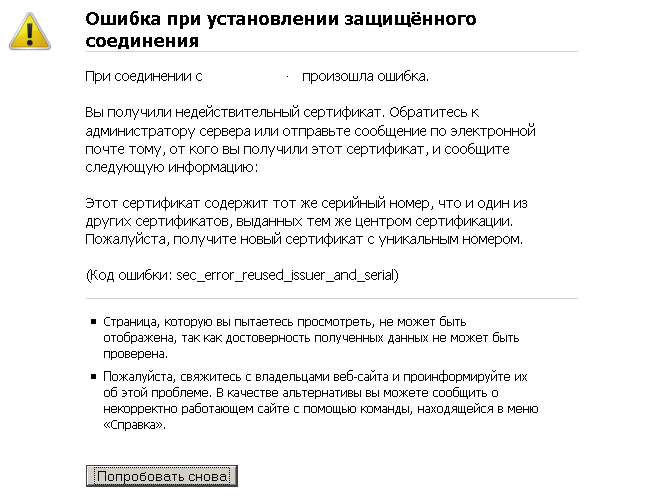
Cлучилось так, что при открытии в строке браузера Firefox ilo-сервера произошла ошибка установления защищенного соединения, менять браузер из-за этого не есть правильно. Сейчас я покажу, как можно исправить данную ситуацию. Данная заметка проверена и у меня результат получился положительным.
https://127.0.0.1:2381/
Решение данной проблемы.
Т.к.я в повседневной работе использую операционную систему Windows 7 нужно перейти в Ваш текущий профиль по пути:
C:Users<user_name>AppDataRoamingMozillaFirefoxProfiles<profile_firefox>
Сперва закрываем браузер Firefox, после удаляем файл cert8.db из этого профиля.
Если у Вас операционная система Windows XP нужно перейти в Ваш текущий профиль по пути:
C:Documents and Settings<user_name>Application DataMozillaFirefoxProfiles<profile_firefox>
Сперва закрываем браузер Firefox, после удаляем файл cert8.db из этого профиля.
Далее запускаем Firefox и перед нами привычное окно входа на защищенную страницу:
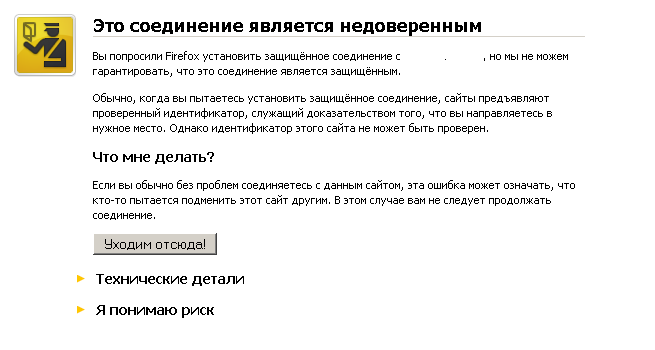
Результат достигнут. На этом все удачи!
-
Partition Wizard
-
Partition Manager
- How to Fix SEC ERROR REUSED ISSUER AND SERIAL Error on Browsers
By Vega | Follow |
Last Updated November 04, 2022
Many users report that they see SEC_ERROR_REUSED_ISSUER_AND_SERIAL warnings when they try to access a website or local web server. This problem usually occurs in all major browsers (Firefox, Chrome, Edge). How to Fix this error? In this article from MiniTool Partition Wizard, we will learn how to do that.
SEC_ERROR_REUSED_ISSUER_AND_SERIAL is an issue reported on almost all major browsers. This problem occurs when a user tries to access a specific URL. For some users, this problem occurs with almost all websites and email applications.
SEC_ERROR_REUSED_ISSUER_AND_SERIAL means that a certificate that already exists on the system is being reused by another server/IP. This warning may appear due to user-side issues on server-related issues. This error code is mainly caused by:
- Broken browser’s certificate manager
- Corrupt Browser Cache
- Interference from security applications
- Router problem
Well, you can try the following method to fix this error. But before that, you should try to restart the browse and your computer to check if the error can be fixed.
Method 1: Clear Browsing Data and Cache
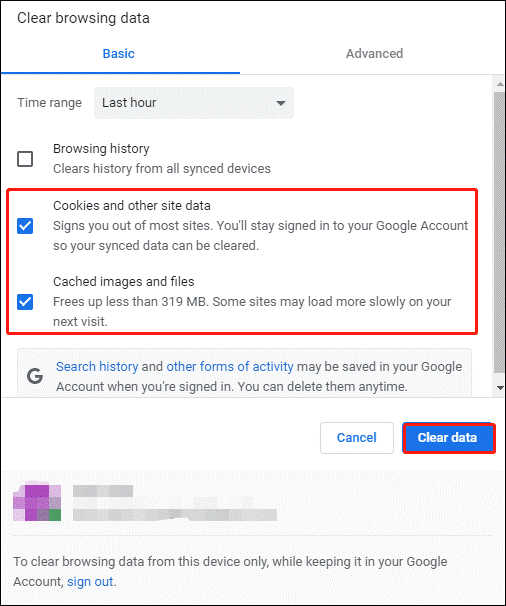
Corrupted cache and browsing data can also trigger problematic error codes. To fix it, you need to clear the cache. Here is an example of Chrome.
Step 1: At the top right of the Chrome webpage, click on the three-dots icon.
Step 2: Then navigate to the More tools > Clear browsing data option.
Step 3: On the next webpage, check the Cookies and other site data and the Cached images and files box. Then click on the Clear data button.
For clearing the cache in the Firefox and Microsoft Edge browsers, read this article: How to Clear Cookies on Chrome, Firefox and Edge
Method 2: Disable Antivirus the Firewall
Note:
Disabling antivirus protection can expose your computer to malicious software programs. Therefore, try this method only if you are sure that the website you are trying to visit is reputable website.
If your firewall thinks it is malicious, it can block certain sites. So, you can allow disable it.
In the system tray in the upper right corner of the taskbar, right-click the icon for your antivirus software, and then click the option to temporarily disable antivirus protection. If prompted, set the duration to disable antivirus according to your choice.
If you’re using Windows Defender on Windows 10, you can temporarily disable it.
Now you can check if your issue is resolved.
Method 3: Delete Certificate
The browser may raise a SEC_ERROR_REUSED_ISSUER_AND_SERIAL error if the certificate is already abnormal in the browser or application’s database, and the website provides a similar certificate. In this case, removing the old exception for the certificate in the application or browser’s certificate manager might solve the problem.
Remove invalid certificates in Firefox:
- Open Firefox and click the three horizontal lines to open Settings.
- Go to Privacy and Security.
- From the Certificates section and click View Certificate
- Select a certificate and click Delete.
Remove invalid certificates in Chrome:
- Open Chrome. Then paste chrome://settings in the address bar and hit Enter.
- Go to Security & Privacy > Security > Manage Certificates.
- Select a certificate and click Delete.
Remove invalid certificates in Edge:
- Open Edge. Then paste edge://settings press Enter.
- Go to Privacy, Search & Services > Manage Certificates.
- Select a certificate and click Delete.
Remove invalid certificates in Opera:
- Start Opera and navigate to Settings.
- Click Advanced.
- Go to Privacy & Security > Security.
- Choose Manage certificates.
- Select a certificate and click Delete.
Apart from that, one of the reasons for this error is that your router is misconfigured. Well, you can also check your router.
About The Author

Position: Columnist
Vega joined MiniTool as an editor after graduation. She enjoys helping people with computer problems, including disk management, data recovery, and more. She is constantly expanding her knowledge in related fields. And she will continue to bring more easy-to-understand professional articles to help people solve various problems on the PC.
In her daily life, Vega enjoys hanging out with friends, shopping online and listening to music. She is someone who knows how to enjoy life.
The Sec_Error_Reused_Issuer_And_Serial is a reported issue on nearly all the major browsers (Firefox, Chrome, Edge, etc.) and operating systems (Windows, Linux, Mac, etc.) including servers. The issue occurs when a user tries to access a particular web address (either of the local server or a website like Facebook). For some users, the issue occurs on nearly all websites and email applications. Usually, the following type of message is shown:
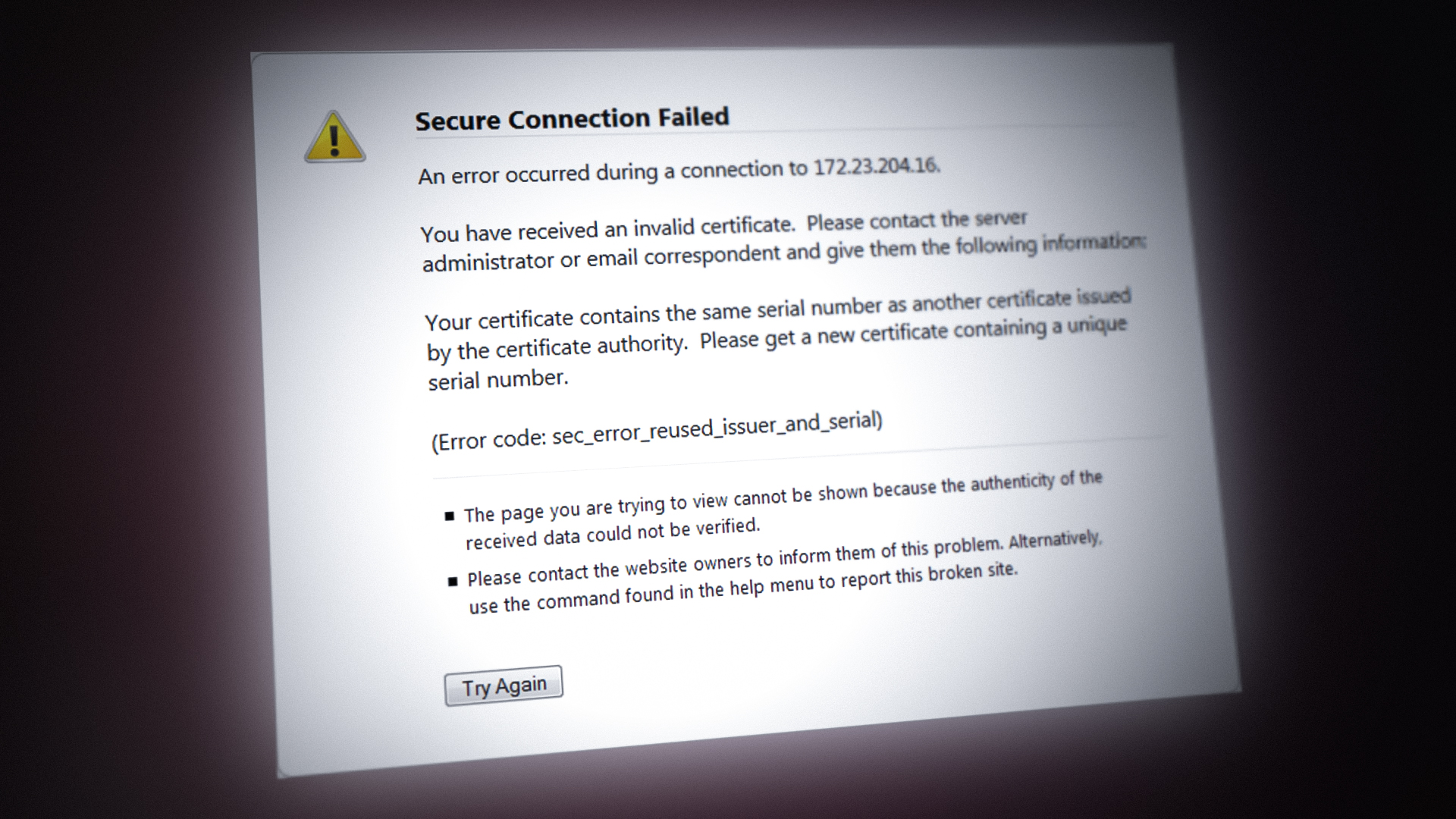
The sec_error_reused_issuer_and_serial is an indication that a certificate that is already present on the system is being reused by another server/IP. This warning may come either due to user end issues on the server-related problems. It is not possible to cover the server-related errors in detail (some suggestions are discussed at the end of the article) but on the user end, this behavior is mainly caused by:
- Corrupt Certificate Manager of the Browser: If the browser’s certificate manager has become corrupt, then it may fail to load the certificate in question and thus cause the issue.
- Corrupt Browser Cache: If the browser’s cache is corrupt, and when the browser tries to fetch the problematic certificate from the cache, it may throw the current security error.
- Interference from the Security Application: If the SSL protocol filtering of the antivirus is changing the headers of the websites in a way that the browser “thinks” is risky, then it may show the sec_error.
- Router Issues: If the router’s firmware is corrupt or its flood protection mechanism is blocking access to certain web addresses (including the problematic websites), then a user may encounter the issue under discussion.
Try Another Browser
The sec_error_reused_issuer could be a result of a temporary issue with the browser in use (e.g., Firefox), and using another browser may solve the problem. Before proceeding, check if relaunching the problematic browser clears out the error. If you are using the Chrome browser, then before trying another browser, check if typing thisisunsafe (without clicking on any links) on the error page lets you access the website.
- Download and install another browser on the system (if already not installed).
- Now launch the problematic website in the second browser and check if it is working fine.
Delete the Problematic Certificate from the Application
If a certificate is already having an exception in a browser or application’s database and a similar certificate (with the same serial number) is served by a website, then the application (like Outlook) or browser may throw the Sec_Error_Reused_Issuer_And_Serial error. In such a case, deleting the old exception for the certificate in the application or browser’s certificate manager may solve the problem.
Waring:
Proceed at your own risk as an attack (especially, MITM attack) on the system/network may cause similar symptoms and, in that case, deleting the certificate can harm the system, data, or network.
Delete the Problematic Certificate in the Firefox
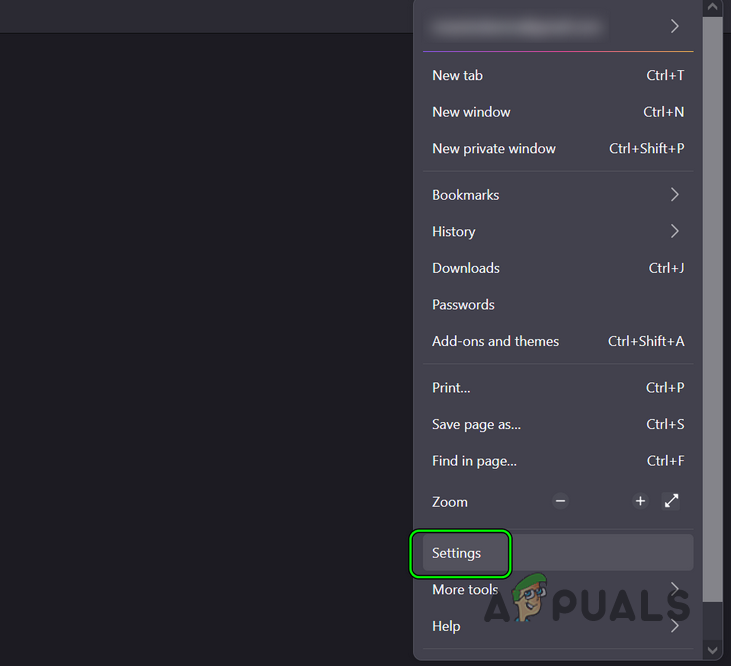
- Launch the Firefox browser and open its menu by clicking on the hamburger menu in the top right.
- Now select Settings and in the left pane, head to the Privacy and Security tab.

Open Firefox Settings - Then scroll down till the Certificates section is shown and then click on the View Certificates button.

Open View Certificates in the Privacy & Security Tab of Firefox - Now, in the resulting window, head to the Server tab and check if the problematic certificate is shown. You may find it by the IP Address or DNS name.

Delete the Problematic Certificate in the Certificate Manager of the Firefox - If so, delete the certificate and head to the Authorities tab.
- Now click on Delete or Distrust to the CA related to the problematic certificate.

Delete or Distrust the CA of the Problematic Certificate - Then confirm to complete the deletion action and close the Firefox window.
- Now restart your system and upon restart, check if the browser’s sec error is cleared.
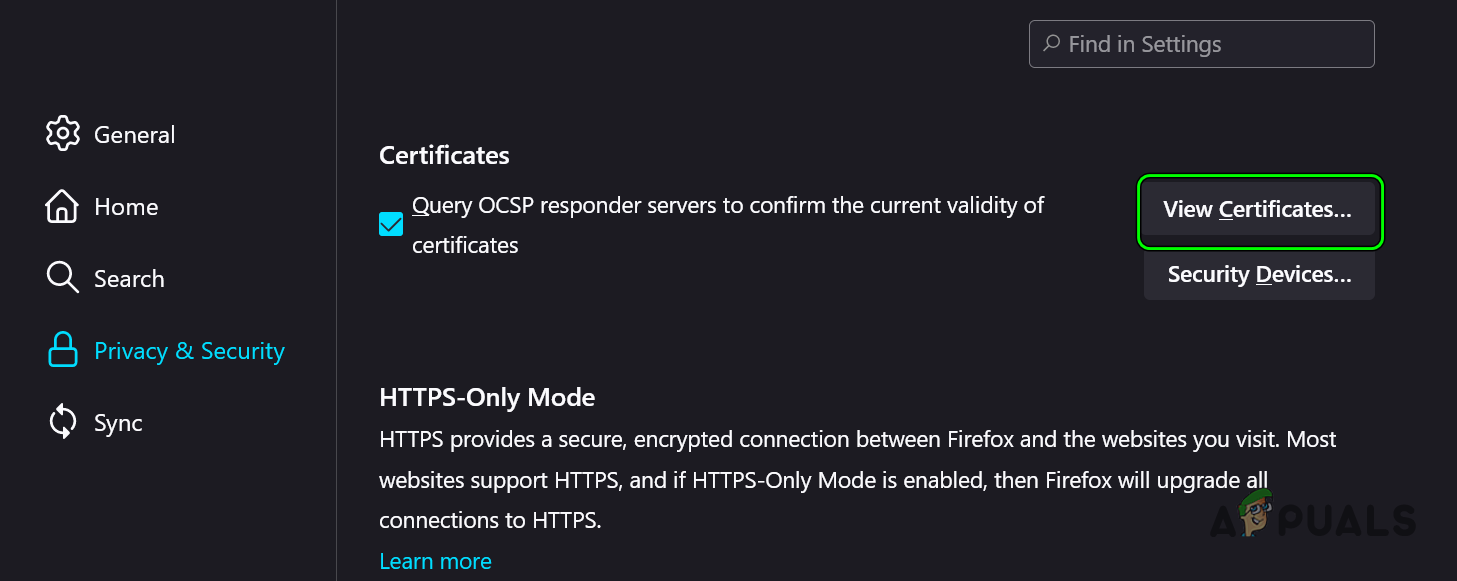
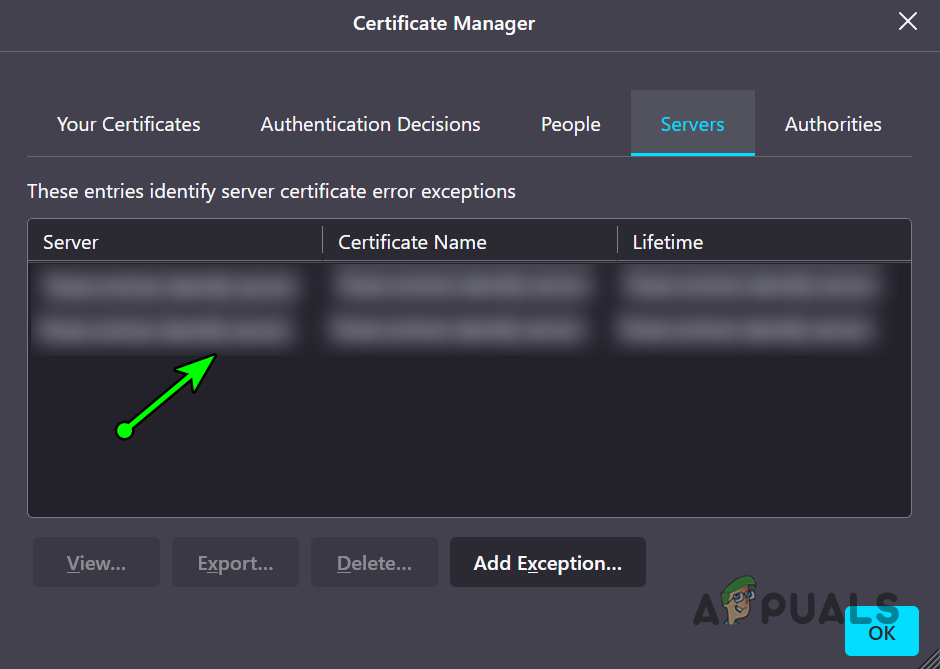
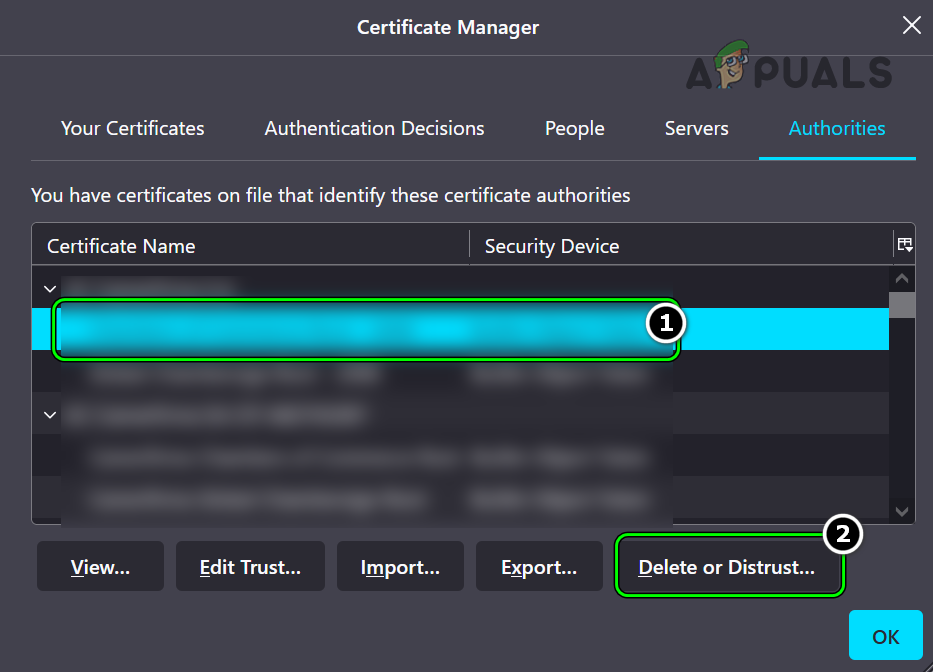
If the issue is not limited to a particular website but is caused by the router, then check if deleting the router certificates (like the Netgear server certificates) in the browser solves the problem.
Delete the Problematic Certificate for An Email Application
- Firstly, exit the problematic email application (like Outlook or Bluehost).
- Then click Windows, search and open Internet Options.
- Now head to the Content tab and click on the Certificates button.

Open Certificates in the Content Tab of the Internet Options - Then select the certificate from the problematic website and click on Remove.

Remove the Problematic Certificate - Now restart your system and upon restart, launch the email client to check if the reused certificate error is cleared.
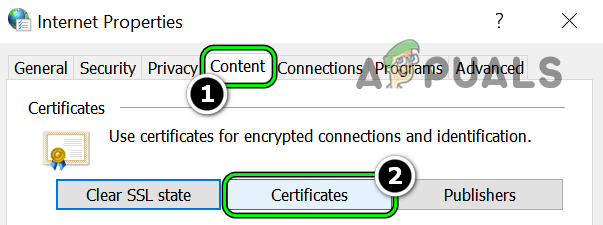
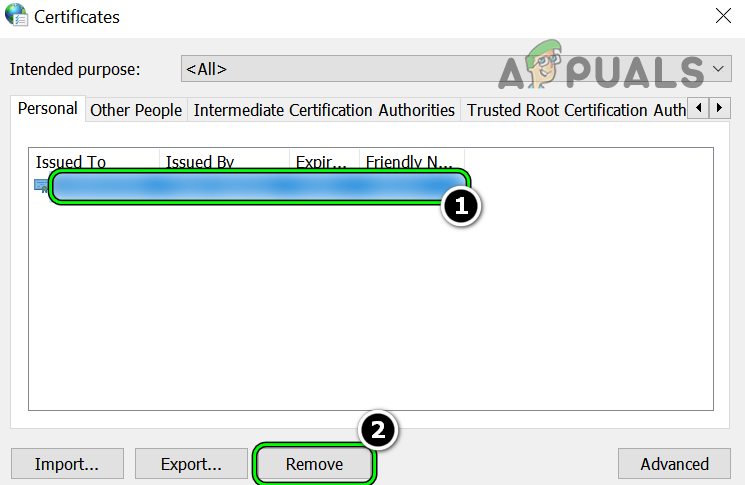
Delete the Certificate File from the AppData directory of the Browser
If the certificate file got corrupted and not shown in the browser’s certificate tab, then deleting the file from its location in the AppData directory of the browser (e.g., Firefox) may solve the problem.
- Firstly, make sure to exit the browser (e.g., Firefox) and end its related processes in the Task Manager.
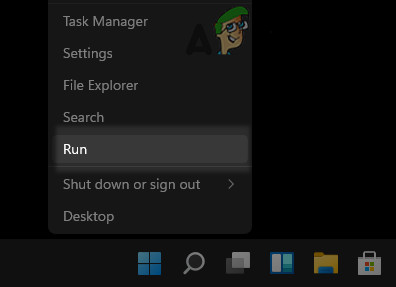
- Then, right-click on Windows and select Run.

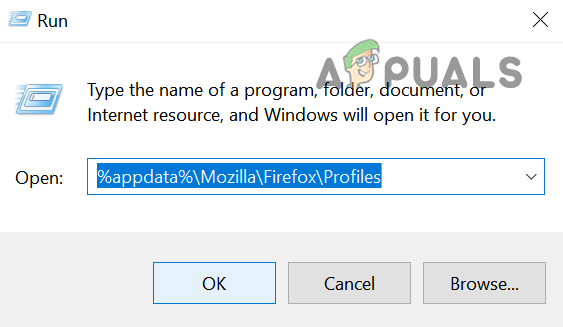
Open the Run Command Box from the Quick Access Menu - Now, navigate to the following path:
%appdata%MozillaFirefoxProfiles

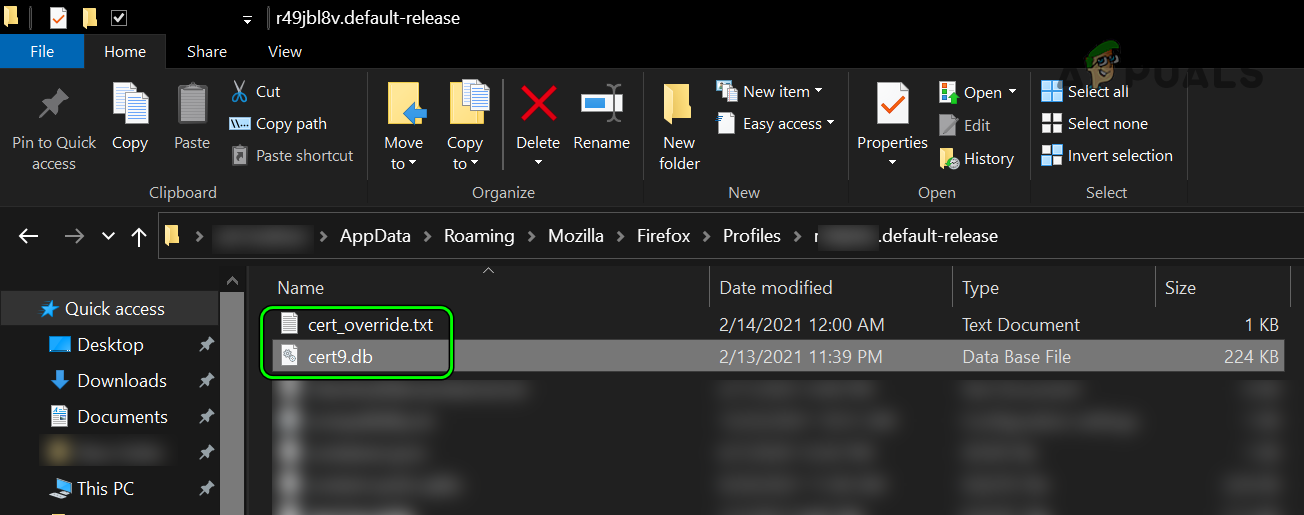
Open the Firefox Profiles Folder - Then open your profile folder and delete the cert9.db file. Some old Firefox installations may show cert8.db, if so, delete that file.

Delete Cert9.db and cert_override.txt File in the Firefox’s Profiles Folder - Now delete the cert_override.txt file as well and launch the browser to check if the browser can access the problematic websites.
In the case of a Mac, you may execute the following in the Terminal and relaunch Firefox to solve the security error:
rm ~/Library/Application Support/Firefox/Profiles/*/cert*.db
Clear the Browser Cache
Browsers tend to create a cache of frequently used web content and if the browser’s cache is corrupt or a similar certificate is present in the browser’s cache, then the browser may throw sec_error_reused_issuer_and_serial error. In this context, clearing the browser’s cache may solve the problem.
For Firefox
- Launch the Firefox browser and click on the hamburger icon (near the top right).
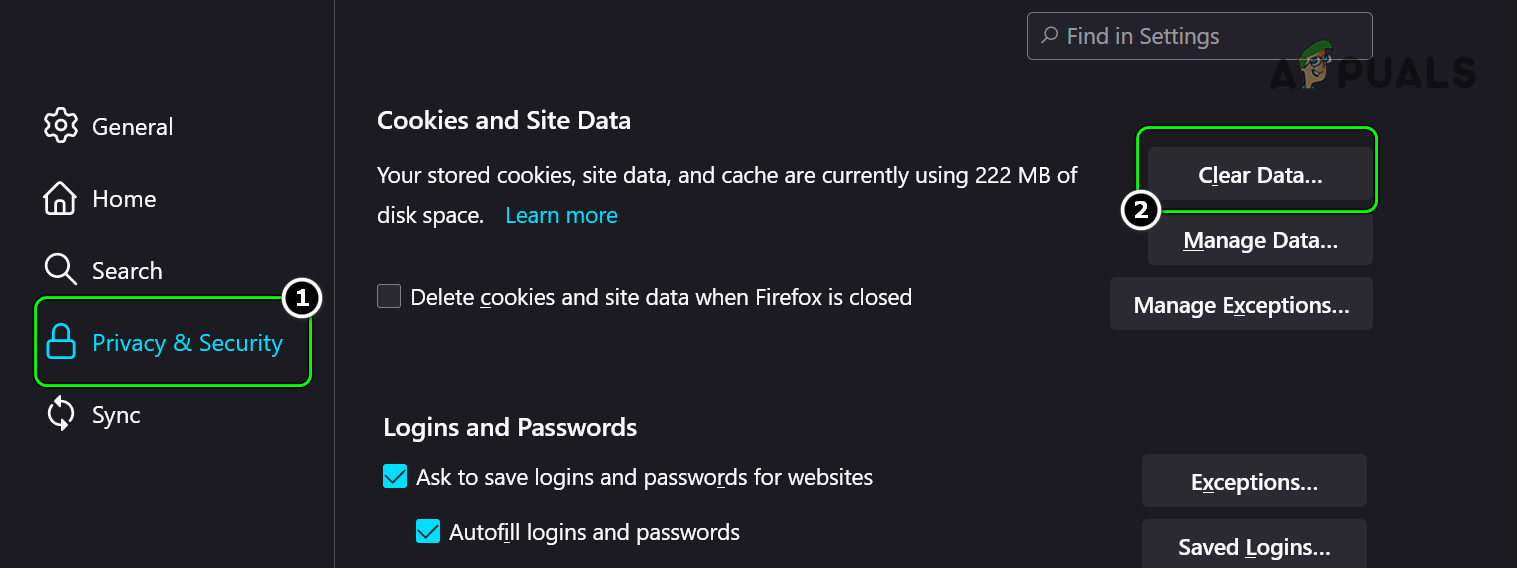
- Now open Settings and head to the Privacy and Security tab.
- Then scroll down till the Cookies and Site Data is shown and click on the Clear Data button.

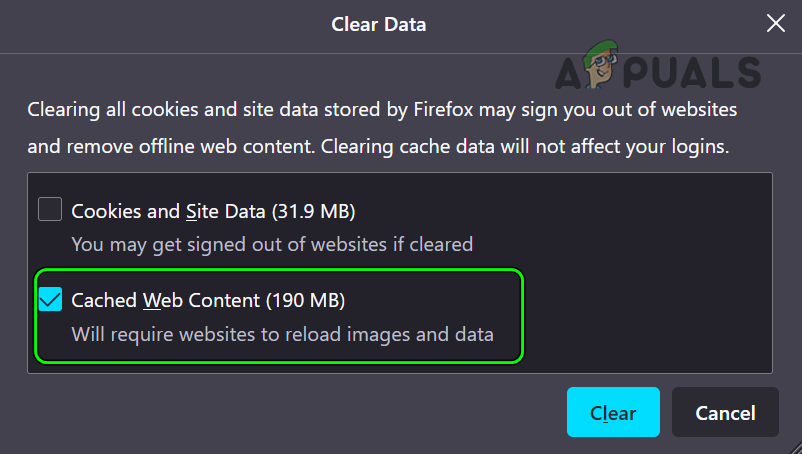
Open Clear Data in Cookies and Site Data of Firefox - Now, checkmark the Cached Web Content and click on the Clear Data button.

Clear Cached Web Content of Firefox - Then relaunch the Firefox browser and check if the problematic websites can be accessed without issue.
For Chrome
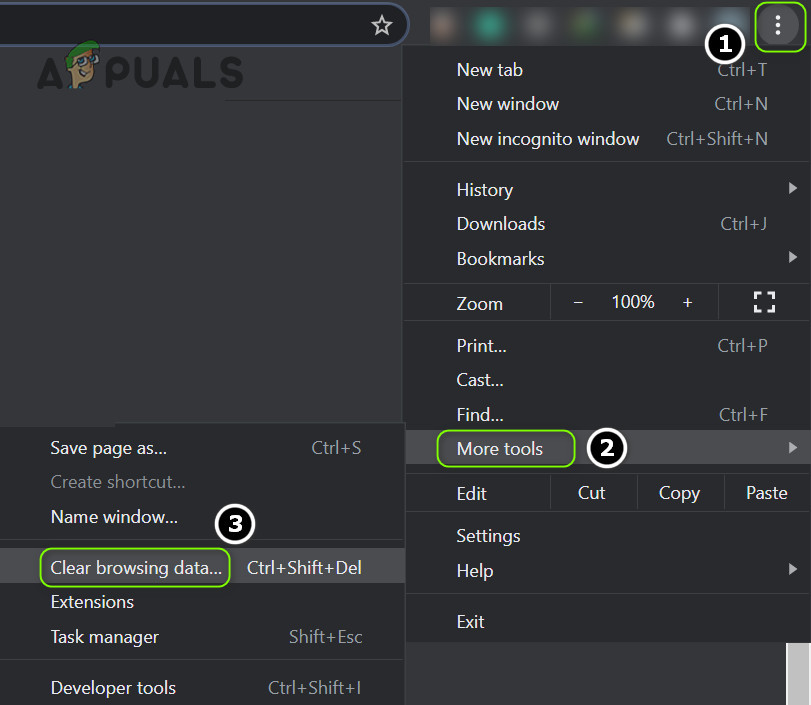
- Launch the Chrome browser and in the right corner, click on three vertical ellipses to open the Chrome menu.
- Now hoover over More Tools and select More Tools>> Clear Browsing Data.

Open Clear Browsing Data in the Chrome Menu - Then checkmark the following and make sure others are unchecked:
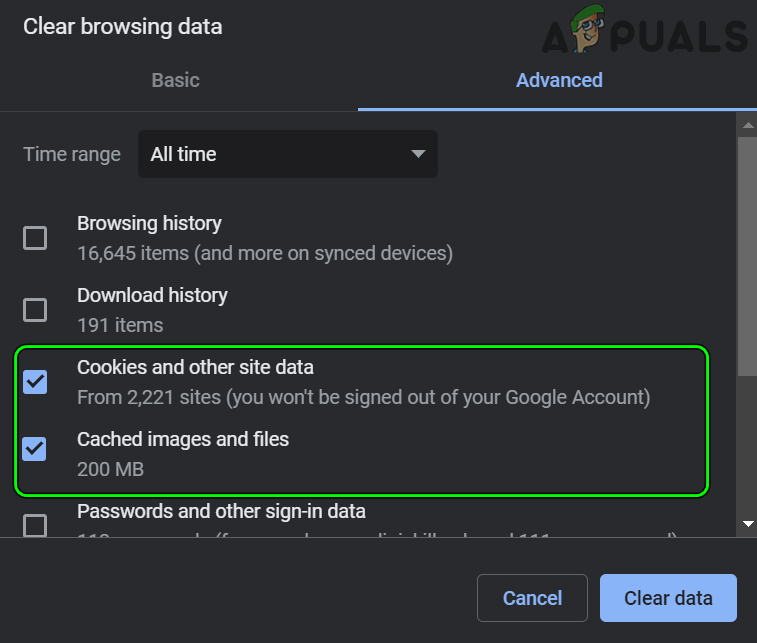
Cookies and Other Site Data

Cached Images and Files

Clear Cached Images and Files, Cookies and Other Site Data of Chrome - Now click on the Clear Data button and once done, relaunch the Chrome browser to check if the sec_error is cleared.
Restore the Browser to the Factory Defaults
A mere misconfiguration of browser settings may cause the sec_error under discussion and restoring the browser to the factory defaults may solve the problem. Keep in mind a misconfiguration of one browser may trigger the behavior on other browsers, so, you may have to restore all the browsers on the system to the factory defaults. Before proceeding, make sure to back up the essential data/info
Firefox
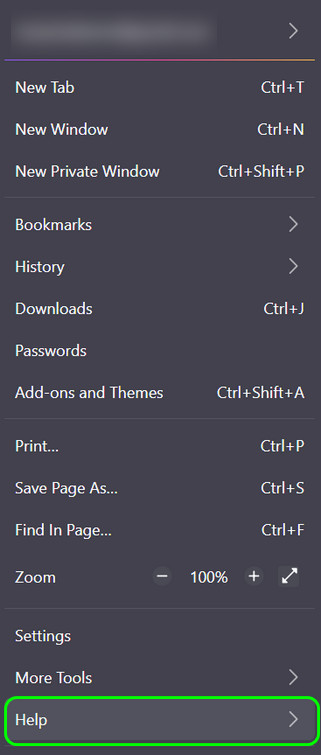
- Launch Firefox browser and head to its Menu by clicking on the hamburger icon in the top right.
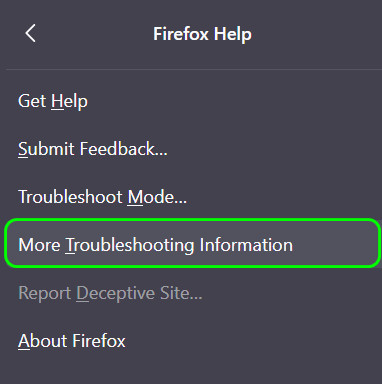
- Now select Help and open More Troubleshooting Information.

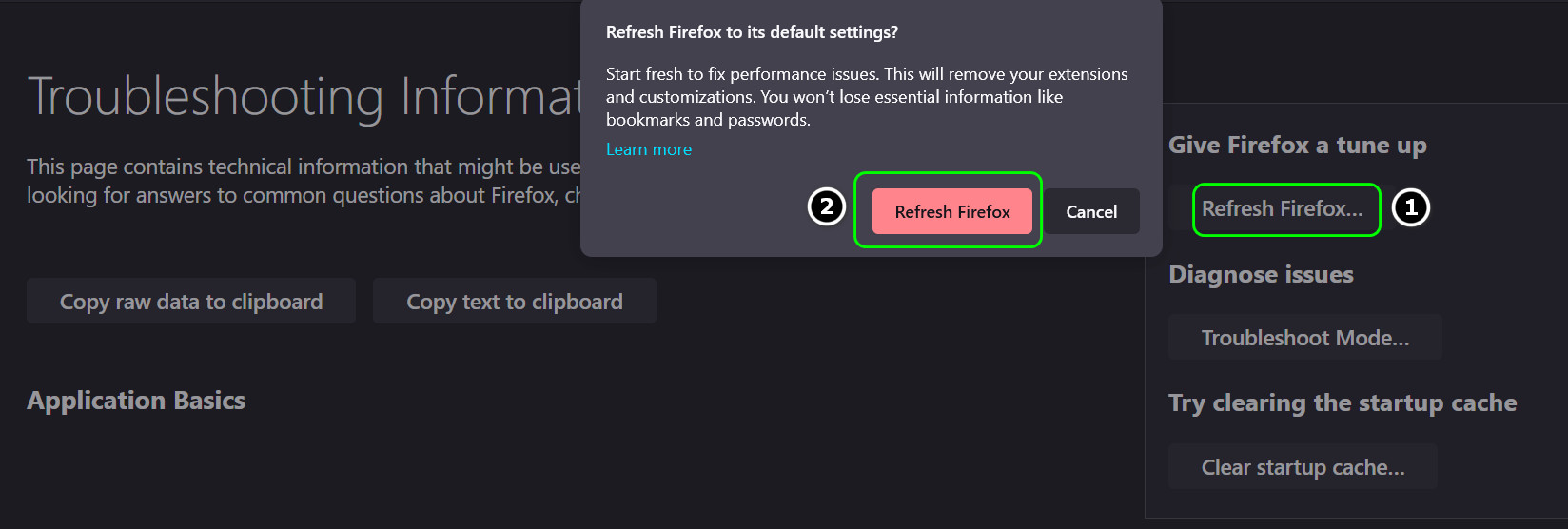
Open Help Menu in the Firefox Menu - Then click on Refresh Firefox and afterward, confirm to refresh Firefox.

Open More Troubleshooting Information in the Firefox Help - Now relaunch Firefox and check if it is clear of the sec_error problem.

Refresh Firefox
Chrome
- Launch the Chrome browser and in the top right, click on the three vertical ellipses to open the Chrome menu.
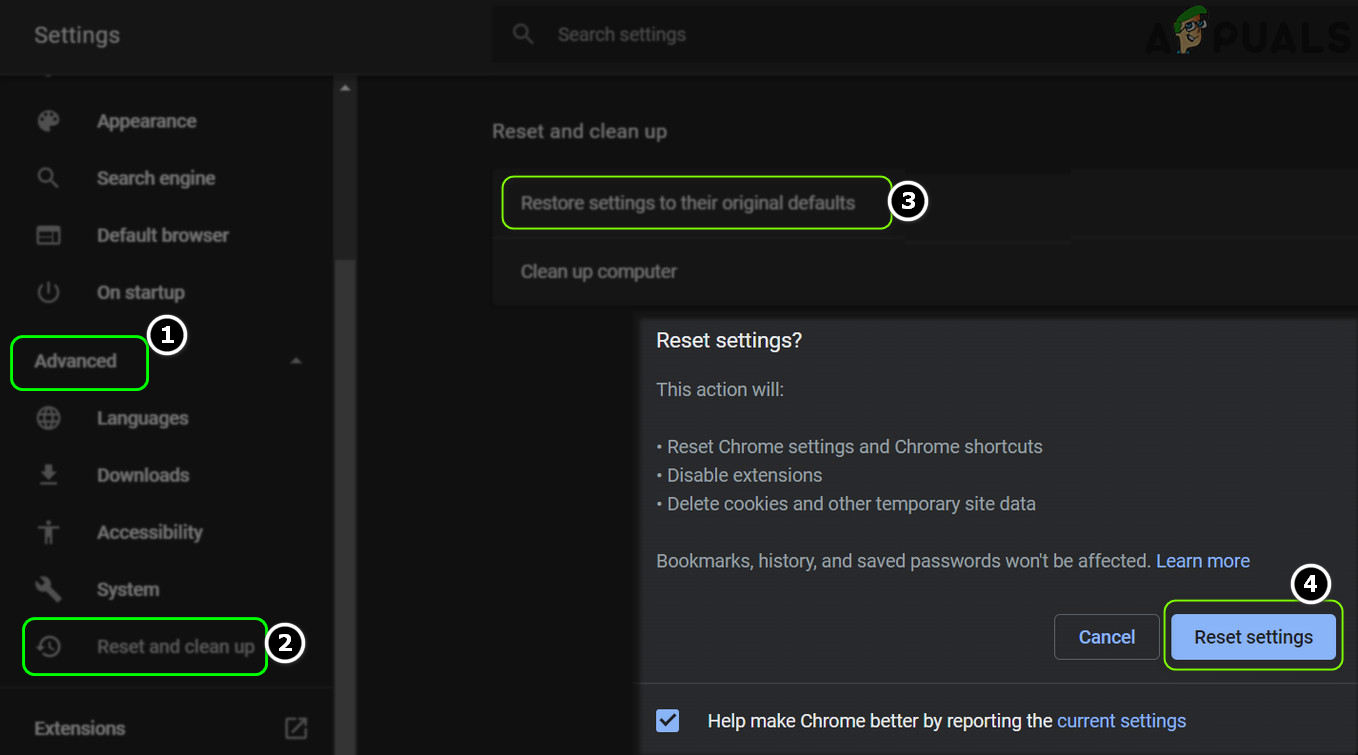
- Now select Settings and expand Advanced.

Open the Chrome Settings - Then head to the Reset and Cleanup tab.
- Now, in the right pane, click on Restore Settings to Their Original Defaults and then confirm to restore Chrome’s settings.

Reset Chrome Settings to Defaults - Afterward, relaunch the Chrome browser and check if the sec_error issue is resolved.

Edge
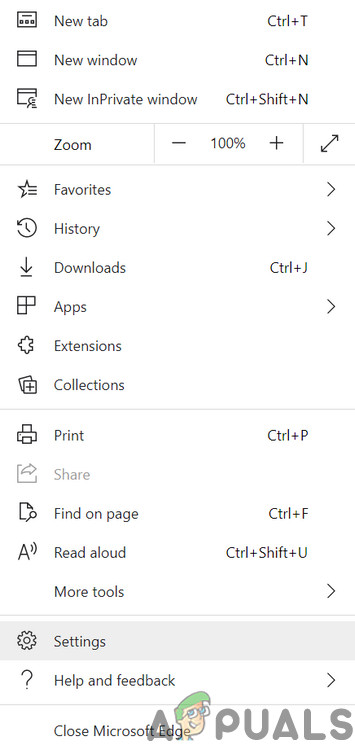
- Open the Edge browser and click on the three horizontal ellipses (in the top right).
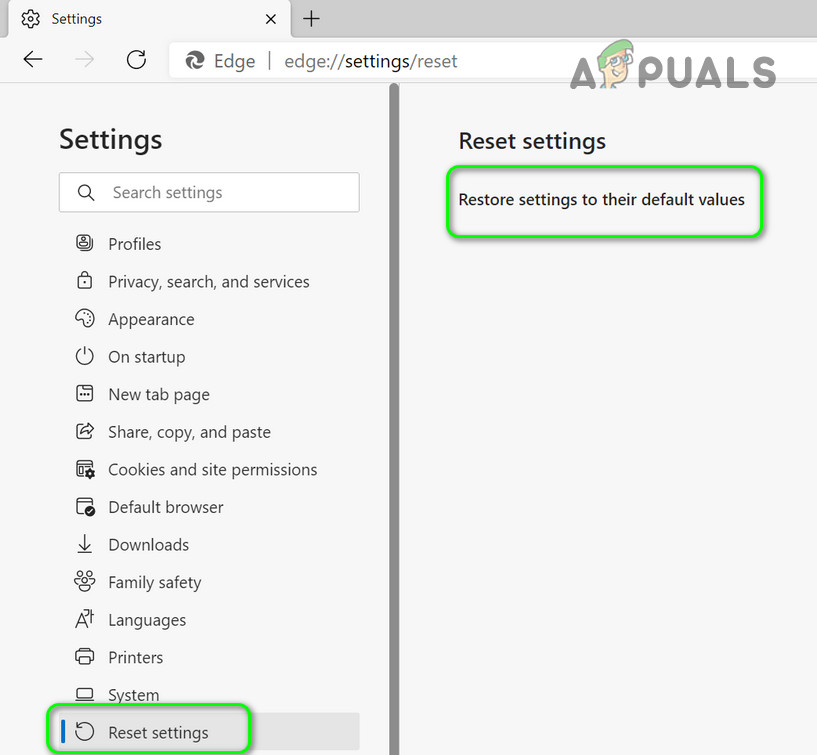
- Now, select Settings, and in the left pane, head to the Reset Settings tab.

Open Settings of the Edge Browser - Then, in the right pane, click on Restore Settings to Their Default Values, and afterward, confirm to restore the settings.

Click on Restore Settings to Their Default Values - Now relaunch the browser and check if the browser’s security error is cleared.
Internet Explorer
Keep in mind that Internet Explorer manages many of the Internet settings on a Windows PC and its misconfiguration may impact all the browsers on the system. Here, resetting the Internet Explorer may solve the problem.
- Click Windows, search for Internet Options, and open it.
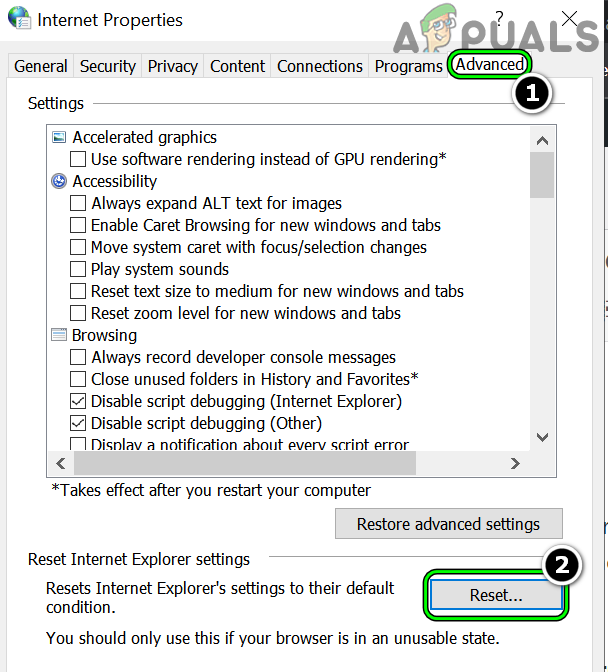
- Now, head to the Advanced tab, and under Reset Internet Explorer Settings, click on Reset.

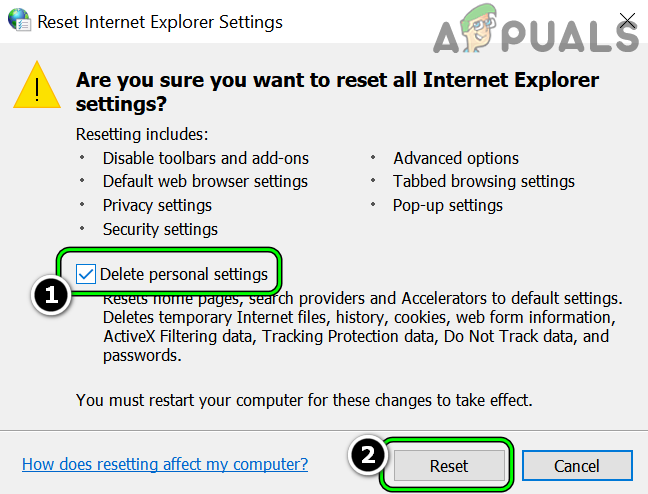
Click on Reset in the Advanced Tab of Internet Options - Then checkmark Delete Personal Settings and click on Reset.

Delete Personal Settings and Reset Internet Options - Once done, check if the system is clear of the sec_error_reused issue.
If not and the issue started after a browser update, then check if rolling back the browser update or installing an older version of the browser solves the problem.
Disabling SSL Filtering of the Security Software or Uninstall it
If the security suite of the PC (Kasperksy and ESET are reported to cause the issue) is interfering with the network packets in a way that triggers the browser security, then the browser may show the sec_error_reused_issuer_and_serial. In this context, disabling SSL protocol filtering of the security software or uninstalling it may solve the problem.
Warning:
Proceed at your own risk as editing the security product (antivirus, firewall, antimalware, etc.) settings may expose the system, data, or network to threats.
Disable SSL Protocol Filtering of the Security Product
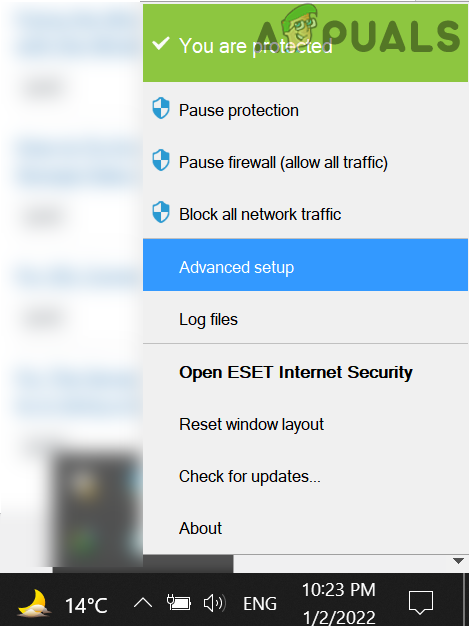
- Expand the system’s tray and right-click on the security application (e.g., ESET).
- Now select Advanced Setup and in the left pane of the resulting window, head to the Web and Email Protection tab.

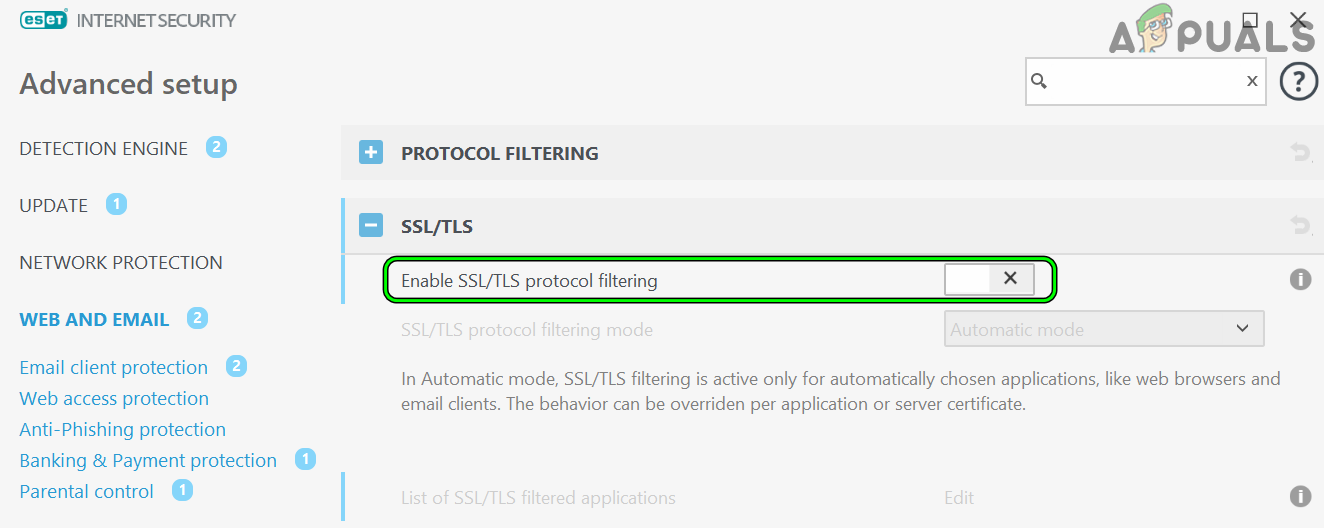
Open Advanced Setup of ESET - Then, in the right pane, expand SSL/TLS and toggle the switch for Enable SSL/TLS Protocol Filtering to the off position. For some antivirus applications, a user might have to uncheck Enable HTTPS Scanning or disable Control URLs.

Disable SSL/TLS Protocol Filtering of ESET - Now apply your changes and afterward, check if the sec error is cleared.
Uninstall the Security Product of Your System
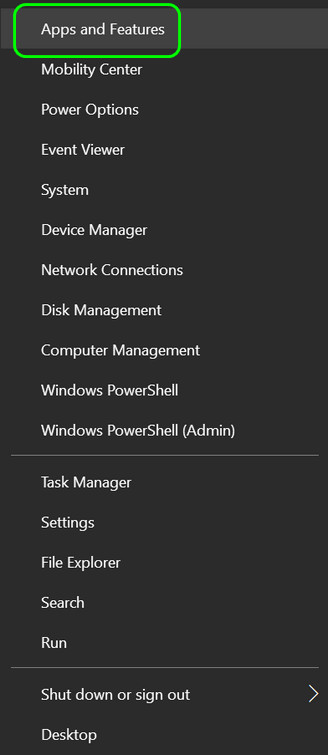
- Right-click Windows and open Apps & Features.

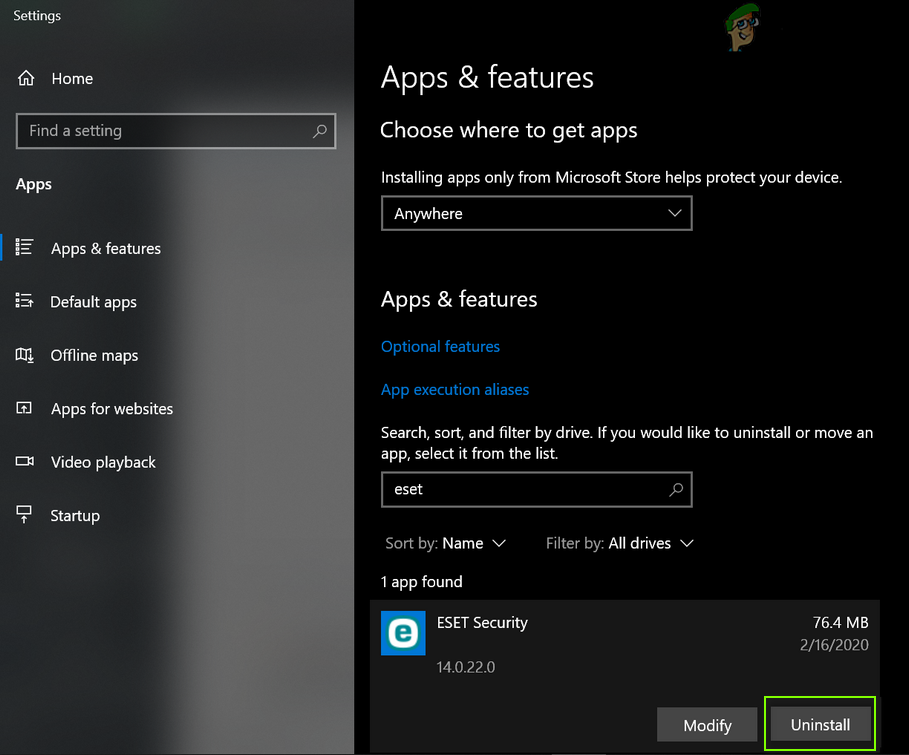
Open Apps & Features - Now expand the security application (e.g., ESET) and click on Uninstall.

Uninstall ESET Security - Then confirm to uninstall the security application and afterward, restart your system.
- Upon restart, check if the sec_error_reused_issuer problem is solved.
Try Another Network
The sec_error_reused_issuer problem could be a result of a temporary issue with the router or current network. In such a case, trying another network may let a user access the problematic websites.
- Firstly, disconnect the problematic system from the current network in use (either ethernet or Wi-Fi).
- Now connect to another network (like a mobile phone’s hotspot) and check if the security error is cleared.
- If not, then check if the mobile browser can access the problematic website without the issue.
If the issue was resolved with another network, make sure the flood protection mechanism of the router (LAN ping flood protection or Security > Attack Checks > Block UDP Flood) is not triggering the issue. If that did not work, then check if resetting the router to the factory defaults solves the problem.

If that did not work, check if changing the device binding in the following router settings solves the problem:
Security>> Address Filter>> IP Mac Bindings
If the issue occurred after a router firmware upgrade, check if downgrading the router firmware solves the problem.
Suggestions For Server-related Issues:
Until now, we tried to cover the issue from a user’s point of view but for server-related issues, you may try the following suggestions reported by users to solve the problem as it is practically impossible to cover all the scenarios on a server causing the issue.
- Check if changing the IP address of the problematic server clears out the issue.
- If you are using the GitLab runner application, then check if downgrading its version solves the problem.
- If the issue has occurred while setting up SSL in Cloudflare, then make sure the Domain Locking of the problematic website is not causing the issue.
- If any of your servers are using iDRAC (Integrated Dell Remote Access Controller), then check if updating or downgrading its firmware solves the problem.
- If you are using Sophos protection, then check if installing MR4 clears out the error.
- If you cannot log into the server, check if you can log into the server by using SSH. If successful, check if changing the protocol from HTTPS to HTTP solves the problem.
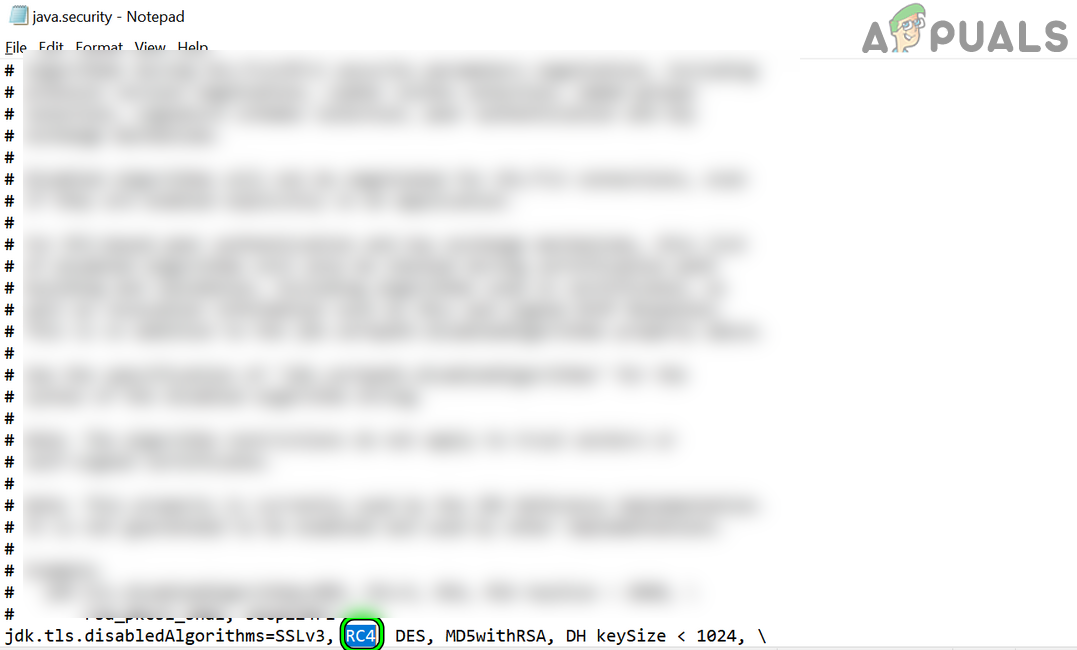
- If the problematic server is using an outdated infrastructure, then check if using an older version of Java solves the problem. If your server uses iDRAC, then check if removing RC4 (or SSL3) in the line
tls.disabledAlgorithms=SSLv3, RC4, DES, MD5withRSA, DH keySize < 1024,
from the following file solves the problem:
C:Program FilesJavajdk-15.0.1confsecurityjava.security

Delete RC4 in the Java.Seurity File - Check if renaming the problematic server clears out the problem.
- Last but not least, check if re-adding the certificate (you can get one from Let’s Encrypt) to the server solves the problem. You may have to use SSH, racadm, etc. to add the certificate if GUI is not accessible. In the case of a public CA, you may have to get the certificate signed again with a different serial. In case, a self-signed certificate is being used, make sure its renewal date is less than 398 days.