
Ошибка 400 Bad Request – это код ответа HTTP, который означает, что сервер не смог обработать запрос, отправленный клиентом из-за неверного синтаксиса. Подобные коды ответа HTTP отражают сложные взаимоотношения между клиентом, веб-приложением, сервером, а также зачастую сразу несколькими сторонними веб-сервисами. Из-за этого поиск причины появления ошибки может быть затруднён даже внутри контролируемой среды разработки.
В этой статье мы разберём, что значит ошибка 400 Bad Request (переводится как «Неверный запрос»), и как ее исправить
- На стороне сервера или на стороне клиента?
- Начните с тщательного резервного копирования приложения
- Диагностика ошибки 400 Bad Request
- Исправление проблем на стороне клиента
- Проверьте запрошенный URL
- Очистите соответствующие куки
- Загрузка файла меньшего размера
- Выйдите и войдите
- Отладка на распространённых платформах
- Откатите последние изменения
- Удалите новые расширения, модули или плагины
- Проверьте непреднамеренные изменения в базе данных
- Поиск проблем на стороне сервера
- Проверка на неверные заголовки HTTP
- Просмотрите логи
- Отладьте код приложения или скриптов
Все коды ответа HTTP из категории 4xx считаются ошибками на стороне клиента. Несмотря на это, появление ошибки 4xx не обязательно означает, что проблема как-то связана с клиентом, под которым понимается веб-браузер или устройство, используемое для доступа к приложению. Зачастую, если вы пытаетесь диагностировать проблему со своим приложением, можно сразу игнорировать большую часть клиентского кода и компонентов, таких как HTML, каскадные таблицы стилей (CSS), клиентский код JavaScript и т.п. Это также применимо не только к сайтам. Многие приложения для смартфонов, которые имеют современный пользовательский интерфейс, представляют собой веб-приложения.
С другой стороны, ошибка 400 Bad Request означает, что запрос, присланный клиентом, был неверным по той или иной причине. Пользовательский клиент может попытаться загрузить слишком большой файл, запрос может быть неверно сформирован, заголовки HTTP запроса могут быть неверными и так далее.
Мы рассмотрим некоторые из этих сценариев (и потенциальные решения) ниже. Но имейте в виду: мы не можем однозначно исключить ни клиент, ни сервер в качестве источника проблемы. В этих случаях сервер является сетевым объектом, генерирующим ошибку 400 Bad Request и возвращающим её как код ответа HTTP клиенту, но возможно именно клиент ответственен за возникновение проблемы.
Важно сделать полный бэкап вашего приложения, базы данных и т.п. прежде, чем вносить какие-либо правки или изменения в систему. Ещё лучше, если есть возможность создать полную копию приложения на дополнительном промежуточном сервере, который недоступен публично.
Подобный подход обеспечит чистую тестовую площадку, на которой можно отрабатывать все возможные сценарии и потенциальные изменения, чтобы исправить или иную проблему без угрозы безопасности или целостности вашего «живого» приложения.
Ошибка 400 Bad Request означает, что сервер (удалённый компьютер) не может обработать запрос, отправленный клиентом (браузером), вследствие проблемы, которая трактуется сервером как проблема на стороне клиента.
Существует множество сценариев, в которых ошибка 400 Bad Request может появляться в приложении. Ниже представлены некоторые наиболее вероятные случаи:
- Клиент случайно (или намеренно) отправляет информацию, перехватываемую маршрутизатором ложных запросов. Некоторые веб-приложения ищут особые заголовки HTTP, чтобы обрабатывать запросы и удостовериться в том, что клиент не предпринимает ничего зловредного. Если ожидаемый заголовок HTTP не найден или неверен, то ошибка 400 Bad Request – возможный результат.
- Клиент может загружать слишком большой файл. Большинство серверов или приложений имеют лимит на размер загружаемого файла, Это предотвращает засорение канала и других ресурсов сервера. Во многих случаях сервер выдаст ошибку 400 Bad Request, когда файл слишком большой и поэтому запрос не может быть выполнен.
- Клиент запрашивает неверный URL. Если клиент посылает запрос к неверному URL (неверно составленному), это может привести к возникновению ошибки 400 Bad Request.
- Клиент использует недействительные или устаревшие куки. Это возможно, так как локальные куки в браузере являются идентификатором сессии. Если токен конкретной сессии совпадает с токеном запроса от другого клиента, то сервер/приложение может интерпретировать это как злонамеренный акт и выдать код ошибки 400 Bad Request.
Устранение ошибки 400 Bad Request (попробуйте позже) лучше начать с исправления на стороне клиента. Вот несколько советов, что следует попробовать в браузере или на устройстве, которые выдают ошибку.
Наиболее частой причиной ошибки 400 Bad Request является банальный ввод некорректного URL. Доменные имена (например, internet-technologies.ru) нечувствительны к регистру, поэтому ссылка, написанная в смешанном регистре, такая как interNET-technologies.RU работает так же, как и нормальная версия в нижнем регистре internet-technologies.ru. Но части URL, которые расположены после доменного имени, чувствительными к регистру. Кроме случаев, когда приложение/сервер специально осуществляет предварительную обработку всех URL и переводит их в нижний регистр перед исполнением запроса.
Важно проверять URL на неподходящие специальные символы, которых в нем не должно быть. Если сервер получает некорректный URL, он выдаст ответ в виде ошибки 400 Bad Request.
Одной из потенциальных причин возникновения ошибки 400 Bad Request являются некорректные или дублирующие локальные куки. Файлы куки в HTTP – это небольшие фрагменты данных, хранящиеся на локальном устройстве, которые используются сайтами и веб-приложениями для «запоминания» конкретного браузера или устройства. Большинство современных веб-приложений использует куки для хранения данных, специфичных для браузера или пользователя, идентифицируя клиента и позволяя делать следующие визиты быстрее и проще.
Но куки, хранящие информацию сессии о вашем аккаунте или устройстве, могут конфликтовать с другим токеном сессии от другого пользователя, выдавая кому-то из вас (или вам обоим) ошибку 400 Bad Request.
В большинстве случаев достаточно рассматривать только ваше приложение в отношении файлов куки, которые относятся к сайту или веб-приложению, выдающему ошибку 400 Bad Request.
Куки хранятся по принципу доменного имени веб-приложения, поэтому можно удалить только те куки, которые соответствуют домену сайта, сохранив остальные куки не тронутыми. Но если вы не знакомы с ручным удалением определённых файлов куки, гораздо проще и безопаснее очистить сразу все файлы куки.
Это можно сделать разными способами в зависимости от браузера, который вы используете:
- Google Chrome;
- Internet Explorer;
- Microsoft Edge;
- Mozilla Firefox;
- Safari.
Если вы получаете ошибку 400 Bad Request при загрузке какого-либо файла, попробуйте корректность работы на меньшем по размеру файле, Это включает в себя и «загрузки» файлов, которые не загружаются с вашего локального компьютера. Даже файлы, отправленные с других компьютеров, считаются «загрузками» с точки зрения веб-сервера, на котором работает ваше приложение.
Попробуйте выйти из системы и войти обратно. Если вы недавно очистили файлы куки в браузере, это приводит к автоматическому выходу из системы при следующей загрузке страницы. Попробуйте просто войти обратно, чтобы посмотреть, заработала ли система корректно.
Также приложение может столкнуться с проблемой, связанной с вашей предыдущей сессией, являющейся лишь строкой, которую сервер посылает клиенту, чтобы идентифицировать клиента при будущих запросах. Как и в случае с другими данными, токен сессии (или строка сессии) хранится локально на вашем устройстве в файлах куки и передаётся клиентом на сервер при каждом запросе. Если сервер решает, что токен сессии некорректен или скомпрометирован, вы можете получить ошибку 400 Bad Request.
В большинстве веб-приложений выход повторный вход приводит к перегенерации локального токена сессии.
Если вы используете на сервере распространённые пакеты программ, которые выдают ошибку 400 Bad Request, изучите стабильность и функциональность этих платформ. Наиболее распространённые системы управления контентом, такие как WordPress, Joomla! и Drupal, хорошо протестированы в своих базовых версиях. Но как только вы начинаете изменять используемые ими расширения PHP, очень легко спровоцировать непредвиденные проблемы, которые выльются в ошибку 400 Bad Request.
Если вы обновили систему управления контентом непосредственно перед появлением ошибки 400 Bad Request, рассмотрите возможность отката к предыдущей версии, которая была установлена, как самый быстрый и простой способ убрать ошибку 400 bad request.
Аналогично, любые расширения или модули, которые были обновлены, могут вызывать ошибки на стороне сервера, поэтому откат к предыдущим версиям этих расширений также может помочь.
Но в некоторых случаях CMS не предоставляют возможности отката к предыдущим версиям. Так обычно происходит с популярными платформами, поэтому не бойтесь, если вы не можете найти простой способ вернуться к использованию старой версии той или иной программной платформы.
В зависимости от конкретной CMS, которую использует приложение, имена этих компонентов будут различаться. Но во всех системах они служат одной и той же цели: улучшение возможностей платформы относительно её стандартной функциональности.
При этом имейте в виду, что расширения могут так или иначе получать полный контроль над системой, вносить изменения в код PHP, HTML, CSS, JavaScript или базу данных. Поэтому мудрым решением может быть удаление любых новых расширений, которые были недавно добавлены.
Даже если удалили расширение через панель управления CMS, это не гарантирует, что внесенные им изменения были полностью отменены. Это касается многих расширений WordPress, которым предоставляется полный доступ к базе данных.
Расширение может изменить записи в базе данных, которые «не принадлежат» ему, а созданы и управляются другими расширениями (или даже самой CMS). В подобных случаях модуль может не знать, как откатить назад изменения, внесенные в записи базы данных.
Я лично сталкивался с такими случаями несколько раз. Поэтому лучшим путём будет открыть базу данных и вручную просмотреть таблицы и записи, которые могли быть изменены расширением.
Если вы уверены, что ошибка 400 Bad Request не связана с CMS, вот некоторые дополнительные советы, которые могут помочь найти проблему на стороне сервера.
Ошибка, которую вы получаете от приложения, является результатом недостающих или некорректных специальных заголовков HTTP, которые ожидает получить приложение или сервер. В подобных случаях нужно проанализировать заголовки HTTP, которые отправляются на сторону сервера.
Почти любое веб-приложение будет вести логи на стороне сервера. Они представляют собой историю того, что делало приложение. Например, какие страницы были запрошены, к каким серверам оно обращалось, какие результаты предоставлялись из базы данных и т.п.
Логи сервера относятся к оборудованию, на котором выполняется приложение, и зачастую представляют собой детали о статусе подключённых сервисов или даже о самом сервере. Поищите в интернете “логи [ИМЯ_ПЛАТФОРМЫ]”, если вы используете CMS, или “логи [ЯЗЫК_ПРОГРАММИРОВАНИЯ]” и “логи [ОПЕРАЦИОННАЯ_СИСТЕМА]”, если у вас собственное приложение, чтобы получить подробную информацию по поиску логов.
Если это не помогло, проблема может быть в исходном коде, который выполняется внутри приложения. Попытайтесь диагностировать, откуда может исходить проблема, отлаживая приложение вручную и параллельно просматривая логи приложения и сервера.
Создайте копию всего приложения на локальном устройстве для разработки и пошагово повторите тот сценарий, который приводил к возникновению ошибки 400 Bad Request. А затем просмотрите код приложения в тот момент, когда что-то пойдёт не так.
Независимо от причины возникновения ошибки, даже если вам удалось исправить её в этот раз, появление в вашем приложении такой проблемы — это сигнал для того, чтобы внедрить инструмент обработки ошибок, который поможет автоматически обнаруживать их и оповещать в момент возникновения.
Раздражает, когда какой-то сайт не загружается и отзывается непонятными ошибками. Обычно они сопровождаются одним из десятков HTTP-кодов, которые как раз намекают на характер сбоя, а также его вероятные причины.
В этом материале поговорим об ошибке 400 Bad Request. Почему она появляется и как ее исправить.
Чуть подробнее об ошибке 400
Как и другие коды, начинающиеся на четверку, 400 Bad Request говорит о том, что возникла проблема на стороне пользователя. Зачастую сервер отправляет ее, когда появившаяся неисправность не подходит больше ни под одну категорию ошибок.
Стоит запомнить — код 400 напрямую связан с клиентом (браузером, к примеру) и намекает на то, что отправленный запрос со стороны пользователя приводит к сбою еще до того, как его обработает сервер (вернее, так считает сам сервер).
Комьюнити теперь в Телеграм
Подпишитесь и будьте в курсе последних IT-новостей
Подписаться
Из-за чего всплывает Bad Request?
Есть 4 повода для возникновения ошибки сервера 400 Bad Request при попытке зайти на сайт:
- Некорректно настроенные HTTP-заголовки в запросе со стороны клиента. Некоторые приложения и сайты мониторят заголовки на предмет наличия в них чего-нибудь подозрительного. Если ваш запрос не соответствует ожиданиям сервера, то высока вероятность появления ошибки 400 (но это не всегда вина пользователя).
- Такой же сбой появляется, если клиент пытается загрузить на сервер файл слишком большого размера. Это происходит, потому что на большинстве сайтов есть ограничения по размеру загружаемых данных. Причем ограничение может быть как в 2 гигабайта, так и в 600 килобайт.
- Еще ошибка 400 появляется, когда пользователь пытается получить доступ к несуществующей странице. То есть в браузер банально ввели ссылку с опечаткой, некорректным доменом или поддоменом.
- Устаревшие или измененные куки-файлы. Сервер может воспринять подмену куки-файлов как попытку атаковать или воспользоваться дырой в безопасности. Поэтому такие запросы сходу блокируются.
Читайте также
Исправляем ошибку 400 Bad Request на стороне клиента
Так как ошибка 400 в 99 случаев из 100 возникает на стороне клиента, начнем с соответствующих методов. Проверим все элементы, участвующие в передаче запроса со стороны клиента (браузера).
Проверяем адрес сайта
Банальщина, но необходимая банальщина. Перед тем как бежать куда-то жаловаться и предпринимать более серьезные шаги, повнимательнее взгляните на ссылку в адресной строке. Может, где-то затесалась опечатка или вы случайно написали большую букву вместо маленькой. Некоторые части адреса чувствительны к регистру.
А еще стоит поискать запрашиваемую страницу через поисковик, встроенный в сайт. Есть вероятность, что конкретная страница куда-то переехала, но сервер не может показать подходящий HTTP-код в духе 404 Not Found. Если, конечно, сам сайт работает.
Сбрасываем параметры браузера
Этот метод срабатывает, если сервер отказывается принимать запросы из-за «битых» куки или других данных. Дело в том, что сайт использует куки-файлы, чтобы хранить информацию о пользователе у него же в браузере. При входе конкретного человека на ресурс, он пытается распознать куки и сравнить информацию с той, что уже есть на сервере.
Иногда случается, что куки-файлы одного или нескольких пользователей вступают в конфликт. В таком случае надо открыть настройки браузера, а потом удалить весь кэш, куки и прочие связанные элементы.
В зависимости от браузера процесс удаления куки-файлов может немного отличаться. В Chrome это работает так:
- Открываем настройки браузера.
- Переходим в раздел «Конфиденциальность и безопасность».
- Выбираем «Файлы cookie и другие данные».
- Нажимаем на кнопку «Удалить все».

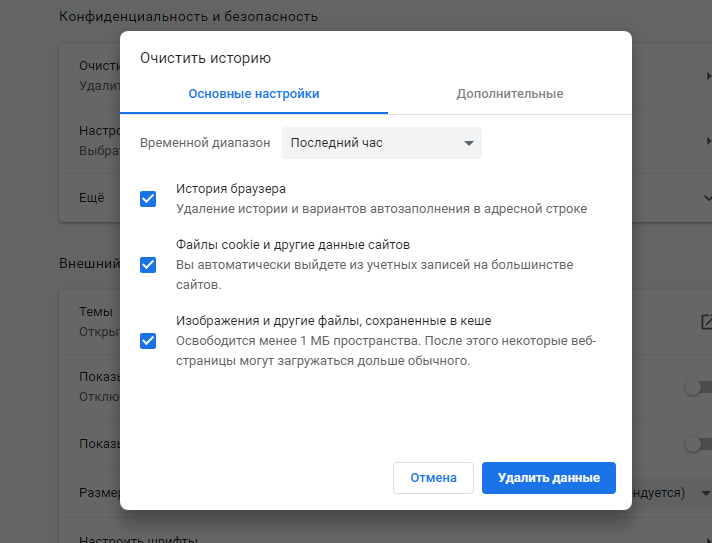
Для чистки cookies можно использовать стороннюю программу в духе CCleaner или CleanMyPC.
Загружаем файл подходящего размера
Если ошибка 400 Bad Request появляется при попытке загрузить на сайт какой-нибудь файл, то стоит попробовать загрузить файл поменьше. Иногда вебмастера ленятся грамотно настроить ресурс, и вместо понятного объяснения вроде «Загружаемые файлы не должны быть размером больше 2 мегабайт» люди получают Bad Request. Остается только гадать, какой там у них лимит.
Устраняем проблемы, связанные с Windows и сторонним софтом
Помимо браузера, на работу сети могут влиять другие программные продукты (экраны, защищающие от «непонятных подключений»). И вирусы. Да и сама Windows может стать проблемой. Почти любой ее компонент. Поэтому надо бы проделать следующее:
- Повторно установить NET.Framework. Желательно перед этим удалить предыдущую версию.
- Установить какой-нибудь приличный антивирус (а лучше два) и запустить глубокую проверку систему. Возможно, подключению и входу на ресурс мешает вредоносная программа.
- Если у вас уже установлен антивирус, то, наоборот, попробуйте его отключить. Иногда встроенные в них экраны проверки подключений блокируют работу браузера целиком или отдельных страниц. Лучше выдать браузеру больше прав на выполнение своих задач или установить антивирус, который более лояльно относится к установленному на компьютере софту.
- Еще надо поменять параметры брандмауэра. Его можно разыскать в панели управления Windows. Там надо добавить в список исключений ваш браузер. Тогда брандмауэр не будет мешать подключению к запрашиваемому сайту.
- Почистить Windows от программного мусора. Можно пройтись приложением CCleaner.
- Обновить драйверы для сетевых устройств.
- Обновить Windows или просканировать систему на наличие погрешностей в системных компонентах.
Ищем проблему на стороне сервера
Если что-то происходит на стороне ресурса, то это редко заканчивается ошибкой 400. Но все-таки есть несколько сценариев, при которых клиента обвиняют в сбое зря, а настоящая вина лежит на сервере.
Проверяем требования к HTTP-заголовкам
Пока настраиваешь сайт, несложно допустить ошибку или даже парочку. Возможно, требования к HTTP-заголовком указаны некорректно, и сервер ожидает запросы с ошибками, которые по объективным причинам не может распознать адекватно. Тогда администратору стоит перепроверить ожидаемые заголовки на своем сайте или в приложении.
Удаляем свежие обновления и плагины
Иногда ошибка 400 Bad Request появляется после обновления CMS или установки новых плагинов. Если у вас она появилась из-за этого, то наиболее логичное решение — откатиться до более ранней версии CMS и удалить все новые плагины.
Главное, перед этим сделать резервную копию данных. И перед установкой обновлений тоже стоило бы.
Проверяем состояние базы данных
Некоторые сторонние расширения для того же WordPress получают полный доступ к ресурсу и имеют право вносить изменения даже в подключенную базу данных. Если после удаления свежих плагинов ошибка 400 никуда не исчезла и появляется у всех, кто пытается зайти на сайт, стоит проверить, в каком состоянии находится база данных. Нужно вручную проверить все записи на наличие подозрительных изменений, которые могли быть сделаны установленными расширениями.
Исправляем ошибки в коде и скриптах
Ничего из вышеперечисленного не помогло? Тогда осталось проверить свой код и работающие скрипты. Лучше провести дебаггинг вручную и не надеяться на помощь компьютера. Сделать копию приложения или сайта, потом пошагово проверить каждый отрезок кода в поисках ошибок.
В крайнем случае придется кричать «полундра» и звать на помощь техподдержку хостинга. Возможно, возникли сложности на их стороне. Тогда вообще ничего не надо будет делать. Просто ждать, пока все исправят за вас.
На этом все. Основные причины появления 400 Bad Request разобрали. Как ее лечить — тоже. Теперь дело за вами. Пользуйтесь полученной информацией, чтобы больше не пришлось мучиться в попытках зайти на нужный ресурс.
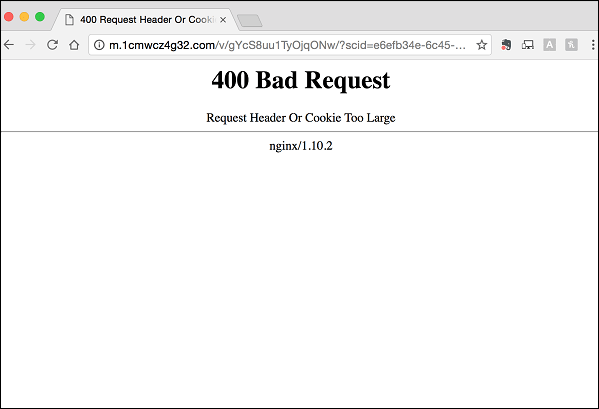
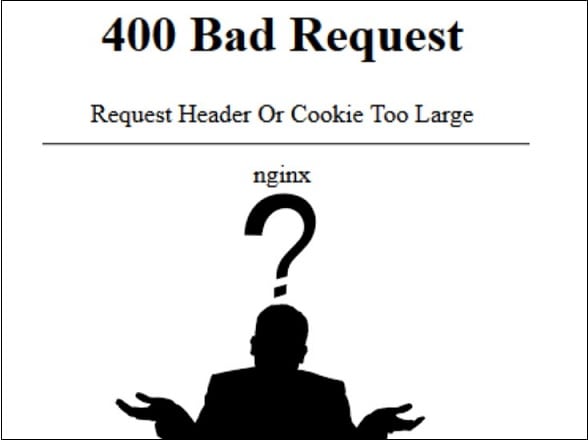
При переходе на какой-либо сайт, или выборе какого-либо из подразделов сайта, пользователь может столкнуться с сообщением «Request Header Or Cookie Too Large», при этом дальнейший переход по выбранной ссылке становится невозможен. Обычно это связано с повреждёнными куками данного сайта на пользовательском ПК, но также возможна ситуация, когда в появлении проблемы виноваты некорректные настройки данного ресурса, установленные веб-мастером.
Также может возникать ошибка 404 описанная нами ранее.
Содержание
- Что это за ошибка и каковы и её причины
- Как исправить 400 Bad Request
- Заключение
Что это за ошибка и каковы и её причины
Перевод текста ошибки выглядит как «Заголовок запроса или куки слишком большие». Обычно это обозначает ситуацию, когда при запросе браузером доступа к какому-либо ресурсу сервер обнаруживает, что куки данного ресурса, хранящиеся на пользовательском ПК, слишком большие или повреждены. Сервер отказывает в обработке запроса, что сопровождается сообщением «400 bad request» («400 неверный запрос»), а также упомянутым мной месседжем.
Данная ошибка является типичной для серверов nginx (т.е. серверов, работающих на подобных к Unix операционных системах). После её появления доступ к запрошенному сайту (или его подразделу) становится невозможен, перезагрузка же проблемной страницы через Ctrl+F5 обычно ничего не даёт.
Кроме повреждённых куков, причиной появления данной дисфункции могут быть следующие детерминанты:
- Различные браузерные расширения и плагины, блокирующие корректный доступ к нужному сайту;
- Корректный доступ к кукам блокирует антивирус (приложение безопасности);
- Куки браузера повреждены какой-либо вирусной программой;
- Неверные настройки (проблемы в работе) запрошенного веб-сайта.

Как исправить 400 Bad Request
При попытке избавиться от возникшей проблемы важно учитывать, что проблема может быть как у вас (если вы обычный пользователь), так и на самом ресурсе. Потому если вы использовали все нижеприведённые советы для пользователя, и ничего не помогло, тогда, возможно, стоит обратиться с письмом в техническую поддержку ресурса (или непосредственно веб-мастеру), и обрисовать возникшую проблему.
Для решения проблемы «Cookie Too Large» следует выполнить следующее:
- Полностью закройте, а потом вновь откройте ваш браузер. Несмотря на простоту данного совета, в некоторых случаях он оказывается довольно эффективным;
- Временно отключите ваши антивирус и брандмауэр, дабы убедиться, что они не являются виновниками возникшей проблемы;
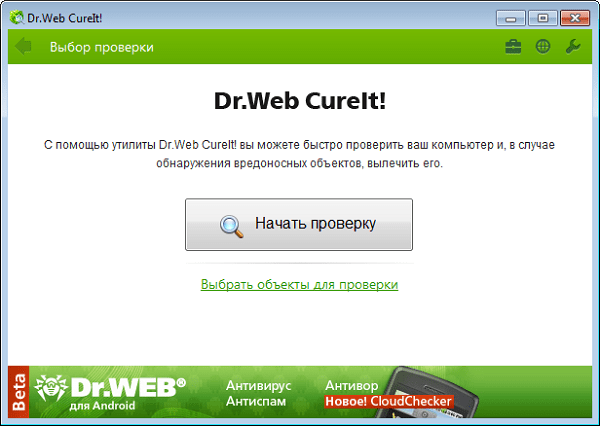
- Проверьте ваш компьютер на наличие вирусных программ. Помогут специализированные инструменты уровня «Dr. Web CureIt!», «AdwCleaner» и другие аналоги;

Проверьте ваш компьютер с помощью Dr.Web CureIt! - Отключите все лишние расширения (дополнения) для вашего браузера, чтобы убедиться, что они не являются катализаторами появления ошибки;
- Очистите кэш и куки вашего браузера. Вы можете удалить куки как для данного сайта, так и все куки вашего браузера. Например, в Мозилле это делается переходом в настройки браузера – «Приватность и защита» — «Показать куки» – «Удалить выбранные» (для отдельного сайта) или «Удалить все» (для всех). Также нажмите на «Очистить сейчас» рядом с опцией «Кэшированное веб-содержимое» для очистки кэша;
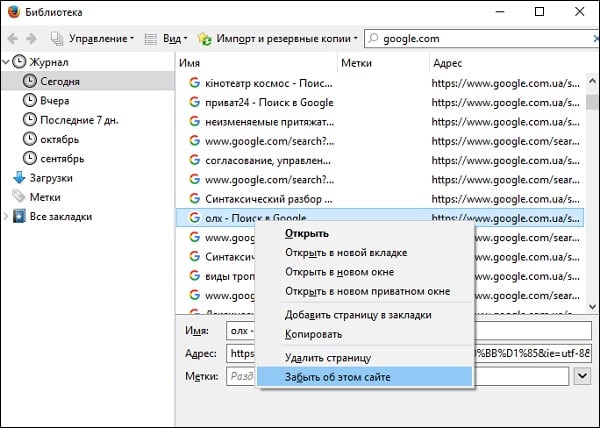
- Очистите журнал истории для проблемного сайта. Например, в Мозилле это делается переходом в «Настройки» – «Журнал» – «Показать весь журнал». В списке найдите нужный вам сайт, выберите его, кликните правой клавишей мыши, и в появившемся меню нажмите на «Забыть об этом сайте»;

- Используйте другой браузер для перехода на нужный сайт;
- В случае, если вы веб-мастер, и проблема наблюдается на вашем ресурсе, попробуйте увеличить параметр «large_client_header_buffers» в nginx.
Это реализуется следующей записью:

Заключение
Решением данной проблемы Request Header Or Cookie Too Large со стороны пользователя является удаление куков проблемного сайта на компьютере пользователя. А со стороны администрации ресурса эффективным способом решения проблемы станет изменение параметра «large_client_header_buffers» в nginx. В большинстве случаев реализация данных советов помогает избавиться от возникшей ошибки, возобновив полноценную работу с сайтом на вашем ПК.
Опубликовано 03 ноября 2017 Обновлено 01 октября 2020
If you are getting the Error 400 Bad Request: Request Header or Cookie too Large Issue issue while trying to access a website or even your own website, we are here to help you. In this article, we have compiled different solutions and workarounds that will help you completely rid yourself of this error.

Make sure to follow all the solutions that have been listed in this article and also read through the reasons due to which it occurs in the first place. Basically, some Nginx web servers are set up in such a way that they might not accept cookies that are greater than a certain size.
What Causes the 400 Bad Request Request Header or Cookie too Large Error?
After going through the mentioned solutions that the users have told us, we have concluded the reasons due to which the error might be triggered.
- Large Cookies: Sometimes, the cookies that you are trying to use with the website might be too large due to which the Bad Request Header or Cookie too large error might be triggered. Therefore, we suggest that you try and clear out the cookies in an attempt to fix the issue.
- DNS Cache: The DNS settings that you have configured with your computer might be preventing it from being able to connect with certain websites or the DNS cache stored might have been corrupted. Therefore, we suggest that you try and flush out the DNS cache.
- File Size: The File Size that you are trying to upload might be larger than the upload limit of the website. Therefore, we suggest that you try and reduce the file size or try to upload a different file with a size smaller than the one that you are trying to upload.
- Chrome Extensions: The extensions installed on your browser might be preventing the site from being accessed due to which the error is being triggered. Therefore, we suggest that you try and disable the extensions and then check to see if doing so fixes the error message.
Now that the reasons have been mentioned to you, you can finally start implementing the solutions and hopefully get rid of the error message on your PC.
Fixing the Bad Request Header or Cookie too Large Error:
Solution 1: Clear Cookies
This error can be instantly resolved by clearing cookies from your browser. Proceed with the steps listed below for clearing the cache in your respective browser:
Google Chrome:
- Launch Google Chrome and select the “Three Dots” on the top right side of the window.
- From the dropdown menu that appears, click on the “Settings” option.
- In the search bar type in “Site Settings” and open it.

Clicking on “Site Settings” - Navigate to “Content” and click on “Cookies and Site Data”.
- Afterwards, click on the “See all cookies and sites” option.
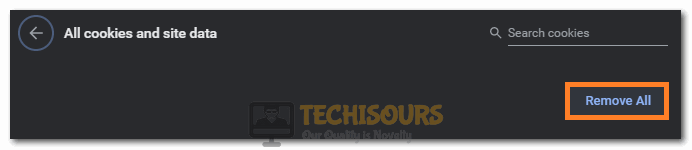
- Then click on “Remove All” to remove all of the cookies.

Clicking on the “Remove All” button - Finally, proceed to “Restart” the Chrome browser.

Firefox:
- Open Firefox on your desktop PC and click on the “Open Application Menu” option in the top-right corner.
- From here select “Options” from the drop-down menu and next click on “Privacy & Security” from the right window pane.

Clicking on “Options” in Firefox - Next under the “History” section click on the “Clear History” option.
- Lastly “Restart” Firefox and check to see if the error got solved.

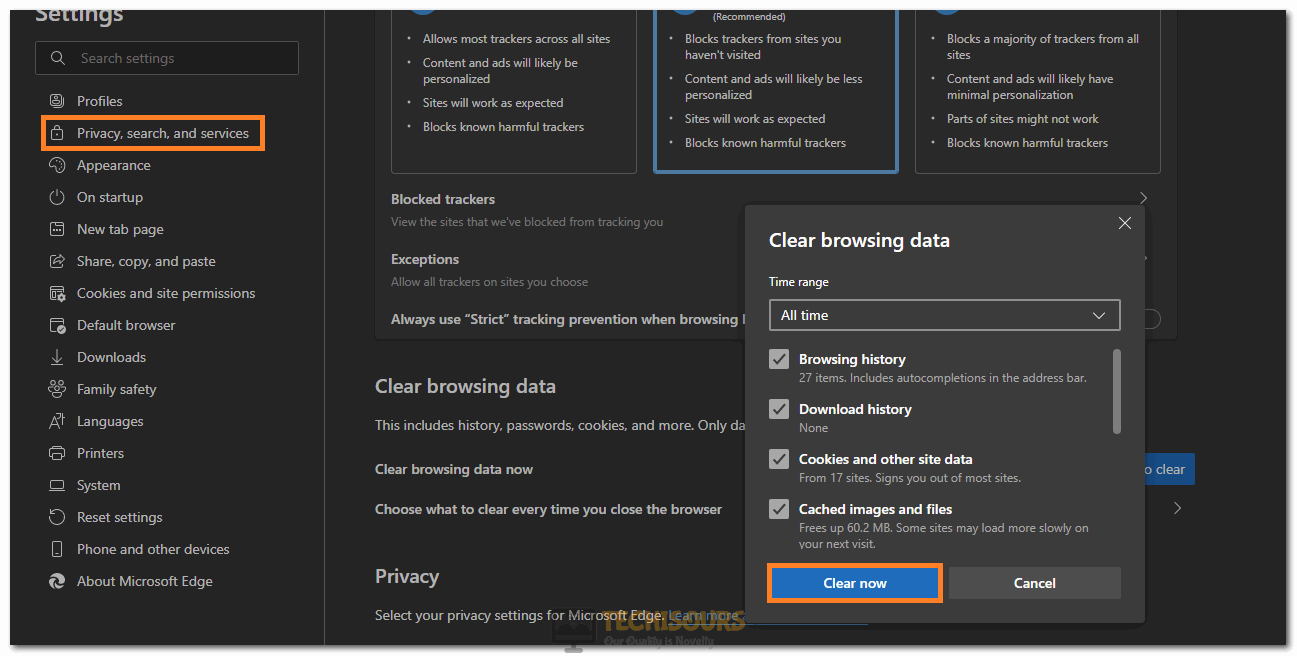
Microsoft Edge:
- Open Microsoft Edge on your PC and click on the “Three Dots” in the upper right corner of the window.
- Click on the “Settings” option on the top right side and from the left, select the “Privacy, Search, and Services” option.
- On the Right, select the “Choose what to clear” option and select it.
- Check the “Cookies and saved website data” option and next click on “Clear”.

Clearing Microsoft Edge Cookies - Lastly, “Restart” the browser and check to see if the error got fixed.
Opera:
- Click on the “Opera” icon in the upper left corner of the window.
- Select the “Preferences” from the drop-down menu.
- Then select “Privacy and Security” and navigate to “Cookies”.

Clicking on the Privacy and Security option - Go to “All cookies and website data” and delete all cookies by clicking the “Delete All” option.
- Finally, “Restart” the browser.

Safari:
- Click on the “Safari” icon on the top left-hand corner of the window.
- From the dropdown menu, navigate to “Preferences” and click on it.
- Select the “Privacy” tab and click on “Remove all website data” in cookies to delete all cookies.

Selecting the Remove all Website Data option - Then “Restart” your browser.

Solution 2: Add Base URL to Clear Cookies
- Open “Google Chrome” and click on three vertical dots on the top right corner of the window.
- A dropdown menu will appear up, from here click on “Settings”.
- In the search bar type “Site Settings” and click to open it.

Selecting the “Site Settings” option - Click on the “Cookies and Site Data” option and scroll to the bottom.
- Click on “Add” which is next to the “Always Clear Cookies when Windows are Closed” option.

Clicking on the “Add” option - Enter the base “Web Address”, e.g. youtube.com. (A base address is one that is without any path or an address that leads you to the front page of the website).
- Finally, click on “Add”.


Solution 3: Verify the Entered URL
Sometimes the URL you type is also wrong. A few common mistakes are misspelling the site name or entering the backward slashes. One easier way is to use the URL shortener if you have a long URL and try to copy-paste the URL instead of typing it manually to avoid any mistake. Once you have cross-checked your URL, try to access the page again. If you are still getting the error then try other methods like clearing cookies or disabling extensions.
Solution 4: Flush the DNS Cache
- Go to the “Start menu” and type “cmd” in the search bar. From the search results right-click on it and select “Run As Administrator”.

Select Run As Administrator From The Command Prompt - Then type in the following command in the Command Prompt window and hit the “Enter” key:
ipconfig /flushdns

Flush DNS - After executing this command now “Restart” your computer and run Steam again.


Solution 5: Compress the File Size
If you try to upload a file that is larger than the server limit, it is quite likely that you can face this error. You can check this by uploading a smaller file and if it uploads successfully then you might have to compress your file to avoid server limitation issues.
Solution 6: Wait Until the Server Is Being Fixed
This error can also occur due to server-side issues which are out of your control. It might be a server glitch or the server might be being updated. In such a scenario all you can do is to refresh the page and wait till servers are up again. Just refresh the page on a regular interval and check if the server has been fixed and the Header or Cookie too Large error is gone or not.
Solution 7: Disable Chrome Extensions
- Launch “Chrome” on your PC, and then click on the “Three vertical dots” in the top right of the window.
- From the drop-down menu click to select the “More Tools” option.

More Tools - Next click to select “Extensions” from the extended menu.
- Once inside the Extensions tab “Disable” all of the extensions one by one, if successful in removing the error you can try enabling the extensions one by one afterwards to find out the problematic one.

- Add the “large_client_header_buffers 4 16k” directive to the “HTTP” section of “/etc/nginx.conf file”.
- Then reload the Nginx process by entering the following command:
sudo nginx -t && sudo service nginx reload
- If this doesn’t work then double the value of the second parameter of the “large_client_header_buffers” directive and reload Nginx.
- Check to see if doing so fixes the Header or Cookie too Large error.
Solution 9: Use Direct Connection Mode With TCP
Convert the application to use the “Direct connection mode” with the Transmission Control Protocol or TCP. After doing this the issue would not arise because this direct connection mode with the TCP does not have a header size restriction like the HTTP protocol. Use the latest version of SDK that has a fix for query operations when the service interop isn’t available. You can learn more about it in .NET v3 or .NET v2 performance tips articles.
If you can’t go for the direct connection with the TCP then change the client consistency level to lighten the problem. The session token is only used for session consistency, other consistency levels do not use the session token.
Implement the above-indexed methods carefully in order to avoid getting the Header or Cookie too Large error in the future but if you still have any more questions in this regard then feel free to Contact Us here.

Alan is a hardcore tech enthusiast that lives and breathes tech. When he is not indulged in playing the latest video games, he helps users with technical problems that they might run into. Alan is a Computer Science Graduate with a Masters in Data Science.
Jan 12, 2023
Leonardus N.
9min Read
The 400 bad request error is an HTTP status code that describes an error caused by an invalid request. Thus, the server can’t understand and process it. Most HTTP error 400 bad requests are caused by malformed request syntax, invalid request message framing, or deceptive request routing.
If you’re browsing the internet and encounter this error, it’s possible to solve the problem easily. However, there are several occasions when the error comes from the website server. In this case, only the site owner can fix the problem.

This article will discuss eight methods of resolving a 400 bad request error. We will also cover the HTTP error 400 bad request message variations and their possible causes.
| Error code | 400 Bad Request Error |
| Error type | Client-side |
| Error variations | HTTP Error 400 HTTP Error 400 – Bad Request HTTP Error 400. The request hostname is invalid HTTP Status 400 – Bad Request 400 Bad Request 400 – Bad Request. The request could not be understood by the server due to malformed syntax. The client should not repeat the request without modifications. 400 Bad Request. Request Header Or Cookie Too Large Bad Request – Invalid URL Bad Request – Error 400 Bad Request – Your browser sent a request that this server could not understand |
| Error causes | Bad URL syntax File too big Bad cookies or cache DNS issues |
Variations of the 400 Bad Request Error
As an HTTP status code, the 400 bad request error informs users why they can’t access a web page. That said, the error message may vary or not show the error code itself.
Here are some variations of the 400 bad request error message you may encounter:
- HTTP Error 400
- HTTP Error 400 – Bad Request
- HTTP Error 400. The request hostname is invalid
- 400 Bad Request
- 400 – Bad Request. The request could not be understood by the server due to malformed syntax. The client should not repeat the request without modifications.
- 400 Bad Request – Request Header Or Cookie Too Large
- Bad Request – Invalid URL
- Bad Request – Error 400
- Bad Request – Your browser sent a request that this server could not understand
“400 Bad Request Error” on Different Browsers
Just like a 404 error page, the 400 bad request page is customizable. For example, Google has a custom 400 bad request error page that looks the same on all web browsers.
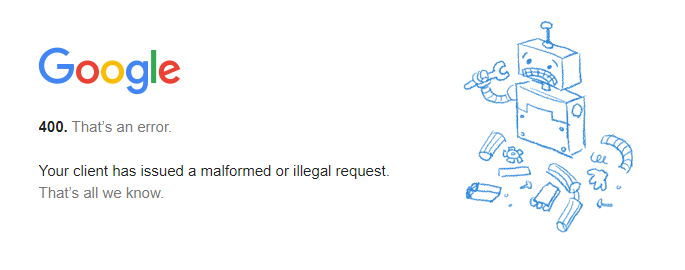
However, if the site doesn’t have a customized error page, the web browser will show the default one. Here is how the HTTP 400 bad request status code looks on different browsers:
Google Chrome
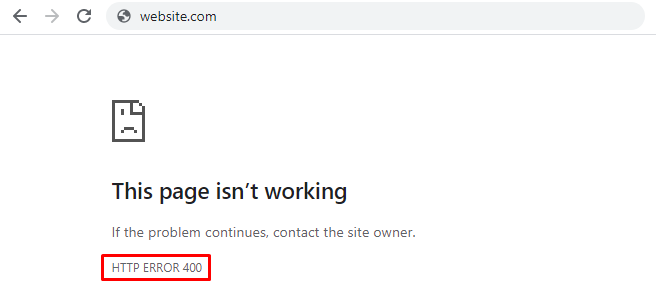
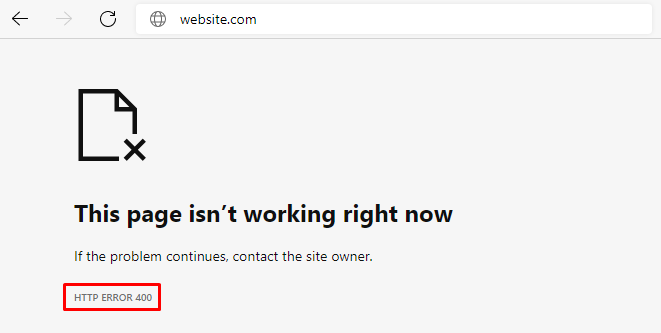
For 400 bad request, Chrome will show an error icon with The page isn’t working text followed by If the problem continues, contact the site owner. Then, you’ll find the HTTP ERROR 400 at the bottom of the message.
Microsoft Edge
Microsoft Edge has a design almost identical to Google Chrome’s, with the HTTP ERROR 400 text at the bottom.
Opera
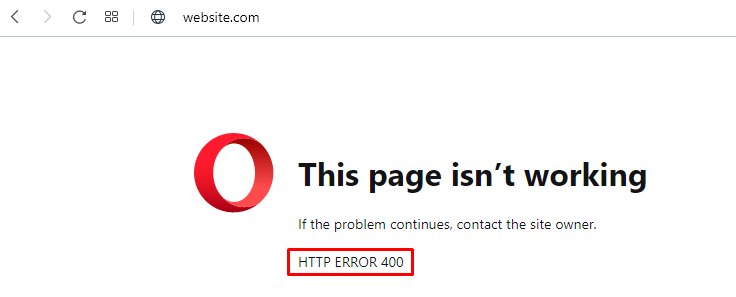
The HTTP 400 bad request error in Opera displays the same text as Google Chrome. The only difference is the icon, as Opera uses its logo.
Mozilla Firefox
Mozilla Firefox will show a blank page when you try to access a website using the wrong syntax. There’s no text indicating that you encountered an HTTP 400 bad request error, which makes identifying the problem harder.
Safari
Like Mozilla Firefox, the browser will appear blank with no indication of the HTTP 400 bad request error.
Causes of the 400 Bad Request Error
When you try to access a website, your computer sends a request to the web server. Then, the server processes the request and sends back the page you want.
The error 400 bad request happens when the server can’t understand the request. Thus, it won’t process it and will send you the error code instead.
In most cases, client-side issues trigger the error. Some common causes of the 400 bad request error are:
- Malformed URL syntax – the URL may contain invalid characters such as {, }, [, or ]. A wrongly encoded URL can also contain wrongly used ASCII characters, such as double percentage characters.
- Large file size – websites have a file upload limit. An attempt to upload a file that exceeds this limit can be considered a bad request and trigger the HTTP 400 error status code.
- Corrupted browser cookies or cache – expired cookies or corrupted browser cache may interfere with the request and trigger the error. This commonly happens on login pages such as the WordPress login page.
- Bad DNS cache – if the website has moved to a new domain name or web host, the DNS cache data in your operating system may be invalid.
How to Fix a 400 Bad Request Error
The first action we recommend is refreshing the page. If that doesn’t work, then you should try the following methods.
1. Double Check the Domain Address
One of the most common causes of HTTP status 400 bad request error is a wrong URL. This may include a mistyped URL, malformed syntax, and illegal characters in the URL.
It’s easy to mistype a URL, so be sure to check the domain name spelling. If the URL contains a directory path, file name, or query string, pay attention to special symbols such as a hyphen (-) or percentage character (%).
For example, www.hostinger.com/tutorials is the correct domain name. If you type in www.hostinger.com/%tutorials in the URL bar with an extra percentage character, it will result in a 400 bad request error.
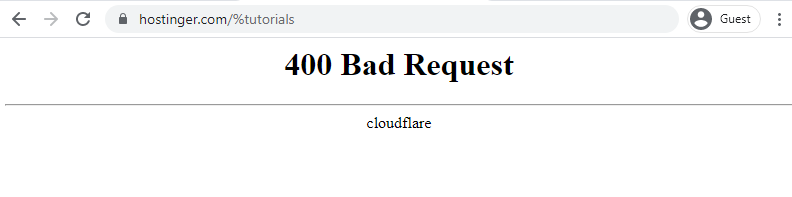
A badly encoded URL can also cause this error. URL encoding converts characters into ASCII characters to make them transferable on the internet. For example, one of the most common encodings is replacing space with %20.
However, a URL can be encoded incorrectly and thus contain incorrect syntax, like double percentage characters (%%). If you enter a URL or click on a link that’s badly encoded, you’ll end up with a bad request error 400.
When encountering a 400 bad request error because of a wrong URL, use an encoder/decoder tool. Decode the URL and encode it again to make sure it is correct.
2. Search the Keyword
There may be cases where you are sure that the URL is correct, yet the error persists. If you know the title of the article or page you’re looking for, search the keywords on the website or a search engine. Sometimes you can even see the title on the URL.
For example, in the /tutorials/how-to-make-a-website URL, you’ll see the article’s title at the end of the URL. If the website has a search feature, type the keyword to find the article.
Alternatively, use a search engine like Google or Bing. To perform a search on a specific site, type site: followed by the website’s URL and the keyword.
For example, the title of the article is how to make a website. Therefore, you type site:hostinger.com how to make a website.

3. Clear Browser Cache or Cookies
Browser cookies and cache store site data and content on the client’s side to improve the browsing experience.
The browser cache contains website files such as texts and images to reduce requests to the web server and make the page load faster. At the same time, cookies store the user’s session history and preferences to make personalized browsing possible.
However, cookies may expire after some time. Also, both the website cookies and cache can be corrupted and cause a 400 bad request error.
Additionally, HTTP status 400 bad request error can happen when the web browser sends cookie data that’s too large. In this case, the error message appears as 400 Bad Request – Request Header Or Cookie Too Large.
Try clearing your browser cache and cookies to solve this problem. If you’re using Google Chrome, here are the steps to do it:
- Click on the three dots on the top right corner of Google Chrome and select Settings.
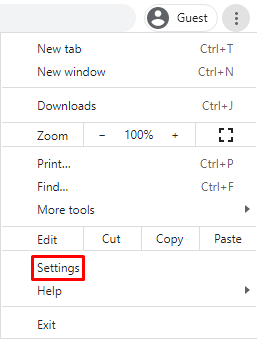
- Find the Privacy and security section and click on Clear browsing data.
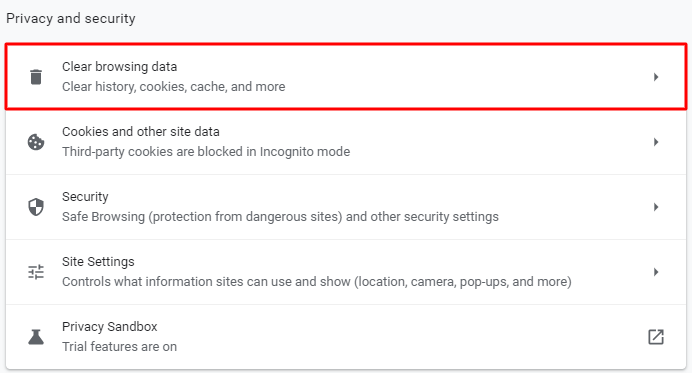
- On the Clear browsing data window, check the Cached images and files and Cookies and other site data and use the drop-down menu to select the time frame.
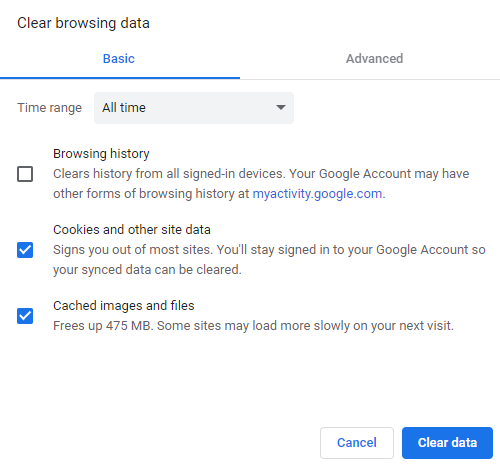
- Click Clear data and restart Google Chrome to finish the process.
Remember that clearing the browser cache and cookies resets the settings and signs you out of websites you’ve visited. Also, it will take more time to load the websites since the browser will need to retrieve the content previously stored in the cache.
If the cache and cookies were causing the 400 bad request error, you should be able to visit the website normally again. However, if it doesn’t work, try the next method.
4. Turn Off Browser Extensions
Browser extensions can also cause a bad request error 400. That’s because these extensions interfere with the request sent to the web server, which may lead the web server to interpret the request as invalid.
Moreover, browser extensions may affect cookies, which leads to a 400 bad request error. To find out if a browser extension is causing the problem, we recommend disabling all extensions first. Here are the steps for Google Chrome:
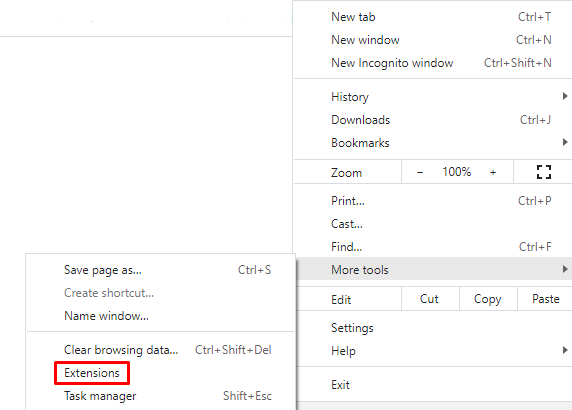
- Click on the three dots on the top right corner of Google Chrome. Select More tools -> Extensions.
- Turn off all extensions individually by clicking on the switch button.
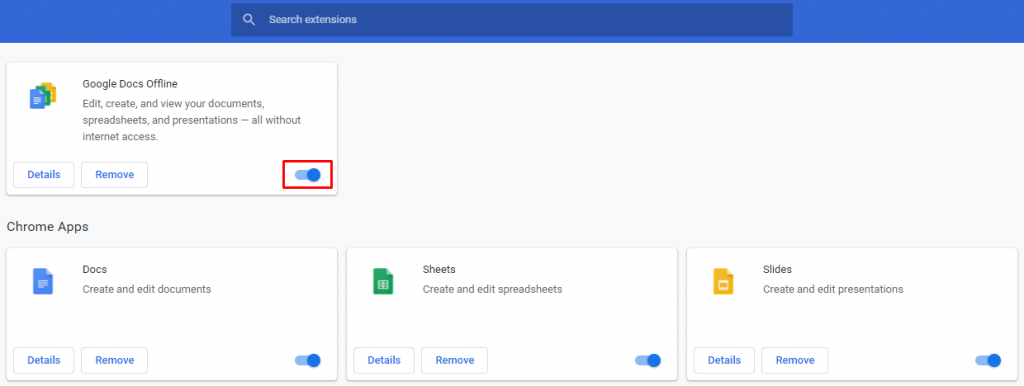
- Refresh the web page. If it loads normally, one of the extensions is causing the 400 bad request error.
After establishing that one of the extensions triggered the error, you need to identify the exact extension. Turn on the extensions one by one, refreshing the web page each time.
If you encounter a 400 bad request error after turning on one of the extensions, you’ve found the one causing the error. Keep the extension disabled or remove it altogether by clicking the Remove button on the extension settings page.
5. Check the File Size
Trying to upload a file that exceeds the server file size limit might trigger an HTTP status 400 bad request error. Sites usually have a different file upload limit, so check if the file you want to upload fits the limit.
If the website doesn’t mention the file limit, upload a small file to check whether that’s causing the error. If it works, then you should resize the file you originally wanted to upload.
Keep in mind that file compression may negatively affect its quality. If it’s a PDF or image, it can make the content blurry and unreadable. Be sure to check the quality of the file after compression and make sure that it’s still acceptable.
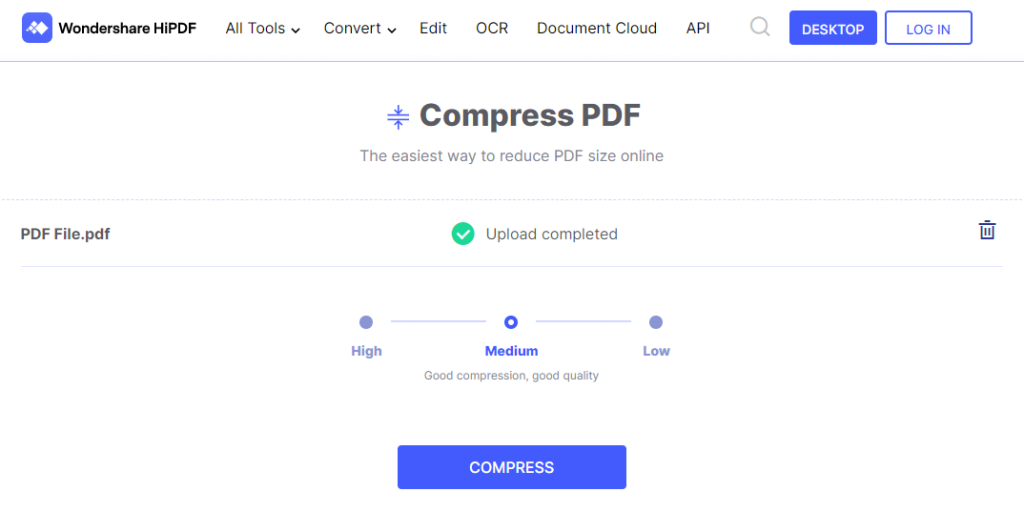
There are many free online compression tools so that you don’t need to install additional software on your computer. Some of the great examples are HiPDF for PDF files and UniConverter for video and audio files.
6. Flush DNS Cache
When you visit a site for the first time, the system goes through a DNS lookup, which searches for the nameservers and IP addresses that are associated with the domain name.
Your operating system then stores the IP addresses of the web servers in the DNS cache. Therefore, the system can reduce the DNS lookup process on the next visit, making the site load faster.
However, a corrupted or outdated DNS cache can trigger the HTTP error 400 bad request. In this case, you need to flush the DNS cache.
Since the DNS cache is stored in the operating system, the methods to flush it may vary. If you use Google Chrome, you’ll also have to flush the DNS cache in the web browser.
Here are the steps to do it on Windows and Mac OS:
Microsoft Windows 10
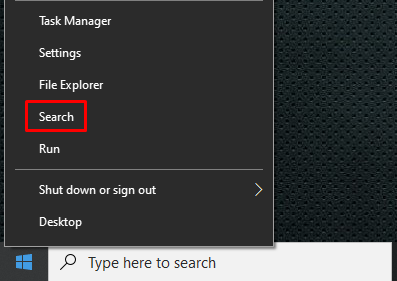
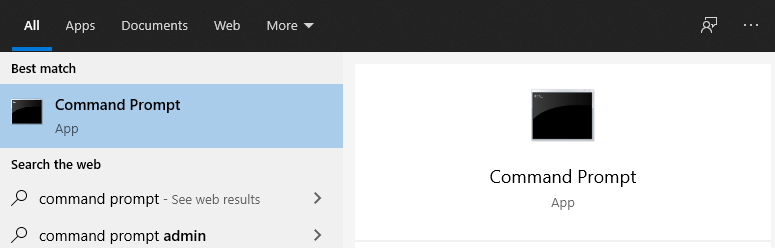
- Right-click on the Windows Start Menu and select Search or use the search box in the taskbar if enabled.
- Type command prompt and select the Command Prompt application.
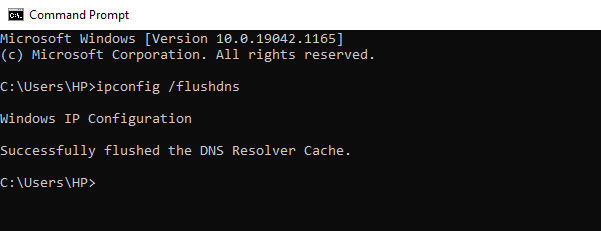
- Type ipconfig /flushdns and press Enter.

- You’ll see the Successfully flushed the DNS Resolver Cache message after the process is completed.
macOS X
Press the F4 key to open Launchpad and enter Terminal to open the command terminal. Run the following command if you use macOS Sierra, X El Capitan, X Mavericks, X Mountain Lion, or X Lion:
sudo killall -HUP mDNSResponder.
Google Chrome
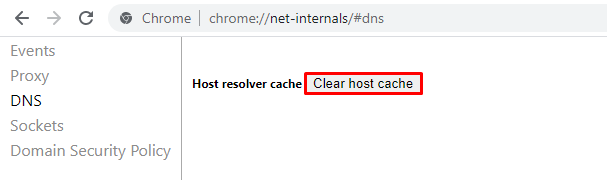
- Type chrome://net-internals/#dns on Google Chrome’s address bar and press Enter:
- Click Clear host cache.
If you use a different operating system, make sure to check our comprehensive guide on how to flush DNS cache.
7. Contact the Site Owner to Report the Error
If all attempts to fix the 400 bad request error didn’t work, there’s a possibility that the problem isn’t a client error but rather is a misconfiguration that the web owner needs to fix.
In this case, try to visit the contact page of the website and fill a contact us form, if available. Otherwise, most sites also have contact email addresses and social network accounts where you can inform them about the 400 bad request error.
8. Restart Your PC and Other Hardware
The last method is to restart your computer and network connection hardware, such as router and modems.
Restarting a PC often solves various problems, including the 400 bad request error because it clears the Random Access Memory (RAM). Moreover, it flushes the temporary cache that’s created as you open and close programs.
Temporary data from background processes may interfere with the request sent to the server, causing the 400 bad request error.
Conclusion
The HTTP status 400 – bad request indicates that the request sent to the server is invalid or corrupted. Just like other 4xx status codes, a 400 bad request is a client-side issue.
It can be caused by malformed request syntax, invalid request message framing, or deceptive request routing.
Since this is a client-side problem, users can easily resolve most of the 400 bad request errors. To recap, here are eight methods to resolve the error:
- Double-check the domain address.
- Search the keyword.
- Clear browser cache and cookies.
- Turn off browser extensions.
- Check and reduce the file size.
- Flush the operating system’s DNS cache.
- Report the error to the site owner.
- Restart the PC and networking equipment such as the router and modem.
If you have other tips or solutions, feel free to leave us a comment below.

Leo is a WordPress fanatic and contributor. He likes keeping up with the latest WordPress news and updates, and sharing his knowledge to help people build successful websites. When he’s not working, he contributes to WordPress documentation team and pampers his dogs.
We open many websites at one time on our browser to search for something on the internet. There are some websites that we check daily; it can be a news site, your work login, or something else. If such important websites show errors like ‘400 Bad Request, Request Header or Cookie Too Large,’ it can get frustrating.
At times, you will see the same error on all the different browsers available on your computer for a specific website only. Let’s get started on what this error is and how to eliminate it to enjoy browsing again.
The ‘request header too large’ error message can be seen on any website for two main reasons. One reason is that the size of the cookie for that particular domain is too large, and therefore the server refuses to display the website. Another reason for the ‘400 Bad Request, Request Header or Cookie Too Large’ error message is corrupted cookies.
Well, you can experience this error on Google Chrome, Microsoft Edge, Mozilla Firefox, or any other browser. This error happens mostly on the sites that are running on the Nginx server.
How To Fix Request Header Or Cookie Too Large Error
You can clear cookies and cache for that particular website to fix this 400 bad request error on your browser.
Note: The solutions are suggested with regard to different famous browsers. You can jump to the web browser section you are currently using and understand how to fix request header or cookie too large.
Google Chrome
There are two ways to reach the cookie settings. You can open the new tab in the browser and type –
chrome://settings/cookies If you don’t want to go the direct way, follow steps 1 to 3 below. You need to follow instructions from step 4, irrespective of what way you choose to reach the cookie settings page.
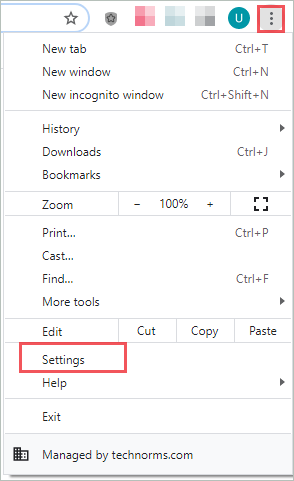
Step 1: Open Google Chrome browser and click on the 3 dots in the upper right corner of the browser window. Select Settings from the menu.
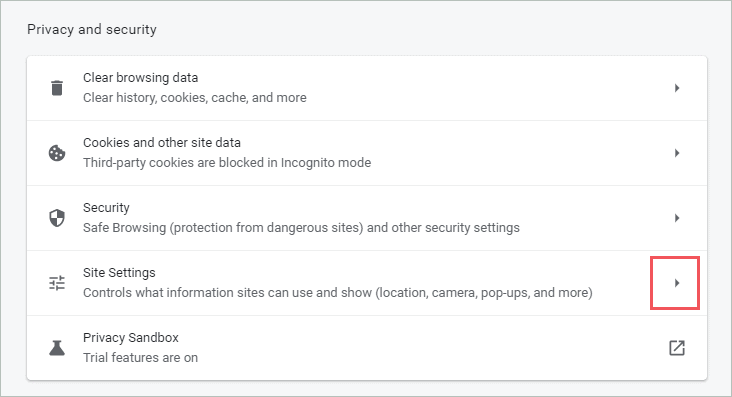
Step 2: In the Settings tab, scroll down to Privacy and security and click on the arrow next to Site Settings.
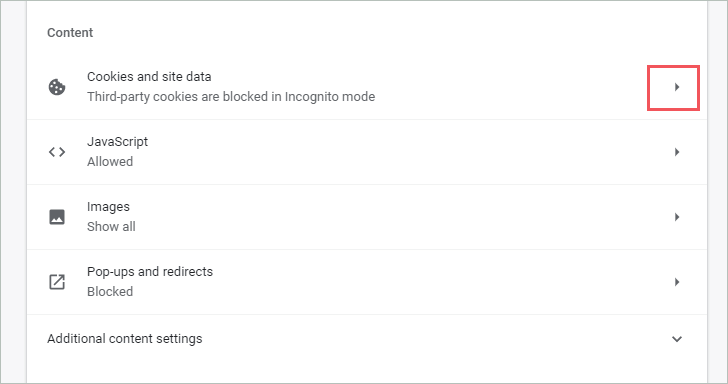
Step 3: Now, click on Cookies and site data under the Content section.
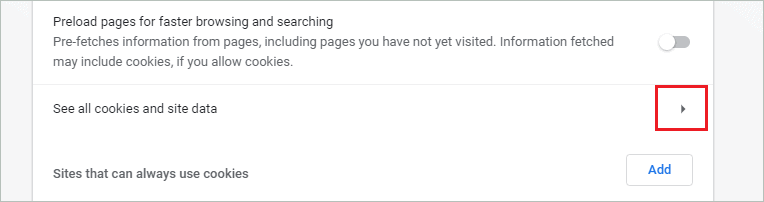
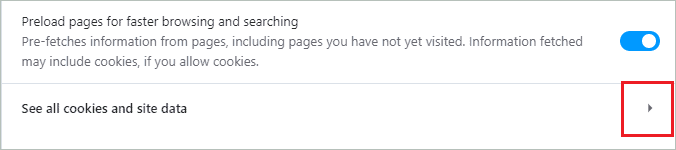
Step 4: Click on the arrow next to See all cookies and site data on the next screen.
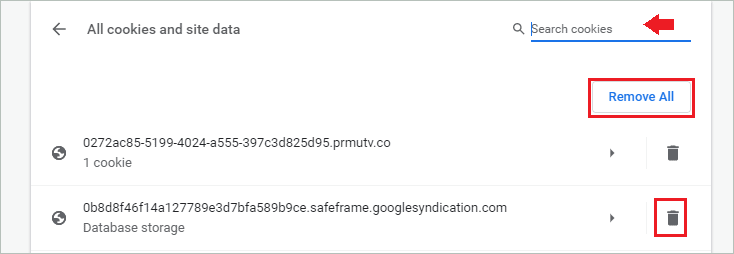
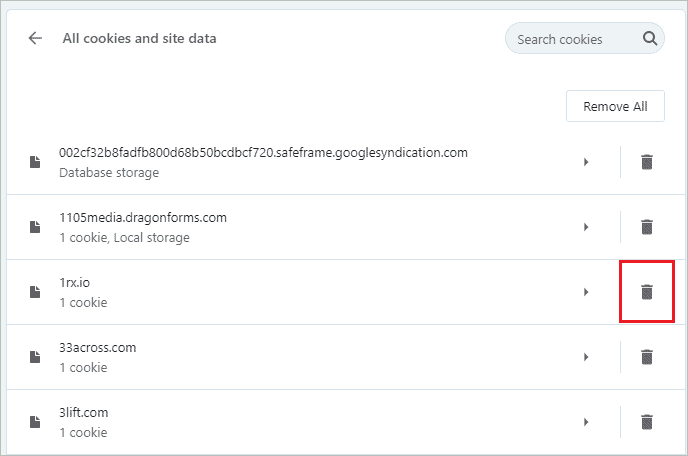
Step 5: You can either delete all the cookies by clicking on the Remove All option or delete the cookie of the affected website by clicking on the delete icon next to it.
If you don’t find the problematic web page easily, you can search for it in the search bar.
Once the cookies are deleted, you can relaunch the browser. In the browser, check if you can access the website giving ‘400 Bad Request, Request Header or Cookie Too Large’ errors or not.
Microsoft Edge
Microsoft Edge does not allow you to clear cookies for a single website. You need to clear cookies and site data for all the websites. There is a timestamp option available which allows you to remove browser cookies for a specific time frame.
Open the Microsoft Edge browser and click on the 3 dots in the top right corner of the browser. Click on the Settings from the menu.
In the Settings tab, click on Privacy, search, and services from the left tab.
Next, scroll down to the Clear browsing data section and click on the Choose what to clear button.
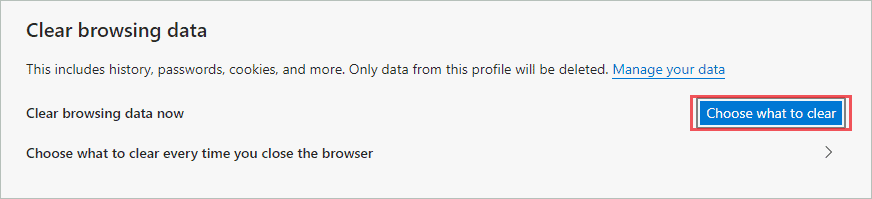
Select the Time range; if you wish to avoid deleting all cookies, select the Last hour option. Also, check the checkbox next to Cookies and other site data.
Click on the Clear now button.
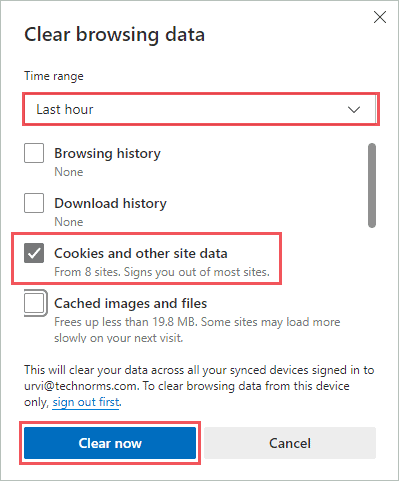
Close the Microsoft Edge browser and open it again. Once opened, try accessing the website that was giving an error. If corrupted cookies were a problem, you would be able to access the website again on the browser without a request header or cookie too large error message.
Mozilla Firefox
If you are Mozilla Firefox, you can get rid of cookies from a problematic website easily.
Step 1: Open the Mozilla Firefox browser on your computer and click on 3 lines in the upper right corner. Select Settings from the menu.
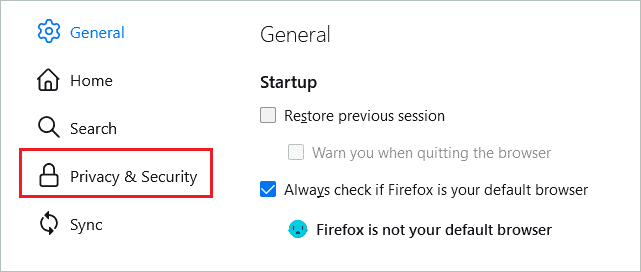
Step 2: From the Settings tab, click on Privacy & Security.
Step 3: Now, scroll down to Cookies and Site Data and click on the Manage Data option.
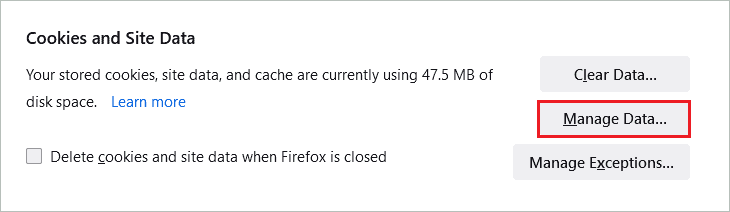
Step 4: In Manage Cookies and Site Data window, select the website that was giving 400 Bad Request, Request Header or Cookie Too Large error, and click on Remove Selected.
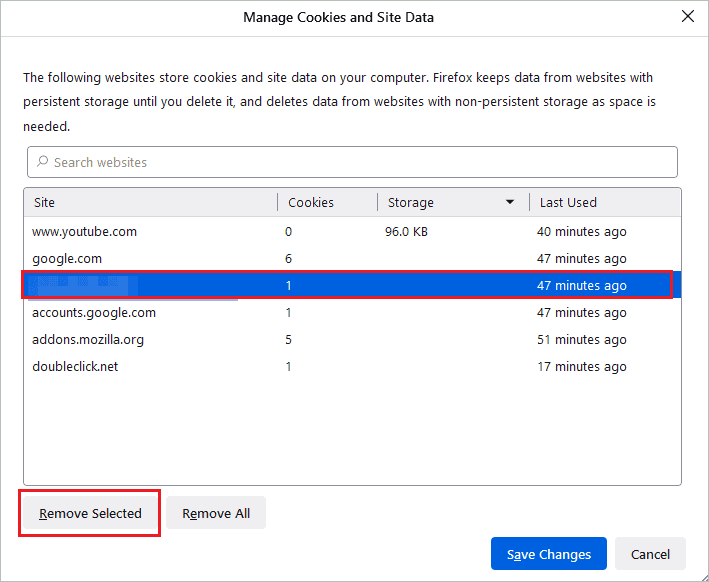
Make sure you don’t click on Remove All; it will remove cookies and cache from all websites you have browsed.
Opera Browser
If you are a fan of Opera browser, you would like to know how to get rid of the Request Header or Cookie Too Large error in Opera.
Launch the Opera browser and Easy setup option (3 lines) in the top right corner. Click on Go to full browser settings seen at the end of the menu.
Next, expand the Advanced section and click on Privacy & security.
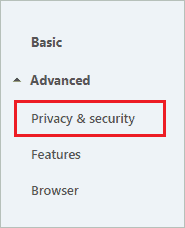
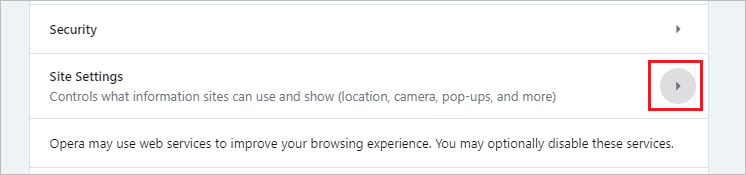
Now, open the Site Settings
In the Site Settings, click on the arrow next to the Cookies and site data under Content.
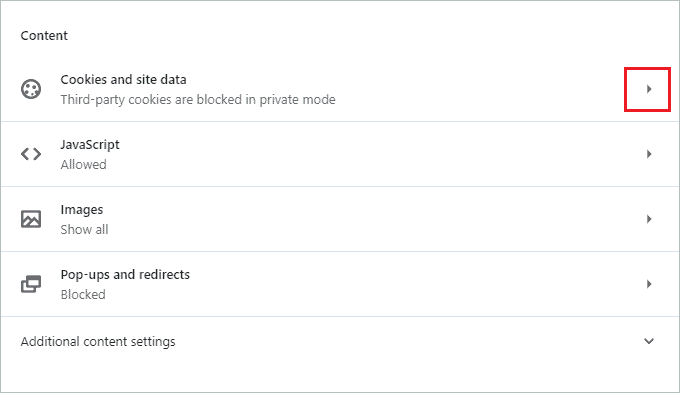
Scroll down and click on See all cookies and site data
Click on the delete icon next to the website that was showing the 400 Bad Request error. You can search for that website in the search box if you don’t find it easily.
You can relaunch the browser and try opening the website again.
Internet Explorer
Although Internet Explorer is not used much nowadays, some people rely on it for work purposes. Know how to clear cookies and get rid of the 400 Bad Request, Request Header or Cookie Too Large error message.
Open Internet Explorer and click on the Settings gear in the top right corner of the browser. Select Internet options from the Settings menu.
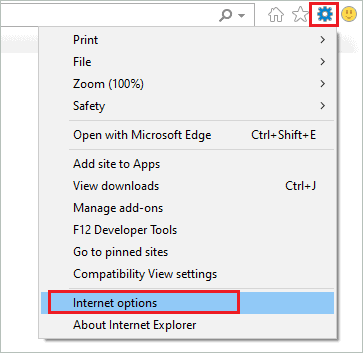
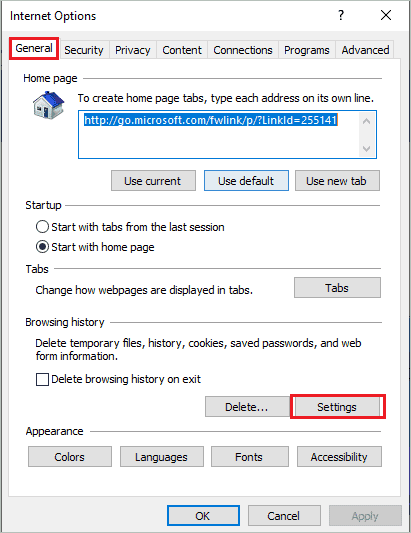
In the Internet options dialog box, click on the General tab and then click on the Settings button under Browsing history.
Now, under the Temporary Internet Files tab, click on the View files button.
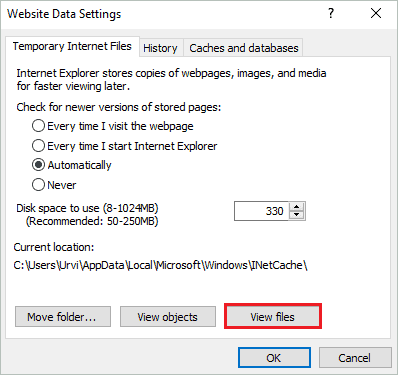
The File Explorer window will open, and you will see files with the website name. You can delete the file that has the affected website name. Make sure you press the Shift + Delete keys to delete that file from your computer permanently.
Now, relaunch the Internet Explorer and browse the website that was giving errors before.
Use Third-party Application
Some people use multiple browsers to keep their work and entertainment tabs separated. Well, in such a case, deleting cookies from each of the browsers can be tedious work. You need to launch and relaunch all the browsers just to clear cookies for one particular website.
For such a user, we recommend using a third party tool called CookieSpy. It is a free tool that allows you to view and delete cookies from multiple browsers in one window. The currently supported browsers are Google Chrome, Mozilla Firefox, Apple Safari, Internet Explorer, and Opera.
CookieSpy can be used only to view and delete cookies. It does not support any other feature than that. This makes it convenient for people who want an app just to clear cookies from different browsers.
When you install CookieSpy, it will detect all the browsers on your computer and have tabs for all the different browsers showing saved cookies. You can delete cookies for any site on any browser from the CookieSpy window.
Download CookieSpy
Conclusion
The 400 error can be seen anywhere while you use the browser. It can get extremely annoying when you are not able to access important work-related websites. The website itself can resolve the 400 Bad Request, Request Header or Cookie Too Large error message in a few minutes if the error is from their end because of cookie size.
However, if the error is because of corrupt cookies in your browser, the only way to fix the 400 Bad Request error message is to clear cookies for that website. You can easily clear cookies from Google Chrome, Microsoft Edge, Mozilla Firefox, and Opera Browser. But when it comes to Internet Explorer, you need to delete it via File Explorer.
The process of clearing cookies for Internet Explorer via File Explorer is mentioned above, but we recommend switching from Internet Explorer to a different browser, as Microsoft is ending support for Internet Explorer from August 2021.