
Код ошибки 50058 возникает, когда что-то не так с вашими данными для входа на платформе Office 365, особенно с такими службами, как Teams, OneDrive, Outlook и т. д. Эта ошибка раздражает, поскольку пользователи не могут войти в свои службы, а папки не будут синхронизировать до тех пор, пока проблема не будет решена. В этой статье мы рассмотрим различные решения для исправления кода ошибки 50058 в Teams, OneDrive, Outlook и т. д. Некоторые пользователи сообщают о получении этого сообщения об ошибке входа, когда они покидают свой офис и пытаются войти в службы MS, используя свои домашние компьютеры. .
Что вызывает код ошибки 50058 в Teams, OneDrive и т. д.?
Код ошибки 50058 может возникать в различных сервисных приложениях Microsoft. Это не позволяет вам войти в свою учетную запись или учетную запись вашей организации. Ниже приведены причины ошибки кода 50058:
- Единый вход (SSO) поврежден или недействителен. Если вы входите в свою учетную запись с помощью единого входа, у нее могут возникнуть проблемы, которые могут вызвать код ошибки 50058.
- Ваш идентификатор пользователя неверен. Возможно, вы используете другой идентификатор для подписи. У вас могут быть другие учетные данные для разных приложений MS.
- Вы вводите просроченный пароль. Если ваша учетная запись имеет ограничение по времени, вы можете потерять к ней доступ по истечении определенного периода времени.
- Вы используете поврежденный профиль. Если вы использовали для доступа к своей учетной записи, используя учетные данные вашей организации, профиль Windows может быть поврежден, что делает невозможным вход в эти приложения MS.
Посмотрев, что вызывает код ошибки 50058, было бы неплохо посмотреть, как исправить эти проблемы. Продолжить чтение.
Исправить код ошибки 50058 в приложениях и службах Office 365 легко с помощью простых решений, которые мы рассмотрим.
- Сбросить пароль
- Выйдите из всех приложений системы единого входа
- Попробуйте очистить свои учетные данные на ПК
- Попробуйте использовать новый профиль пользователя
Рассмотрим эти решения подробно.
1]Сбросить пароль
Поскольку ошибка 50058 связана с паролем учетной записи, первым решением будет сброс пароля. Вы можете сделать это самостоятельно, если являетесь владельцем аккаунта. Если учетная запись принадлежит администратору или организации, попробуйте связаться, чтобы они могли сбросить пароль, или, если они изменили пароли, они выдали бы новый.
2]Выйдите из всех приложений SSO
Если вы используете какие-либо инструменты единого входа, мы рекомендуем вам выйти из системы и снова войти в нее. Иногда проблема может быть вызвана самим приложением, и отключение и повторное подключение могут устранить код ошибки. В некоторых приложениях могут возникать временные сбои. Это нормально. Такие приложения единого входа могут включать, среди прочего, Azure.
3]Попробуйте очистить свои учетные данные на ПК.
Удаление учетных данных на вашем компьютере может устранить код ошибки 50058. Однако это решение применимо, если вы не сталкиваетесь с той же проблемой при доступе к приложениям в Интернете. Чтобы очистить все сохраненные учетные данные на вашем ПК, выполните следующие действия.
- Введите Панель управления в поле поиска и нажмите Enter.
- Перейдите к параметру «Учетные записи пользователей», а затем нажмите «Диспетчер учетных данных» или «Управление учетными данными».
- Вы увидите два варианта; Веб-учетные данные и учетные данные Windows. Выберите каждый за раз, щелкните стрелку раскрывающегося списка рядом с приложением Office и удалите все сохраненные учетные данные.
- После этого перейдите в «Настройки ПК», нажав Win + I, а затем перейдите в «Учетные записи».
- Выберите Электронная почта и учетные записи. Проверьте, существуют ли учетные записи, которые вы удалили вместе с их учетными данными. Если это так, выйдите из системы везде.
4]Попробуйте использовать новый профиль пользователя
Возможно, в вашей учетной записи есть какие-то проблемы, и попытка нового профиля Windows может помочь вам понять, в чем проблема. Новый профиль поставляется с чистыми учетными данными и кешем, поэтому вы можете получить доступ к приложениям Office и не получить код ошибки 50058.
Вы можете создать новую учетную запись в приложении «Параметры Windows». Перейдите в «Учетные записи» > «Другие пользователи» > «Добавить учетную запись». Введите свой адрес электронной почты или телефон, а затем перейдите в «Далее» > «Готово». Затем войдите на свой компьютер и в соответствующее приложение Office, используя новую учетную запись. Попробуйте посмотреть, устранен ли код ошибки 50058.
Если проблема не устранена, мы рекомендуем обратиться в соответствующую службу поддержки для получения дополнительной помощи, поскольку некоторые проблемы могут быть связаны с вашей учетной записью или компьютером.
Мы надеемся, что одно из этих решений поможет вам исправить код ошибки 50058.
Исправлено: код ошибки Microsoft Teams 80080300
Что такое ошибка входа 50058 в Microsoft Teams?
Код ошибки входа 50058 в Teams означает, что приложение пыталось войти в систему без вывода сообщений, но профиль пользователя не смог войти в систему. Приложение должно запустить интерактивный поток и позволить пользователям войти в систему. Возможно, вам потребуется обратиться в службу поддержки Teams, чтобы получить некоторую помощь.
Как исправить неправильные учетные данные для входа в Windows?
Лучшее и наиболее безопасное решение для исправления неверных учетных данных для входа — получить правильные данные учетной записи. В качестве альтернативы, если вы используете свой компьютер дома и вам не нужно защищать его паролем, вы можете отключить пароль для входа. Введите netlwiz в поле поиска и нажмите Enter. Снимите флажок «Пользователи должны ввести имя пользователя и пароль, чтобы использовать этот компьютер». Примените изменения, и все; при следующем запуске компьютера вам не потребуется пароль для доступа к нему.
Читайте: Как восстановить утерянный забытый пароль Windows?
Содержание
- Microsoft Teams error 50058
- Let’s get started
- How to solve Microsoft Teams error 50058
- Verified solution
- Quick fixes
- How to fix Office 365 error code 50058
- Further information on Credential Manager and how it can fix the Office 365 error code 50058
- How to fix “Microsoft Word keeps asking me to sign in”
- Delete any shared calendars that are no longer in use
- Enable encryptions
- Manually enter the associated passwords
- How to fix Office 365 error code 50058 (step-by-step)
- Azure AD Sign-in Error 50058
- Error 50058 — The application tried to perform a silent sign in and the user could not be silently signed in. The application needs to start an interactive flow giving users an option to sign in. Contact application owner.
- About Azure Activity sign-in activity reports:
- Error description:
- Auditing Azure AD environments with ADAudit Plus:
- Ошибка: AADSTS50058: Запрос на тихий вход в систему отправлен, но ни один пользователь не вошел в систему. Проблема угловой аутентификации ADAL в браузере мобильного сафари
- 2 ответа
- Share on Twitter
- Share on Facebook
- Share on LinkedIn
- Share on Email
Microsoft Teams is indispensable in our work life these days. Nothing is more annoying than an error message like ‘50058’, when you need Microsoft Teams the most.
Microsoft Teams is a collaboration tool that was developed by Microsoft, and it is available for Windows 10, Windows 10 Mobile, iOS, and other devices. It is known for being an easy to use collaboration tool that allows you to share documents, presentations and whiteboards.
Microsoft Teams is a great tool that can help you to collaborate with your colleagues. It has a lot of features that allow you to manage all your meetings, and it can be used as a tool for remote support as well. The app can be used by anyone from all over the world.
Connect with the Expert via email, text or phone. Include photos, documents, and more. Get step-by-step instructions from verified Tech Support Specialists.
Please enable JavaScript
On this page, you will find more information about the most common causes and most relevant solutions for the Microsoft Teams error ‘50058’. Do you need help straight away? Visit our support page.
Let’s get started
It has never been easier to solve error «50058».
Error information
How to solve Microsoft Teams error 50058
We’ve created a list of solutions which you can follow if you want to solve this Microsoft Teams problem yourself. Do you need more help? Visit our support page if you need professional support with Microsoft Teams right away.
Connect with the Expert via email, text or phone. Include photos, documents, and more. Get step-by-step instructions from verified Tech Support Specialists.
Verified solution
There are many errors that can occur when you try to use Microsoft Teams. One of the most common errors is Microsoft Teams error code 50058. This error occurs when you try to access the website or if you try to open a file in Microsoft Teams on your computer or if there is an issue with your internet connection or the device on which it is installed on. This error can be annoying and frustrating because you cannot access the website or the file properly.
The problem can be caused by an issue with your computer or it can be caused by your internet connection, or it might occur if there is malware installed on your computer. To fix this error, you need to try a few solutions.
There is a possibility that the Microsoft Teams 50058 error occurs because of cookies. When this error occurs, the users can not log in into their Microsoft Teams account. Microsoft Teams will say the password has expired.
You can close your Microsoft Teams application. You can go to $HOME//Library/Application Support/Microsoft/Teams in files browser. Then, delete or move the Teams folder to another location. You can try to open Microsoft Teams application and automatically the login window will appear. You can login with your account and password.
The other solution is you can try to reinstall the app. You need to uninstall it first. You can go to Settings > Applications > Microsoft Teams > Uninstall. Then, you can try to reinstall it and login with your account.
The other way you can do it is you can contact Microsoft Customer Service to solve this error. You can try contacting them through their customer support number or their website. The customer support will usually ask you to send them the error code that is appearing on your screen.
Quick fixes
Try one of the quick fixes below to quickly resolve the Microsoft Teams error 50058.
Источник
How to fix Office 365 error code 50058
Some users get the error code 50058 while attempting to install Office 365. This issue can be caused by a multitude of different password-related reasons, from user passwords not working, responding to input, and user passwords not being accepted by the account they are logging into. However, it all leads up to the password expiring mainly present when they have limited timed access to an account or if the account is terminated after a certain amount of time.
We’ll go through how to resolve error codes 50058 and how to avoid it in the future in this article. If the primary remedy fails to resolve the problem, we will provide other options to assist you in resolving the problem. See how to solve Office 365 error number 50058 by following the steps below.
How to fix Office 365 error code 50058:
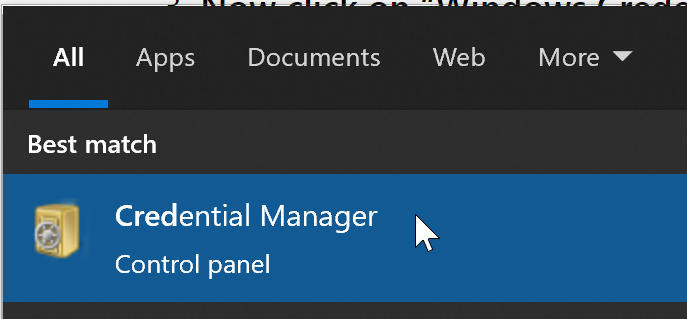
- On your Windows computer, type in “Credential Manager” in the search bar.
- Now click on “Credential Manager.”
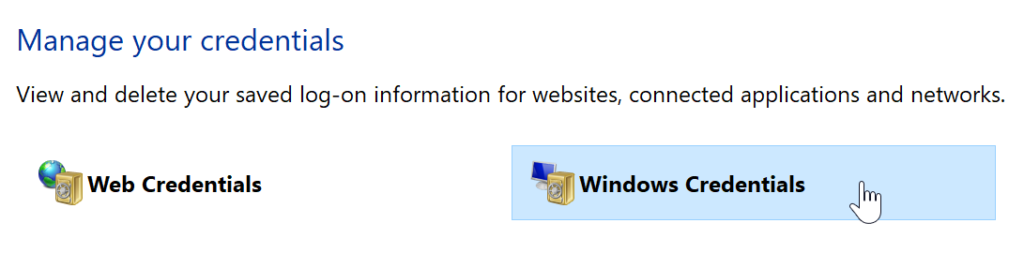
- Now click on “Windows Credentials.”
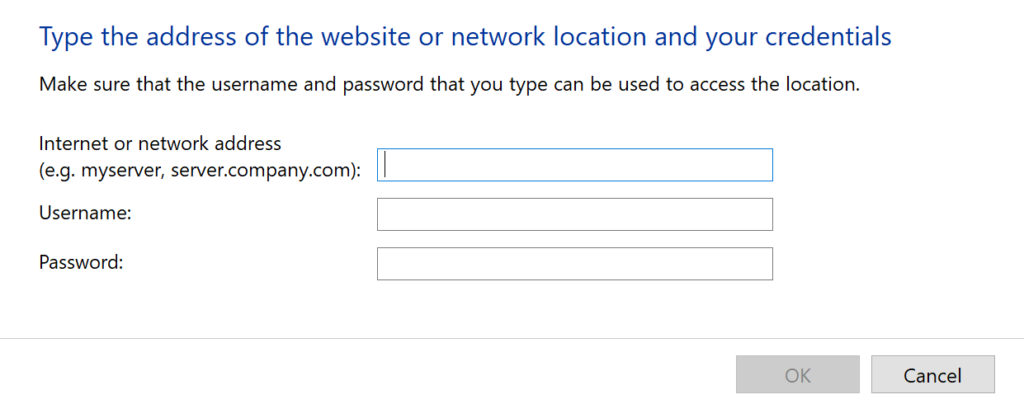
- Find the credentials related to your Office account and change them.
- Finally, close and test the fix.
That’s all; you’ve successfully addressed the issue, and you can now use Microsoft Office without being bothered by the error code 50058 bubble popping up every now and again. Normally, the credential manager stores password to allow users to access accounts without having to log in every time; however, if you recently changed your password or had your account audited and specific information was changed, the process will be affected.
The primary account’s details are updated as they should be, but the credential manager’s details aren’t updated unless explicitly changed, especially if there hasn’t been an account change. You must go into the management panel and make the necessary changes. You will be able to access Microsoft Word without being interrupted by continuous logins once the data have been changed and the account has been successfully registered.
Web Credentials, which include internet logins, and Windows Credentials, which contain information only used by Windows services and apps, are divided into two categories in the Windows 10 edition of Windows Credential Manager. This is a new feature in Windows 8.1 that makes prior versions of Windows easier to use. Previously, stored data were classified into four different categories.
Further information on Credential Manager and how it can fix the Office 365 error code 50058
Windows Credentials include Certificate-Based Credentials, which are generally used in a sophisticated corporate network environment. The majority of users do not require these. On the Microsoft support website, you may learn more about using a third-party certification authority to allow more advanced certificate-based credentials.
The Windows Credentials category also includes installed program information that lets your computer or others on the network use the relevant apps. As a consequence, Windows Credential Manager is a straightforward way to manage sensitive information that is required for everyday tasks and inside shared networks.
Windows Credential Manager is an easy-to-use password manager that makes handling sensitive data a breeze. There have been fears, however, that hackers may obtain access to passwords that have been saved.
The Credentials Manager file format saves passwords in the open text, making them easier to exploit if a hacker gets privileged access to your system (Local Administrator or System-level access on your device).
However, credentials can sometimes build up over time and cause conflicts, which lead to sign-in errors such as 50058.
How to fix “Microsoft Word keeps asking me to sign in”
Delete any shared calendars that are no longer in use
Due to an outdated shared calendar, some users claimed that Office constantly requested them to sign in. The calendar was apparently created as a SharePoint list, which resulted in the log in difficulty.
To resolve the issue, users just had to delete the calendar, and the issue was resolved. Delete any old shared calendars that you aren’t using, and the problem will be fixed.
Enable encryptions
Users claim that if the encryption function isn’t turned on, this problem might occur. Encryption is recommended for keeping your emails safe from outside parties.
Several consumers said that by not utilizing encryption, Office kept prompting them for their password on their PC.
This can be a bothersome problem, but it can be resolved by doing the following:
- Open the desktop version of Outlook.
- Go to File > Account Settings > Account Settings.
- In the Email tab, click Change… > More Settings > Security.
- Enable the option to Encrypt data between Microsoft Outlook and Microsoft Exchange.
The problem should be entirely addressed after enabling this functionality, and everything should start operating again.
Manually enter the associated passwords
The Credentials Manager saves all of your passwords on your computer, however, it can occasionally malfunction. Certain apps, such as Microsoft Office and Outlook, may have difficulties as a result of this.
If Office continues prompting you to sign in, try the following steps to resolve the issue:
- Open the Credential Manager application. Solution 1 explains how to accomplish it in detail, so go there for more information.
- Once the Credential Manager is open, manually input your password in all areas where your email address is saved. Close Credential Manager after saving your changes.
- Enter “percent local app data percent” by pressing Windows Key + R. Click OK or press Enter.
- Go to the Microsoft outlook directory and open it. Find the file Autodiscover.xml. Don’t be fooled by the fact that this file’s name may contain an array of characters and numbers. Rename or move this file to a new place.
- Launch Outlook after that, and it should start without any prompts.
How to fix Office 365 error code 50058 (step-by-step)
- On your Windows computer, type in “Credential Manager” in the search bar.

- Now click on “Credential Manager”.
- Now click on “Windows Credentials”.
- Find the credentials related to your Office account and change them.
- Finally, close and test the fix.

That’s it for this Blog thank you for taking time out to read our content, please feel free to email our team about how it went if you followed the steps or if you need more help with the questions we answered in this Blog.
Источник
The Who, Where and When information is very important for an administrator to have complete knowledge of all activities that occur on their Active Directory. This helps them identify any desired / undesired activity happening. ADAudit Plus assists an administrator with this information in the form of reports. In real-time, ensure critical resources in the network like the Domain Controllers are audited, monitored and reported with the entire information on AD objects — Users, Groups, GPO, Computer, OU, DNS, AD Schema and Configuration changes with 200+ detailed event specific GUI reports and email alerts.
Error 50058 — The application tried to perform a silent sign in and the user could not be silently signed in. The application needs to start an interactive flow giving users an option to sign in. Contact application owner.
About Azure Activity sign-in activity reports:
Azure Active Directory’s reporting tool generates ‘Sign-in activity’ reports that give you insights on who has performed the tasks that are enlisted in the Audit logs.
- All Sign-in activity reports can be found under the Activity section of Azure Active Directory.
- The default list view of Audit logs can be customized by adding additional fields.
- The reports can also be filtered to let you view only the activities thatВ are relevant.В
- Here is an example of how a sign-in activity report looks like:
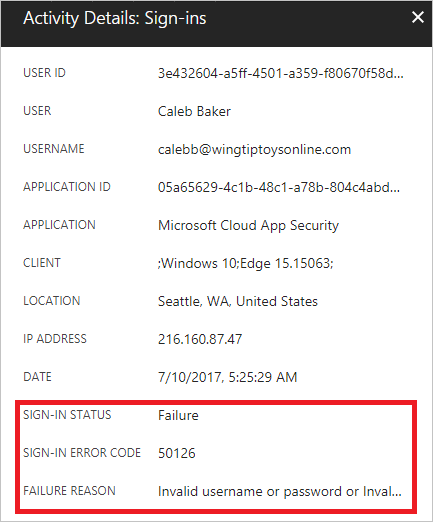
Error description:
The application tried to perform a silent sign in, and the user could not be silently signed in. The application needs to start an interactive flow giving users an option to sign in. Contact application owner.
ADAudit Plus offers change monitoring for your Azure AD environment with the following features:
- Correlated view across hybrid environments
- Real-time alerts
- Schedulable reports
- Autonomous change remediation
- Comprehensive search
- Out-of-the-box compliance reports
Источник
Ошибка: AADSTS50058: Запрос на тихий вход в систему отправлен, но ни один пользователь не вошел в систему. Проблема угловой аутентификации ADAL в браузере мобильного сафари
У нас есть сайт, разработанный с использованием Angular 7, и он использует библиотеку Adal-Angular4 для аутентификации Azure Active Directory. Когда сайт просматривается в Safari на iPhone, он сталкивается с ошибкой ниже.
Когда опция Запретить межсайтовый скриптинг в браузере Safari отключена, проверка подлинности проходит нормально. Мы также заметили, что в браузере Chrome на одном из телефонов Samsung Galaxy S8 + эта проблема возникает. Любая идея, что именно является причиной этой проблемы и как ее исправить.
2 ответа
Вдобавок к тому, что «Рагхавендра-MSFT Identity» упомянул в его ответе (возможное решение № 2), нам удалось заставить его работать, отловив ошибку вызова acquToken и затем получив токен с помощью вызова acquTokenRedirect. Это добавляет еще одно перенаправление, но делает свою работу. Обратите внимание, что при использовании ADAL или MSAL v1 это единственный вариант, который я нашел из всех исследований, которые я мог провести. MSAL v2, т. Е. Пакет @ azure / msal-browser, в частности, основанный на потоке кода авторизации OAuth 2.0 с PKCE, исключает необходимость использования сторонних файлов cookie и может быть подходящим вариантом; однако в настоящее время он находится под бета-версией, поэтому потребуется некоторое время, прежде чем он сможет быть использован для производственного кода.
Причина : ошибка возникает из-за того, что в конечную точку login.microsoftonline.com отправляется тихий вход, однако файл cookie AAD SSO не обнаруживается. Этот файл cookie определяет, вошел ли пользователь в систему или нет. Вход в систему без вывода сообщений используется только в том случае, если известно, что пользователь уже вошел в систему или имеет токен обновления для обмена на новый токен доступа.
Возможное решение № 1 . Предварительно проверьте срок действия Вы можете попытаться предотвратить возникновение этой ошибки, проверив, есть ли у вас действительный идентификатор токена. Если ваш идентификационный токен недействителен, вы попросите пользователя войти еще раз.
Возможное решение № 2 . Перехват ошибки и повторный запрос пользователя на вход. Чтобы устранить эту ошибку, вам нужно перехватить эту ошибку в обратном вызове, который вы можете передать в приобретенную функцию ADAL JS. Если возникает ошибка AADSTS50058, вы попросите пользователя снова войти в систему.
Возможное решение № 3 . Блокировщики файлов cookie расширений браузера и сторонние файлы cookie отключены Некоторые пользователи могут столкнуться с этой проблемой из-за расширения браузера, которое блокирует файлы cookie для целей отслеживания. Это приведет к возникновению этой ошибки AADSTS50058. Вам нужно будет добавить белый список конечной точки login.microsoftonline.com в расширение вашего браузера, чтобы избежать повторного получения этой ошибки.
Эта ошибка также может возникнуть, если в вашем браузере отключены сторонние файлы cookie. Повторно включите сторонние куки в вашем браузере, чтобы предотвратить возникновение этой ошибки.
Источник
Generally, when user try to sign-in from iMac with Teams get this Error Code: 50058.
You may also face this error 50058 while you trying to login to other Microsoft applications such as Teams, Office365 or Outlook, it is mostly due to SSO or login related issue.
Solutions to fix Error Code: 50058
- Delete or Move Teams Folder
- Run License Removal Tool
- Clear Cache from App
Method 1 – Delete or Move Teams Folder
Firstly, close the Teams application and then, go to HOME//Library/Application Support/Microsoft/Teams, once you reached their either, delete or move the Teams folder to another location.
After that, launch your Teams application, the Teams folder will be created automatically and the Login window will appear hopefully.
Method 2 – Run License Removal Tool
Quit all Office apps, you can use Task manager as well.
Then go to official Microsoft site: https://support.microsoft.com/en-us/office/how-to-remove-office-license-files-on-a-mac-b032c0f6-a431-4dad-83a9-6b727c03b193
Now, download and run the license removal tool.
Restart required to complete the process.
Lastly, restart Office again and login in to Office and check the result.
Method 3 – Clear Cache from App
For macOS: Clear Teams Cache
Close Teams application, to do this right click on the Microsoft Teams icon, then select Quit.
After that open Finder, and then click Go and select Go to Folder…
Here, you need to simply copy and paste the following into the Go to Folder box, and then click Go:
~/Library/Application Support/Microsoft
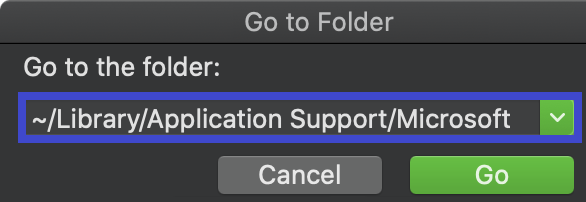
After that right click on the Teams folder, then click on Move to Trash.
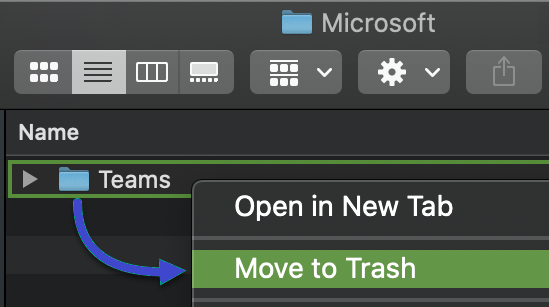
Now use the Spotlight Search, and enter “Keychain” and then select Keychain Access.
Within Keychain, you need to search for “Microsoft Teams” to find the MS Teams Identities Cache entry. Then right-click on that and select the delete option and close the Keychain Access app.
Restart Microsoft Teams app. Login window will appear hopefully.
For Windows: Clear Teams Cache
Conclusion
Hope the above solution will help you to fix sign-in error 50058.
Please let us know in comments which method tricks for you and resolve this issue. If you found any other solution, please share with us.
Download PC Repair Tool to quickly find & fix Windows errors automatically
The Error Code 50058 occurs when something is wrong with your sign-in details on the Office 365 platform, especially with services like Teams, OneDrive, Outlook, etc. The error is annoying as users cannot sign into their services, and folders won’t sync until the issue is resolved. In this article, we will cover different solutions to fix error code 50058 in Teams, OneDrive, Outlook, etc. Some users have reported getting this sign-in error message when they leave their office and try to log into MS services using their home computers.
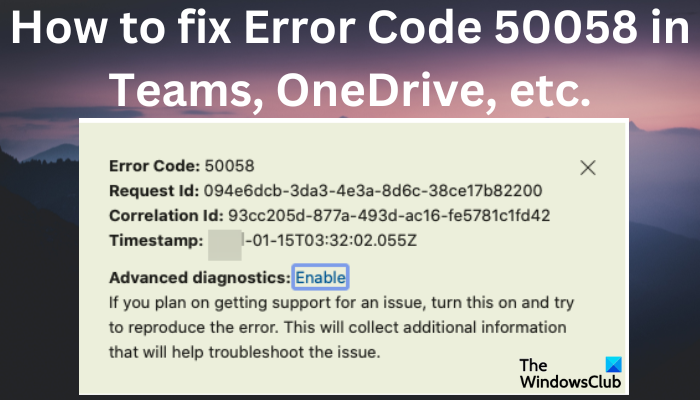
What causes error code 50058 in Teams, OneDrive, etc?
The error code 50058 can occur in various Microsoft service apps. It prevents you from logging into your account or that of your organization. The following are the causes of code error 50058:
- The Single Sign-On (SSO) is corrupted or invalid. If you access your account using SSO, it might have issues that may trigger error code 50058.
- Your user ID is incorrect. There is the possibility that you are using a different ID to sign it. You might have other account credentials for different MS apps.
- You are entering an expired password. If your account has a time limit, you might lose its access after a certain period.
- You are using a corrupted profile. If you used to access your account using your organization’s credentials, the Windows profile might be corrupted making it unable to sign in to these MS apps.
Having looked at what causes error code 50058, it would be good to see how to correct these issues. Continue reading.
Fixing error code 50058 in Office 365 apps and services is easy with the straightforward solutions we will cover.
- Reset your password
- Sign out from all SSO apps
- Try to clear your credentials on the PC
- Try using a new user profile
Let us look into these solutions in detail.
1] Reset your password
Since error 50058 is account password related, the first solution would be to reset the password. You can do it yourself if you are the owner of the account. If the account belongs to an administrator or organization, try to reach out so that they can reset the password, or if they changed the passwords, they would issue a new one.
2] Sign out from all SSO apps
If you use any SSO tools, we recommend you sign out and sign in again. Sometimes, the issue can be triggered by the app itself, and disconnecting and reconnecting can resolve the error code. It’s normal for some apps to experience some temporary glitches. Such SSO applications may include Azure, among others.
3] Try to clear your credentials on the PC
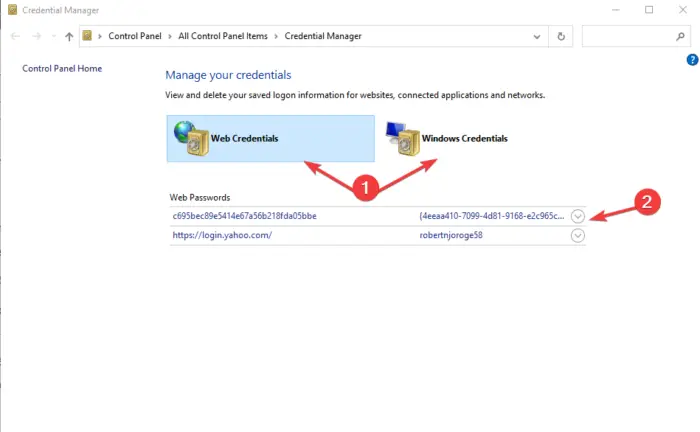
Clearing your credentials on your PC may resolve error code 50058. However, this solution is applicable if you are not facing the same issue when you access the apps on the web. To clear any stored credentials on your PC, follow the steps below.
- Type Control Panel on the search box and press Enter.
- Go to the User Accounts option and then click Credential Manager or Manage your credentials.
- You will see two options; Web Credentials and Windows Credentials. Select each at a time, click on the drop-down arrow next to the Office app, and remove any stored credentials.
- After that, go to your PC Settings by pressing Win + I, and then head to Accounts.
- Select Email & accounts. Check if the accounts you removed with their credentials are still present. If so, sign out everywhere.
4] Try using a new user profile
Perhaps your account has some issues and trying a new Windows profile might help you understand where the issue is. A new profile comes with clean credentials and caches, so you might access the Office apps and you won’t get error code 50058.
You can create a new account in the Windows Settings app. Go to Accounts > Other users > Add account. Enter your Email or phone and then go to Next > Finish. Then, log in to your PC and the affected Office app using the new account. Try to see if the error code 50058 is resolved.
If the issue persists, we recommend contacting the respective customer support for further assistance, as some issues might be specific to your account or computer.
We hope one of these solutions helps you fix error code 50058.
Fix: Microsoft Teams Error code 80080300
What is login error 50058 in Microsoft Teams?
The login error code 50058 in Teams means that the app tried to log in silently, but the user profile couldn’t be logged in. The app must start an interactive flow and allow users to sign in. You might need to contact Teams Support to get some help.
How do I fix Incorrect login credentials on Windows?
The best and most secure solution to fix incorrect login credentials is to get the right account details. Alternatively, if you use your computer at home and don’t need to protect it with a password, you can disable the login password. Type netlwiz in the search box and press Enter. Uncheck the box next to Users must enter user name and password to use this computer. Apply the changes, and that’s it; the next time you start your computer, you won’t require a password to access it.
Read: How to recover lost forgotten Windows password?
Robert holds a B.Tech. He has a knack for solving problems in people’s lives. With his background in technology, he is able to write complex topics in simple, understandable terms. He enjoys writing all matters Windows.
Microsoft Office 365 and MS Outlook will give you an error code 50058 if the Office credentials are wrong or broken. Several people have said that Fix Error Code 50058 in Teams and OneDrive and are looking for ways to fix the problem.
But it all leads to the password expiring, which happens most often when they only have access to an account for a certain amount of time or when the account is closed after a certain amount of time. If the first solution doesn’t work, we will give you other options to help you solve the problem. Follow the steps below to fix error number 50058 in Office 365. Go to their official website to find out more.
3 Simple Fix: Error Code 50058 in Teams and OneDrive
Create a new user account
- Open the Settings menu by pressing the Win + I keys.
- Click on Accounts.
- Click on Other users.
- Select Add account.
- Enter the email or phone.
- Click Next.
- Hit Finish as your Microsoft Account is good to go.
- Log out of the current account.
- Login to your PC using a new account.
- Try login into your Outlook or Microsoft 365 apps using the Office account and check if this fixes the issue or not.
Clear the Teams credentials
- Use the Windows key+R keys together.
- Then, paste this and hit Enter.
- control keymgr.dll
- Go to the “Web Credentials” tab.
- Windows stores up all your passwords for all the installed apps. Look whether you can find any Office app credentials. Just expand the particular credential and tap “Remove“.
- Make sure to remove all the Office credentials.
- Switch to the “Windows Credentials” tab.
- As the same way as before, look for any Office app credentials. If you can locate any such item, expand it and remove the credentials.
- Then, go to “Accounts“.
- On the opposite page, choose “Emails & accounts” to open that.
- Check whether you can find the account that you are using in Office apps.
Reset the account password
If removing the Office password doesn’t work, you should reset the account password. What this does is removes access to all the signed-in devices. You can reset the account password form here.
What is Error 50058?
Error 50058 usually means “Unable to complete the security token request” when using Microsoft’s Azure Active Directory (AD) authentication service. This error happens when a user tries to log in to an Azure AD service, but the service can’t finish the authentication process and give the user a security token.
Most of the time, the error can be fixed by figuring out where the problem came from and fixing any problems with the authentication process. This could mean testing the network connection, making sure the user has the right credentials, and looking at the AD service configuration and logs to find and fix any problems.
What causes error code 50058 in Teams and OneDrive?
- The Single Sign-On (SSO) is broken or doesn’t work. If you use SSO to get to your account, it could have problems that lead to error code 50058.
- Your user name is wrong. There is a chance that you are signing it with a different ID. You might have other login information for other Microsoft apps.
- You are using a password that is no longer valid. If your account has a time limit, you may not be able to use it after that time.
- You are using a profile that is broken. If you used to sign in to your account with your organization’s credentials, the Windows profile might be broken, making it impossible to sign in to these Microsoft apps.
FAQs
What is error code 50058 in Outlook login?
What is this? You are not using the correct ID: Chances are you are not signed into Outlook with the same ID as Microsoft Office 365 or vice versa. The SSO is not valid or corrupted: If you have set SSO (Single Sign In) and if it is not valid or corrupted, you will get error code 50058.
What is error code 50058 in teams in Windows 10?
What is login error 50058 in Microsoft Teams? The login error code 50058 in Teams means that the app tried to log in silently, but the user profile couldn’t be logged in. The app must start an interactive flow and allow users to sign in. You might need to contact Teams Support to get some help.
Why my Microsoft account is not working for Teams?
Make sure that the user has Internet access. Then, use the Network assessment tool to verify that the network and network elements between the user location and the Microsoft network are configured correctly. This is necessary to enable communication to the IP addresses and ports that are required for Teams calls.
Kevin Hawk
Over the past several years, Kevin Hawk has been writing about various technology-related topics, including computing, gaming, mobile, home entertainment technology, toys, and smart homes. Outside of his professional life, Rob is quite enthusiastic about riding motorcycles, skiing and snowboarding, and participating in team sports, with football and cricket being two of his favorites.

Microsoft Error Code: 50058
Troubleshooting details
If you contact your administrator, send this info to them.
Copy info to clipboard

Advanced diagnostics: Disable
If you plan on getting support for an issue, turn this on and try to reproduce the error.
This will collect additional information that will help troubleshoot the info


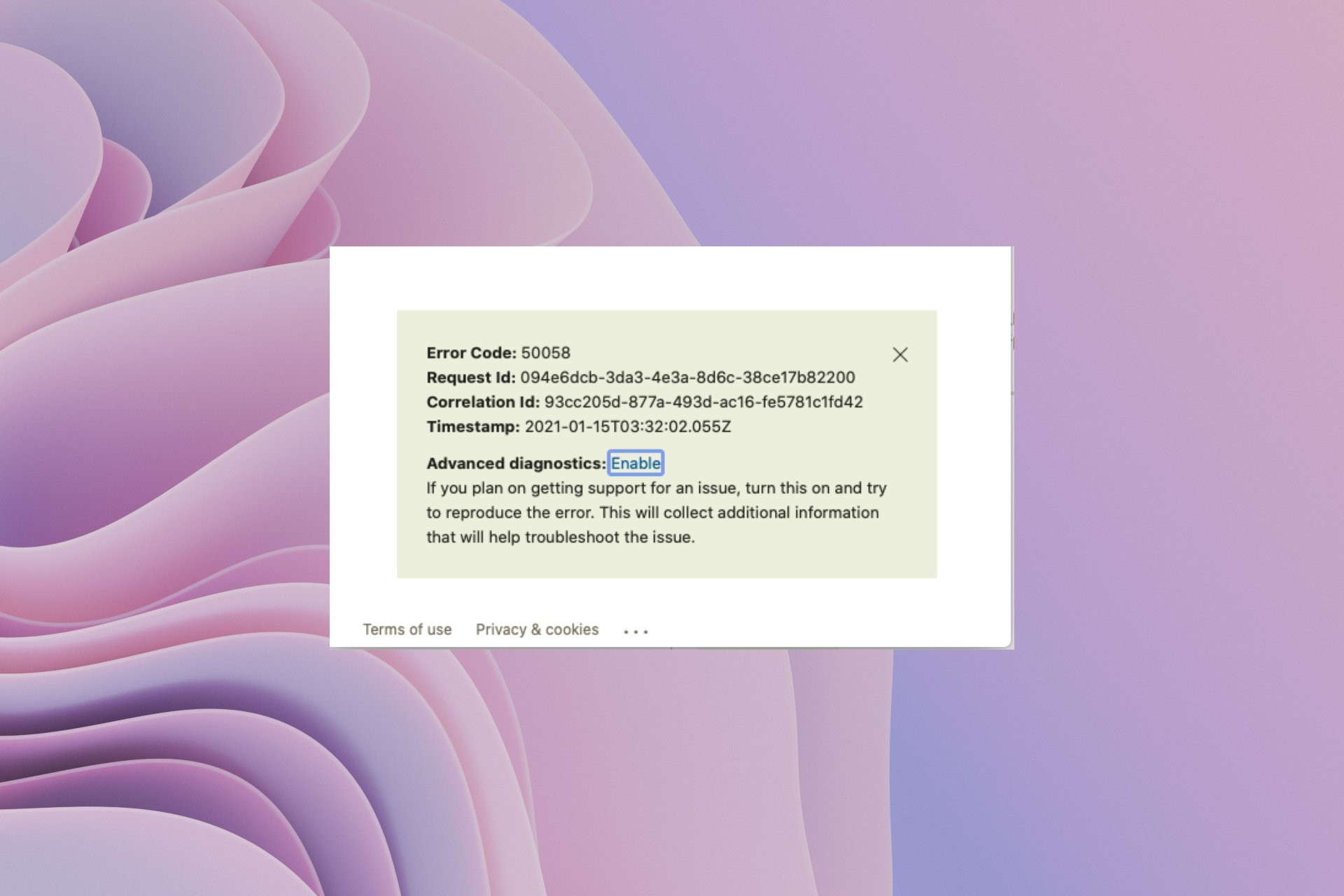
Error Code: 50058
Request Id: 69f8f5e2-a338-4a81-9432-0133912c2700
Correlation Id: 1701fc2a-6a10-46e0-a3a1-ea161fc5123b
Timestamp: 2020-09-12T13:35:29.398Z
If you get the above error 50058 while trying to log in to Microsoft applications such as Teams, Office365, or Outlook, it is mostly due to SSO or login-related issues.
You can check what the error code means by going to Microsoft URL: https://login.microsoftonline.com/error
| Error Code | 50058 |
| Message | Session information is not sufficient for single-sign-on. |
| Remediation | This means that a user is not signed in. This is a common error that’s expected when a user is unauthenticated and has not yet signed in. If this error is encountered in an SSO context where the user has previously signed in, this means that the SSO session was either not found or invalid. This error may be returned to the application if prompt=none is specified. |
Comments:
More Posts related to Microsoft,
- Microsoft Office Excel — Couldnt Open the Workbook — The workbook cannot be opened.
- [Fix] Microsoft AADSTS900561: The endpoint only accepts POST requests. Received a GET request.
- Remove Possible Data Loss Message from Microsoft Excel
- [Fix] Cannot connect to Microsoft SQL Server, Error: 18456
- Microsoft Stream — This may not be for you, It looks like you don’t have permission to watch this video
- How to fix Microsoft Windows 10 update error 80070020
- Outlook — The mailbox isn’t available. This may have occurred because the license for the mailbox has expired.
- [Fix] Connect to Minecraft Remote Connect URL via https //aka.ms/remoteconnect
- AADSTS90033: A transient error has occurred. Please try again. [Microsoft 365]
- Fix Power Automate FLOW error — InvalidTemplate Unable to process template language expressions in action
- FCM Messages! Testing Notifcation from Microsoft to investigate this problem [Microsoft Teams]
- Remove mailto link from Microsoft 365 Word Document Email Text
- How to turn off Dark theme in Excel for Mac
- Microsoft Sign-in Error Code: 50058 (Request Id, Correlation Id and Timestamp)
- Fix 0x80070194 Error When Opening Microsoft OneDrive File
- [fix] Microsoft Error Code 0x80004005 — Unspecified error
- Fix — Microsoft Windows Error Code: 0xA00F4244 NoCamerasAreAttached
- Save a Notepad file as Microsoft Excel file
- MO229507 UK Europe users cannot access Microsoft 365 — SharePoint, OneDrive, Teams, Admin center, Planner, Yammer
- How to know file encoding in Microsoft Windows Notepad?
- How to save a file as csv in Windows Notepad?
- Microsoft Office Mac Ventura: System Settings must be changed before Microsoft AutoUpdate can run
- Fix Error CAA50021 — Number of retry attempts exceeds expectation — Microsoft 365 Apps
- Microsoft 365 Excel — PRO TIP Discover insights quickly with Power BI, which is already included in your Microsoft services, See it in action
- [Microsoft Teams 4c7] Modern authentication failed here, but you’ll still be able to sign in. Your status code is 4c7 error
Aug 17 2021
11:38 PM
Hello there.
The Teams app is asking me for a code. It sends a code number to my email, but that code doesn’t do anything and it asks for a new code again and again.
It used to work ok a week ago, and O have been using the app for a while now (2 years or so)
I don’t know what to do, I need to upload some files ASAP. I’m a student btw.
-
All Discussions -
Previous Discussion -
Next Discussion
7 Replies
Aug 18 2021
12:58 AM
That’s strange…Have you reported your Teams Admin this problem? Have you tried to reinstall again the App or at least be sure it’s updated?
Aug 18 2021
04:51 AM
It is updated and a I joined the beta program yesterday, just in case.
The admin is my teacher, I’m trying to get it contact with him, but I can’t think how he could work this out.
Aug 18 2021
05:10 AM
This is what the Teams app sends me to my e-mail. I really don’t know what’s going on.
As you can see it’s in English which is more weird.
Aug 18 2021
05:52 AM
The code you have received is not related to the error you are having while trying to use Teams…Do you know if you are acceding to Teams as guest or as user with a license assigned? It seems the App is trying to authenticate you, but it’s not being successful
Aug 18 2021
06:01 AM
I’m accessing it the same as always. I can see my profile and files, folders, chats, everything, but after 5 seconds or so, it asks for a number.
Aug 18 2021
06:33 AM
Solution
I’ve reinstalled the app , now works…
Aug 04 2022
02:28 AM
How do I fix Error 50058?
Step-by-step process – How to fix Office 365 error code 50058
On your Windows computer, type in “Credential Manager” in the search bar.
Now click on “Credential Manager”.
Now click on “Windows Credentials”.
Find the credentials related to your Office account and change them.
Finally, close and test the fix.
Regards,
Will
Update your login info in your Windows Credentials Manager to fix the problem
by Sagar Naresh
Sagar is a web developer and technology journalist. Currently associated with WindowsReport and SamMobile. When not writing, he is either at the gym sweating it out or playing… read more
Updated on March 6, 2023
Reviewed by
Alex Serban

After moving away from the corporate work-style, Alex has found rewards in a lifestyle of constant analysis, team coordination and pestering his colleagues. Holding an MCSA Windows Server… read more
- When there is something wrong with your login info on Office 365, you will face the error code 50058.
- You can fix it by creating a new local user profile and try logging into Office 365.
- Otherwise, log out of all your SSO tools and re-login to check whether this resolves the problem.
XINSTALL BY CLICKING THE DOWNLOAD FILE
This software will repair common computer errors, protect you from file loss, malware, hardware failure and optimize your PC for maximum performance. Fix PC issues and remove viruses now in 3 easy steps:
- Download Restoro PC Repair Tool that comes with Patented Technologies (patent available here).
- Click Start Scan to find Windows issues that could be causing PC problems.
- Click Repair All to fix issues affecting your computer’s security and performance
- Restoro has been downloaded by 0 readers this month.
When the Office credentials are wrong or corrupted, you will encounter an error code 50058 with Microsoft Office 365 and MS Outlook. Several users have reported facing the error code 50058 and are looking for solutions to fix the issue.
In this guide, we will give you a bunch of solutions that will help you resolve the error code 50058. We will also explain to you what are the leading causes of the issue so that you can ideally troubleshoot it faster if it occurs again. Let us get right into it.
Why am I getting the error code 50058?
Here are some of the most common reasons as well as the official reasons, given by Microsoft because of which you will face the error code 50058.
- You are not using the correct ID: Chances are you are not signed into Outlook with the same ID as Microsoft Office 365 or vice versa.
- The SSO is not valid or corrupted: If you have set SSO (Single Sign In) and if it is not valid or corrupted, you will get error code 50058.
- Your Windows profile is corrupt: If an employee used the Office application before, then if they leave the organization, their profile could get corrupt and thus cause the issue.
- The password has expired: When your account has limited time access then your account might get terminated after a certain amount of time when entering an expired password.
How can fix the error code 50058?
- Why am I getting the error code 50058?
- How can fix the error code 50058?
- 1. Fix using the Credentials Manager
- 2. Create a new user account
- 3. Log out of all your SSO tools
1. Fix using the Credentials Manager
- Open the Start menu by pressing the Win key.
- Type Credentials Manager and open it.

- Click on Windows Credentials.

- Locate Office items.
- Click on the drop-down icon next to the Office item.
- You will see the username and password in encrypted form.
- Click Edit.
- Re-enter the Office 365 credentials.
- Restart your PC.
- Launch Office 365 or Outlook and check if this resolves the issue or not.

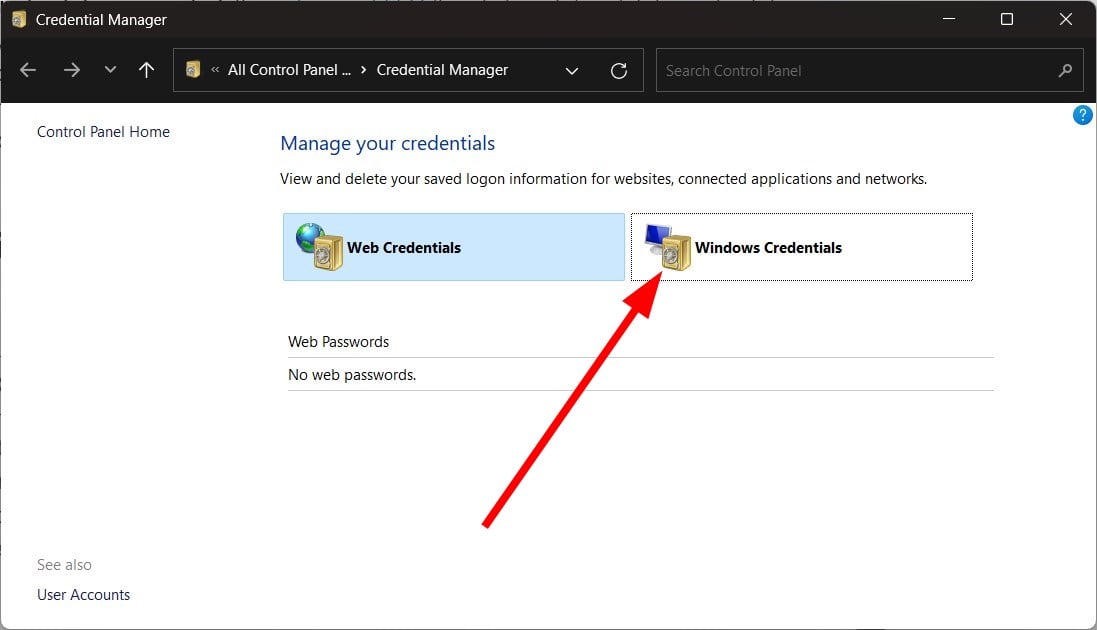
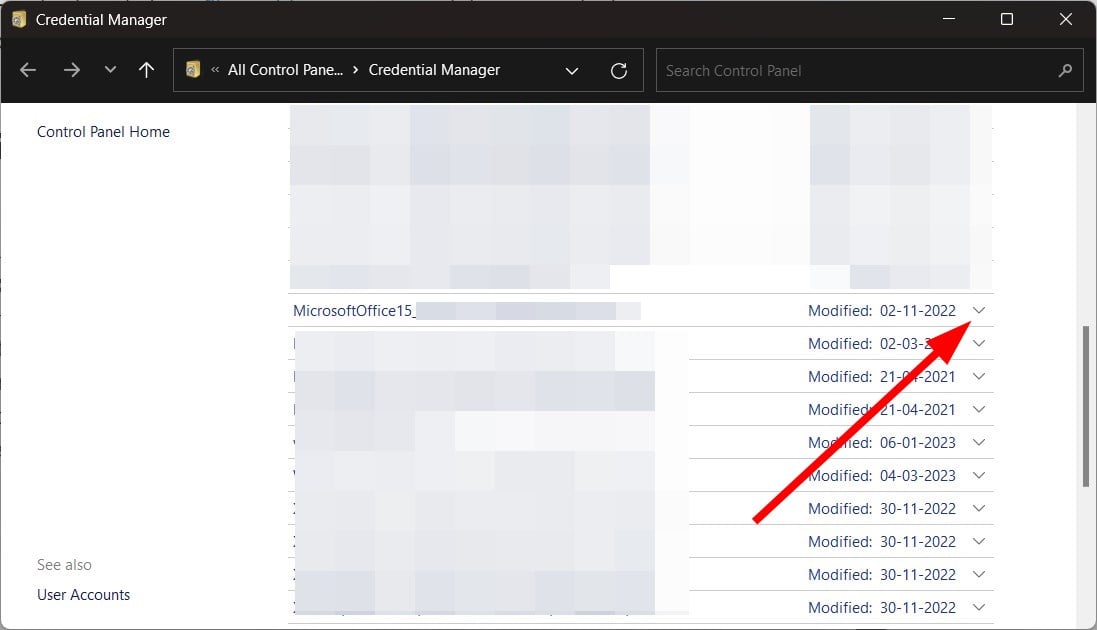
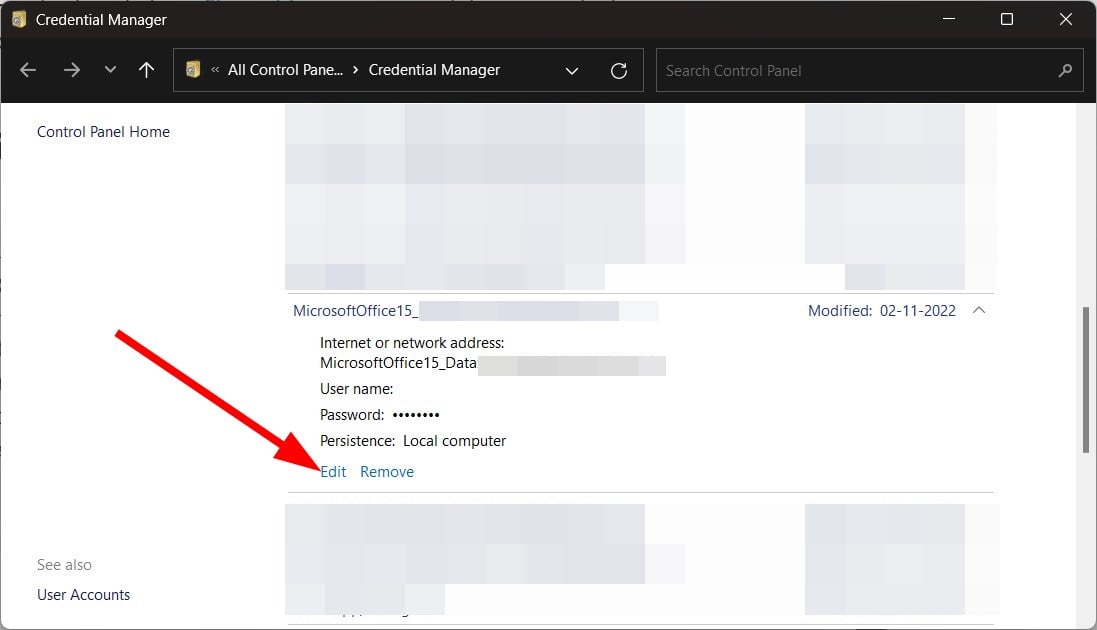
The Credentials Manager stores the password to allow users to access their accounts without the need to log in every time they access the application.
In case you have recently changed the password or your account has been audited, then some information that is changed will cause issues and ultimately throw errors such as error code 50058.
- Runtime Error 13: Type Mismatch [Fix]
- 0x800CCE05 Outlook Unknown Error: 4 Ways to Fix It
- Microsoft Mac Admins: here’s what you need to know about it
- 5 Quick Ways to Unlock Grayed-Out Menus in Excel
2. Create a new user account
- Open the Settings menu by pressing the Win + I keys.
- Click on Accounts.

- Click on Other users.
- Select Add account.
- Enter the email or phone.

- Click Next.
- Hit Finish as your Microsoft Account is good to go.
- Log out of the current account.
- Login to your PC using a new account.
- Try login into your Outlook or Microsoft 365 apps using the Office account and check if this fixes the issue or not.
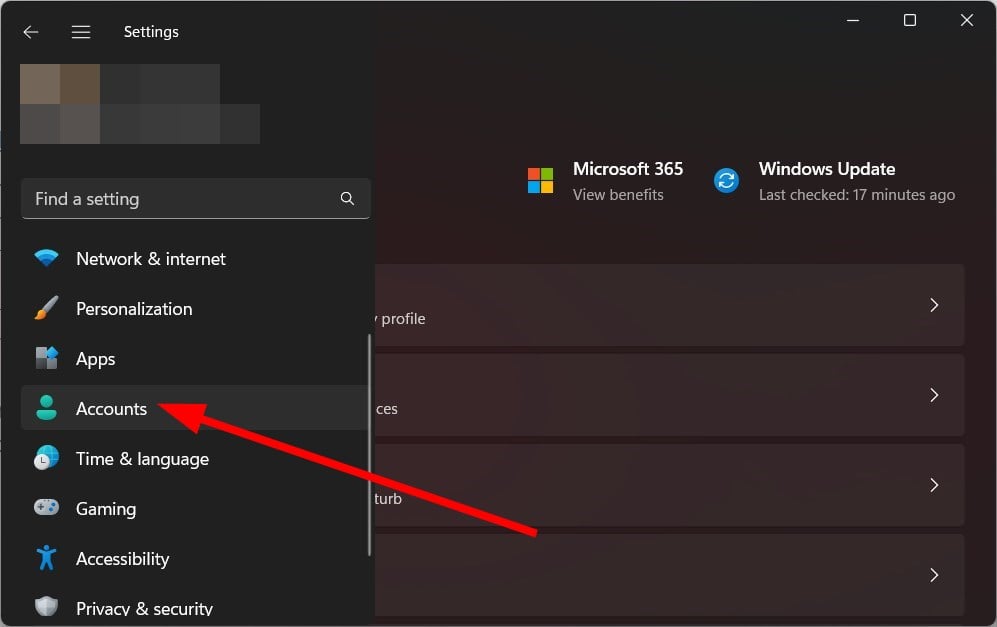
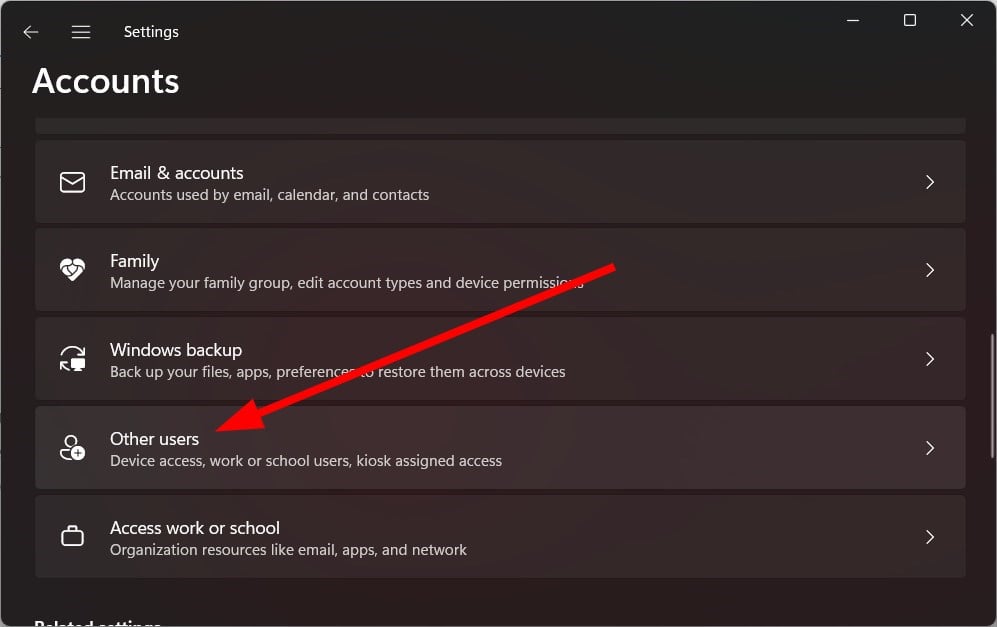
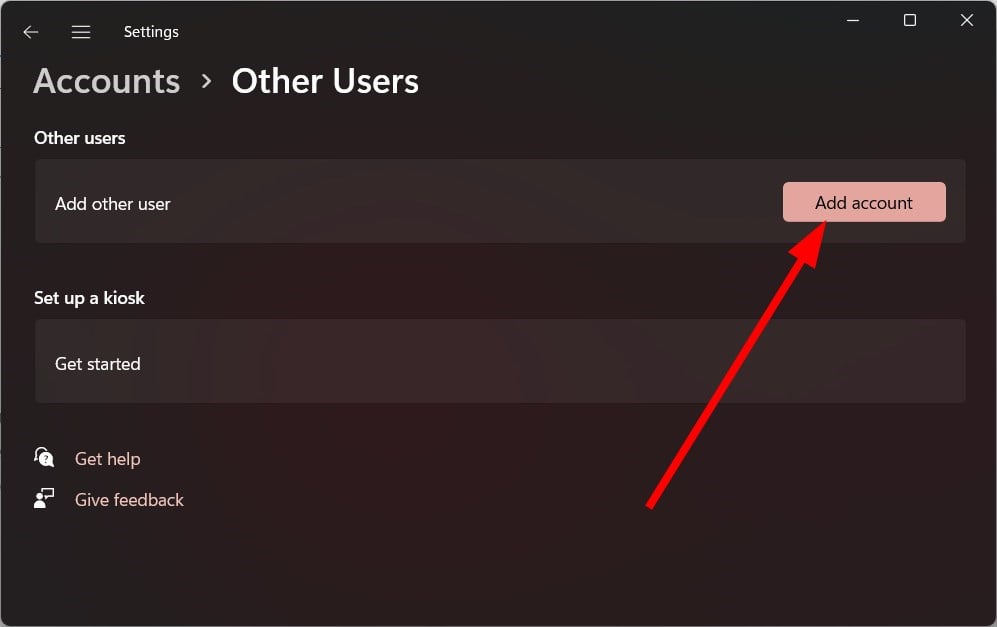

Often the issues associated with your local account can cause issues with your Office account. Try creating a new account and logging in to your Office account and check if this fixes the error code 50058 or not.
3. Log out of all your SSO tools
Some PC issues are hard to tackle, especially when it comes to corrupted repositories or missing Windows files. If you are having troubles fixing an error, your system may be partially broken.
We recommend installing Restoro, a tool that will scan your machine and identify what the fault is.
Click here to download and start repairing.
If you are using an SSO or Single Sign On tools such as Azure or ManageEngine Identity Manager Plus, then we would recommend you log out of all the SSO tools and sign back in.
This solution works because an issue with the associated program could trigger the error code 50058. Frequent sign-in prompts or error codes are also the results of such problems.
That is it from us in this guide. To fix error code 135011 Your organization has disabled this device, you can check out our guide.
Besides, there are a bunch of other issues related to Microsoft Office 365. We have compiled a bunch of solutions for commonly known issues.
Is Office 365 slowing down your PC? If so, then you can check out our guide which lists some of the best solutions to fix the issue.
Several users have reported facing an error message We’ve run into a problem with your Microsoft 365 subscription. You can check out the solutions in our guide to resolve the problem.
Feel free to let us know in the comments below, which one of the above solutions resolved the error code 50058 or not.
Still having issues? Fix them with this tool:
SPONSORED
If the advices above haven’t solved your issue, your PC may experience deeper Windows problems. We recommend downloading this PC Repair tool (rated Great on TrustPilot.com) to easily address them. After installation, simply click the Start Scan button and then press on Repair All.
