
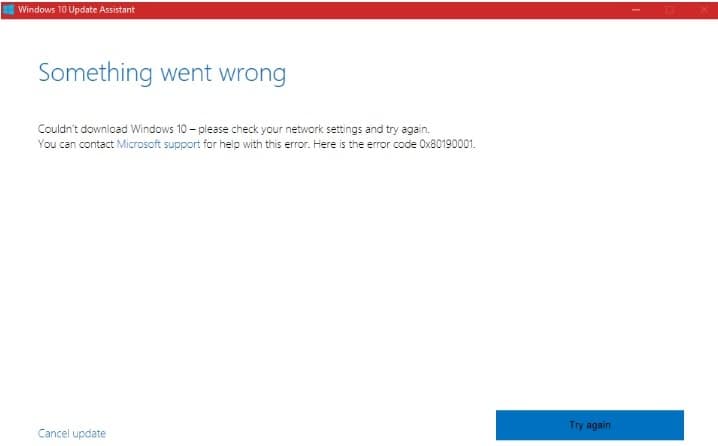
За последнее время было замечено увеличение количества обсуждений об ошибке 0x80190001. Данный баг не является чем то новый в истории Windows. Похоже на то, он буквально перебрался из сервисов Центра обновления Windows, где располагался ранее, в Windows Store, а порой он может появиться даже на Xbox.
На самом деле, появления ошибки 0x80190001 в Windows Store и Центре обновления Windows связаны между собой. Если Windows Store не удается нормально функционировать, загрузка последних обновления будет заблокирована или временно ограничена.
Множество пользователей столкнулись с этой ошибкой во время перехода с Windows 7 до Windows 10. Однако, с недавнего времени данная ошибка начала донимать преимущественно пользователей на Windows 10. Когда система ищет самые последние обновления, процесс поиска застревает и, со временем, вылетает с ошибкой 0x80190001.
Плохая новость заключается в том, что ни Майкрософт, ни другие официальные источники все еще не осведомлены об этой проблеме. Хорошая новость заключается в том, что в Интернете все же можно найти несколько методов, которые могут справиться с ошибкой 0x80190001.
Прежде чем мы перейдем к этим методам, давайте перечислим несколько действий, которые были бы неплохо выполнить перед ними:
- Просканируйте систему на наличие вирусных и вредоносных угроз.
- Запустите встроенную в систему утилиту по устранению проблем.
- Временно отключите антивирусное обеспечение.
Содержание
- Методы для решения ошибки 0x80190001
- Метод №1 Использования средства для создания установочного носителя
- Метод №2 Загрузка нужного обновления вручную
- Метод №3 Использование команд DISM и SFC
- Метод №4 Проверка корректности настроек даты и времени
Методы для решения ошибки 0x80190001
Метод №1 Использования средства для создания установочного носителя
Если вы столкнулись с ошибкой 0x80190001 при попытке обновиться с Windows 7 до Windows 10, то вы должны попробовать воспользоваться Средством для создания установочного носителя.
- Пройдите на официальный сайт Майкрософт и загрузите оговариваемое средством к себе на компьютер.
- Скачав средство, запустите его исполнительный файл – MediaCreationTool.exe.
- Нажмите на кнопку «Принять», как только перед вами появится запрос об уведомлениях и условиях лицензии.
- Далее выберите опцию «Обновить этот ПК» и нажмите «Далее». Также не забудьте выбрать опцию «Сохранить личные данные и приложения». Если вы этого не зделаете, то вся ваша личная информация будет стерта во время процесса обновления.
- И наконец-то, нажмите на кнопку «Установить» и дождитесь окончания процесса.
Метод №2 Загрузка нужного обновления вручную
Если ошибка 0x80190001 появляется во время установки самого последнего патча или обновления безопасности для Windows 10, то вы можете попробовать выполнить нужное обновление вручную.
- Нажмите комбинацию Win+I и перейдите в раздел «Обновление и безопасность».
- Кликните на ссылку «Центр обновления Windows» и найдите последнее обновление KB. Копируйте номер нужного вам обновления в буфер обмена или же запишите его куда-то, что использовать в дальнейшем.
- Перейдите на веб-ресурс Каталога Центра обновления Майкрософт и вставьте номер обновления в поисковую строку, а затем нажмите Enter.
- Кликните на ссылку для скачивания нужного обновления, дождитесь его загрузки на свой компьютер.
- Откройте загруженное обновление и запустите процесс обновления.
В этом варианте, никакой ошибки 0x80190001 возникнуть не должно.
Метод №3 Использование команд DISM и SFC
- Нажмите правой кнопкой мыши на Пуск и выберите «Командная строка(Администратор)».
- Как только откроется строка, вставляйте в нее следующие команды и нажимайте после каждой из них Enter:
- DISM.exe /Online /Cleanup-image /Restorehealth
- sfc /scannow
Метод №4 Проверка корректности настроек даты и времени
- Нажмите Win+S.
- Впишите в поисковую строку «Изменение даты и времени».
- Включите параметры «Установить время автоматически» и «Автоматическая установка часового пояса».
- Сохраните изменения и закройте окно с настройками.
На данный момент, это все методы решения для проблемы в виде ошибки 0x80190001, и мы надеемся, что хотя бы какой-то из них смог вам справиться с ней.
На чтение 8 мин. Просмотров 3.8k. Опубликовано 03.09.2019
Иногда установка последних обновлений на ваш компьютер Windows может занять больше времени, чем ожидалось, поскольку существуют различные технические проблемы и ошибки, которые могут блокировать и/или ограничивать процесс обновления.
Одна из наиболее распространенных ошибок обновления Windows – ошибка 0x80190001 . Вот как один пользователь описывает это:
Обновление до windows 10 с windows 7 pro. Неоднократно получая код ошибки 0x80190001 после долгого ожидания загрузки. Также есть сообщение для проверки настроек сети. Специалист по устранению неполадок не смог найти никаких проблем, поэтому я удалился из домашней группы. Не сделал разницы
Эта ошибка влияет на каждую версию Windows. На самом деле, многие пользователи сообщают, что ошибка 0x80190001 блокирует установку Creators Update.
Узнайте, как бесплатно перейти на Windows 10, прочитав наше подробное руководство!
Содержание
- Как исправить ошибку 0x80190001
- Решение 1. Запустите средство устранения неполадок обновления
- Решение 2. Отключите интернет-соединение
- Решение 3 – Проверьте свой антивирус
- Решение 4 – Восстановите ваши системные файлы
- Решение 5 – Отключите все периферийные устройства
- Решение 6. Загрузите и установите обновление вручную
- Решение 7. Убедитесь, что дата и время указаны верно
- Решение 8 – Выполните Чистую загрузку
- Решение 9 – Выполнить обновление на месте
Как исправить ошибку 0x80190001
Ошибка 0x80190001 может помешать загрузке новых обновлений, что может привести к проблемам совместимости и безопасности. Говоря о проблемах обновления, вот некоторые проблемы, о которых сообщили пользователи:
- Не удалось обновить Windows 10 – . Если обновление Windows 10 не удалось из-за этого кода ошибки, обязательно попробуйте некоторые из наших решений и проверьте, решает ли это проблему.
- 0x80190001 Обновление создателей, Windows 10 . Многие пользователи сообщали об этой ошибке при попытке установить Обновление создателей. Имейте в виду, что эта проблема может повлиять на любое обновление Windows 10, но в большинстве случаев вы можете решить эту проблему, отключив антивирус.
Решение 1. Запустите средство устранения неполадок обновления
По словам пользователей, одним из способов исправить ошибку 0x80190001 является использование средства устранения неполадок Центра обновления Windows.
Как вы, возможно, знаете, Windows поставляется с различными средствами устранения неполадок, которые могут автоматически исправлять различные проблемы, и для решения этой проблемы вам просто нужно сделать следующее:
- Нажмите Ключ Windows + I , чтобы открыть приложение Настройки .
-
Перейдите в раздел Обновление и безопасность .

-
Выберите Устранение неполадок в меню слева. На правой панели выберите Центр обновления Windows и нажмите Запустить средство устранения неполадок .
- Следуйте инструкциям на экране, чтобы завершить процесс.


После устранения неполадок попробуйте обновить Windows еще раз и проверьте, сохраняется ли проблема.
Мы уже много писали об ошибках обновления до Windows 10. Добавьте эту страницу в закладки, если она понадобится вам позже.
Решение 2. Отключите интернет-соединение
По словам пользователей, вы можете исправить ошибку 0x80190001, просто отключив интернет-соединение. Убедитесь, что ваше обновление загружено и установлено.
В процессе установки отключите интернет-соединение.
После этого следуйте инструкциям на экране для завершения установки. Это не лучшее решение, но немногие пользователи утверждают, что оно работает, поэтому вы можете попробовать его.
Решение 3 – Проверьте свой антивирус

Если вы не можете обновить Windows из-за ошибки 0x80190001, возможно, проблема в антивирусном программном обеспечении. Хотя антивирусные инструменты обеспечивают защиту, они часто могут влиять на вашу систему и вызывать различные ошибки.
Чтобы решить эту проблему, многие пользователи предлагают временно отключить определенные антивирусные функции и проверить, помогает ли это. Если проблема не устранена, следующим шагом будет полное отключение антивируса.
В худшем случае единственным вариантом может быть удаление стороннего антивируса с вашего ПК и проверка, если проблема все еще существует.
Если удаление антивируса решает проблему, вам следует подумать о переходе на другое антивирусное решение.
Существует множество отличных антивирусных инструментов, но если вы хотите, чтобы приложение не мешало вашей системе, мы рекомендуем вам попробовать BullGuard .
Решение 4 – Восстановите ваши системные файлы
Другой причиной ошибки 0x80190001 может быть повреждение файла, и если ваши системные файлы повреждены, вам необходимо восстановить их с помощью сканирования SFC.
Это довольно просто, и вы можете сделать это, выполнив следующие действия:
-
Нажмите Windows Key + X , чтобы открыть меню Win + X. Теперь выберите Командная строка (Администратор) или Powershell (Администратор) .
-
При запуске Командная строка выполните команду sfc/scannow .
- Сканирование SFC начнется.Имейте в виду, что сканирование SFC может занять 10-15 минут, поэтому не вмешивайтесь в него и не запускайте никакие другие приложения в фоновом режиме.


После завершения сканирования SFC проверьте, сохраняется ли проблема. Если проблема все еще сохраняется или если вы не смогли запустить или завершить сканирование SFC, вам нужно вместо этого использовать сканирование DISM.
Для этого запустите командную строку от имени администратора и выполните команду DISM/Online/Cleanup-Image/RestoreHealth .

После того, как сканирование завершено, проверьте, остается ли проблема здесь. Если проблема не устранена или вы не смогли выполнить сканирование SFC раньше, запустите его сейчас и проверьте, решает ли это проблему.
Epic Guide alert! Все, что вам нужно знать о командной строке!
Решение 5 – Отключите все периферийные устройства
Если у вас есть проблемы с ошибкой 0x80190001, возможно, проблема в ваших USB-устройствах. Иногда USB-устройства могут мешать работе вашей системы, что может привести к этим и другим проблемам.
Тем не менее, вы можете решить проблему, просто отключив все USB-устройства перед установкой обновления.
Отключите все USB-устройства, кроме мыши и клавиатуры. Как только все отключится, попробуйте установить обновление снова.
Это не самое эффективное решение, но несколько пользователей сообщили, что оно работает, поэтому не стесняйтесь попробовать его.
Решение 6. Загрузите и установите обновление вручную
Несколько пользователей сообщили, что им удалось обойти ошибку 0x80190001, просто загрузив обновление вручную. Это относительно просто, и вы можете сделать это, выполнив следующие действия:
- Найдите номер КБ проблемного обновления. Вы можете сделать это из раздела Центра обновления Windows в Windows или с веб-сайта истории обновлений.
- Получив номер КБ, перейдите на веб-сайт каталога обновлений Microsoft и введите номер КБ.
-
Список результатов появится. Загрузите обновление, соответствующее архитектуре вашей системы, и установите его.

Мы должны отметить, что это не постоянное решение, и проблема может появиться снова, когда вы попытаетесь обновить свою систему снова.
Каталог обновлений Microsoft не загружает и не устанавливает обновления? Решите эту проблему быстро!
Решение 7. Убедитесь, что дата и время указаны верно
Несколько пользователей сообщили, что ошибка 0x80190001 произошла из-за неправильной даты и времени на их ПК.
Однако вы можете решить эту проблему, просто исправив дату и время. Это довольно просто сделать, и вы можете сделать это, выполнив следующие действия:
-
Нажмите правой кнопкой мыши на часы в правом нижнем углу и выберите в меню Настроить дату/время .
-
На правой панели отключите параметр Установить время автоматически . Подождите несколько секунд, а затем снова включите его.


После этого дата и время будут перенастроены и синхронизированы. Если вы хотите, вы также можете нажать кнопку Изменить и вручную настроить дату и время.
После обновления даты и времени попробуйте выполнить обновление снова и проверьте, сохраняется ли проблема.
Решение 8 – Выполните Чистую загрузку
В некоторых случаях эта проблема может возникать из-за сторонних приложений и служб, однако это можно исправить, выполнив Чистую загрузку. Это довольно просто сделать, и вы можете сделать это, выполнив следующие действия:
-
Нажмите Windows Key + R, , введите msconfig и нажмите ОК .
-
Когда откроется окно Конфигурация системы , перейдите на вкладку Службы и установите флажок Скрыть все службы Microsoft . Теперь нажмите кнопку Отключить все .
-
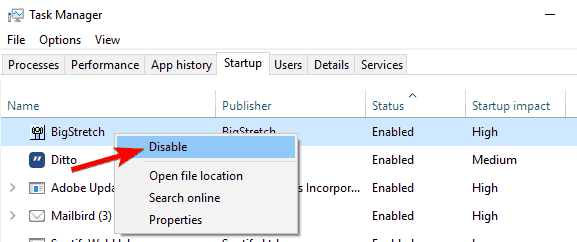
Перейдите на вкладку Автозагрузка и нажмите Открыть диспетчер задач .
-
Отключите все запускаемые приложения, щелкнув правой кнопкой мыши каждое приложение и выбрав в меню Отключить .
-
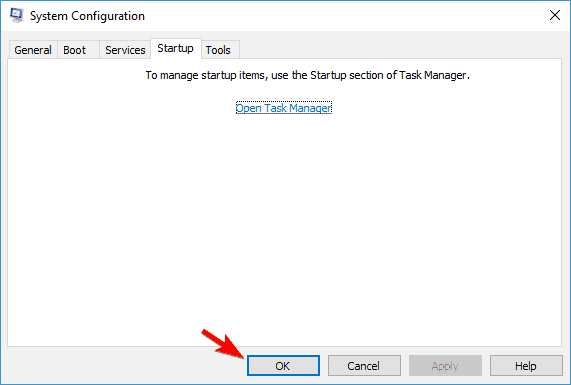
После отключения всех запускаемых приложений перейдите в окно «Конфигурация системы» и нажмите Применить и ОК , чтобы сохранить изменения.


Перезагрузите компьютер и проверьте, устранена ли проблема. Если вам удастся выполнить обновление, повторите эти шаги и включите все отключенные службы и приложения.
Windows 10 не загружается? Обратитесь к нашему руководству, чтобы решить эту проблему, как настоящий техник!
Решение 9 – Выполнить обновление на месте
По словам пользователей, иногда вы можете решить эту проблему, просто выполнив обновление на месте.Если вы не знакомы, выполнив обновление на месте, вы заставите Windows 10 обновиться до последней версии.
Это довольно просто, и вы можете сделать это, выполнив следующие действия:
- Перейдите на веб-сайт Microsoft по обновлению до Windows 10.
- Щелкните файл MediaCreationTool.exe и запустите его.
- Примите условия лицензии. Затем выберите Обновить этот компьютер сейчас и нажмите кнопку Далее.
- Установите флажок Сохранить личные файлы и приложения , чтобы сохранить свои приложения, файлы и настройки.
- Нажмите Установить, чтобы запустить процесс обновления.
После завершения установки у вас будет установлена последняя версия Windows, и проблема будет решена.
Это некоторые решения, которые могут помочь вам исправить ошибку 0x80190001, поэтому обязательно попробуйте их и дайте нам знать, если они работают.
Примечание редактора . Этот пост был первоначально опубликован в апреле 2017 года и с тех пор был полностью переработан и обновлен для обеспечения свежести, точности и полноты.
Your antivirus software might be interfering with the PC update
by Madalina Dinita
Madalina has been a Windows fan ever since she got her hands on her first Windows XP computer. She is interested in all things technology, especially emerging technologies… read more
Updated on December 20, 2022
Reviewed by
Vlad Turiceanu

Passionate about technology, Windows, and everything that has a power button, he spent most of his time developing new skills and learning more about the tech world. Coming… read more
- Error code 0x80190001 is one of the most common Windows update failures from older Windows OS to the latest.
- The error can prevent you from downloading new updates, leading to compatibility and security issues.
- One of the quick ways to fix the issue is to disable your antivirus software when updating your PC.
XINSTALL BY CLICKING THE DOWNLOAD FILE
This software will repair common computer errors, protect you from file loss, malware, hardware failure and optimize your PC for maximum performance. Fix PC issues and remove viruses now in 3 easy steps:
- Download Restoro PC Repair Tool that comes with Patented Technologies (patent available here).
- Click Start Scan to find Windows issues that could be causing PC problems.
- Click Repair All to fix issues affecting your computer’s security and performance
- Restoro has been downloaded by 0 readers this month.
Installing the latest updates on your Windows computer may take longer than expected.
That happens because various technical issues and errors can either block or limit the update process. Regarding update errors, we have provided fixes for notable ones like Windows 10 update error 0x8007042B.
Now, it is another notorious one in error 0x80190001 that is hindering Windows users from updating their PCs. Here’s how one user describes it:
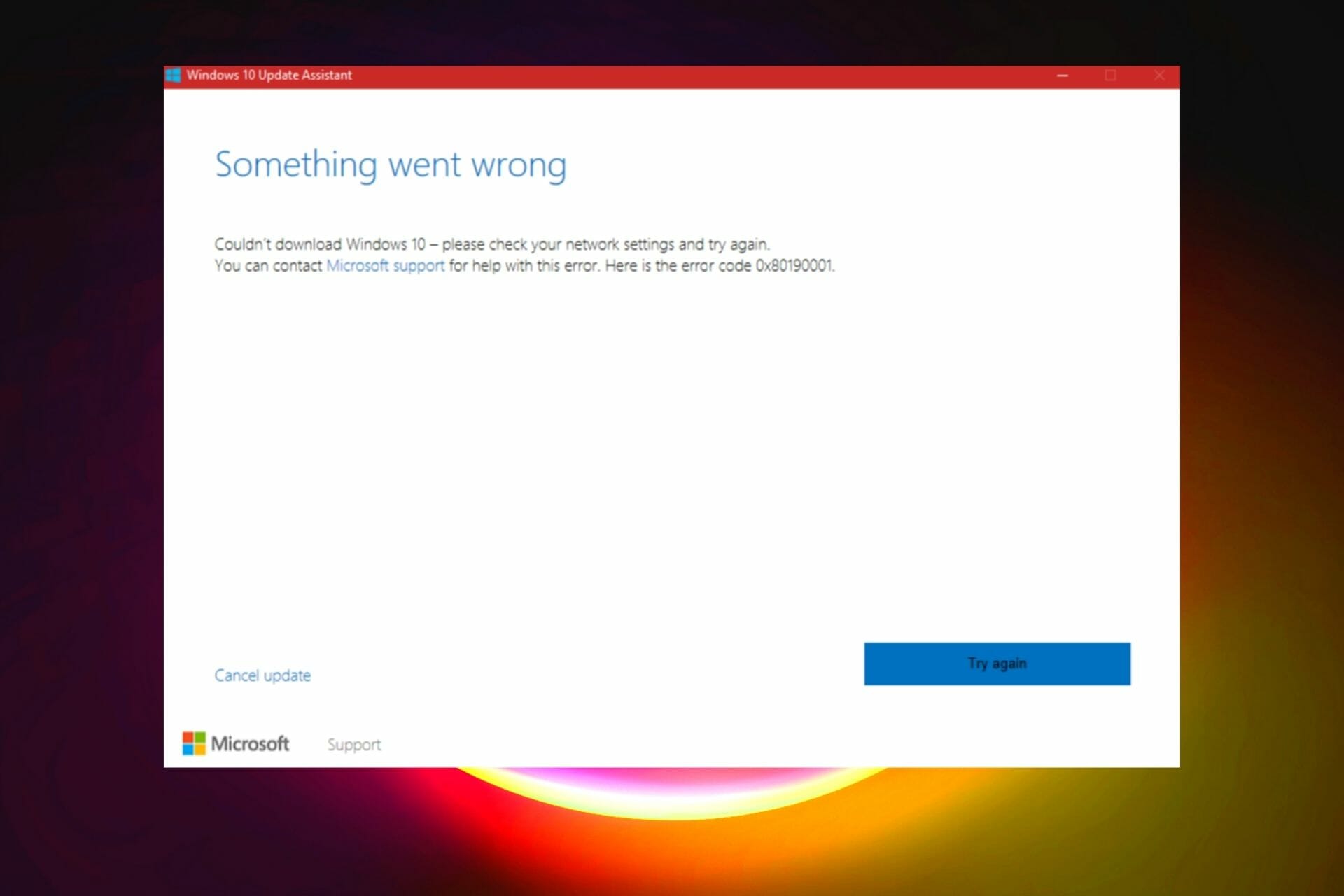
Upgrading to windows 10 from windows 7 pro. Repeatedly getting error code 0x80190001 after waiting a long time for the download. There is also a message to check network settings.
Troubleshooter couldn’t find any problems so I removed myself from the home group. Made no difference.
This error affects every version of Windows. For example, many users have reported that error 0x80190001 blocks the Creators Update install.
Error 0x80190001 can prevent you from downloading new updates, leading to compatibility and security issues. This guide will show you to fix the error with ease.
How do I fix the error code 0x80190001?
- How do I fix the error code 0x80190001?
- 1. Run the Update Troubleshooter
- 2. Repair your system files
- 3. Disable your Internet connection
- 4. Check your antivirus
- 5. Disconnect all peripherals
- 6. Download and install the update manually
- 7. Make sure your date and time are correct
- 8. Perform a Clean boot
- 9. Perform an in-place upgrade
- How can I fix error code 0x80190001 on Windows 11?
- Why does the Windows Update error 0x80190001 appear?
- How do I do a factory reset with Windows 10?
1. Run the Update Troubleshooter
- Press the Windows key + I to open the Settings app.
- Now go to the Update & Security section.

- Select Troubleshoot from the menu on the left.
- Choose the Additional troubleshooters option.
- Now, select Windows Update.

- Finally, click the Run the troubleshooter button.
- Follow the instructions on the screen to complete the process.
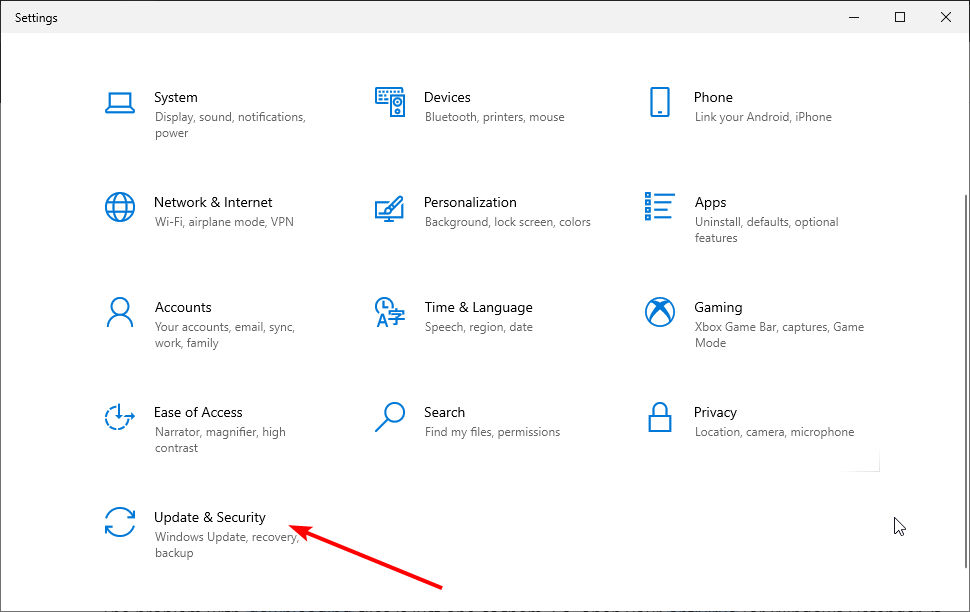
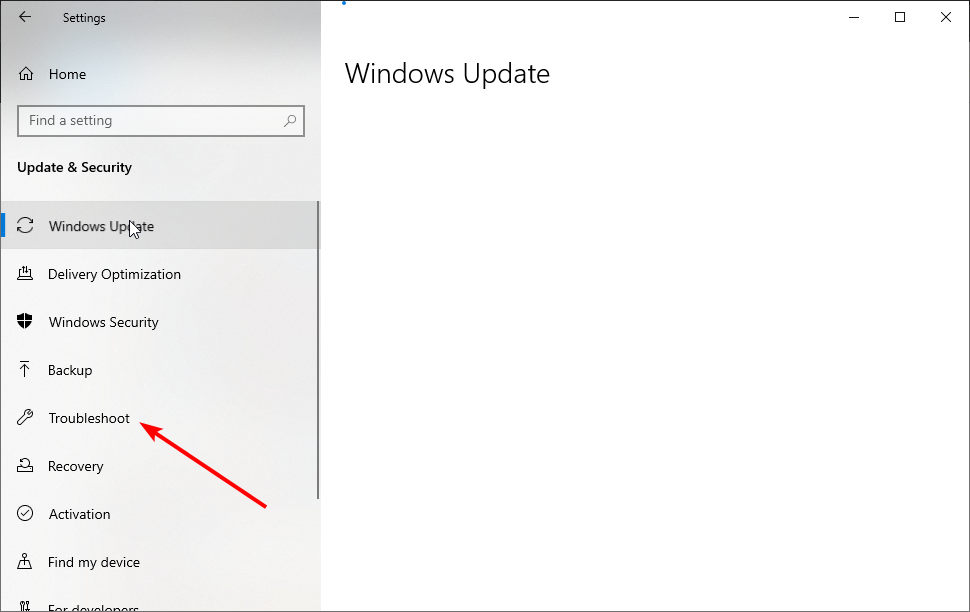
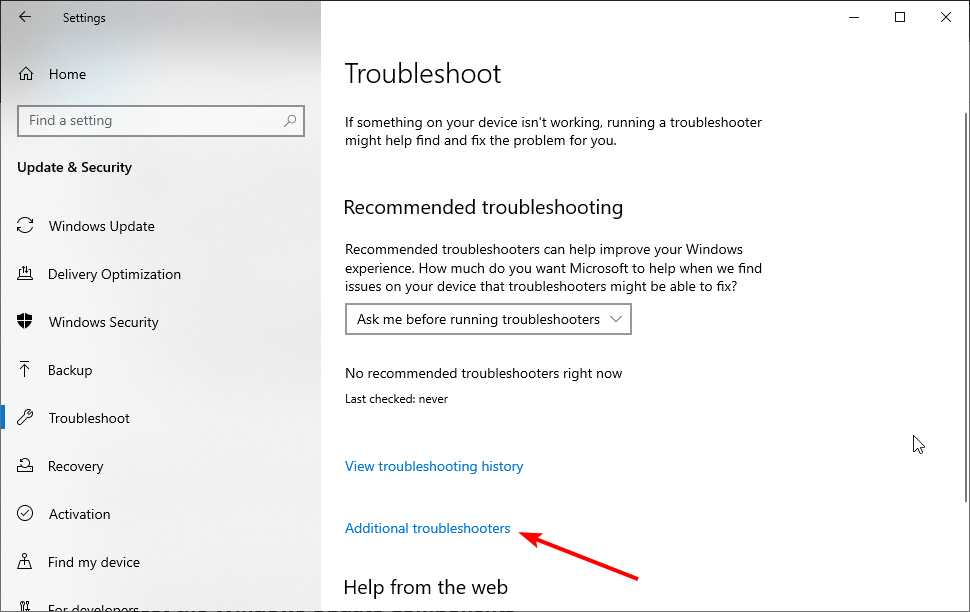
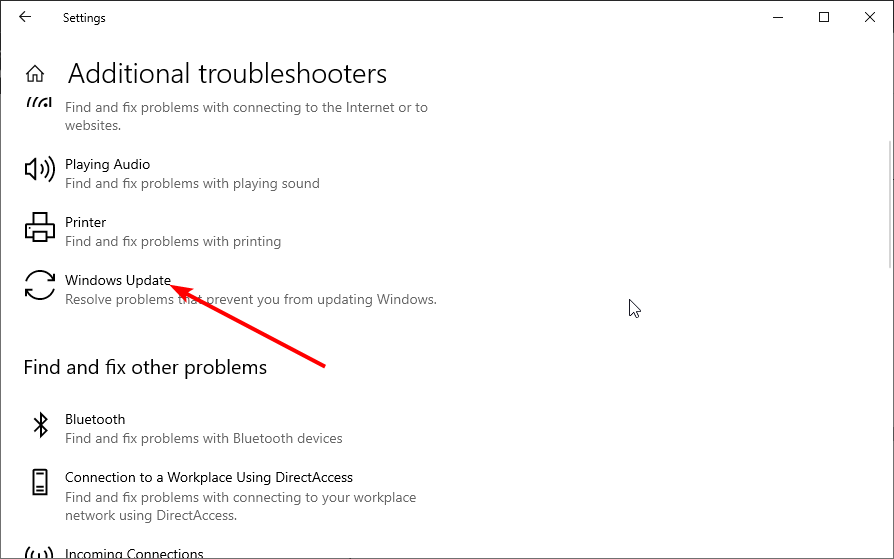
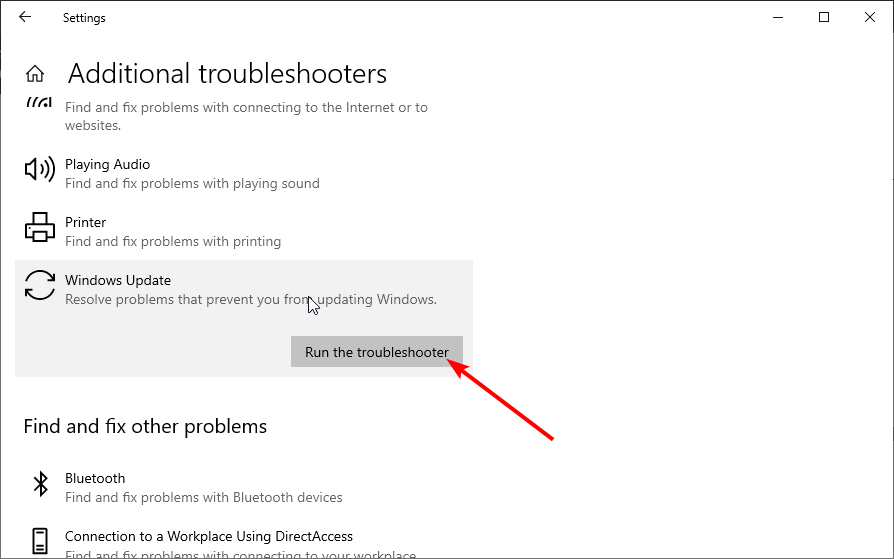
The Windows Update troubleshooter is one of the built-in tools to fix update errors like 0x80190001. Once the troubleshooter is finished, try to update Windows again and check if the problem is still there.
2. Repair your system files
- Press Windows key + X and choose Command Prompt (Admin) or Powershell (Admin).

- When Command Prompt starts, run the sfc /scannow command.

- SFC scan will now start. Remember that an SFC scan can take up to 10-15 minutes, so don’t interfere with it, and don’t run any other applications in the background.
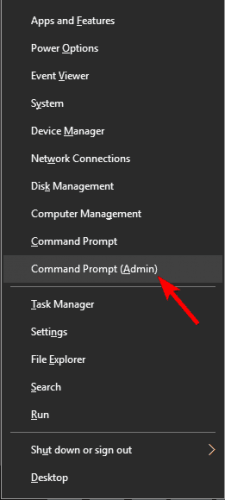
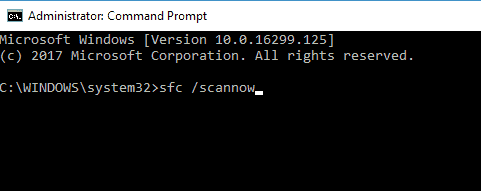
Another cause for error 0x80190001 can be file corruption, and if your system files are damaged, you need to repair them using an SFC scan.
Once the SFC scan is finished, check if the problem is still there. If the issue persists or you could not run or complete the SFC scan, you need to use the DISM scan instead.
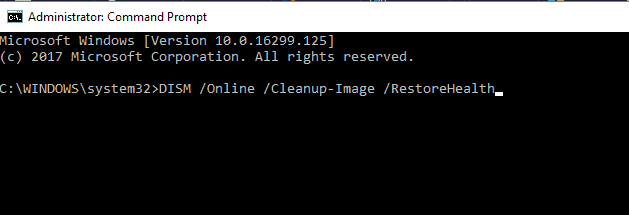
To do that, start Command Prompt as administrator and run the command below: DISM /Online /Cleanup-Image /RestoreHealth
This should fix the damaged files and solve any issue with the SFC scan
However, instead of going through this stress of repairing files manually, we recommend using a third-party repair program such as Restoro.
If your system files are faulty or missing, the software can replace them, restore your registry, and even do a comprehensive hardware analysis of your Windows PC.
Restoro repairs and reverses damage on your Windows OS by replacing damaged and removed files with new Windows files and components from the constantly updated online database.
Restoro
It enhances performance, prevents computer freezes and system crashes, and fixes Windows update errors.
3. Disable your Internet connection
According to users, you might be able to fix error 0x80190001 simply by disabling your Internet connection. Make sure that your update is downloaded and installed.
During the installation process, disable your Internet connection. After doing that, follow the instructions on the screen to complete the installation. Of course, this isn’t the best solution, but few users claim it works, so you might want to try it out.
4. Check your antivirus
The problem might be your antivirus software if you can’t update Windows due to error 0x80190001.
Although antivirus tools offer protection, they can often interfere with your system and cause various errors.
To fix this problem, many users suggest temporarily disabling some features or your antivirus. However, if removing the antivirus solves the issue, you should consider switching to a different antivirus solution.
Some PC issues are hard to tackle, especially when it comes to corrupted repositories or missing Windows files. If you are having troubles fixing an error, your system may be partially broken.
We recommend installing Restoro, a tool that will scan your machine and identify what the fault is.
Click here to download and start repairing.
There are many error-free antivirus options like the ESET NOD32 on the market. This software is your best bet to prevent future issues and keep your system running smoothly, as it is an antivirus with low CPU usage.
5. Disconnect all peripherals
If you have problems with error 0x80190001, the issue might be your USB devices. Sometimes USB devices can interfere with your system, leading to similar problems.
However, you might be able to fix the problem simply by disconnecting all USB devices before trying to install the update.
Disconnect all USB devices except for your mouse and keyboard. Once everything is disconnected, try to install the update again.
This isn’t the most efficient solution, but several users reported it works, so feel free to try it.
6. Download and install the update manually
- Find the KB number of the problematic update. You can do that from the Windows Update section or the Update History website.
- Once you get the KB number, go to Microsoft’s Update Catalog website and enter the KB number.
- A list of results will appear. Download the update that matches your system architecture and install it.

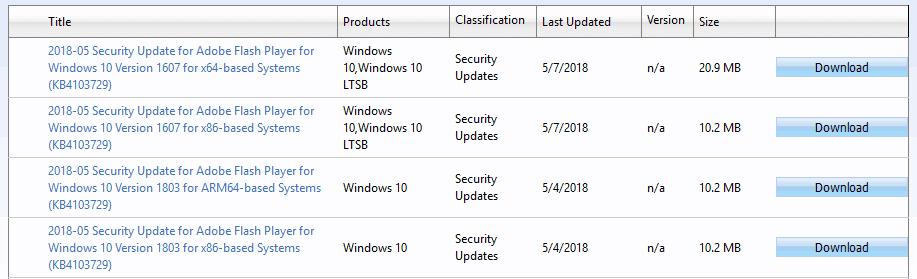
Several users reported successfully circumventing error 0x80190001 simply by manually downloading the update. However, we must mention that this isn’t a permanent solution, and the issue might reappear when you try to update your system.
7. Make sure your date and time are correct
- Right-click the clock in the bottom right corner and select Adjust the date/time.

- Toggle switch for the Set time automatically option backward to disable it.
- Wait for a few moments and then turn it back on again.

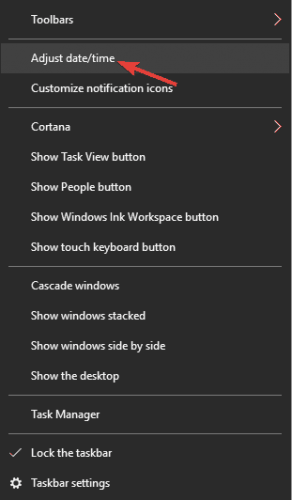

A couple of users reported that error 0x80190001 occurred due to incorrect date and time on their PC. Adjusting your time and date should fix the issue in this case.
After following the steps above, the date and time will be readjusted and synchronized. You can also click the Change button and manually adjust the date and time if you want.
- Fix Windows 10/11 error 0x800F0955 to proceed with updates
- Fix: Error code 0x0 during Windows 10 upgrade
- What to do if Windows 10/11 update deletes all your files
- FIX: Windows Installer Service could not be accessed
8. Perform a Clean boot
- Press Windows key + R, enter msconfig, and click OK.

- Click the Services tab.
- Check the box for Hide all Microsoft services.
- Now, click the Disable all button.

- Go to the Startup tab and click Open Task Manager.
- Right-click on each application there and choose Disable from the menu.

- Go back to the System Configuration window and click Apply, followed by OK, to save the changes.
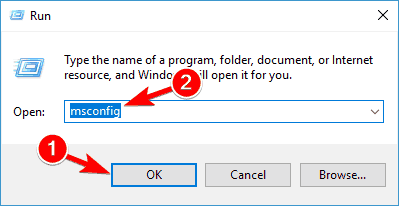
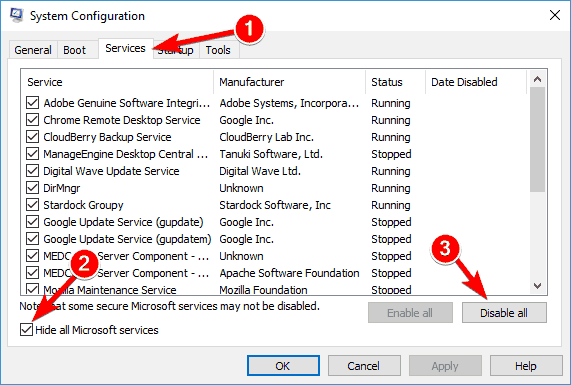
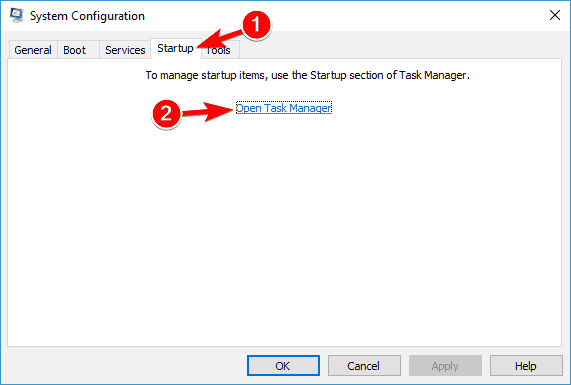
This issue can sometimes occur due to third-party applications and services. However, you can fix that by performing a Clean boot. Then, make sure you restart your PC and check if the issue is resolved.
9. Perform an in-place upgrade
- Go to Microsoft’s Windows 10 upgrade website.
- Click the Download Now button under the Create Windows 10 Installation Media option.

- Now, click the downloaded tool and Accept the license terms.
- Then, select Upgrade this PC now and click Next.
- Check the Keep personal files and apps option to keep your apps, files, and settings.
- Click Install to launch the upgrade process.
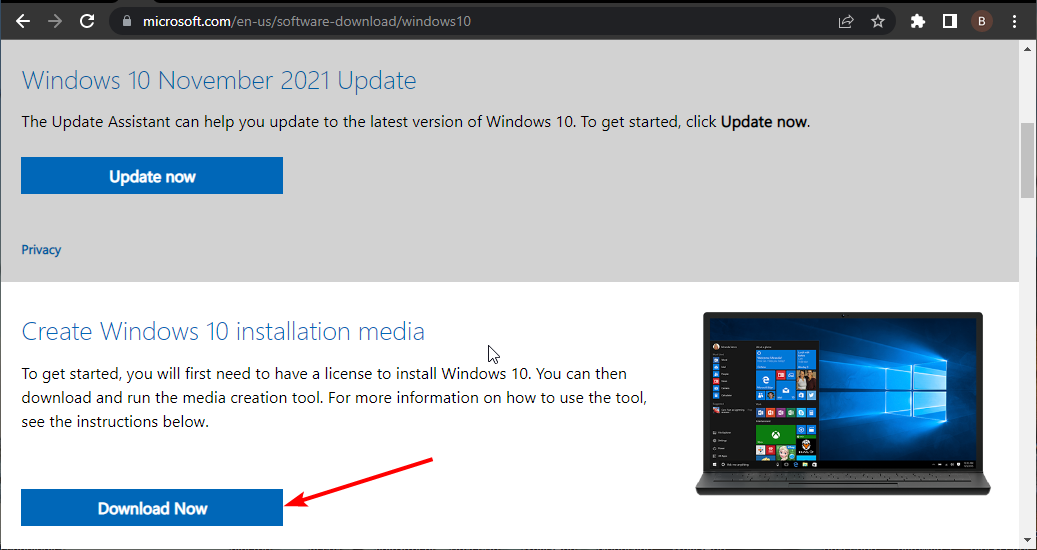
According to users, sometimes you can fix this problem simply by performing an in-place upgrade. However, performing an in-place upgrade will force Windows 10 to update to the latest version.
Once the setup is finished, you’ll have the latest version of Windows installed, and the problem will be resolved.
How can I fix error code 0x80190001 on Windows 11?
The main reason you are experiencing the update error 0x90190001 on Windows 11 is interference from your antivirus. You can solve this by disabling your antivirus or obliterating it.
Another known cause of the issue is incorrect time and date. We have shown how to change this earlier in this guide. Finally, you can use our other solutions to fix this error, as the causes are similar on all Windows PC.
- Fix: Windows Update May Have Automatically Replaced AMD
- How to view your phone photos in the File Explorer gallery
- UsoClient.exe: What Is It & How to Disable It
Why does the Windows Update error 0x80190001 appear?
As mentioned earlier, there are various versions of this error, each with varying causes. Below are some of the popular ones:
- Windows 10 upgrade failed – If your Windows 10 upgrade fails due to this error code, try some of our solutions and check if that solves the problem.
- 0x80190001 Creators Update, Windows 10 – Many users reported this error while trying to install Creators Update. Bear in mind that this issue can affect any Windows 10 update, but in most cases, you can solve this problem by disabling your antivirus.
How do I do a factory reset with Windows 10?
- Press the Windows key + I to open the Settings app.
- Choose the Update & Security option.
- Click Recovery in the left pane.
- Click the Get Started button under the Reset this PC option.
- Choose to keep your files or wipe everything and click the Next button.
- Now, follow the simple onscreen instructions to complete the process.
If you encounter this issue, the standard solutions listed above will assist you in resolving the Windows 10 update error code 0x80190001.
You should also verify the product key to determine if it is a valid version because this problem might occur even if you use a copy of Windows.
If you are facing other issues like the Windows 10 update error 0x800f0900, check our easy guide to fix it quickly.
Feel free to let us know in the comments below if any of our fixes helped you solve the issue.

Если при установке обновления компонентов в Windows 10 появляется код ошибки 0x80190001 , это означает, что возникли проблемы с установочными файлами. Либо они повреждены, либо некоторые файлы не удалось загрузить. Это также может быть проблемой с драйверами. Сообщение об ошибке, связанное с этим сообщением, гласит: Что-то пошло не так или произошла непредвиденная ошибка при попытке загрузить файлы, необходимые для обновления . В этом руководстве мы расскажем, как можно исправить код ошибки 0x80190001.

Исправить код ошибки 0x80190001
Прежде чем начать, убедитесь, что ваше интернет-соединение работает. При необходимости запустите средство устранения неполадок с сетью.
1] Очистка временных и ненужных файлов
Windows 10 поставляется с функцией Storage Sense, которая может либо автоматически удалять все временные файлы с вашего компьютера, либо вы можете сделать это вручную.
Когда вы запустите его вручную, он просканирует хранилище и предложит вам список файлов, которые вы можете удалить. Тем не менее, не забудьте проверить папки, такие как скачать, где вы продолжаете загружать файлы. Это позволит вам не удалять важные файлы.
2] Удалить файлы из папки распространения программного обеспечения
Выполните эту процедуру, чтобы очистить содержимое папки SoftwareDistribution. После этого попробуйте установить обновление снова.
3] Запустите средство устранения неполадок Центра обновления Windows .
Запустите это встроенное средство устранения неполадок Центра обновления Windows, чтобы устранить наиболее распространенные проблемы с обновлением в Windows 10. Он очистит временные файлы, связанные с Центром обновления Windows, очистит содержимое папки «Распространение ПО», восстановит и сбросит компоненты Центра обновления Windows, проверит состояние, связанное с Центром обновления Windows. Услуги, проверьте наличие обновлений и многое другое.
4] Отключите антивирус во время установки
Этот код ошибки был отмечен, чтобы быть часто вызванным внешними инструментами. Вполне возможно, что ваши файлы в порядке, и это Антивирус, который является причиной. Вы можете отключить антивирус и программное обеспечение безопасности, когда обновление не проходит гладко. Вы можете либо отключить такое программное обеспечение, либо полностью удалить его, пока не решите проблемы с обновлением.
5] Используйте инструмент создания медиа или ISO
Если это не помогает, мы предлагаем вам использовать Media Creation Tool или Windows 10 ISO для установки обновления функции.
Всего наилучшего!
The installations of a new Windows 10 update or setup offer multiple benefits but may also become troublesome with error 0x80190001, restricting the user from downloading files. This is a usual problem faced by users due to incompatibility and safety issues with the drivers.
With this error code, you may see the following error message – Something went wrong or An unexpected error was encountered while attempting to download files required for the upgrade. This article covers some effective workarounds that will help you to solve this error code. The step-by-step error correction procedures are guided below.
To fix Error Code 0X80190001, follow the below methods:
1] Clear Junk files and Temporary files
Windows 10 update is a new generation software with an automated setup of removing junk & temp. files. The procedure may also be taken up manually by the user for better Windows performance. The manual procedure is as under:
- Open Taskbar search using Windows+S keys.
- Type
cleanmgrand press Enter.

- Choose the root drive (C:) then click OK.
- Select the Clean-up system files option.
- Choose C: drive again then hit the OK button.

- Mark all the check-boxes except Download and click OK.
- Click Delete files to confirm the clean-up.
2] Run Windows Update Troubleshooter
There is an option of an inbuilt troubleshooter for self-error correction in Windows update. It is not necessary that the problem may be fixed every time using this option, but it can be useful in various scenarios. The following are the steps of using a troubleshooter:
- Right-click on the Start button and select the Settings option.
- In the Settings app, click Update & Security > Troubleshoot > Additional troubleshooters.
- Select the Windows Store Apps, and then hit Run the troubleshooter.
- Now follow the on-screen guidelines to complete the process.
Once you perform the above steps, restart your computer and try updating your Windows again.
3] Turn off Antivirus and Firewall
Firewall & Antivirus in a few cases can become a hindrance while installing Windows 10 update and may generate the error code 0x80190001. In such cases, the firewall & Antivirus can be uninstalled while updating Windows 10 and then reinstall them after updating the operating system. Here is how to do it:
- Open Windows Settings using Windows+I keys.
- Go to Update & Security > Windows Security > Virus & threat protection.
- On the next page, scroll down and click on the Manage settings link.

- Now turn off the toggle button of Real-time protection and Cloud-delivered protection.
- Close all the windows and see if the error 0x80190001 is solved now.
4] Remove the external peripherals to fix 0X80190001
Sometimes big problems can be solved with small inputs. It is suggested to remove all the peripherals except the essential device like your mouse and keyboard. Once you did, try to install the update again and see if it works.
5] Delete the Software Distribution Folder
The operating system of Windows 10 consists of a folder called Software Distribution. The folder is used by the system to secure files that are temporary and not required after a time. Such files can corrupt the system and must be cleaned regularly. Following are the steps:
- Open an elevated Command Prompt.
- In the elevated window, type the commands given below and hit Enter after each.
net stop wuauserv
net stop bits
- After running the above commands, open File Explorer (Windows+E) and browse to the following:
C:WindowsSoftwareDistribution folder.
- Select all the files and folders (Ctrl+A) and delete them.
- After deleting the SoftwareDistribution folder, open the command prompt and run the following commands:
net start wuauserv
net start bits
- This will restart the Windows Update-related Services.
6] Check Date & Time
The inaccuracy of Date & Time can incur error code 0x80190001. So, the accurate Date & Time shall be ensured, and correction can be done through the following process:
- Click on the Start button, type “Date & time settings”, and select the same from the list.
- Go to the right side and disable the Set time automatically option.
- Under the Set the date and time manually section, click on the Change button.
- Adjust the date and time manually and then click on the Change button to apply the changes.
- Restart your system and try updating your Windows again.
7] Perform a clean boot
Another method here you can try to fix Error 0x80190001 is to clean boot Windows 10. Follow the steps given below:
- Click on Start and type
msconfig. - Select the System Configuration option from the list.

- Go to the Services tab and then check the Hide all Microsoft Services checkbox.
- Click on the Disable all button.
- Now switch to the Startup tab and select Open Task Manager.
- On the Startup tab, select each item and Disable them one by one.
- Close the Task Manager window and click OK to save the changes.
Restart your system and check if the error is resolved.
8] Download Windows 11/10 ISO image and install it
Windows is a new generation system that must be understood before adding changes to it. The up-gradation is the common procedure that must be carried out before opting for any update. The Media Creation Tool can be installed and used for correcting error code 0x80190001. Such foreign download may cause loss of data files, therefore backup may be ensured before installing Media Creation Tool. Take the below steps:
- At first, download the Media Creation file.
- Go to the downloaded location and double-click on the downloaded file to launch it.
- If UAC prompts, click the Yes button.
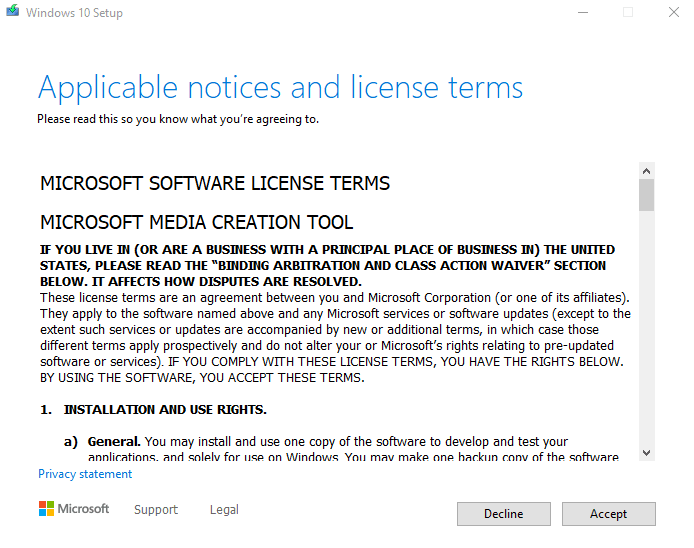
- Click the Accept button to accept the license terms and conditions.

- Select Upgrade this PC now option and then click the Next button. Wait for a while until Windows prepares to install the important files.
- Then select the Keep your personal files and apps option and then click Next.
- Finally, hit the Install button to start the upgrade process.
Once you get the latest version of your Windows, the problem should be resolved. Let us know which methods you find useful.
Tip: If you are facing update, activation, or driver issues on your Windows PC, try RESTORO PC Repair Tool. This software will scan your device for potential issues and resolve them automatically.