
Here Is How You Can Deal With SQL Server Error 926
Are you among one of them who are looking for the solution to resolve SQL Server 2008 R2 Error 926? Have you ever thought the reason behind this error? If not, then in this blog, we are going to learn all the important facts about SQL Server error 926 along with the solution to fix it.
What is msdb Suspect Error 926 Problem?
Sometimes while user attempts to connect SQL instance using sysadmin login and SSMS, the SQL server throws an error prompt saying Database ‘msdb’ cannot be opened. It may occur very rare and it will be marked suspect by recovery.

Error code 926 lead SQL database into the inconsistent state and affect its file structure. Users may able to query their databases from the new query window. However, they cannot see any of them. It also may vanish the smooth workflow of SQL server as it makes the database inaccessible for the user. Well, there are some other scenarios when this error prompts and they are highlighted below:
- When SQL Server user is attaching a database
- While restoring the database in SQL server
- Extracting transactions from the database log
SQL Server Error 926 – Find Out Reasons
- The SQL database might be marked as suspected
- Some malware defect in the hardware of the machine
- Due to corruption in the header part of system file
- Abrupt shutdown/ closing of the server application
Quick Tip: It is a critical error code that needs to resolve immediately as it may lead users to permanent data loss. Hence, it is strongly recommended to the SQL Server users that instead of ignoring this error they should try to fix it quickly. User can take the help of SQL Recovery Software for SQL database corruption repair. It is a professional approach to fix all errors and repair corrupt MDF and NDF database file in a healthy state.
Download Now Purchase Now
Tips to Remove SQL Server 2008 R2 Error 926
There are several ways to fix this SQL Server error 926. However, users must begin with trying some basic solutions as sometimes little fixes also can resolve the error.
So, Kindly check below fixes to troubleshoot the issue:
- Refresh the connection
- Reconnect the connection
- Restart the service SQL Server (MSSQLSERVER)
- Restart the SQL Server Management Studio
- Restart your computer
If these basic workarounds do not work for you then, there two other manual solutions to fix SQL Server 2008 R2 Error 926.
SOLUTION 1
- Open a new window to execute the query
EXEC sp_resetstatus ‘DB_Name’
Explanation: sp_resetstatus disables the suspect flag on a database. It basically updates the mode as well as status columns that are named as sys.databases. Only logins having sysadmin rights can perform this task. - ALTER DATABASE DB_Name SET EMERGENCY
Explanation: If the database is set to EMERGENCY mode then, it becomes READ_ONLY copy. After that, only those sysadmin members can access it who have access privileges. - DBCC checkdb (‘DB_Name’)
Explanation: This command will check the integrity between all the objects. - ALTER DATABASE DB_Name SET SINGLE_USER WITH ROLLBACK IMMEDIATE
Explanation: Executing this query will set your database into single user mode. - DBCC CheckDB (‘DB_Name’, REPAIR_ALLOW_DATA_LOSS)
Explanation: It will repair the errors - ALTER DATABASE DB_Name SET MULTI_USERDetails
Explanation: With this command, the database will set to multi-user mode and after that, it can be accessed by others also.
SOLUTION 2
- Open MS SQL Management Studio and click Object Explorer then, in opened connection item hit a right-click and select Stop
- Next, open Control Panel in your computer and click Administrative Tools >> Services
- Highlight SQL Server (MSSQLSERVER) item from the services and right-click on it. From the opened menu list, select Stop
- Navigate to the following location:
C:Program FilesMicrosoft SQL ServerMSSQL10.MSSQLSERVERMSSQLDATA - After that, move MSDBData.mdf & MSDBlog.ldf to any other location
- And then, copy this file again from the new location and paste it in the older place i.e.,
C:Program FilesMicrosoft SQL ServerMSSQL10.MSSQLSERVERMSSQLDATA - Next, in opened connection in Object Explorer, hit a right-click and choose Start option
- Refresh your database
- Now, you can Detach the MSDB File
Limitations of Manual Methods
- Requires technical expertise to execute
- Takes too much time to resolve the error
- A single misstep can delete the whole database
Alternate Solution to Fix SQL Server Error 926
SysTools SQL Database Recovery is a powerful software to repair corrupt SQL database file and makes the objects accessible again quickly. This can resolve all SQL Server errors that take database into inconsistent state or damages the file structure. Hence, SQL Server 2008 R2 Error 926 can be fixed easily with the help of this utility as it provides Quick and Advanced Scan options to repair SQL Database files. It is capable enough to recover the master database files created in SQL Server 2019 and all below versions.

In Summation
SQL Server plays a vital role when it comes to the management of the business database. Several organizations use it and keep their data safely. However, we cannot neglect the fact that there are some issues associated with it. One such common issue is SQL Server error 926. Considering the fact, that it is not simple to eliminate this error code, we have discussed some manual solutions for the same. Additionally, users can opt a third party tool also if required.
Frequently Asked Questions
How do I fix suspect MSDB database?
You can recover suspect MSB database using these 3 ways:
1. Recover data using Backup
2. Obtain an MSDB backup from another SQL Server instance
3. Make use of MSDB Database Template in SQL Server
Which solutions works best to resolve SQL error 926?
You can continue with the second solution using SSMS to fix this error first. If the error cannot be fixed and you still cannot access your data, contact professional SQL repair tools.
Summary:
This blog discusses error 926 that occurs while working on SQL Server 2008 R2. It also provides solutions on how to deal with SQL Server 2008 R2 Error 926. You can also try Stellar Repair for MS SQL software to restore your database without downtime and data loss. Try the demo version of the software to preview all the recoverable database objects.

Contents
- About SQL Server Error 926
- Following are some operations that result in SQL error 926:
- How to Fix SQL Server 2008 R2 Error 926?
- Alternative Solution to Fix SQL Server 2008 R2 Error 926
- Conclusion
About SQL Server Error 926
Suppose you write an SQL query and are ready to execute it in SQL Server 2008 R2; but as you input the code, you get the following error message:
Database ‘msdb’ cannot be opened. It has been marked SUSPECT by recovery. See the SQL Server errorlog for more information. (Microsoft SQL Server, Error: 926).
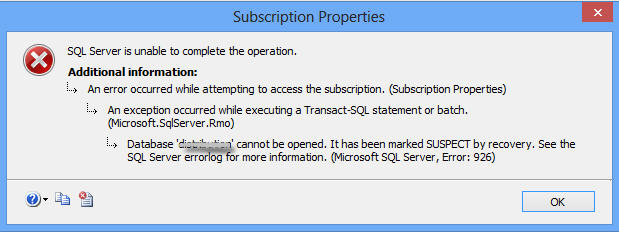
Figure 1 – Microsoft SQL Server, Error: 926 Message
The above error message indicates that ‘database is marked as suspect due to failed recovery process’, which prevents the database from opening. So, you will need to repair or recover MS SQL database from suspect mode to make it accessible again.
Following are some operations that result in SQL error 926:
- Starting up a SQL Server instance
- SQL database is not attached properly
- Using the RESTORE database or RESTORE LOG commands
How to Fix SQL Server 2008 R2 Error 926?
Check the SQL Server error log to identify what caused the error. If the recovery failed due to an I/O error (a torn page) or any other hardware issue, try resolving the hardware issue first to fix the error. If this doesn’t work, there must be some form of database corruption. In that case, try restoring the database from the last known database backup.
If you don’t have recent backup or the backup is corrupt, set the database in EMERGENCY mode and try the DBCC CHECKDB repair operations. Doing so will help you restore access to the database marked as suspect. But, before attempting this solution, try the following tricks to fix Microsoft SQL Server 2008 R2 Error 926 MSDB:
- Refresh the SQL connection.
- Disconnect and reconnect the SQL connection.
- Restart the service for MSSQLSERVER.
- Restart the SQL Server Management Studio (SSMS).
- Restart your desktop.
If none of the above tricks help resolve the error, perform these steps:
Step 1: Use EMERGENCY Mode to Repair a Suspect Database
Open a new query window in SSMS, and then run the following commands:
Note: You can also use the ‘sp_resetstatus’ stored procedure to turn off the suspect flag on a database. For detailed information, refer to this link.
ALTER DATABASE DB_Name SET EMERGENCY;
This command puts the database in EMERGENCY mode. In this mode, users only get read-only permission to access the database.
Note: Members of the sysadmin fixed server can only access this right.
DBCC CHECKDB (‘DB_Name’);
The above command helps check the integrity of all database objects.
ALTER DATABASE DB_Name SET SINGLE_USER WITH ROLLBACK IMMEDIATE;
The command sets the database in ‘single user mode’.
DBCC CHECKDB (‘DB_Name’, REPAIR_ALLOW_DATA_LOSS);
This DBCC CHECKDB command will help repair the errors in SQL Server 2008 R2.
ALTER DATABASE DB_Name SET MULTI_USER;
With this command, the SQL Server database will be set in multi-user mode, allowing multiple users to access the database.
After executing all of the above commands, check if you can access the database. If you can, put the db back in normal mode.
Read this: Recover SQL Database from Emergency Mode to Normal Mode
If this step fails, proceed with the next step.
Step 2 – Move and Detach MSDB File
You can try to recover suspect MSDB database by moving and detaching the MSDB data and log files. For this, you can use SQL Server Management Studio (SSMS) or T-SQL:
Using SSMS
- Open Object Explorer in SSMS, right-click the connected SQL Server instance and then click Stop.
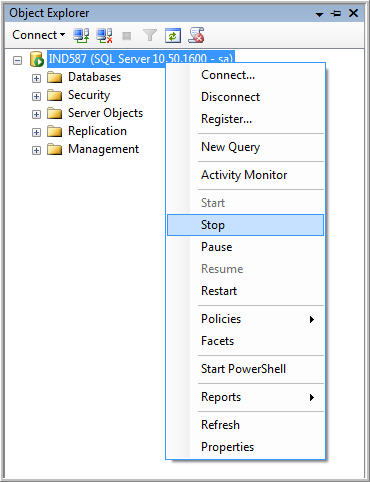
Figure 2 – Stop SQL Server Instance
2. Open Control panel, browse and select administrative tools, and then click Services.
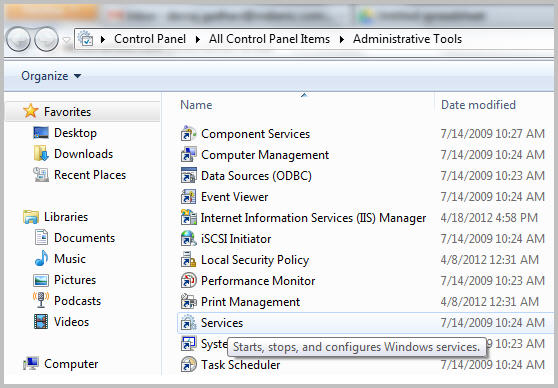
Figure 3 – SQL Server Services
3. In ‘Services’ dialog box, locate and right-click on SQL Server (MSSQLSERVER), and then click Stop.
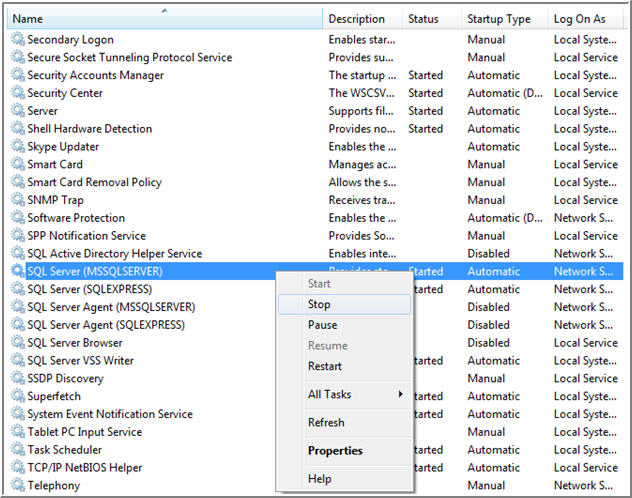
Figure 4 – Stop SQL Server Service
4. Open C:Program FilesMicrosoft SQL ServerMSSQL10.MSSQLSERVERMSSQLDATA.
5. Move the MSDB data file (.mdf) & log file (.ldf) to any other folder or location.
6. Copy the .mdf and .ldf files from the new location to their original location by browsing the following path:
C:Program FilesMicrosoft SQL ServerMSSQL10.MSSQLSERVERMSSQLDATA
7. Restart SQL Server Service.
8. Refresh the database, and detach the MSDB file.
Using T-SQL
You can also recover the MSDB database in suspect mode by executing the below T-SQL query:
EXEC sp_resetstatus ‘db_name’ ALTER DATABASE db_name SET EMERGENCY DBCC CHECKDB (‘db_name’) ALTER DATABASE db_name SET SINGLE_USER WITH ROLLBACK IMMEDIATE DBCC CHECKDB (‘db_name’, REPAIR_ALLOW_DATA_LOSS) ALTER DATABASE db_name SET MULTI_USER
Note: Replace db_name with the name of your database marked as suspect.
The above code will turn off the suspect flag on the database and put it in emergency mode. Next, it will bring the database to single-user mode, repair it, and will put the database to multi-user mode.
Limitations of Resolving SQL Server Error 926 Manually
There are a few downsides to using the aforementioned manual workarounds to resolve SQL error 926:
- DBCC CHECKDB may fail to effectively repair a large-sized, severely corrupt SQL database.
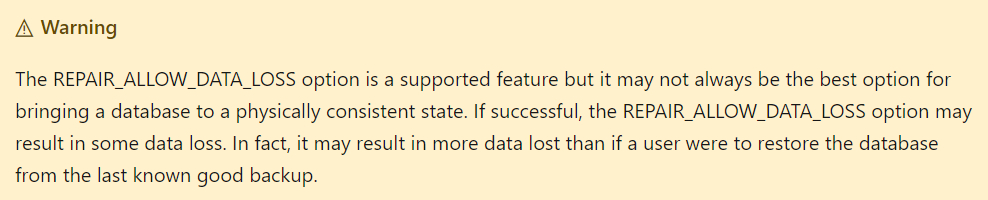
- DBCC CHECKDB ‘REPAIR_ALLOW_DATA_LOSS’ command may cause some data loss.
- Loss of data integrity.
- The above steps may take too much time to resolve the Microsoft SQL server error 926.
Alternative Solution to Fix SQL Server 2008 R2 Error 926
SQL database recovery software can resolve any error, including error 926 in SQL Server causing databases to become inaccessible.
Also, the SQL database repair software can help you overcome the limitations of the above-discussed solutions, here’s how:
- It specializes in the repair and recovery of large-sized, severely corrupt SQL Server databases.
- Laced with powerful algorithms, the software can parse a SQL database and reconstruct all its objects into their original state.
- Maintain the integrity of database structure and its objects.
- Reduces the manual efforts and time a user spends in making SQL Server databases and objects accessible.
- Recommended by Microsoft SQL MVPs. Check the MVP review from here.
You can download the demo version of the SQL database repair software to ascertain its effectiveness.
Key Features of Stellar Repair for MS SQL
- Repairs corrupt MDF and NDF files
- Supports all versions of SQL Server
- Recovers all database objects, including tables, indexes, triggers, rules, keys, etc.
- Allows recovery of deleted SQL Server records
- Supports multiple file saving options like MS SQL, CSV, HTML, and XLS
- Capable of resolving all type of corruption errors.
Conclusion
You can use manual fixes and software to deal with SQL Server 2008 R2 Error 926. While the manual fixes may help you fix the error, they may take considerable time and effort in resolving the error. This increases server downtime, leading to productivity loss and chances of data loss. However, using SQL repair software may help you restore the database in minimal time without the fear of losing any data.
About The Author

Priyanka Chauhan
Priyanka is a technology expert working for key technology domains that revolve around Data Recovery and related software’s. She got expertise on related subjects like SQL Database, Access Database, QuickBooks, and Microsoft Excel. Loves to write on different technology and data recovery subjects on regular basis. Technology freak who always found exploring neo-tech subjects, when not writing, research is something that keeps her going in life.
SQL Server is one of the most popular database management systems in today’s world. It provides flexibility to the database administrator or user for handling a database of any size. But, sometimes it returns numerous errors at different stages while working with the SQL server database. One such error is Microsoft SQL Server error 926, which creates hassles in SQL transactions. Sometimes, this error causes trouble in the smooth functioning of the SQL server as it makes the database inaccessible to the end-user.
This error occurs when the SQL database is marked as suspect due to a failed recovery process. Sometimes, when the user connects SQL instance using sysadmin login and SSMS, the SQL server displays 926 error. Henceforth, this article will tell you the best possible solutions on how to resolve Microsoft SQL Server error 926. Before proceeding further, let us discuss the common reasons behind Microsoft SQL Server error 926.
Reasons Behind SQL Server Error 926
There are several reasons due to which SQL Server error 926 appears. Some most common reasons are:
· When SQL database has been marked as suspicious
· Malware errors in the hardware of the system
· Due to the corruption in the header part of the system file
· Abrupt shutdown of the SQL Server
· While restoring the database in SQL Server
Know- How to Fix SQL Server Error 926?
In this section, both manual and automated solutions are mentioned. Go through it once and choose whatever option works best for you.
Solution # 1: Fix Microsoft SQL Server Error 926 Using Server Management Studio
1. Launch the SSMS on your computer system and go to the Object Explorer >> Server Instance >> Stop option.
2. Minimize the management studio and open the Control Panel on your system.
3. Now, click on the Administrative Tools and select the Services option to proceed further.
4. Here, search for the SQL Server (MSSQLSERVER). Right-click on it and then choose the Stop option.
5. After that close the control panel window and in MY COMPUTER, go to the location where SQL database files have been saved.
6. Select MSDBDATA and MSDBlog files and save them to another location.
7. Now, Copy this file again from the new location and paste it to the older location.
8. Restore the management studio window and go to the Object Explorer section. Right-click on the Server Instance and choose the Start option.
9. Hit on the Refresh button of the Management studio in order to update the changes.
10. Finally, you can Detach the MSDB File
Limitations of Manual Method
The discussed manual method involves a lot of effort and it is also a time-consuming process. To fix Microsoft SQL Server error 926 this is a complex process to execute. Sometimes the user might make mistake while executing the mentioned step. Hence, the manual approach is quite difficult for novice and non-technical users. Thus, to replace the manual approach, an effortless approach is also described in the below section of this post which overcomes all such issues.
Best Alternate Solution to Fix Microsoft SQL Server Error 926
If you get failed to fix MS SQL Server error 926 by using the above-mentioned method then, in such cases we recommend you use the SQL Database Recovery tool which is a relevant and best solution for this kind of disastrous situation. This software will help the user to repair the corrupted SQL database and fix all errors effectively. And this software also allows the user to recover inaccessible SQL Server database. This software is compatible With Microsoft SQL Server 2019, 2017, 2016, and all its below versions.
Steps to Fix Microsoft SQL Server Error 926
Step 1. Download and install the software on your machine and click Open to load the database file.
Step 2. Choose a Scan Mode ( Quick or Advance) for scanning the database files. And check the Auto Detect option to detect the SQL Server version of the MDF file automatically.
Steps 3. After scanning the file, preview recovered database objects like tables, triggers, rules, tables, etc., and click the Export button to export the Database items.
Step 4. Here, fill in all the export details and press the Export button.
The Final Thoughts
In this technical guide, we have discussed the ways to Fix Microsoft SQL Server Error 926 manually or with the help of the SQL Database Recovery tool. You may face several problems while performing the manual steps but by using the third-party tool it is easy to fix the issue without any data loss and hence the automated way is the perfect solution regarding this issue.
Also Read: Deciding Between MySQL And NoSQL?
By signing up, you agree to our Terms of Use and acknowledge the data practices in our Privacy Policy. You may unsubscribe at any time.
Often, when dealing with the SQL server database it returns many errors at different points. One such error is SQL Error 926.
This error occurs due to a failed recovery process that takes the SQL database to an inconsistent transactional state.
Here at Bobcares, we receive requests to fix SQL errors and other similar hosting errors as part of our Server Management Services.
Today, we’ll see why this error occurs and also see how to fix it.
What is SQL database error 926?
Microsoft SQL Server is one of the most common frameworks for managing databases. In addition, it is a flexible database administrator tool for handling the database.
SQL database error 926 creates difficulties in SQL transactions. Often, it threatens the smooth functioning of the SQL server and makes the database unavailable or inaccessible to the user.
Often, when the user uses sysadmin login credentials and SQL Server Management Studio to connect SQL instance, the SQL server shows an error 926.
The error looks like,
SQL Error 926

Severity Level 14

Message Text

Database '%.*ls' cannot be opened. It has been marked SUSPECT by recovery. See the SQL Server errorlog for more information.(Microsoft SQL Server, Error: 926).
Reasons for SQL Server Error 926
Some of the reasons that cause SQL Server error 926 includes,
1. If the SQL database is marked as suspected.
2. Because of corruption in the header part of the system file.
3. Sudden shut down of the SQL server application.
4. Due to a malware defect in the hardware of the machine.
Workaround for SQL error
Luckily, there are several ways to resolve this Microsoft SQL server error 926.
However, there are some basic fixes which must be performed before proceeding to troubleshoot the issue in detail,
1. Restart the SQL Server Management Studio (SSMS) and the service SQL Server (MSSQLSERVER)
2. Refresh and reconnect the connection
3. Restart the computer
Further, if none of the above methods helps to fix the error, our Support Engineers use the below steps.
1. Initially, we check the SQL Server error log and find the reasons why recovery failed.
2. Then, we restore the database from backup if the error is due to a persistent I/O error related to Application Programming Interface, a torn page, or other hardware issues.
Furthermore, if the restoration is not heps to recover the SQL server database, our Support Engineers do DBCC CHECKDB repair. In addition, this method is very useful when there are no backups available.
DBCC CheckDB (‘DB_Name’, REPAIR_ALLOW_DATA_LOSS);
This DBCC CHECKDB command will help to get rid of errors in SQL Server.
[Need any further assistance in fixing SQL errors? – We’re available 24*7]
Conclusion
In short, this SQL error happens due to a failed recovery process that takes the SQL database to an inconsistent transactional state. Today, we saw how our Support Engineers provide a work-around for this error.

- Remove From My Forums
-
Question
-
Hi there,
I am getting following error msg :
Database ‘msdb’ cannot be opened. It has been marked SUSPECT by recovery. See the SQL Server errorlog for more information. (Microsoft
SQL Server, Error: 926)Please help me to resolve the issue.
Tried already starting & stopping the service but no Luck.
Regards,
TFS Queries
All replies
-
Starting and stopping service would not help, if you have backup of msdb database I strongly suggest to restore it. The restore is simple and would be performed like any database. If you want details follow
This Blog.
Most probable cause of corruption is rouge disk or storage subsystem please check and fix it.
Cheers,
Shashank
Please mark this reply as answer if it solved your issue or vote as helpful if it helped so that other forum members can benefit from it
My TechNet Wiki Articles
MVP -
Hi Nagendra Kumar Singoti,
According to your description, my understanding is that you cannot connect to ‘msdb’ database due to Error 926. If anything is misunderstood, please tell me.
SQL error code 926 occurs when the database files are marked as suspect due to failed recovery process which brings it to a consistent transactional state. This can occur during the following operations:
A) Improperly attached a database into SQL Server
B) By using the RESTORE database or RESTORE LOG procedures
C) Starting up an instance of SQL ServerYou could first inspect the SQL Server error log and determine the cause of the error. If the recovery failed because of a persistent I/O error, a torn page, or other possible hardware problem, resolve the underlying hardware problem and restore the database
by using a backup. If no backups are available, you could consider the repair options of DBCC CHECKDB.Please refer to the follow steps to solve the issue.
1.Get the backup of msdb database from another SQL server instance2.restore it on the error machine.
Please make sure that the versions for the source and destination servers are the same. You would set the database to single-user mode before you can restore it. But this method may cause some data loss of the database.
Best Regards
Puzzle
MSDN Community Support
Please remember to click «Mark as Answer» the responses that resolved your issue, and to click «Unmark as Answer» if not. This can be beneficial to other community members reading this thread. If you have any compliments or complaints to
MSDN Support, feel free to contact MSDNFSF@microsoft.com-
Edited by
Friday, September 7, 2018 8:56 AM
-
Edited by
-
2. Or you could use the following script to repair msdb database.
USE MASTER
GO
SP_CONFIGURE 'ALLOW UPDATES',1 RECONFIGURE WITH OVERRIDE
GO
UPDATE SYSDATABASES SET STATUS =32768 WHERE NAME='msdb'
Go
sp_dboption 'msdb', 'single user', 'true'
Go
DBCC CHECKDB('msdb')
Go
update sysdatabases set status =28 where name='msdb'
Go
sp_configure 'allow updates', 0 reconfigure with override
Go
sp_dboption 'msdb', 'single user', 'false'
Go
Are you sure this is actually going to repair corrupt MSDB, I doubt it is just fooling system tables by changing status
Cheers,
Shashank
Please mark this reply as answer if it solved your issue or vote as helpful if it helped so that other forum members can benefit from it
My TechNet Wiki Articles
MVP -
Are you sure this is actually going to repair corrupt MSDB, I doubt it is just fooling system tables by changing status
I agree. It is a horrifying suggestion, and even more so since it comes from a Microsoft employee.
Thankfully, it is completely harmless. Since nothing will happene if you try it. For starters, the procedure sp_dboption does not exist on SQL 2017. Nor can you update sysdatabases since it is a view. (And to update sysem tables there are some extra procedures
which thankfully were left out.)You would have to be on SQL 2000 to be able to (ab)use this script.
Erland Sommarskog, SQL Server MVP, esquel@sommarskog.se
-
Thank you for pointing out that.
Best Regards
Puzzle
MSDN Community Support
Please remember to click «Mark as Answer» the responses that resolved your issue, and to click «Unmark as Answer» if not. This can be beneficial to other community members reading this thread. If you have any compliments or complaints to
MSDN Support, feel free to contact MSDNFSF@microsoft.com-
Edited by
Puzzle_Chen
Friday, September 7, 2018 9:55 AM
-
Edited by
-
Run the following query to reset the database status:
EXEC sp_resetstatus ‘DB_Name’;
Note: Only sysadmin access can perform this task.