
Ответ от 1С:
Здравствуйте!
Программе не удается получить данные о компьютере.
Это может быть, если текущий пользователь ОС не имеет прав администратора
или при каких-нибудь повреждениях операционной системы.
Убедитесь, что запущена служба WMI (Windows Management Instrumentation).
Также попробуйте выполнить следующие рекомендации по ее переустановке, найденные в интернете.
Cause:
The WMI installation has become corrupted and is no longer functioning properly.
Solution:
Verify that the WMI service is no longer functioning using the Wbemtest.exe utility or WMIDiag.vbs script, then reinstall WMI. Once WMI is reinstalled, reinstall any additional WMI namespaces from 3rd party applications (like Microsoft Host Integration Server).
Testing WMI Connection with WbemTest
1) Run %SystemRoot%System32WbemWbemTest.exe
2) Click Connect
3) Click Connect
a. The 0x80041001 error should occur during connect
Testing with the WMIDiag.vbs script.
1) Download the WMIDiag script from the Microsoft website
2) Cscript WMIDiag.vbs
a. The 0x800 41001 error should occur.
Stopping the WMI Service
1) Using Computer Manager
a. Goto Services
b. Select “Windows Management Instrumentation”
c. Right Click
d. Select Stop
2) From the command line
a. Type: Net Stop winmgmt
Reinstalling WMI
1) Using Windows Explorer
a. Goto %SystemRoot%inf
b. Right Click wbemoc.inf
c. Select Install
2) From the command line type the following
a. rundll32.exe setupapi,InstallHinfSection WBEM 132 %SystemRoot%infwbemoc.inf
Start the WMI Service
1) Using Computer Manager
a. Goto Services
b. Select Windows Management Instrumentation
c. Right Click
d. Select Start
2) From the command line
a. Type: Net Start winmgmt
Test with Wbemtest.exe or WMIDiag.vbs again and see if that resolves the problem.
Reinstall any 3rd party WMI namespaces (like Microsoft Host Integration Server)
1) Locate the *.mof files
2) For each MOF file execute the following
a. Mofcomp filename.mof
3) Locate any WMI related DLL’s
4) For each WMI DLL execute the following
a. Regsvr32 /s filename.dll
5) Stop and Start the WMI Service.
Example: Host Integration Server MOF and DLL files
Until the following MOF and DLLs are reinstalled the following Error may occur accessing the HIS Namespace.
0x800 4100E WBEM_E_INVALID_NAMESPACE
Namespace specified cannot be found.
This is because reinstalling WMI has removed the 3rd party Namespace.
1) Located in C:Program FilesHost Integration ServerSystem
a. Wmicomti.dll
b. Wmihis.dll
c. Wmisna.dll
d. Wmisnastatus.dll
e. Wmisnatrace.dll
f. Wmicomti.mof
g. Wmihis.mof
h. Wmisna.mof
i. Wmisnastatus.mof
j. Wmisnatrace.mof
Также рекомендация по восстановлению WMI есть на следующих ресурсах в интернете:
https://social.technet.microsoft.com/Forums/windows/en-US/4eb2b34f-aea1-431f-aaaa-450a54b87c66/wmi-error0x80040154
http://troubleshooterms.blogspot.ca/2010/11/how-to-repair-and-re-install-wmi-on.html
Если рекомендации не помогли — рекомендуется переустановить Windows.
#*#27272#
Просьба при ответах сохранять текст предыдущей переписки.
С уважением,
Центр лицензирования фирмы «1С».
Тел. (495) 688-99-12
Факс (495) 681-44-07
E-mail: lic@1c.ru
-z—————————————————
Отдел продаж «1С» (495) 737-92-57
Web-сервер «1С» http://www.1c.ru
- Remove From My Forums
-
Вопрос
-
Hi.
When some of our users open Software Center they get this error:
Software Center cannot get the current status for some of the software. Software Center will list any items with available status. You can press F5 to refresh the view. If the problem persists, contact your help desk.
More information:
Loading Software Center teturned error code 0x0041013 (-2147217389).If they try to start an application via the link «Find additional applications from the Application Catalog» the get this error from
SCClient_XXX@xxx_.log file under c:windowsCCMlogs:Exception Microsoft.SoftwareCenter.Client.Data.WmiException: Provider load failure (Microsoft.SoftwareCenter.Client.Common.ClientUXMain at RetreiveDataComplete)
The error code is ProviderLoadFailure (Microsoft.SoftwareCenter.Client.Data.WmiException at get_ErrorCode)
I have tried to uninstall the SCCM client, cleaned up everything and installed the client again. Tried to reset repository under c:windowssystem32wbem and installed the client again with no luck.
Any ideas?
Thanks.
MHem
Ответы
-
-
Помечено в качестве ответа
7 марта 2014 г. 9:09
-
Помечено в качестве ответа
While Upgrading Clients from Configmgr 2007 to Configmgr 2012,we see lot of issues with respect to client failure like client is installed with exit Code ‘0’ but software center do not work as intended,client is installed but no policies etc.
I had interesting issue recently during the client up-gradation from CM07 to CM12.Client was installed successfully with Exit code ‘0’ from ccmsetup.log(%windir%ccmsetuplogs) but software center doesn’t open.
If I look at the properties of configuration manager applet,actions tab,I can see only 2 policies appearing(Machine and User) .locationservices.log and clientlocation.log,clientIDmanagerstartup.log show positive information,there are no errors but still unable to launch software center.
Here is what I see when I launch software center message:
Software Center cannot get the current status for some of the software. Software Center will list any items with available status. You can press F5 to refresh the view. If the problem persists, contact your help desk.
More information:
Loading Software Center returned error code 0x0041013 (-2147217389).

Tried uninstalling client using ccmsetup.exe /uninstall , ccmclean.exe and all possible things we do to fix it but issue doesn’t go away.
The above error is causing because, Old CM client was not uninstalled successfully.
After long troubleshooting,found the culprit was dll file from registry.Interesting ?
So how do I fix it ?
1. Go to registry Editor (regedit from Run command)
Right click on HKEY_CLASSES_ROOT and Find with {555B0C3E-41BB-4B8A-A8AE-8A9BEE761BDF}
On the search found value, check, if the value for default (HKEY_CLASSES_ROOTCLSID{555B0C3E-41BB-4B8A-A8AE-8A9BEE761BDF}InProcServer32) is set to below or not if not, change the value to C:WINDOWSCCMccmcisdk.dll

Check the registry with same ID once again (you can press F3) {555B0C3E-41BB-4B8A-A8AE-8A9BEE761BDF} , under HKEY_CLASSES_ROOTWow6432NodeCLSID ,if you find value dcmsdk.dll for default, the below underlined value should be deleted C:windowssyswow64ccmdcmsdk.dll).

Now launch software center, it should allow you to see the applications(may take time depends on the policy retrieval time).
Until next!
SCCM 2012 Software Center returned error code 0x0041013 (-2147217389)
After an update from SCCM 2007 client to SCCM 2012 client, there is sometimes show the error «Loading Software Center returned error code 0x80041013 (-2147217389).» in Software Center. This even though the client was successfully installed.
I think this error is because not all parts of the old SCCM clients have been properly removed.
You can fix this issue with the following steps:
- Open registry
- Go to HKEY_CLASSES_ROOTCLSID{555B0C3E-41BB-4B8A-A8AE-8A9BEE761BDF}InProcServer32
- Check the value for Default is C:WINDOWSCCMccmcisdk.dll (if not, change the value)
- Go to HKEY_CLASSES_ROOTWow6432NodeCLSID{555B0C3E-41BB-4B8A-A8AE-8A9BEE761BDF}InProcServer32
- Delete the value in Default (value is C:WindowsSysWOW64CCMdcmsdk.dll)
You can launch the software center again and you can see the applications without the error message.
Popular posts from this blog
How to fix the check box on RDWeb 2012 for use private computer
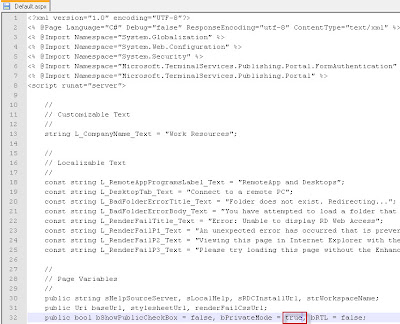
It is hard when you use the RDWeb interface internally only and you must activated the checkbox » I am using a private computer that complies with my organization’s security policy. » each time. Do you want to activated the checkbox by default, you must make the following points. Go to C:WindowsWebRDWebPagesen-US or other language Open the file «Default.aspx» with admin rights Go to line 32 with the content » public bool bShowPublicCheckBox = false, bPrivateMode = false, bRTL = false; » Change the value from bPrivateMode from false to true Save Example: public bool bShowPublicCheckBox = false, bPrivateMode = true, bRTL = false;
How to set custom RDP Settings in Windows Server 2012

I can’t find any place to set the Custom RDP Settings on my Windows Server 2012 Connection Broker. I also looked in the wrong place, because the settings are «only» set via PowerShell and I look in the GUI. Open PowerShell with admin rights Import the remote desktop service module -> Import-Module RemoteDesktopService Type the following command: Set-RDSessionCollectionConfiguration -CollectionName XXXX -CustomRdpProperty «authentication level:i:0 pre-authentication server address:s:https://XXXX.XXXX.XXX/rdweb require pre-authentication:i:1» The example is for the configuration of RDS in connection with TMG. Conclusion : Not in the GUI but in PowerShell! 
-
Главная
-
О компании
-
Блог
-
Полезные статьи
- Ошибка программного лицензирования в 1С 8.3
68096

Руководитель Центра
сопровождения 1С
09 января 2019
Лицензии 1С
Актуальность проверена: 04.06.2023
Получить консультацию
Бесплатно
Содержание статьи
- Причины отказа лицензий 1С 8.3
- Восстановление работоспособности лицензий 1С

Лицензии 1С
Бесплатная доставка и установка, часы работы в подарок.
Большинство крупных компаний-пользователей программного обеспечения 1С, купив лицензию 1С Предприятие 8, использует программные ключи. Они удобны и обходятся дешевле «флешек», так как расходуются не на компьютеры, а на сессии с сервером. Однако случается, что с ними возникаю проблемы, и 1С прекращает их видеть. Администраторам 1С в крупных компаниях важно уметь быстро исправлять такие ситуации, поскольку время «простоя» пользователей может обернуться проблемами.
Причины отказа лицензий 1С 8.3
Приглашаем на
бесплатный вебинар!
06 июня в 11:00 мск
1 час
Существует перечень распространенных причин того, что 1С перестает видеть файл с лицензиями. Ответственный сотрудник должен в первую очередь проверить именно их и быстро исправить для восстановления работоспособности 1С:
- Обновление платформы 1С. Суть проблемы заключается в схеме процедуры обновления – новая версия не заменяет старую, а просто устанавливается в соседней директории. В итоге после нескольких лет работы на сервере можно обнаружить целую коллекцию платформ, работающих самостоятельно. Чтобы вернуть работоспособность лицензий, их необходимо перерегистрировать с помощью резервных пин-кодов;
- Сбой работы менеджера лицензий. Настройка этого механизма – тонкое и сложное занятие. Если им занимался неквалифицированный специалист, проблемы могут возникнуть в любой момент. Решаются подобные сбои переустановкой платформы и менеджера лицензирования;
- Отключение использования программных лицензий. В настройках информационной базы можно указать, какой тип лицензий используется. Иногда даже пользователи могут изменить настройки и достаточно лишь снять галку «Использовать аппаратную лицензию»;
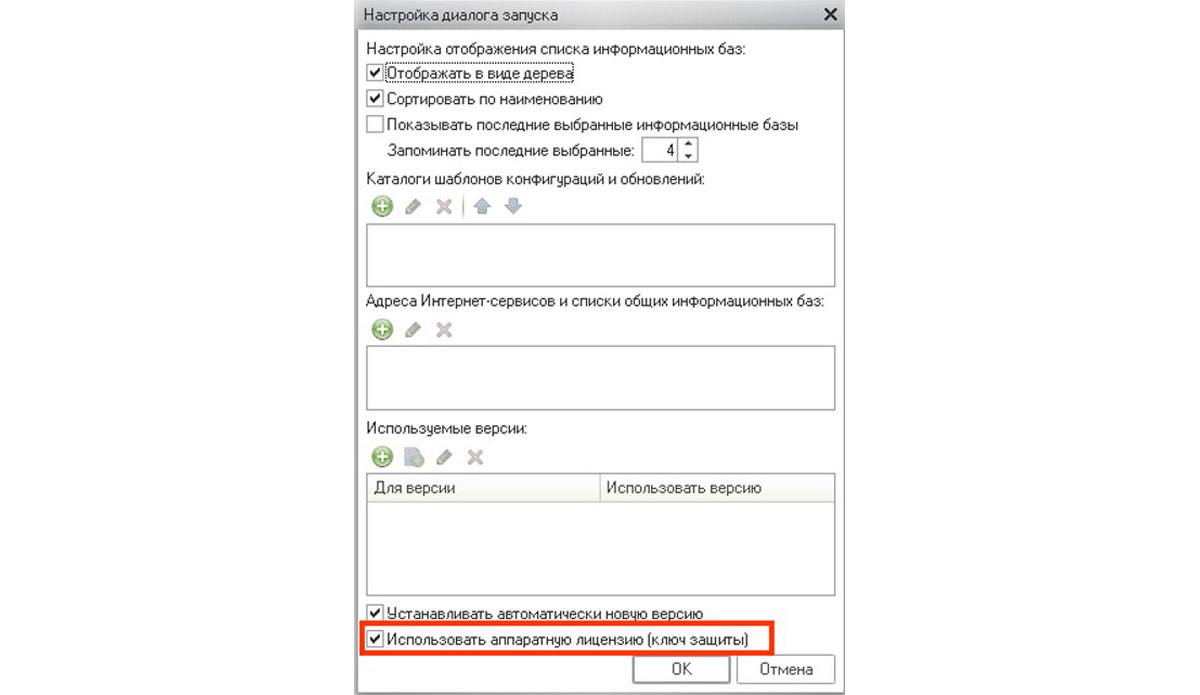
- Если в вашей компании включен и настроен сервер лицензий 1С и к нему кто-то имеет доступ, необходимо проверить его настройки. При этом важно обладать соответствующей квалификацией или обратиться к профессионалам;
- Неверное расположение файла *.lic – программного ключа. Подобная ошибка возникает при переходе с файловой на клиент-серверную базу. Часто забывают, что у этих типов различается необходимое расположение ключа, и оставляют его в старой директории;
- Когда вы видите сообщение «Не обнаружено свободной лицензии» на одном рабочем месте, а на другом 1С работает, проверьте количество программных лицензий. Возможно, у вас просто слишком много пользователей и лицензии кончились. В этом случае придется закупать дополнительные или регулировать доступ в 1С по времени, что крайне неудобно;
- Изменилась конфигурация системы – программная лицензия 1С посчитает, что ее перенесли на другой ПК и откажется работать. Необходимо перерегистрировать ее, используя резервные пин-коды;
- Ненастроенный брандмауэр и антивирус тоже могут блокировать раздачу программных лицензий.
Восстановление работоспособности лицензий 1С
Существует возможность восстановить программные лицензии 1С с помощью специального файла, входящего в состав платформы. Для этого необходимо правильно настроить файл nethasp.ini, расположенный в папке conf каталога, куда установлена 1С. Чтобы ошибка лицензии 1С ушла, необходимо в этом файле указать следующие данные:
- В разделе NH_COMMON указать NH_TCPIP = Enabled;
- В разделе NHS_SERVER указать все имена менеджеров лицензий;
- В разделе NH_TCPIP указать адрес сервера с менеджером лицензий в виде NH_SERVER_ADDR = IP – адрес. Также укажите имя самого менеджера в реквизит NH_SERVER_NAME. Если их несколько, то перечисляются через запятые.
Затем настает очередь активировать имеющуюся лицензию первично или повторно. Видимость ее должна распространяться на всех пользователей ПК, способ получения укажите – ручной, автоматический, на цифровом носителе. После заполнения регистрационных данных в специальной форме получится файл лицензий, который необходимо разместить по одному из путей:
-
Для Windows XP и Vista:
- C:UsersAdministratorAppDataLocal1C1Cv8conf;
- C:UsersAll Users1C1Cv8conf;
-
Для Windows 7 и следующих:
- C:ProgramData1Clicences
Иногда получается так, что компания покупала лицензию, но все документы утрачены, а регистрационные данные забыты. В таком случае многие просто покупают заново комплект лицензий. Это достаточно дорого, если речь идет о 50 или 100 программных лицензиях. Поэтому важно знать, что всю информацию можно восстановить, если найти файл формата lic.
В этом файле вся информация закодирована. Чтобы ее декодировать придется потратить немало сил и времени. В этом может помочь техническая поддержка 1С, если покупка лицензий действительно имела место быть. Если же взяться за эту операцию самостоятельно, высока вероятность, что возникнет ошибка декодирования файла лицензий и будет утрачена последняя возможность восстановления.
Консультация со специалистами технической поддержки 1С полезна при проблеме с обновлениями или лицензиями любых видов: обращение может помочь существенно облегчить решение возникших задач. Помните, что в некоторых случаях сотрудники 1С могут запросить предоставить копию базы данных, но вы можете отказаться. Правда, в этом случае шансы получить полноценную помощь существенно снижаются.
Другие статьи по теме

Программные лицензии 1С и все о них
Программные лицензии 1С существенно упрощают жизнь администраторам в определенных условиях, поэтому знать их преимущества, недостатки и возможности должен каждый специалист

Менеджер лицензий 1С 8.3 HASP
Для аппаратных лицензий существует специальное программное обеспечение, которое занимается раздачей лицензий пользователям в локальной сети. Называется оно – менеджер программных лицензий 1С (HASP…