
- Главная
- Yamaha
- Yamaha HTR-4064
У аудио ресиверов Yamaha есть система защиты в случае системных ошибок. Например если подключить к USB порту неисправную USB-флеш или иное устройство, то ресивер выключится, при этом записав во внутреннюю память ошибку. И после такой ошибки ресивер не будет подавать никаких признаков жизни, при этом в плане железа остается абсолютно исправным. HTR-4064 не является исключением. Для сброса такого рода ошибок выполните следующее:
-
Выключите ресивер из розетки
-
Зажмите кнопки «TONE CONTROL» и «INFO»
-
Затем подключите ресивер к сети
-
И затем нажмите кнопку «Power» и удерживайте все 3 кнопки не менее 3-х секунд
После данной операции ресивер выполнит очистку памяти системы защиты, и при условии исправности остального железа должен запуститься. В противном случае вам придется обратиться в сервисный центр.
Комментарии
Комментариев нет
Если вам помог какой-то совет или наоборот не помог, то не поленитесь — зарегистрируйтесь и проголосуйте. Тем самым вы поможете другим пользователям и нам. Ну или просто кликните на рекламе, это нас тоже порадует и таким образом вы можете нас отблагодарить. Так же, только зарегистрированные пользователи могут оставлять комментарии и вносить изменения в базу.
Зарегистрировавшись вы сможете добавлять новые устройства или добавлять заметки к уже существующим.
Зарегистрироваться или войти вы можете на этой странице
Symbols
Lock icon (o)
48
Numerics
2.1-channel system
13
2ch Stereo (sound program)
28
3.1-channel system
13
4.1-channel system
13
4K Ultra HD
61
,
5.1-channel system
13
14
5.1-channel system (Virtual CINEMA FRONT)
5ch Stereo (sound program)
28
A
A.DRC (DSP/Surround, Option menu)
Action Game (sound program)
27
Adaptive DRC (DSP/Surround, Option menu)
Adjustment (Lipsync, Setup menu)
45
ADVANCED SETUP menu
50
Adventure (sound program)
27
Amp (Audio Output, Setup menu)
43
ARC (Audio Return Channel)
61
ARC (HDMI, Setup menu)
43
Audio Decoder (front display information)
Audio In (Option menu)
36
Audio Output (HDMI, Setup menu)
43
Audio Return Channel (ARC)
61
Auto Power Standby (ECO, Setup menu)
Auto Preset (FM radio, Option menu)
Automatic station preset (FM radio)
32
AutoPowerStdby (ECO, Setup menu)
B
B RATE (Signal Info, Option menu)
36
Banana plug
14
Basic playback operation
24
BASS (sound mode)
30
Bass (Tone Control, Option menu)
35
Bitrate (Signal Info, Option menu)
Bitstream
61
C
Cellar Club (sound program)
Center (Speaker, Setup menu)
Center Width (DSP Parameter, Setup menu)
Chamber (sound program)
CHAN (Signal Info, Option menu)
Channel (Signal Info, Option menu)
Check SP Wires (error indication)
13
CINEMA DSP
Clear Preset (FM radio, Option menu)
Compressed Music Enhancer
35
Configuration (HDMI, Setup menu)
Configuration (Speaker, Setup menu)
35
Crossover (Speaker, Setup Menu)
Crossover frequency setting (subwoofer)
D
Decoder Off (front display information)
Default setting restoration
Dimension (DSP Parameter, Setup menu)
Dimmer (Function, Setup menu)
24
Direct Stream Digital (DSD)
Distance (Speaker, Setup menu)
Dolby Pro Logic (surround decoder)
Dolby Pro Logic II (surround decoder)
47
Drama (sound program)
32
DSD (Direct Stream Digital)
DSP Level (DSP/Surround, Option menu)
47
DSP Parameter (Sound, Setup menu)
DSP Program (front display information)
DSP/Surround (Option menu)
Dynamic Range (Volume, Setup menu)
E
ECO (Setup menu)
ECO Mode (ECO, Setup menu)
36
28
40
45
28
36
36
57
27
33
30
43
40
40
40
24
51
45
48
58
41
29
29
27
58
35
45
24
35
46
47
47
Enhancer (DSP/Surround, Option menu)
ENHANCER (sound mode)
30
EQ Select (Equalizer, Setup menu)
41
Equalizer (Speaker, Setup menu)
41
Error indication (front display)
57
Extra Bass (Speaker, Setup menu)
41
F
Firmware version check
51
FM radio listening
31
FM radio tuning
31
FORMAT (Signal Info, Option menu)
Format (Signal Info, Option menu)
36
Frequency (FM radio)
31
,
Frequency step setting
31
51
Front (Speaker, Setup menu)
40
Front display (part names and functions)
Front display brightness
48
Front display information
24
Front panel (part names and functions)
Function (Setup menu)
48
G
GEQ (Equalizer, Setup menu)
41
H
Hall in Munich (sound program)
28
Hall in Vienna (sound program)
28
HDMI (Setup menu)
43
HDMI Control (HDMI, Setup menu)
43
HDMI OUT (TV) (Audio Output, Setup menu)
HDMI signal compatibility
61
Headphones
27
High definition audio
61
I
In.Trim (Volume Trim, Option menu)
35
Indicator (part names and functions)
Information display (front display)
8
APPENDIX ➤ Index
35
36
8
7
43
8
66
En

AV Receiver
Owner’s Manual
Read the supplied booklet “Safety Brochure” before using the unit.
English
00_HTR-2067_om_En.book Page 1 Monday, January 27, 2014 9:33 AM

En 2
CONTENTS
Accessories . . . . . . . . . . . . . . . . . . . . . . . . . . . . . . . . . . . . . . . . . . . . . . . . . . . . . . 4
FEATURES 5
What you can do with the unit . . . . . . . . . . . . . . . . . . . . . . . . . . . . . . . . . . . . 5
Part names and functions . . . . . . . . . . . . . . . . . . . . . . . . . . . . . . . . . . . . . . . . 7
Front panel . . . . . . . . . . . . . . . . . . . . . . . . . . . . . . . . . . . . . . . . . . . . . . . . . . . . . . . . . . . . . . . . . . . . . . . . . . . . . . . . . . . . . . . . 7
Front display (indicators) . . . . . . . . . . . . . . . . . . . . . . . . . . . . . . . . . . . . . . . . . . . . . . . . . . . . . . . . . . . . . . . . . . . . . . . . . . . 8
Rear panel . . . . . . . . . . . . . . . . . . . . . . . . . . . . . . . . . . . . . . . . . . . . . . . . . . . . . . . . . . . . . . . . . . . . . . . . . . . . . . . . . . . . . . . . . 9
Remote control . . . . . . . . . . . . . . . . . . . . . . . . . . . . . . . . . . . . . . . . . . . . . . . . . . . . . . . . . . . . . . . . . . . . . . . . . . . . . . . . . . . 10
PREPARATIONS 11
General setup procedure . . . . . . . . . . . . . . . . . . . . . . . . . . . . . . . . . . . . . . . . 11
1 Placing speakers . . . . . . . . . . . . . . . . . . . . . . . . . . . . . . . . . . . . . . . . . . . . . . 12
2 Connecting speakers . . . . . . . . . . . . . . . . . . . . . . . . . . . . . . . . . . . . . . . . . . 14
Input/output jacks and cables . . . . . . . . . . . . . . . . . . . . . . . . . . . . . . . . . . . 16
3 Connecting a TV . . . . . . . . . . . . . . . . . . . . . . . . . . . . . . . . . . . . . . . . . . . . . . . 17
4 Connecting playback devices . . . . . . . . . . . . . . . . . . . . . . . . . . . . . . . . . . 17
Connecting video devices (such as BD/DVD players) . . . . . . . . . . . . . . . . . . . . . . . . . . . . . . . . . . . . . . . . . . . . . . . 17
Connecting audio devices (such as CD players) . . . . . . . . . . . . . . . . . . . . . . . . . . . . . . . . . . . . . . . . . . . . . . . . . . . . . 19
5 Connecting the FM antenna . . . . . . . . . . . . . . . . . . . . . . . . . . . . . . . . . . . . 19
6 Connecting the power cable . . . . . . . . . . . . . . . . . . . . . . . . . . . . . . . . . . . 20
7 Selecting an on-screen menu language . . . . . . . . . . . . . . . . . . . . . . . . . 21
8 Configure the speaker settings . . . . . . . . . . . . . . . . . . . . . . . . . . . . . . . . . 22
PLAYBACK 24
Basic playback procedure . . . . . . . . . . . . . . . . . . . . . . . . . . . . . . . . . . . . . . . 24
Switching information on the front display . . . . . . . . . . . . . . . . . . . . . . . . . . . . . . . . . . . . . . . . . . . . . . . . . . . . . . . . . 24
Selecting the input source and favorite settings with one touch
(SCENE) . . . . . . . . . . . . . . . . . . . . . . . . . . . . . . . . . . . . . . . . . . . . . . . . . . . . . . . . 25
Configuring scene assignments . . . . . . . . . . . . . . . . . . . . . . . . . . . . . . . . . . . . . . . . . . . . . . . . . . . . . . . . . . . . . . . . . . . . 25
Selecting the sound mode . . . . . . . . . . . . . . . . . . . . . . . . . . . . . . . . . . . . . . . 26
Enjoying sound field effects (CINEMA DSP) . . . . . . . . . . . . . . . . . . . . . . . . . . . . . . . . . . . . . . . . . . . . . . . . . . . . . . . . . 27
Enjoying unprocessed playback . . . . . . . . . . . . . . . . . . . . . . . . . . . . . . . . . . . . . . . . . . . . . . . . . . . . . . . . . . . . . . . . . . .29
Enhancing the bass (Extra Bass) . . . . . . . . . . . . . . . . . . . . . . . . . . . . . . . . . . . . . . . . . . . . . . . . . . . . . . . . . . . . . . . . . . . . 30
Enjoying compressed music with enhanced sound (Compressed Music Enhancer) . . . . . . . . . . . . . . . . . . . 30
Listening to FM radio . . . . . . . . . . . . . . . . . . . . . . . . . . . . . . . . . . . . . . . . . . . 31
Setting the frequency steps . . . . . . . . . . . . . . . . . . . . . . . . . . . . . . . . . . . . . . . . . . . . . . . . . . . . . . . . . . . . . . . . . . . . . . . . 31
Selecting a frequency for reception . . . . . . . . . . . . . . . . . . . . . . . . . . . . . . . . . . . . . . . . . . . . . . . . . . . . . . . . . . . . . . . . 31
Registering favorite radio stations (presets) . . . . . . . . . . . . . . . . . . . . . . . . . . . . . . . . . . . . . . . . . . . . . . . . . . . . . . . . 32
Configuring playback settings for different playback sources
(Option menu) . . . . . . . . . . . . . . . . . . . . . . . . . . . . . . . . . . . . . . . . . . . . . . . . . . 34
Option menu items . . . . . . . . . . . . . . . . . . . . . . . . . . . . . . . . . . . . . . . . . . . . . . . . . . . . . . . . . . . . . . . . . . . . . . . . . . . . . . . . 34
CONFIGURATIONS 37
Configuring various functions (Setup menu) . . . . . . . . . . . . . . . . . . . . . . 37
Setup menu items . . . . . . . . . . . . . . . . . . . . . . . . . . . . . . . . . . . . . . . . . . . . . . . . . . . . . . . . . . . . . . . . . . . . . . . . . . . . . . . . .38
Speaker . . . . . . . . . . . . . . . . . . . . . . . . . . . . . . . . . . . . . . . . . . . . . . . . . . . . . . . . . . . . . . . . . . . . . . . . . . . . . . . . . . . . . . . . . . .40
HDMI . . . . . . . . . . . . . . . . . . . . . . . . . . . . . . . . . . . . . . . . . . . . . . . . . . . . . . . . . . . . . . . . . . . . . . . . . . . . . . . . . . . . . . . . . . . . . 43
Sound . . . . . . . . . . . . . . . . . . . . . . . . . . . . . . . . . . . . . . . . . . . . . . . . . . . . . . . . . . . . . . . . . . . . . . . . . . . . . . . . . . . . . . . . . . . .45
ECO . . . . . . . . . . . . . . . . . . . . . . . . . . . . . . . . . . . . . . . . . . . . . . . . . . . . . . . . . . . . . . . . . . . . . . . . . . . . . . . . . . . . . . . . . . . . . . . 47
Function . . . . . . . . . . . . . . . . . . . . . . . . . . . . . . . . . . . . . . . . . . . . . . . . . . . . . . . . . . . . . . . . . . . . . . . . . . . . . . . . . . . . . . . . . .48
Language . . . . . . . . . . . . . . . . . . . . . . . . . . . . . . . . . . . . . . . . . . . . . . . . . . . . . . . . . . . . . . . . . . . . . . . . . . . . . . . . . . . . . . . . . 49
00_HTR-2067_om_En.book Page 2 Monday, January 27, 2014 9:33 AM

En 3
Configuring the system settings (ADVANCED SETUP menu) . . . . . . . . 50
ADVANCED SETUP menu items . . . . . . . . . . . . . . . . . . . . . . . . . . . . . . . . . . . . . . . . . . . . . . . . . . . . . . . . . . . . . . . . . . . . 50
Selecting the remote control ID (REMOTE ID) . . . . . . . . . . . . . . . . . . . . . . . . . . . . . . . . . . . . . . . . . . . . . . . . . . . . . . . 50
Changing the FM tuning frequency setting (TU) . . . . . . . . . . . . . . . . . . . . . . . . . . . . . . . . . . . . . . . . . . . . . . . . . . . . 51
Switching the video signal type (TV FORMAT) . . . . . . . . . . . . . . . . . . . . . . . . . . . . . . . . . . . . . . . . . . . . . . . . . . . . . . 51
Restoring the default settings (INIT) . . . . . . . . . . . . . . . . . . . . . . . . . . . . . . . . . . . . . . . . . . . . . . . . . . . . . . . . . . . . . . . . 51
Checking the firmware version (VERSION) . . . . . . . . . . . . . . . . . . . . . . . . . . . . . . . . . . . . . . . . . . . . . . . . . . . . . . . . . . 51
APPENDIX 52
Frequently asked questions . . . . . . . . . . . . . . . . . . . . . . . . . . . . . . . . . . . . . 52
Troubleshooting . . . . . . . . . . . . . . . . . . . . . . . . . . . . . . . . . . . . . . . . . . . . . . . . 53
Power, system and remote control . . . . . . . . . . . . . . . . . . . . . . . . . . . . . . . . . . . . . . . . . . . . . . . . . . . . . . . . . . . . . . . . . 53
Audio . . . . . . . . . . . . . . . . . . . . . . . . . . . . . . . . . . . . . . . . . . . . . . . . . . . . . . . . . . . . . . . . . . . . . . . . . . . . . . . . . . . . . . . . . . . . . 54
Video . . . . . . . . . . . . . . . . . . . . . . . . . . . . . . . . . . . . . . . . . . . . . . . . . . . . . . . . . . . . . . . . . . . . . . . . . . . . . . . . . . . . . . . . . . . . . 55
FM radio . . . . . . . . . . . . . . . . . . . . . . . . . . . . . . . . . . . . . . . . . . . . . . . . . . . . . . . . . . . . . . . . . . . . . . . . . . . . . . . . . . . . . . . . . . 56
Error indications on the front display . . . . . . . . . . . . . . . . . . . . . . . . . . . . . 57
Glossary . . . . . . . . . . . . . . . . . . . . . . . . . . . . . . . . . . . . . . . . . . . . . . . . . . . . . . . . 58
Audio information . . . . . . . . . . . . . . . . . . . . . . . . . . . . . . . . . . . . . . . . . . . . . . . . . . . . . . . . . . . . . . . . . . . . . . . . . . . . . . . . 58
HDMI and video information . . . . . . . . . . . . . . . . . . . . . . . . . . . . . . . . . . . . . . . . . . . . . . . . . . . . . . . . . . . . . . . . . . . . . . 58
Yamaha technologies . . . . . . . . . . . . . . . . . . . . . . . . . . . . . . . . . . . . . . . . . . . . . . . . . . . . . . . . . . . . . . . . . . . . . . . . . . . . . 59
Information on HDMI . . . . . . . . . . . . . . . . . . . . . . . . . . . . . . . . . . . . . . . . . . . 59
HDMI Control . . . . . . . . . . . . . . . . . . . . . . . . . . . . . . . . . . . . . . . . . . . . . . . . . . . . . . . . . . . . . . . . . . . . . . . . . . . . . . . . . . . . . 59
Audio Return Channel (ARC) . . . . . . . . . . . . . . . . . . . . . . . . . . . . . . . . . . . . . . . . . . . . . . . . . . . . . . . . . . . . . . . . . . . . . . . 61
HDMI signal compatibility . . . . . . . . . . . . . . . . . . . . . . . . . . . . . . . . . . . . . . . . . . . . . . . . . . . . . . . . . . . . . . . . . . . . . . . . . 61
Reference diagram (rear panel) . . . . . . . . . . . . . . . . . . . . . . . . . . . . . . . . . . 62
Trademarks . . . . . . . . . . . . . . . . . . . . . . . . . . . . . . . . . . . . . . . . . . . . . . . . . . . . 63
Specifications . . . . . . . . . . . . . . . . . . . . . . . . . . . . . . . . . . . . . . . . . . . . . . . . . . 64
Index . . . . . . . . . . . . . . . . . . . . . . . . . . . . . . . . . . . . . . . . . . . . . . . . . . . . . . . . . . 66
00_HTR-2067_om_En.book Page 3 Monday, January 27, 2014 9:33 AM
Accessories En 4
Accessories
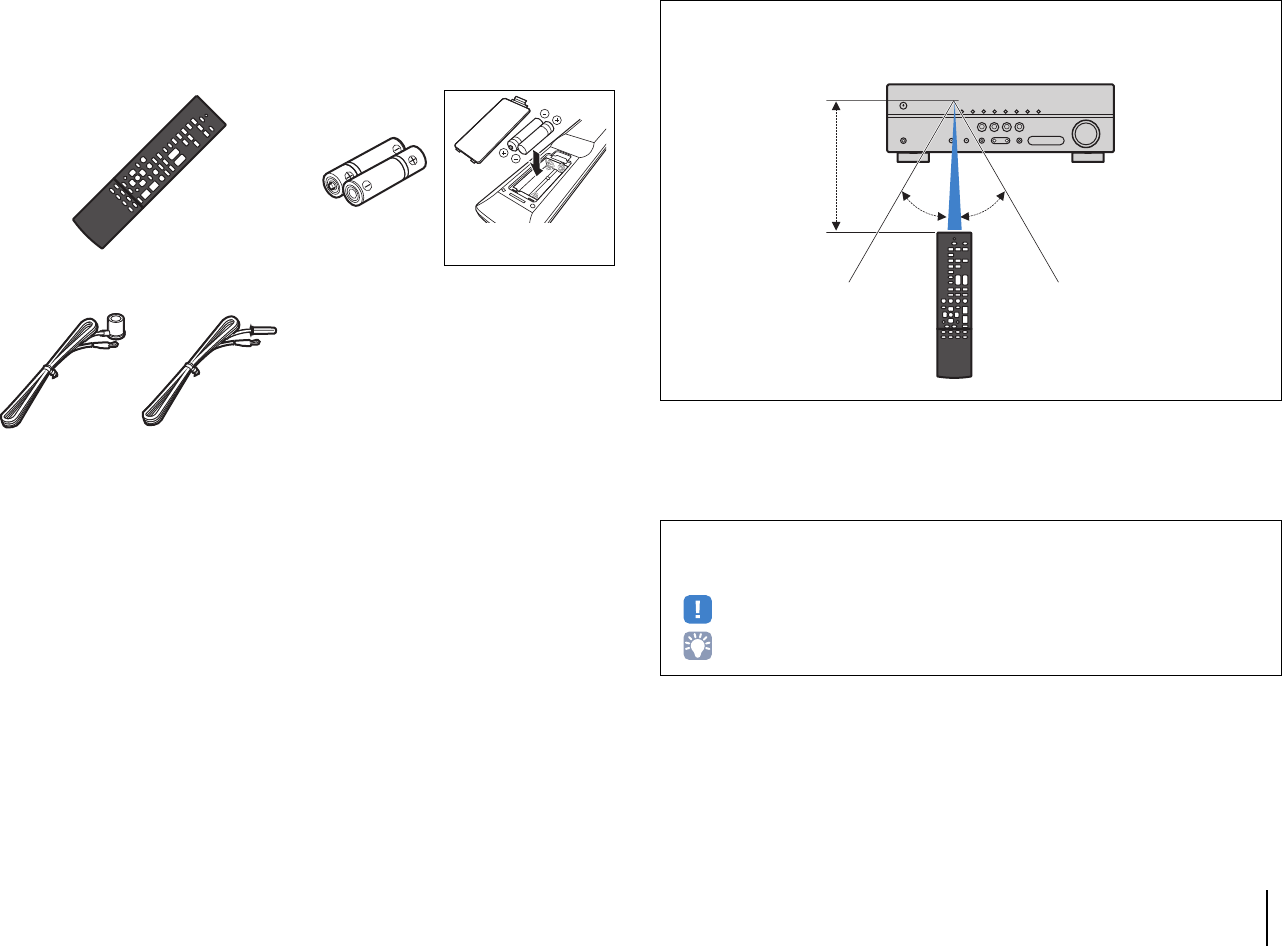
Check that the following accessories are supplied with the product.
Remote control Batteries (AAA, R03, UM-4) (x2)
Insert the batteries the right
way round.
FM antenna
* One of the above is supplied depending on the region of
purchase.
CD-ROM (Owner’s Manual)
Easy Setup Guide
Safety Brochure
Operating range of the remote control
• Point the remote control at the remote control sensor on the unit and remain within the operating range
shown below.
• Some features are not available in certain regions.
• Due to product improvements, specifications and appearance are subject to change without notice.
• This manual explains operations using the supplied remote control.
• indicates precautions for use of the unit and its feature limitations.
• indicates supplementary explanations for better use.
30° 30°
Within 6 m (20 ft)
00_HTR-2067_om_En.book Page 4 Monday, January 27, 2014 9:33 AM
FEATURES ➤What you can do with the unit En 5
FEATURES
What you can do with the unit
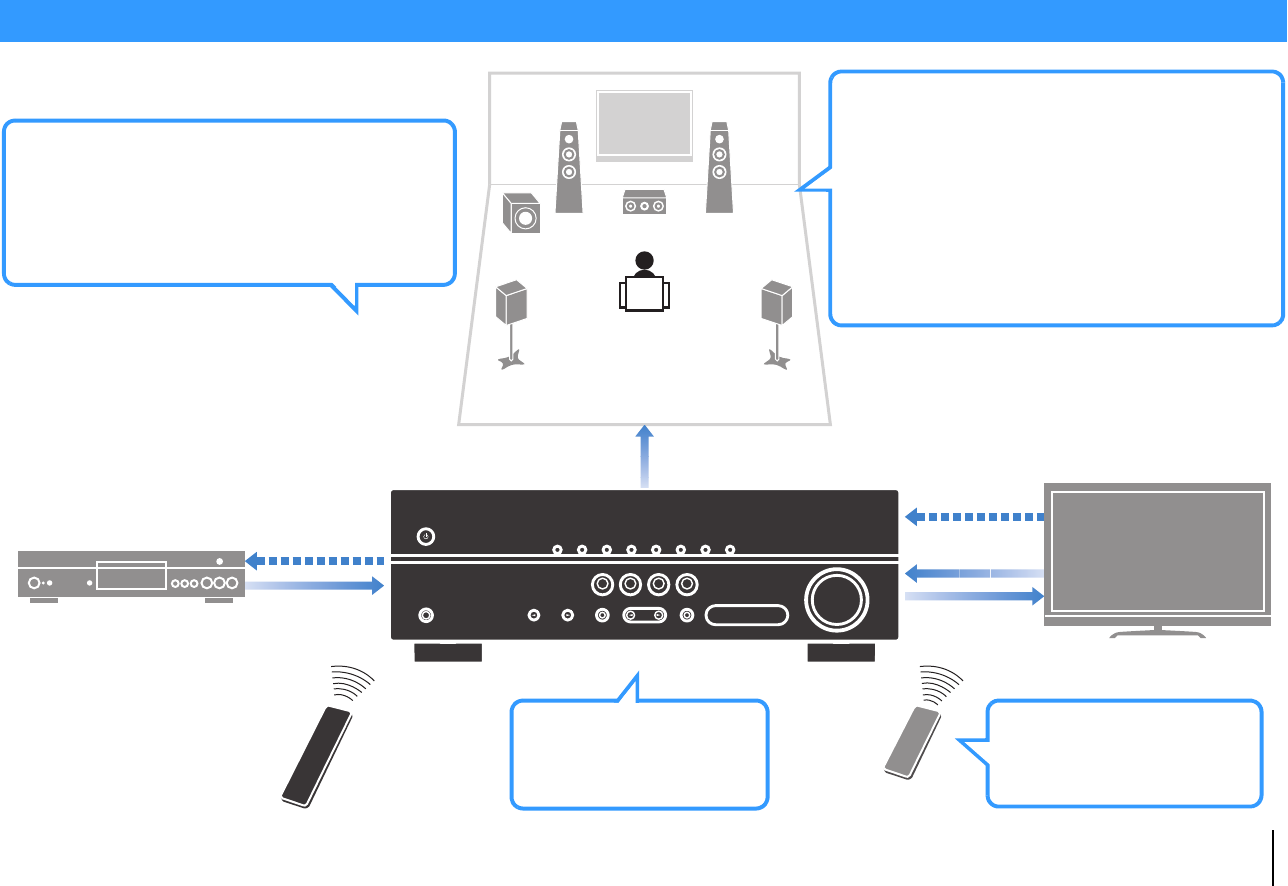
• 3D and 4K Ultra HD signals
supported
.p.17
•The ECO mode
(power saving function) allows you
to create an eco-friendly home
theater system
.p.47
AV receiver (the unit)
Speakers
BD/DVD player
HDMI Control
Audio/Video
The unit’s
remote control TV remote control
Audio
HDMI Control
Audio
Audio/Video
TV
Sequential operation of a TV,
AV receiver, and BD/DVD
player (HDMI Control)
.p.59
Supports 2— to 5.1-channel speaker system.
Allows you to enjoy your favorite acoustic
spaces in various styles.
• Reproducing stereo or multichannel
sounds with the sound fields like
actual movie theaters and concert
halls (CINEMA DSP)
.p.27
• Enjoying compressed music with
enhanced sound (Compressed
Music Enhancer)
.p.30
Change the input source
and favorite settings with
one touch (SCENE)
.p.25
00_HTR-2067_om_En.book Page 5 Monday, January 27, 2014 9:33 AM
FEATURES ➤What you can do with the unit En 6
Full of useful functions!
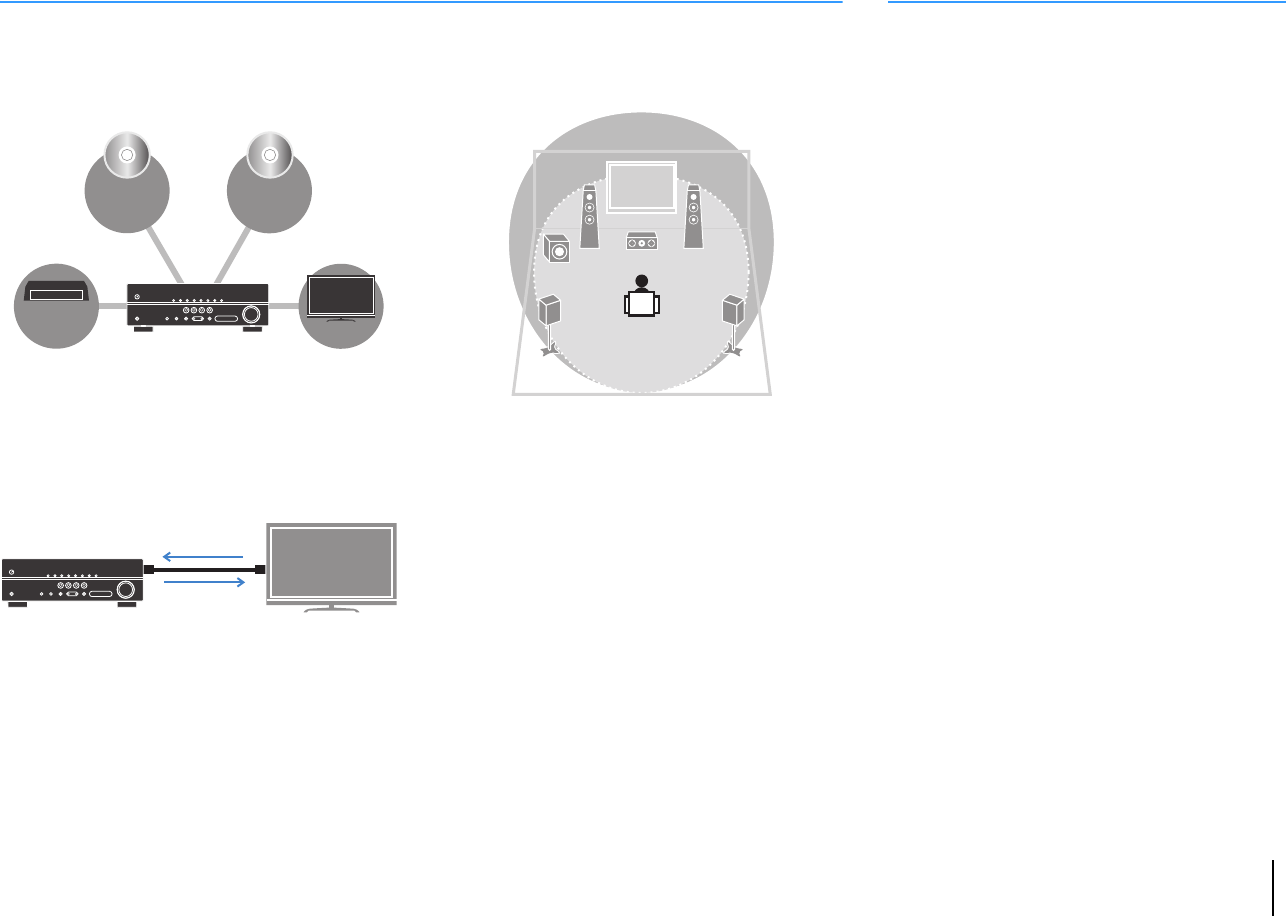
❑Connecting various devices (p.17)
A number of HDMI jacks and various audio input jacks
on the unit allow you to connect video devices (such as
BD/DVD players), audio devices (such as CD players).
❑Playing back TV audio in surround sound
with a single HDMI cable connection
(Audio Return Channel: ARC) (p.17)
When using an ARC-compatible TV, you only need one
HDMI cable to enable video output to the TV, audio input
from the TV, and the transmission of HDMI Control signals.
❑Creating high-realistic sound fields (p.27)
CINEMA DSP allows you to create a natural and realistic
sound field in your own room.
❑Surround playback with 5 speakers placed
in front (p.27)
You can enjoy the surround sound even when the
surround speakers are placed in front.
❑Enhanced bass reproduction (p.30)
Extra Bass allows you to enjoy enhanced bass
reproduction that does not depend on the speakers
used.
❑Listening to FM radio (p.31)
The unit is equipped with a built-in FM tuner. You can
register up to 40 favorite radio stations as presets.
❑Easy operation with a TV screen
You can easily configure the settings using the on-
screen menu.
BD/DVD
player
Set-top box
TV
CD player
HDMI Control
TV audio
Video from
external device
Useful tips
Video and audio are not synchronized…
Use “Lipsync” in the “Setup” menu to adjust the delay
between video and audio output (p.45).
I want to hear audio from the TV speakers…
Use “Audio Output” in the “Setup” menu to select the
output destination of signals input into the unit (p.43).
Your TV speakers may be selected as an output
destination.
I want to change the on-screen menu language…
Use “Language” in the “Setup” menu to select a
language from English, Japanese, French, German,
Spanish, Russian, Italian and Chinese (p.21).
Many other settings are available that let you to
customize the unit. For details, see the following pages.
• SCENE settings (p.25)
• Sound/video settings and signal information for each
source (p.34)
• Various function settings (p.38)
• System settings (p.50)
00_HTR-2067_om_En.book Page 6 Monday, January 27, 2014 9:33 AM
FEATURES ➤Part names and functions En 7
Front panel
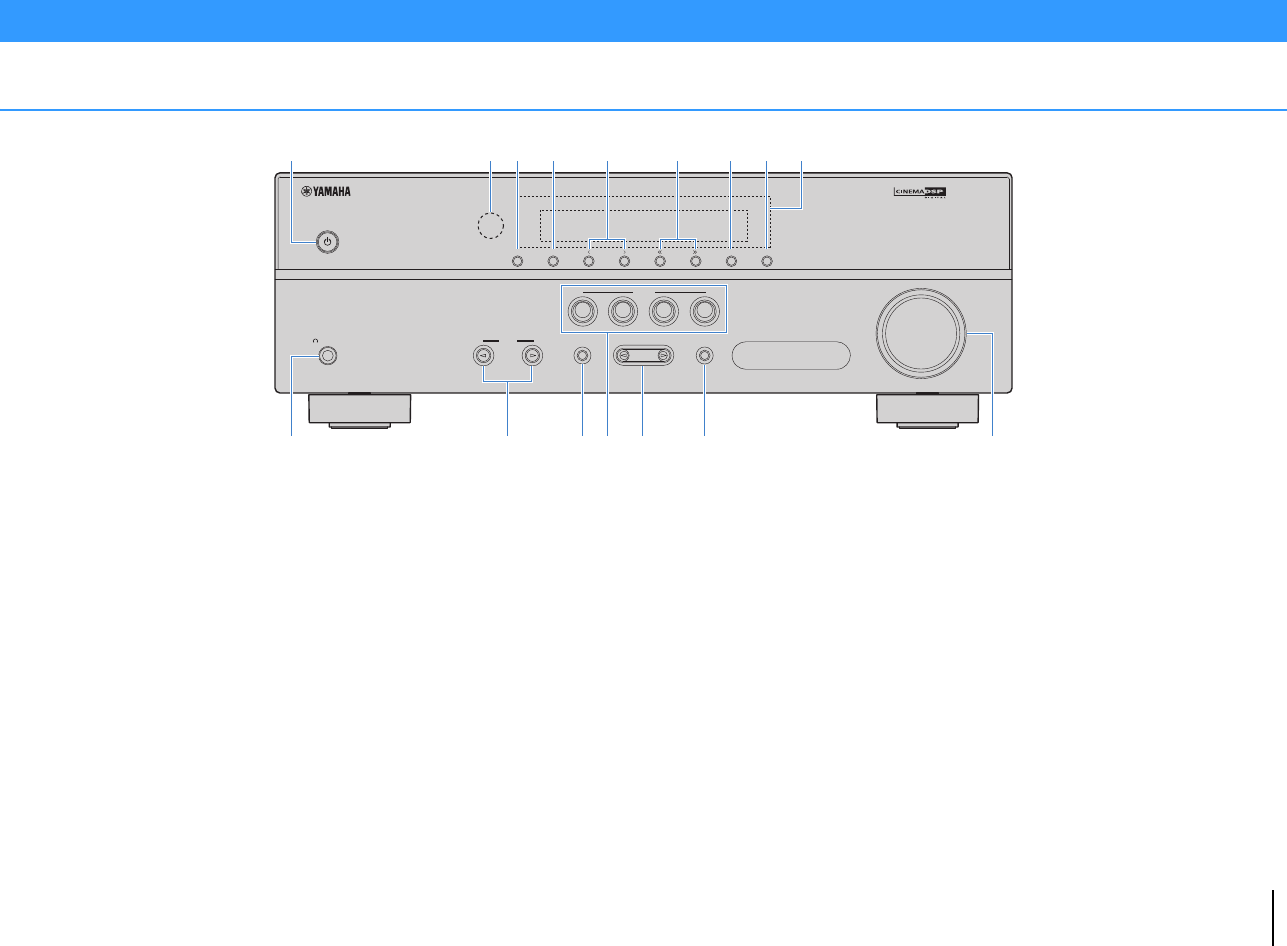
1z (power) key
Turns on/off (standby) the unit.
2Remote control sensor
Receives remote control signals (p.4).
3INFO key
Selects the information displayed on the front display (p.24).
4MEMORY key
Registers FM radio stations as preset stations (p.32).
5PRESET keys
Select a preset FM radio station (p.33).
6TUNING keys
Select the radio frequency (p.31).
7FM MODE key
Switches between “Stereo” and “Mono” for FM radio
reception (p.31).
8MUTE key
Mutes the audio output.
9Front display
Displays information (p.8).
0PHONES jack
For connecting headphones.
AINPUT keys
Select an input source.
BTONE CONTROL key
Adjusts the high-frequency range and low-frequency range
of output sounds (p.35).
CSCENE keys
Select the registered input source and sound program with
one touch. Also, turns on the unit when it is in standby mode
(p.25).
DPROGRAM keys
Select a sound program or a surround decoder (p.26).
ESTRAIGHT key
Enables/disables the straight decode mode (p.29).
FVOLUME knob
Adjusts the volume.
Part names and functions
INFO
MEMORY
PRESET
FM MODE MUTE
TUNING
PHONES
SILENT
CINEMA
VOLU ME
TONE
CONTROL
STRAIGHT
TV
BD
DVD
CD
RADIO
INPUT PROGRAM
SCENE
2934 6 71 5 8
:FBDEAC
00_HTR-2067_om_En.book Page 7 Monday, January 27, 2014 9:33 AM
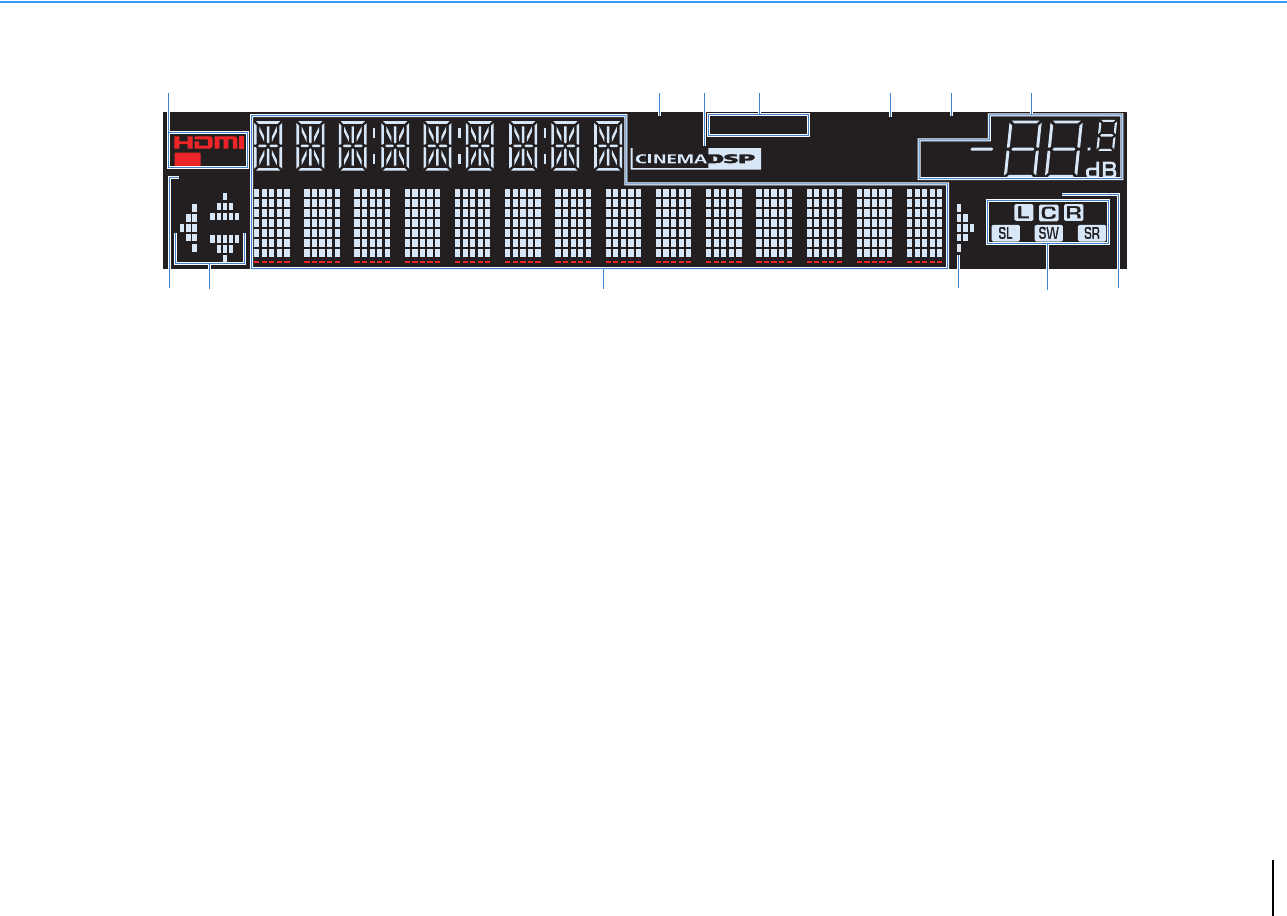
FEATURES ➤Part names and functions En 8
Front display (indicators)
1HDMI
Lights up when HDMI signals are being input or output.
OUT
Lights up when HDMI signals are being output.
2ENHANCER
Lights up when Compressed Music Enhancer (p.30) is
working.
3CINEMA DSP
Lights up when CINEMA DSP (p.27) is working.
4STEREO
Lights up when the unit is receiving a stereo FM radio signal.
TUNED
Lights up when the unit is receiving an FM radio station
signal.
5SLEEP
Lights up when the sleep timer is on.
6MUTE
Blinks when audio is muted.
7Volume indicator
Indicates the current volume.
8ECO
Lights up when the eco mode (p.47) is enabled.
9Cursor indicators
Indicate the remote control cursor keys currently operational.
0Information display
Displays the current status (such as input name and sound
mode name). You can switch the information by pressing
INFO (p.24).
ASpeaker indicators
Indicate speaker terminals from which signals are output.
AFront speaker (L)
SFront speaker (R)
DCenter speaker
FSurround speaker (L)
GSurround speaker (R)
LSubwoofer
BADAPTIVE DRC
Lights up when Adaptive DRC (p.35) is working.
VOL.
MUTE
ENHANCER
STEREO
TUNED
SLEEP
OUT
ECO
ADAPTIVE DRC
SP IMP.••8 MIN
123 5 6 7
98 A90
4
B
00_HTR-2067_om_En.book Page 8 Monday, January 27, 2014 9:33 AM
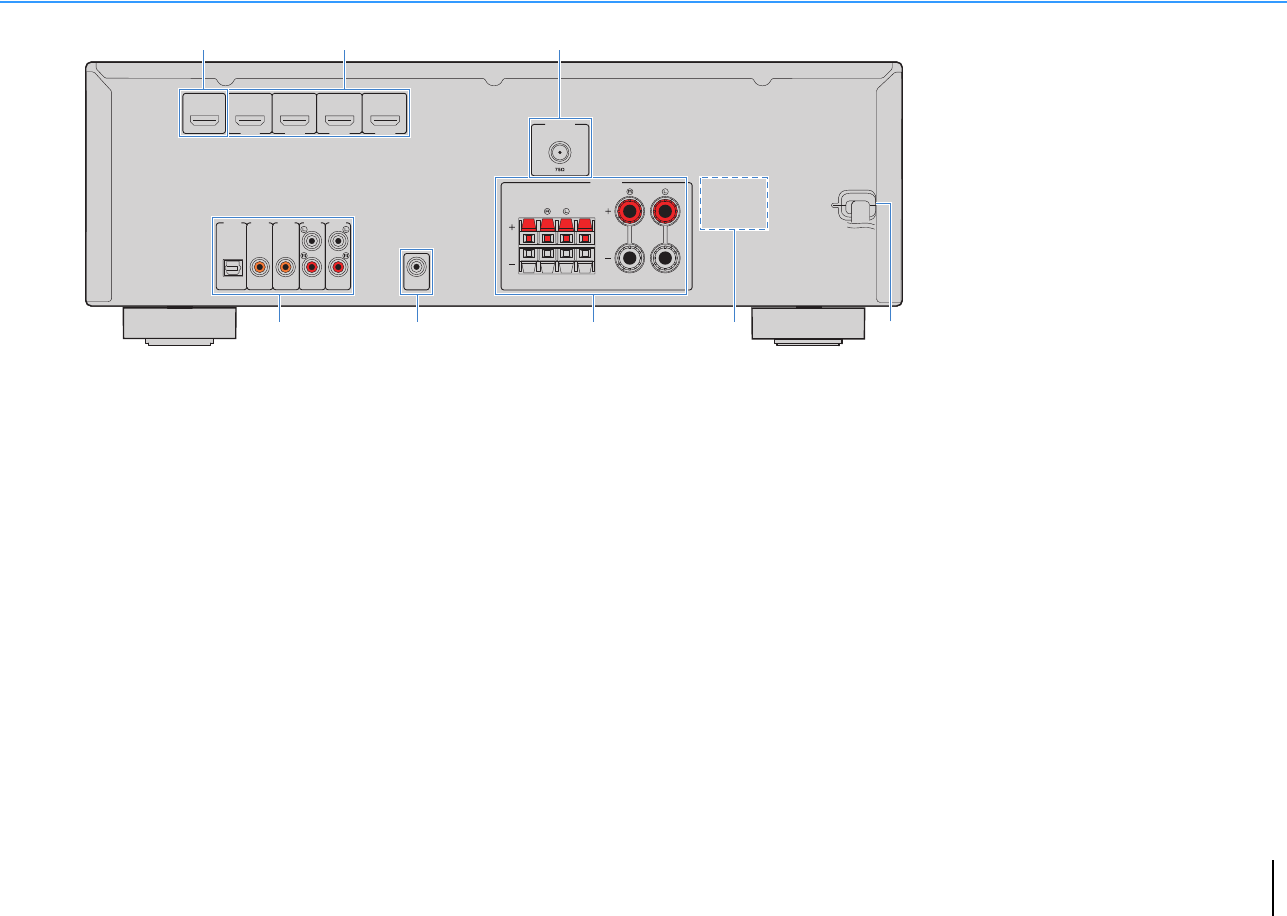
FEATURES ➤Part names and functions En 9
Rear panel
1HDMI OUT jack
For connecting to an HDMI-compatible TV and outputting
video/audio signals (p.17). When using ARC, TV audio signal
can also be input through the HDMI OUT jack.
2HDMI 1–4 jacks
For connecting to HDMI-compatible playback devices and
inputting video/audio signals (p.17).
3ANTENNA jacks
For connecting to FM antenna (p.19).
4AUDIO 1–5 jacks
For connecting to audio playback devices and inputting
audio signals (p.17).
5SUBWOOFER PRE OUT jack
For connecting to a subwoofer with built-in amplifier (p.14).
6SPEAKERS terminals
For connecting to speakers (p.14).
7VOLTAGE SELECTOR
(General models only)
Selects the switch position according to your local voltage
(p.20).
8Power cable
For connecting to an AC wall outlet (p.20).
FRONT
AUDIO 1 AUDIO 2 AUDIO 3 AUDIO 5
OPTICAL COAXIAL COAXIAL
( TV )
(CD)
PRE OUT
SUBWOOFER
AUDIO 4
HDMI 1
(BD/DVD)
HDMI 2 HDMI 3
HDMI 4
HDMI
OUT
ARC
FM
ANTENNA
SURROUND CENTERSUB
WOOFER
SPEAKERS
5678
213
4
* The area around the video/audio output jacks
is marked in white on the actual product to
prevent improper connections.
00_HTR-2067_om_En.book Page 9 Monday, January 27, 2014 9:33 AM
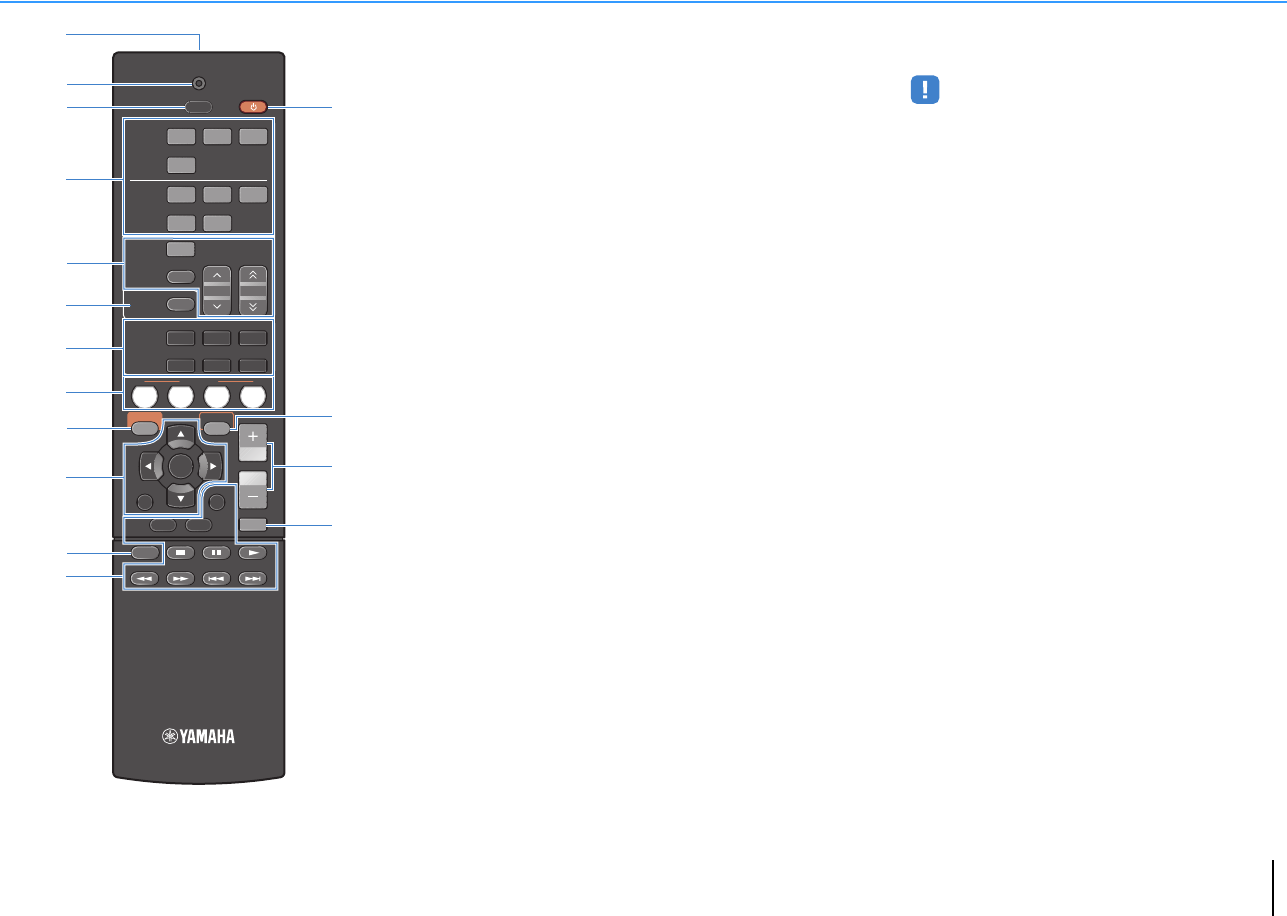
FEATURES ➤Part names and functions En 10
Remote control
1Remote control signal transmitter
Transmits infrared signals.
2TRANSMIT indicator
Lights up when remote control signals are transmitted.
3SLEEP key
Switches the unit to standby mode automatically after a
specified period of time has elapsed (sleep timer). Press
repeatedly to set the time (120 min, 90 min, 60 min, 30 min,
off).
4Input selection keys
Select an input source for playback.
HDMI 1–4 HDMI 1–4 jacks
AUDIO 1–5 AUDIO 1–5 jacks
5Radio keys
Operate the FM radio (p.31).
FM Switches to FM radio.
MEMORY Registers FM radio stations as presets.
PRESET Select a preset station.
TUNING Select the radio frequency.
6INFO key
Selects the information displayed on the front display (p.24).
7Sound mode keys
Select a sound mode (p.26).
8SCENE keys
Select the registered input source and sound program with
one touch. Also, turns on the unit when it is in standby mode
(p.25).
9SETUP key
Displays the setup menu (p.37).
0Menu operation keys
Cursor keys Select a menu or a parameter.
ENTER Confirms a selected item.
RETURN Returns to the previous screen.
AMODE key
Switches between “Stereo” and “Mono” for FM radio
reception (p.31).
BExternal device operation keys
Control playback or operate menus of the playback devices
connected to the unit with an HDMI cable.
• The playback devices must support HDMI Control. However,
Yamaha does not assure the operation of all HDMI Control-
compatible devices.
CRECEIVER z key
Turns on/off (standby) the unit.
DOPTION key
Displays the option menu (p.34).
EVOLUME keys
Adjust the volume.
FMUTE key
Mutes the audio output.
TRANSMIT
RECEIVER
SLEEP
HDMI
AUDIO
123
4
45
123
FM
MEMORY
PRESET
TUNING
TUNER
SOUND
INFO
MOVIE MUSIC
SUR. DECODE
ENHANCER STRAIGHTBASS
SCENE
RETURN
VOLUME
BD
DVD TV
CD
RADIO
DISPLAY
ENTER
SETUP OPTION
TOP
MENU
POP-UP
MENU
MUTE
MODE
C
D
E
F
1
2
3
5
4
6
7
8
9
A
0
B
00_HTR-2067_om_En.book Page 10 Monday, January 27, 2014 9:33 AM

PREPARATIONS ➤General setup procedure En 11
PREPARATIONS
This completes all the preparations. Enjoy playing movies, music, radio and other content with the unit!
General setup procedure
1Placing speakers (p.12) Select the speaker layout for the number of speakers that you are using and place them in your room.
2Connecting speakers (p.14) Connect the speakers to the unit.
3Connecting a TV (p.17) Connect a TV to the unit.
4Connecting playback devices (p.17) Connect video devices (such as BD/DVD players) and audio devices (such as CD players) to the unit.
5Connecting the FM antenna (p.19) Connect the supplied FM antenna to the unit.
6Connecting the power cable (p.20) After all the connections are complete, plug in the power cable.
7Selecting an on-screen menu language
(p.21) Select the desired on-screen menu language.
8Configure the speaker settings (p.22) Configure the speaker settings of the unit to create an optimum surround sound field.
00_HTR-2067_om_En.book Page 11 Monday, January 27, 2014 9:33 AM
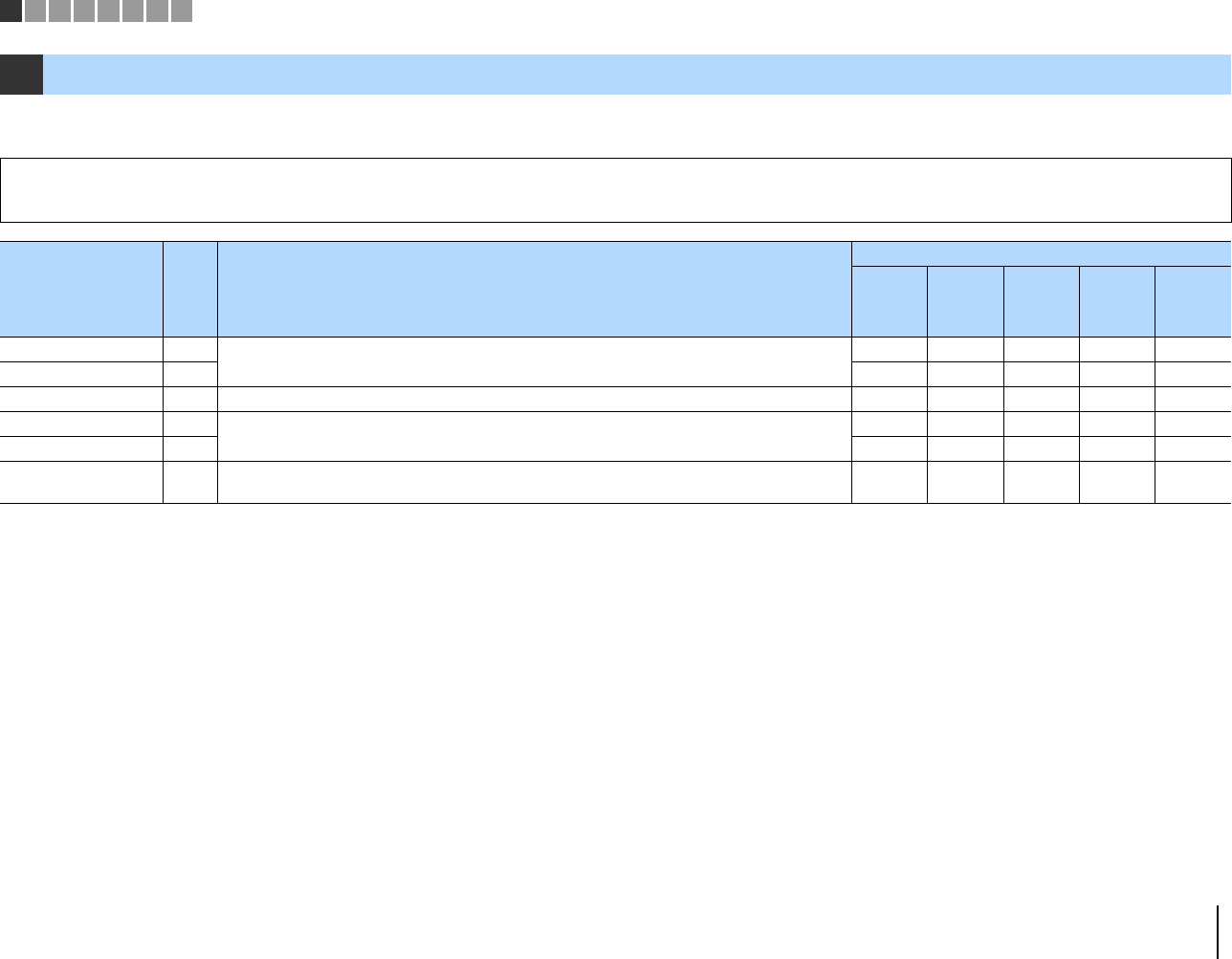
PREPARATIONS ➤Placing speakers En 12
Select the speaker layout for the number of speakers that you are using and place the speakers and subwoofer in your room. This section describes the representative speaker layout
examples.
* Place the surround speakers in front and set «Virtual CINEMA FRONT» (p.41) in the «Setup» menu to «On».
1Placing speakers
Caution
• Use speakers with an impedance of at least 6 Ω.
Speaker type Abbr. Function
Speaker system (the number of channels)
5.1
5.1
(Virtual
CINEMA
FRONT)
4.1 3.1 2.1
Front (L) 1
Produce front right/left channel sounds (stereo sounds).
●●●●●
Front (R) 2●●●●●
Center 3Produces center channel sounds (such as movie dialogue and vocals). ●● ●
Surround (L) 4
Produce surround right/left channel sounds.
●●*●
Surround (R) 5●●*●
Subwoofer 9Produces LFE (low-frequency effect) channel sounds and reinforces the bass parts of other channels.
This channel is counted as “0.1”. ●●●●●
12345678
00_HTR-2067_om_En.book Page 12 Monday, January 27, 2014 9:33 AM
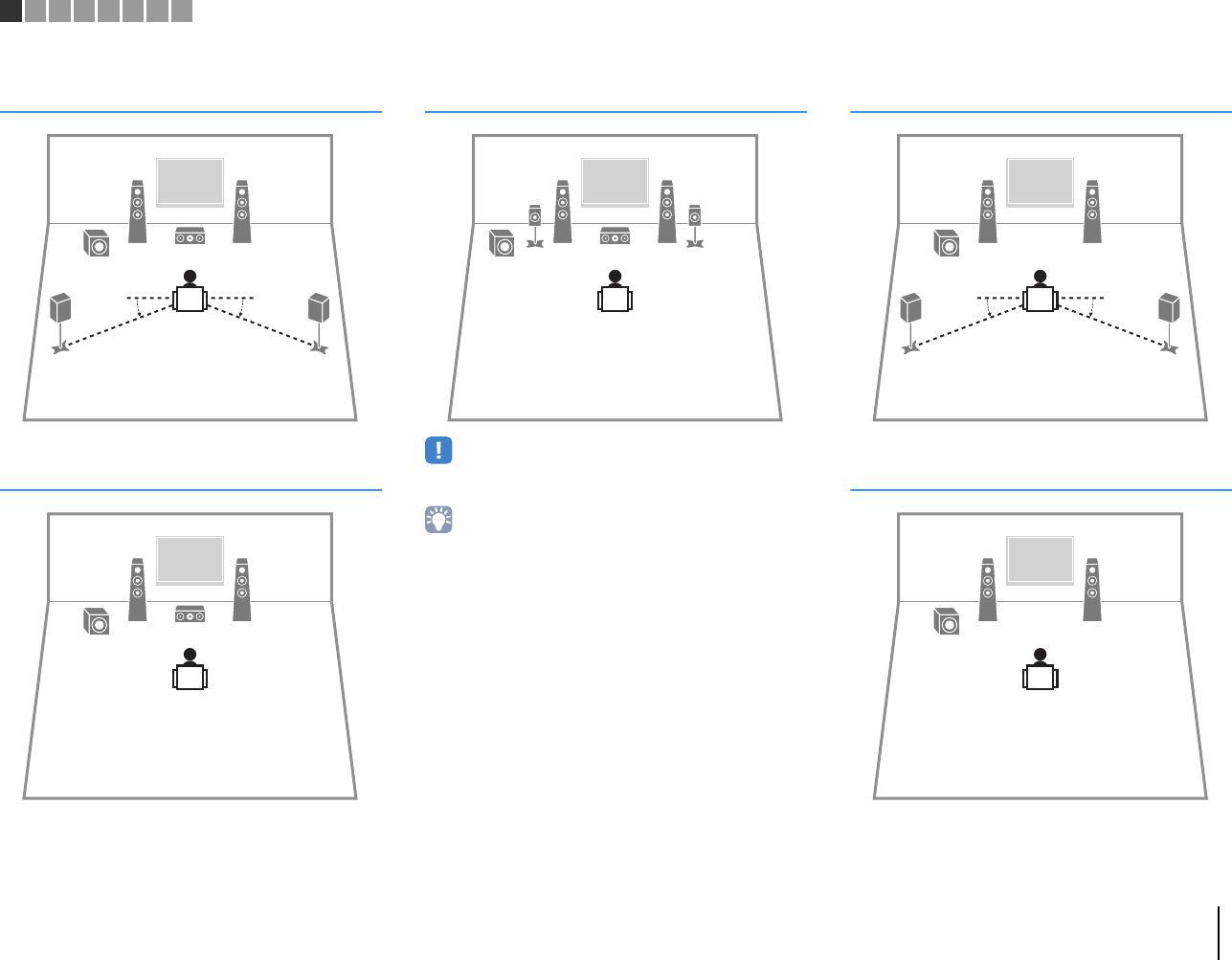
PREPARATIONS ➤Placing speakers En 13
12345678
5.1-channel system
3.1-channel system
5.1-channel system
(Virtual CINEMA FRONT)
• To utilize this configuration, set «Virtual CINEMA FRONT» (p.41) in
the «Setup» menu to «On».
• You can enjoy surround sound even without the center speaker
(front 4.1-channel system).
4.1-channel system
2.1-channel system
00_HTR-2067_om_En.book Page 13 Monday, January 27, 2014 9:33 AM
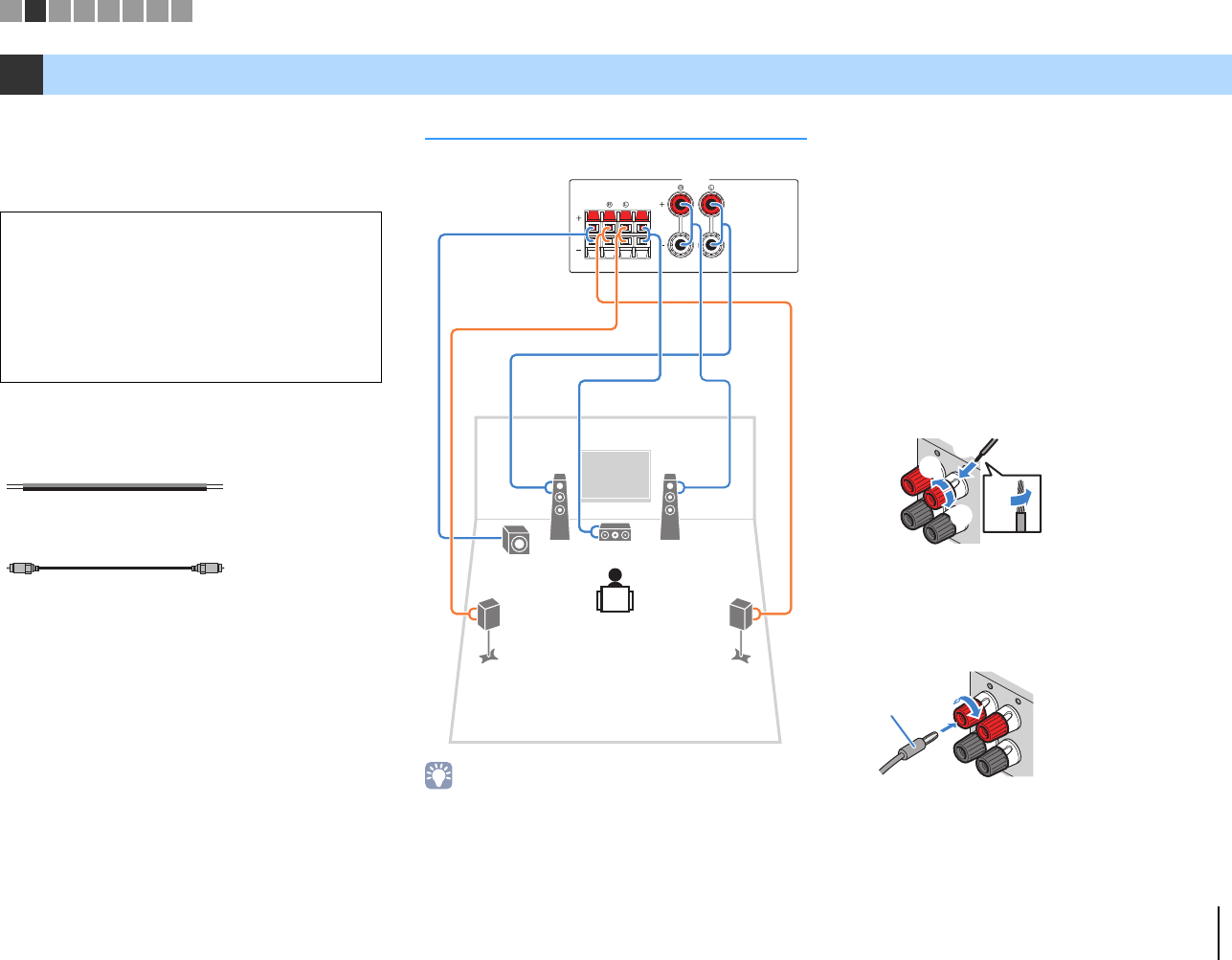
PREPARATIONS ➤Connecting speakers En 14
Connect the speakers placed in your room to the unit.
The following diagrams provide connections for a
5.1-channel system as an example. For other systems,
connect speakers while referring to the connection
diagram for the 5.1-channel system.
Cables required for connection
(commercially available)
Speaker cables (x the number of speakers)
Audio pin cable (x1: When using a subwoofer with built-
in amplifier.)
5.1-channel system
• You can connect a subwoofer with built-in amplifier. (p.15)
■Connecting speaker cables
Speaker cables have two wires. One is for connecting
the negative (-) terminal of the unit and the speaker, and
the other is for the positive (+) terminal. If the wires are
colored to prevent confusion, connect the black wire to
the negative and the other wire to the positive terminal.
(Connecting front speakers)
aRemove approximately 10 mm (3/8”) of insulation from
the ends of the speaker cable and twist the bare wires of
the cable firmly together.
bLoosen the speaker terminal.
cInsert the bare wires of the cable into the gap on the side
(upper right or bottom left) of the terminal.
dTighten the terminal.
Using a banana plug
(Canada, Australia and General models only)
aTighten the speaker terminal.
bInsert a banana plug into the end of the terminal.
2Connecting speakers
Caution
• Remove the unit’s power cable from an AC wall outlet and turn
off the subwoofer (with built-in amplifier) before connecting the
speakers.
• Ensure that the core wires of the speaker cable do not touch
one another or come into contact with the unit’s metal parts.
Doing so may damage the unit or the speakers. If the speaker
cables short circuit, “Check SP Wires” will appear on the front
display when the unit is turned on.
FRONT
SURROUND CENTERSUB
WOOFER
SPEAKERS
12
3
45
9
12345678
00_HTR-2067_om_En.book Page 14 Monday, January 27, 2014 9:33 AM

PREPARATIONS ➤Connecting speakers En 15
(Connecting center/surround speakers and a
subwoofer)
aRemove approximately 10 mm (3/8”) of insulation from
the ends of the speaker cable, and twist the bare wires of
the cable firmly together.
bPress down the tab.
cInsert the bare wires of the cable into the hole in the
terminal.
dRelease the tab.
■Connecting the subwoofer
with built-in amplifier
Use an audio pin cable when connecting the subwoofer
with built-in amplifier.
ND CENTER
12345678
00_HTR-2067_om_En.book Page 15 Monday, January 27, 2014 9:33 AM
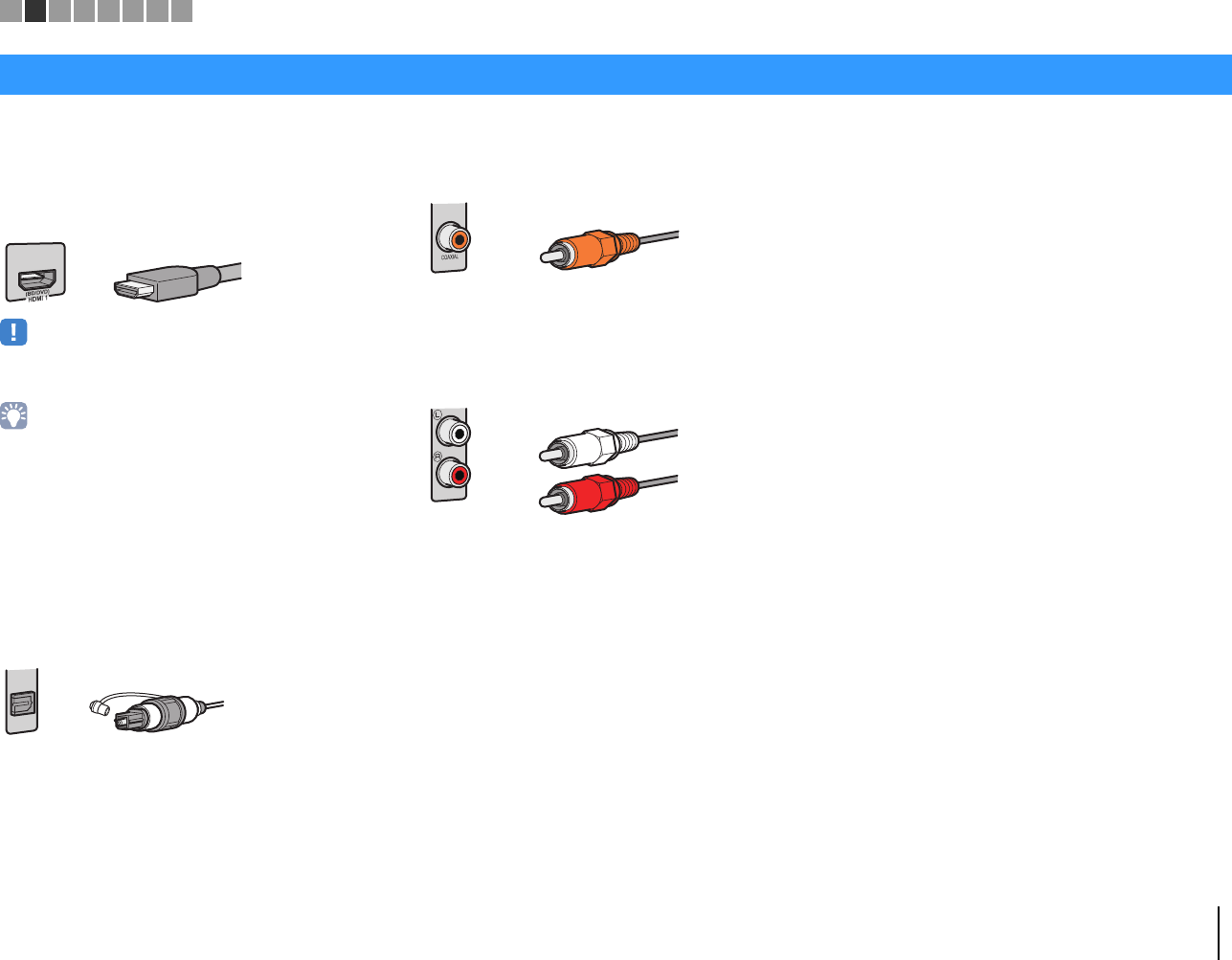
PREPARATIONS ➤Input/output jacks and cables En 16
■Video/audio jacks
❑HDMI jacks
Transmit digital video and digital sound through a single
jack. Use an HDMI cable.
• Use a 19-pin HDMI cable with the HDMI logo. We recommend using
a cable less than 5.0 m (16.4 ft) long to prevent signal quality
degradation.
• The unit’s HDMI jacks support the HDMI Control, Audio Return
Channel (ARC), and 3D and 4K Ultra HD video transmission
(through output) features.
• Use high speed HDMI cables to enjoy 3D or 4K Ultra HD videos.
■Audio jacks
❑OPTICAL jacks
Transmit digital audio signals. Use a digital optical
cable. Remove the tip protector (if available) before
using the cable.
❑COAXIAL jacks
Transmit digital audio signals. Use a digital coaxial
cable.
❑AUDIO jacks
(Stereo L/R jacks)
Transmit analog stereo audio signals. Use a stereo pin
cable (RCA cable).
Input/output jacks and cables
OPTICAL
Digital optical cable
12345678
00_HTR-2067_om_En.book Page 16 Monday, January 27, 2014 9:33 AM
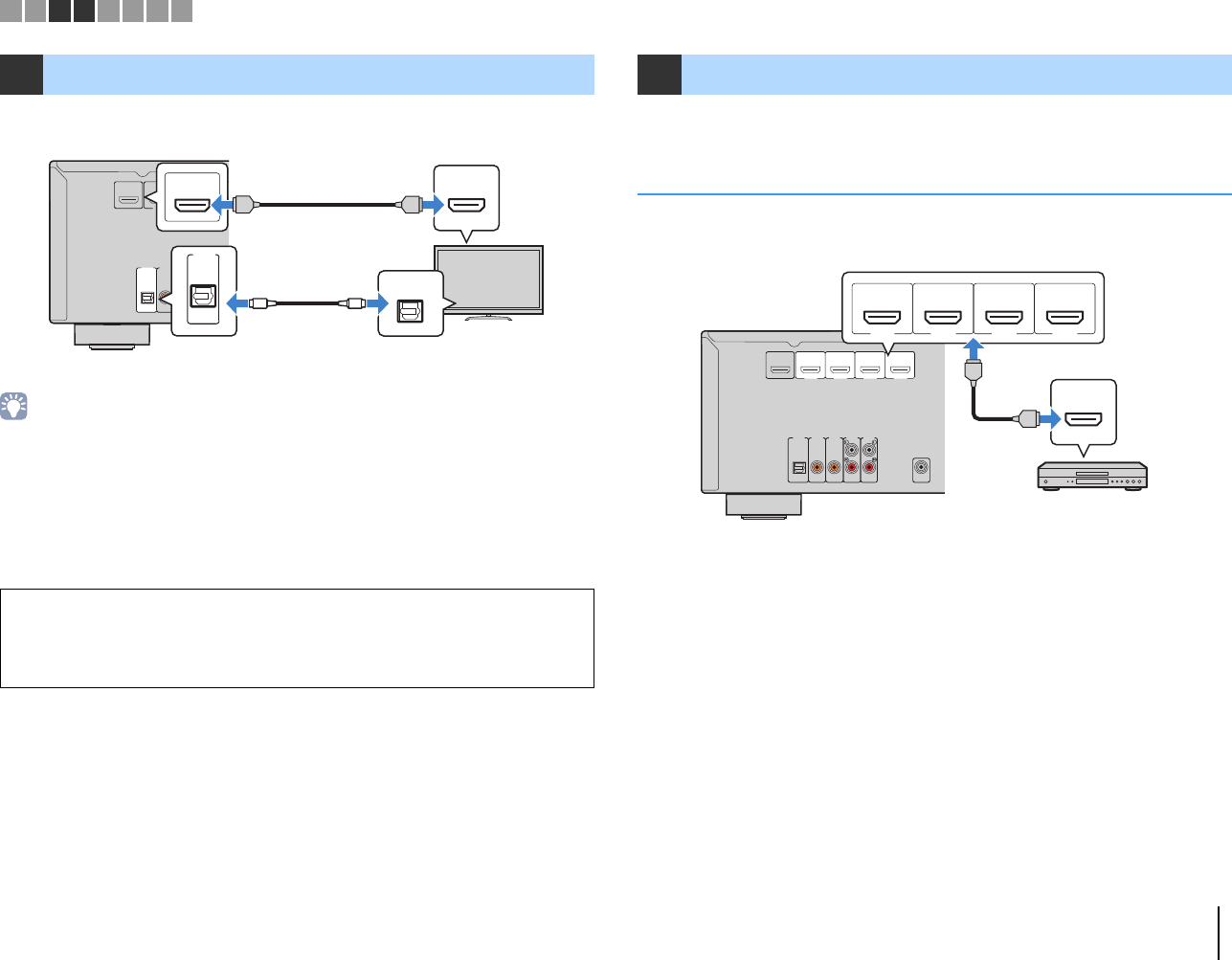
PREPARATIONS ➤Connecting a TV En 17
Connect the TV to the unit with an HDMI cable and a digital optical cable.
• You do not make a digital optical cable connection between the TV and the unit in the following cases:
– If your TV supports Audio Return Channel (ARC)
– If you will receive TV broadcasts only from the set-top box
• If you connect a TV that supports HDMI Control to the unit with an HDMI cable, you can control the unit’s
power and volume with the TV’s remote control.
To use HDMI Control and ARC, you need to configure the HDMI settings on the unit. For
details on the settings, see “Information on HDMI” (p.59).
The unit is equipped with a variety of input jacks including HDMI input jacks to allow
you to connect different types of playback devices.
Connecting video devices (such as BD/DVD players)
Connect video devices such as BD/DVD players, set-top boxes (STBs) and game
consoles to the unit with an HDMI cable.
If you select the input source by pressing HDMI 1–4, the video/audio played back on
the video device will be output from the unit.
3Connecting a TV
About Audio Return Channel (ARC)
• ARC allows audio signals to travel both ways. If you connect a TV that supports ARC to the unit with a
single HDMI cable, you can output video/audio to the TV or input TV audio to the unit.
• When using ARC, connect a TV with an HDMI cable that supports ARC.
AUDIO 1 AUDIO 2 AUDIO 3 AUDIO 5
OPTICAL COAXIAL COAXIAL
( TV )
(CD)
AUDIO 4
HDMI 1
(BD/DVD)
HDMI 2 HDMI 3
HDMI
OUT
ARC
HDMI
OUT
ARC
HDMI
HDMI
HDMI
OPTICAL
OO
AUDIO 1
OPTICAL
( TV )
HDMI OUT jack HDMI input
The unit (rear)
TV
AUDIO 1 (OPTICAL) jack Audio output
(digital optical)
4Connecting playback devices
AUDIO 1 AUDIO 2 AUDIO 3 AUDIO 5
OPTICAL COAXIAL COAXIAL
( TV )
(CD)
PRE OUT
SUBWOOFER
AUDIO 4
HDMI 1
(BD/DVD)
HDMI 2 HDMI 3
HDMI 4
HDMI
OUT
ARC
HDMI
HDMI
HDMI
HDMI 1
(BD/DVD)
HDMI 2 HDMI 3
HDMI 4
The unit (rear)
HDMI output
Video device
HDMI 1–4 jacks
12345678
00_HTR-2067_om_En.book Page 17 Monday, January 27, 2014 9:33 AM
PREPARATIONS ➤Connecting playback devices En 18
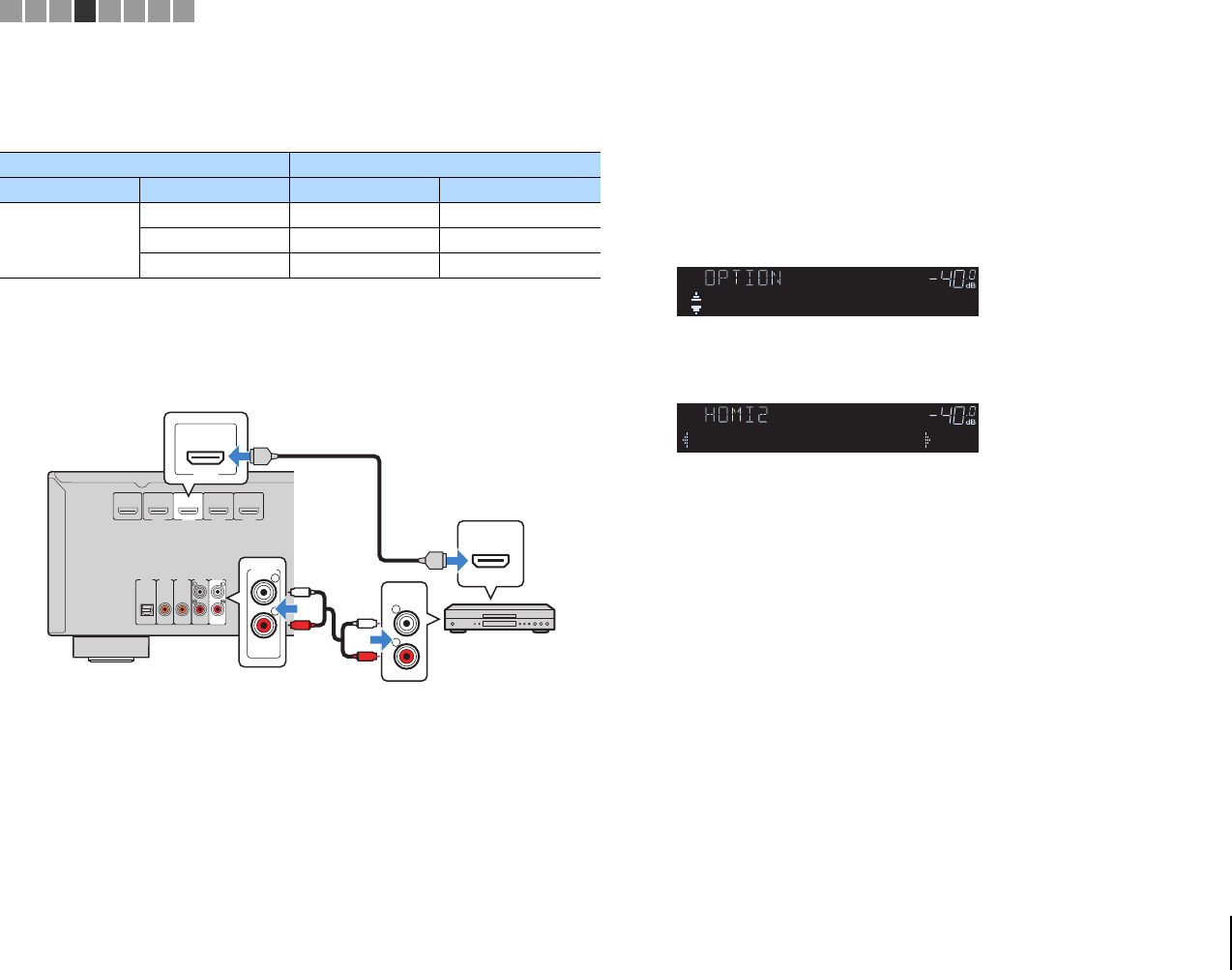
■Changing the combination of video/audio input jacks
If the combination of video/audio input jacks available on the unit does not match your
video device, change its combination according to the output jacks of your device. You
can connect a video device that has the following video/audio output jacks.
❑Necessary setting
For example, if you have connected a video device to HDMI 2 and AUDIO 5 (AUDIO)
jacks of the unit, change the combination setting as follows.
1After connecting external devices (such as a TV and playback
devices) and power cable of the unit, turn on the unit.
2Press HDMI 2 to select “HDMI 2” (HDMI jack to be used) as the input
source.
3Press OPTION.
4Use the cursor keys (q/w) to select “Audio In” and press ENTER.
5
Use the cursor keys (
e
/
r
) to select “AUDIO 5” (audio input jack to be
used).
6Press OPTION.
This completes the necessary settings.
If you select “HDMI 2” as the input source by pressing HDMI 2, the video/audio played
back on the video device will be output from the unit.
Output jacks on video device Input jacks on the unit
Video Audio Video Audio
HDMI
Digital optical HDMI 1–4 AUDIO 1 (OPTICAL)
Digital coaxial HDMI 1–4 AUDIO 2–3 (COAXIAL)
Analog stereo HDMI 1–4 AUDIO 4–5 (AUDIO)
AUDIO 1 AUDIO 2 AUDIO 3 AUDIO 5
OPTICAL COAXIAL COAXIAL
( TV )
(CD)
PRE OUT
SUBWOOFER
AUDIO 4
HDMI 1
(BD/DVD)
HDMI 2 HDMI 3
HDMI 4
HDMI
OUT
ARC
AUDIO 5
R
L
R
L
AUDIO
HDMI 2
HDMI
L
RL
R
HDMI
HDMI
HDMI 2 jacks
HDMI output
AUDIO 5 (AUDIO) jacks
Video device
Audio output
(analog stereo)
The unit (rear)
MUTE
ENHANCER
STEREO
TUNED
SLEEP
OUT
ECO
CHARGE
ADAPTIVE DRC
VIRTUAL
Audio In
VOL.
MUTE
ENHANCER
STEREO
TUNED
SLEEP
OUT
ECO
CHARGE
ADAPTIVE DRC
VIRTUAL
Audio•••AUDIO5
VOL.
12345678
00_HTR-2067_om_En.book Page 18 Monday, January 27, 2014 9:33 AM
PREPARATIONS ➤Connecting the FM antenna En 19
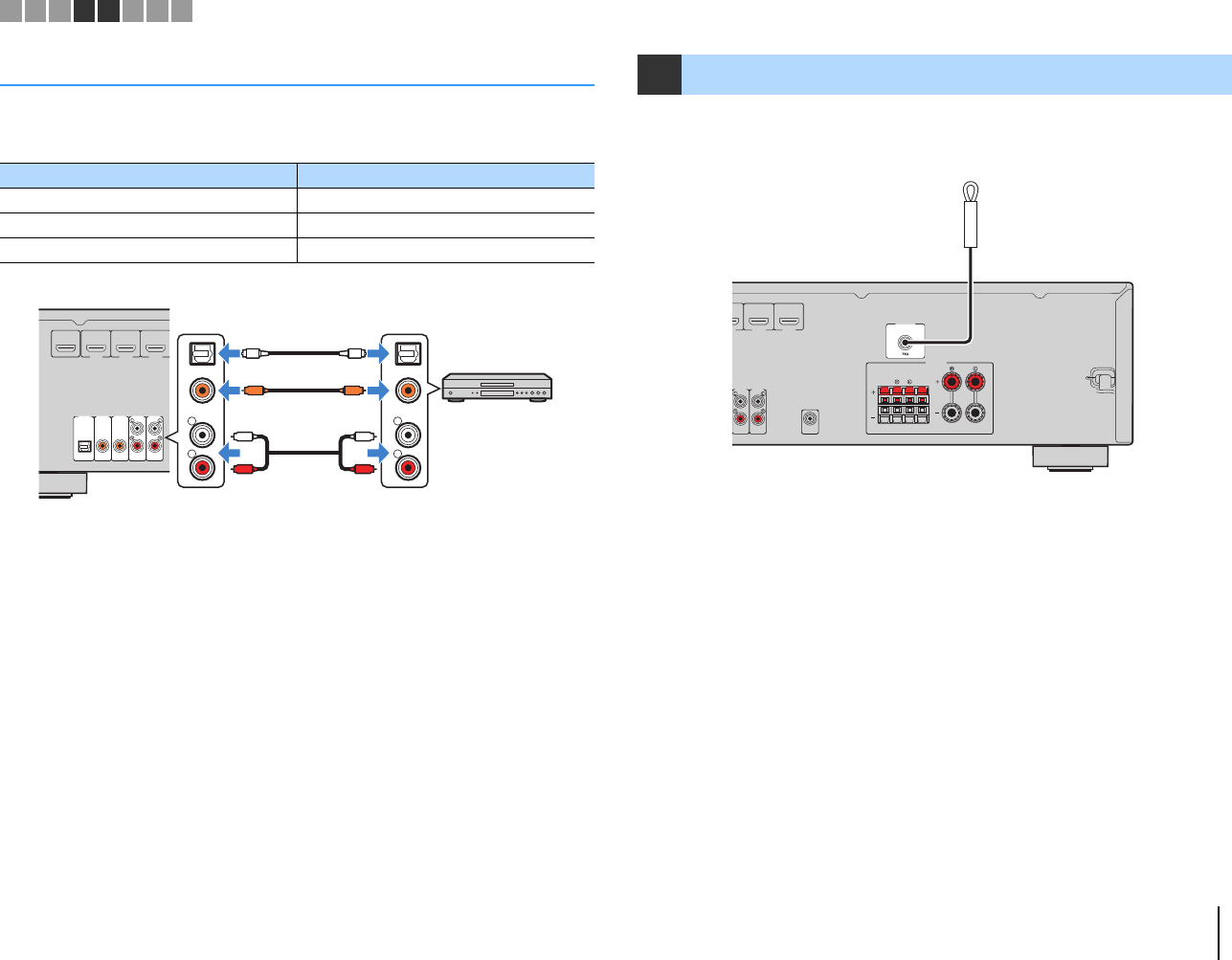
Connecting audio devices (such as CD players)
Connect audio devices such as CD players and MD players to the unit. Depending on
the audio output jacks available on your audio device, choose one of the following
connections.
If you select the input source by pressing AUDIO 1–5, the audio played back on the
audio device will be output from the unit.
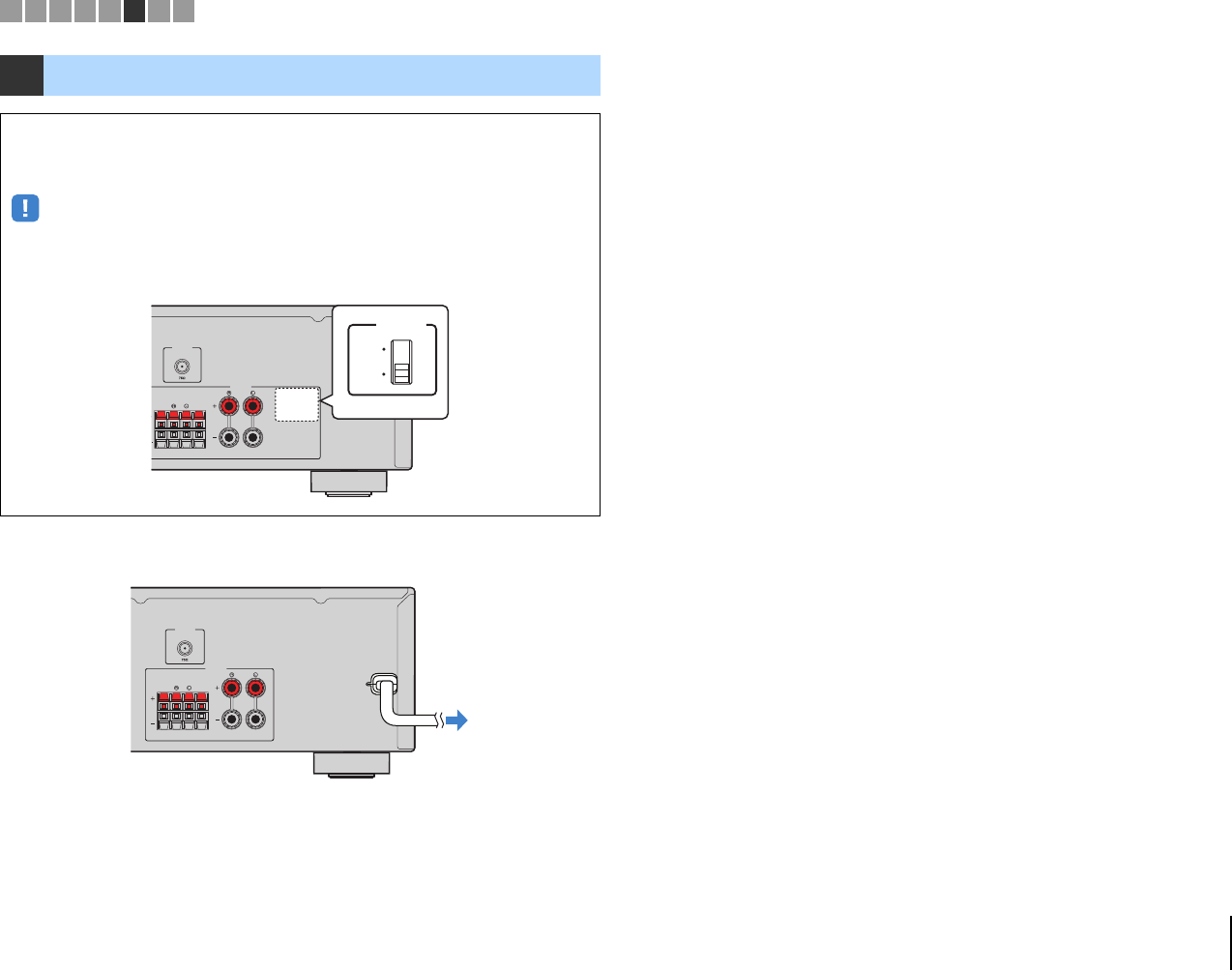
Connect the supplied FM antenna to the unit.
Fix the end of the FM antenna to a wall.
Audio output jacks on audio device Audio input jacks on the unit
Digital optical AUDIO 1 (OPTICAL)
Digital coaxial AUDIO 2–3 (COAXIAL)
Analog stereo AUDIO 4–5 (AUDIO)
AUDIO 1 AUDIO 2 AUDIO 3 AUDIO 5
OPTICAL COAXIAL COAXIAL
( TV )
(CD)
AUDIO 4
HDMI 1
(BD/DVD)
HDMI 2 HDMI 3
HDMI
OUT
ARC
R
L
COAXIAL
OPTICAL
R
L
COAXIAL
OPTICAL
CC
L
R
L
R
OO
Audio output
(either digital optical,
digital coaxial, or analog stereo)
AUDIO 1–5 jacks
The unit (rear)
Audio device
5Connecting the FM antenna
FRONT
AUDIO 5
PRE OUT
SUBWOOFER
AUDIO 4
2HDMI 3
HDMI 4
FM
ANTENNA
SURROUND CENTERSUB
WOOFER
SPEAKERS
FM antenna
The unit (rear)
12345678
00_HTR-2067_om_En.book Page 19 Monday, January 27, 2014 9:33 AM
PREPARATIONS ➤Connecting the power cable En 20
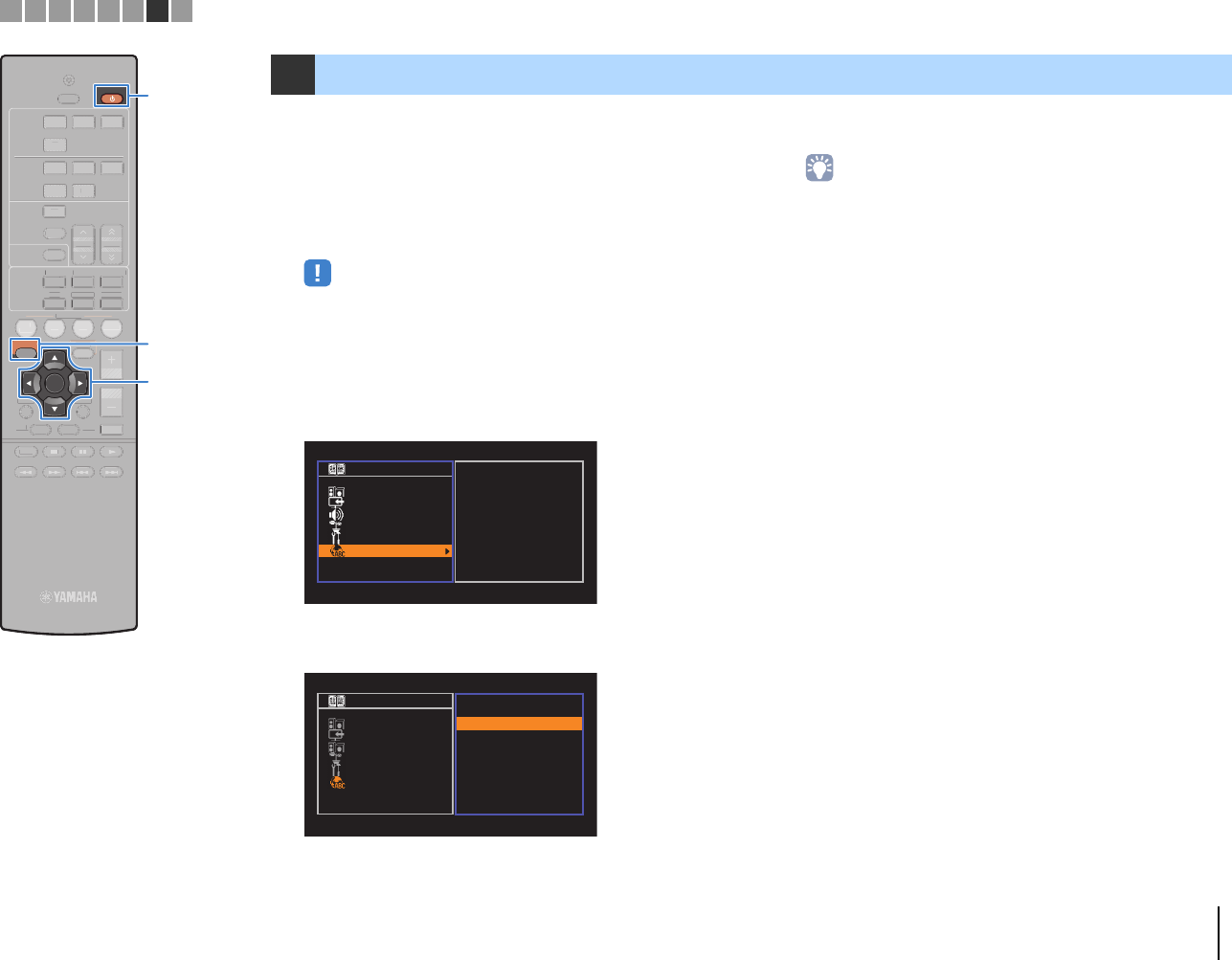
After all the connections are complete, plug in the power cable.
6Connecting the power cable
Before connecting the power cable (General models only)
Set the switch position of VOLTAGE SELECTOR according to your local voltage.
Voltages are AC 110–120/220–240 V, 50/60 Hz.
• Make sure you set VOLTAGE SELECTOR of the unit BEFORE plugging the power cable into an AC
wall outlet. Improper setting of VOLTAGE SELECTOR may cause damage to the unit and create a
potential fire hazard.
FRONT
FM
ANTENNA
SURROUND CENTERSUB
WOOFER
SPEAKERS
VOLTAGE
SELECTOR
110V
–
120V
220V
–
240V
The unit (rear) VOLTAGE SELECTOR
FRONT
FM
ANTENNA
SURROUND CENTERSUB
WOOFER
SPEAKERS
To an AC wall outlet
The unit (rear)
12345678
00_HTR-2067_om_En.book Page 20 Monday, January 27, 2014 9:33 AM
PREPARATIONS ➤Selecting an on-screen menu language En 21
Select the desired on-screen menu language from English,
Japanese, French, German, Spanish, Russian, Italian and Chinese.
1Press RECEIVER z to turn on the unit.
2Turn on the TV and switch the TV input to display
video from the unit (HDMI OUT jack).
• Operations with TV screen are available only when your TV is connected to
the unit via HDMI. If not, carry out operations while viewing the front display.
3Press SETUP.
4Use the cursor keys to select “Language” and press
ENTER.
5Use the cursor keys to select the desired language.
6To exit from the menu, press SETUP.
• The information on the front display is provided in English only.
7Selecting an on-screen menu language
Setup
Speaker
HDMI
Sound
ECO
Function
Language
English
日本語
Français
Deutsch
Español
Русский
Italiano
中文
Setup
Speaker
HDMI
Sound
ECO
Function
Language
English
日本語
Français
Deutsch
Español
Русский
Italiano
中文
12345678
TRANSMIT
RECEIVER
SLEEP
HDMI
AUDIO
123
4
45
123
FM
MEMORY
PRESET
TUNING
TUNER
SOUND
INFO
MOVIE MUSIC
SUR. DECODE
ENHANCER STRAIGHTBASS
SCENE
RETURN
VOLUME
BD
DVD TV
CD
RADIO
DISPLAY
ENTER
SETUP OPTION
TOP
MENU
POP-UP
MENU
MUTE
MODE
TRAN
MIT
LEE
AUDI
MEM
R
RE
ET
T
NIN
OUND
NF
M
VI
M
I
R. DE
DE
NHANCE
TRAI
H
BA
EN
L
M
V
D
RADI
PTI
OP
MEN
POP-UP
MEN
UT
M
DE
Cursor keys
ENTER
RECEIVER z RECEIVER z
SETUP
Cursor keys
00_HTR-2067_om_En.book Page 21 Monday, January 27, 2014 9:33 AM
PREPARATIONS ➤Configure the speaker settings En 22
TRANSMIT
RECEIVER
SLEEP
HDMI
AUDIO
123
4
45
123
FM
MEMORY
PRESET
TUNING
TUNER
SOUND
INFO
MOVIE MUSIC
SUR. DECODE
ENHANCER STRAIGHTBASS
SCENE
RETURN
VOLUME
BD
DVD TV
CD
RADIO
DISPLAY
ENTER
SETUP OPTION
TOP
MENU
POP-UP
MENU
MUTE
MODE
TRAN
MI
LEE
DMI
AUDI
3
3
MEMORY
RE
E
T
NIN
OUND
INF
VI
M
I
R. DE
DE
NHANCER
TRAI
HT
A
EN
V
L
ME
T
RADI
PTI
OP
MEN
OP-UP
MENU
TE
D
Cursor keys
ENTER
RETURN
SETUP
RECEIVER z
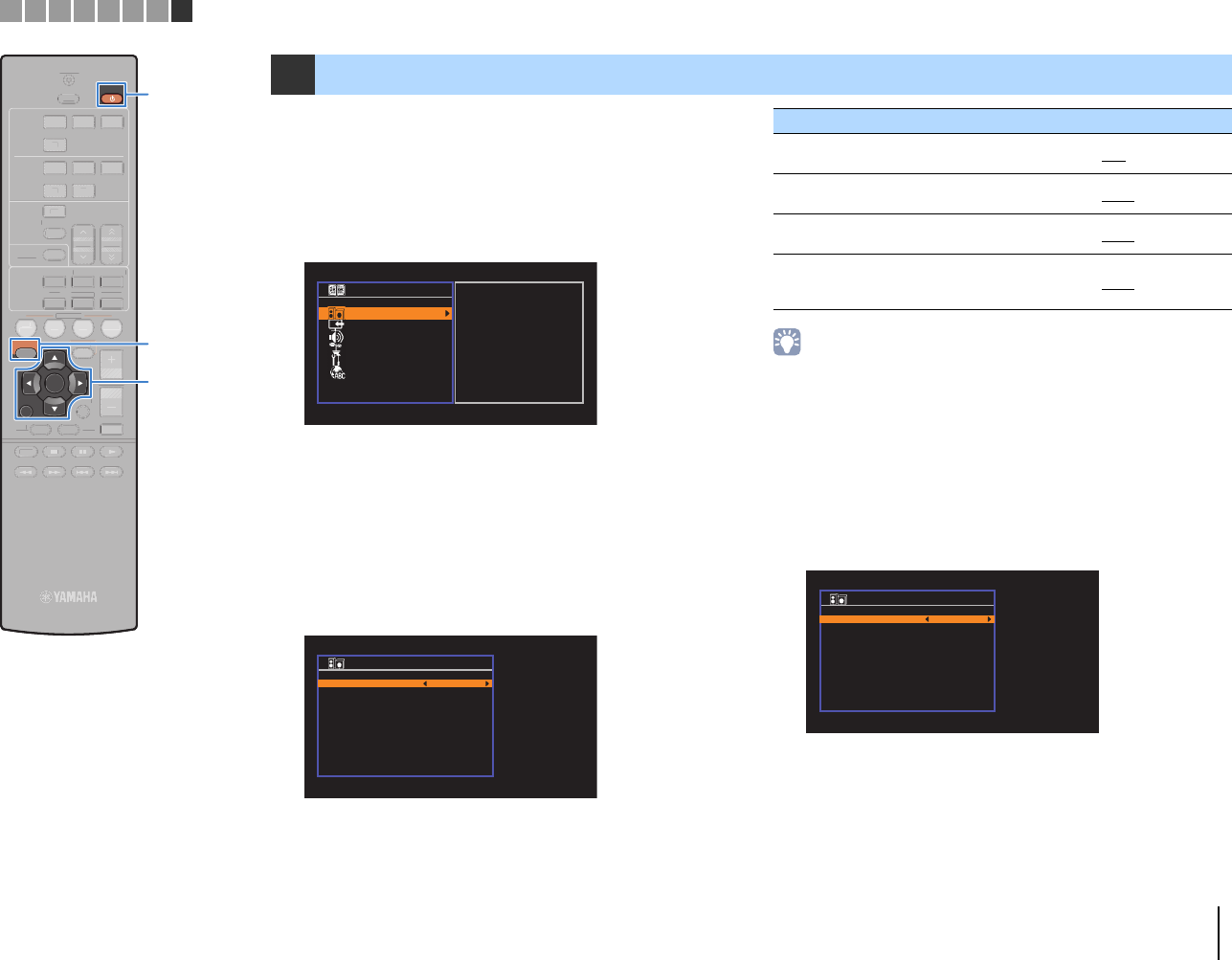
1Press RECEIVER z to turn on the unit.
2Turn on the TV and switch the TV input to display
video from the unit (HDMI OUT jack).
3Press SETUP.
4Use the cursor keys to select “Speaker” and press
ENTER.
5Configure the output characteristics of the
speakers.
aUse the cursor keys to select “Configuration” and press ENTER.
bUse the cursor keys (q/w) to select an item and cursor keys
(e/r) to select a setting.
cWhen setting is complete, press RETURN.
• Default settings are underlined.
• When you configure the speaker size, select “Large” if the woofer diameter of your
speaker is 16 cm (6-1/4”) or larger or “Small” if it is smaller than 16 cm (6-1/4”).
• For configuration items other than the above, see «Setup» menu (p.37).
6Set the distance between each speaker and
listening position.
aUse the cursor keys to select “Distance” and press ENTER.
bUse the cursor keys (q/w) to select speaker and cursor keys
(e/r) to set distance.
cWhen setting is complete, press RETURN.
8Configure the speaker settings
Setup
Speaker
HDMI
Sound
ECO
Function
Language
Configuration
Distance
Level
Equalizer
Test Tone
Configuration
Subwoofer
Front
Center
Surround
Crossover
Subwoofer Phase
Extra Bass
Virtual CINEMA FRONT
Use
Small
Small
Small
160Hz
Normal
Off
Off
Back: RETURN
Item Function Settings
Subwoofer Selects whether or not a
subwoofer is connected. Use ,None
Front Selects the size of the front
speakers. Small, Large
Center Selects whether or not a center
speaker is connected and its size. Small, Large, None
Surround
Selects whether or not surround
speakers are connected and their
size.
Small, Large, None
Distance
Unit
Front L
Front R
Center
Surround L
Surround R
Subwoofer
Meter
3.00m
3.00m
2.60m
2.40m
2.40m
3.00m
Back: RETURN
12345678
Cursor keys
00_HTR-2067_om_En.book Page 22 Monday, January 27, 2014 9:33 AM
PREPARATIONS ➤Configure the speaker settings En 23
Setting items
• You can select the unit of distance from “Meter” (defult) or “Feet” in “Unit”.
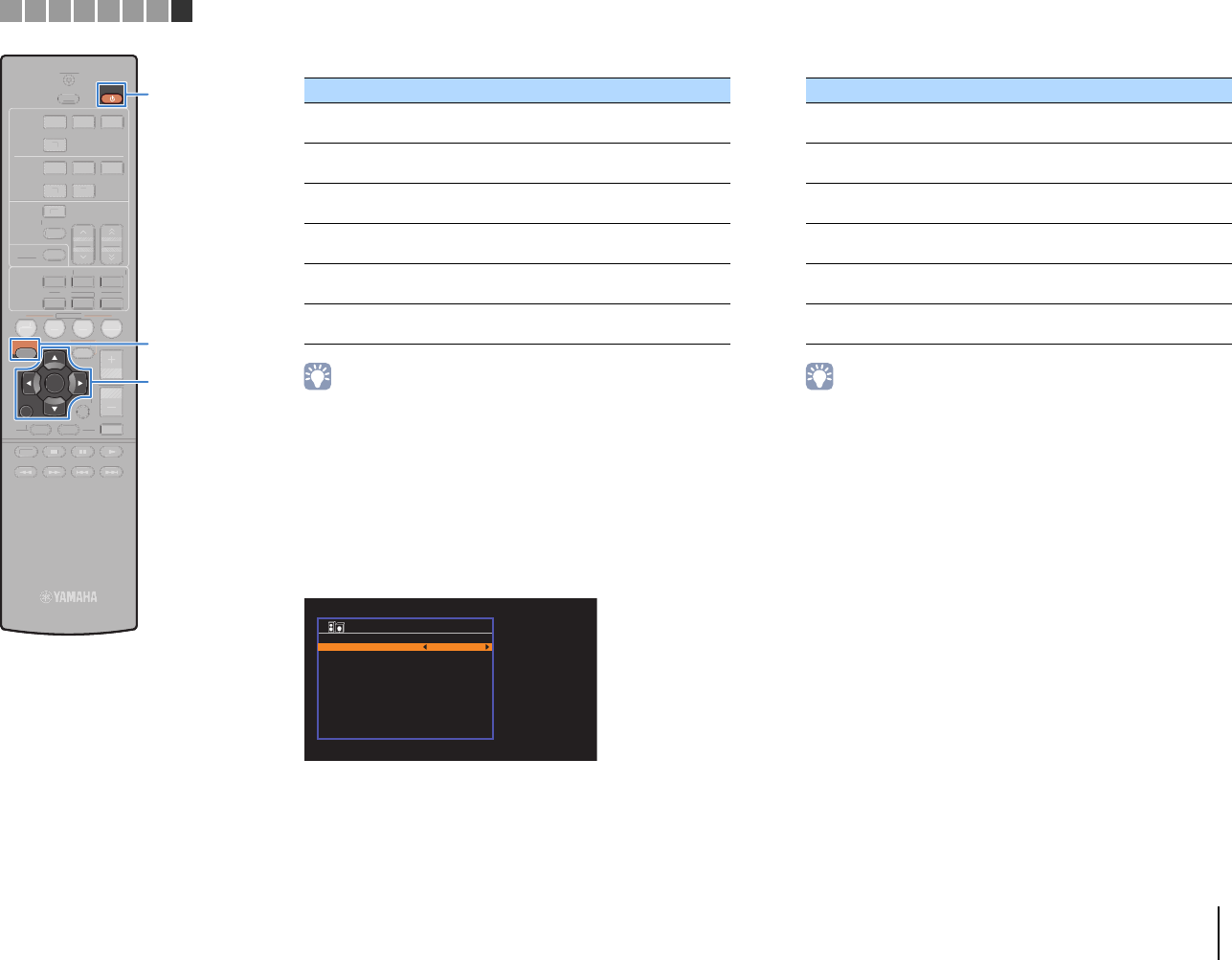
7Adjust the volume of each speaker.
aUse the cursor keys to select “Test Tone” and press ENTER.
bUse the cursor keys (e/r) to select “On” to enable the test tone
output and press RETURN.
cUse the cursor keys (q/w) to select “Level” and press ENTER.
dUse the cursor keys (q/w) to select a speaker to output test
tones.
eIf you find a speaker with a different volume level to the others,
use the cursor keys (e/r) to adjust the volume.
fWhen setting is complete, press RETURN.
gSet “Test Tone” to “Off” (repeat steps a and b).
Setting items
• Use one of the front speakers as a measuring target when adjusting
volumes.
8To exit from the menu, press SETUP.
The speaker settings are complete.
Speaker Setting range
Front L Front speaker (L) 0.30 m to 24.00 m
(default: 3.00 m)
Front R Front speaker (R) 0.30 m to 24.00 m
(default: 3.00 m)
Center Center speaker 0.30 m to 24.00 m
(default: 2.60 m)
Surround L Surround speaker (L) 0.30 m to 24.00 m
(default: 2.40 m)
Surround R Surround speaker (R) 0.30 m to 24.00 m
(default: 2.40 m)
Subwoofer Subwoofer 0.30 m to 24.00 m
(default: 3.00 m)
Level
Front L
Front R
Center
Surround L
Surround R
Subwoofer
0.0dB
0.0dB
-1.0dB
-1.0dB
-1.0dB
0.0dB
Back: RETURN
Speaker Setting range
Front L Front speaker (L) —10.0dB to +10.0dB
(default: 0.0 dB)
Front R Front speaker (R) —10.0dB to +10.0dB
(default: 0.0 dB)
Center Center speaker —10.0dB to +10.0dB
(default: -1.0 dB)
Surround L Surround speaker (L) —10.0dB to +10.0dB
(default: -1.0 dB)
Surround R Surround speaker (R) —10.0dB to +10.0dB
(default: -1.0 dB)
Subwoofer Subwoofer —10.0dB to +10.0dB
(default: 0.0 dB)
12345678
TRANSMIT
RECEIVER
SLEEP
HDMI
AUDIO
123
4
45
123
FM
MEMORY
PRESET
TUNING
TUNER
SOUND
INFO
MOVIE MUSIC
SUR. DECODE
ENHANCER STRAIGHTBASS
SCENE
RETURN
VOLUME
BD
DVD TV
CD
RADIO
DISPLAY
ENTER
SETUP OPTION
TOP
MENU
POP-UP
MENU
MUTE
MODE
TRAN
MI
LEE
DMI
AUDI
3
3
MEMORY
RE
E
T
NIN
OUND
INF
VI
M
I
R. DE
DE
NHANCER
TRAI
HT
A
EN
V
L
ME
T
RADI
PTI
OP
MEN
OP-UP
MENU
TE
D
Cursor keys
ENTER
RETURN
SETUP
RECEIVER z
Cursor keys
00_HTR-2067_om_En.book Page 23 Monday, January 27, 2014 9:33 AM
PLAYBACK ➤Basic playback procedure En 24
TRANSMIT
RECEIVER
SLEEP
HDMI
AUDIO
123
4
45
123
FM
MEMORY
PRESET
TUNING
TUNER
SOUND
INFO
MOVIE MUSIC
SUR. DECODE
ENHANCER STRAIGHTBASS
SCENE
RETURN
VOLUME
BD
DVD TV
CD
RADIO
DISPLAY
ENTER
SETUP OPTION
TOP
MENU
POP-UP
MENU
MUTE
MODE
RANSMIT
ECEIVE
LEE
MEM
R
RE
ET
T
NIN
T
NE
UND
NF
M
VI
U
I
UR. DE
D
NHAN
E
TRAI
H
BA
SCEN
D
D
RADI
I
PLAY
SETUP
PTIO
P
P
P-
P
MODE
Input
selection
keys
INFO
VOLUME
MUTE
PLAYBACK
1Turn on the external devices (such as a TV or BD/
DVD player) connected to the unit.
2Use the input selection keys to select an input
source.
3Start playback on the external device or select a
radio station.
Refer to the instruction manual for the external device.
For details on the following operations, see the
corresponding pages.
• Listening to FM radio (p.31)
4Press VOLUME to adjust the volume.
• To mute the audio output, press MUTE. Press MUTE again to unmute.
• To adjust the treble/bass settings, use the “Option” menu or TONE
CONTROL on the front panel (p.35).
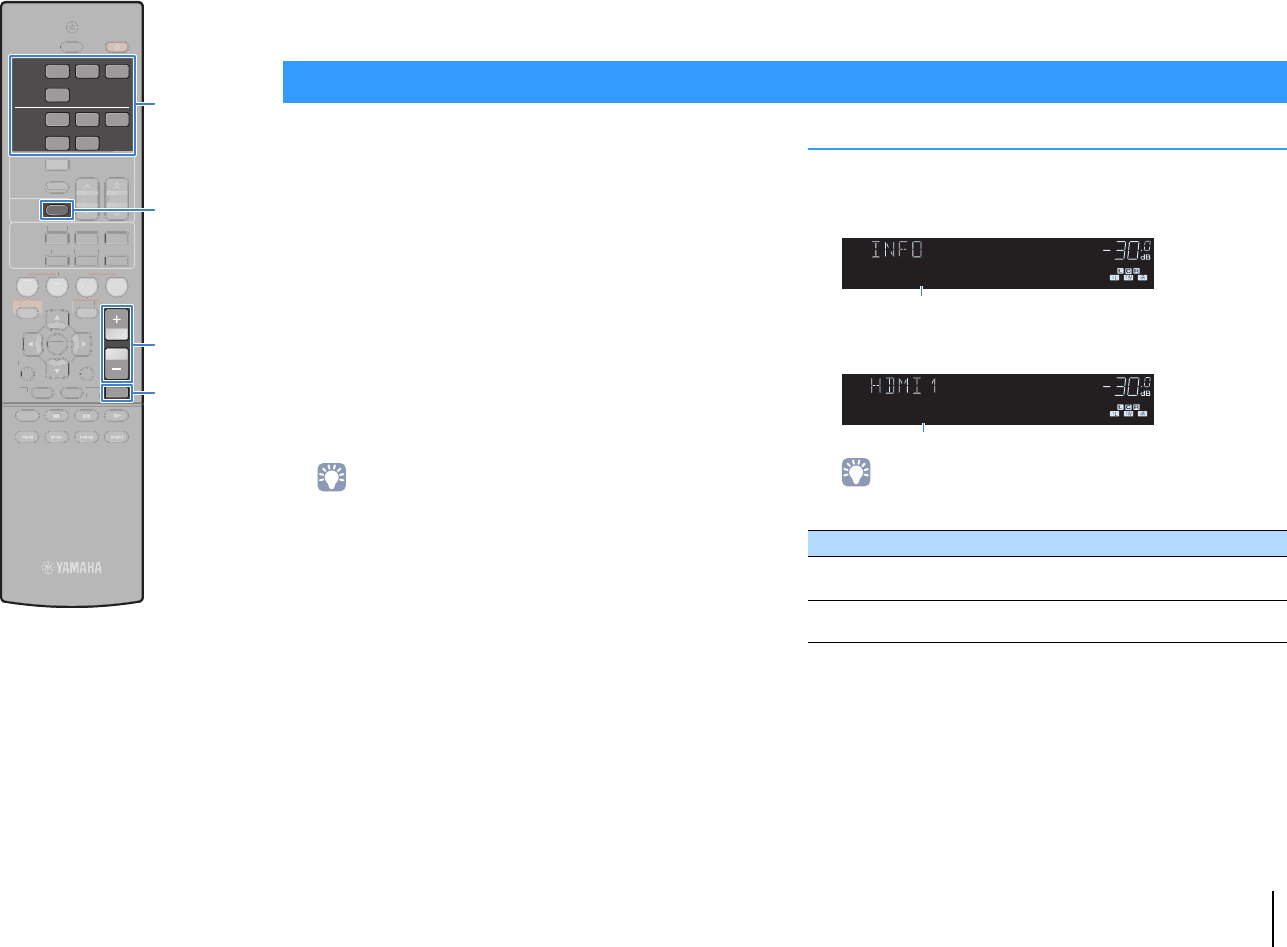
Switching information on the front display
1Press INFO.
Each time you press the key, the displayed item changes.
About 3 seconds later, the corresponding information for
the displayed item appears.
• Available items vary depending on the selected input source. The displayed
item can also be applied separately to each input source group.
* The name of the audio decoder currently activated is displayed. If no audio
decoder is activated, “Decoder Off” appears.
Basic playback procedure
Input source group Item
HDMI 1–4
AUDIO 1–5
Input (input source name), DSP Program (sound
mode name), Audio Decoder (decoder name*)
TUNER Frequency (frequency), DSP Program (sound mode
name), Audio Decoder (decoder name*)
MUTE
ENHANCER
STEREO
TUNED
SLEEP
OUT
ECO
CHARGE
ADAPTIVE DRC
VIRTUAL
Audio Decoder
VOL.
MUTE
ENHANCER
STEREO
TUNED
SLEEP
OUT
ECO
CHARGE
ADAPTIVE DRC
VIRTUAL
†‡Pro Logic
VOL.
Input selection keys
00_HTR-2067_om_En.book Page 24 Monday, January 27, 2014 9:33 AM
PLAYBACK ➤Selecting the input source and favorite settings with one touch (SCENE) En 25
TRANSMIT
RECEIVER
SLEEP
HDMI
AUDIO
123
4
45
123
FM
MEMORY
PRESET
TUNING
TUNER
SOUND
INFO
MOVIE MUSIC
SUR. DECODE
ENHANCER STRAIGHTBASS
SCENE
RETURN
VOLUME
BD
DVD TV
CD
RADIO
DISPLAY
ENTER
SETUP OPTION
TOP
MENU
POP-UP
MENU
MUTE
MODE
TRANSMI
ECEIVER
LEE
A
DI
MEM
RY
RE
E
T
NIN
T
NE
UND
INF
VI
MU
I
UR. DE
DE
NHAN
ER
TRAI
HT
A
VOLUME
I
PLAY
ETU
OPTIO
P
P-
P
OD
SCENE
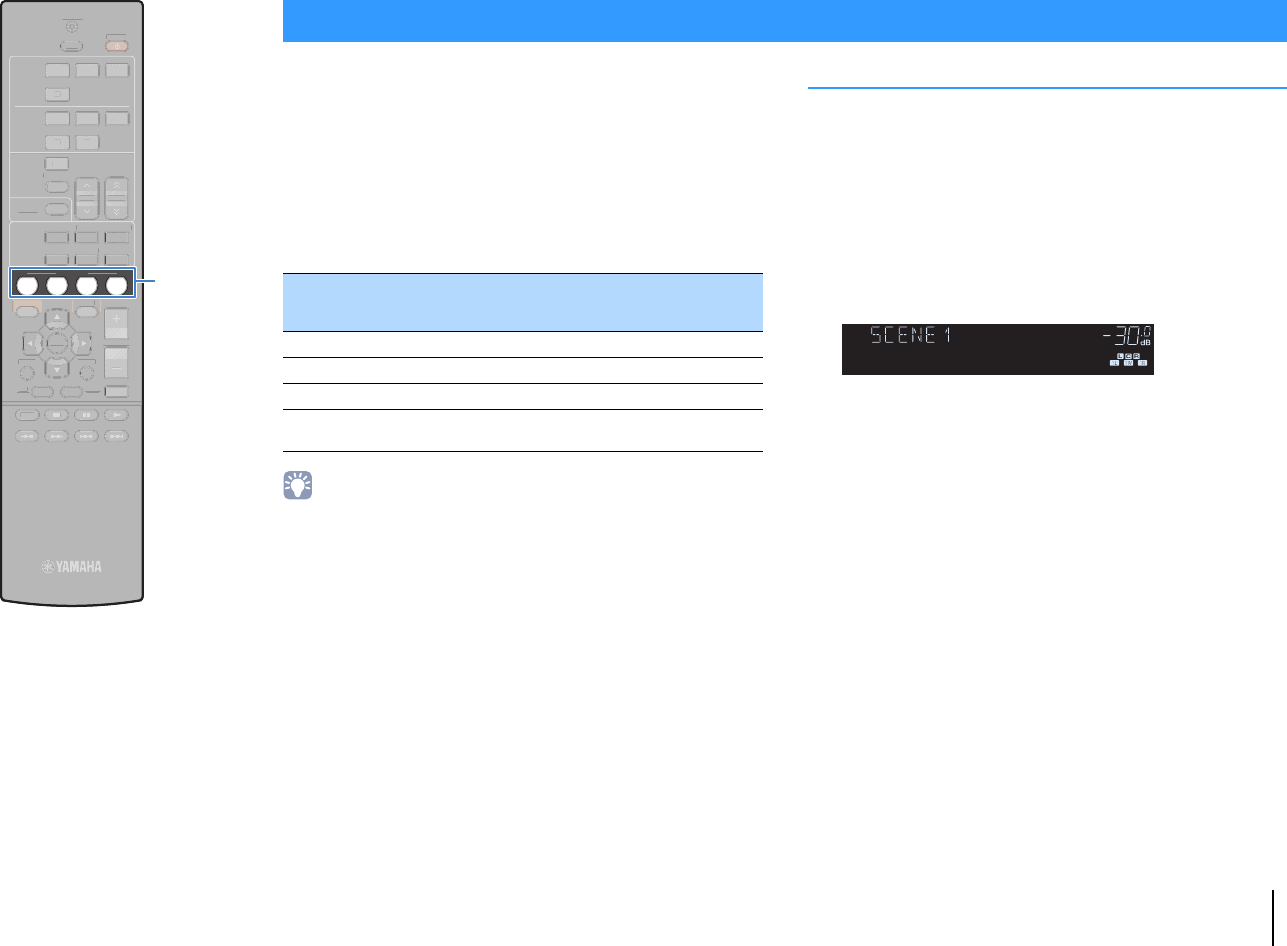
The SCENE function allows you to select the assigned input source,
sound program, and Compressed Music Enhancer on/off with just
one touch.
1Press SCENE.
The input source and settings registered to the
corresponding scene are selected. The unit turns on
automatically when it is in standby mode.
By default, the following settings are registered for each scene.
• The SCENE link playback function allows you to automatically turn on the TV or
start playback of an external device connected to the unit via HDMI, in conjunction
with a scene selection. To enable SCENE link playback, set “SCENE” (p.44) in the
“Setup” menu to “On”.
Configuring scene assignments
1Perform the following operations to prepare the
settings you want to assign to a scene.
• Select an input source (p.24)
• Select a sound program (p.26)
• Enable/disable Compressed Music Enhancer (p.30)
2Hold down the desired SCENE key until “SET
Complete” appears on the front display.
Selecting the input source and favorite settings with one touch (SCENE)
SCENE Input Sound
program
Compressed
Music
Enhancer
SCENE link
playback
BD/DVD HDMI 1 MOVIE (Sci-Fi) Off On
TV AUDIO 1 STRAIGHT On On
CD AUDIO 3 STRAIGHT Off Off
RADIO TUNER MUSIC
(5ch Stereo) On Off
MUTE
ENHANCER
STEREO
TUNED
SLEEP
OUT
ECO
CHARGE
ADAPTIVE DRC
VIRTUAL
SET Complete
VOL.
00_HTR-2067_om_En.book Page 25 Monday, January 27, 2014 9:33 AM

PLAYBACK ➤Selecting the sound mode En 26
TRANSMIT
RECEIVER
SLEEP
HDMI
AUDIO
123
4
45
123
FM
MEMORY
PRESET
TUNING
TUNER
SOUND
INFO
MOVIE MUSIC
SUR. DECODE
ENHANCER STRAIGHTBASS
SCENE
RETURN
VOLUME
BD
DVD TV
CD
RADIO
DISPLAY
ENTER
SETUP OPTION
TOP
MENU
POP-UP
MENU
MUTE
MODE
TRANSMI
ECEIVER
LEE
A
DI
MEM
RY
RE
E
T
NIN
T
NE
INF
CEN
VOLUME
B
RADI
I
PLAY
ETU
OPTIO
P
P-
P
OD
MOVIE
MUSIC
SUR.DECODE
STRAIGHT
BASS
ENHANCER
The unit is equipped with a variety of sound programs and
surround decoders that allow you to enjoy playback sources with
your favorite sound mode (such as sound field effect or stereo
playback).
❑Selecting a sound program suitable for movies
• Press MOVIE repeatedly.
This mode lets you enjoy sound field effects optimized for viewing
video sources, such as movies, TV programs, and games (p.27).
❑Selecting a sound program suitable for music or
stereo playback
• Press MUSIC repeatedly.
This mode lets you enjoy sound field effects optimized for listening
music sources or stereo playback (p.28).
❑Selecting a surround decoder
• Press SUR.DECODE repeatedly.
This mode lets you enjoy unprocessed multichannel playback from
2-channel sources (p.29).
❑Switching to the straight decode mode
• Press STRAIGHT.
This mode lets you enjoy unprocessed sounds in original channels
(p.29).
❑Enabling Extra bass
• Press BASS.
This mode lets you enjoy enhanced bass sounds (p.30).
❑Enabling Compressed Music Enhancer
• Press ENHANCER.
This mode lets you enjoy compressed music with additional depth
and breadth (p.30).
• You can also switch the sound programs and surround decoder by pressing
PROGRAM on the front panel.
• The sound mode can be applied separately to each input source.
• When you play back audio signals with a sampling rate of higher than 96 kHz, the
straight decode mode (p.29) is automatically selected.
• You can check which speakers are currently outputting sound by looking at the
speaker indicators on the unit’s front panel (p.8).
Selecting the sound mode
00_HTR-2067_om_En.book Page 26 Monday, January 27, 2014 9:33 AM
PLAYBACK ➤Selecting the sound mode En 27
Enjoying sound field effects (CINEMA DSP)
The unit is equipped with a variety of sound programs that utilize Yamaha’s original DSP
technology (CINEMA DSP). It allows you to easily create sound fields like actual movie
theaters or concert halls in your room.
• You can adjust the sound field effect level in “DSP Level” (p.35) in the “Option” menu.
■Enjoying sound field effects without surround speakers
(Virtual CINEMA DSP)
If you select one of the sound programs (except 2ch Stereo and 5ch Stereo) when no
surround speakers are connected, the unit automatically creates the surround sound
field using the front-side speakers.
■Enjoying surround sound with 5 speakers placed in
front (Virtual CINEMA FRONT)
You can enjoy the surround sound even when the surround speakers are placed in
front.
■Enjoying surround sound with headphones
(SILENT CINEMA)
You can enjoy surround or sound field effects, like a multichannel speaker system, with
stereo headphones by connecting the headphones to the PHONES jack and selecting
a sound program or a surround decoder.
■Sound programs suitable for movies (MOVIE)
The following sound programs are optimized for viewing video sources, such as
movies, TV programs, and games.
MUTE
ENHANCER
STEREO
TUNED
SLEEP
OUT
ECO
CHARGE
ADAPTIVE DRC
VIRTUAL
Sci-Fi
VOL.
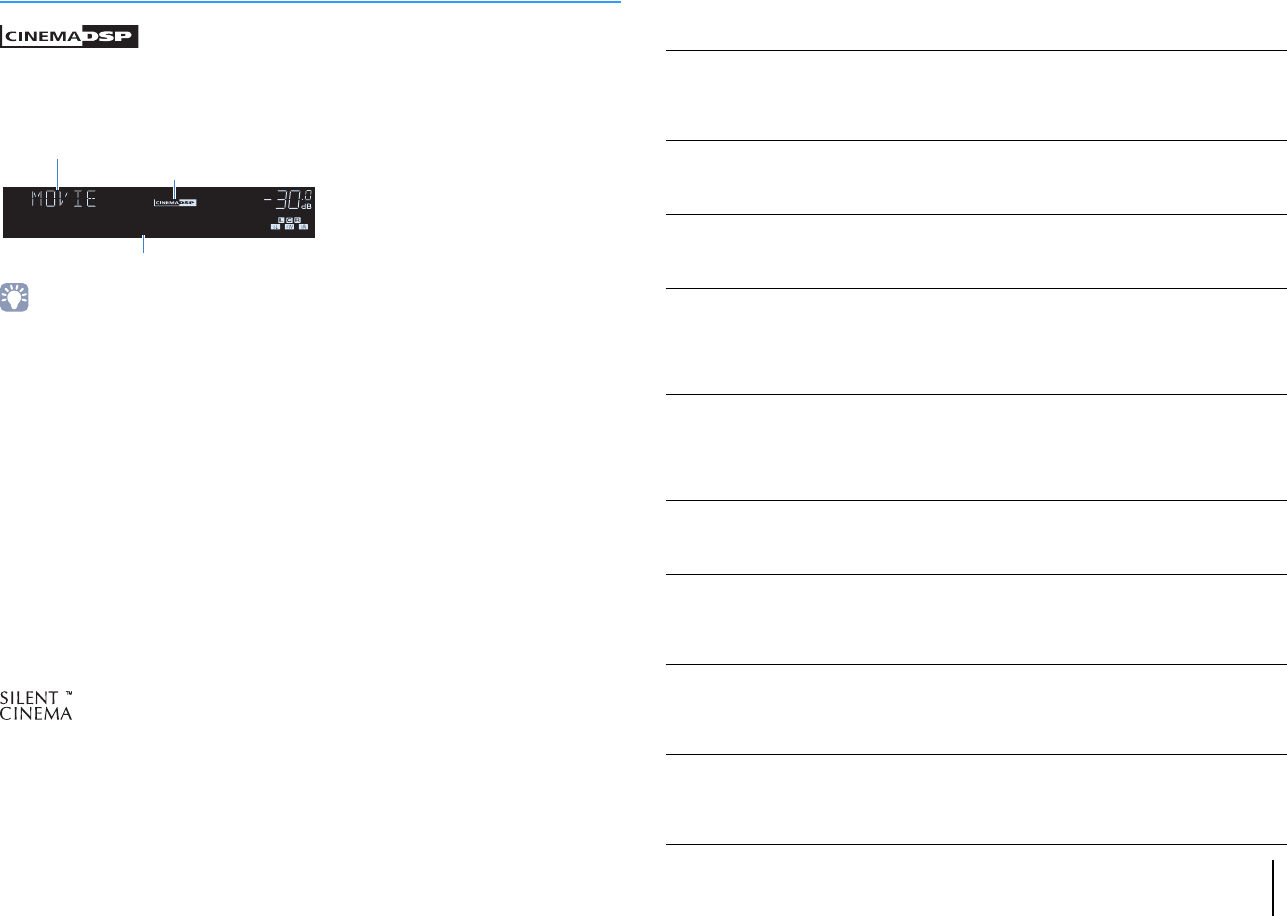
Sound program category
Sound program
“CINEMA DSP” lights up
Standard
This program creates a sound field that emphasizes the surround feeling
without disturbing the original acoustic positioning of multichannel audio,
such as Dolby Digital and DTS. Its design is based on the concept of the
ideal movie theater, in which the audience is surrounded by beautiful
reverberations from the left, right, and rear.
Spectacle
This program delivers the scale and grandeur of spectacular movie
productions. It delivers an expansive sound space to match the
cinemascope wide-screen, and boasts a broad dynamic range, providing
everything from small delicate sounds to powerful loud booms.
Sci-Fi
This program clearly reproduces the finely elaborated sound design of the
latest Sci-Fi and SFX movies. You can enjoy a variety of
cinematographically created virtual spaces reproduced with clear
separation between dialogue, sound effects, and background music.
Adventure
This program is ideal for reproducing the sound design of action and
adventure movies precisely. The sound field restrains reverberations, but
puts emphasis on reproducing a sensation of expansiveness on both sides,
powerful space expanded widely to the left and right. The restrained depth
creates a clear and powerful space, while also maintaining the articulation
of the sounds and the separation of the channels.
Drama
This program features stable reverberations that match a wide range of
movie genres, from serious dramas to musicals and comedies. The
reverberations are modest, but suitably stereophonic. The sound effects
and background music are reproduced with a gentle echo that does not
impinge on the articulation of the dialogue. You’ll never get tired listening for
long periods.
Mono Movie
This program reproduces monaural video sources, such as classic movies,
in an atmosphere of a good old movie theater. The program creates a
pleasant space with depth, by adding breadth and the appropriate
reverberation to the original audio.
Sports
This program allows listeners to enjoy the rich vividness of sport broadcasts
and light entertainment programs. In sports broadcasts, the commentators’
voices are positioned clearly at the center, while the atmosphere inside the
stadium is realistically conveyed by the peripheral delivery of the sounds of
the fans in a suitable space.
Action Game
This program is suitable for action games, such as car racing and fighting
games. The reality of, and emphasis on, various effects makes the player
feel like they are right in the middle of the action, allowing for greater
concentration. Use this program in combination with Compressed Music
Enhancer for a more dynamic and strong sound field.
Roleplaying Game
This program is suitable for role-playing and adventure games. This
program adds depth to the sound field for natural and realistic reproduction
of background music, special effects, and dialogue from a wide variety of
scenes. Use this program in combination with Compressed Music
Enhancer for a clearer and more spatial sound field.
00_HTR-2067_om_En.book Page 27 Monday, January 27, 2014 9:33 AM

PLAYBACK ➤Selecting the sound mode En 28
■Sound programs suitable for music/stereo playback
(MUSIC)
The following sound programs are optimized for listening to music sources.
You can also select stereo playback.
Hall in Munich
This program simulates a Munich concert hall with approximately 2,500
seats that uses stylish wood for the interior finishing. Fine, beautiful
reverberations spread richly, creating a calming atmosphere. The listener’s
virtual seat is at the center left of the arena.
Hall in Vienna
This program simulates a 1700-seat, middle-sized concert hall with a
shoebox shape that is traditional in Vienna. Pillars and ornate carvings
create extremely complex reverberations from all around the audience,
producing a very full, rich sound.
Chamber
This program creates a relatively wide space with a high ceiling, like an
audience hall in a palace. It offers pleasant reverberations that are suitable
for courtly music and chamber music.
Cellar Club
This program simulates an intimate concert venue with a low ceiling and
homey atmosphere. A realistic, live sound field delivers powerful sounds
that make you feel as if you are sitting in the front row in front of a small
stage.
The Roxy Theatre
This program creates the sound field of a 460-seat rock music concert
venue in Los Angeles. The listener’s virtual seat is at the center left of the
hall.
The Bottom Line
This program creates the sound field at stage front in The Bottom Line, a
famous New York jazz club once. The floor can seat 300 people to the left
and right in a sound field offering real and vibrant sound.
Music Video
This program allows you to enjoy videos of pop, rock, and jazz concerts, as
if you were there yourself. Immerse yourself in the hot concert atmosphere
thanks to the vividness of the singers and solos on stage, a presence
sound field that emphasizes the beat of rhythm instruments, and a surround
sound field that reproduces the space of a big live hall.
2ch Stereo
Use this program to mix down multichannel sources to 2 channels. When
multichannel signals are input, they are down mixed to 2 channels and
output from the front speakers (this program does not utilize CINEMA DSP).
5ch Stereo
Use this program to output sound from all speakers. When you play back
multichannel sources, the unit mixes down the source to 2 channels, and
then outputs the sound from all speakers. This program creates a larger
sound field and is ideal for background music at parties.
00_HTR-2067_om_En.book Page 28 Monday, January 27, 2014 9:33 AM
PLAYBACK ➤Selecting the sound mode En 29
TRANSMIT
RECEIVER
SLEEP
HDMI
AUDIO
123
4
45
123
FM
MEMORY
PRESET
TUNING
TUNER
SOUND
INFO
MOVIE MUSIC
SUR. DECODE
ENHANCER STRAIGHTBASS
SCENE
RETURN
VOLUME
BD
DVD TV
CD
RADIO
DISPLAY
ENTER
SETUP OPTION
TOP
MENU
POP-UP
MENU
MUTE
MODE
TRANSMIT
ECEIVE
LEE
A
DI
MEM
R
RE
ET
T
NIN
T
NE
UND
NF
M
VI
MU
I
NHAN
E
BA
CEN
VOLUME
B
D
RADI
I
PLAY
ETUP OPTIO
P
P
P-
P
MOD
Enjoying unprocessed playback
You can play back input sources without any sound field effect
processing.
■Enjoying unprocessed sounds in original
channels (straight decode)
When the straight decode mode is enabled, each speaker
produces its own channel audio signal (without sound field
processing). When you play back 2-channel sources, such as a CD
player, stereo sound is heard from the front speakers. When you
play back multichannel sources, the unit produces unprocessed
multichannel sounds.
1Press STRAIGHT.
Each time you press the key, the straight decode mode is
enabled or disabled.
■Enjoying unprocessed multichannel
sounds (surround decoder)
The surround decoder enables unprocessed multichannel
playback from 2-channel sources. When a multichannel source is
input, it works the same way as the straight decode mode.
For details on each decoder see “Glossary” (p.58).
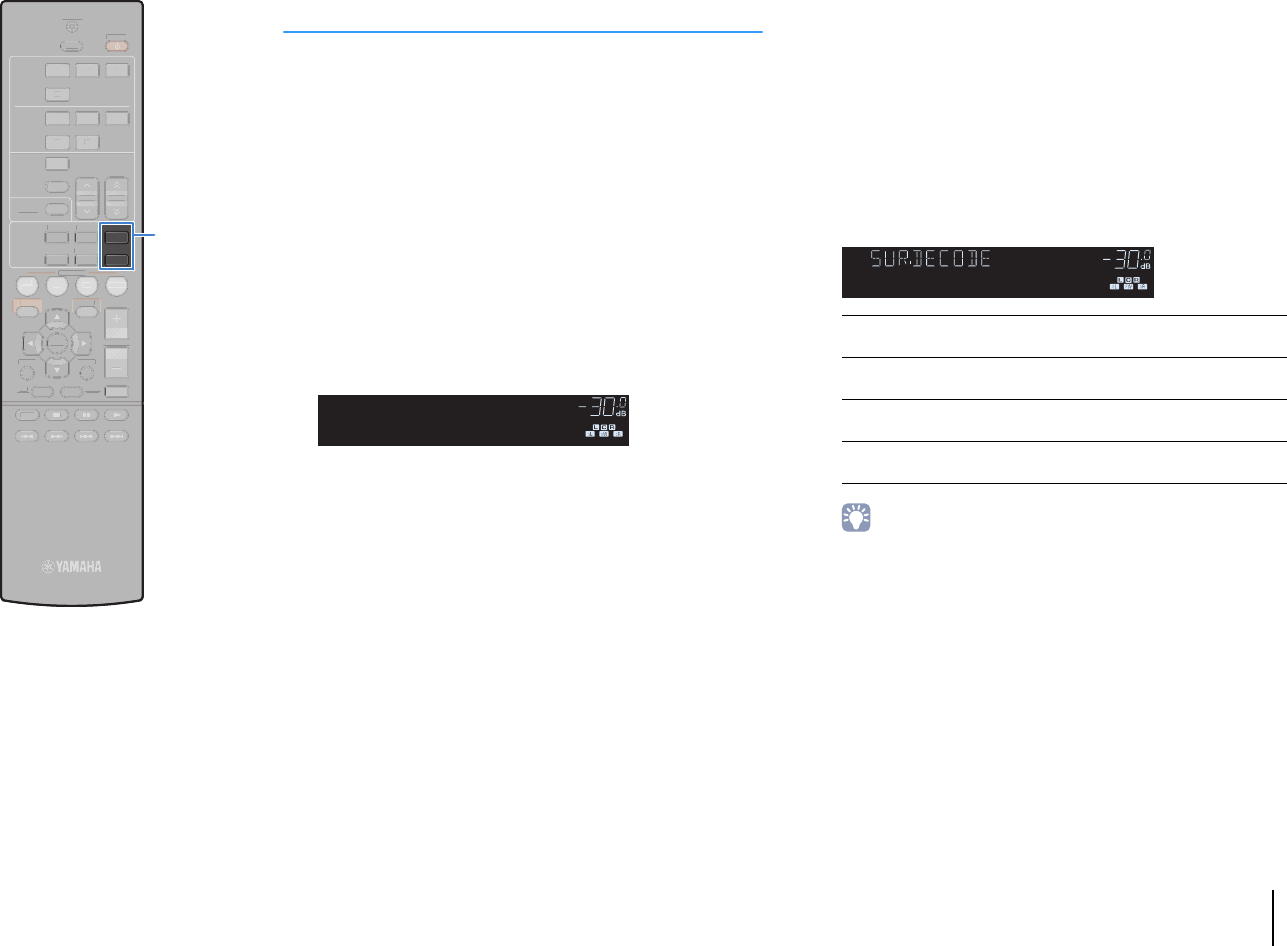
1Press SUR.DECODE to select a surround decoder.
Each time you press the key, the surround decoder
changes.
• You can adjust the surround decoder parameters in “DSP Parameter” (p.45)
in the “Setup” menu.
MUTE
ENHANCER
STEREO
TUNED
SLEEP
OUT
ECO
CHARGE
ADAPTIVE DRC
VIRTUAL
STRAIGHT
VOL.
bPro Logic Uses the Dolby Pro Logic decoder suitable for all
sources.
bPLII Movie Uses the Dolby Pro Logic II decoder suitable for
movies.
bPLII Music Uses the Dolby Pro Logic II decoder suitable for
music.
bPLII Game Uses the Dolby Pro Logic II decoder suitable for
games.
MUTE
ENHANCER
STEREO
TUNED
SLEEP
OUT
ECO
CHARGE
ADAPTIVE DRC
VIRTUAL
†‡Pro Logic
VOL.
00_HTR-2067_om_En.book Page 29 Monday, January 27, 2014 9:33 AM
PLAYBACK ➤Selecting the sound mode En 30
TRANSMIT
RECEIVER
SLEEP
HDMI
AUDIO
123
4
45
123
FM
MEMORY
PRESET
TUNING
TUNER
SOUND
INFO
MOVIE MUSIC
SUR. DECODE
ENHANCER STRAIGHTBASS
SCENE
RETURN
VOLUME
BD
DVD TV
CD
RADIO
DISPLAY
ENTER
SETUP OPTION
TOP
MENU
POP-UP
MENU
MUTE
MODE
TRANSMI
RECEIVER
LEEP
DI
EM
RY
PRE
E
NIN
NER
INF
VIE MU
I
UR. DE
DE
TRAI
HT
CENE
OLUME
ADI
DI
PLA
ETU
OPTION
T
P-
P
OD
BASS
ENHANCER
Enhancing the bass (Extra Bass)
Extra Bass allows you to enjoy enhanced bass sounds, regardless
of the size of the front speakers and the presence or absence of the
subwoofer.
1Press BASS.
Each time you press the key, Extra Bass is enabled or
disabled.
• You can also use “Extra Bass” (p.41) in the “Setup” menu to enable/disable
Extra Bass.
Enjoying compressed music with enhanced
sound (Compressed Music Enhancer)
Compressed Music Enhancer adds depth and breadth to the
sound, allowing you to enjoy a dynamic sound close to the original
sound before it was compressed. This function can be used along
with any other sound modes.
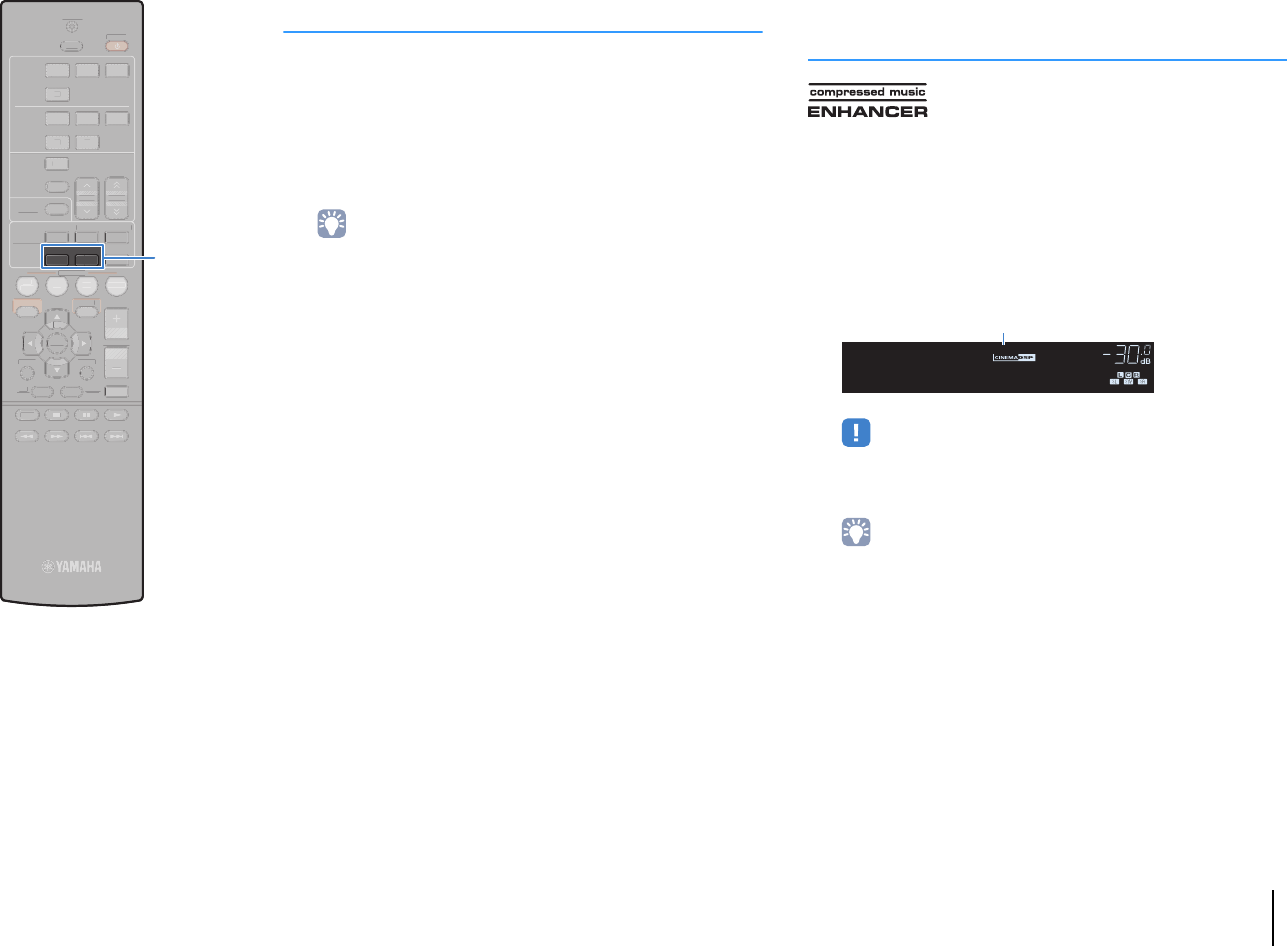
1Press ENHANCER.
Each time you press the key, Compressed Music Enhancer
is enabled or disabled.
• Compressed Music Enhancer does not work on the following audio sources.
– Signals whose sampling rate is over 48 kHz
– High-definition streaming audio
• You can also use “Enhancer” (p.35) in the “Option” menu to enable/disable
Compressed Music Enhancer.
MUTE
STEREO
TUNED
SLEEP
OUT
ECO
CHARGE
ADAPTIVE DRC
VIRTUAL
Enhancer On
VOL.
ENHANCER
00_HTR-2067_om_En.book Page 30 Monday, January 27, 2014 9:33 AM
PLAYBACK ➤Listening to FM radio En 31
TRANSMIT
RECEIVER
SLEEP
HDMI
AUDIO
123
4
45
123
FM
MEMORY
PRESET
TUNING
TUNER
SOUND
INFO
MOVIE MUSIC
SUR. DECODE
ENHANCER STRAIGHTBASS
SCENE
RETURN
VOLUME
BD
DVD TV
CD
RADIO
DISPLAY
ENTER
SETUP OPTION
TOP
MENU
POP-UP
MENU
MUTE
MODE
TRANSMI
ECEIVER
LEE
A
DI
MEM
RY
RE
ET
UND
INF
VI
MU
I
UR. DE
DE
NHAN
ER
TRAI
HT
A
CEN
VOLUME
B
RADI
I
PLA
ETU
OPTIO
P
P-
P
You can tune into a radio station by specifying its frequency or
selecting from registered radio stations.
• The radio frequencies differ depending on the country or region where the unit is
being used. The explanation of this section uses a display with frequencies used
in U.K. and Europe models.
• If you cannot obtain good reception on the radio, adjust the direction of the FM
antenna.
Setting the frequency steps
(Asia and General models only)
At the factory, the frequency step setting is set to 50 kHz for FM.
Depending on your listening environment, set the frequency steps
to 100 kHz for FM.
1Set the unit to standby mode.
2When holding down STRAIGHT on the front panel,
press z (power).
3Press PROGRAM repeatedly to select “TU”.
4Press STRAIGHT to select “FM100”.
5Press z (power) to set the unit to standby mode
and turn it on again.
Selecting a frequency for reception
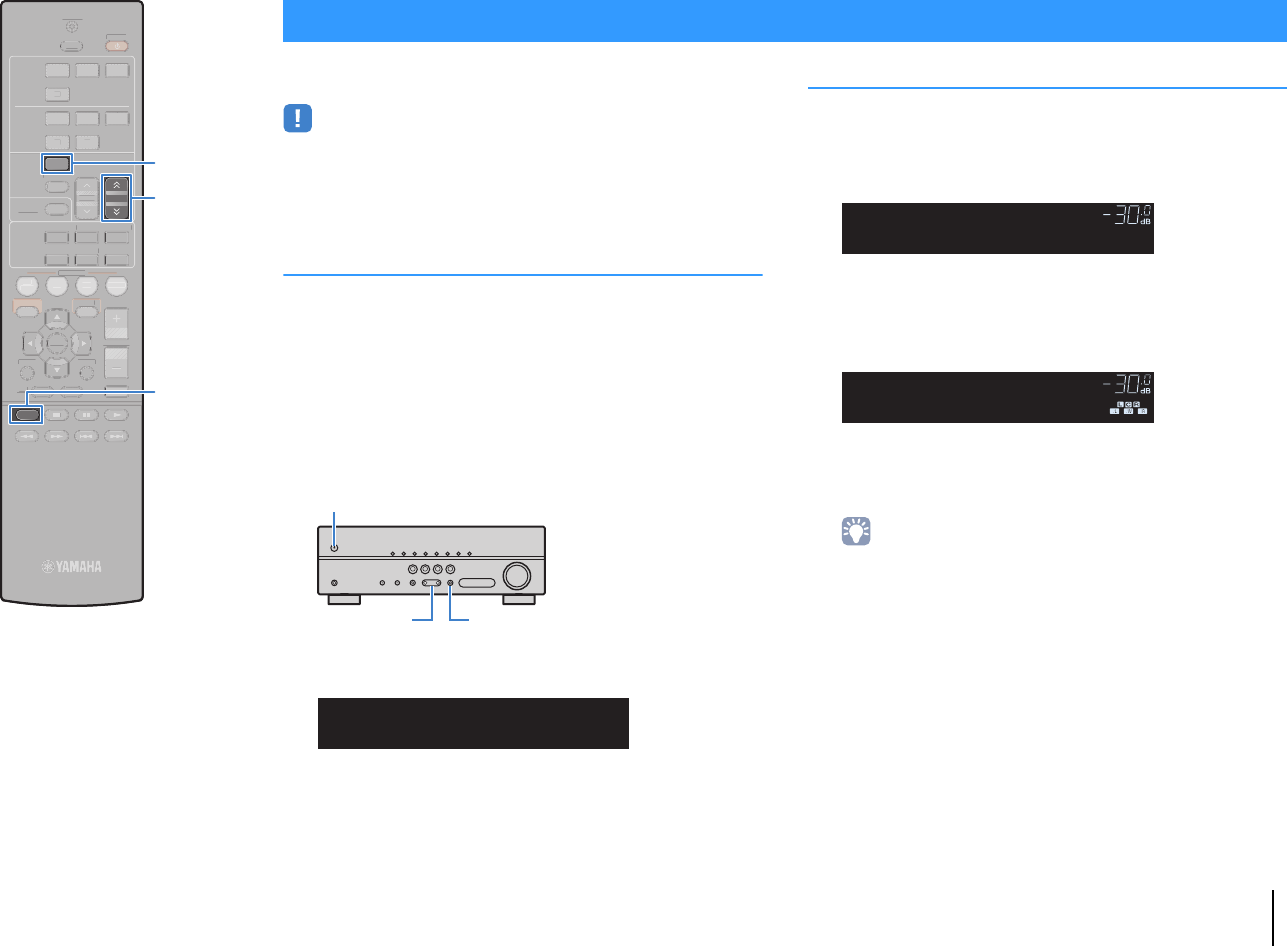
1Press FM to select “TUNER” as the input source.
“TUNER” is selected as the input source and then the
frequency currently selected is displayed.
2Press TUNING repeatedly to set a frequency.
Hold down the key for about a second to search stations
automatically.
“TUNED” lights up when a signal is received from a radio
station.
“STEREO” also lights up when a stereo signal is received.
• You can switch between “Stereo” (stereo) and “Mono” (monaural) for FM
radio reception by pressing MODE. When the signal reception for an FM
radio station is unstable, switching to monaural may improve it.
• You can watch videos input from external devices while listening to radio by
selecting the video input jack in “Video Out” (p.36) in the “Option” menu.
Listening to FM radio
VOL.
MUTE
ENHANCER
STEREO
TUNED
SLEEP
OUT
ECO
CHARGE
ADAPTIVE DRC
VIRTUAL
TU••••••••FM50
MUTE
ENHANCER
STEREO
TUNED
SLEEP
OUT
ECO
CHARGE
ADAPTIVE DRC
VIRTUAL
FM 87.50MHz
VOL.
MUTE
ENHANCER
SLEEP
OUT
ECO
CHARGE
ADAPTIVE DRC
VIRTUAL
FM 98.50MHz
VOL.
STEREO
TUNED
00_HTR-2067_om_En.book Page 31 Monday, January 27, 2014 9:33 AM
PLAYBACK ➤Listening to FM radio En 32
TRANSMIT
RECEIVER
SLEEP
HDMI
AUDIO
123
4
45
123
FM
MEMORY
PRESET
TUNING
TUNER
SOUND
INFO
MOVIE MUSIC
SUR. DECODE
ENHANCER STRAIGHTBASS
SCENE
RETURN
VOLUME
BD
DVD TV
CD
RADIO
DISPLAY
ENTER
SETUP OPTION
TOP
MENU
POP-UP
MENU
MUTE
MODE
TRANSMI
ECEIVER
LEE
A
DI
T
NIN
UND
INF
VI
MU
I
UR. DE
DE
NHAN
ER
TRAI
HT
A
CEN
VOLUME
B
RADI
ETU
P
P-
P
OD
ENTER
RETURN
MEMORY
PRESET
FM
OPTION
Registering favorite radio stations (presets)
You can register up to 40 radio stations as presets. Once you have
registered stations, you can easily tune into them by selecting their
preset numbers.
■Registering radio stations automatically
(Auto Preset)
Automatically register FM radio stations with strong signals (up to
40 stations).
1
Press FM to select “TUNER” as the input source.
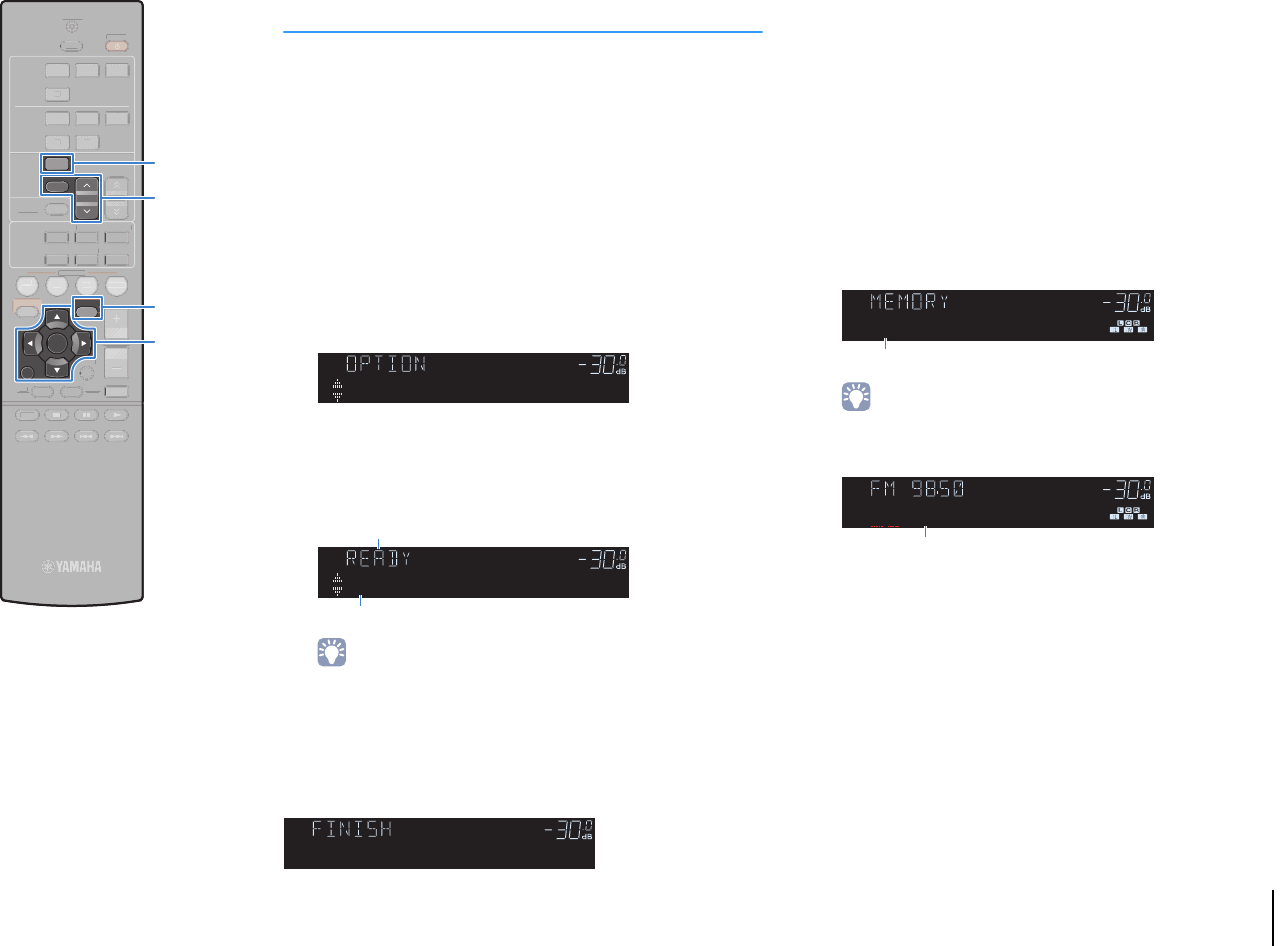
2Press OPTION.
3Use the cursor keys to select “Auto Preset”.
4To start the Auto Preset process, press ENTER.
The registration will start in 5 seconds. Press ENTER again
to start the registration immediately.
• To specify the preset number from which to start the registration, press
PRESET or cursor keys (q/w) to select a preset number within 5 seconds
after step 4 (while “READY” is displayed) and then press ENTER (or just
wait for 5 seconds).
• To cancel the Auto Preset process, press RETURN.
When the Auto Preset process finishes, “FINISH” appears and the
“Option” menu closes automatically.
■Registering a radio station manually
Select a radio station manually and register it to a preset number.
1Follow “Selecting a frequency for reception” (p.31)
to tune into the desired radio station.
2Hold down MEMORY for more than 2 seconds.
The first time that you do register a station, the selected
radio station will be registered to the preset number “01”.
Thereafter, each radio station you select will be registered
to the next empty (unused) preset number after the most
recently registered number.
• To select a preset number for registering, press MEMORY once after tuning
into the desired radio station, press PRESET to select a preset number, and
then press MEMORY again.
MUTE
ENHANCER
STEREO
TUNED
SLEEP
OUT
ECO
CHARGE
ADAPTIVE DRC
VIRTUAL
Auto Preset
VOL.
MUTE
ENHANCER
STEREO
TUNED
SLEEP
OUT
ECO
CHARGE
ADAPTIVE DRC
VIRTUAL
01:FM 87.50MHz
VOL.
“SEARCH” appears during Auto Preset
Preset number from which to start the registration
MUTE
ENHANCER
STEREO
TUNED
SLEEP
OUT
ECO
CHARGE
ADAPTIVE DRC
VIRTUAL
Auto Preset
VOL.
MUTE
ENHANCER
SLEEP
OUT
ECO
CHARGE
ADAPTIVE DRC
VIRTUAL
01:FM 98.50MHz
STEREO
TUNED
VOL.
MUTE
ENHANCER
SLEEP
OUT
ECO
CHARGE
ADAPTIVE DRC
VIRTUAL
02:Empty
STEREO
TUNED
VOL.
“Empty” (not in use) or the frequency currently registered
Cursor keys
00_HTR-2067_om_En.book Page 32 Monday, January 27, 2014 9:33 AM
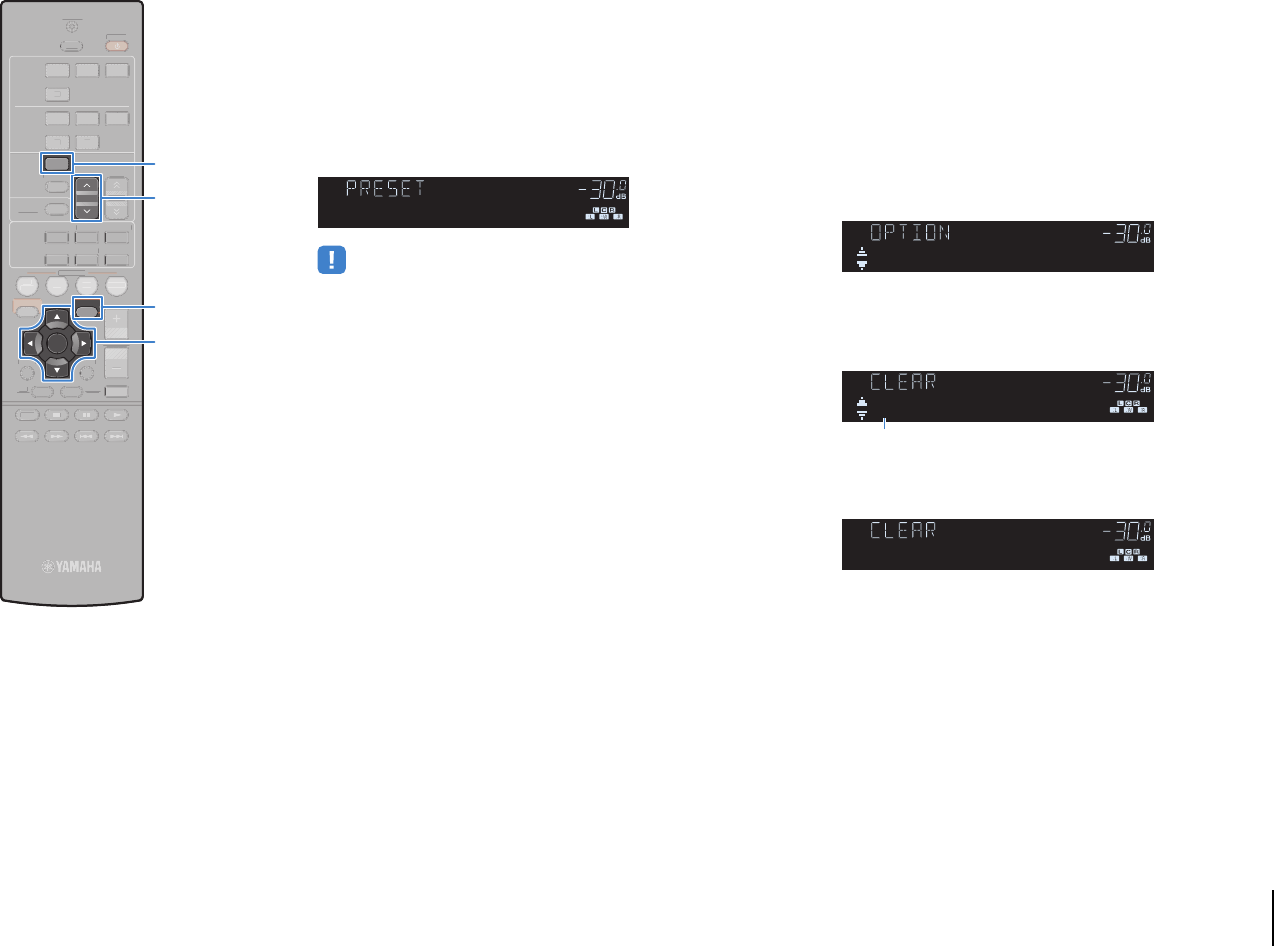
PLAYBACK ➤Listening to FM radio En 33
TRANSMIT
RECEIVER
SLEEP
HDMI
AUDIO
123
4
45
123
FM
MEMORY
PRESET
TUNING
TUNER
SOUND
INFO
MOVIE MUSIC
SUR. DECODE
ENHANCER STRAIGHTBASS
SCENE
RETURN
VOLUME
BD
DVD TV
CD
RADIO
DISPLAY
ENTER
SETUP OPTION
TOP
MENU
POP-UP
MENU
MUTE
MODE
TRANSMI
ECEIVER
LEE
A
DI
MEM
RY
T
NIN
UND
INF
VI
MU
I
UR. DE
DE
NHAN
ER
TRAI
HT
A
CEN
VOLUME
B
RADI
ETU
P
P-
P
OD
ENTER
PRESET
FM
OPTION
■Selecting a preset station
Tune into a registered radio station by selecting its preset number.
1Press FM to select “TUNER” as the input source.
2Press PRESET repeatedly to select the desired radio
station.
• “No Presets” appears when no radio stations are registered.
■Clearing preset stations
Clear radio stations registered to the preset numbers.
1Press FM to select “TUNER” as the input source.
2Press OPTION.
3Use the cursor keys to select “Clear Preset” and
press ENTER.
4Use the cursor keys (q/w) to select a preset station
to be cleared and press ENTER.
If the preset station is cleared, “Cleared” appears and then
the next in-use preset number is displayed.
5Repeat step 4 until all desired preset stations are
cleared.
6To exit from the menu, press OPTION.
MUTE
ENHANCER
SLEEP
OUT
ECO
CHARGE
ADAPTIVE DRC
VIRTUAL
01:FM 98.50MHz
STEREO
TUNED
VOL.
MUTE
ENHANCER
STEREO
TUNED
SLEEP
OUT
ECO
CHARGE
ADAPTIVE DRC
VIRTUAL
Clear Preset
VOL.
MUTE
ENHANCER
SLEEP
OUT
ECO
CHARGE
ADAPTIVE DRC
VIRTUAL
01:FM 98.50MHz
STEREO
TUNED
VOL.
Preset station to be cleared
MUTE
ENHANCER
SLEEP
OUT
ECO
CHARGE
ADAPTIVE DRC
VIRTUAL
STEREO
TUNED
01:Cleared
VOL.
Cursor keys
00_HTR-2067_om_En.book Page 33 Monday, January 27, 2014 9:33 AM
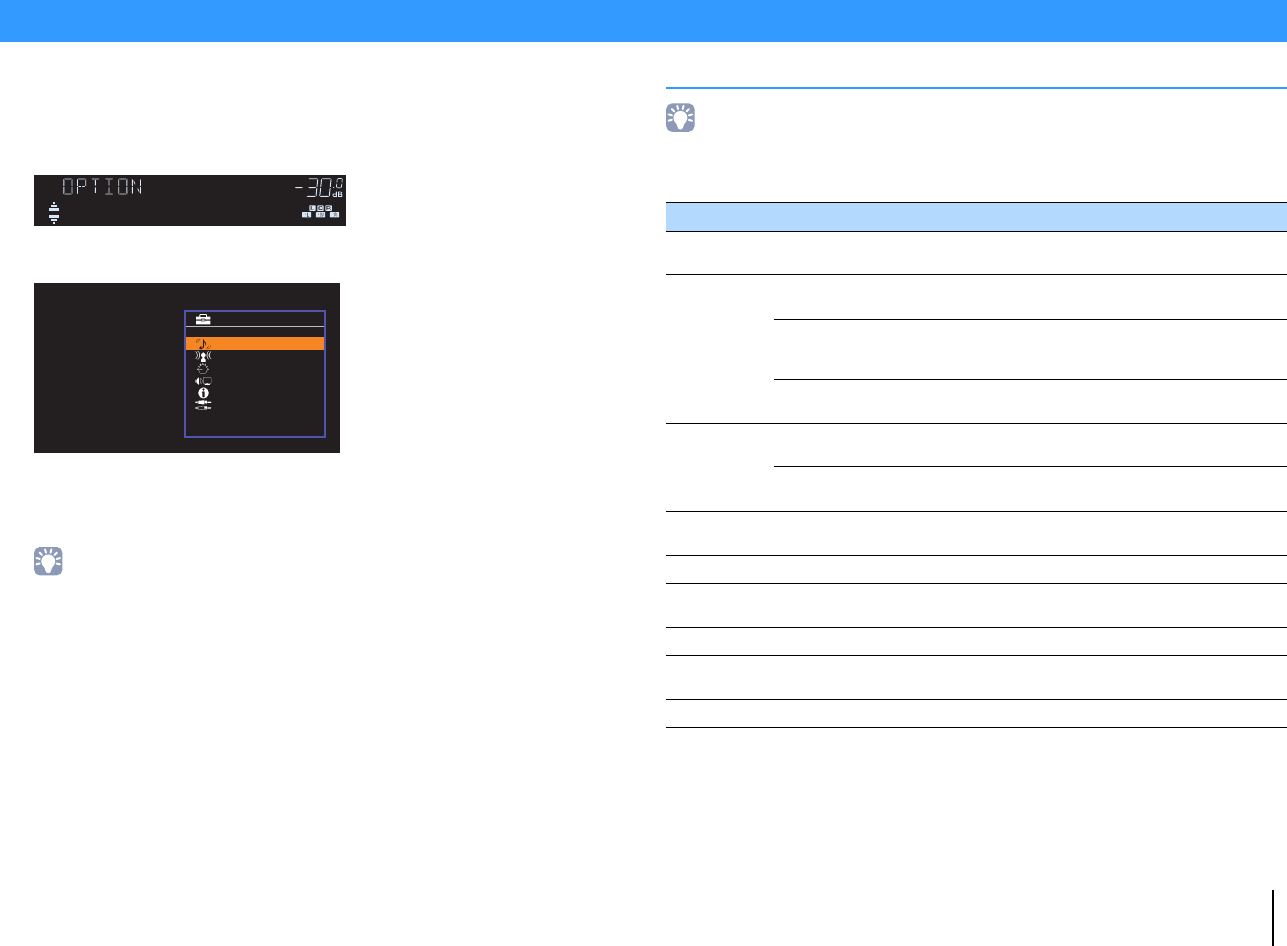
PLAYBACK ➤Configuring playback settings for different playback sources (Option menu) En 34
You can configure separate playback settings for different playback sources. This
menu is available on the front panel (or on the TV screen), allowing you to easily
configure settings during playback.
1Press OPTION.
Front display
TV screen
2Use the cursor keys to select an item and press ENTER.
• To return to the previous screen during menu operations, press RETURN.
3Use the cursor keys (e/r) to select a setting.
4To exit from the menu, press OPTION.
Option menu items
• Available items vary depending on the selected input source.
• Text in parentheses denotes indicators on the front display.
• Default settings are underlined.
Configuring playback settings for different playback sources (Option menu)
MUTE
ENHANCER
STEREO
TUNED
SLEEP
OUT
ECO
CHARGE
ADAPTIVE DRC
VIRTUAL
Tone Control
VOL.
Tone Control
DSP/Surround
Volume Trim
Lipsync
Signal Info
Audio In
Option
Item Function Page
Tone Control (Tone Control) Adjusts the high-frequency range and low-frequency
range of sounds. 35
DSP/Surround
(DSP/Surround)
DSP Level
(DSP Level) Adjusts the sound field effect level. 35
Adaptive DRC
(A.DRC)
Sets whether the dynamic range (from maximum to
minimum) is automatically adjusted when the volume
is adjusted.
35
Enhancer
(Enhancer) Enables/disables Compressed Music Enhancer. 35
Volume Trim
(Volume Trim)
Input Trim
(In.Trim) Corrects volume differences between input sources. 35
Subwoofer Trim
(SW.Trim) Fine-adjusts the subwoofer volume during playback. 35
Lipsync (Lipsync) Enables/disables the “Lipsync” setting in the “Setup”
menu. 36
Signal Info (Signal Info) Displays information about the video/audio signal. 36
Audio In (Audio In) Combines the video jack of the selected input
source with an audio jack of others. 36
Video Out (Video Out) Selects a video to be output with radio sounds. 36
Auto Preset (Auto Preset) Automatically registers FM radio stations with strong
signals as presets. 32
Clear Preset (Clear Preset) Clear radio stations registered to preset numbers. 33
00_HTR-2067_om_En.book Page 34 Monday, January 27, 2014 9:33 AM
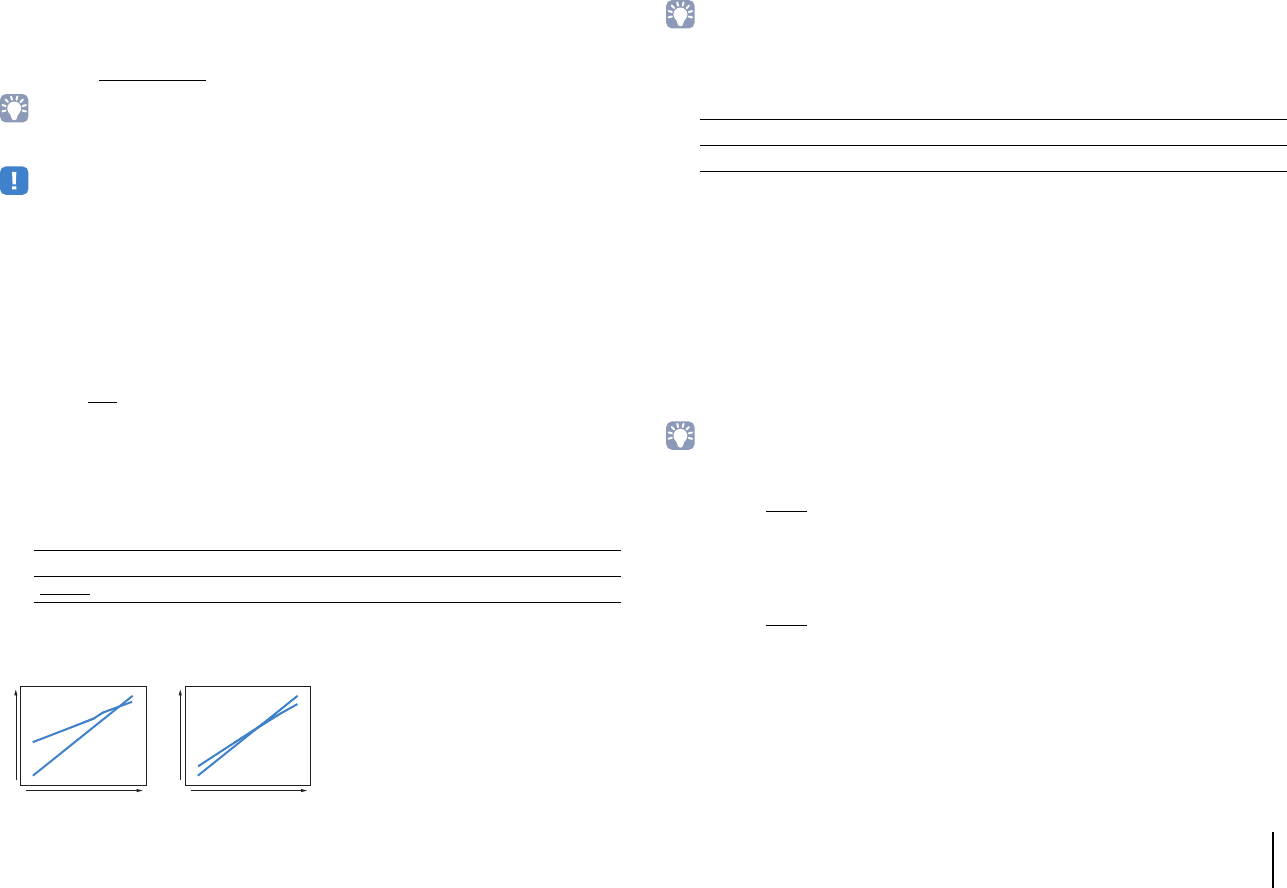
PLAYBACK ➤Configuring playback settings for different playback sources (Option menu) En 35
■Tone Control (Tone Control)
Adjusts the high-frequency range (Treble) and low-frequency range (Bass) of sounds.
Choices
Treble (Treble), Bass (Bass)
Setting range
-6.0 dB to Bypass (Bypass) to +6.0 dB (0.5 dB increments)
• You can also adjust the tone with the front panel controls. Press TONE CONTROL to select «Treble» or
«Bass», then press PROGRAM to make an adjustment.
• If you set an extreme value, sounds may not match those from other channels.
■DSP/Surround (DSP/Surround)
Configures the sound field program and surround settings.
❑DSP Level (DSP Level)
Adjusts the sound field effect level.
Setting range
-6 dB to 0 dB to +3 dB (1 dB increments)
❑Adaptive DRC (A.DRC)
Sets whether the dynamic range (from maximum to minimum) is automatically adjusted
when the volume level is adjusted. When it is set to “On”, it is useful for listening to
playback at a low volume at night.
Settings
If “On” is selected, the dynamic range becomes narrow at a low volume and wide at a
high volume.
❑Enhancer (Enhancer)
Enables/disables Compressed Music Enhancer (p.30).
• This setting is applied separately to each input source.
• You can also use ENHANCER on the remote control to enable/disable Compressed Music Enhancer
(p.30).
Settings
Default
TUNER: On (On)
Others: Off (Off)
■Volume Trim (Volume Trim)
Fine-adjusts volume difference between input sources or subwoofer volume.
❑Input Trim (In.Trim)
Corrects volume differences between input sources. If you are bothered by volume
differences when switching between input sources, use this function to correct it.
• This setting is applied separately to each input source.
Setting range
-6.0 dB to 0.0 dB to +6.0 dB (0.5 dB increments)
❑Subwoofer Trim (SW.Trim)
Fine-adjusts the subwoofer volume during playback.
Setting range
-6.0 dB to 0.0 dB to +6.0 dB (0.5 dB increments)
On (On) Automatically adjusts the dynamic range.
Off (Off) The dynamic range is not automatically adjusted.
Volume: low Volume: high
Input level Input level
On
Off
On
Off
Output level
Output level
Off (Off) Disables Compressed Music Enhancer.
On (On) Enables Compressed Music Enhancer.
00_HTR-2067_om_En.book Page 35 Monday, January 27, 2014 9:33 AM
PLAYBACK ➤Configuring playback settings for different playback sources (Option menu) En 36
■Lipsync (Lipsync)
Enables/disables the adjustment configured in “Lipsync” (p.45) in the “Setup” menu.
• This setting is applied separately to each input source.
Settings
■Signal Info (Signal Info)
Displays information about the video/audio signal.
Choices
• To switch the information on the front display, press the cursor keys (q/w) repeatedly.
■Audio In (Audio In)
Combines the video jack of the selected input source (HDMI 1–4) with an audio jack of
others. For example, use this function in the following cases.
• Connecting a playback device that supports HDMI video output, but not HDMI audio
output
Input sources
HDMI 1–4
■Setup procedure
(To input audio through a digital optical jack)
Select “AUDIO 1” and connect the device to the unit’s corresponding audio jacks with a
digital optical cable.
(To input audio through a digital coaxial jack)
Select “AUDIO 2” or “AUDIO 3” and connect the device to the unit’s corresponding
audio jacks with a digital coaxial cable.
(To input audio through analog audio jacks)
Select “AUDIO 4” or “AUDIO 5” and connect the device to the unit’s corresponding
audio jacks with a stereo pin cable.
■Video Out (Video Out)
Selects a video to be output with the selected audio source. For example, you can
watch the video while listening to the radio.
Input sources
AUDIO 1–5, TUNER
Settings
Off (Off) Disables the “Lipsync” adjustment.
On (On) Enables the “Lipsync” adjustment.
Format (FORMAT) Audio format of the input signal
Channel (CHAN)
The number of source channels in the input signal (front/surround/
LFE)
For example, “3/2/0.1” means 3 front channels, 2 surround channels,
and LFE.
Sampling (SAMPL) The number of samples per second of the input digital signal
Bitrate (B RATE) The amount of data per second of the input bitstream signal
Video In (V IN) Type and resolution of the input digital signal
Video Out (V OUT) Type and resolution of the output digital signal
Off (Off) Does not output video.
HDMI 1–4 Outputs video input through the corresponding video input jacks.
00_HTR-2067_om_En.book Page 36 Monday, January 27, 2014 9:33 AM
CONFIGURATIONS ➤Configuring various functions (Setup menu) En 37
CONFIGURATIONS
You can configure the unit’s various function with the menu displayed on the TV screen.
• Operations with TV screen are available only when your TV is connected to the unit via HDMI. If not, carry
out operations while viewing the front display.
1Press SETUP.
2Use the cursor keys to select a menu and press ENTER.
3Use the cursor keys to select an item and press ENTER.
• To return to the previous screen during menu operations, press RETURN.
4Use the cursor keys (e/r) to select a setting and press ENTER.
5To exit from the menu, press SETUP.
Configuring various functions (Setup menu)
Setup
Speaker
HDMI
Sound
ECO
Function
Language
Configuration
Distance
Level
Equalizer
Test Tone
Setup
Speaker
HDMI
Sound
ECO
Function
Language
Configuration
Distance
Level
Equalizer
Test Tone
00_HTR-2067_om_En.book Page 37 Monday, January 27, 2014 9:33 AM
CONFIGURATIONS ➤Configuring various functions (Setup menu) En 38
Setup menu items
Menu Item Function Page
Speaker
Configuration
Subwoofer Selects whether or not a subwoofer is connected. 40
Front Selects the size of the front speakers. 40
Center Selects whether or not a center speaker is connected and its size. 40
Surround Selects whether or not surround speakers are connected and their size. 40
Crossover Sets the lower limit of the low-frequency component that can be output from speakers whose size is set to “Small”. 40
Subwoofer Phase Sets the phase of the subwoofer. 41
Extra Bass Enables/disables Extra Bass. 41
Virtual CINEMA FRONT Selects whether to use the front 5-channel speaker (Virtual CINEMA FRONT) configuration. 41
Distance Sets the distance between each speaker and listening position. 41
Level Adjusts the volume of each speaker. 41
Equalizer Adjusts the tone with an equalizer. 41
Test Tone Enables/disables the test tone output. 42
HDMI Configuration
HDMI Control Enables/disables HDMI Control. 43
Audio Output Selects a device to output audio. 43
TV Audio Input Selects an audio input jack of the unit to be used for TV audio input. 43
Standby Sync Selects whether to use HDMI control to link the standby behavior of the TV and the unit. 43
ARC Enables/disables ARC. 43
SCENE Enables/disables SCENE link playback. 44
Sound
DSP Parameter
Panorama Enables/disables the broadening effect of the front sound field. 45
Center Width Adjusts the broadening effect of the center sound field. 45
Dimension Adjusts the difference in level between the front and surround sound fields. 45
Lipsync
Select Selects the method to adjust the delay between video and audio output. 45
Adjustment Adjusts the delay between video and audio output manually. 45
Volume
Scale Switches the scale of the volume display. 46
Dynamic Range Selects the dynamic range adjustment method for bitstream audio (Dolby Digital and DTS signals) playback. 46
Max Volume Sets the maximum volume to prevent excessive loudness. 46
Initial Volume Sets the initial volume for when this receiver is turned on. 46
00_HTR-2067_om_En.book Page 38 Monday, January 27, 2014 9:33 AM
CONFIGURATIONS ➤Configuring various functions (Setup menu) En 39
ECO
Auto Power Standby Set the amount of time for the auto-standby function. 47
ECO Mode Enables/disables the eco mode (power saving mode). 47
Function
Input Rename Changes the input source name displayed on the front display. 48
Dimmer Adjusts the brightness of the front display. 48
Memory Guard Prevents accidental changes to the settings. 48
Language Select an on-screen menu language. 49
Menu Item Function Page
00_HTR-2067_om_En.book Page 39 Monday, January 27, 2014 9:33 AM
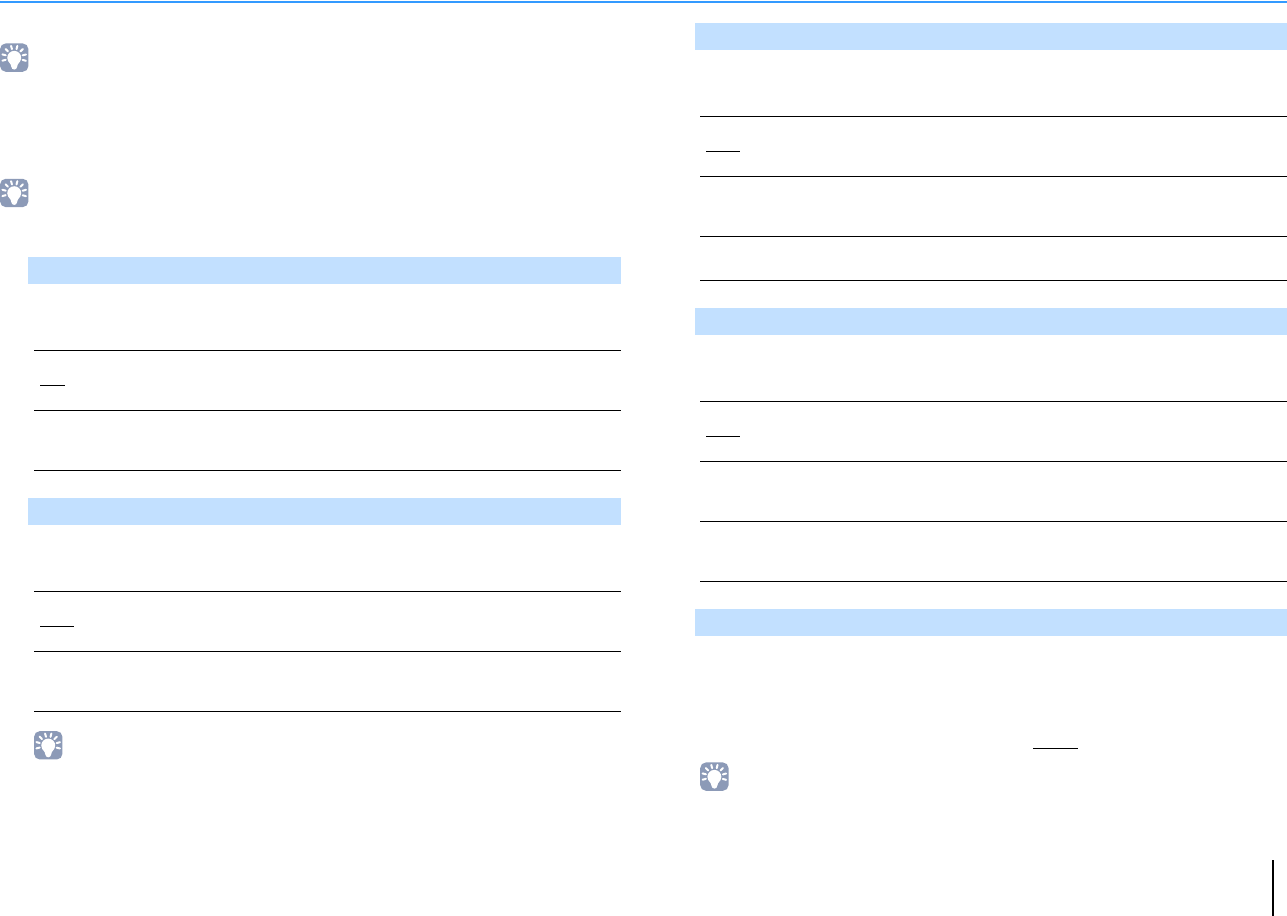
CONFIGURATIONS ➤Configuring various functions (Setup menu) En 40
Speaker
Configures the speaker settings manually.
• Default settings are underlined.
■Configuration
Configures the output characteristics of the speakers.
• When you configure the speaker size, select “Large” if the woofer diameter of your speaker is 16 cm
(6-1/4”) or larger or “Small” if it is smaller than 16 cm (6-1/4”).
Selects whether or not a subwoofer is connected.
Settings
Selects the size of the front speakers.
Settings
• “Front” is automatically set to “Large” when “Subwoofer” is set to “None”.
Selects whether or not a center speaker is connected and its size.
Settings
Selects whether or not surround speakers are connected and their sizes.
Settings
Sets the lower limit of the low-frequency components that can be output from a
speaker whose size is set to “Small”. A frequency sound lower than the specified
value will be produced from the subwoofer or front speakers
Settings
40 Hz, 60 Hz, 80 Hz, 90 Hz, 100H z, 110 Hz, 120 Hz, 160 Hz, 200 Hz
• If the volume and crossover frequency are adjustable on your subwoofer, set the volume to half and
crossover frequency to maximum.
Subwoofer
Use
Select this option when a subwoofer is connected.
The subwoofer will produce LFE (low-frequency effect) channel audio
and low-frequency components from other channels.
None
Select this option when no subwoofer is connected.
The front speakers will produce LFE (low-frequency effect) channel
audio and low-frequency components from other channels.
Front
Small
Select this option for small speakers.
The subwoofer will produce front channel low-frequency components
(configurable in “Crossover”).
Large
Select this option for large speakers.
The front speakers will produce all of the front channel frequency
components.
Center
Small
Select this option for small speakers.
The subwoofer or front speakers will produce center channel
low-frequency components (configurable in “Crossover”).
Large
Select this option for large speakers.
The center speaker will produce all of the center channel frequency
components.
None Select this option when no center speaker is connected.
The front speakers will produce center channel audio.
Surround
Small
Select this option for small speakers.
The subwoofer or front speakers will produce surround channel
low-frequency components (configurable in “Crossover”).
Large
Select this option for large speakers.
The surround speakers will produce all of the surround channel
frequency components.
None
Select this option when no surround speakers are connected.
The front speakers will produce surround channel audio. Virtual
CINEMA DSP works when you select a sound program.
Crossover
00_HTR-2067_om_En.book Page 40 Monday, January 27, 2014 9:33 AM

CONFIGURATIONS ➤Configuring various functions (Setup menu) En 41
Sets the phase of the subwoofer. When the bass sound is lacking or unclear,
switch the subwoofer phase.
Settings
Enables/disables Extra Bass. When Extra Bass is enabled, you can enjoy
enhanced bass sounds, regardless of the size of the front speakers and the
presence or absence of the subwoofer.
Settings
• You can also use BASS on the remote control to enable/disable Extra Bass (p.30).
Selects whether to use the front 5-channel speaker (Virtual CINEMA FRONT)
configuration.
Settings
• Select «On» only when utilizing the Virtual CINEMA FRONT configuration (p.13).
• This setting is not available when “Surround” is set to “None”.
■Distance
Sets the distance between each speaker and listening position so that sounds from the
speakers reach the listening position at the same time. First, select the unit of distance
from “Meter” or “Feet”.
Choices
Front L, Front R, Center, Surround L, Surround R, Subwoofer
Setting range
0.30 m to 24.00 m (1.0 ft to 80.0 ft), 0.05 m (0.2 ft) increments
Default
Front L, Front R, Subwoofer: 3.00 m (10.0 ft)
Center: 2.60 m (8.6 ft)
Surround L, Surround R: 2.40 m (8.0 ft)
■Level
Adjusts the volume of each speaker.
Choices
Front L, Front R, Center, Surround L, Surround R, Subwoofer
Setting range
-10.0 dB to +10.0 dB (0.5 dB increments)
Default
Front L, Front R, Subwoofer: 0.0 dB
Others: -1.0 dB
■Equalizer
Adjusts the tone with an equalizer.
Selects the type of equalizer to be used.
Settings
Subwoofer Phase
Normal Does not reverse the subwoofer phase.
Reverse Reverses the subwoofer phase.
Extra Bass
Off Disables Extra Bass.
On Enables Extra Bass.
Virtual CINEMA FRONT
Off Disables the front 5-channel speaker configuration.
On Enables the front 5-channel speaker configuration. EQ Select
GEQ Select this option when you want to adjust the equalizer manually.
For details, see “Manual equalizer adjustment”.
Off Does not use the equalizer.
00_HTR-2067_om_En.book Page 41 Monday, January 27, 2014 9:33 AM
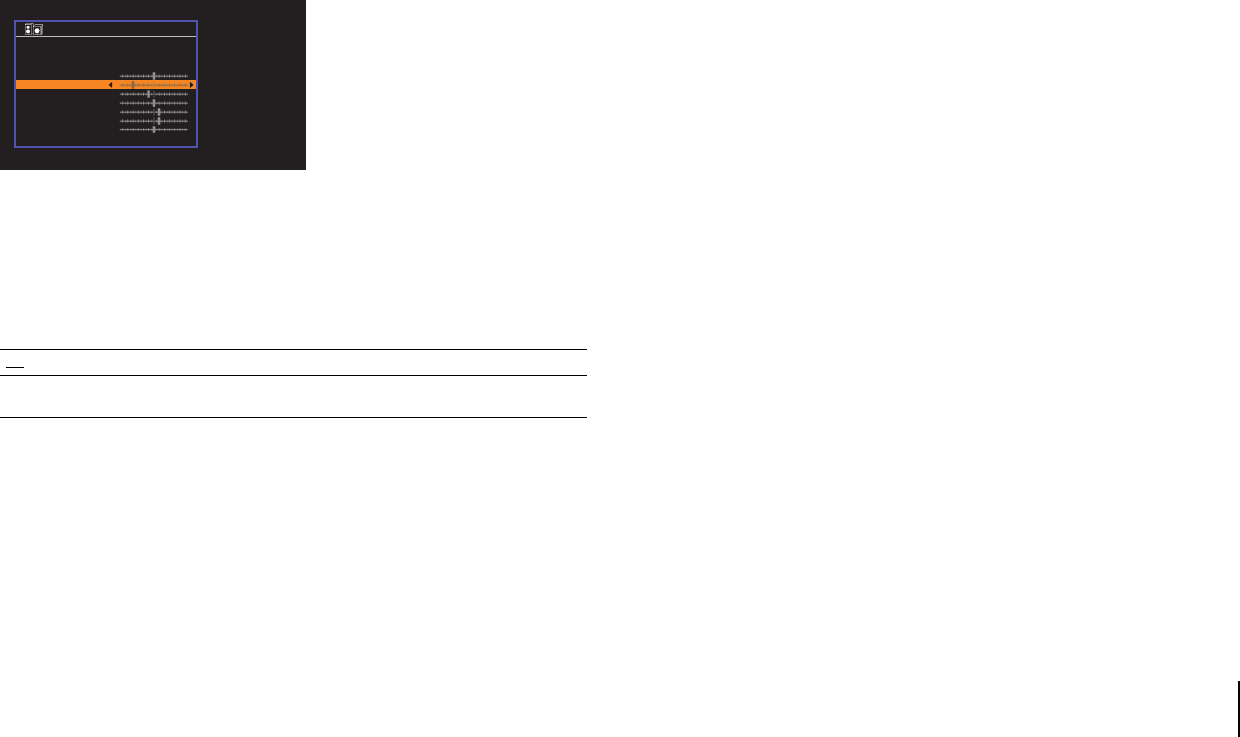
CONFIGURATIONS ➤Configuring various functions (Setup menu) En 42
■Manual equalizer adjustment
1Set “EQ Select” to “GEQ”.
2Use the cursor keys (q/w) to select “Channel” and the cursor keys (e/r) to select
the desired speaker channel.
3Use the cursor keys (q/w) to select the desired band (frequency) and the cursor
keys (e/r) to adjust the gain.
Setting range
-6.0 dB to +6.0 dB
4To exit from the menu, press SETUP.
■Test Tone
Enables/disables the test tone output. Test tone output helps you to adjust the speaker
balance or equalizer while confirming its effect.
Settings
Off Does not output test tones.
On Outputs test tones automatically when you adjust the speaker balance
or equalizer.
Equalizer
Channel
63Hz
160Hz
400Hz
1kHz
2.5kHz
6.3kHz
16kHz
GEQ
Front L
Back:RETURN
EQ Select
GEQ Edit
00_HTR-2067_om_En.book Page 42 Monday, January 27, 2014 9:33 AM
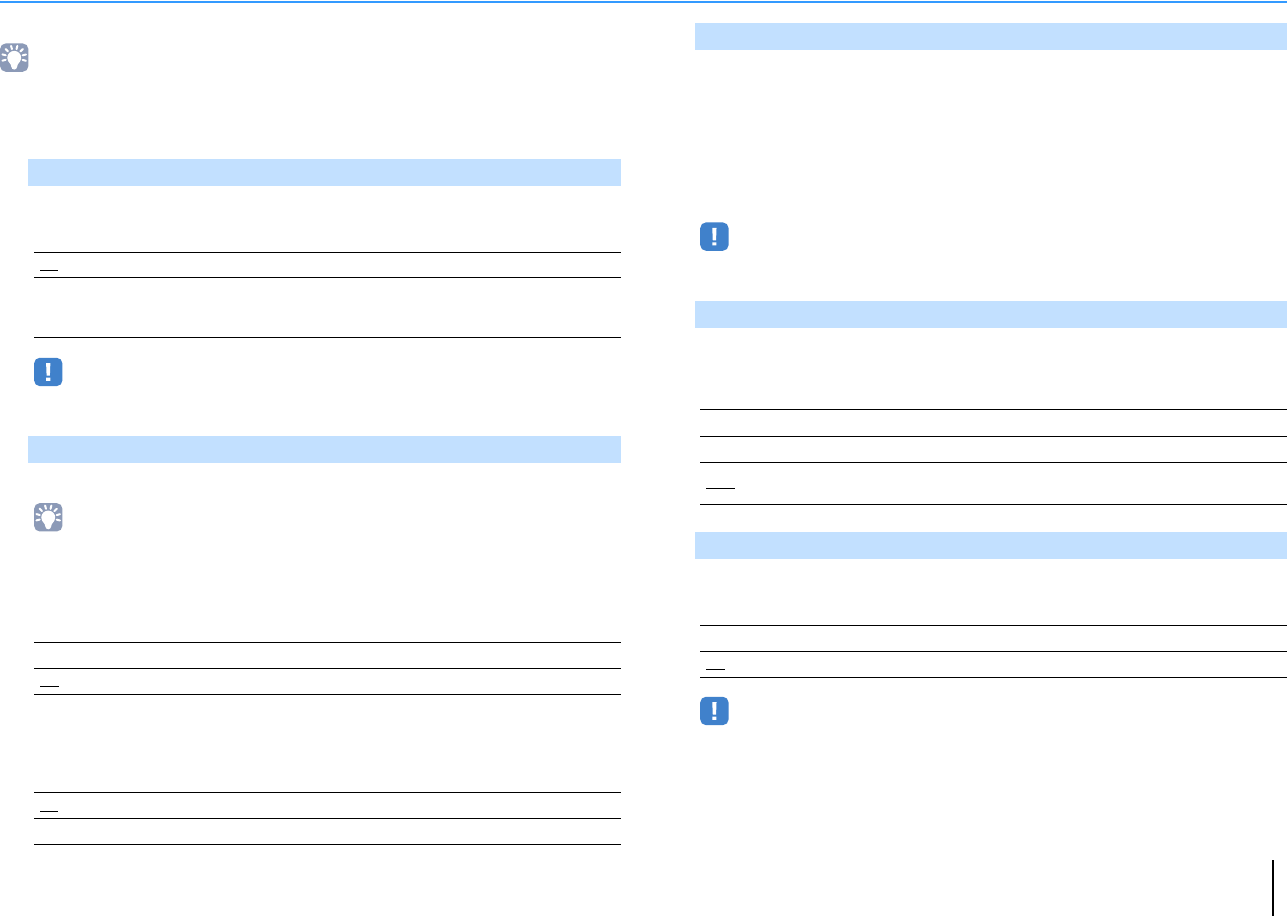
CONFIGURATIONS ➤Configuring various functions (Setup menu) En 43
HDMI
Configures the HDMI settings.
• Default settings are underlined.
■Configuration
Enables/disables HDMI Control (p.59).
Settings
• To use HDMI control, you need to perform the HDMI Control link setup (p.59) after connecting HDMI
Control-compatible devices.
Selects a device to output audio.
• This setting is available only when “HDMI Control” is set to “Off”.
Amp
Enables/disables the audio output from the speakers connected to the unit.
Settings
HDMI OUT (TV)
Enables/disables the audio output from a TV connected to the HDMI OUT jack.
Settings
Selects an audio input jack of the unit to be used for TV audio input when “HDMI
Control” is set to “On”. The unit’s input source automatically switches to TV audio
when the TV input is switched to its built-in tuner.
Settings
AUDIO 1–5
Default
AUDIO 4
• When using ARC to input TV audio to the unit, you cannot use the input jacks selected here for
connecting an external device because the input will be used for TV audio input.
Select whether to use HDMI control to link the standby behavior of the TV and the
unit when “HDMI Control” is set to “On”.
Settings
Enables/disables ARC (p.17) when “HDMI Control” is set to “On”.
Settings
• You do not need to change this setting normally. In case noises are produced from the speakers
connected to the unit because TV audio signals input to the unit via ARC are not supported by the
unit, set “ARC” to “Off” and use the TV’s speakers.
HDMI Control
Off Disables HDMI Control.
On
Enables HDMI Control.
Configure the settings in “TV Audio Input”, “Standby Sync”, “ARC”,
and “SCENE”.
Audio Output
Off Disables the audio output from the speakers.
On Enables the audio output from the speakers.
Off Disables the audio output from the TV.
On Enables the audio output from the TV.
TV Audio Input
Standby Sync
Off Does not set the unit to standby mode when the TV is turned off.
On Sets the unit to standby mode when the TV is turned off.
Auto Sets the unit to standby mode when the TV is turned off only when the
unit is receiving TV audio or HDMI signals.
ARC
Off Disables ARC.
On Enables ARC.
00_HTR-2067_om_En.book Page 43 Monday, January 27, 2014 9:33 AM

CONFIGURATIONS ➤Configuring various functions (Setup menu) En 44
Enables/disable SCENE link playback when “HDMI Control” is set to “On”.
When SCENE link playback is enabled, HDMI Control-compatible devices
connected to the unit via HDMI automatically works as follows, with a scene
selection.
• TV: turning on and displaying video from the playback device
• Playback device: starting playback
Choices (SCENE keys)
BD/DVD, TV, CD, RADIO
Settings
Default
BD/DVD, TV: On
CD, RADIO: Off
• SCENE link playback may not work properly due to the compatibility between devices. We
recommend using TV and playback devices from the same manufacturer so that HDMI Control works
more effectively.
SCENE
Off Disables SCENE link playback for the selected SCENE key.
On Enables SCENE link playback for the selected SCENE key.
00_HTR-2067_om_En.book Page 44 Monday, January 27, 2014 9:33 AM
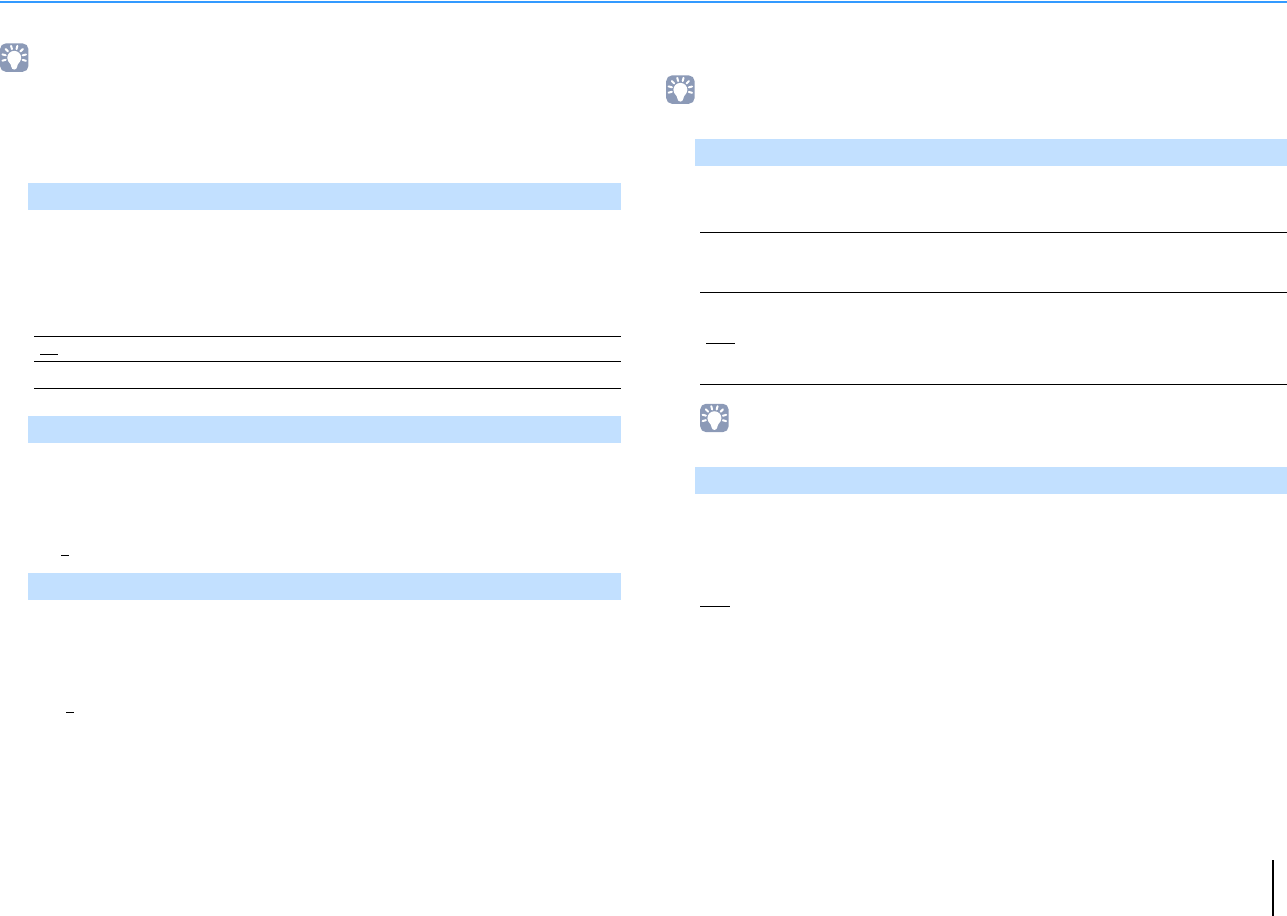
CONFIGURATIONS ➤Configuring various functions (Setup menu) En 45
Sound
Configures the audio output settings.
• Default settings are underlined.
■DSP Parameter
Configures the surround decoder settings.
Enables/disables the broadening effect of the front sound field. When this function
is enabled, you can wrap front right/left channel sounds around the field and
generate a spacious sound field in combination with the surround sound field. This
setting is effective when “bPLII Music” is selected.
Settings
Adjusts the broadening effect of the center sound field. Higher to enhance the
broadening effect, and lower to reduce it (closer to center). This setting is effective
when “bPLII Music” is selected.
Setting range
0 to 3 to 7
Adjusts the difference in level between the front and surround sound fields. Higher
to strengthen the front sound field and lower to strengthen the surround sound
field. This setting is effective when “bPLII Music” is selected.
Setting range
-3 to 0 to +3
■Lipsync
Adjusts the delay between video and audio output.
• You can enable/disable the Lipsync function by input sources in “Lipsync” (p.36) in the “Option” menu.
Selects the method to adjust the delay between video and audio output.
Setting range
• “Select” is automatically set to “Manual” depending on the TV connected to the unit.
Adjusts the delay between video and audio output manually when “Select” is set to
“Manual”. You can fine-adjust the audio output timing when “Select” is set to
“Auto”.
Setting range
0 ms to 500 ms (1 ms increments)
Panorama
Off Disables the broadening effect of the front sound field.
On Enables the broadening effect of the front sound field.
Center Width
Dimension
Select
Manual
Select this option when you want to adjust the delay between video
and audio output manually.
Adjust the audio output timing in “Adjustment”.
Auto
Adjusts the delay between video and audio output automatically when
a TV that supports an automatic lipsync function is connected to the
unit via HDMI.
If necessary, you can fine-adjust the audio output timing in
“Adjustment”.
Adjustment
00_HTR-2067_om_En.book Page 45 Monday, January 27, 2014 9:33 AM

CONFIGURATIONS ➤Configuring various functions (Setup menu) En 46
■Volume
Configures the volume settings.
Switches the scale of the volume display.
Settings
Selects the dynamic range adjustment method for bitstream audio (Dolby Digital
and DTS signals) playback.
Settings
Sets the maximum volume to prevent excessive loudness.
Setting range
-30.0 dB to +15.0 dB (5.0 dB increments), +16.5 dB
[50.0 to 95.0 (5.0 increments), 97.0]
Sets the initial volume when the receiver is turned on.
Settings
Scale
dB Displays the volume in the “dB” unit.
0-97 Displays the volume in the numeric value (0.5 to 97.0).
Dynamic Range
Maximum Produces audio without adjusting the dynamic range.
Standard Optimizes the dynamic range for regular home use.
Min/Auto
Sets the dynamic range for clear sound even at night or at low volumes.
When playing back Dolby TrueHD signals, the dynamic range is
automatically adjusted based on the input signal information.
Max Volume
Initial Volume
Off Sets the level to the volume level of the unit when it last entered
standby mode.
Mute Sets the unit to mute the audio output.
-80.0 dB to +16.5 dB
(0.5 dB increments)
[0.5 to 97.0
(0.5 increments)]
Sets the level to the specified volume level.
00_HTR-2067_om_En.book Page 46 Monday, January 27, 2014 9:33 AM
CONFIGURATIONS ➤Configuring various functions (Setup menu) En 47
ECO
Configures the power supply settings.
• Default settings are underlined.
■Auto Power Standby
Set the amount of time for the auto-standby function.
Settings
Default
U.K. and Europe models: 20 minutes
Other models: Off
• Just before the unit enters standby mode, “AutoPowerStdby” appears and then countdown starts in
the front display.
■ECO Mode
Enables/disables the eco (power saving) mode.
When the eco mode is enabled, you can reduce the unit’s power consumption by
keeping the maximum volume, maximum output power, or front display’s brightness
low.
Settings
• Be sure to press ENTER to restart the unit after selecting a setting. The new setting will take effect
after the unit is restarted.
Off Does not set the unit to standby mode automatically.
20 minutes Sets the unit to standby mode when you have not operated the unit
and the unit has not detected any input signal for the specified time.
2 hours, 4 hours,
8 hours, 12 hours
Sets the unit to standby mode when you have not operated the unit for
the specified time.
Off Disables the eco mode.
On Enables the eco mode.
00_HTR-2067_om_En.book Page 47 Monday, January 27, 2014 9:33 AM
CONFIGURATIONS ➤Configuring various functions (Setup menu) En 48
Function
Configures the functions that make the unit easier to use.
• Default settings are underlined.
■Input Rename
Changes the input source name displayed on the front display.
Input sources
HDMI 1–4, AUDIO 1–5
■Procedure
1Use the cursor keys (q/w) to select an input source to be renamed and press
ENTER.
• To select a name from the presets, use the cursor keys (q/w) to select an input source and the
cursor keys (e/r) to select a preset name.
2Use the cursor keys (e/r) to move the edit position and the cursor keys (q/w) to
select a character.
3To confirm the new name, press ENTER.
• To cancel the entry, press RETURN.
4To change another input source name, repeat steps 1 to 3.
5To exit from the menu, press SETUP.
■Dimmer
Adjusts the brightness of the front display.
Setting range
-4 to 0 (higher to brighten)
• The front display may become dark when “ECO Mode” (p.47) is set to “On”.
■Memory Guard
Prevents accidental changes to the settings.
Settings
• When “Memory Guard” is set to “On”, the following icon ( ) is displayed on the menu screen.
Input Rename
Blu-ray
HDMI1
OK:ENTER
CANCEL:RETURN
Off Does not protect the settings.
On Protects the settings until “Off” is selected.
Memory Guard
Memory Guard On
Back:RETURN
Icon
00_HTR-2067_om_En.book Page 48 Monday, January 27, 2014 9:33 AM
CONFIGURATIONS ➤Configuring various functions (Setup menu) En 49
Language
Select an on-screen menu language.
• Default settings are underlined.
Settings
• Japanese and Chinese characters used in content information (such as song titles) cannot be
displayed.
• The information on the front display is provided in English only.
English English
日本語 Japanese
French
German
Spanish
Russian
Italian
Chinese
00_HTR-2067_om_En.book Page 49 Monday, January 27, 2014 9:33 AM
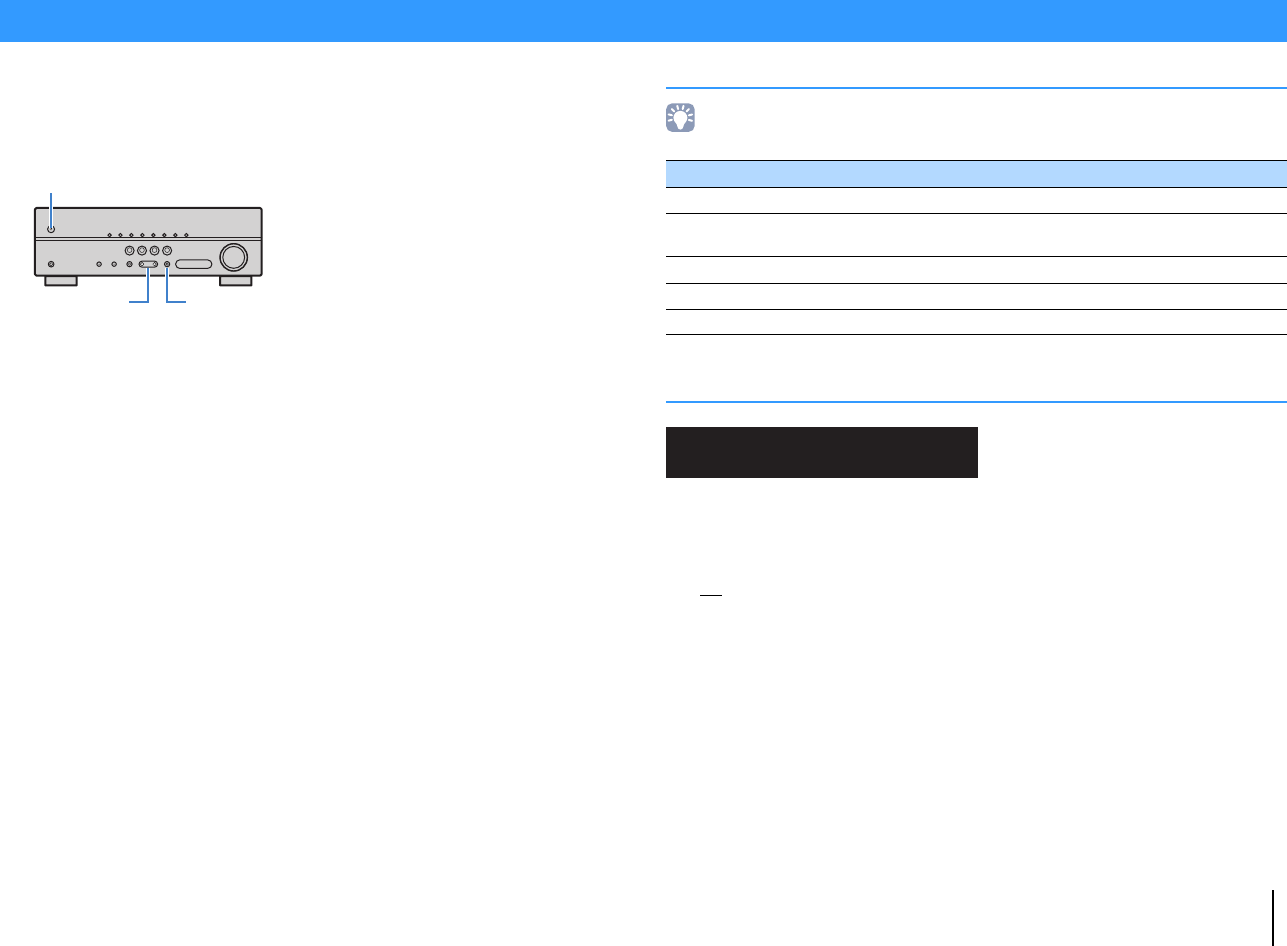
CONFIGURATIONS ➤Configuring the system settings (ADVANCED SETUP menu) En 50
Configure the system settings of the unit while viewing the front display.
1Set the unit to standby mode.
2
While holding down STRAIGHT on the front panel, press
z
(power).
3Press PROGRAM to select an item.
4Press STRAIGHT to select a setting.
5Press z(power) to set the unit to standby mode and turn it on again.
The new settings take effect.
ADVANCED SETUP menu items
• Default settings are underlined.
Selecting the remote control ID (REMOTE ID)
Change the unit’s remote control ID so that it matches the remote control’s ID (default:
ID1). When using multiple Yamaha AV receivers, you can set each remote control with a
unique remote control ID for its corresponding receiver.
Settings
ID1, ID2
■Changing the remote control ID of the remote control
1To select ID1, hold down the cursor key (e) and SCENE (BD/DVD) together for 3
seconds.
To select ID2, hold down the cursor key (e) and SCENE (TV) together for 3
seconds.
Configuring the system settings (ADVANCED SETUP menu)
Item Function Page
REMOTE ID Selects the unit’s remote control ID. 50
TU (Asia and General models only)
Changes the FM tuning frequency setting. 51
TV FORMAT Switches the video signal type of HDMI output. 51
INIT Restores the default settings. 51
VERSION Checks the version of firmware currently installed on the unit. 51
VOL.
MUTE
ENHANCER
STEREO
TUNED
SLEEP
OUT
ECO
CHARGE
ADAPTIVE DRC
VIRTUAL
REMOTE ID••ID1
00_HTR-2067_om_En.book Page 50 Monday, January 27, 2014 9:33 AM

CONFIGURATIONS ➤Configuring the system settings (ADVANCED SETUP menu) En 51
Changing the FM tuning frequency setting (TU)
(Asia and General models only)
Change the FM tuning frequency setting of the unit depending on your listening
environment.
Settings
Switching the video signal type (TV FORMAT)
Switch the video signal type of HDMI output so that it matches to the format of your TV.
Since the unit automatically selects the video signal type so that it matches to the TV, it
is unnecessary to change the setting normally. Change the setting only when images
on the TV screen do not appear correctly.
Settings
NTSC, PAL
Default
Canada and General models: NTSC
Other models: PAL
Restoring the default settings (INIT)
Restores the default settings for the unit.
Choices
Checking the firmware version (VERSION)
Check the version of firmware currently installed on the unit.
FM100 Select this when you want to adjust the FM frequency by 100-kHz
steps.
FM50 Select this when you want to adjust the FM frequency by 50-kHz
steps.
VOL.
MUTE
ENHANCER
STEREO
TUNED
SLEEP
OUT
ECO
CHARGE
ADAPTIVE DRC
VIRTUAL
TU••••••••FM50
VOL.
MUTE
ENHANCER
STEREO
TUNED
SLEEP
OUT
ECO
CHARGE
ADAPTIVE DRC
VIRTUAL
TV FORMAT•NTSC
ALL Restores the default settings for the unit.
CANCEL Does not perform an initialization.
VOL.
MUTE
ENHANCER
STEREO
TUNED
SLEEP
OUT
ECO
CHARGE
ADAPTIVE DRC
VIRTUAL
INIT••••CANCEL
VOL.
MUTE
ENHANCER
STEREO
TUNED
SLEEP
OUT
ECO
CHARGE
ADAPTIVE DRC
VIRTUAL
VERSION••xx.xx
00_HTR-2067_om_En.book Page 51 Monday, January 27, 2014 9:33 AM

APPENDIX ➤Frequently asked questions En 52
APPENDIX
The new speaker system does not provide an ideal sound
balance…
If you have changed speakers or have a new speaker system, reconfigure the speaker
settings in “Speaker” in the “SETUP” menu.
Since we have small children, we want to set limitations on the
volume control…
If a small child accidentally operates the controls on the main unit or remote control, the
volume may suddenly increase. This may also cause injury or damage the unit or
speakers. We recommend using “Max Volume” in the “Setup” menu to set the maximum
volume level for the unit in advance (p.46).
I am occasionally startled by a sudden loud sound when turning
on the unit…
By default, the volume level when the unit last entered standby mode is automatically
applied. If you want to fix the volume, use “Initial Volume” in the “Setup” menu to set the
volume to be applied when the receiver is turned on (p.46).
We are bothered by volume differences when switching
between input sources…
You can correct volume differences between input sources by utilizing “Input Trim” in
the “Option” menu (p.35).
I made HDMI connections but HDMI Control does not work at
all…
To use HDMI Control, you need to perform the HDMI Control link setup (p.59). After
connecting HDMI Control-compatible devices (such as BD/DVD players) to the unit,
enable HDMI Control on each device and perform the HDMI Control link setup. This
setup is required every time you add a new HDMI Control-compatible device to your
system. For information on how HDMI Control works between your TV and playback
devices, refer to the instruction manuals for each device.
I want to display a device name or a manufacture name on the
front display when selecting an input source…
By default, input source names (such as “HDMI 1” and “AUDIO 1”) are displayed on
the front display when an input source is selected. If you want to rename them as you
like, use “Input Rename” (p.48) in the “Setup” menu. You can also select a name from
the presets (such as “Blu-ray” and “DVD”).
I want to prevent accidental changes to the settings…
You can protect the settings configured on the unit (such as speaker settings) by
utilizing “Memory Guard” in the “Setup” menu (p.48).
The unit’s remote control is simultaneously controlling another
Yamaha product as well as the unit…
When using multiple Yamaha products, the remote control may work on another
Yamaha product or another remote control may work on the unit. If this happens,
register different remote control IDs for the devices that you want to control with each
remote control (p.50).
Frequently asked questions
00_HTR-2067_om_En.book Page 52 Monday, January 27, 2014 9:33 AM
APPENDIX ➤Troubleshooting En 53
Refer to the table below when the unit does not function properly.
If the problem you are experiencing is not listed below or if the instructions below do not help, turn off the unit, disconnect the power cable, and contact the nearest authorized
Yamaha dealer or service center.
First, check the following:
aThe power cables of the unit, TV and playback devices (such as BD/DVD players) are connected to AC wall outlets
securely.
bThe unit, subwoofer, TV and playback devices (such as BD/DVD players) are turned on.
cThe connectors of each cable are securely inserted in to jacks on each device.
Power, system and remote control
Troubleshooting
Problem Cause Remedy
The power does not turn on. The protection circuitry has been activated three times
consecutively.
As a safety precaution, capability to turn on the power is disabled. Contact your
nearest Yamaha dealer or service center to request repair.
The power does not turn off.
The internal microcomputer has frozen, due to an external electric
shock (such as lightning or excessive static electricity) or to a drop
in the power supply voltage.
Hold down z(power) on the front panel for more than 10 seconds to reboot the
unit. (If the problem persists, disconnect the power cable from the AC wall outlet
and plug it again.)
The power turns off (standby mode) immediately. The unit was turned on while a speaker cable was shorted. Twist the bare wires of each speaker cable firmly and reconnect to the unit and
speakers (p.14).
The unit enters standby mode automatically.
The sleep timer worked. Turn on the unit and start playback again.
The auto-standby function kicked in because the unit was not used
for the specified time.
To disable the auto-standby function, set “Auto Power Standby” in the “Setup”
menu to “Off” (p.47).
The protection circuitry has been activated because of a short
circuit.
Twist the bare wires of each speaker cable firmly and reconnect to the unit and
speakers (p.14).
The unit is not reacting.
The internal microcomputer is frozen, due to an external electric
shock (such as lightning or excessive static electricity) or to a drop
in the power supply voltage.
Hold down z(power) on the front panel for more than 10 seconds to reboot the
unit. (If the problem persists, disconnect the power cable from the AC wall outlet
and plug it again.)
The unit cannot be controlled using the remote
control.
The unit is out of the operating range. Use the remote control within the operating range (p.4).
The batteries are weak. Replace with new batteries.
The unit’s remote control sensor is exposed to direct sunlight or
strong lighting. Adjust the lighting angle, or reposition the unit.
The remote control IDs of the unit and the remote control are not
identical. Change the remote control ID of the unit or the remote control (p.50).
00_HTR-2067_om_En.book Page 53 Monday, January 27, 2014 9:33 AM
APPENDIX ➤Troubleshooting En 54
Audio
Problem Cause Remedy
No sound.
Another input source is selected. Select an appropriate input source with the input selection keys.
Signals that the unit cannot reproduce are being input. Some digital audio formats cannot be played back on the unit. To check the audio
format of the input signal, use “Signal Info” in the “Option” menu (p.36).
The cable connecting the unit and playback device is defective. If there is no problem with the connection, replace with another cable.
The volume cannot be increased. The maximum volume is set. Use “Max Volume” in the “Setup” menu to adjust the maximum volume (p.46).
A device connected to the output jacks of the unit is not turned on. Turn on all devices connected to the output jacks of the unit.
No sound is coming from a specific speaker.
The playback source does not contain a signal for the channel. To check it, use “Signal Info” in the “Option” menu (p.36).
The currently selected sound program/decoder does not use the
speaker. To check it, select “5ch Stereo” (p.26).
Audio output of the speaker is disabled. Use “Configuration” in the “Setup” menu to change the speaker settings (p.40).
The volume of the speaker is set too low. Use “Level” in the “Setup” menu to adjust the speaker volume (p.41).
The speaker cable connecting the unit and the speaker is
defective. If there is no problem with the connection, replace with another speaker cable.
The speaker is malfunctioning. To check it, replace with another speaker. If the problem persists, the unit may be
malfunctioning.
No sound is coming from the subwoofer.
The playback source does not contain LFE or low-frequency
signals.
To check it, set “Extra Bass” in the “Setup” menu to “On”, in order to output the
front channel low-frequency components from the subwoofer (p.41).
Subwoofer output is disabled. Set “Subwoofer” in the “Setup” menu to “Use” (p.40).
(When using a subwoofer with built-in amplifier)
The volume of the subwoofer is too low. Adjust the volume on the subwoofer.
(When using a subwoofer with built-in amplifier)
The subwoofer has been turned off by its auto-standby function. Disable the auto-standby function of the subwoofer or adjust its sensitivity level.
No sound from the playback device (connected to
the unit with HDMI).
The TV does not support HDCP (High-bandwidth Digital Content
Protection). Refer to the instruction manuals for the TV and check the TV’s specifications.
The unit is set not to output audio input through HDMI jacks from
the SPEAKERS terminals. In “Audio Output” in the “Setup” menu, set “Amp” to “On” (p.43).
The number of devices connected to the HDMI OUT jack exceeds
the limit. Disconnect some of the HDMI devices.
No sound from the TV (when HDMI Control is
used).
The TV is set to output audio from the TV speakers. Change the audio output setting on your TV so that the TV audio is output from the
speakers connected to the unit.
A TV that does not support ARC is connected to the unit only with
an HDMI cable. Use a digital optical cable to make an audio connection (p.17).
(If the TV is connected to the unit with an audio cable)
The TV audio input setting does not match the actual connection.
Use “TV Audio Input” in the “Setup” menu to select the correct audio input jack
(p.43).
(If you are trying to use ARC)
ARC is disabled on the unit or TV. Set “ARC” in the “Setup” menu to “On” (p.43). Also, enable ARC on the TV.
00_HTR-2067_om_En.book Page 54 Monday, January 27, 2014 9:33 AM
APPENDIX ➤Troubleshooting En 55
Video
Only the front speakers work on multichannel
audio.
The playback device is set to output 2-channel audio (such as
PCM) only.
To check it, use “Signal Info” in the “Option” menu (p.36). If necessary, change
the digital audio output setting on the playback device.
Noise/hum is heard. The unit is too close to another digital or radio frequency device. Move the unit further away from the device.
The cable connecting the unit and playback device is defective. If there is no problem with the connection, replace with another cable.
The sound is distorted.
A device connected to the unit’s output jacks is not turned on. Turn on all devices connected to the unit’s output jacks.
The volume of the unit is too high. Turn down the volume. If “ECO Mode” in the “Setup” menu is set to “On”, set it to
“Off” (p.47).
Problem Cause Remedy
No video.
Another input source is selected on the unit. Select an appropriate input source with the input selection keys.
Another input source is selected on the TV. Switch the TV input to display the video from the unit.
The video signal output from the unit is not supported by the TV. Check the video output setting of the playback device. For information about
video signals supported by the TV, refer to the instruction manuals for the TV.
The cable connecting the unit and TV (or playback device) is
defective. If there is no problem with the connection, replace with another cable.
No video from the playback device (connected to
the unit with HDMI).
The input video signal (resolution) is not supported by the unit.
To check the information about the current video signal (resolution), use “Signal
Info” in the “Option” menu (p.36). For information about video signals supported
by the unit, see “HDMI signal compatibility” (p.61).
The TV does not support HDCP (High-bandwidth Digital Content
Protection). Refer to the instruction manuals for the TV and check the TV’s specifications.
The number of devices connected to the HDMI OUT jack is over
the limit. Disconnect some of the HDMI devices.
The menu of the unit is not displayed on the TV. Another input source is selected on the TV. Switch the TV input to display the video from the unit (HDMI OUT jack).
Problem Cause Remedy
00_HTR-2067_om_En.book Page 55 Monday, January 27, 2014 9:33 AM
APPENDIX ➤Troubleshooting En 56
FM radio
Problem Cause Remedy
FM radio reception is weak or noisy.
There is multi-path interference. Adjust the FM antenna height or orientation, or place it in a different location.
Your area is too far from the FM station transmitter.
Press MODE to select monaural FM radio reception (p.31).
Use an outdoor FM antenna. We recommend using a sensitive multi-element
antenna.
Radio stations cannot be selected automatically. Your area is too far from the FM station transmitter.
Select the station manually (p.31).
Use an outdoor antenna. We recommend using a sensitive multi-element
antenna.
00_HTR-2067_om_En.book Page 56 Monday, January 27, 2014 9:33 AM
APPENDIX ➤Error indications on the front display En 57
Error indications on the front display
Message Cause Remedy
Check SP Wires The speaker cables short circuit. Twist the bare wires of the cables firmly and connect to the unit and speakers properly.
Internal Error An internal error has occurred. Contact the nearest authorized Yamaha dealer or service center.
RemID Mismatch The remote control IDs of the unit and the remote control are not
identical. Change the remote control ID of the unit or the remote control (p.50).
00_HTR-2067_om_En.book Page 57 Monday, January 27, 2014 9:33 AM

APPENDIX ➤Glossary En 58
Audio information
■Audio decoding format
Dolby Digital
Dolby Digital is a compressed digital audio format developed by Dolby Laboratories, Inc. that supports
5.1-channel audio. This technology is used for audio on most DVD discs.
Dolby Digital Plus
Dolby Digital Plus is a compressed digital audio format developed by Dolby Laboratories, Inc. that supports
7.1-channel audio. Dolby Digital Plus remains fully compatible with the existing multichannel audio systems
that support Dolby Digital. This technology is used for audio on BD (Blu-ray discs).
Dolby Pro Logic II
Dolby Pro Logic II enables 5-channel playback from 2-channel sources. There are three modes available:
“Music mode” for music sources, “Movie mode” for movie sources, and “Game mode” for game sources.
DTS Digital Surround
DTS Digital Surround is a compressed digital audio format developed by DTS, Inc. that supports
5.1-channel audio. This technology is used for audio on most DVD discs.
DSD (Direct Stream Digital)
DSD (Direct Stream Digital) technology stores audio signals on digital storage media, such as SACD (Super
Audio CDs). The signals are stored at a high-frequency sampling rate of 2.8224 MHz. The highest
frequency response is equal to or higher than 100 kHz, with a dynamic range of 120 dB. This technology
offers better audio quality than that used for CDs.
■Others
LFE (Low Frequency Effects) 0.1 channel
This channel reproduces low-frequency bass signals and has a frequency range from 20 Hz to 120 Hz. This
channel is added to the channels for all bands with Dolby Digital or DTS to enhance low frequency audio
effects. This channel is labeled 0.1 because it is limited to only low frequency audio.
Lip sync
Video output sometimes lags behind audio output due to the complexity of signal processing caused by an
increase in video signal capacity. Lip sync is a technique for automatically correcting the timing lag
between audio and video output.
HDMI and video information
Deep Color
Deep Color is a technology that HDMI specification supports. Deep Color increases the number of available
colors within the boundaries defined by the RGB or YCbCr color space. Conventional color systems
process the color using 8 bits. Deep Color processes the color with 10, 12, or 16 bits. This technology
allows HDTVs and other displays to increase from millions of colors to billions of colors and eliminate
on-screen color banding for smooth tonal transitions and subtle gradations between colors.
HDMI
HDMI (High-Definition Multimedia Interface) is the world-wide standard interface for digital audio/video
signal transmission. This interface transmits both digital audio and digital video signals using a single cable
without any loss. HDMI complies with HDCP (High-bandwidth Digital Content Protection) and provides a
secure audio/video interface. For further information on HDMI, visit the HDMI website at
“http://www.hdmi.org/”.
x.v.Color
“x.v.Color” is a technology that the HDMI specification supports. It is a more extensive color space than
sRGB and allows the expression of colors that were not hitherto possible. While remaining compatible with
the color gamut of sRGB standards, “x.v.Color” expands the color space, and thus can produce more vivid,
natural images.
Glossary
00_HTR-2067_om_En.book Page 58 Monday, January 27, 2014 9:33 AM
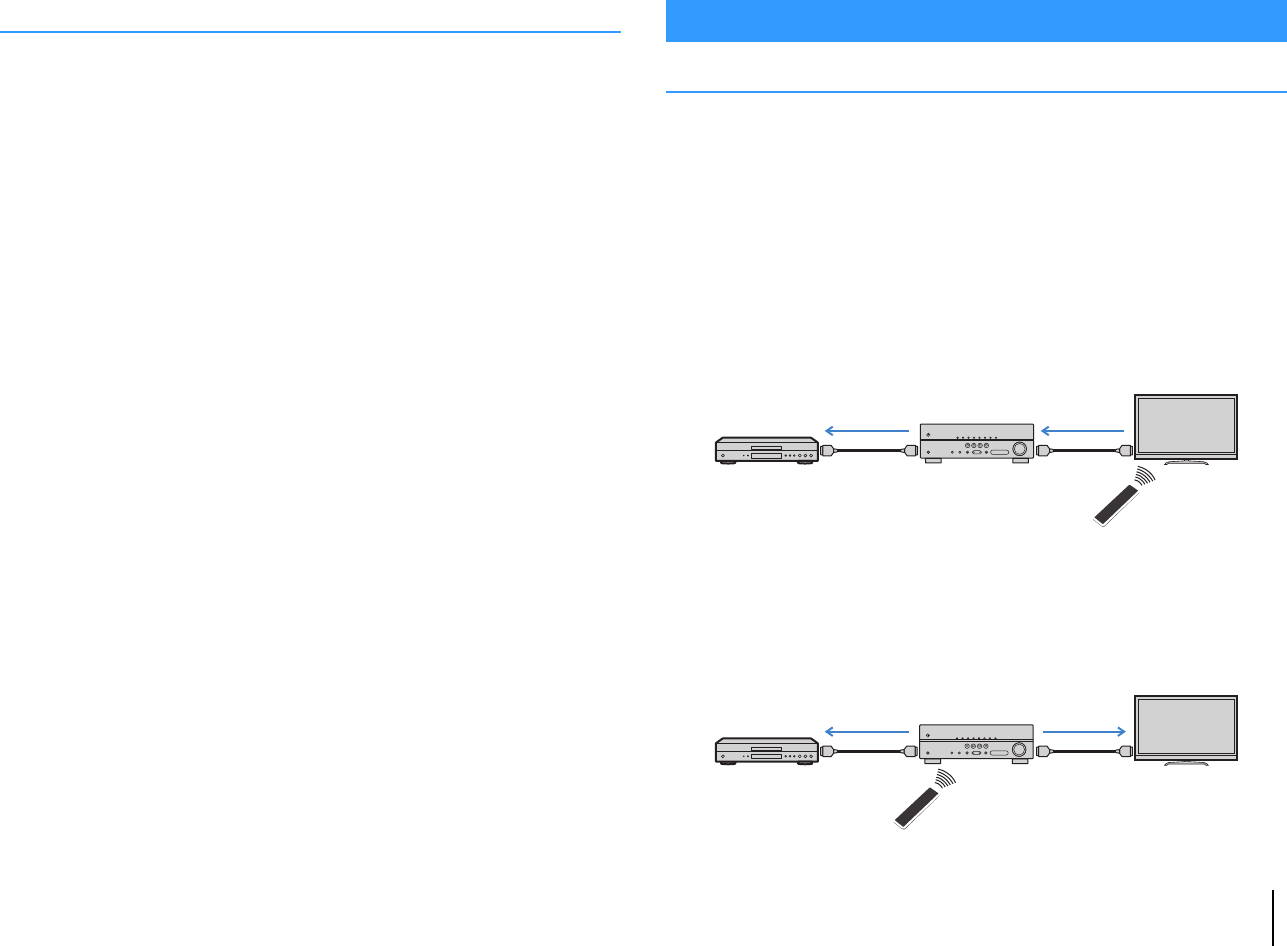
APPENDIX ➤Information on HDMI En 59
Yamaha technologies
CINEMA DSP (Digital Sound Field Processor)
Since the Dolby Surround and DTS systems were originally designed for use in movie theaters, their effect is
best experienced in a theater that has many speakers designed for acoustic effects. Since home conditions
(such as room size, wall material, and number of speakers) can differ so widely, it is inevitable that there are
differences in the sound that you hear. Based on a wealth of actually measured data, CINEMA DSP,
Yamaha’s original DSP technology provides the audiovisual experience of a movie theater in your own
home.
Compressed Music Enhancer
The Compressed Music Enhancer feature compensates for missing harmonics in compression music
formats (such as MP3). As a result, this technology provides improved performance for the overall sound
system.
SILENT CINEMA
Yamaha has developed a natural, realistic sound effect DSP algorithm for headphones. Parameters for
headphones have been set for each sound program, so that accurate representations of all the sound
programs can be enjoyed on headphones.
Virtual CINEMA DSP
Virtual CINEMA DSP allows the system to virtually reproduce the sound field of the surround speakers with
front left and right speakers. Even if the surround speakers are not connected, the unit creates the realistic
sound field in a listening room.
Virtual CINEMA FRONT
Virtual CINEMA FRONT allows the system to virtually reproduce the sound field of the surround speakers
with front surround speakers. Even if the surround speakers placed in the front, the unit creates the realistic
sound field in a listening room.
HDMI Control
HDMI Control allows you to operate external devices via HDMI. If you connect a TV that
supports HDMI Control to the unit with an HDMI cable, you can control the unit (such as
power and volume) with TV remote control operations. You can also control playback
devices (such as HDMI Control-compatible BD/DVD players) connected to the unit with
an HDMI cable.
Operations available from the TV’s remote control
• Standby synchronization
• Volume control including mute
• Switching to input audio from the TV when the TV input is switched to its built-in tuner
• Switching to input video/audio from the selected playback device
• Switching between audio output devices (the unit or TV speaker)
(Example)
Operations available from the unit’s remote control
• Starting playback on the playback device and turning on the TV with a scene
selection (p.25)
• Switching the TV input to display the “Setup” menu (when SETUP is pressed)
• Controlling the playback device (playback and menu operations)
(Example)
Information on HDMI
HDMI Control
Turn off the TV
The unit turns off
(standby)
HDMI Control
Playback device
also turns off
HDMI Control
Press SCENE (BD/DVD)
Turns on and displays
video from the playback
device
HDMI Control
Playback starts
00_HTR-2067_om_En.book Page 59 Monday, January 27, 2014 9:33 AM
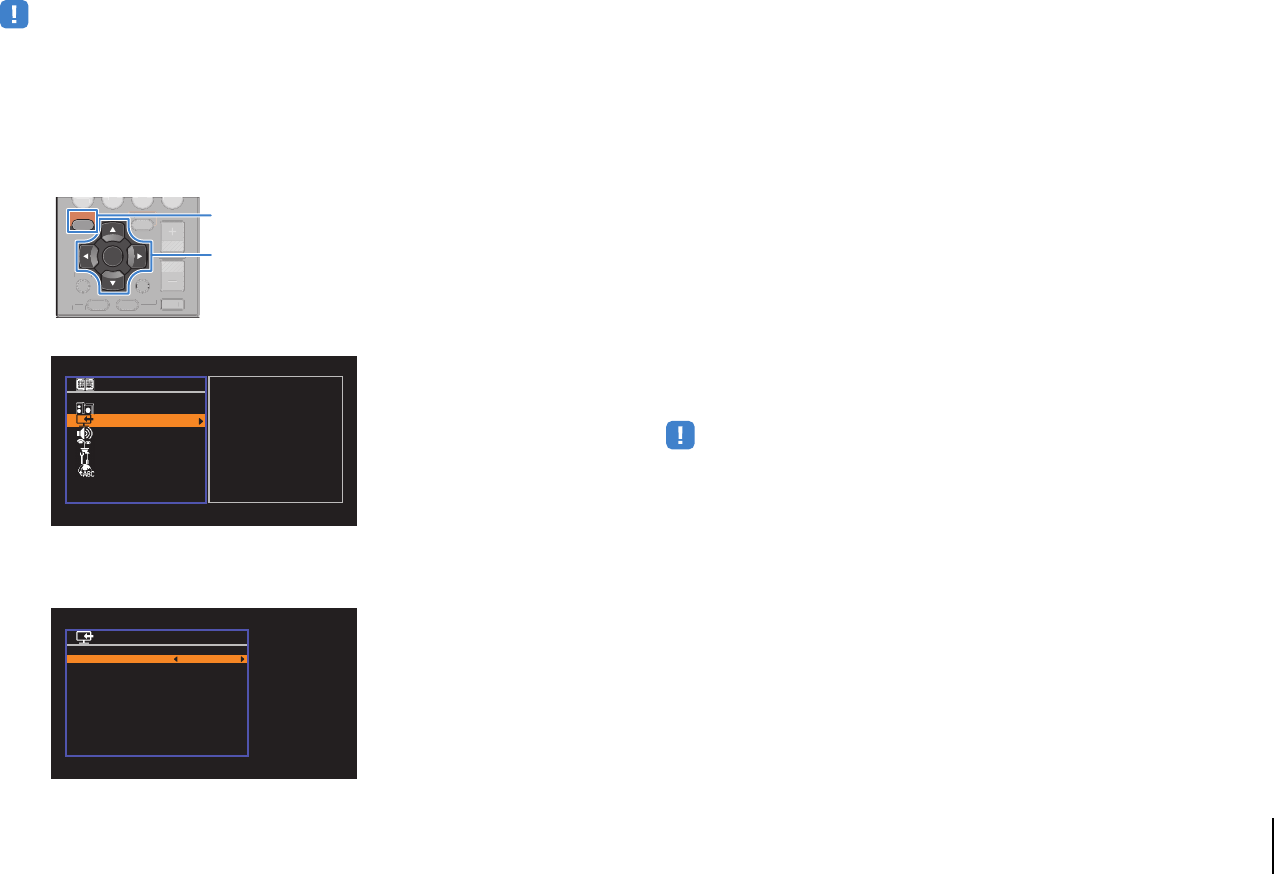
APPENDIX ➤Information on HDMI En 60
To use HDMI Control, you need to perform the following HDMI Control link setup after
connecting the TV and playback devices.
For details on settings and operating your TV, refer to the instruction manual for the TV.
• This setup is required every time you add a new HDMI Control-compatible device to your system.
1Turn on the unit, TV, and playback devices.
2Configure the settings of the unit.
aSwitch the TV input to display video from the unit.
bPress SETUP.
cUse the cursor keys to select “HDMI” and press ENTER.
dPress ENTER again.
eUse the cursor keys (q/w) to select “HDMI Control” and the cursor keys (e/r) to
select “On” as shown below.
fIf you made a digital optical cable connection between the TV and the unit, use the
cursor keys (q/w) to select “TV Audio Input” and the cursor keys (e/r) to select
“AUDIO 1”.
gPress SETUP.
3Enable HDMI Control on the TV and playback devices (such as HDMI
Control-compatible BD/DVD players).
4Turn off the main power of the TV and then turn off the unit and
playback devices.
5Turn on the unit and playback devices and then turn on the TV.
6Switch the TV input to display the video from the unit.
7Check the followings.
On the unit: The input to which the playback device is connected is selected.
If not, select the input source manually.
On the TV: The video from the playback device is displayed.
8Check that the unit is properly synchronized with the TV by turning
off the TV or adjusting the TV volume with the TV remote control.
• If HDMI Control does not work properly, try unplugging the TV in Step 2 and plugging in the TV again in
Step 3. It may solve the problem. Also, HDMI Control may not work if the number of connected devices
exceeds the limit. In this case, disable HDMI Control on the devices not in use.
• If the unit is not synchronized to the TV’s power operations, check the priority of the audio output setting on
the TV.
• We recommend using TV and playback devices from the same manufacturer so that HDMI Control works
more effectively.
RETURN
VOLUME
DVD
DISPLAY
ENTER
SETUP OPTION
TOP
MENU
POP-UP
MENU
MUTE
V
L
ME
PTI
N
TO
MENU
OP-UP
ENU
MUTE
Setup
Speaker
HDMI
Sound
ECO
Function
Language
Configuration
Configuration
HDMI Control
Audio Output
TV Audio Input
Standby Sync
ARC
SCENE
On
AUDIO 4
Auto
On
Back: RETURN
00_HTR-2067_om_En.book Page 60 Monday, January 27, 2014 9:33 AM
APPENDIX ➤Information on HDMI En 61
Audio Return Channel (ARC)
ARC allows you to input TV audio to the unit with the HDMI cable which transmits video
signal to the TV.
Check the following after the HDMI Control settings.
1Select a TV program with the TV remote control.
2Check that the input source of the unit will be automatically switched
to “AUDIO 4” and the TV audio will be played back on the unit.
If you cannot hear the TV audio, check the following:
– “ARC” (p.43) in the “Setup” menu is set to “On”.
– The HDMI cable is connected to the ARC-compatible HDMI jack (HDMI jack
marked “ARC”) on the TV.
Some HDMI jack on the TV is not compatible with ARC. For details, refer to the
instruction manual for the TV.
• If the audio is interrupted while using ARC, set “ARC” (p.43) in the “Setup” menu to “Off” and use a digital
optical cable to input TV audio to the unit (p.17).
• When using ARC, connect a TV with an HDMI cable that supports ARC.
• “AUDIO 4” is set as TV audio input at the factory. If you have connected any external device to the AUDIO 4
jacks, use “TV Audio Input” (p.43) in the “Setup” menu to change the TV audio input assignment. To use the
SCENE function (p.25), you also need to change the input assignment for SCENE (TV).
HDMI signal compatibility
Audio signals
Video signals
The unit is compatible with the video signals of the following resolutions:
• When CPPM copy-protected DVD-Audio is played back, video/audio signals may not be output, depending
on the type of the DVD player.
• The unit is not compatible with HDCP-incompatible HDMI or DVI devices. For details, refer to the instruction
manual for each device.
• To decode audio bitstream signals on the unit, set the input source device appropriately so that the device
outputs the bitstream audio signals directly (does not decode the bitstream signals on the playback device).
For details, refer to the instruction manual for the playback device.
Audio signal type Audio signal format Compatible media (example)
2ch Linear PCM 2ch, 32 to 192 kHz, 16/20/24 bit CD, DVD-Video, DVD-Audio
Multichannel Linear PCM 8ch, 32 to 192 kHz, 16/20/24 bit DVD-Audio, BD (Blu-ray disc),
HD DVD
DSD 2 to 5.1ch, 2.8224 MHz, 1 bit SACD
Bitstream Dolby Digital, DTS DVD-Video
Bitstream
(High definition audio) Dolby Digital Plus BD (Blu-ray disc), HD DVD
• 480i/60 Hz • 720p/60 Hz, 50 Hz
• 576i/50 Hz • 1080i/60 Hz, 50 Hz
• 480p/60 Hz • 1080p/60 Hz, 50 Hz, 24 Hz
• 576p/50 Hz • 4K/30 Hz, 25 Hz, 24 Hz
00_HTR-2067_om_En.book Page 61 Monday, January 27, 2014 9:33 AM
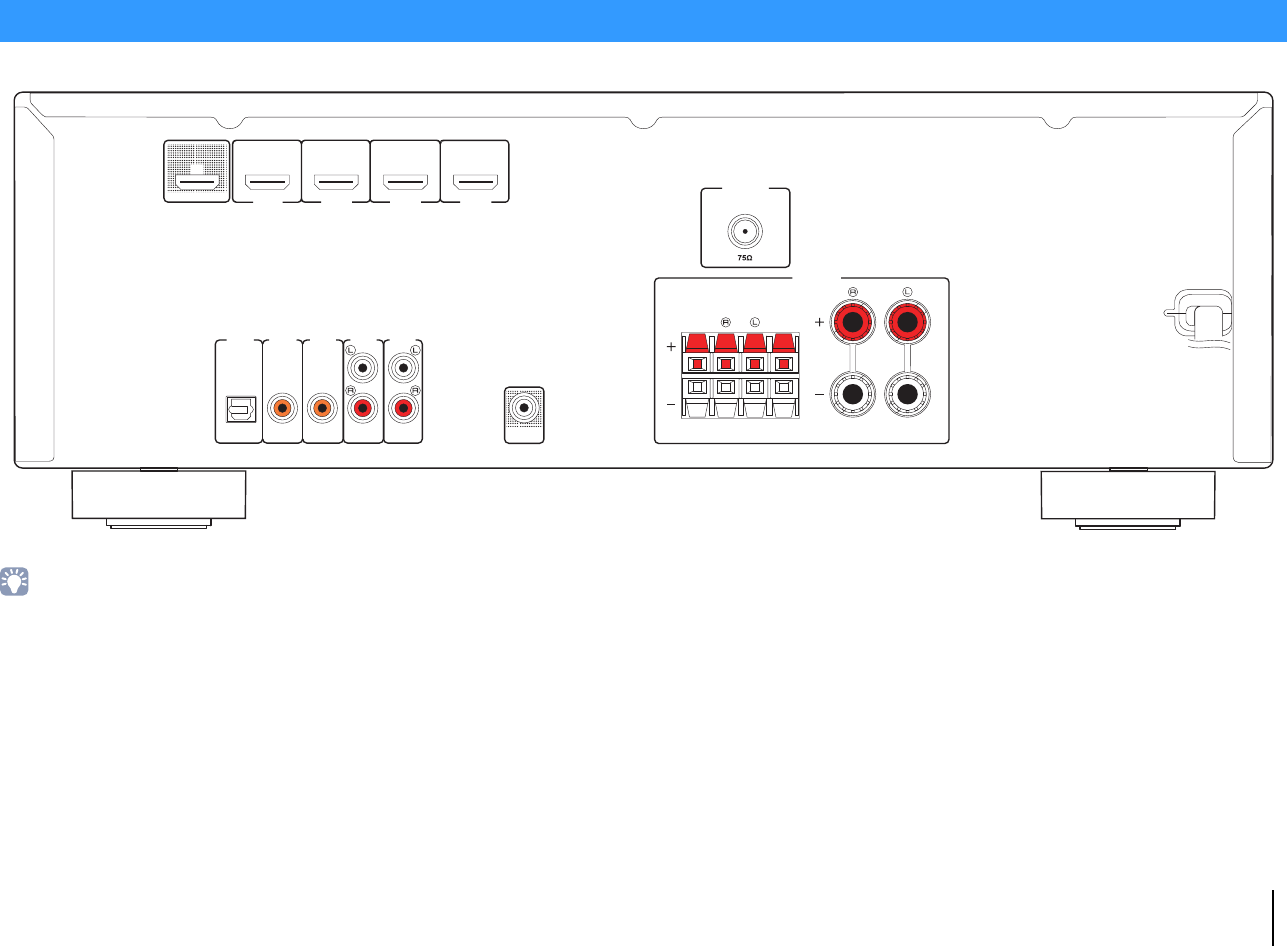
APPENDIX ➤Reference diagram (rear panel) En 62
• The area around the video/audio output jacks is marked in white on the actual product to prevent improper connections.
Reference diagram (rear panel)
FRONT
AUDIO 1 AUDIO 2 AUDIO 3 AUDIO 5
OPTICAL COAXIAL COAXIAL
( TV )
(CD)
PRE OUT
SUBWOOFER
AUDIO 4
HDMI 1
(BD/DVD)
HDMI 2 HDMI 3
HDMI 4
HDMI
OUT
ARC
FM
ANTENNA
SURROUND CENTERSUB
WOOFER
SPEAKERS
00_HTR-2067_om_En.book Page 62 Monday, January 27, 2014 9:33 AM

APPENDIX ➤Trademarks En 63
Manufactured under license from Dolby Laboratories. Dolby,
Pro Logic and the double-D symbol are trademarks of Dolby Laboratories.
Manufactured under license under U.S. Patent Nos: 5,956,674; 5,974,380; 6,487,535 & other U.S. and
worldwide patents issued & pending. DTS, the Symbol, & DTS and the Symbol together are registered
trademarks & DTS Digital Surround and the DTS logos are trademarks of DTS, Inc. Product includes
software.
© DTS, Inc. All Rights Reserved.
HDMI, the HDMI Logo, and High-Definition Multimedia Interface are trademarks or registered trademarks of
HDMI Licensing LLC in the United States and other countries.
x.v.Color™
“x.v.Color” is a trademark of Sony Corporation.
“SILENT CINEMA” is a trademark of Yamaha Corporation.
Trademarks
00_HTR-2067_om_En.book Page 63 Monday, January 27, 2014 9:33 AM

APPENDIX ➤Specifications En 64
Input jacks
• Analog Audio
Audio x 2 (AUDIO 4–5)
• Digital Audio (Supported frequencies: 32 kHz to 96 kHz)
Optical x 1 (AUDIO 1)
Coaxial x 2 (AUDIO 2–3)
• HDMI Input
HDMI x 4 (HDMI 1–4)
Output jacks
• Analog Audio
Speaker out x 6 (FRONT L/R, CENTER, SURROUND L/R,
SUBWOOFER)
Subwoofer out x 1 (SUBWOOFER PRE OUT)
Headphone x 1 (PHONES)
• HDMI Output
HDMI OUT x 1
HDMI
• HDMI Features: Deep Color, “x.v.Color,” Auto Lip Sync, ARC
(Audio Return Channel), 3D, 4K Ultra HD
• Video Format (Repeater Mode)
-VGA
— 480i/60 Hz
— 576i/50 Hz
— 480p/60 Hz
— 576p/50 Hz
— 720p/60 Hz, 50 Hz
— 1080i/60 Hz, 50 Hz
— 1080p/60 Hz, 50 Hz, 24 Hz
— 4K/30 Hz, 25 Hz, 24 Hz
• Audio Format
— Dolby Digital Plus
— Dolby Digital
-DTS
— DSD 2-ch to 6-ch
— PCM 2-ch to 8-ch (Max. 192 kHz/24-bit)
• Content Protection: HDCP compatible
• Link Function: CEC supported
TUNER
• Analog Tuner
FM x 1 (TUNER)
Compatible Decoding Formats
• Decoding Format
— Dolby Digital Plus
— Dolby Digital
-DTS
• Post Decoding Format
— Dolby Pro Logic
— Dolby Pro Logic II Music, Dolby Pro Logic II Movie,
Dolby Pro Logic II Game
Audio Section
• Rated Output Power (2-channel driven)
(20 Hz to 20 kHz, 0.09% THD, 6 Ω)
Front L/R…………………..………….………….………..….. 70 W+70 W
[Canada model]
(1 kHz, 0.9% THD, 6 Ω)
Front L/R…………………..………….………….………..….. 85 W+85 W
Center ………………………….………….………..………….……….. 85 W
Surround L/R ………..……………………….…………..….. 85 W+85 W
(50Hz, 0.9% THD, 6 Ω)
Subwoofer ……………………….………….…………….………….…85 W
• Rated Output Power (1-channel driven)
(1 kHz, 0.9% THD, 6 Ω)
Front L/R………….……..……………..………..…….………….100 W/ch
Center ……..………………….……….………..………..……….100 W/ch
Surround L/R ………………………..………………..………….100 W/ch
(50Hz, 0.9% THD, 6 Ω)
Subwoofer…………….………….……………………………………100 W
• Maximum Effective Output Power (1-channel driven)
(JEITA, 1 kHz, 10% THD, 6 Ω)
[Asia and General models]
Front L/R………….……..……………..………..…….………….135 W/ch
Center ……..………………….……….………..………..……….135 W/ch
Surround L/R ………………………..………………..………….135 W/ch
(JEITA, 50Hz, 10% THD, 6 Ω)
Subwoofer………….………..………..………………………….135 W/ch
• Dynamic Power (1-channel driven) (IHF)
[Canada model]
Front L/R (8/6/4/2 Ω) …..………..………………110/130/160/180 W
[Other models]
Front L/R (6/4/2 Ω) ……..………..…………………....110/130/150 W
• Input Sensitivity / Input Impedance
AUDIO 4 etc. (1 kHz, 100 W/6 Ω) ..………….……. 200 mV/47 kΩ
• Maximum Input Signal
AUDIO 4 etc. (1 kHz, 0.5% THD, Effect On) …….…………..2.3 V
Specifications
00_HTR-2067_om_En.book Page 64 Monday, January 27, 2014 9:33 AM

APPENDIX ➤Specifications En 65
• Output Level / Output Impedance
SUBWOOFER ………………..………….………….………….1 V/1.2 kΩ
• Headphone Jack Rated Output / Impedance
AUDIO 4 etc. (1 kHz, 50 mV, 8 Ω) …………..……..100 mV/470 Ω
• Frequency Response
AUDIO 4 etc. to Front (10 Hz to 100 kHz) ………….….. +0/-3 dB
• Signal to Noise Ratio (IHF-A Network)
AUDIO 4 etc.
(Input 1 k
Ω
Shorted, Speaker Out)
…………………….………….………………………..…….110 dB or more
• Residual Noise (IHF-A Network)
Front L/R (Speaker Out)…..………….………..………150 µV or less
• Channel Separation
AUDIO 4 etc. (Input 1 kΩ Shorted, 1 kHz/10 kHz)
…………………….………….……………………… 70 dB/50 dB or more
• Volume Control
Range …………..………….………….….. MUTE, -80 dB to +16.5 dB
Step ……………….………….………….………..………….……….. 0.5 dB
• Tone Control Characteristics (Front L/R)
Bass Boost/Cut ……..………….…….. ±6 dB/0.5 dB Step at 50 Hz
Bass Turnover…………………….………….………….……….... 350 Hz
Treble Boost/Cut ……………….…… ±6 dB/0.5 dB Step at 20 kHz
Treble Turnover ……….………….………….………..………….. 3.5 kHz
• Filter Characteristics
(fc=40/60/80/90/100/110/120/160/200 Hz)
H.P.F. (Front, Center, Surround) ………….……………….12 dB/oct.
L.P.F. (Subwoofer)………..………….…………..…………… 24 dB/oct.
FM Section
• Tuning Range
[Canada model] ……………………………. 87.5 MHz to 107.9 MHz
[Asia and General models]
………………….………….… 87.5/87.50 MHz to 108.0/108.00 MHz
[Other models] ……………….…………. 87.50 MHz to 108.00 MHz
• 50 dB Quiet Sensitivity (IHF, 1 kHz, 100% MOD.)
Mono …………….………….………….………..…………2 µV (17.3 dBf)
• Signal to Noise Ratio (IHF)
Mono …………….………….………….………..………….…………. 71 dB
Stereo …………………….…………..………….…………………….. 70 dB
• Harmonic Distortion (IHF, 1 kHz)
Mono ……..………….………….………..………….………….……….0.5%
Stereo ……….………….………….……….…………..………….…….0.6%
• Antenna Input…………………..…………………….75 Ω unbalanced
General
• Power Supply
[Canada model] ……………….………….………….. AC 120 V, 60 Hz
[General model]
………….………….………… AC 110 to 120/220 to 240 V, 50/60 Hz
[Australia model]..………….………….…………….. AC 240 V, 50 Hz
[U.K. and Europe models] ………………………… AC 230 V, 50 Hz
[Asia model]…………..………….……… AC 220 to 240 V, 50/60 Hz
• Power Consumption…………..………..…………………..……..260 W
• Standby Power Consumption
HDMI Control Off
[General model] …………………………….…………..… 0.5 W or less
[Other models] ……..………….………….………….…… 0.3 W or less
HDMI Control On (No Signals)…………………….. 0.8 W (Typical)
• Maximum Power Consumption
[General model]…………..…………….…………..……………...470 W
• Dimensions (W x H x D)
……………..………..435 x 151 x 315 mm (17-1/8” x 6” x 12-3/8”)
* Including legs and protrusions
• Weight ……….………….………….…………….……… 7.4 kg (16.3 lbs)
* Specifications are subject to change without notice.
00_HTR-2067_om_En.book Page 65 Monday, January 27, 2014 9:33 AM

APPENDIX ➤Index En 66
Symbols
Lock icon (o)48
Numerics
2.1-channel system 13
2ch Stereo (sound program) 28
3.1-channel system 13
4.1-channel system 13
4K Ultra HD 61
5.1-channel system 13, 14
5.1-channel system (Virtual CINEMA FRONT) 13
5ch Stereo (sound program) 28
A
A.DRC (DSP/Surround, Option menu) 35
Action Game (sound program) 27
Adaptive DRC (DSP/Surround, Option menu) 35
Adjustment (Lipsync, Setup menu) 45
ADVANCED SETUP menu 50
Adventure (sound program) 27
Amp (Audio Output, Setup menu) 43
ARC (Audio Return Channel) 61
ARC (HDMI, Setup menu) 43
Audio Decoder (front display information) 24
Audio In (Option menu) 36
Audio Output (HDMI, Setup menu) 43
Audio Return Channel (ARC) 61
Auto Power Standby (ECO, Setup menu) 47
Auto Preset (FM radio, Option menu) 32
Automatic station preset (FM radio) 32
AutoPowerStdby (ECO, Setup menu) 47
B
B RATE (Signal Info, Option menu) 36
Banana plug 14
Basic playback operation 24
BASS (sound mode) 30
Bass (Tone Control, Option menu) 35
Bitrate (Signal Info, Option menu) 36
Bitstream 61
C
Cellar Club (sound program) 28
Center (Speaker, Setup menu) 40
Center Width (DSP Parameter, Setup menu) 45
Chamber (sound program) 28
CHAN (Signal Info, Option menu) 36
Channel (Signal Info, Option menu) 36
Check SP Wires (error indication) 57
CINEMA DSP 27
Clear Preset (FM radio, Option menu) 33
Compressed Music Enhancer 30
Configuration (HDMI, Setup menu) 43
Configuration (Speaker, Setup menu) 40
Crossover (Speaker, Setup Menu) 40
Crossover frequency setting (subwoofer) 40
D
Decoder Off (front display information) 24
Default setting restoration 51
Dimension (DSP Parameter, Setup menu) 45
Dimmer (Function, Setup menu) 48
Direct Stream Digital (DSD) 58
Distance (Speaker, Setup menu) 41
Dolby Pro Logic (surround decoder) 29
Dolby Pro Logic II (surround decoder) 29
Drama (sound program) 27
DSD (Direct Stream Digital) 58
DSP Level (DSP/Surround, Option menu) 35
DSP Parameter (Sound, Setup menu) 45
DSP Program (front display information) 24
DSP/Surround (Option menu) 35
Dynamic Range (Volume, Setup menu) 46
E
ECO (Setup menu) 47
ECO Mode (ECO, Setup menu) 47
Enhancer (DSP/Surround, Option menu) 35
ENHANCER (sound mode) 30
EQ Select (Equalizer, Setup menu) 41
Equalizer (Speaker, Setup menu) 41
Error indication (front display) 57
Extra Bass (Speaker, Setup menu) 41
F
Firmware version check 51
FM radio listening 31
FM radio tuning 31
FORMAT (Signal Info, Option menu) 36
Format (Signal Info, Option menu) 36
Frequency (FM radio) 31
Frequency step setting 31, 51
Front (Speaker, Setup menu) 40
Front display (part names and functions) 8
Front display brightness 48
Front display information 24
Front panel (part names and functions) 7
Function (Setup menu) 48
G
GEQ (Equalizer, Setup menu) 41
H
Hall in Munich (sound program) 28
Hall in Vienna (sound program) 28
HDMI (Setup menu) 43
HDMI Control (HDMI, Setup menu) 43
HDMI OUT (TV) (Audio Output, Setup menu) 43
HDMI signal compatibility 61
Headphones 27
High definition audio 61
I
In.Trim (Volume Trim, Option menu) 35
Indicator (part names and functions) 8
Information display (front display) 8
Index
00_HTR-2067_om_En.book Page 66 Monday, January 27, 2014 9:33 AM

APPENDIX ➤Index En 67
Information switching (front display) 24
INIT (ADVANCED SETUP menu) 51
Initial Volume (Volume, Setup menu) 46
Input (front display information) 24
Input Rename (Function, Setup menu) 48
Input Trim (Volume Trim, Option menu) 35
Internal Error (error indication) 57
L
Language (Setup menu) 49
Level (Speaker, Setup menu) 41
LFE (Low Frequency Effects) 58
Lipsync 58
Lipsync (Option menu) 36
Lipsync (Sound, Setup menu) 45
Low Frequency Effects (LFE) 58
M
Manual station preset (FM radio) 32
Max Volume (Volume, Setup menu) 46
Memory Guard (Function, Setup menu) 48
Menu language selection 21
Monaural reception (FM radio) 31
Mono Movie (sound program) 27
MOVIE (sound program category) 27
MUSIC (sound program category) 28
Music Video (sound program) 28
Muting 24
N
NTSC (TV FORMAT, ADVANCED SETUP menu) 51
O
Option menu 34
P
PAL (TV FORMAT, ADVANCED SETUP menu) 51
Panorama (DSP Parameter, Setup menu) 45
Power management 47
Preset station selection (FM radio) 33
R
Rear panel (part names and functions) 9
RemID Mismatch (error indication) 57
Remote control (part names and functions) 10
Remote control ID setting 50
REMOTE ID (ADVANCED SETUP menu) 50
Rename (input name) 48
Roleplaying Game (sound program) 27
S
SAMPL (Signal Info, Option menu) 36
Sampling (Signal Info, Option menu) 36
Scale (Volume, Setup menu) 46
SCENE (HDMI, Setup menu) 44
Scene configuration 25
SCENE function 25
SCENE link playback 25
Sci-Fi (sound program) 27
Select (Lipsync, Setup menu) 45
Setup menu 37
Signal Info (Option menu) 36
Signal information 36
SILENT CINEMA 27
Sleep timer 10
Sound (Setup menu) 45
Sound field effect 27
Sound mode selection 26
Sound program 27
Speaker (Setup menu) 40
Speaker placement 12
Spectacle (sound program) 27
Sports (sound program) 27
Standard (sound program) 27
Standby Sync (HDMI, Setup menu) 43
Station preset (FM radio) 32
Stereo reception (FM radio) 31
STRAIGHT (sound mode) 29
Straight decode 29
Subwoofer (Speaker, Setup menu) 40
Subwoofer Phase (Speaker, Setup menu) 41
Subwoofer Trim (Volume Trim, Option menu) 35
SUR.DECODE (sound mode) 29
Surround (Speaker, Setup menu) 40
Surround decoder 29
SW.Trim (Volume Trim, Option menu) 35
T
Test Tone (Speaker, Setup menu) 42
The Bottom Line (sound program) 28
The Roxy Theatre (sound program) 28
Tone Control (Option menu) 35
Treble (Tone Control, Option menu) 35
TU (ADVANCED SETUP menu) 51
TV Audio Input (HDMI, Setup menu) 43
TV FORMAT (ADVANCED SETUP menu) 51
V
V IN (Signal Info, Option menu) 36
V OUT (Signal Info, Option menu) 36
VERSION (ADVANCED SETUP menu) 51
Video In (Signal Info, Option menu) 36
Video Out (Option menu) 36
Video Out (Signal Info, Option menu) 36
Video signal type setting 51
Video/audio input jack combination 18
Virtual CINEMA DSP 27
Virtual CINEMA FRONT 27
Virtual CINEMA FRONT (Speaker, Setup menu) 41
Voltage selection 20
Volume (Sound, Setup menu) 46
Volume Trim (Option menu) 35
00_HTR-2067_om_En.book Page 67 Monday, January 27, 2014 9:33 AM

© 2014 Yamaha Corporation YG174A0/EN
00_HTR-2067_om_En.book Page 68 Monday, January 27, 2014 9:33 AM