
Важно убедиться, что веб-сайты, которые вы просматриваете, безопасны. Есть несколько способов проверить это. Один из них – проверить в браузере в адресной строке наличие символа с замком. Но также в браузере может показываться сообщение «Ваше подключение не защищено». Если вы игнорируете сообщения с подобной ошибкой, то вы подвергаете риску свою онлайн-информацию.
Чтобы помочь вам оставаться в безопасности в Интернете, мы объясним причины, по которым на вашем экране может появиться ошибка “Ваше подключение не защищено”, и как ее исправить.
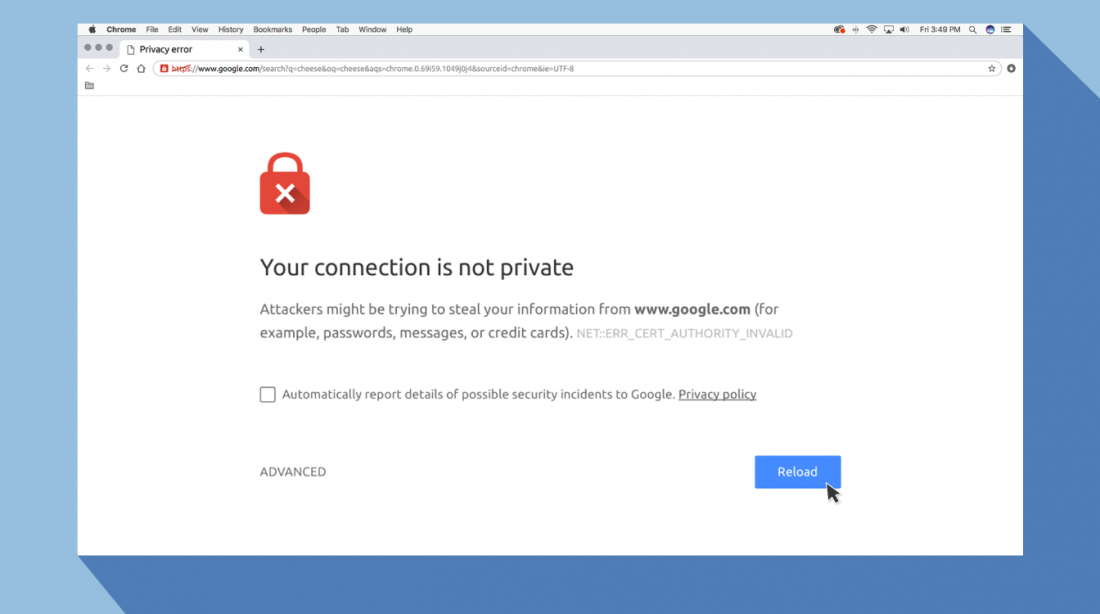
Что означает ошибка «Ваше подключение не защищено»?
Сообщение с ошибкой «Ваше подключение не защищено» обозначает, что соединение не является безопасным. Это означает, что если вы не используете антивирус или шифрование, ваше устройство может стать «золотой жилой» для хакеров.
Чтобы получить доступ к веб-сайту, ваш браузер должен выполнить проверку цифровых сертификатов, установленных на сервере, чтобы убедиться, что сайт соответствует стандартам конфиденциальности и безопасен для дальнейшего использования. Если Ваш браузер обнаружит что-то неладное с сертификатом, он попытается предотвратить ваш доступ к этому сайту. Именно в этот момент вы увидите сообщение “Ваше подключение не защищено».
Эти сертификаты также называются сертификатами инфраструктуры открытых ключей или удостоверениями личности. Они предоставляют доказательства того, что открываемый сайт действительно является тем сайтом, за который он себя выдает. Цифровые сертификаты помогают защитить вашу личную информацию, пароли и платежную информацию.
Когда ваше соединение не защищено, то обычно это происходит из-за ошибки в сертификате SSL.
Что такое ошибка SSL-соединения?
Сертификат Secure Sockets Layer (SSL) предназначен для обслуживания веб-сайтов через защищенные соединения HTTPS. HTTPS – это барьер безопасности, используемый для безопасной авторизации соединений и защиты данных. Ошибка SSL-соединения возникает тогда, когда у вашего браузера нет безопасного способа для открытия запрашиваемого сайта. Когда браузер увидит, что соединение не является безопасным, он попытается остановить вас от доступа к этому веб-сайту.
Существует несколько различных причин возникновения ошибки SSL-соединения:
- Сертификат отсутствует или срок его действия истек
- Ваш браузер не обновлен
- Ваш антивирус или настройки даты и времени отключены
- Ошибка сервера
Если сообщение вызвано ошибкой на сервере, то вам придется подождать, пока владелец этого сервера не исправит данную ошибку.
Как ошибка «Ваше подключение не защищено» выглядит в разных браузерах
Когда вы получите подобное сообщение об ошибке, оно приведет вас на новую страницу. Некоторые браузеры используют простые сообщения, в то время как другие используют коды и предупреждающие знаки.

Google Chrome
Когда вы получите данное сообщение об ошибке в Google Chrome, оно приведет вас на страницу под названием Ошибка конфиденциальности. На ней браузер покажет большой красный восклицательный знак и сообщение «Ваше подключение не защищено». Он предупредит вас, что злоумышленники могут попытаться украсть ваши пароли, сообщения или кредитные карты. Сообщение даст вам возможность вернуться на предыдущую страницу, перейти к дополнительным настройкам или попытаться продолжить работу на сайте.
Кроме того, страница будет иметь код ошибки. Вот некоторые из наиболее распространенных:
- NET::ERR_CERT_COMMON_NAME_INVALID
- NET::ERR_CERT_AUTHORITY_INVALID NTE::ERR_CERTIFICATE_TRANSPARENCY_REQUIRED
- NET::ERR_CERT_DATE_INVALID
- NET::ERR_CERT_WEAK_SIGNATURE_ALGORITHM
- ERR_CERT_SYMANTEC_LEGACY
- SSL certificate error
- ERR_SSL_VERSION_OR_CIPHER_MISMATCH.
Mozilla Firefox
В Mozilla Firefox данное сообщение выглядит аналогично, но звучит несколько иначе: «Ваше подключение не безопасно». В нем сообщается, что владелец сайта неправильно его настроил. Также у вас есть возможность вернуться назад или перейти к дополнительным настройкам.
Наиболее распространенные коды ошибок, которые вы можете увидеть в Firefox:
- SEC_ERROR_EXPIRED_CERTIFICATE
- SEC_ERROR_EXPIRED_ISSUER_CERTIFICATE
- SEC_ERROR_UNKNOWN_ISSUER.
- SEC_ERROR_OCSP_INVALID_SIGNING_CERT
- MOZILLA_PKIX_ERROR_MITM_DETECTED
- MOZILLA_PKIX_ERROR_ADDITIONAL_POLICY_CONSTRAINT_FAILED
- SSL_ERROR_BAD_CERT_DOMAIN
- ERROR_SELF_SIGNED_CERT

Safari
Если вы – пользователь браузера Safari, то вы получите сообщение на новой странице с фразой о том, что данное соединение не является защищенным, и что открываемый веб-сайт может выдавать себя за тот сайт, к которому вы хотели бы получить доступ, чтобы украсть вашу личную или финансовую информацию.
Microsoft Edge
Если вы используете Microsoft Edge, то вы увидите сообщение, которое выглядит почти идентично сообщению Google Chrome с восклицательным знаком и сообщением “Ваше подключение не защищено». Если сертификат не соответствует домену, к которому вы пытаетесь подключиться, то вы увидите тот же код.
Наиболее распространенные коды ошибок, которые вы можете увидеть в Microsoft Edge:
- NET::ERR_CERT_COMMON_NAME_INVALID
- DLG_FLAGS_INVALID_CA
- DLG_FLAGS_SEC_CERT_CN_INVALID
- Error Code: 0
Как исправить ошибку «Ваше подключение не защищено»
Существует несколько различных способов исправить или обойти это сообщение об ошибке.
1. Перезагрузите страницу
Конечно, это кажется самым простым решением, но иногда перезагрузка страницы позволяет устранить сбои, связанные с тайм-аутом браузера, Интернет-соединения и т.д. Попробуйте заново набрать адрес сайта в адресной строке браузера (возможно, ранее была опечатка).
2. Попробуйте режим инкогнито
Следующее, что вы можете попробовать, это включить режим инкогнито и попытаться получить доступ к тому же веб-сайту. Если веб-сайт действительно имеет проблемы с безопасностью, то он не должен работать, как только вы переключитесь в режим инкогнито, потому что этот режим позволяет просматривать сайт без сохранения истории или кэша. Если браузер по-прежнему говорит «Ваше подключение не защищено», то вы должны попробовать очистить свой кэш.
Чтобы в браузере Chrome открыть вкладку в режиме инкогнито, в правом верхнем углу нажмите на кнопку с тремя точками, после чего в выпадающем меню выберите пункт «Новое окно в режиме инкогнито» (того же самого можно добиться нажатием клавиш Ctrl + Shift+N).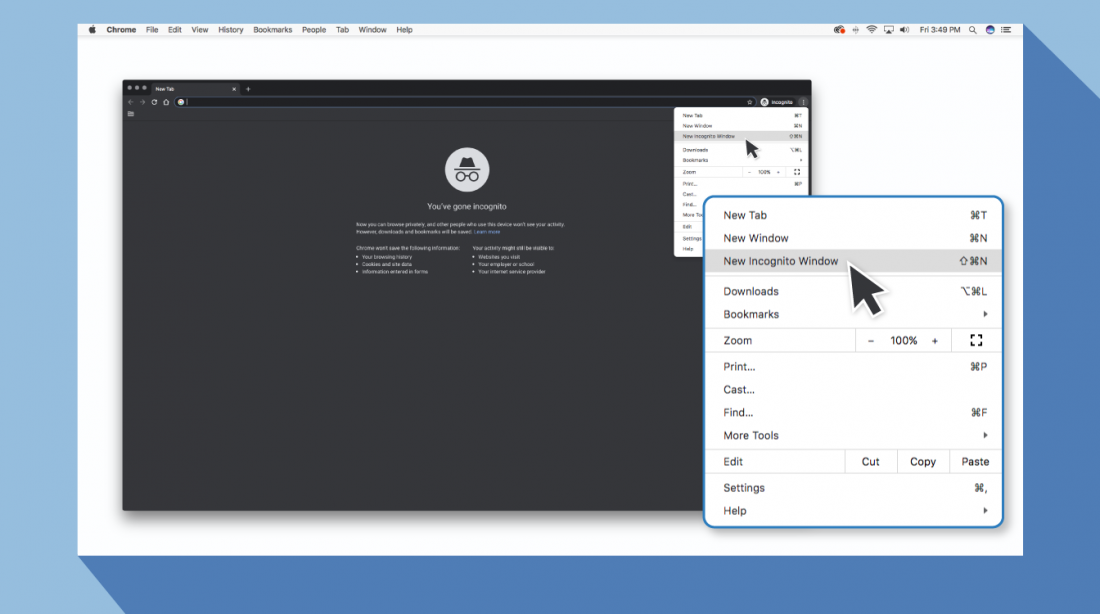
3. Проверьте дату и время
Дважды проверьте правильность даты и времени на вашем компьютере. Если они не совпадают с браузером, может возникнуть ошибка SSL-соединения.
Как проверить дату и время на Mac
1. Перейдите в меню Apple в верхнем левом углу экрана
2. Нажмите на System Preferences
3. Здесь выберите Date & Time
4. Проверьте, что дата и время указаны верно
Как проверить дату и время в Windows
1. Правой кнопкой мыши нажмите на дате и времени в панели задач (как правило, в правом нижнем углу экрана)
2. В выпадающем меню выберите «Настройка даты и времени»
3. Проверьте, что дата и время указаны верно
4. Очистите кеш и куки в вашем браузере
Во время просмотра веб-страниц ваш компьютер хранит файлы «куки» (cookie), которые собирают данные и занимают много места на жестком диске. Когда ваш компьютер пытается обработать всю эту информацию, он может начать работать медленнее.
Попробуйте зайти в настройки и очистить кеш и куки в вашем браузере. Удаление всей этой информации ускорит ваши соединения.
5. Обратите внимание, какой используется Wi-Fi
Вы можете получить данное сообщение с ошибкой при использовании публичного Wi-Fi, который не является безопасным. Некоторые публичные Wi-Fi имеют плохую конфигурацию и не работают по протоколу HTTPS. Если вы не уверены в безопасности вашего соединения, найдите другую сеть Wi-Fi или подождите, пока вы не сможете безопасно просматривать сайты у себя дома.
Лучший способ защитить ваши данные при соединениях через публичный Wi-Fi, — это использовать виртуальную частную сеть (VPN). VPN помогает скрыть ваш трафик и защитить вашу онлайн-личность во время обмена зашифрованными данными с удаленным сервером.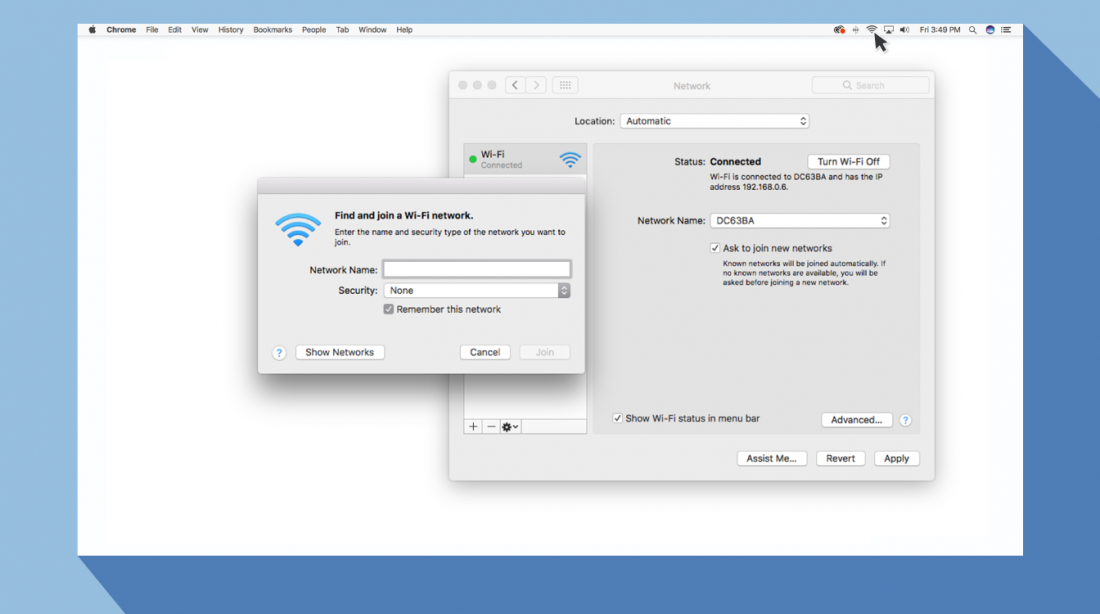
6. Проверьте ваш антивирус или файервол
Если у вас имеется антивирус, установленный на вашем устройстве с Mac или Windows, вы также можете получать сообщение об ошибке, поскольку антивирус или файервол переопределяет вашу сеть. Проверьте наличие этой проблемы, временно отключив функцию сканирования SSL.
7. Действуйте осторожно
Если вы все еще видите сообщение «Ваше подключение не защищено», но при этом вам необходимо обязательно открыть требуемый сайт, то делайте это с максимальной осторожностью. Ваш браузер показывает вам это сообщение и советует не продолжать по уважительной причине.
Решив продолжить, Вы можете подвергнуть свою личную информацию и платежную информацию риску быть скомпрометированными. Время и деньги, связанные с этим риском, не стоят того.
Если вы выполните наши рекомендации, то сможете исправить или обойти сообщение об ошибке «Ваше подключение не защищено». Помните, что вы получаете это сообщение в результате того, что веб-сайт, к которому вы пытаетесь получить доступ, не считается безопасным. Если вам не удастся устранить проблему, то игнорируя ее, вы, конечно, сможете открыть требуемый сайт и найти то, что вы ищете, но при этом вы также будете рисковать вашей персональной информацией. Существует программное обеспечение, такое как антивирус Panda Dome, которое вы можете использовать для защиты своей цифровой жизни. Ваша онлайн-информация имеет большую ценность, поэтому будьте разумны при поиске в Интернете, чтобы ваша информация не оказалась в чужих руках.
May 07, 2023
Hasna A.
11min Read
When trying to access a website, you might come across an error that reads “Your connection is not private.” This error indicates the browser’s failure to authenticate a safe connection between your device and the website.
“Your connection is not private” can be caused by Secure Sockets Layer (SSL) errors on the server-side or client-side issues. Whether you’re the website’s owner or simply passing through, there are several troubleshooting methods on how to fix this privacy error.

| Error code | “Your Connection Is Not Private” |
| Error type | SSL connection error |
| Error variations | Warning: Potential Security Risk Ahead Your Connection Isn’t Private This Connection Isn’t Private net::err_cert_authority_invalid |
| Error causes | Invalid SSL certificates WiFi network errors Browser issues Operating system issues |
How to Fix “Your Connection is Not Private” Error – Video Tutorial
Want the short version of this tutorial? Learn all about the different methods to fix the “Your connection is not private” error and the common reasons behind this issue.

Subscribe For more educational videos!
Hostinger Academy
What Is the “Your Connection Is Not Private” Error Message?
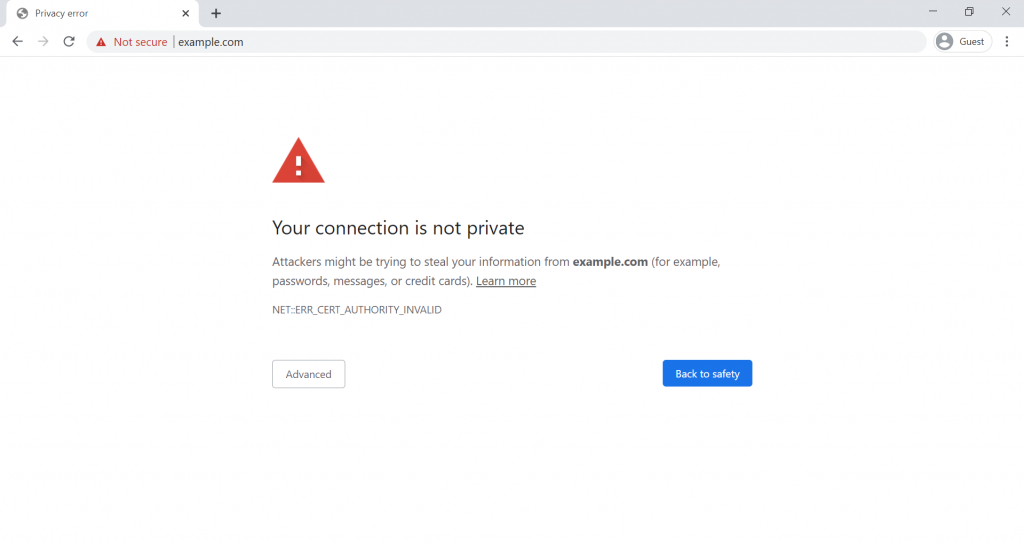
The “Your connection is not private” error message often occurs when your browser notices a problem while creating an SSL connection or can’t verify the certificate. When this error appears, your web browser simply prevents you from visiting an unreliable website.
If the website you want to access has an illegitimate certificate, you might see the NET::ERR_CERT_AUTHORITY_INVALID message instead.
A valid SSL certificate makes a website run on HTTPS – the more secure HTTP version.
Websites with problematic SSL connections are more prone to security issues, making them less reliable.
For instance, websites with invalid SSL certificates make it easier for hackers to commit data theft. If you enter personal information like login credentials or payment details, your information may be visible to others.
In addition, the “Your connection is not private” error can be due to issues on the visitor’s end, such as their web browser, WiFi network, or operating system.
Other possible reasons include using an unsafe public WiFi connection, having an incorrect date and time on your computer, or your antivirus software performing an SSL/HTTPS scan.

What the “Your Connection Is Not Private” Error Looks Like on Different Browsers
Different browsers have their own way of showing the “Your connection is not private” error message. Here are some examples of how the same error appears on Mozilla Firefox, Microsoft Edge, Safari, and Opera.
Mozilla Firefox
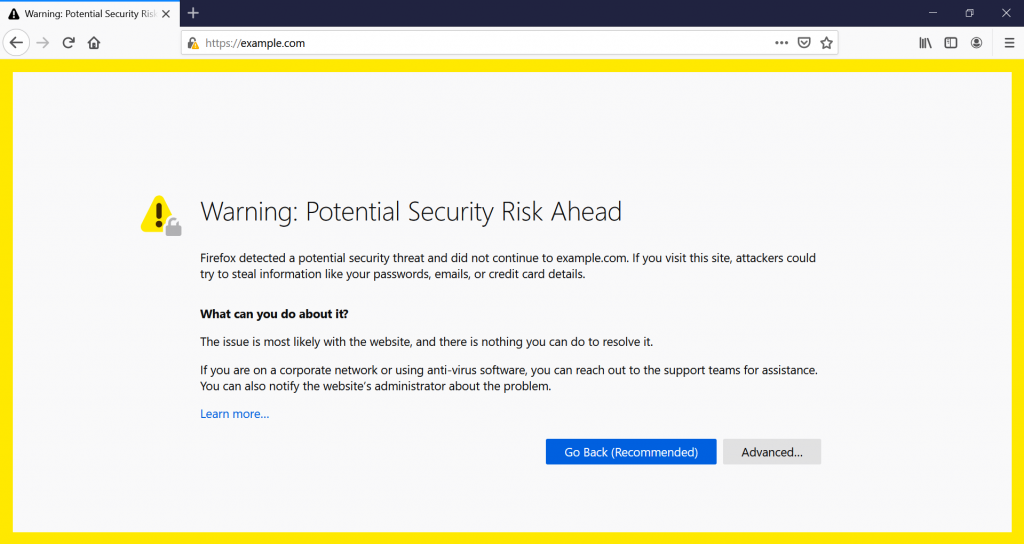
If the SSL certificate of the website you’re trying to visit on Mozilla Firefox is invalid, you’ll receive the message “Warning: Potential Security Risk Ahead.”
In the description, Firefox tells users that it has “detected a potential security threat” and claims that “the issue is most likely with the website, and there is nothing you can do to resolve it.”
To get more detailed information and the specific error code, click Advanced. By identifying the particular issue, you can troubleshoot it more efficiently.
Some of the error codes you may see are:
- SEC_ERROR_UNKNOWN_ISSUER
- SSL_ERROR_BAD_CERT_DOMAIN
- SEC_ERROR_EXPIRED_CERTIFICATE
- SEC_ERROR_EXPIRED_ISSUER_CERTIFICATE
Microsoft Edge
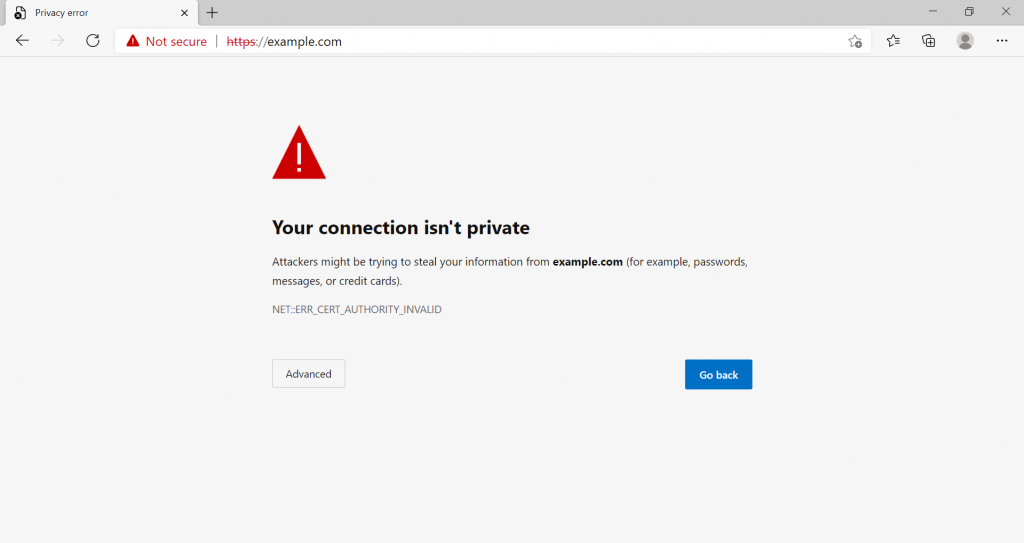
On Microsoft Edge, an invalid SSL certificate will take you to the “Your connection isn’t private” page, which is almost identical to what Chrome’s users encounter. You’ll also see a red “Not secure” near the address bar.
Edge also warns users that “attackers might be trying to steal your information” from the site you’re trying to access.
The Microsoft Edge error codes are similar to what you may see on Chrome:
- NET::ERR_CERT_AUTHORITY_INVALID
- Error Code: 0
- NET::ERR_CERT_COMMON_NAME_INVALID
- DLG_FLAGS_INVALID_CA
Safari
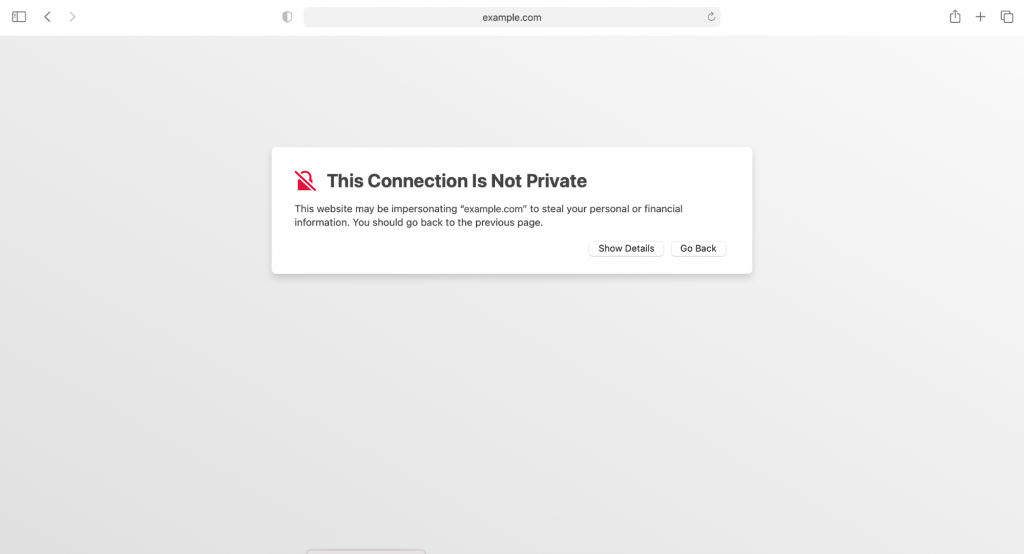
If you encounter an SSL problem on Safari, you’ll see the “This Connection Is Not Private” page.
It will tell you that “the website may be impersonating the site you wish to access to steal your personal or financial information.” Safari will also suggest that you go back to the previous page.
Opera

Opera’s version of the error is “Your connection is not private,” identical to Chrome’s. It also shows the error code under the description.
Click on Help me understand to reveal details on the issue. According to Opera, the error is caused by “a misconfiguration or an attacker intercepting your connection.”
The error codes you may see on Opera are similar to the ones that other web browsers display:
- NET::ERR_CERT_AUTHORITY_INVALID
- SSL certificate error
- NET::ERR_CERT_INVALID
- NET::ERR_CERT_WEAK_SIGNATURE_ALGORITHM
How to Fix “Your Connection Is Not Private” as a Website Owner
If you get the “Your connection is not private” error on your website, you will need to eliminate possible SSL certificate issues.
This section will provide four troubleshooting methods to solve this error on your website.
1. Check Your SSL Certificate’s Expiration Date
First, check whether your website has an expired SSL certificate. Sometimes, you might need to renew your SSL certificate manually, and you might not have done so.
For example, the free SSL certificates by Let’s Encrypt are only valid for 90 days, and you will need to renew them regularly to remain active.
To check an SSL certificate’s expiration date on Google Chrome, follow these steps:
- Go to the website in question and click the padlock icon next to the address bar.
- Click the Connection is secure button. Note that this option might appear differently depending on your web browser.

- Select Certificate is valid.
- In the new window, you will see the SSL certificate’s expiration date next to Valid from.
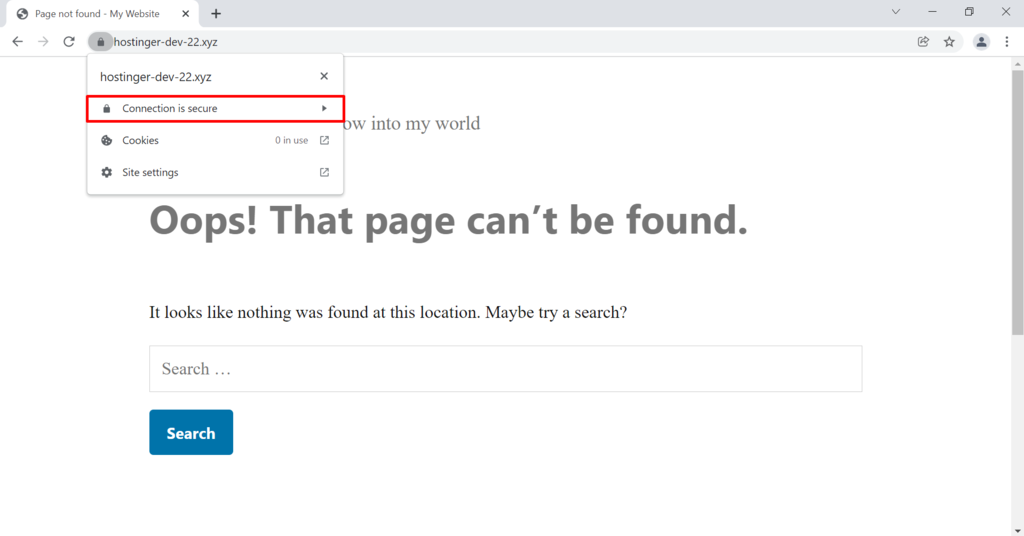
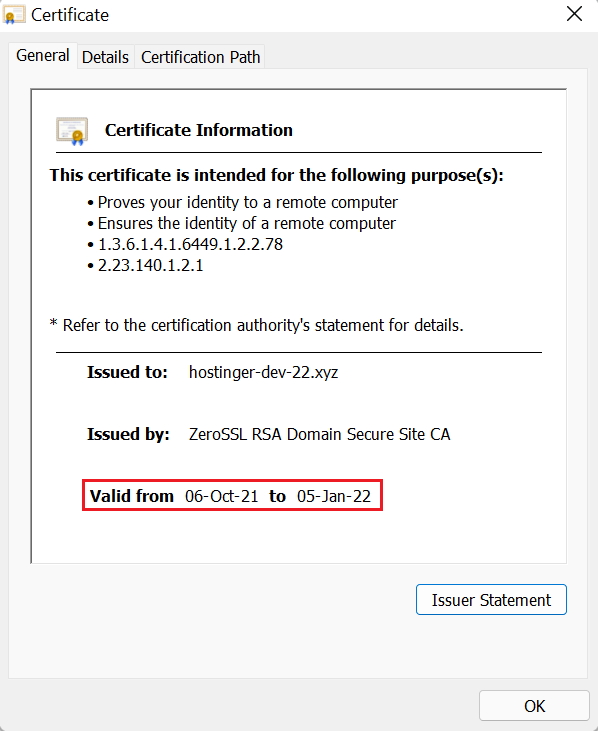
If your SSL certificate is still within its expiration period, try the following troubleshooting step. If it’s expired, it’s likely causing the error.
Renewing an SSL certificate will vary depending on your web hosting provider and certificate authority. Generally, it covers three steps:
- Generate an SSL certificate signing request (CSR)
- Activate the new SSL certificate
- Install it on the website
Hostinger offers a free lifetime SSL certificate with all of their plans. With lifetime SSL, you don’t have to worry about manually renewing it again.
2. Confirm Your Certificate Was Issued Well
An SSL certificate that wasn’t issued correctly can also cause this error. Therefore, issuing your SSL certificate properly is a must to avoid SSL problems.
Another reason is that you are not installing the correct type of SSL certificate. For instance, websites with subdomains might need to install an SSL certificate for each domain or use a multi-domain wildcard SSL.
The organization that issues your SSL certificate must also come from a trusted certificate authority (CA). For example, Hostinger offers SSL certificates from an open-source CA, Let’s Encrypt.
To find out which organization issued your certificate:
- Go to the website and click the padlock icon next to the address bar.
- Select Connection is secure. Note that this option might appear differently depending on the SSL status.
- Click Certificate is valid.
- Next to the Issued by field, you will find the name of the organization that issued your certificate.
Check if the organization that issued your SSL certificate is a CA member. Some of the most well-known CAs are Comodo and DigiCert.
3. Run an SSL Server Test
An SSL server test can check the validity of a website’s SSL certificate. Some also offer insights that can help you pinpoint any SSL issues and fix them.
For instance, the SSL Server Test by Qualys will analyze a website’s SSL and grade its quality. All you have to do is enter your website’s domain name into the free online tool.
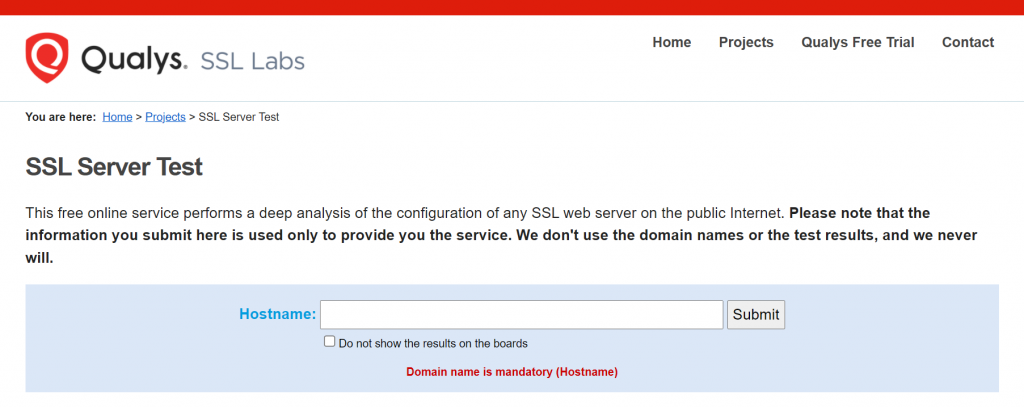
It will take a few minutes to analyze your website’s SSL configuration. Once it’s done, you will receive a detailed report and a grade. To view the summary of the report and the SSL scan’s detailed results, click on one of the server options.
The test found no issue with your SSL certificate if you received an A grade. If you received a lower score, it’s worth looking into the issues found to try fixing them.
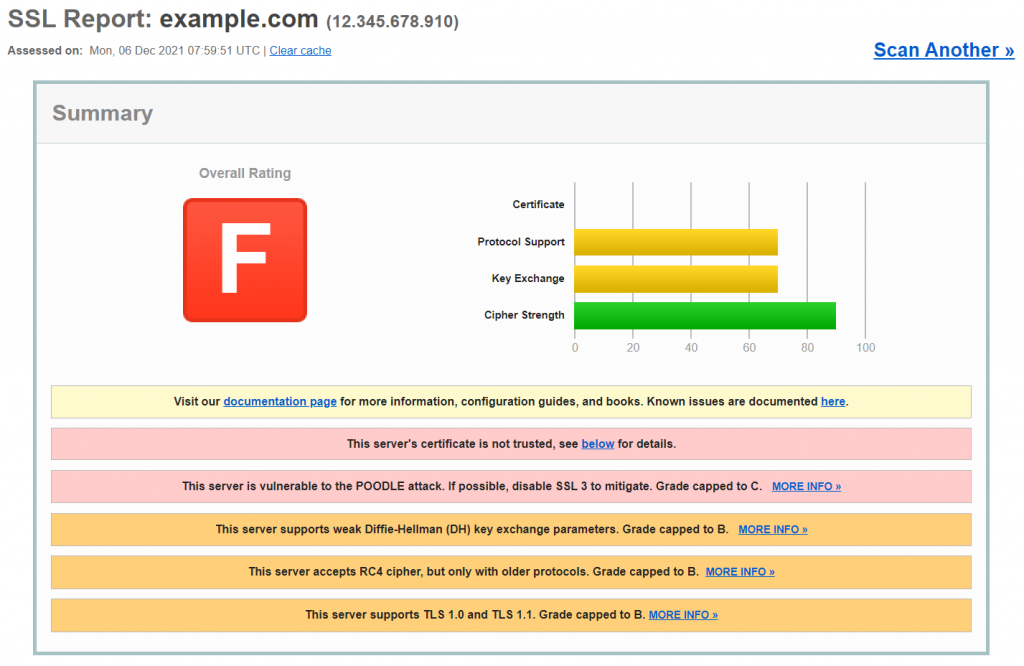
For example, the test might produce one or several of the following findings:
- Server’s certificate is not trusted
- Server is vulnerable to certain types of attacks
- Server only accepts certain types of cipher with older protocols
- Server only supports older versions of TLS
To fix known issues, identify them as given in the full report and follow the instructions suggested by the SSL server test. The SSL Server Test by Qualys provides links to articles that explain what these errors are and how to solve them.
4. Contact Your Web Host
If you tried the previous methods and neither has solved the issue, you should contact your hosting provider since a host-specific problem may be causing the error.
How to Fix “Your Connection Is Not Private” Error as a Visitor
Although a website SSL configuration error is usually the primary cause of this issue, sometimes it can be caused by a problem from the client’s side.
If you have any reason to believe that you’re the only one experiencing this error when trying to access a particular website, look at the following simple ways to fix the “Your connection is not private” error.
1. Reload the Page
If you see the “Your connection is not private” warning message, you should first try to reload the page.
While this might seem too obvious, it does work most of the time. Chances are, the SSL certificate is being reissued, or your browser failed to establish a secure connection to the web server.
2. Don’t Use Public WiFi
Using a public network like a café or an airport WiFi is the most common reason users encounter this error.
These days, HTTPS is a must for any website, especially if it collects private information. Unfortunately, public networks usually run on HTTP instead of HTTPS.
If you perform transactions on a public network, the information you input won’t be encrypted like on HTTPS. It will be transferred in plain text, and anyone using the same WiFi network can try and steal your personal data. That is why your browser will automatically show the message “Your connection is not private” to warn you.
Instead of using public WiFi, try loading the website while connected to a private network like your home WiFi or mobile data.
3. Use Incognito Mode
If you don’t want to remove your browser cache and cookies, you can check whether they’re causing the issue by trying Incognito mode. When using this mode, your browser will not store any site data on your computer.
To demonstrate how to use the Incognito mode on Chrome, click the three dots at the top-right corner and select New Incognito Window. Now, revisit the same website you were trying to access before and check if the error persists.
If the error persists, try clearing the browser data.
4. Clear Your Browsing Data
One method to try when experiencing the “Your connection is not private” error involves deleting the data your browser has stored, such as cookies, images, and files.
To clear the browser cache on Chrome, follow these steps:
- Click the three dots at the top-right corner and select History.
- Hit the Clear Browsing Data option on the left.
- Tick the boxes under the Basic tab to clear your browser’s cache and cookies or navigate to the Advanced tab for more options.
- From the Time range drop-down menu, select All time.


- Press Clear data once you’re done.
5. Check Your Computer’s Date and Time
This might seem odd, but the “Your connection is not private” error might appear because your operating system’s date and time are wrong.
Your browser relies on your computer’s clock and date settings to check an SSL certificate’s validity. If they’re incorrect, it might cause issues with the validation process. The certificate can appear to be no longer valid while it actually still is.
Make sure that your computer’s clock and date are configured correctly to fix the connection error. Here’s how to quickly check and adjust date/time system preferences on Windows and macOS computers.
Windows
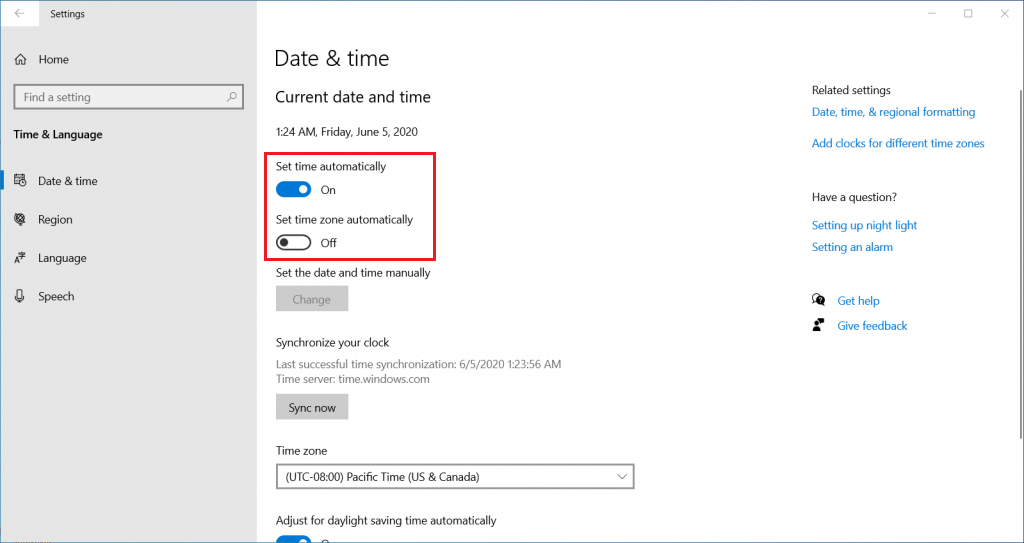
- Go to Settings -> Time & Language -> Date & Time.
- Enable the Set time automatically and Set time zone automatically options if they’re turned off. Check if the up-to-date date and time are correct.
- Refresh the website you’re trying to access.
macOS
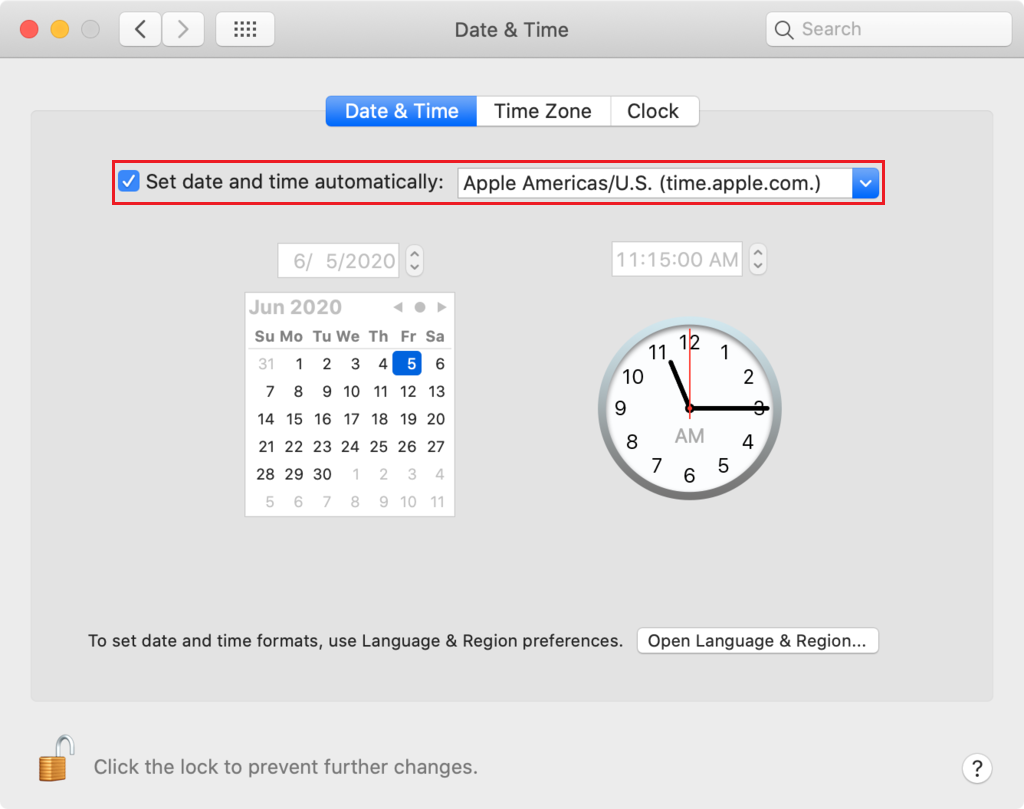
- Go to the Apple menu -> System Preferences -> Date & Time.
- Make sure that the Set date and time automatically checkbox is marked.
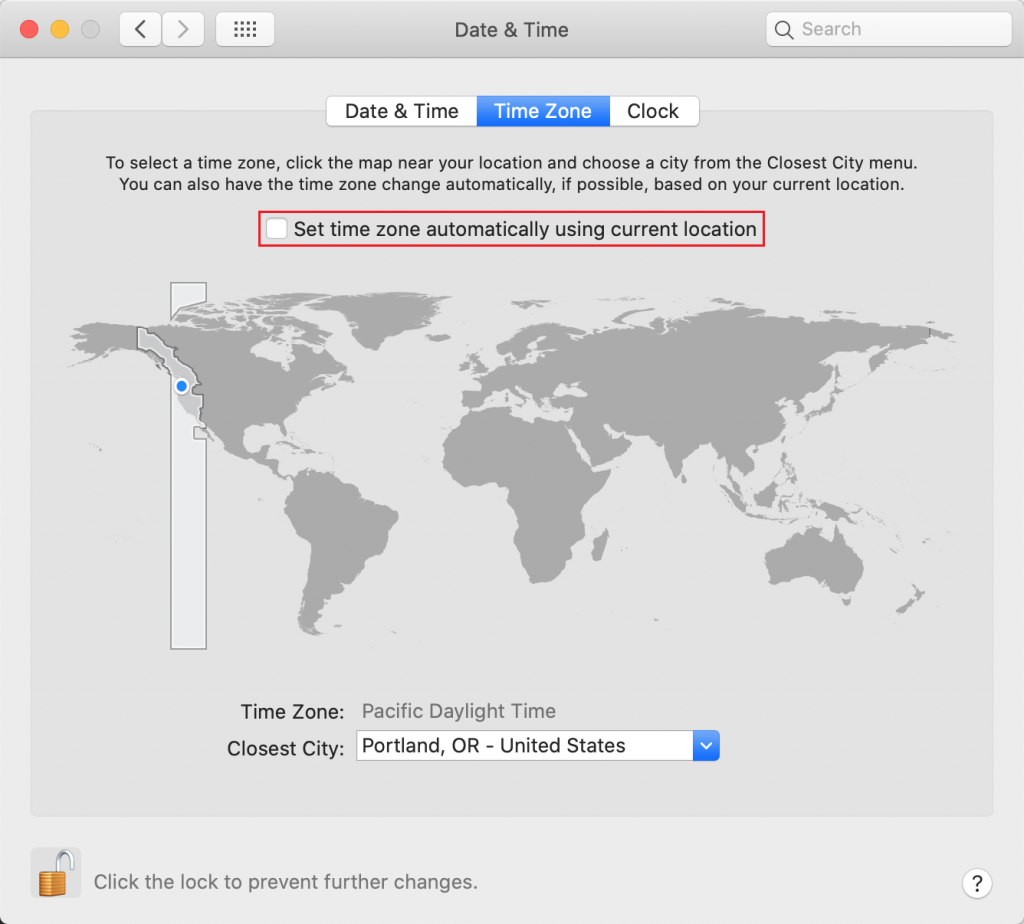
- On the Time Zone tab, check whether the Set time zone automatically using current location option is also enabled.
- Refresh your web browser to see whether the issue has been resolved.
6. Check Your Antivirus or Internet Security Suite
Some antivirus software and web security programs will block unusual SSL certificates or connections. To fix “Your connection is not private,” you’ll need to turn off the SSL scanning feature.
If you don’t know where to find it, you can try to disable your antivirus entirely and reopen the site on your browser. If the error message is no longer there, this is the cause of the problem.
7. Temporarily Disable Your VPN
A virtual private network (VPN) encrypts and reroutes your internet connection through a remote web server, which hides your IP address, increases your web anonymity, and protects your personal information.
Unfortunately, these added security layers can block certain SSL certificates and cause the “Your connection is not private” error.
Temporarily disabling your VPN might remove some barriers between you and the website and allow you to check if your VPN is causing the error.
8. Try Accessing the Website via Proxy
A proxy reroutes your internet traffic through a remote web server. The difference between proxy and VPN is that a proxy does not encrypt your connection, and you can only set it up on the application layer.
There’s a possibility that other people can visit the same site with no issues, and the “Your connection is not private” error only appears on your computer.
A proxy can help you check whether the website connects properly via another network. Think of it as using your neighbor’s WiFi to check if they can visit the website.
To access a website via proxy, use free services like Hidester, Hide.me, or VPNBook. All you have to do is paste the URL of the website you want to access.
Alternatively, if you already have a proxy server’s address and port number, you can set them up on your browser. Here’s how to set up a proxy server on Google Chrome on Windows:
- Click the three dots at the top-right corner and select Settings.
- On the left sidebar, expand the Advanced menu and choose System.
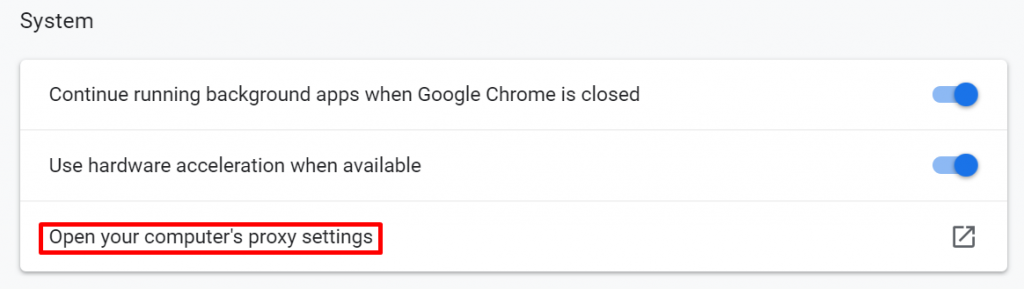
- Click Open your computer’s proxy settings.

- On the new window, scroll down until you find Manual proxy setup and turn on Use proxy server.
- Paste the proxy server’s Address and Port into the respective fields.

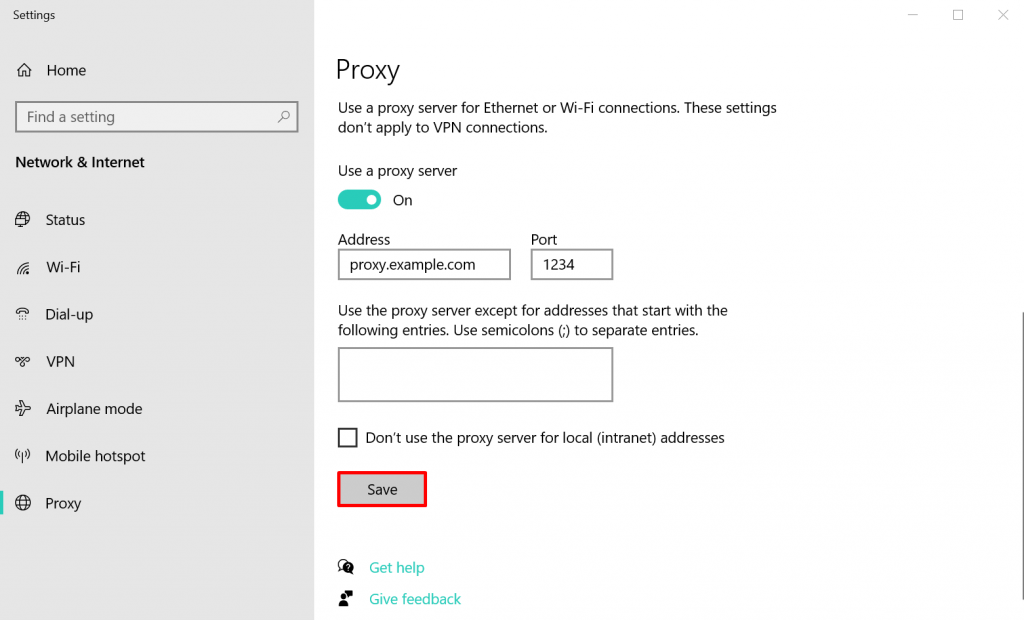
- Click Save.
9. Restart Your Router
Rebooting your WiFi router might be the simplest way to fix common network issues. It’s worth trying this method when encountering the “Your connection is not private” error.
A router has its own CPU, memory, and operating system, which can sometimes overheat or experience errors. Restarting your router is a quick and easy way to refresh it. Make sure to wait at least a few seconds before turning it on again.
Routers contain capacitors that may keep running for a few seconds after you turn the device off. The short interval ensures that the capacitor will be empty, allowing your router to fully clear its memory and reset failed tasks once it’s turned on again.
10. Manually Proceed With an Unsafe Connection (Unsafe)
If everything else fails, remember that the “Your connection is not private” message can’t prevent you from visiting the website. You can still enter the site at your own risk.
Such websites may contain vulnerabilities that attackers may exploit to steal sensitive information, including your full name, address, passwords, and credit card numbers. While browsing the site, make sure to avoid clicking on any ads, making online payments or giving away any personal data.To proceed manually to the site on Chrome, click on Advanced -> Proceed to (website’s domain name) at the bottom of the message.
11. Ignore the SSL Certificate Error Entirely (Unsafe)
Bypassing the privacy error manually only fixes the issue temporarily. To proceed past “Your Connection Is Not Private” message in the future, you can make the web browser ignore the SSL connection error altogether.
Remember that this method will only place the warning on silent mode – the private connection issue might still be there and prevent you from accessing unsafe sites.
If you want to proceed, here’s how to do it on Windows:
- Right-click on the Google Chrome shortcut on your desktop.
- Click Properties.
- In the Target field, add the following after the quotation marks:
-–ignore-certificate-errors.
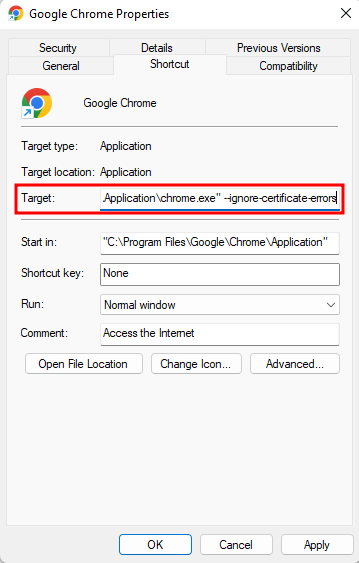
- Click OK to save your changes.
- If the error code NET::ERR_CERT_COMMON_NAME_INVALID appears, bypass it by clicking the Proceed button.
- Revisit the website, and the error message will disappear.
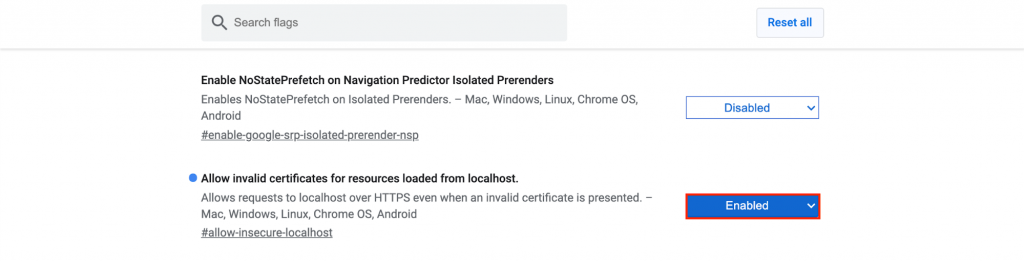
You can achieve a similar effect by using Chrome flags. This is especially useful if you’re testing something locally. Type the following into Chrome’s address bar:
chrome://flags/
From there, search for the “Allow invalid certificates for resources loaded from localhost” option and select Enabled.
Conclusion
“Your connection is not private” error message is primarily caused by SSL certificate errors. However, in some cases, it can be caused by client-side issues.
While it is only one of many common connectivity errors, finding a fix for it may be troubling. This tutorial has covered several ways to fix this issue.
For example, we covered how to check your SSL certificate as a website owner and how to clear your browsing data cache to fix this issue as a visitor.
We hope that this article has helped you troubleshoot this error. If you have any questions or tips, feel free to leave them in the comments section below.
Your Connection Is Not Private Error FAQ
Why Does Chrome Keep Saying My Connection Is Not Private?
Your browser will tell you that your connection is not private when there is an issue with proper encryption of your internet connection.
What Causes ‘Your Connection Is Not Private’ Error?
This error is often related to issues with a website’s SSL certificate. It might be missing or expired, or it’s not been legitimately issued by the correct authorities.

Hasna is passionate about tech, culture, and the written word. She hopes to create content that helps people succeed on the web. When not writing, rearranging, or polishing sentences, she enjoys live music and overanalyzing movies.
Содержание
- Что означает «Ваше подключение не защищено»?
- Как убрать сообщение «Ваше подключение не защищено»?
- Способ 1: установка верных даты и времени
- Способ 2: отключение блокирующих расширений
- Способ 3: устаревшая версия Windows
- Способ 4: устаревшая версия браузера или сбой в работе
- Способ 5: ожидание обновления сертификатов
- Вопросы и ответы

При переходе на некоторые веб-ресурсы пользователи браузера Google Chrome могут столкнуться с тем, что доступ к ресурсу был ограничен, и вместо запрашиваемой страницы на экране отображается сообщение «Ваше подключение не защищено». Сегодня мы разберемся, каким образом можно устранить подобную проблему.
Разработчики большинства веб-обозревателей прикладывают все усилия, чтобы обеспечить своим пользователям безопасный веб-серфинг. В частности, если браузер Google Chrome заподозрит неладное, то на вашем экране отобразится сообщение «Ваше подключение не защищено».
Что означает «Ваше подключение не защищено»?
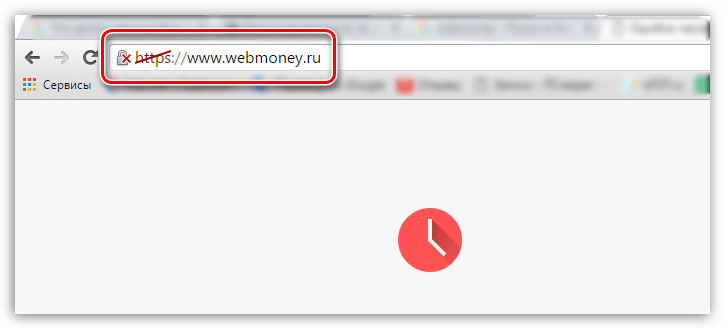
Подобная проблема означает лишь то, что у запрашиваемого сайта проблемы с сертификатами. Данные сертификаты нужны в том случае, если веб-сайт использует защищенное подключение HTTPS, а это на сегодняшний день подавляющее большинство сайтов.
При переходе на веб-ресурс Google Chrome в обаятельном порядке проверяет не только наличие у сайта сертификатов, но и сроки их действия. И если у сайта имеется сертификат с истекшим сроком действий, то, соответственно, доступ к сайту будет ограничен.
Как убрать сообщение «Ваше подключение не защищено»?
Прежде всего хочется оговориться, что каждый уважающий себя сайт всегда имеет актуальные сертификаты, т.к. только таким образом может быть гарантирована безопасность пользователей. Устранять проблемы с сертификатами можно только в том случае, если вы на все 100% уверены в безопасности запрашиваемого сайта.
Способ 1: установка верных даты и времени
Часто при переходе на безопасный сайт сообщение «Ваше подключение не защищено» может возникнуть из-за того, что на вашем компьютере установлены неправильные дата и время.
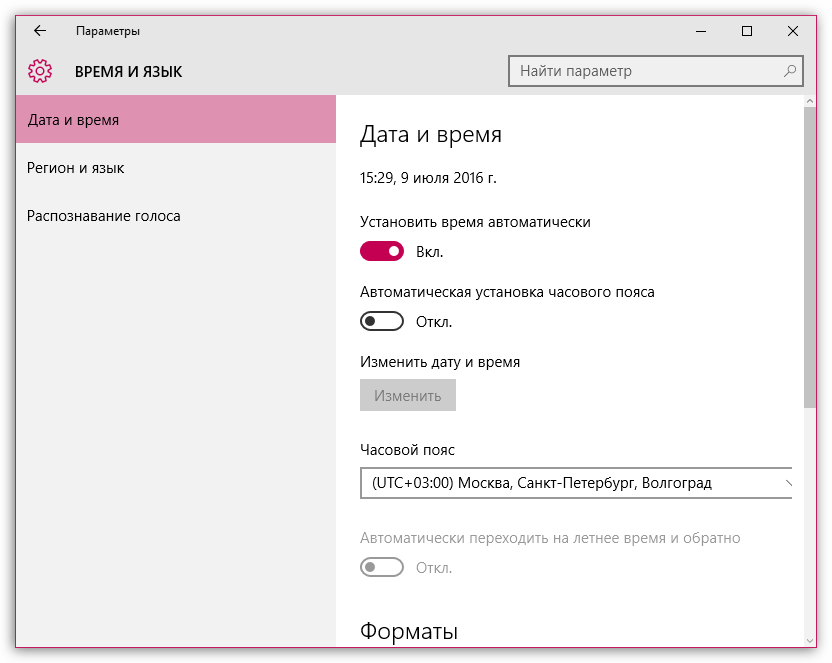
Устранить проблему достаточно просто: для этого лишь достаточно изменить дату и время в соответствии с текущими. Для этого щелкните левой кнопкой мыши по времени в трее и в отобразившемся меню щелкните по кнопке «Параметры даты и времени».

Желательно, чтобы у вас была активирована функция автоматического задания даты и времени, тогда система сможет настроить данные параметры с высокой точностью. Если же это невозможно, задайте данные параметры вручную, но на этот раз, чтобы дата и время соответствовали текущему моменту для вашего часового пояса.
Способ 2: отключение блокирующих расширений
Различные VPN-расширения запросто могут провоцировать неработоспособность некоторых сайтов. Если у вас установлены расширения, которые, например, позволяют получить доступ к заблокированным сайтам или сжимают трафик, то попробуйте их отключить и проверить работоспособность веб-ресурсов.
Чтобы отключить расширения, щелкните по кнопке меню браузера и в отобразившемся списке перейдите к пункту «Дополнительные инструменты» – «Расширения».
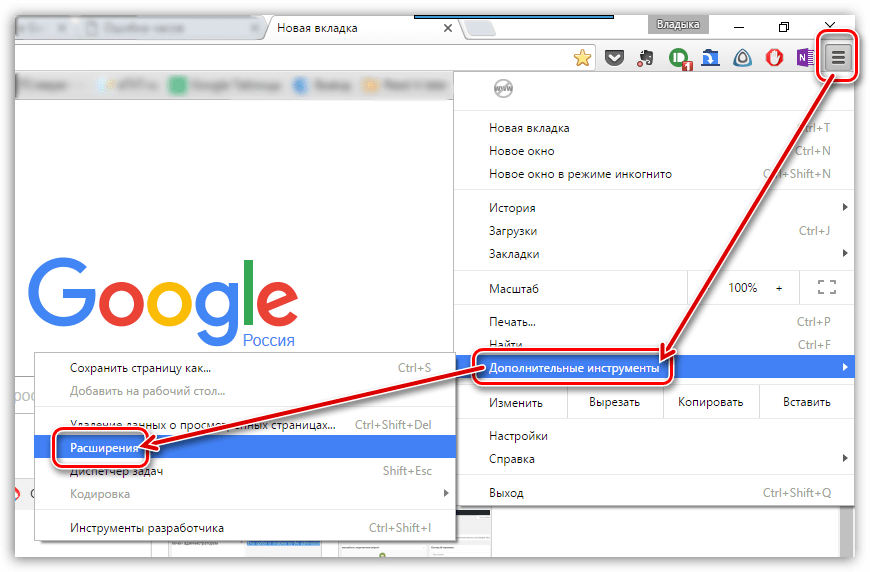
На экране отобразится список расширений, где вам потребуется отключить все дополнения, которые связаны с параметрами интернет-соединения.
Способ 3: устаревшая версия Windows
Данная причина неработоспособности веб-ресурсов не касается пользователей Windows 10, т.к. в ней отключить автоматическую установку обновлений не представляется возможным.
Однако, если у вас более младшая версия ОС, и вы отключили автоматическую установку обновлений, то вам следует обязательно проверить наличие новых обновлений. Выполнить проверку обновлений можно в меню «Панель управления» – «Центр обновления Windows».
Способ 4: устаревшая версия браузера или сбой в работе
Проблема может заключаться и в самом браузере. Прежде всего, вам потребуется проверить наличие обновлений для браузера Google Chrome. Так как мы прежде уже рассказывали об обновлении Google Chrome, то на данном вопросе останавливаться не будем.
Читайте также: Как полностью удалить Google Chrome с компьютера
Если данная процедура вам не помогла, следует выполнить полное удаление браузера с компьютера, а затем установить его снова с официального сайта разработчика.
Скачать браузер Google Chrome
И только после того, как браузер будет полностью удален с компьютера, можно приступать к его загрузке с официального сайта разработчика. Если проблема заключалась именно в браузере, то после завершения установки сайты будут без проблем открываться.
Способ 5: ожидание обновления сертификатов
И, наконец, все же стоит предположить, что проблема заключается именно в веб-ресурсе, который вовремя не обновил сертификаты. Здесь вам не остается ничего больше, как ждать обновления веб-мастером сертификатов, после чего доступ к ресурсу будет возобновлен.
Сегодня мы рассмотрели основные способы борьбы с сообщением «Ваше подключение не защищено». Обратите внимание, что перечисленные способы актуальны не только для Google Chrome, но и для других браузеров.
Kinsta works with thousands of different sites on a daily basis, so when it comes to different types of errors, we’ve pretty much seen it all. From database connection errors to the white screen of death, ERR_CACHE_MISS, and browser/TLS related issues.
Some of these for the everyday user can be downright frustrating and even scary at times. Depending on the type of error it could also mean downtime for your website, which means you’re losing money. Or it might just be that the browser on your computer needs fixing.
Check Out Our Video Guide to Fixing the “Your Connection is Not Private” Error
Today we’re going to dive into the “your connection is not private” error and walk you through some ways to get things working again. Read more below about what causes this error and what you can do to prevent it in the future.
«Your Connection Is Not Private» Error
When you visit a website, your browser sends a request to the server and then validates the SSL certificate installed on the site to ensure it is up to current privacy standards. If the certificate isn’t valid, it will prevent you from reaching the site, often triggering the “your connection is not private” error.
What Is the “Your Connection is Not Private” Error?
The “your connection is not private” error only pertains to sites that are running over HTTPS (or should be running over HTTPS). When you visit a website, your browser sends a request to the server where the site is hosted. The browser then has to validate the certificate installed on the site to ensure it is up to current privacy standards. Other things that also take place include the TLS handshake, the certificate being checked against the certificate authority, and decryption of the certificate.
If the browser finds that the certificate isn’t valid, it will automatically try to prevent you from reaching the site. This feature is built into web browsers to protect the user. If the certificate isn’t set up correctly, this means data can’t be encrypted properly and therefore the site is unsafe to visit (especially those with logins or that process payment information). Instead of loading the site, it will deliver an error message, such as “your connection is not private.”
| Error Code | Your connection is not private |
| Error Type | SSL Error |
| Error Variations | Your connection is not private Your connection is not secure Your connection Isn’t private This connection is not private |
| Error Causes | Expired SSL certificate Unsecured network Browser cache and cookie settings Incorrect date/time settings DNS Errors VPN & Antivirus Software |
Why Is the “Your Connection Is Not Private” Error Appearing?
The main reason you may be seeing the “your connection is not private” error is that your browser is failing to verify a Secure Sockets Layer (SSL) certificate, which is necessary for security reasons.
An SSL certificate makes it possible to open an encrypted connection, because it is a text file installed on a web server that carries information such as the domain name that the certificate was issued for and which person, organization, or device owns the domain.
Considering all this, the error “your connection is not private” can happen because:
- The site’s SSL certificate is not valid or is missing.
- The SSL certificate was set up incorrectly.
- The server presented an SSL certificate for the wrong website.
- The SSL certificate does not contain variations on the domain name.
“Your Connection Is Not Private” Error Variations
There are quite a few different variations of this error depending upon which web browser you’re using, operating system, and even the configuration of the certificate on the servers. And while some of these errors sometimes mean slightly different things, a lot of times the troubleshooting steps are the same.
Your Connection Is Not Private in Google Chrome
In Google Chrome if there is an issue validating the certificate the error will show as “your connection is not private” (as seen below).
Attackers might be trying to steal your information from domain.com (for example, passwords, messages, or credit cards).
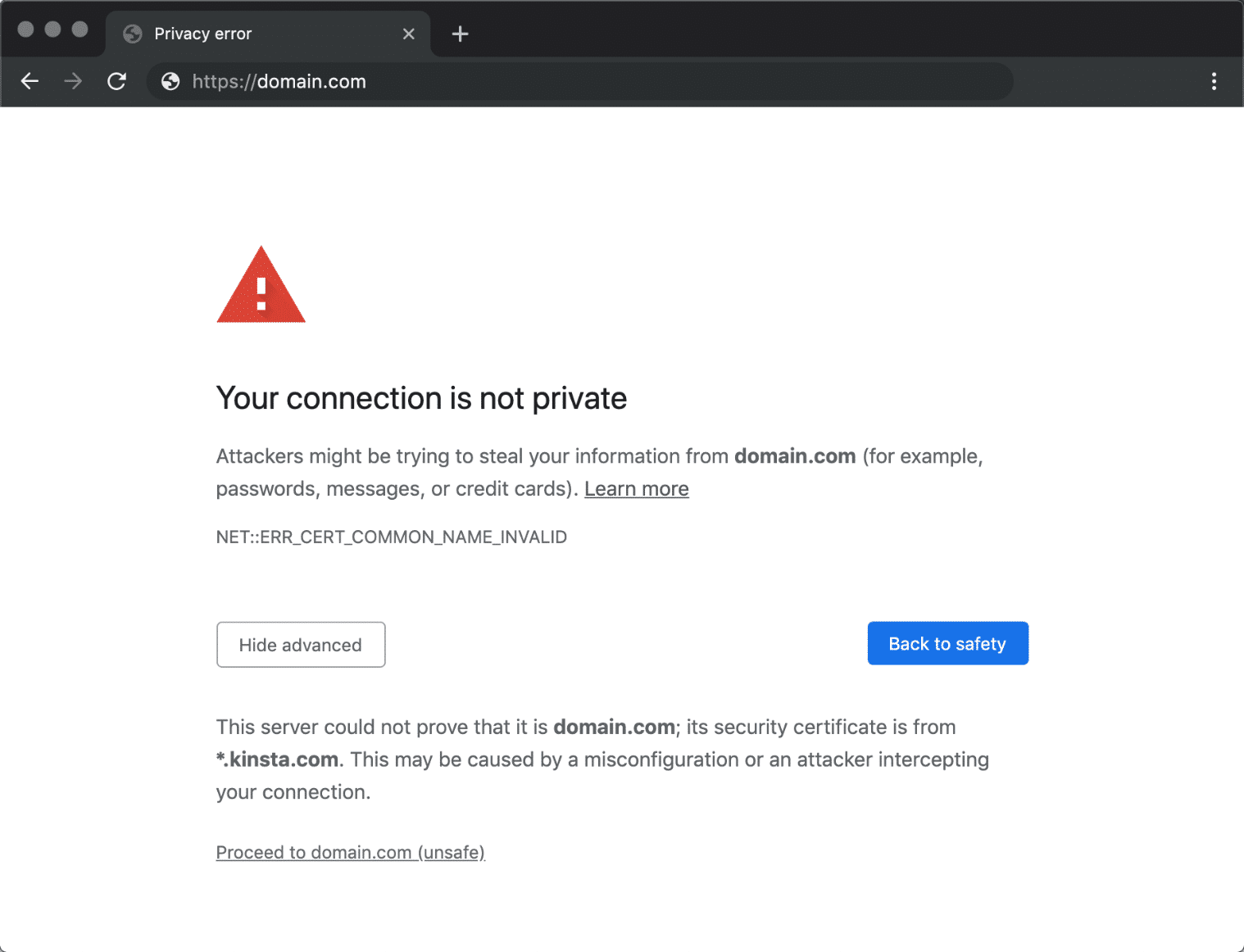
This is also accompanied by an error code message which helps to try and pinpoint the exact issue. Below are just some of the most common error codes you might see in Google Chrome:
- ERR_CERT_SYMANTEC_LEGACY
- NET::ERR_CERT_AUTHORITY_INVALID
- NET::ERR_CERT_COMMON_NAME_INVALID (this occurs when the certificate does not match the domain)
- NET::ERR_CERT_WEAK_SIGNATURE_ALGORITHM
- NET::ERR_CERTIFICATE_TRANSPARENCY_REQUIRED
- NET::ERR_CERT_DATE_INVALID
- ERR_SSL_PROTOCOL_ERROR
- ERR_SSL_VERSION_OR_CIPHER_MISMATCH
Your Connection Is Not Secure in Mozilla Firefox
In Mozilla Firefox the error message varies slightly, and instead of “your connection is not private” you’ll see “your connection is not secure” (as seen below).
The owner of domain.com has configured their website improperly. To protect your information from being stolen, Firefox has not connected to this website.
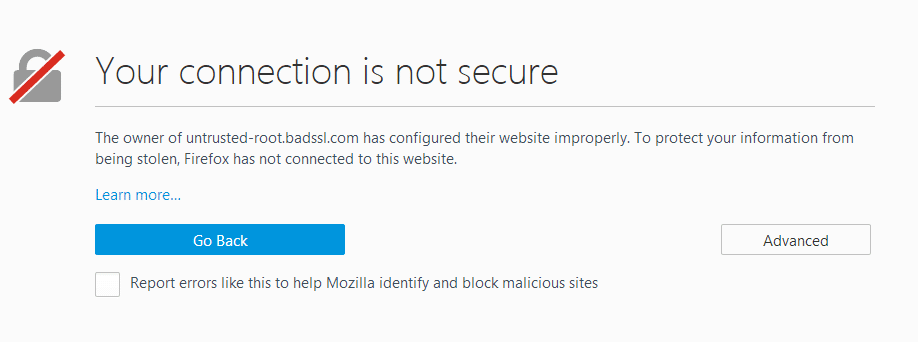
Just like in Chrome, it’s accompanied by an error code message which helps to try and pinpoint the problem. Below are just a couple of the most common error codes you might see in Mozilla Firefox:
- MOZILLA_PKIX_ERROR_ADDITIONAL_POLICY_CONSTRAINT_FAILED
- SEC_ERROR_EXPIRED_ISSUER_CERTIFICATE
- SEC_ERROR_EXPIRED_CERTIFICATE
- SEC_ERROR_UNKNOWN_ISSUER
- MOZILLA_PKIX_ERROR_MITM_DETECTED
- ERROR_SELF_SIGNED_CERT
- SSL_ERROR_BAD_CERT_DOMAIN
Your Connection Isn’t Private in Microsoft Edge
In Microsoft Edge, you will also see the error as “Your connection isn’t private.”
Attackers might be trying to steal your information from domain.com (for example, passwords, messages, or credit cards).
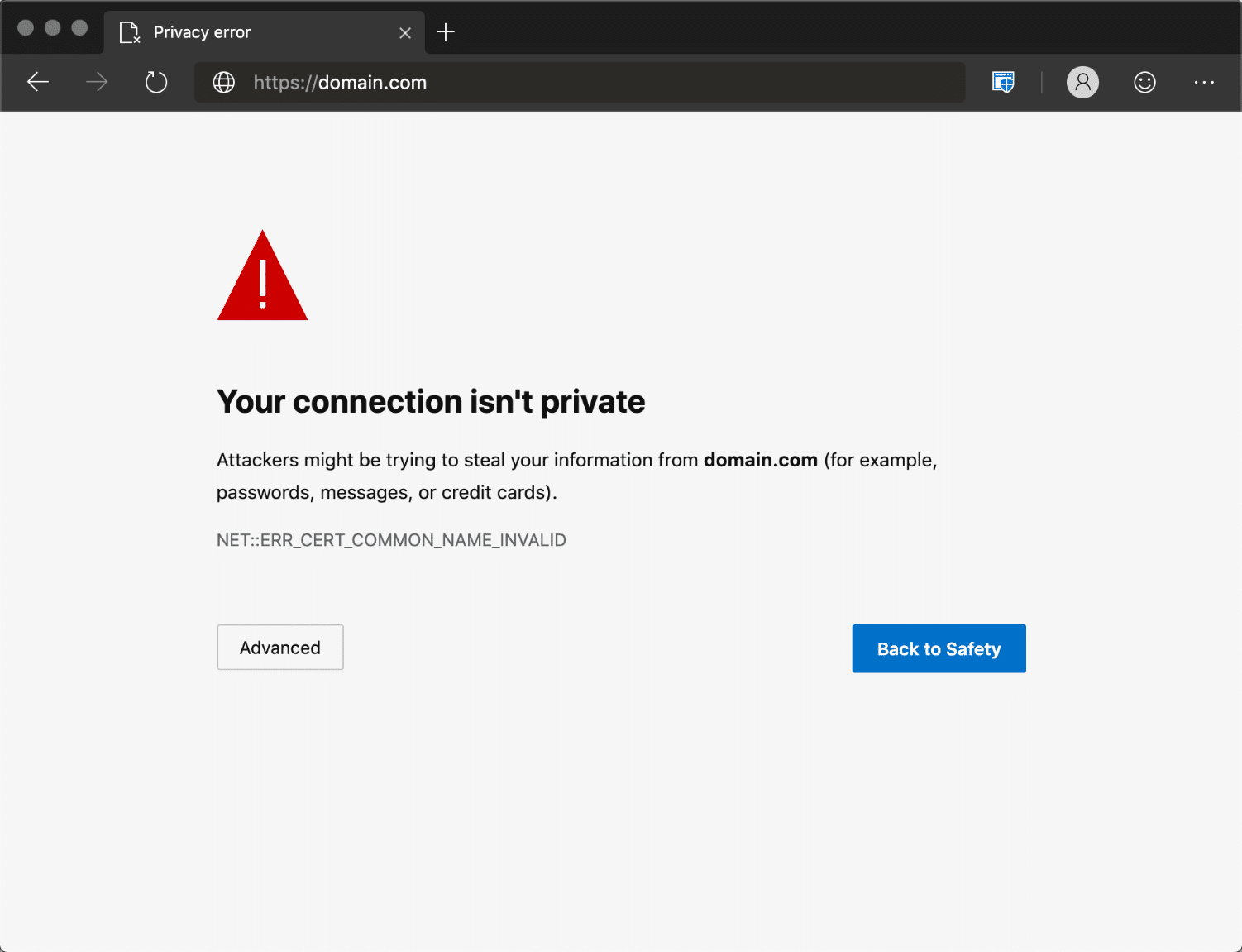
These are also accompanied by an error code message. Below are just a couple of the most common error codes:
- NET::ERR_CERT_COMMON_NAME_INVALID (this occurs when the certificate does not match the domain)
- Error Code: 0
- DLG_FLAGS_INVALID_CA
- DLG_FLAGS_SEC_CERT_CN_INVALID
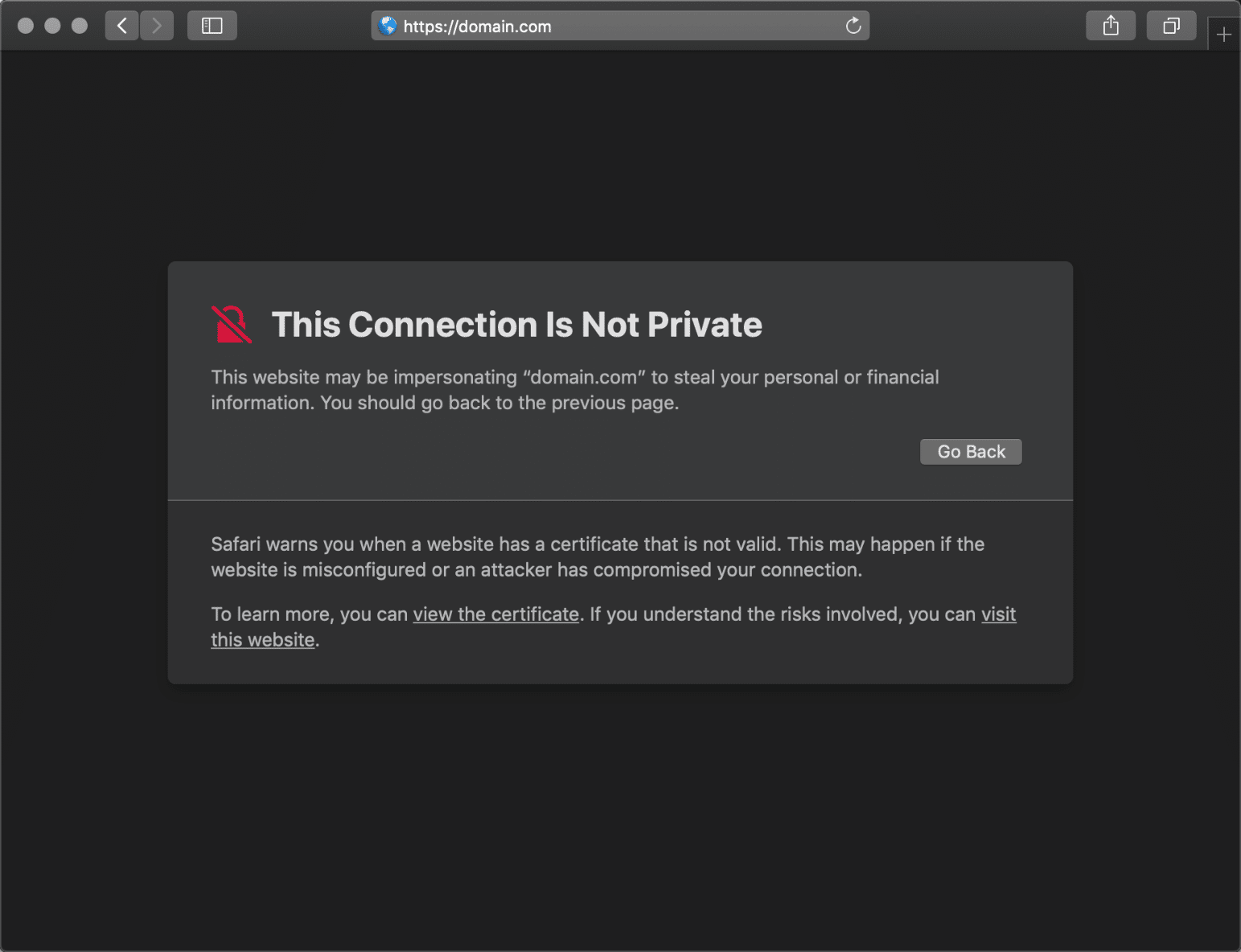
This Connection Is Not Private in Safari
In Safari, you will see the error as “Your connection is not private.”
This website may be impersonating “domain.com” to steal your personal or financial information. You should go back to the previous page.
How To Fix the “Your Connection Is Not Private” Error
Sometimes you might not even know where to begin if you’re seeing a “your connections is not private” error. From our experience, these errors typically originate from two things: the first is a client-side issue (your browser, computer, OS), and the second is that there is an actual problem with the certificate on the website (expired, wrong domain, not trusted by the organization). So we’ll dive into a little of both.
Here are some recommendations and things to check to fix the error (sorted in order by most common reasons we see):
1. Try Reloading the Page
This might seem a little obvious to some, but one of the easiest and first things you should try when encountering a “your connection is not private” error is to simply close and re-open your browser and try loading the page again. It could be that the website owner is currently reissuing their SSL certificate or something was out of whack in your browser.
2. Manually Proceed (Unsafe)
Your second option is to simply manually proceed. However, we don’t ever recommend doing this unless you fully understand that nothing will be encrypted if you proceed. If you’re going to be entering in login credentials or entering payment details, by all means, skip to the next steps below.
We only include this option so we can explain the full ramifications of doing this. Seeing this error could very well mean that someone’s trying to fool you or steal any info you send to the server and you should typically close the site immediately. It is also possible that the website has been compromised and there is a malicious redirection. If you’re in a public place, never try to bypass this screen.
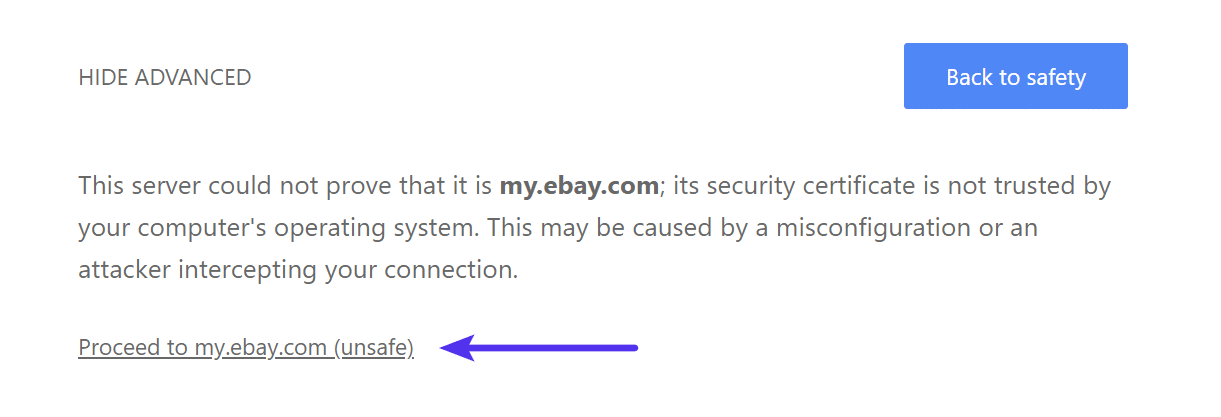
If you still want to proceed, there is usually a “Proceed to domain.com” link you can click at the bottom of the error screen. Depending on the browser this is sometimes hidden under the “Advanced” option. Note: If the website is using HSTS (HTTP Strict Transport Security) this option won’t be available as it means they have implemented an HTTP header which never allows non-HTTPS connections.
3. Are You in a Cafe or Airport?
This might sound odd, but cafes ☕ and airport Wi-Fi networks tend to be one of the most popular places that users see the “your connection is not private” error. Why? Because a lot of them are still not running everything over HTTPS, or if they are, it isn’t configured correctly. This usually pertains to the portal screen where you need to accept the terms and agreement to sign in. If you’re trying to connect to an HTTPS (secure) site before accepting the portal’s terms this error could pop up. Here are some easy steps to get around it.
- Connect to the cafe or the airport’s Wi-Fi.
- Browse to a non-HTTPS site, such as
http://www.weather.com. - The sign-in page should then open. You can accept the terms and then log in. Due to the fact that the terms are usually just consisting of a checkbox, you shouldn’t be too concerned if it isn’t running over HTTPS. Once connected you can then browse to sites over HTTPS. Tip: If you can’t get the sign-in page to open, you could also try typing
1.1.1.1into your browser (source).
Remember, whenever you’re using public Wi-Fi a VPN can help protect you even further by hiding your traffic. Here are a couple popular ones you might want to check out:
- Private Internet Access
- TunnelBear
- NordVPN
4. Check Your Computer’s Clock
Another very common reason that you might see the “your connection is not private” error is that your computer’s clock is messed up. Browsers rely on these to be correctly synced up to verify the SSL certificate. This can easily happen if you just purchased a new computer, especially laptops on Wi-Fi for the first time. They don’t always sync up automatically after your first login. Below are the steps to update the time on your computer. Note: This can also happen on mobile devices.
Windows
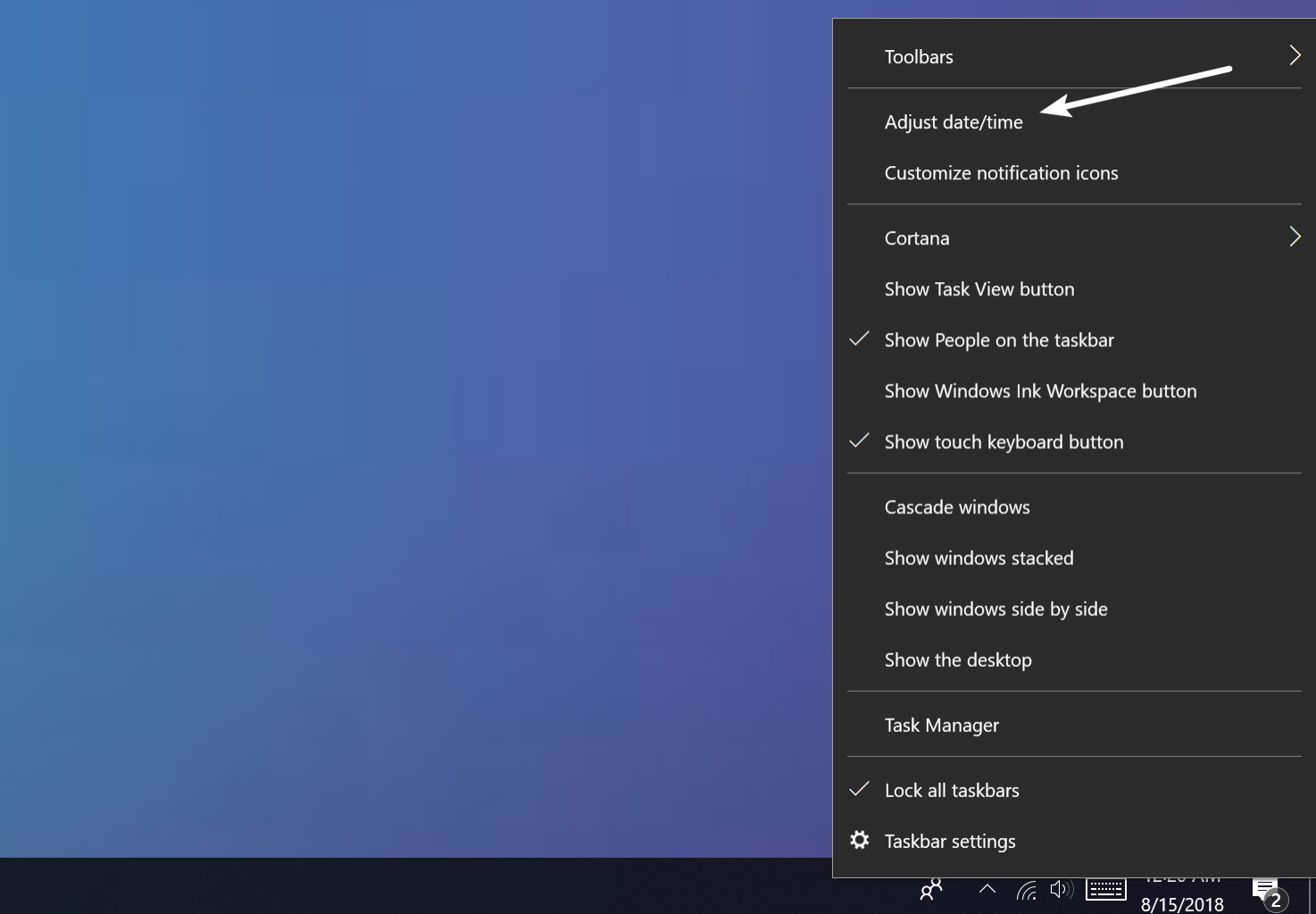
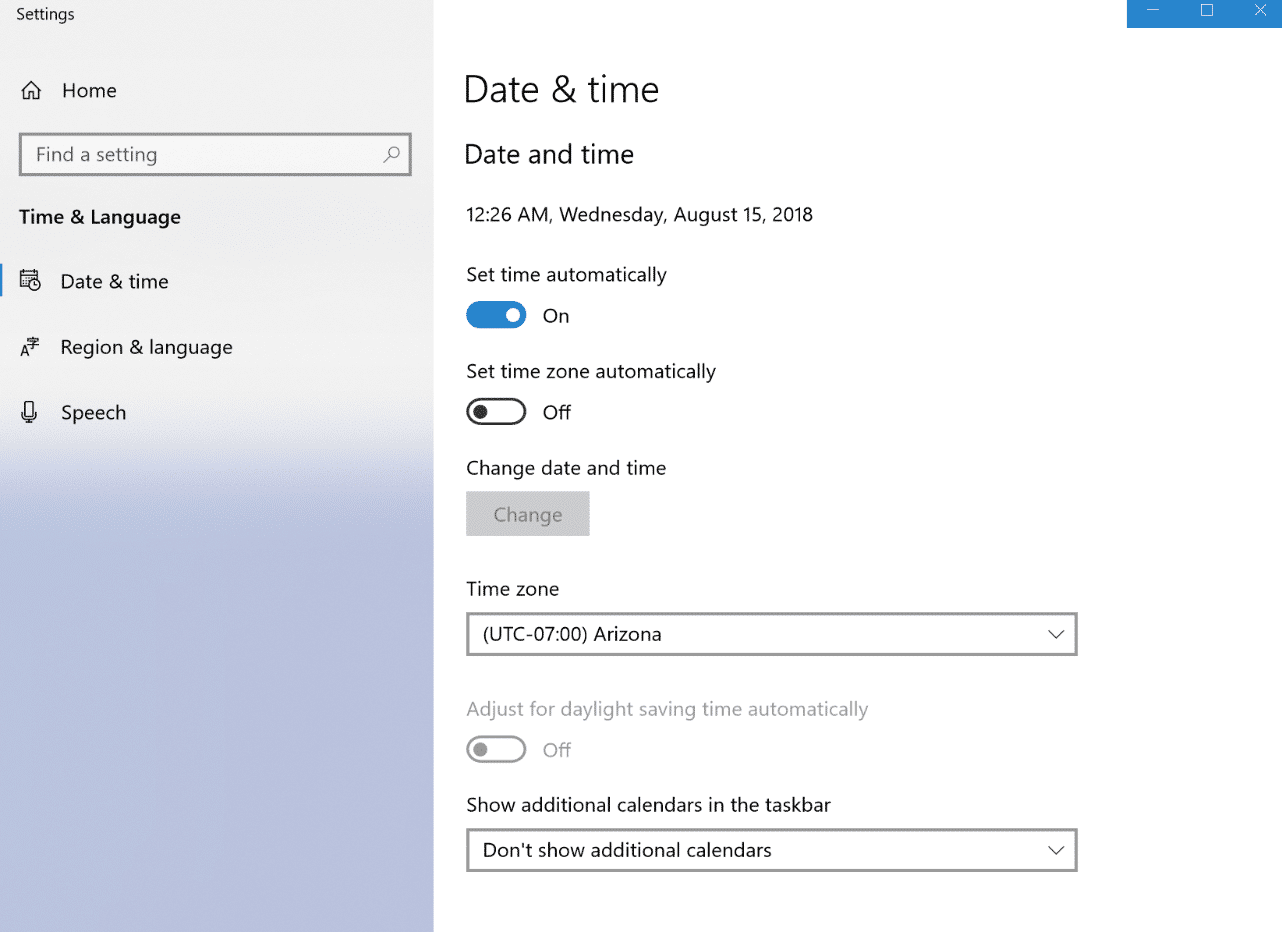
- Right-click the time in the bottom right-hand task tray.
- Select “Adjust date/time.”

Adjust date and time in Windows - Select “Set time automatically” and optionally “Set time zone automatically.” This will update according to one of Microsoft’s NTP servers. Double check the time in the bottom right-hand task tray to make sure it’s correct. If not, you can click on the “Change” button to manually select a time zone.

Windows time zone - Close your browser and re-open it. Then try revisiting the website.
Mac
- From the Apple menu click on “System Preferences”
- Click the Date & Time icon. If the padlock appears at the bottom of the window you might need to click it and enter your administrator username and password.
- Select “Set date & time automatically.” This will update according to one of Apple’s NTP servers.
- Select the Time Zone tab. If it doesn’t determine your location automatically simply uncheck it so you can manually set it. On the map select your time zone region and city.
- Close your browser and re-open it. Then revisiting the website.
5. Try in Incognito Mode
Our next recommendation would usually be to clear your browser’s cache. However, that’s easier said than done for a lot of us. 😉 If you want to check if it might be your browser cache, without clearing your cache, you can always open up your browser in incognito mode. Or test another browser and see if you still see the “your connection is not private” error. Don’t rule out Chrome extensions either. But this will help you test that.
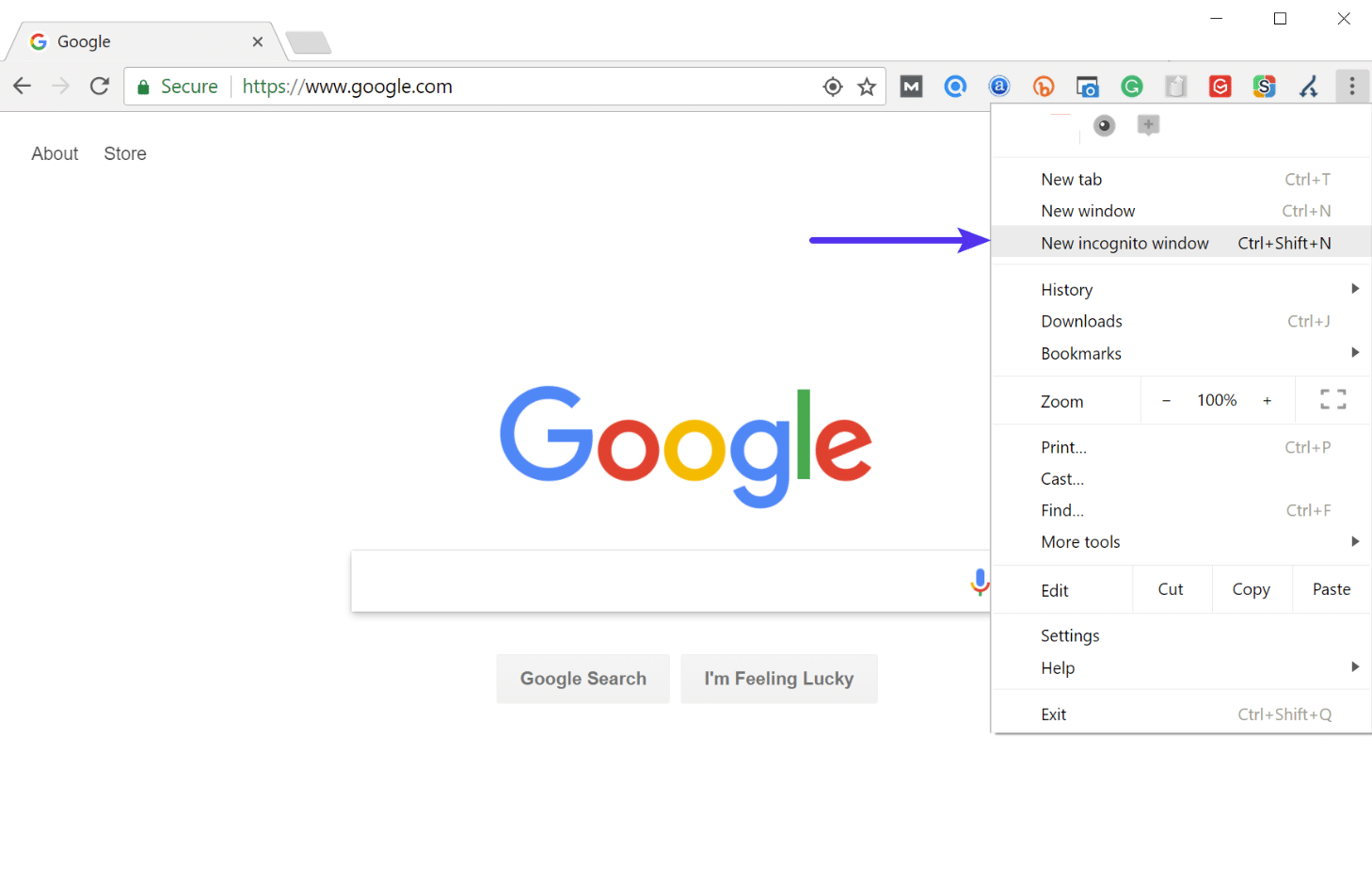
In Mozilla Firefox Incognito mode is referred to as “New private window.” In Microsoft Edge, it’s referred to as “New InPrivate Window.”
6. Clear Browser Cache and Cookies
If you think it might be your browser, clearing your browser cache is always a good troubleshooting step before diving into more in-depth troubleshooting. Below are instructions on how to do it in the various browsers:
- How to Force Refresh a Single Page for All Browsers
- How to Clear Browser Cache for Google Chrome
- How to Clear Browser Cache for Mozilla Firefox
- How to Clear Browser Cache for Safari
- How to Clear Browser Cache for Internet Explorer
- How to Clear Browser Cache for Microsoft Edge
- How to Clear Browser Cache for Opera
Check Out Video Guide to Clearing Browser Cache
7. Try Clearing the SSL State on Your Computer
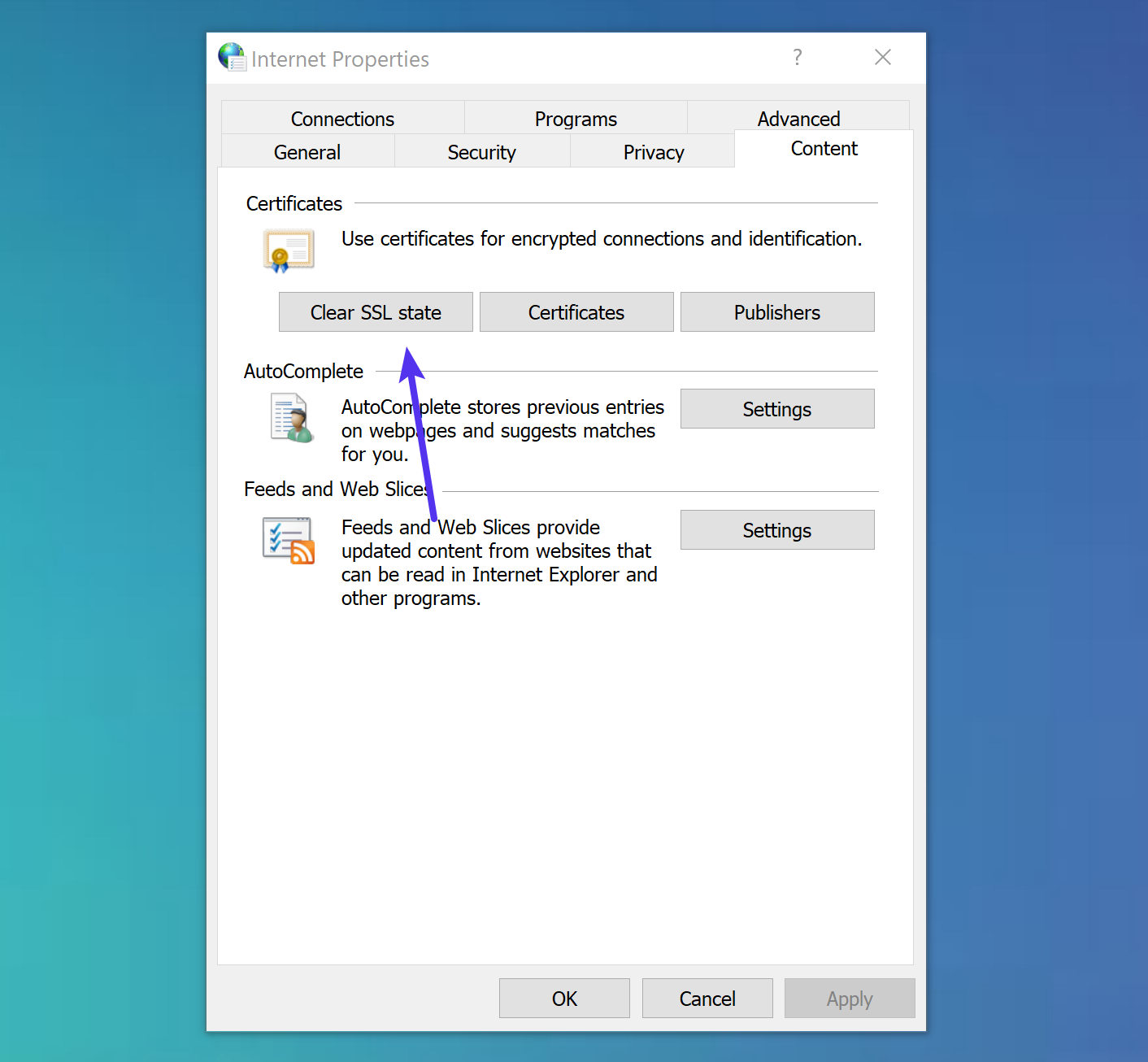
Clearing the SSL state in Chrome is often overlooked but can come in very handy and is easy to try. Just like clearing your browser’s cache this can help if things get out of sync. To clear the SSL state in Chrome on Windows, follow these steps:
- Click the Google Chrome – Settings icon (Settings) icon, and then click Settings.
- Click Show advanced settings.
- Under Network, click Change proxy settings. The Internet Properties dialog box appears.
- Click the Content tab.
- Click “Clear SSL state”, and then click OK.
- Restart Chrome.
If you are on a Mac, see these instructions on how to delete an SSL certificate.
8. Change DNS Servers
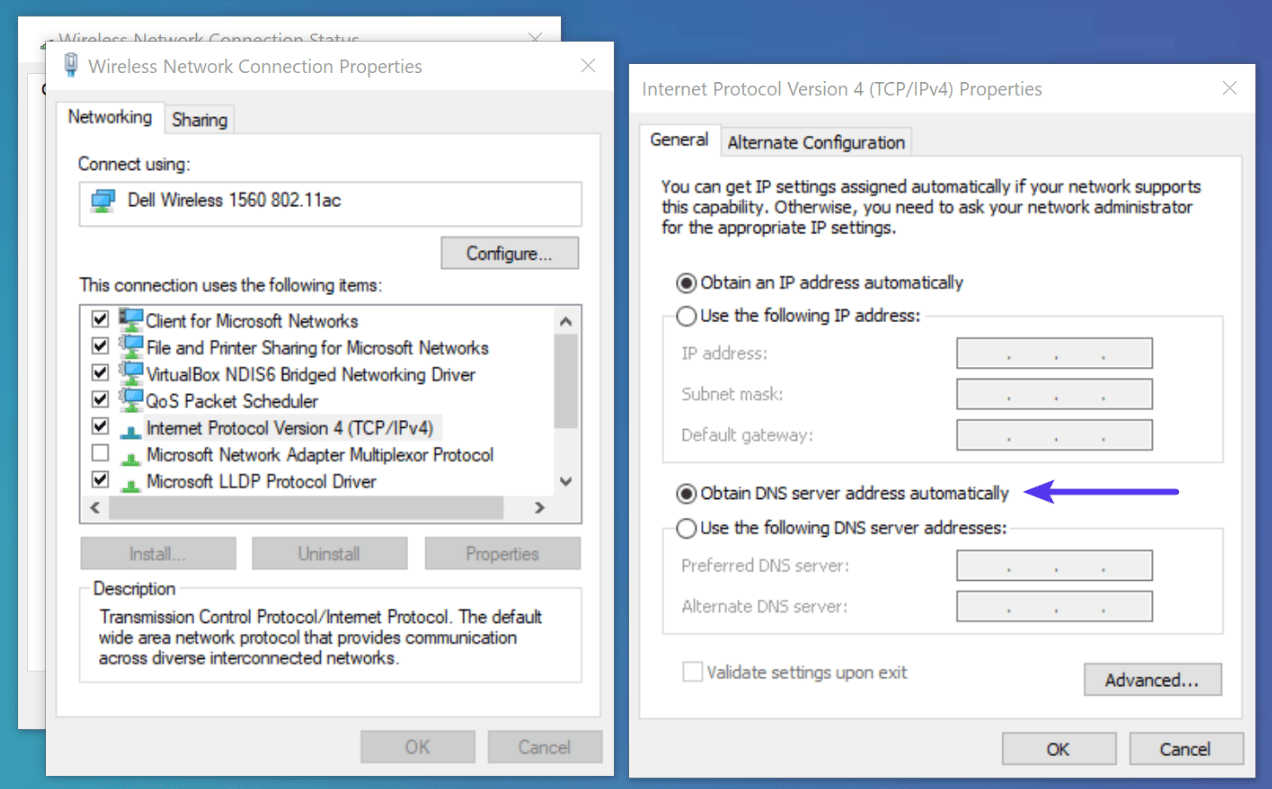
The next thing you can try is changing your DNS servers. We’ve actually seen the “your connection is not private” error happen before when using Google’s Public DNS (8.8.8.8 and 8.8.4.4) or Cloudflare’s DNS (1.1.1.1 and 1.0.0.1). Removing this and defaulting back to your ISP’s DNS servers can sometimes fix DNS errors. Google and Cloudflare aren’t perfect 100% of the time and we’ve issues occur now and then.
To do this on Windows, go to your network connection properties and make sure “Obtain DNS server address automatically” is selected. If you’ve added Google’s Public DNS or Cloudflare’s DNS to your router, you might also have to remove it from there.
9. Disable VPN and Antivirus Temporarily
Sometimes VPNs and Antivirus software can conflict or override your network settings, including blocking certain SSL certificates or connections. If you have any running, try temporarily disabling them (closing them) or turning off their “SSL Scan” feature to see if it resolves the “your connection is not private” error in Chrome.
10. Make Sure the Certificate Hasn’t Expired
SSL certificates expiring without the website owner’s knowledge happens all the time. In fact, a lot more than you might think. Even to Fortune 500 companies! We were able to find this tweet below within a matter of a few seconds. No big deal, just Huntington Bank forgetting to renew their SSL certificate. 😨
@Huntington_Bank It seems like the SSL certificate on your site for logging into my account has expired. Google Chrome is giving me a warning every time and does not let me sign in. Please help.
— Jonathon Kay (@jonathonkay29) August 13, 2018
Typically this happens due to the following reasons:
- The website owner doesn’t have auto-renew enabled with the domain registrar or SSL certificate provider.
- Auto-renew is enabled but payment fails because the user has forgotten to update their payment method. Users typically change credits cards more frequently than they access their domain registrar’s dashboard throughout the year.
- The website owner uses a free certificate from a provider like Let’s Encrypt that expires frequently and doesn’t have a script in place to renew it, or they forget. At Kinsta, WordPress websites can be protected automatically by Cloudflare SSL, so that customers never have to worry about free SSL certificates expiring.
This results in an accompanying error code: NET::ERR_CERT_DATE_INVALID.
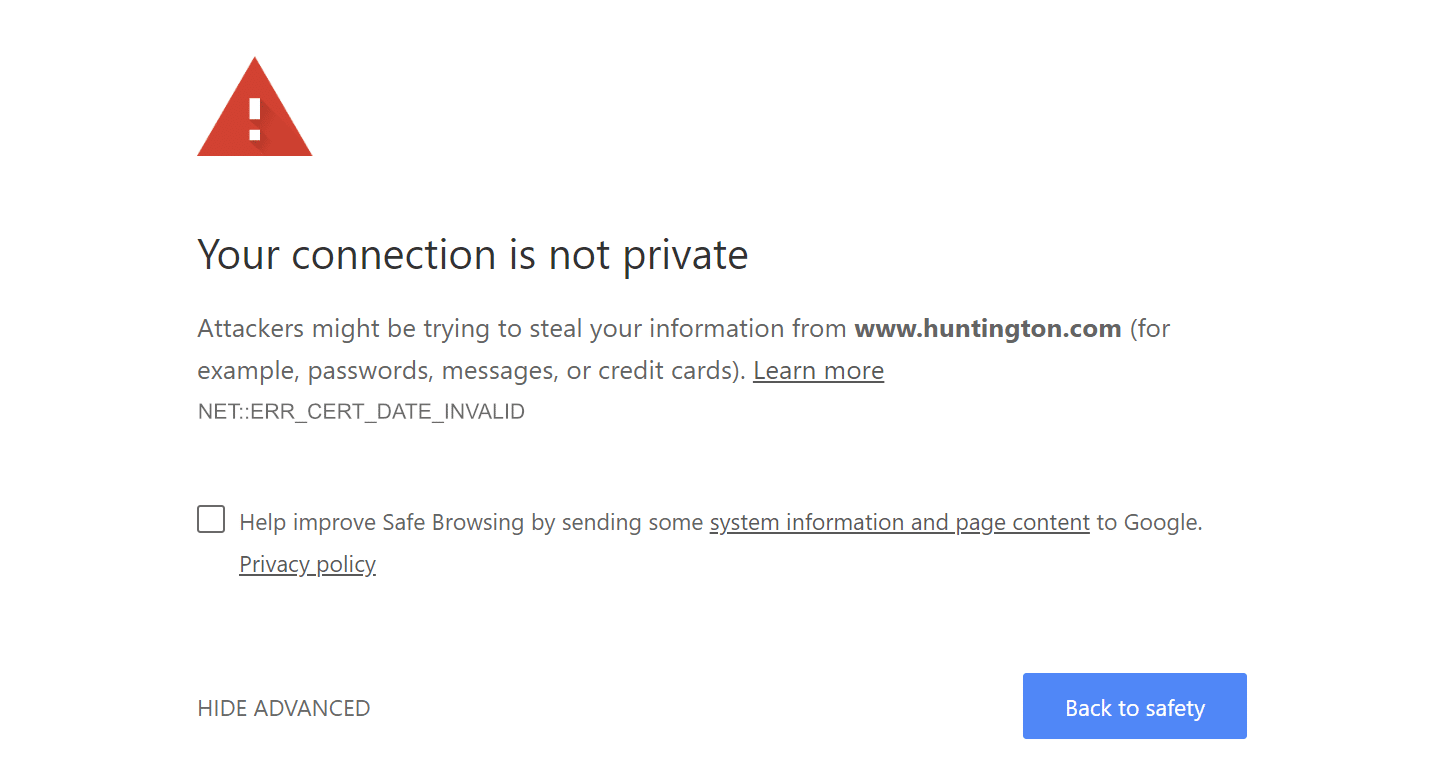
You can easily check a certificate’s expiration date by opening up Chrome DevTools while you’re on the site. Click on the security tab and click on “View certificate.” The “Valid from” dates will show in the certificate information.
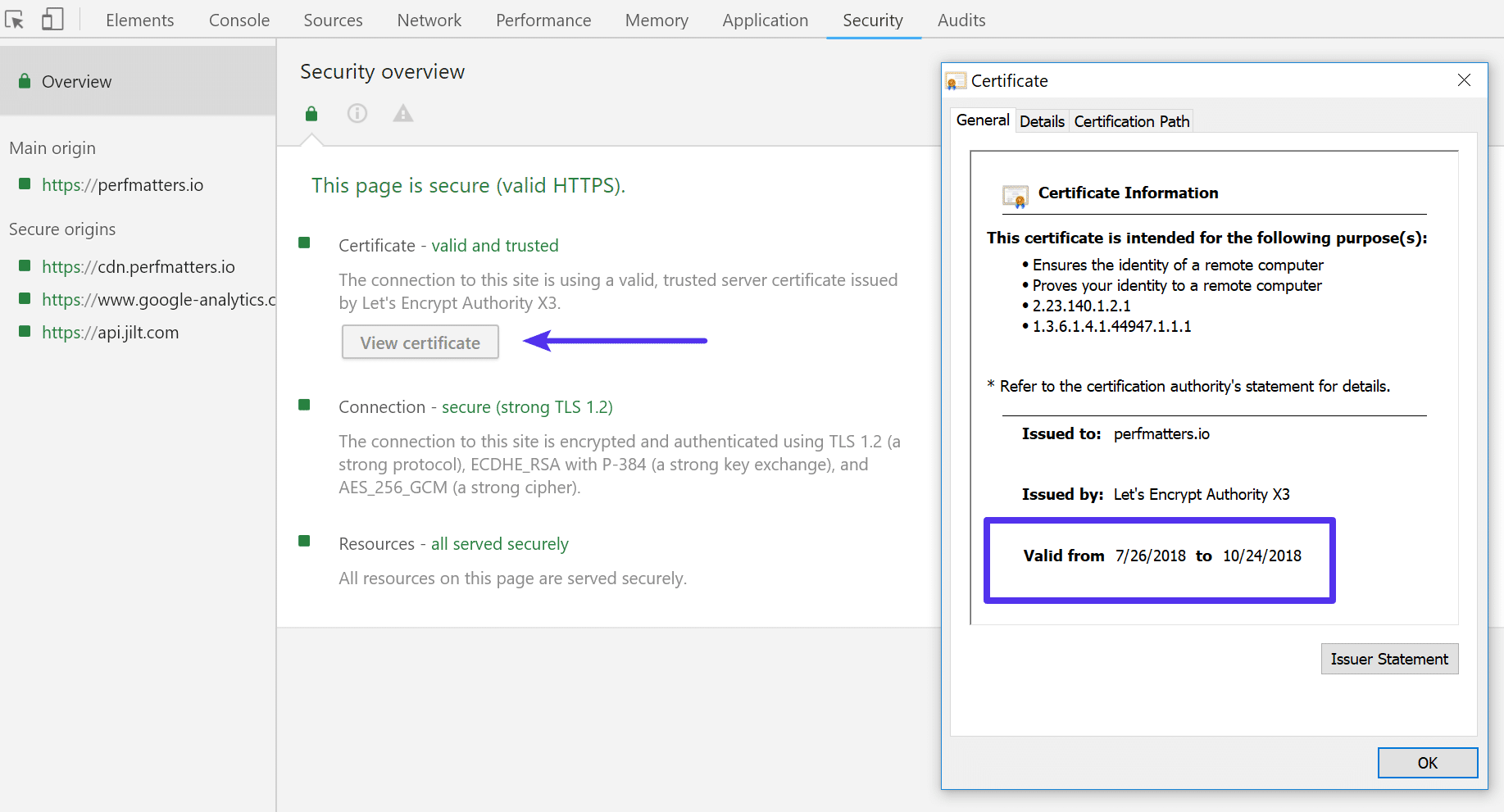
Another quick and easy way to access a site’s SSL certificate information in Chrome is to click on the padlock in the address bar. Then click on “Certificate.”
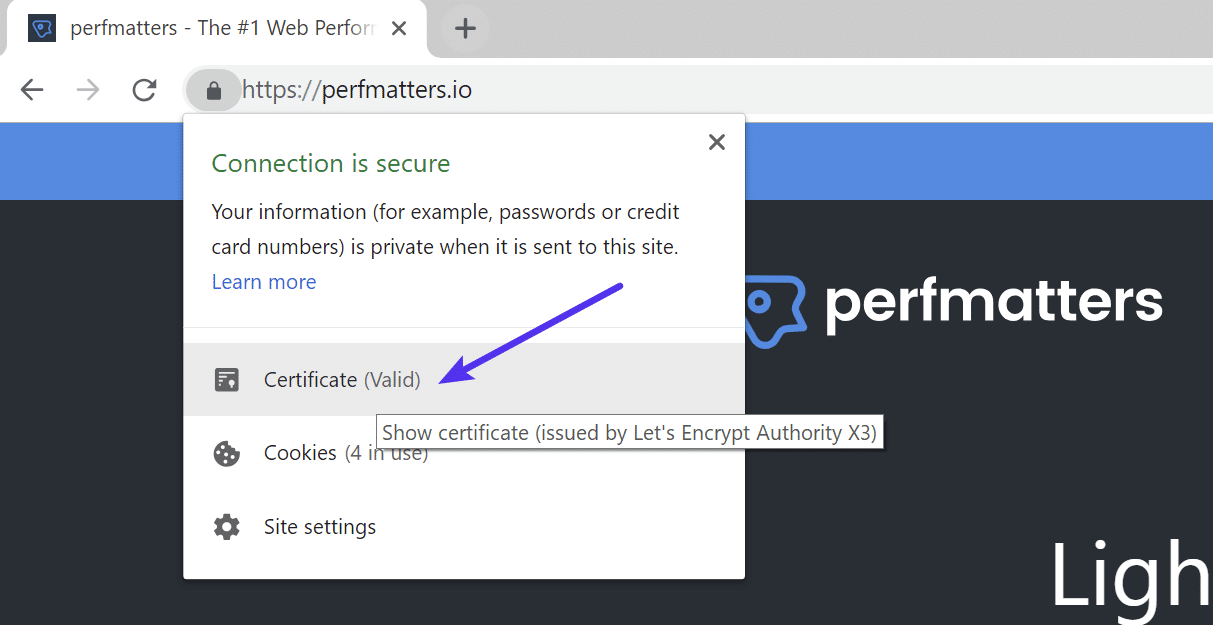
11. Check Subject Alternative Domain
Each certificate has what they call the Subject Alternative Name. This includes all the domain name variations for which the certificate is issued to and valid for. It’s important to note that https://domain.com and https://www.domain.com are treated as two separate domains (just like a subdomain).
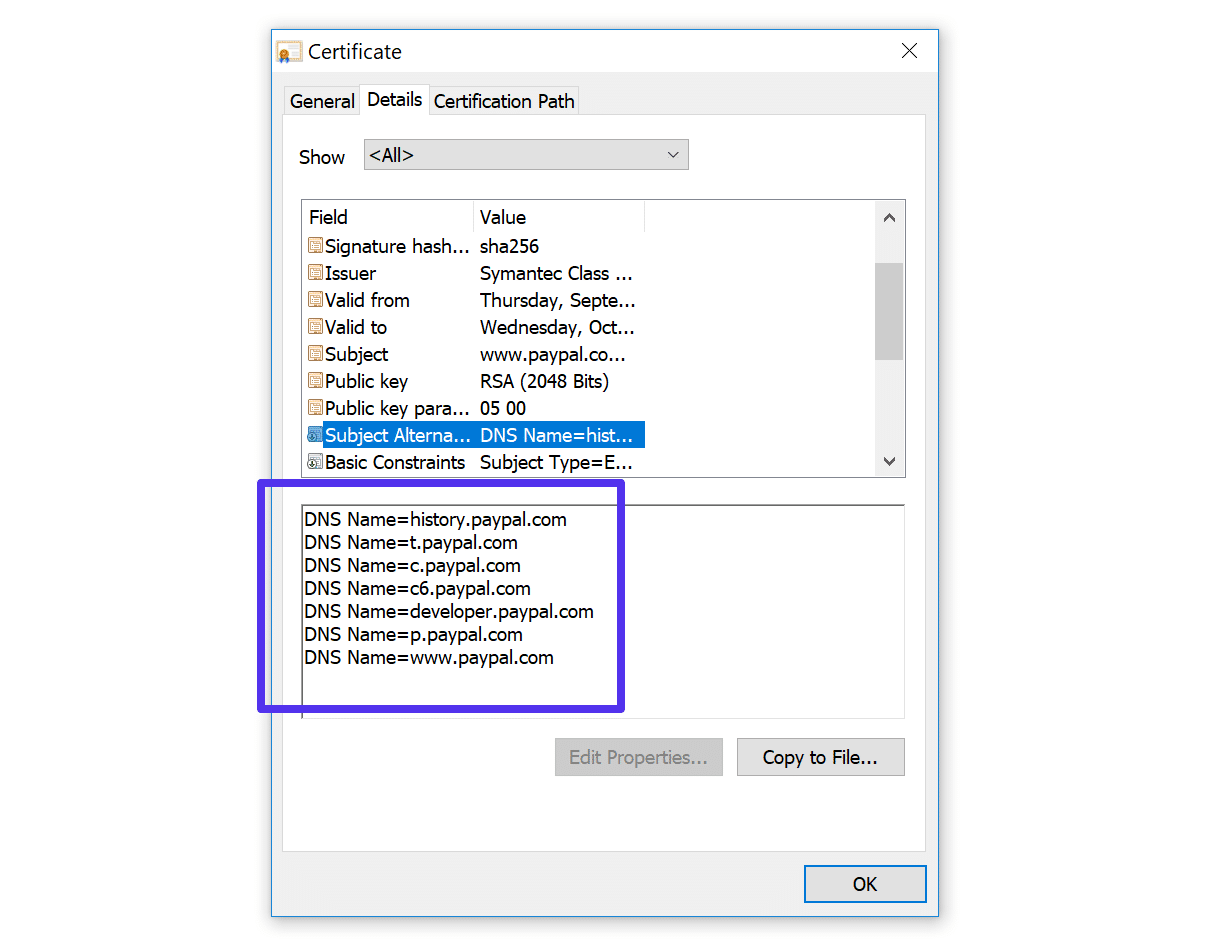
If you’re seeing an accompanying error code such as SSL_ERROR_BAD_CERT_DOMAIN, it could be that a certificate is not registered properly on both variations of the domain. This is less common nowadays as sites usually have HTTPS redirects in place. At Kinsta you can generate your free HTTPS certificate for both www and non-www.
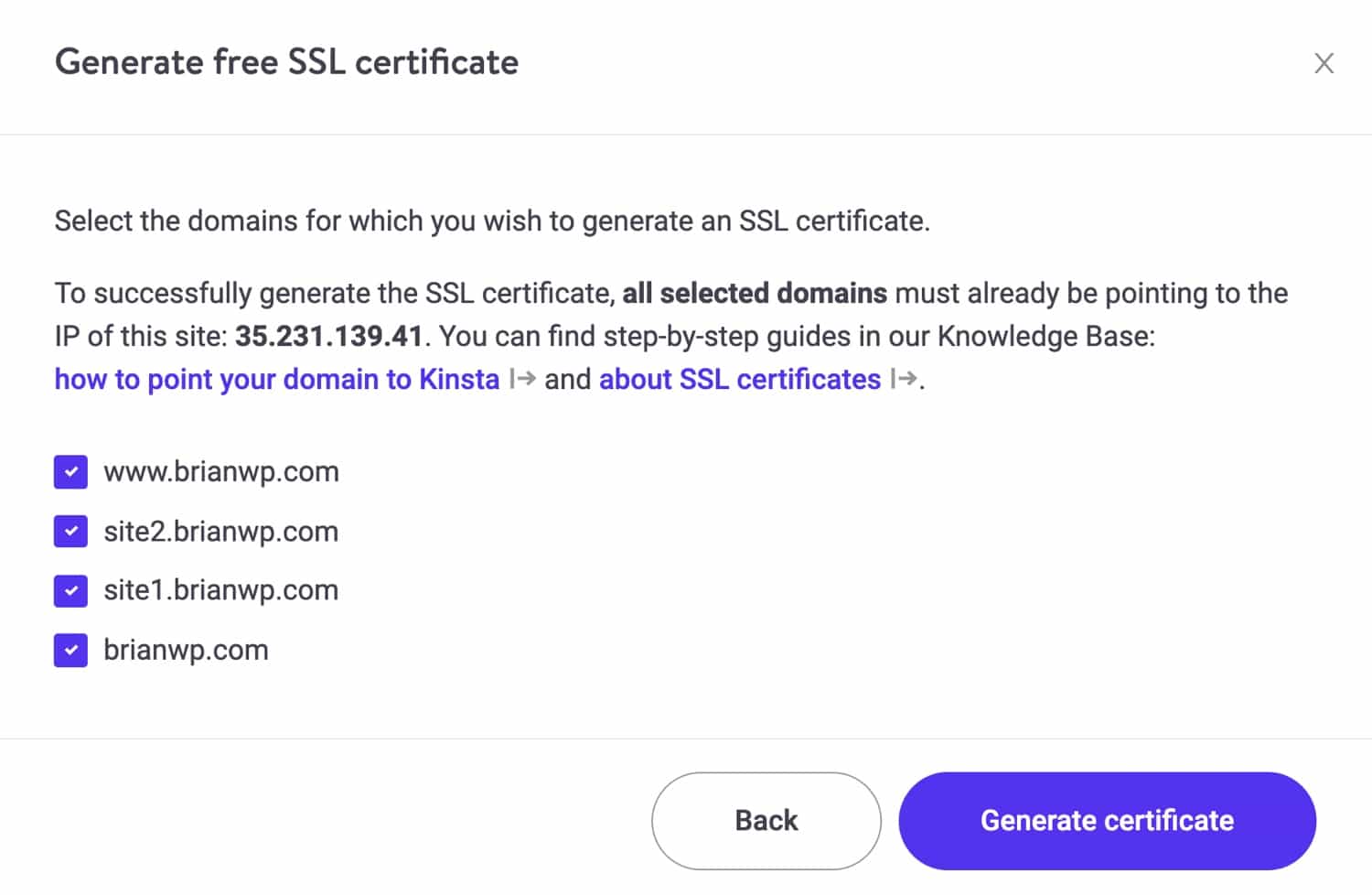
This could also happen if you just changed domain names. For example, perhaps you just acquired that shiny new .com address and moved from your old domain. If you forget to install an SSL certificate on your new domain, then a NET::ERR_CERT_COMMON_NAME_INVALID error will most likely occur.
12. Is the Certificate SHA-1?
SHA-1 is a cryptographic hash algorithm once commonly used by SSL certificates on the web. SHA-1 though has shown signs of weaknesses and therefore is no longer supported in any current browser. If a website is still using a certificate with this old algorithm the “your connection is not private” error will appear.
- Google Chrome removed support for SHA-1 in Chrome 56 (January 2017)
- Mozilla Firefox announced deprecation of SHA-1 in Firefox 51 (February 2017)
- Microsoft announced blocking SHA-1 signed TLS certificates (January 2017)
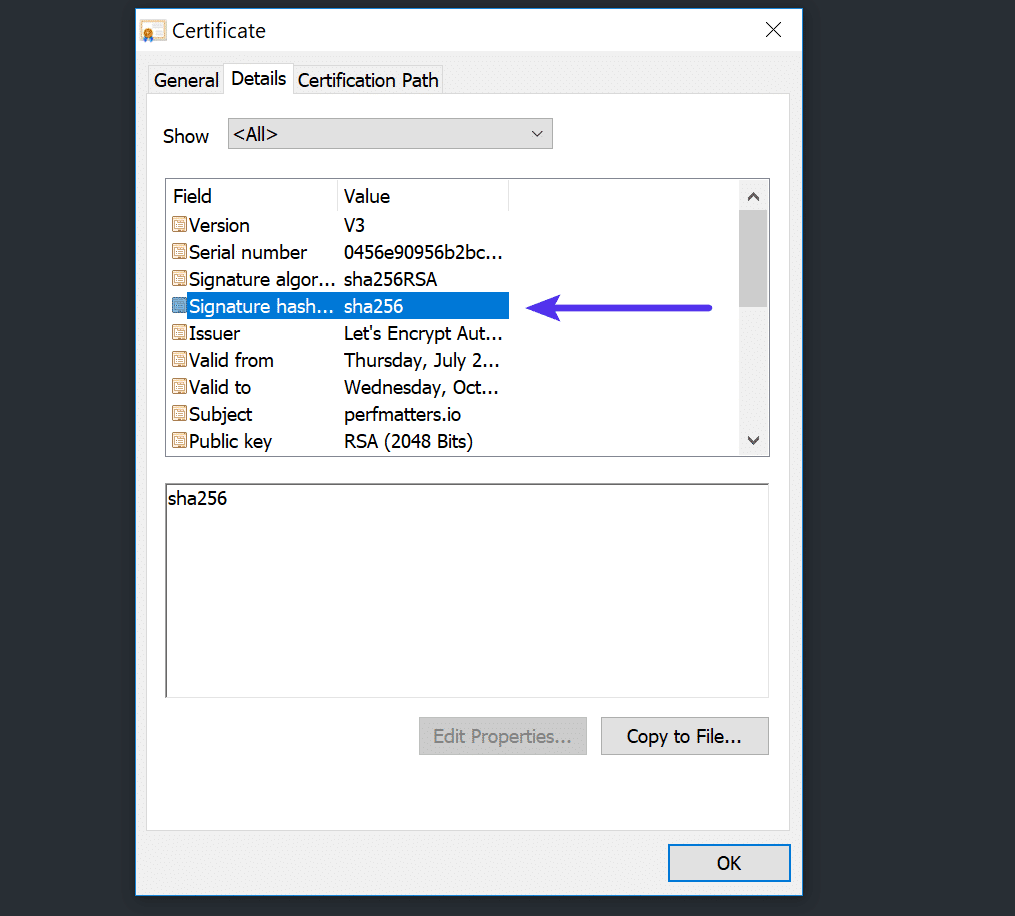
Most certificates now use SHA-256 hash algorithms. This can be found under the “Details” tab when inspecting a certificate on a website.
13. Is the Certificate Issued by Symantec?
Back in January 2017, the public was made aware of some bad practices on Symantec’s part when it comes to how they issued certificates. Essentially they didn’t comply with the industry standard CA/browser forum baseline requirements. It also turned out that they had been aware of this for some time. Because of this, browsers decided to no longer support certificates issued by Symantec. If a website is still using a certificate issued by them the “your connection is not private” error might appear.
The timeline for this is still rolling out:
- Google Chrome Symantec timeline
- Mozilla Firefox Symantec timeline
- Microsoft will most likely be following suit, although they haven’t made an official statement yet.
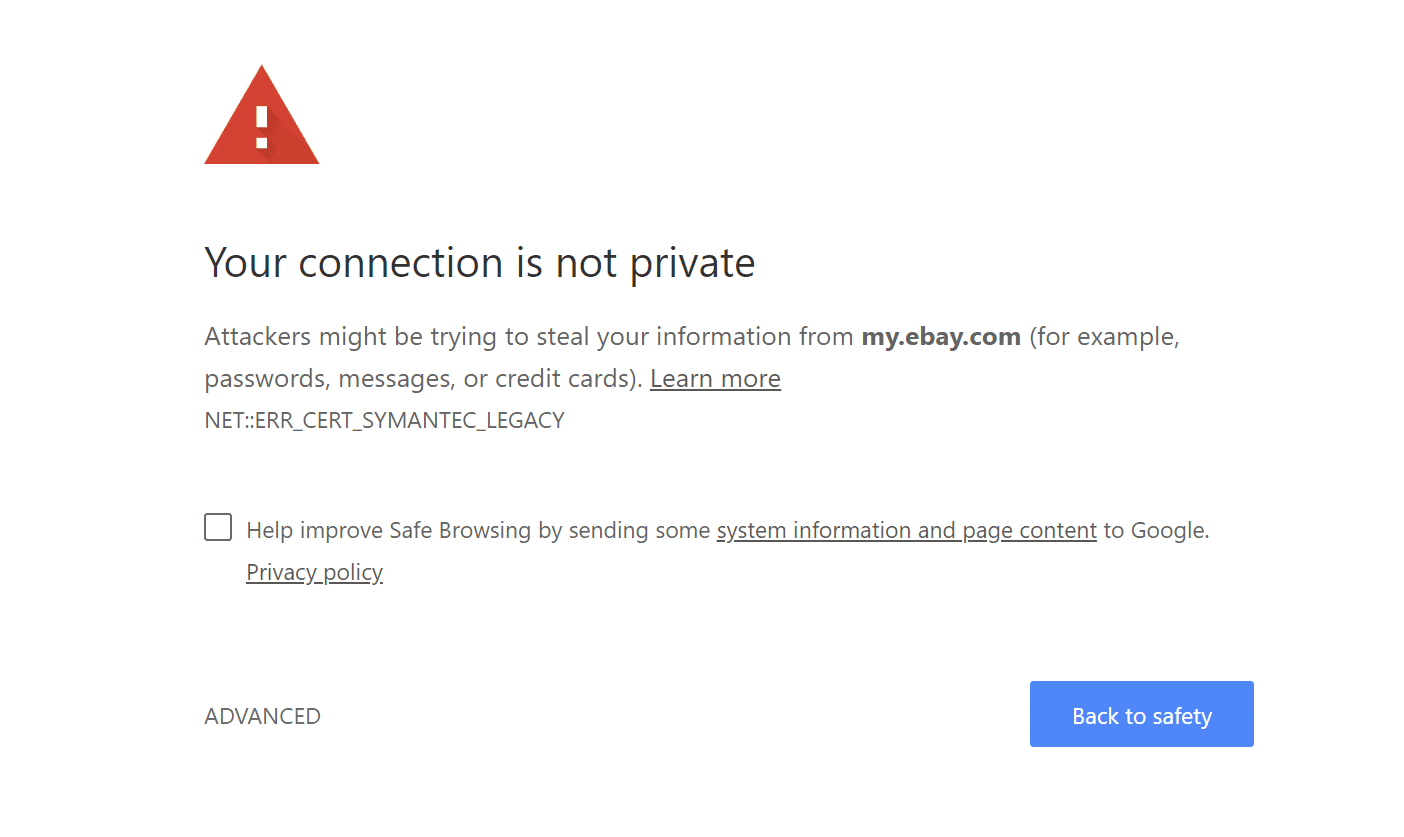
Using a Symantec certificate can result in the accompanying error code: NET::ERR_CERT_SYMANTEC_LEGACY.
14. Run an SSL Server Test
If you’re not sure if everything is set up correctly on your website or someone else’s, you can always run an SSL server test. SSL/TLS certificates require not only your main certificate but also what they call intermediate certificates (chain) to also be installed. If you don’t have these set up properly, visitors could get a warning in their browsers, which in turn might drive them away. And depending on the browser and version, you may or may not see this warning if your certificate is setup incorrectly.
We recommend using the free SSL check tool from Qualys SSL Labs. It’s very reliable and we use it for all Kinsta clients when verifying certificates. Simply head over to their SSL check tool, input your domain into the Hostname field and click on “Submit.” You can also select the option to hide public results if you prefer. The scan might take a minute or two but it will show you all the fine details regarding a site’s SSL/TLS configuration.
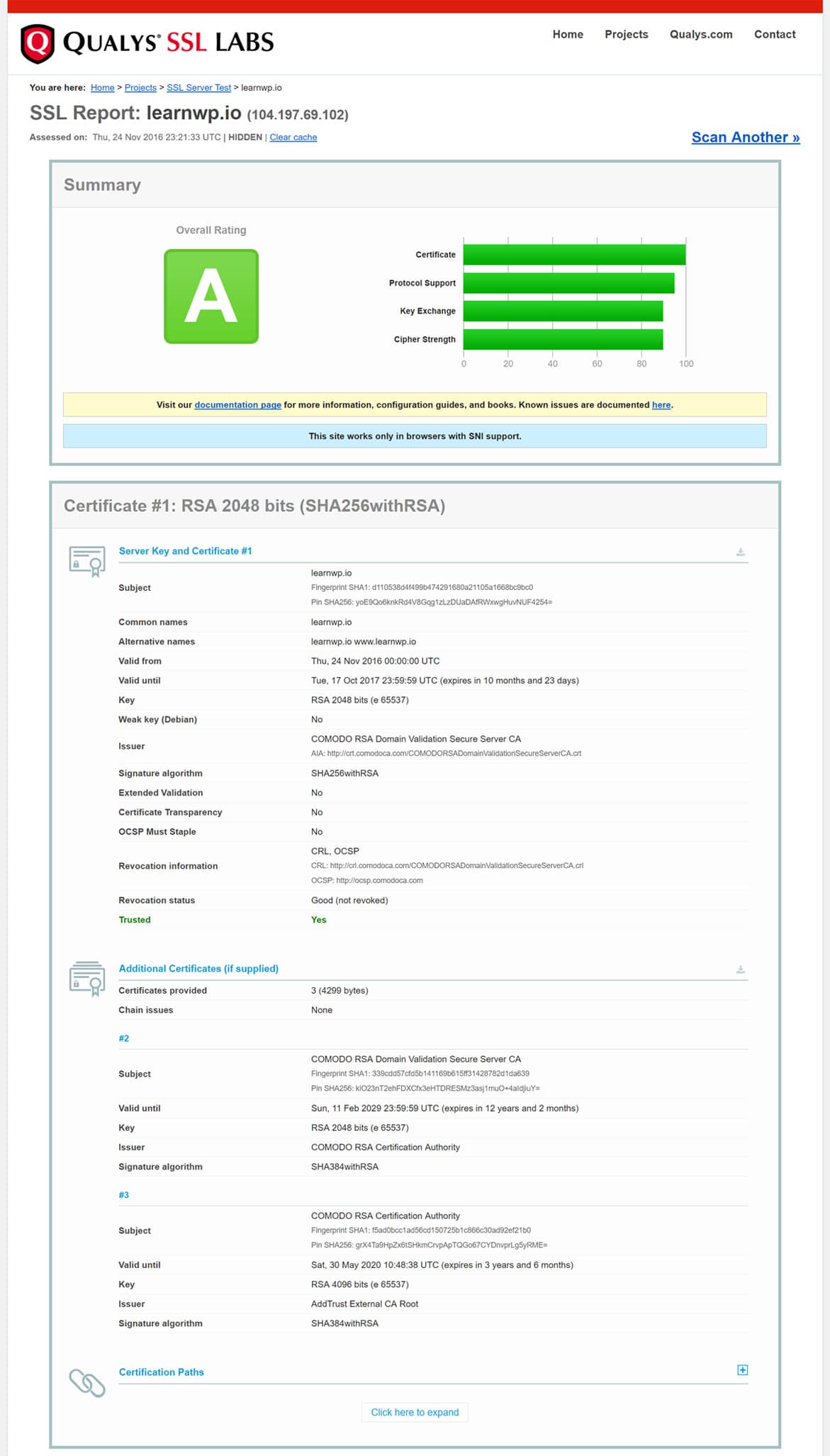
Check out our in-depth tutorial on a couple things to check for when running an SSL test.
We’ve taken our knowledge of effective website management at scale, and turned it into an ebook and video course. Click to download The Guide to Managing 60+ WordPress Sites!
15. Update Your Operating System
Older operating systems fall out of date with newer technologies such as TLS 1.3 and the latest cipher suites as browsers stop supporting them. Specific components in the latest SSL certs will simply stop working. Google Chrome, in fact, pulled the plug on Windows XP back in 2015. We always recommend upgrading to newer operating systems if possible, such as Windows 10 or the latest version of Mac OS X.
Make sure your device is up-to-date on Windows, Mac, or another operating system.
16. Restart Your Computer
We know it’s annoying, but it has to be mentioned. 😬 If none of the above options work, trying restarting your computer and even your router. We realize many of you probably have hundreds of tabs or applications open and that’s why we made this one of the last options. But rebooting devices actually clears out a lot of temporary cache and hiccups.
17. Reach out For Help
Still seeing the “your connection is not private” error? Don’t be afraid to reach out and ask for help. If you see this on your own site, feel free to open up a ticket with our Kinsta support team. We can help you determine why this might be happening and if it is indeed an issue on your website itself.
The Google Chrome Help Forums can also be especially helpful! You can guarantee there are users that have already experienced the same error or bug, and are ready to help.
18. Disable Chrome Checking SSL Certificates
You can also disable Chrome checking SSL certificates. However, we can’t stress enough, this is only meant for testing and development purposes. Don’t ever use the following options unless you know exactly what you’re doing.
Allow Invalid Certificates From localhost
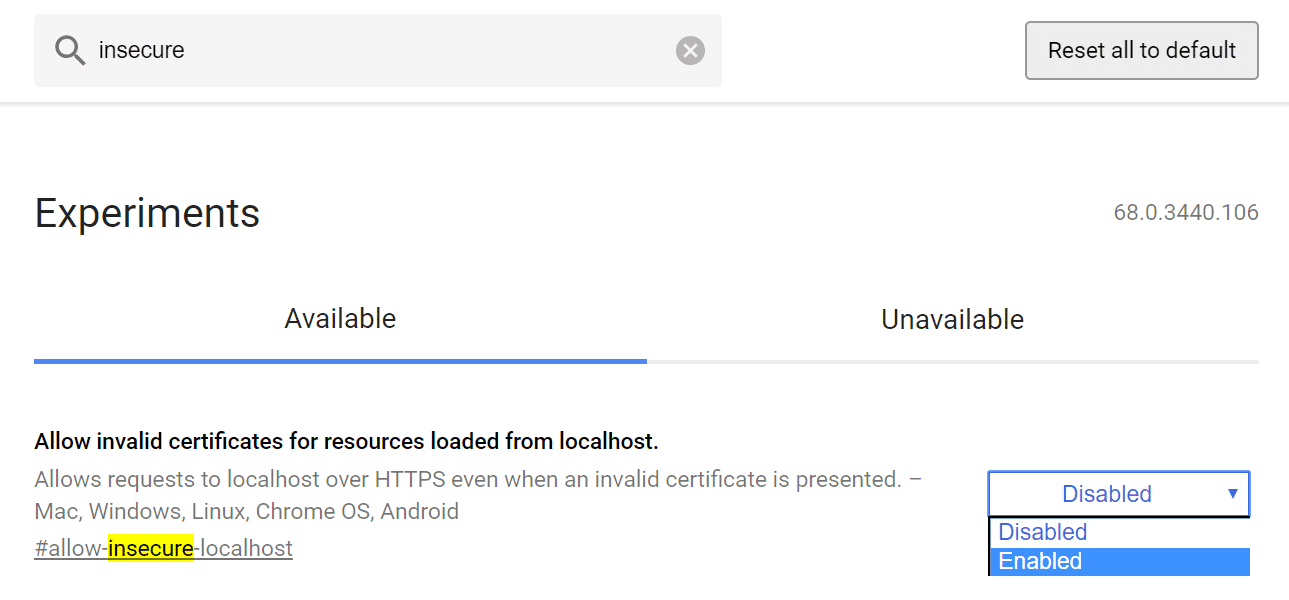
If you’re testing locally, you might be able to use the Chrome flag to simply allow insecure connections from localhost. In Chrome, browse to: chrome://flags/. Search for “insecure” and you should see the option to “Allow invalid certificates for resources loaded from localhost.” Enable that option and restart your browser.
Disable Chrome Checking All SSL Certificates
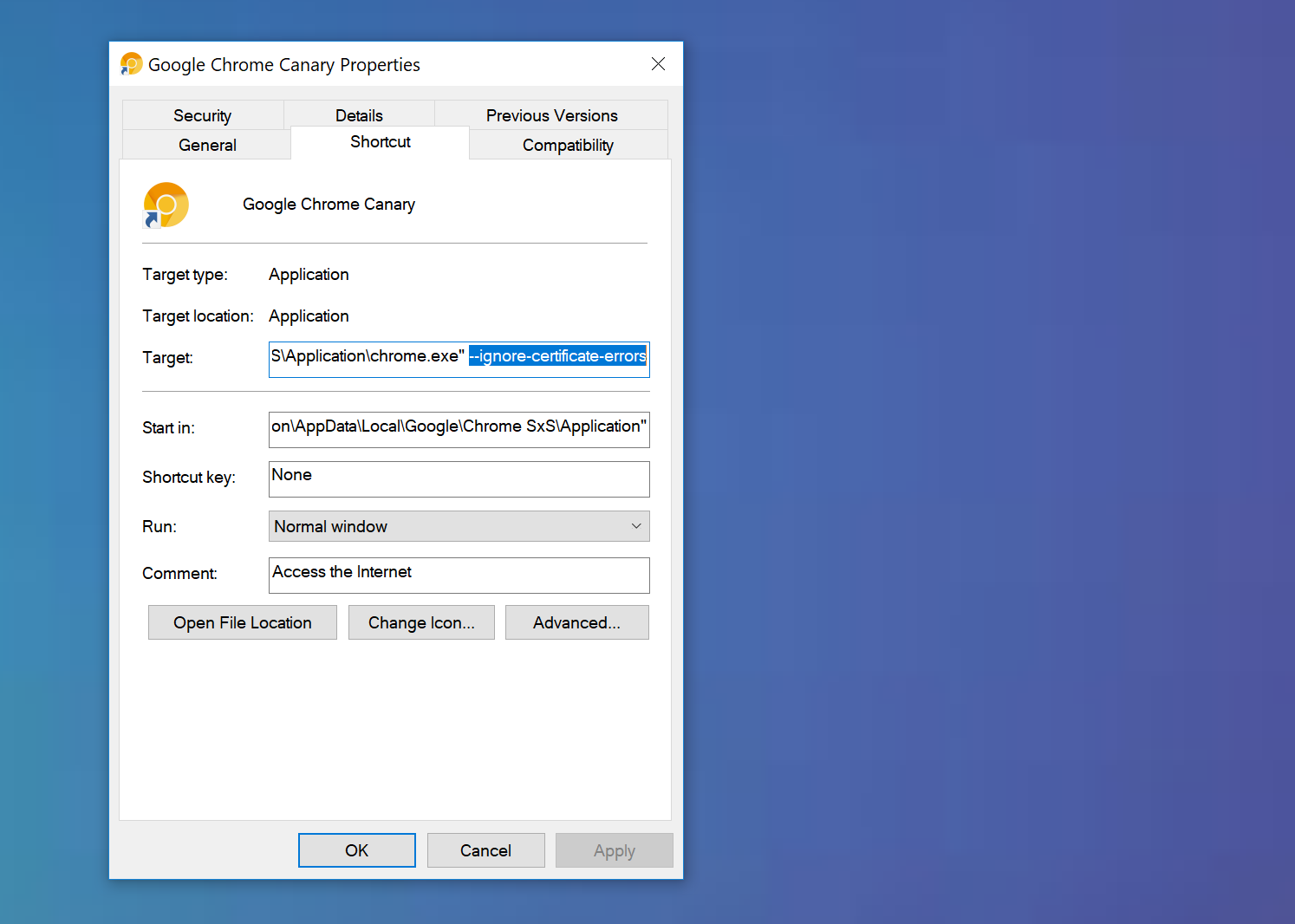
You can tell Chrome to ignore all SSL certificate errors by passing the following at the command line at launch. If you’re on Windows simply right-click into the properties of the launcher. Then add --ignore-certificate-errors in the target field. Then restart Chrome.
Summary
Browser errors are never fun and can sometimes be difficult to troubleshoot. Hopefully one of the tips above will help you resolve the “your connection is not private” error as quickly as possible. Remember, these are typically caused by something misconfigured on your own computer or with the certificate on the website itself.
Was there anything we missed? Perhaps you have another tip on troubleshooting the connection error. If so, let us know below in the comments.
Fix most connection errors
If you go to a website and get an error, try these troubleshooting steps first:
- Check the web address for typos.
- Make sure your internet connection is working normally.
- Contact the website owner.
Get help with a specific error message
«Your connection is not private,» «NET::ERR_CERT_AUTHORITY_INVALID,» «ERR_CERT_COMMON_NAME_INVALID,» «NET::ERR_CERT_WEAK_SIGNATURE_ALGORITHM,» “ERR_CERTIFICATE_TRANSPARENCY_REQUIRED,» or «SSL certificate error»
If the error mentions HSTS, privacy certificates, or invalid names, try the following steps:
Step 1: Sign in to the portal
Wi-Fi networks at places like cafes or airports need you to sign in. To see the sign-in page, visit a page that uses http://.
- Go to any website starting with
http://, like http://example.com. - On the sign-in page that opens, sign in to use the internet.
Step 2: Open the page in Incognito mode (computer only)
Open the page you were visiting in an Incognito window.
If the page opens, a Chrome extension isn’t working right. To fix the error, turn off the extension. Learn how to turn off Chrome extensions.
Step 3: Update your operating system
Make sure your device is up-to-date on Windows, Mac, or another operating system.
Step 4: Temporarily turn off your antivirus
You’ll see this error if you have antivirus software that provides «HTTPS protection» or «HTTPS scanning.» The antivirus is preventing Chrome from providing security.
To fix the problem, turn off your antivirus software. If the page works after turning off the software, turn off this software when you use secure sites.
Remember to turn your antivirus program back on when you’re done.
Step 5: Get extra help
If you still see the error, contact the website owner. You can also get more help on the Chrome Help Forum.
«Connect to network»
You’ll see this error if you’re using a Wi-Fi portal where you have to sign in before you can get online.
To fix the error, click Connect on the page you try to open.
«This webpage is not available» or «ERR_SSL_VERSION_OR_CIPHER_MISMATCH«
You’ll see this error if you try to go to a website with an outdated security code. Chrome protects your privacy by not letting you connect to these sites.
If you own this website, try to set your server to use TLS 1.2 and TLS_ECDHE_RSA_WITH_AES_128_GCM_SHA256, instead of RC4. RC4 is no longer considered secure. If you can’t turn off RC4, make sure that other non-RC4 ciphers are turned on.
“Delete Expired DigiCert Certificate” (Mac computers only)
You’ll see this error if the page uses a certificate that isn’t set up right on your computer.
To fix the error, try these tips:
- On your Mac computer, at the top right, click Spotlight search
 .
. - Enter «Keychain Access.»
- In the results, click Keychain Access.
- At the top of your computer screen, click View
 Show Expired Certificates.
 - At the top right, click Search .
- Enter «DigiCert High» and press Enter on your keyboard.
- Find «DigiCert High Assurance EV Root CA» that’s marked as Expired . Click the certificate.
- Press Delete on your keyboard.
 .
. Show Expired Certificates.
 . Click the certificate.
Did you mean [site name]?
You’ll see this message if the link you opened goes to a site with a slightly different name from one you usually visit. Chrome will ask if you want to go to the site you usually visit.
- Click the name of the site or Continue to go to the site Chrome suggests.
- Click Ignore to continue to the link you opened.
Still not working? If the tips above don’t help, your connection might be compromised. You can get more help on the Chrome Help Forum.
Was this helpful?
How can we improve it?