
- Карим
- Сообщения:54
- Зарегистрирован:23 фев 2013, 14:14
-
Благодарил (а):
0 -
Поблагодарили:
0 - Контактная информация:
Поставили принтер Zebra Tlp-2824 Plus режим калибровки запускается, но только при помощи драйвера, и никак иначе. Но потом он никак не может из него выбраться, просто мотает ленту. До упора! А бывает пишет, что нет бумаги. Но бумага установлена в соответствии со всеми правилами. Ничего не пойму.
- Иван Бердин
- Сообщения:58
- Зарегистрирован:23 фев 2013, 10:36
-
Благодарил (а):
0 -
Поблагодарили:
0 - Контактная информация:
Re: Zebra Tlp-2824 Plus пишет, что нет бумаги
Сообщение
Иван Бердин » 16 май 2013, 18:21
Посоветую вам произвести калибровку в ручном режиме. Для этого следует произвести включение принтера и при этом надо удерживать кнопку до того, как светодиод моргнет 7 раз.
- Максимиллиан
- Сообщения:59
- Зарегистрирован:11 дек 2012, 10:11
-
Благодарил (а):
0 -
Поблагодарили:
0 - Контактная информация:
Re: Zebra Tlp-2824 Plus пишет, что нет бумаги
Сообщение
Максимиллиан » 17 май 2013, 07:47
Лучше всего зайдите на сайт производителя, там можно найти все необходимые программы, а заодно новые драйвера.
- 675946
- Сообщения:54
- Зарегистрирован:22 фев 2013, 12:13
-
Благодарил (а):
0 -
Поблагодарили:
0 - Контактная информация:
Re: Zebra Tlp-2824 Plus пишет, что нет бумаги
Сообщение
675946 » 17 май 2013, 12:09
Дрова-то может и понадобятся, но я рекомендовал бы последнюю прошивочку потянуть оттуда. И поставить ее.
█ 24.11.2016 09:01
доброго времени! ошибка нет бумаги, этикетки вставлены правильно, после включения, прогоняет несколько метром и после сообщение «нет бумаги» оптопару на выходе проверил, при закрытие сигнал меняется (думаю что она исправна) что еще может быть?
█ 24.11.2016 14:02
Выбрать в настройках принтера соответствующий носитель, провести ручную калибровку
█ 25.11.2016 07:13
пробовал делать только калибровку, а где в настройках проверить носитель? и что должно стоять? при условии что будет печать без ленты
█ 25.11.2016 08:34
Для рулона с этикетками с прямой термопечатью:
Print Mode: Tear-Off
Media Type: Non-Continuous
Sensor Type: Web
Print Method: Direct Thermal
█ 29.11.2016 07:19
в нстройках все именно так, может быть проблема из-за нижнего ремня?
█ 29.11.2016 07:30
хотя, на втором принтере с такой же проблемой все ремни целые, с этой же не исправностью
█ 29.11.2016 12:58
Проверьте, чтобы верхний и нижний датчики «смотрели» друг на друга

█ 29.11.2016 12:59
Может этикетка или клей налипли на один из датчиков
█ 30.11.2016 09:17
я эти датчики поменял оба, ровно в тоже положение как они и стояли, но все равно сейчас проверю еще раз
Часовой пояс GMT +3, время: 16:46.
Форум на базе vBulletin®
Copyright © Jelsoft Enterprises Ltd.
В случае заимствования информации гипертекстовая индексируемая ссылка на Форум обязательна.
При отправке команды печати, нажатии
FEED
(ПОДАЧА) или во время печати принтеру не удается обнаружить носитель в тракте печати.

Причина: израсходование носителя/этикеток
Решение: загрузите новый носитель
Причина: на рулоне отсутствуют этикетки
В середине рулона или стопки фальцованного гармошкой носителя отсутствует этикетка.
Некоторые производители этикеток используют отсутствующую этикетку в конце носителя рулона, чтобы предупредить принтер о том, что носитель закончился. Не используйте оставшиеся этикетки. Они могут оставлять следы клея, используемого для крепления носителя к рулону.
Решение: протяните рулон дальше
-
Откройте принтер и потяните рулон до следующей этикетки с передней стороны принтера.
-
Закройте принтер. Нажмите
PAUSE
(ПАУЗА), чтобы принтер возобновил печать.
-
Если работа принтера приостановлена без подачи этикеток, нажмите
FEED
(ПОДАЧА) один или два раза.
Причина: неправильное выравнивание датчика носителя
Передвижной датчик носителя не настроен должным образом для используемого типа носителя.
Решение: отрегулируйте датчик носителя
Причина: принтер настроен для работы с носителем, состоящим из отделенных друг от друга этикеток, при загрузке сплошного носителя
Принтер настроен для работы с носителем, состоящим из отделенных друг от друга этикеток (с промежутками/интервалами или с черными метками), тогда как в него загружен сплошной носитель.
Решение: загрузите правильный тип этикеток.
Решение: выполните калибровку принтера для работы со сплошным рулонным носителем.
-
В заключение загрузите рулон носителя.
Причина: загрязнение датчика носителя
Клей, пыль и другие загрязнения препятствуют нормальной работе датчика.
Решение: выполните очистку передвижного датчика носителя
-
Выполните очистку передвижного датчика носителя. См. Очистка датчиков.
Возможно, требуется дополнительная очистка тракта прохождения носителя в принтере. Осмотрите отсек носителя на предмет других загрязненных участков в тракте прохождения носителя и на держателях рулона. См. Очистка тракта прохождения носителя.
Причина: датчик носителя не работает
Возможно, произошло повреждение данных в памяти или сбой компонентов.
Решение: обновите микропрограмму
Внутренняя поддержка принтера
Решение: сбой компонента датчика
Обратитесь к техническому специалисту по обслуживанию.
zebra 4m plus :error condition paper out
| Автор | Сообщение |
|---|---|
|
Новичок
Зарегистрирован: Пн авг 03, 2009 10:24 am |
при печати этикеток встает в ошибку (error condition paper out) то есть нет бумаги С Уважением мастер по ремонту ККМ |
| Ср янв 18, 2012 1:22 pm |
|
 |
|
|
Pirogov Новичок Зарегистрирован: Вт ноя 23, 2010 5:56 pm |
Принтер приобретался в компании «Штрих-М»? Если да, укажите пожалуйста серийный номер принтера. |
| Ср янв 18, 2012 5:36 pm |
|
|
|
|
west Новичок
Зарегистрирован: Пн авг 03, 2009 10:24 am |
config NO:Z4M00-200E-0000 |
| Чт янв 19, 2012 7:44 am |
|
|
|
|
Pirogov Новичок Зарегистрирован: Вт ноя 23, 2010 5:56 pm |
Согласно регламента мы поддерживаем только те аппараты, которые были приобретены у нас. Попробуйте сбросить настройки принтера в заводские (включение питания с зажатой клавишей feed и pause), после чего выставьте нужные настройки датчика (на отражение или просвет) в драйвере и в самом принтере |
| Чт янв 19, 2012 9:32 am |
|
| Показать сообщения за: Поле сортировки |

 zebra 4m plus :error condition paper out
by Tashreef Shareef
Tashreef Shareef is a software developer turned tech writer. He discovered his interest in technology after reading a tech magazine accidentally. Now he writes about everything tech from… read more
Updated on December 13, 2022
- The Zebra printer not working issue can occur due to several reasons.
- You can quickly fix the problem by performing an effective power cycle.
- Additionally, cancel any print jobs, and check that all cables are connected properly.
- If the issue persists, try resetting the printer to factory default, which will reset the entire experience but is to be used as a last resort.

XINSTALL BY CLICKING THE DOWNLOAD FILE
This software will repair common computer errors, protect you from file loss, malware, hardware failure and optimize your PC for maximum performance. Fix PC issues and remove viruses now in 3 easy steps:
- Download Restoro PC Repair Tool that comes with Patented Technologies (patent available here).
- Click Start Scan to find Windows issues that could be causing PC problems.
- Click Repair All to fix issues affecting your computer’s security and performance
- Restoro has been downloaded by 0 readers this month.
Zebra printers are popular for label and receipts prints. However, several users have reported the printer not working issue when trying to print labels.
Your Zebra printer may stop working due to several reasons. Some common reasons include temporary glitches, corrupted configuration, incorrect label width calibration, etc.
In this article, we show you a few quick ways to troubleshoot your Zebra printer and get it working again.
What are the common causes of the printer not working?
Your Zebra printer may stop working because of a variety of reasons which include settings, connection, and compatibility issues with your source system.
That being said, there are some other elements that you might want to check before diving deeper into this guide’s solutions:
- Check if the cables are firmly plugged into the port
- Make sure the network and power cables are directly plugged in and not through an extension cord
- No paper in the printer – some printers automatically stop any active tasks if the sensors detect that no papers is present in the paper tray. If you added more and more tasks after that moment, the printer will not work.
- No paint left in the printer – as you might expect, if the printer’s ink cartridges are empty, the printer is not able to print out anything
- Temporary glitches
- Check printer’s status – cancel and schedule some new tasks
In some other cases, the issue could be caused by a bad configuration profile, and this guide will also cover how to configure the default printing device on your PC.
Another common impediment when dealing with Zebra printers appears if the drivers are not updated to the latest version, and that’s another important topic that we will discuss below.
What can I do if my Zebra printer is not working?
- What are the common causes of the printer not working?
- What can I do if my Zebra printer is not working?
- 1. Perform a power cycle
- 2. Cancel and reassign print jobs
- 3. Set Zebra printer as default
- 4. Update printer drivers
- 5. Reset to Factory Default
- 6. Perform label width calibration
- How do I reset my Zebra printer?
- Why is the Zebra printer flashing red?
- Why is the Zebra printer offline?
1. Perform a power cycle
- Make sure the printer is powered on.
- Press the switch near the power socket in the rear.
- Disconnect all cables – including power cable, network cable, and any USB cables.
- Wait for a few minutes so every component resets.
- Turn the printer back on and check if the issue is resolved.
2. Cancel and reassign print jobs
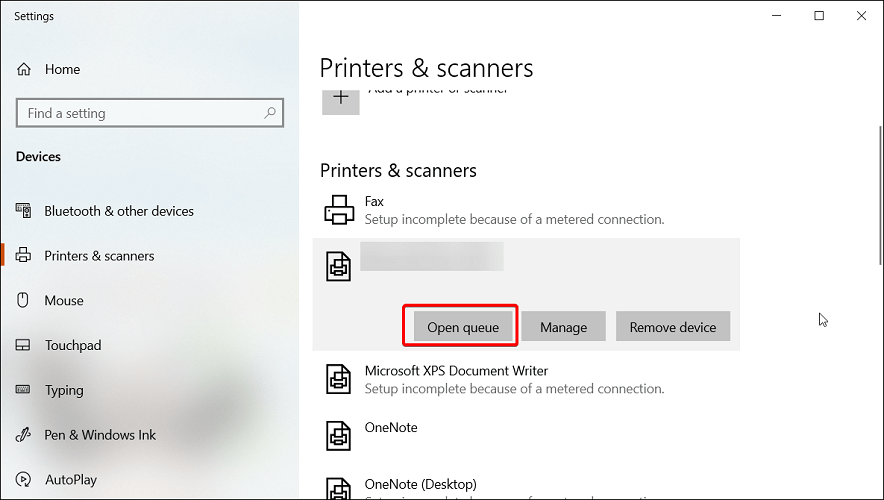
- Double-click on the printer icon in the notification area of your computer. You can also open it by searching for Printers & Scanners, selecting your printer in the list, and clicking Open Queue.
- Right-click on the print job you want to cancel and click Cancel.
In case your printer is not printing anything, try canceling all the pending print jobs. It is essential, as the more your computer attempts to print without success, the more it can affect your hardware.
Also, check your printer toner for proper printing. If the labels get stuck, try cleaning the roller from both ends. It may also mean you may have issues with the inside gears.
3. Set Zebra printer as default
- Click on Start and choose Settings.
- Go to Devices and open the Printers and Scanners tab.
- Uncheck the Let Windows manage my default printer option.

- Choose your printer from the list and click on Manage.

- Select Set as default to set this printer as your primary printing device.

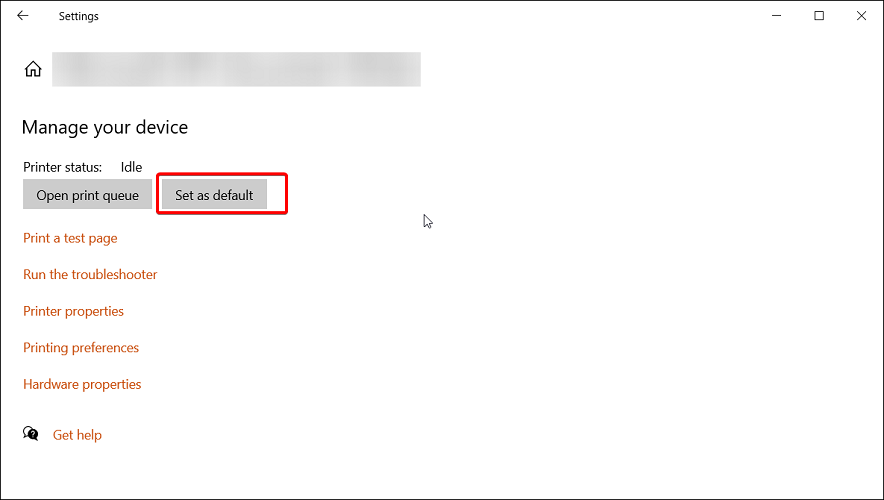
Selecting a default printer makes it easy for the programs to send print jobs to the right device. You can also do this from the Control Panel’s Devices and Printers section.
4. Update printer drivers
Outdated or missing printer drivers can cause your printing device to malfunction. For example, it may stop printing or print incorrectly. To avoid this, make sure you have the latest printer drivers installed on your computer.
Some PC issues are hard to tackle, especially when it comes to corrupted repositories or missing Windows files. If you are having troubles fixing an error, your system may be partially broken.
We recommend installing Restoro, a tool that will scan your machine and identify what the fault is.
Click here to download and start repairing.
You can manually install printer drivers or use third-party driver updater utilities like DriverFix. It scans your system for missing and outdated device drivers and installs them with one click.
Most of the time, the generic drivers for your PC’s hardware and peripherals are not properly updated by the system. There are key differences between a generic driver and a manufacturer’s driver.Searching for the right driver version for each of your hardware components can become tedious. That’s why an automated assistant can help you find and update your system with the correct drivers every time, and we strongly recommend DriverFix. Here’s how to do it:
- Download and install DriverFix.
- Launch the software.
- Wait for the detection of all your faulty drivers.
- DriverFix will now show you all the drivers that have issues, and you just need to select the ones you’d liked fixed.
- Wait for the app to download and install the newest drivers.
- Restart your PC for the changes to take effect.

DriverFix
Keep your PC components drivers working perfectly without putting your PC at risk.
Disclaimer: this program needs to be upgraded from the free version in order to perform some specific actions.
5. Reset to Factory Default
- Press and hold the single round button on the front panel of your printer.
- Keep it pressed until the indicator light starts a flash sequence.
- When the indicator light flashes four times, release the button to complete the reset.
Resetting your Zebra printer to factory default will remove all the saved configurations. However, this is an ideal solution to deal with printer configuration corruption.
After resetting your printer, you would have to perform a label width calibration. Here’s how to do it.
6. Perform label width calibration
- Press and hold the round button on the front panel.
- As it starts a flash sequence, wait for the light to flash five times and release the button.
- This will trigger the printer width calibration process, where it will print a series of widths. The width will get wider with each print on a label.
- Press the round button once you have found the correct width for your labels.
After completing width calibration, you need to perform a calibration for other properties. To do this, press and hold the round button until the light flashes twice. Then, release the button, and that should complete the set of all other calibrations.
Zebra printer not working issues usually occur due to temporary glitches or incorrect printer configuration. To resolve the issue, perform a power cycle, cancel the pending job or set the printer as default. If that does not work, check for driver issues or try to reset the device to factory default as a last resort.
How do I reset my Zebra printer?
To reset your Zebra printer, make sure it is completely turned off. Next, press and hold the Pause + Feed key and turn on the printer. Keep the buttons pressed until the Status indicator is the only indicator lit.
Once the printer is reset, you will have to recalibrate and set it up again to get it working.
Alternatively, some Zebra printers come with a dedicated Reset button. Turn your printer flat on an even surface. Use a paper clip or small needle-like object to press the Reset button.
Why is the Zebra printer flashing red?
Your Zebra printer will flash red if the print head is open. Close the top cover and then press the Feed button to resume printing.
Why is the Zebra printer offline?
Your Zebra printer may show offline if there is a delay on the network, issues with the printer spooler, print server, etc.
As you can see, there are plenty of solutions for encountering issues with your printer, and we would suggest that you try each of these solutions in order, for the best results.
Don’t hesitate to share with us which of these solutions proved efficient in your case. You can do so by using the comment section below.
