
Некоторые пользователи Windows видят ошибку 8DDD0020 всякий раз, когда пытаются загрузить обновление вручную через каталог Центра обновления Windows. Сообщается, что эта проблема возникает в Windows 7, Windows 8.1 и Windows 10.
Ошибка каталога Центра обновления Windows 8DDD0020
После тщательного изучения этой конкретной проблемы выясняется, что существует несколько различных основных причин, которые могут вызвать эту ошибку. Вот краткий список потенциальных виновников, которые могут нести ответственность за эту проблему:
- Устаревший сторонний браузер. Как оказалось, вы можете ожидать увидеть этот код ошибки, если соединение с каталогом Центра обновления Windows будет отклонено из-за устаревшей версии браузера. В этом случае вы можете решить проблему, обновив версию браузера до последней версии или придерживаясь Internet Explorer при использовании каталога Центра обновления Windows.
- Поврежденный кеш параметров обозревателя — при определенных обстоятельствах вы можете ожидать увидеть эту проблему из-за довольно распространенного сбоя ActiveX, который в конечном итоге блокирует соединение с каталогом Центра обновления Windows. В этом случае вы можете решить проблему, принудительно очистив кеш Internet Options, связанный с браузером IE.
- Сбой Internet Explorer 11. Если вы столкнулись с этой проблемой в Windows 10, скорее всего, проблема вызвана неправильно настроенным протоколом безопасности. Чтобы легко решить эту проблему (без установки восстановления), вы можете временно отключить IE11, чтобы принудительно использовать более старую версию Internet Explorer при загрузке обновлений из каталога Центра обновления Windows.
- Повреждение системного файла — при более серьезных обстоятельствах вы можете увидеть, что эта проблема возникает из-за некоторого типа повреждения системного файла, которое прерывает соединение с WUC. В этом случае вам следует пойти на ремонтную установку / чистую установку, если встроенные утилиты не могут решить проблему.
- Проблема с лицензированием. По мнению некоторых затронутых пользователей, эта ошибка также может возникать из-за несогласованности лицензирования, которую вы не можете решить самостоятельно. В этом случае вам необходимо связаться с агентом поддержки Microsoft и попросить его изучить проблему.
Теперь, когда вам известны все потенциальные ситуации, которые могут вызвать эту ошибку, вот список методов, которые другие затронутые пользователи успешно использовали, чтобы разобраться в этой проблеме:
1. Обновите браузер или используйте Internet Explorer.
Если вы видите эту ошибку только при попытке доступа к каталогу Центра обновления Windows из стороннего браузера, такого как Google Chrome или Mozilla Firefox, вам следует начать с принудительного обновления своего браузера до последней версии.
Скорее всего, вы видите ошибку 8DDD0020 из-за эксплойта безопасности, который еще не был исправлен вашим браузером, поэтому Microsoft отклоняет соединение.
Если вы уже удостоверились, что ваш сторонний браузер обновлен, но по-прежнему видите ту же ошибку, единственный вариант на этом этапе — переключиться на Internet Explorer и попытаться использовать каталог Центра обновления Windows оттуда.
Internet Explorer предустановлен по умолчанию независимо от вашей версии Windows, поэтому вам нечего устанавливать.
Чтобы открыть Internet Explorer, нажмите клавиши Windows + R, чтобы открыть окно «Выполнить». Внутри введите «iexplorer» в текстовое поле и нажмите Enter, чтобы автоматически открыть окно IE.
Откройте окно Internet Explorer
Как только вы окажетесь в окне Internet Explorer, используйте каталог Центра обновления Майкрософт в обычном режиме и проверьте, по-прежнему ли вы видите ошибку 8ddd0020 при попытке установить обновление из каталога.
Если вы все еще сталкиваетесь с той же проблемой даже при использовании Internet Explorer, перейдите к следующему потенциальному исправлению ниже.
2. Сбросьте кеш параметров Интернета в IE.
Если вы видите ошибку 8DDD0020 при использовании Internet Explorer (IE 8 или более ранней версии), скорее всего, проблема связана с ошибкой ActiveX, которая не позволяет вашему компьютеру установить безопасное соединение с каталогом Центра обновления Windows.
В этом случае исправить просто — вам нужно будет выполнить полный сброс встроенного браузера, открыв вкладку «Дополнительно» в настройках обозревателя и сбросив кеш, содержащий временные файлы ActiveX.
Несколько затронутых пользователей подтвердили, что это исправление наконец позволило им, наконец, нормально использовать каталог Центра обновления Windows.
Следуйте приведенным ниже инструкциям, чтобы сбросить кэш параметров Интернета на вкладке «Дополнительно»:
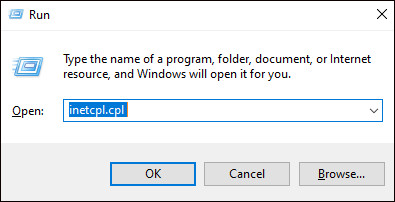
- Нажмите клавишу Windows + R, чтобы открыть окно «Выполнить». В текстовом поле введите inetcpl.cpl и нажмите Enter, чтобы открыть меню свойств Интернета. Если вам будет предложено UAC (Контроль учетных записей пользователей), нажмите Да, чтобы предоставить доступ администратора.
Открытие экрана «Свойства обозревателя»
- Как только вы окажетесь в меню «Свойства Интернета», щелкните вкладку «Дополнительно» в меню ленты вверху.
- На вкладке «Дополнительно» прокрутите вниз до параметра «Сбросить Internet Explorer» и нажмите кнопку «Сброс».
Сброс настроек IE
- При появлении запроса на подтверждение установите флажок Удалить личные настройки и нажмите «Сброс», чтобы очистить текущий кеш Internet Explorer и все временные данные, связанные с вашей учетной записью.
Сброс настроек Internet Explorer
- После успешной очистки кеша перезагрузите компьютер и посмотрите, устранена ли проблема.
3. Вернитесь из IE11 (только для Windows 10).
Если вы столкнулись с этой проблемой в Windows 10, скорее всего, проблема возникла из-за сбоя в Internet Explorer 11.
Несколько пользователей, столкнувшихся с той же проблемой, подтвердили, что им удалось решить проблему, отключив IE 11, заставив ОС вернуться к предыдущей версии Internet Explorer.
Мы выявили несколько пользовательских отчетов, в которых затронутым пользователям удалось решить эту проблему с помощью экрана «Функции Windows», чтобы предотвратить использование IE 11 при установке Windows.
Примечание. Это изменение не обязательно должно быть постоянным. Вы можете только временно отключить IE11 и поработать с Каталогом Центра обновления Windows, прежде чем вернуться к последней версии Internet Explorer.
Следуйте приведенным ниже инструкциям, чтобы временно отключить Internet Explorer 11 на экране функций Windows, чтобы получить доступ к каталогу Центра обновления Windows через браузер IE / Edge:
- Нажмите клавишу Windows + R, чтобы открыть диалоговое окно «Выполнить». Затем введите appwiz.cpl в текстовое поле и нажмите Enter, чтобы открыть экран «Программы и компоненты».
Открытие экрана «Программы и компоненты»
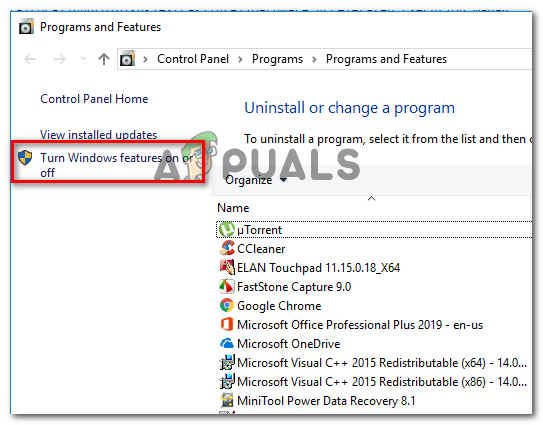
- На экране «Программы и компоненты» нажмите «Включение или отключение компонентов Windows» (в меню слева).
Отключение компонентов Windows
Примечание. Когда вам будет предложено UAC (Контроль учетных записей пользователей), нажмите Да, чтобы предоставить доступ администратора.
- На экране «Функции Windows» снимите флажок, связанный с Internet Explorer 11, и нажмите «Да» в ответ на запрос подтверждения, чтобы отключить Internet Explorer 11.
Отключить Internet Explorer 11
- После отключения Internet Explorer 11 перезагрузите компьютер и посмотрите, можете ли вы теперь загружать обновления через каталог Центра обновления Windows.
- Если исправление прошло успешно и вы смогли завершить установку ожидающего обновления через каталог Центра обновления Windows, вы можете снова включить Internet Explorer 11, перепроектировав приведенные выше инструкции.
Если этот метод не помог в вашем случае, перейдите к следующему потенциальному исправлению ниже.
4. Выполните ремонтную установку / чистую установку.
Если ни один из вышеперечисленных методов не помог вам, очень вероятно, что вы имеете дело с каким-либо типом повреждения базового системного файла, которое возникает на вашем компьютере из-за установления соединения с каталогом Центра обновления Windows.
В этом случае единственное, что вы можете сделать на этом этапе (кроме запроса специализированной помощи), — это сбросить все соответствующие компоненты ОС, связанные с вашей текущей установкой Windows.
И когда дело доходит до этого, есть два разных метода, которые позволят вам это сделать:
- Восстановительная установка — это лучший способ сбросить все соответствующие компоненты Windows, потому что он позволяет вам делать это, не касаясь каких-либо ваших личных файлов, находящихся на диске ОС. Но имейте в виду, что основным недостатком является то, что эта процедура довольно утомительна, и вам потребуется использовать совместимый установочный носитель для выполнения этой операции.
- Чистая установка — это самая простая процедура, потому что ее можно запустить непосредственно из меню графического интерфейса вашей установки Windows 10. Но имейте в виду, что если вам не удастся заранее создать резервную копию своих данных, вы можете потерять все личные данные на диске ОС (приложения, игры, личные носители, документы и т. Д.).
Если чистая установка или ремонтная установка недоступны, перейдите к следующему потенциальному исправлению ниже, чтобы узнать, как вы можете связаться с агентом Microsoft LIVE.
5. Обратитесь в службу поддержки Microsoft.
Если ни один из вышеперечисленных методов не помог в вашем случае, последний способ устранения неполадок, который вам следует изучить, — это связаться с агентом поддержки Microsoft и попросить их решить проблему за вас.
Поскольку проблема затрагивает Центр обновления Windows, вам будет назначен эксперт WU, который будет удаленно управлять вашим компьютером и выполнять ряд действий по устранению неполадок, направленных на выявление и устранение ошибки 8ddd0020 с помощью Центра обновления Windows.
Есть несколько способов связаться с агентом Microsoft, но самый быстрый и простой способ получить помощь — это позвонить по бесплатному номеру инструмента, соответствующему вашей стране проживания.
Вот официальный список бесплатных номеров службы поддержки Microsoft.
Позвонив по соответствующему бесплатному номеру службы поддержки Microsoft
Примечание. Имейте в виду, что в зависимости от региона и количества доступных агентов поддержки может пройти некоторое время, прежде чем вас назначат агенту поддержки. Скорее всего, вам зададут ряд вопросов безопасности, которые подтвердят, являетесь ли вы владельцем лицензии.
Some Windows users are seeing the error 8DDD0020 whenever they try to download an update manually via the Windows Update Catalog. This issue is reported to occur on Windows 7, Windows 8.1, and Windows 10.

After investigating this particular issue thoroughly, it turns out that there are several different underlying causes that might trigger this error. Here’s a shortlist of potential culprits that might be responsible for this issue:
- Outdated 3rd-party browser – As it turns out, you can expect to see this error code if the connection with the Windows Update Catalog gets rejected due to an outdated browser version. In this case, you can resolve the problem by updating your browser version to the latest or stick to Internet Explorer while using the Windows Update Catalog.
- Corrupted Internet Options cache – Under certain circumstances, you can expect to see this issue due to a fairly common ActiveX glitch that ends up inhibiting the connection with the Windows Update Catalog. In this case, you can get the issue resolved by force-clearing the Internet Options cache related to the IE browser.
- Internet Explorer 11 glitch – If you’re experiencing this issue on Windows 10, the issue is most likely caused by an improperly configured security protocol. To navigate around this issue easily (without repair installing), you can temporarily disable IE11 in order to force the usage of an older Internet Explorer version while downloading updates from the Windows Update Catalog.
- System file corruption – Under more serious circumstances, you can see this issue occurring because of some type of system file corruption that terminates the connection with WUC. In this case, you should go for a repair install / clean install if the built-in utilities are unable to fix the issue.
- Licensing issue – According to some affected users, it’s also possible to see this error occurring due to a licensing inconsistency that you can’t resolve by yourself. In this case, you’ll need to get in contact with a Microsoft support agent and ask them to investigate the issue.
Now that you are aware of every potential situation that might spawn this error, here’s a list of methods that other affected users have successfully used to get to the bottom of this issue:
1. Update Browser or Use Internet Explorer
If you’re only seeing this error while attempting to access the Windows Update Catalog from a 3rd party browser like Google Chrome or Mozilla Firefox, you should start by forcing your browser to update itself to the latest version.
Most likely, you’re seeing the 8DDD0020 error due to a security exploit that was not yet patched by your browser so Microsoft rejects the connection.
If you already ensured that your third-party browser is updated and you’re still seeing the same error, the only option at this point is to use switch over to Internet Explorer and attempt to use the Windows Update Catalog from there.
Internet Explorer comes pre-installed by default regardless of your Windows version, so there’s nothing to install on your part.
To open Internet Explorer, press Windows key + R to open up a Run box. Inside, type ‘iexplorer’ inside the text box and press Enter to open up an IE window automatically.

Once you’re inside the Internet Explorer window, use the Microsoft Update Catalog normally and check if you’re still seeing the 8ddd0020 error when you attempt to install an update from the catalog.
If you’re still encountering the same issue even when using Internet Explorer, move down to the next potential fix below.
2. Reset the Internet Options cache on IE
If you’re seeing the 8DDD0020 error while using Internet Explorer (IE 8 or older), chances are the issue is related to an ActiveX glitch that prevents your computer from establishing a secure connection with the Windows Update Catalog.
In this case, the fix is simple – You’ll need to do a full reset of your built-in browser by accessing the Advanced tab of Internet Options and resetting the cache containing the ActiveX temporary files.
Several affected users have confirmed that this fix finally allowed them to finally use the Windows Update Catalog normally.
Follow the instructions below to reset the Internet Options cache from the Advanced tab:
- Press Windows key + R to open up the Run prompt. Inside the text box, type ‘inetcpl.cpl’ and press Enter to open up the Internet Properties menu. If you are prompted by the UAC (User Account Control), click Yes to grant admin access.

Opening the Internet Options screen - Once you’re inside the Internet Properties menu, click on the Advanced tab from the ribbon menu at the top.
- Inside the Advanced tab, scroll down to the Reset Internet Explorer setting and click on the Reset button.

Resetting the IE options - At the confirmation prompt, check the Delete personal settings box and press on Reset to clear the current Internet Explorer cache along with any temporary data related to your account.

Resetting the Internet Explorer settings - Once the cache has been successfully cleared, restart your computer and see if the problem is now fixed.


3. Revert back from IE11 (Windows 10 Only)
If you’re encountering this issue on Windows 10, chances are the problem is occurring due to a glitch affecting Internet Explorer 11.
Several users facing the same issue have confirmed that they’ve been able to solve the issue by disabling IE 11, forcing the OS to revert back to the previous version of Internet Explorer
We’ve identified several user reports where affected users have managed to fix this problem by using the Windows Features screen to prevent your Windows installation from using IE 11.
Note: This change doesn’t need to be permanent. You can only disable IE11 temporarily and do your thing with Windows Update Catalog before reverting back to the latest Internet Explorer version.
Follow the instructions below to temporarily disable Internet Explorer 11 from the Windows features screen in order to be able to access the Windows Update catalog via your IE / Edge browser:
- Press Windows key + R to open up a Run dialog box. Next, type ‘appwiz.cpl’ inside the text box and press Enter to open up the Programs and Features screen.

Opening up the Programs and Features screen - Inside the Programs and Features screen, click on Turn Windows features on or off (from the menu on the left-hand side).

Turning Windows Features off Note: When you are prompted by the UAC (User Account Control), click Yes to grant admin access.
- Inside the Windows Features screen, uncheck the box associated with Internet Explorer 11 and click Yes at the confirmation prompt to effectively disable Internet Explorer 11.

Disable Internet Explorer 11 - Once Internet Explorer 11 has been disabled, restart your computer and see if you are now able to download updates via the Windows Update Catalog.
- If the fix was successful and you were able to complete the installation of the pending update via the Windows Update Catalog, you can go ahead and re-enable Internet Explorer 11 by reverse-engineering the instructions above.


If this method was not successful in your case, move down to the next potential fix below.
4. Perform a repair install / clean install
If none of the methods above have worked for you, it’s very likely that you’re dealing with some type of underlying system file corruption that is your machine from establishing a connection with the Windows Update Catalog.
In this case, the only thing you can do at this point (other than asking for specialized assistance) is to reset every relevant OS component that’s related to your current Windows installation.
And when it comes to doing this, there are 2 different methods that will allow you to do this:
- Repair install – This is hands-down the best way of resetting every relevant Windows component because it allows you to do this without touching any of your personal files present on the OS drive. But keep in mind that the main drawback is that this procedure is quite tedious and you’ll be required to use compatible installation media to perform this operation.
- Clean install – This is the easiest procedure because it can be initiated directly from the GUI menu of your Windows 10 installation. But keep in mind that unless you manage to back up your data in advance, expect to lose every personal data on the OS drive (applications, games, personal media, documents, etc.)
If a clean install or repair install is off the table, move down to the next potential fix below to see how you can get in contact with a Microsoft LIVE agent.
5. Contact Microsoft’s support
If none of the methods above have worked in your case, one last troubleshooting avenue that you should explore is to get in contact with a Microsoft support agent and ask them to fix the issue for you.
Since the problem affects Windows Update, you will be assigned to a WU expert that will take remote control of your machine and perform a series of troubleshooting steps aimed at identifying and resolving the 8ddd0020 error with Windows Update.
There are multiple ways of getting in contact with a Microsoft agent, but the fastest and easiest way to receive assistance is to call the free tool number that’s specific to your country of residence.
Here’s the official list of Microsoft toll-free support numbers.
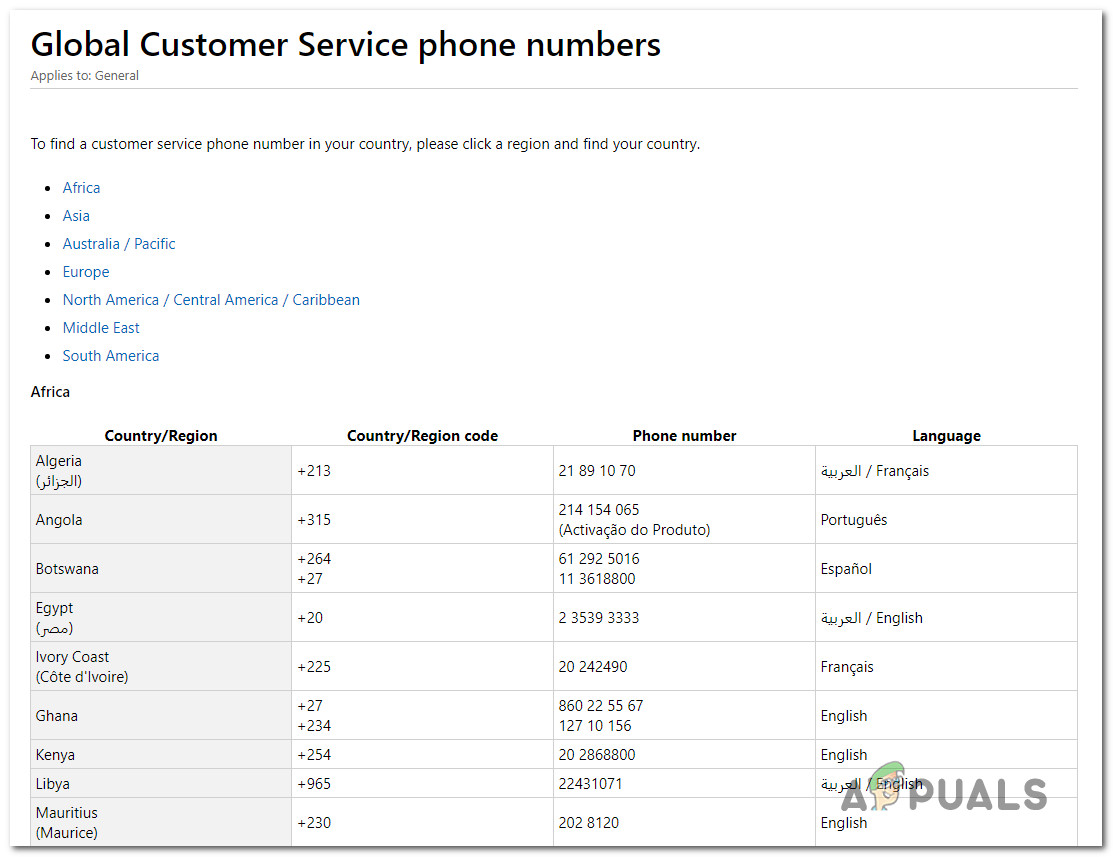
Note: Keep in mind that depending on the region and the number of support agents that are available, it might take some time until you are allocated to a support agent. Chances are you’ll be asked a number of security questions that will confirm whether you’re the owner of the license.
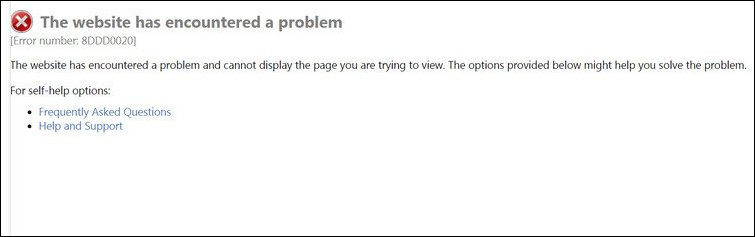
Facing Microsoft Update Catalog issue (error code 8DDD0020) on Windows?
Windows can run into errors every now and then, especially when you are installing Windows updates.
Recently, several users reported that their screens display the error code 8DDD0020 upon their attempt to install updates using Microsoft Catalog. We had a look into this issue and discovered that it can be caused due to a number of reasons including an outdated third-party browser, corrupted Internet Options cache, internet Explorer 11 glitch, and system file corruption.
If you are facing a similar issue, you are in the right place. In this guide, we will walk you through the relevant troubleshooting steps in detail.
Let’s get started!
1. Update Browser or Use Internet Explorer.
You might be experiencing this error only when you are using a 3rd party browser like Google Chrome or Mozilla Firefox. If this is the case, we recommend you make sure your browser is up-to-date, because your browser might not be currently patched for a security exploit, causing Microsoft to reject the connection.
If that does not work, then here is how you can use Internet Explorer to install the update.
- Press Windows + R keys simultaneously on your keyboard to open a Run dialogue box.
- Inside the text field of the dialogue box, type iexplorer and hit Enter. This will launch Internet Explorer on your PC.
- Now go to the Microsoft Update Catalog and see if the issue is resolved.
Hopefully, using Internet Explorer will resolve the issue.
2. Reset the Internet Options cache on IE.
There is a possibility that you are facing the issue due to ActiveX glitch which is preventing your computer from establishing a secure connection with the Windows Update Catalog when using Internet Explorer (IE 8 or older).
This can be fixed easily if you access the Advanced tab in Internet Options and reset the cache containing the ActiveX temporary files. This fix enabled several affected users to finally use the Windows Update Catalog normally.
- Press Windows + R keys simultaneously on your keyboard to open a Run dialogue box.
- Inside the text field of the dialogue box, type inetcpl.cpl and hit Enter.
- Now go to the Advanced tab and click on the Reset button.
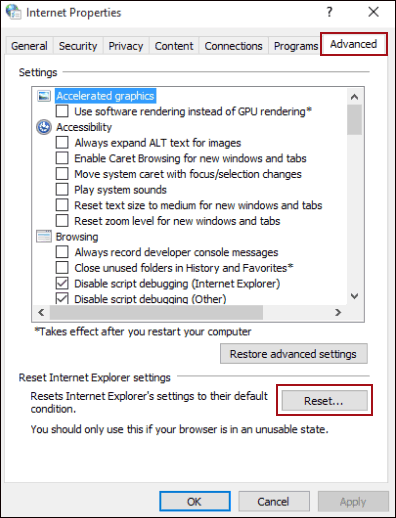
- At the confirmation prompt, checkmark the box associated with Delete personal settings and click on the Reset button.
Once the process is completed, restart your PC and check if the issue is resolved.
3. Revert back from IE11 (Windows 10 Only).
You also could be experiencing this issue due to a glitch in Internet Explorer 11 on Windows 10. Several users experiencing the same issue confirmed that using the previous version of Internet Explorer resolved the issue.
You can always go back to the current version of Internet Explorer once you manage to resolve the issue.
- Press Windows + R keys simultaneously on your keyboard to open a Run dialogue box.
- Inside the text field of the dialogue box, type appwiz.cpl and hit Enter to launch Programs and Features.
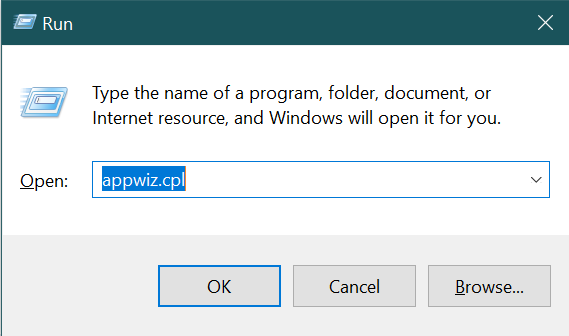
- In the newly launched window, click on Turn Windows features on or off.
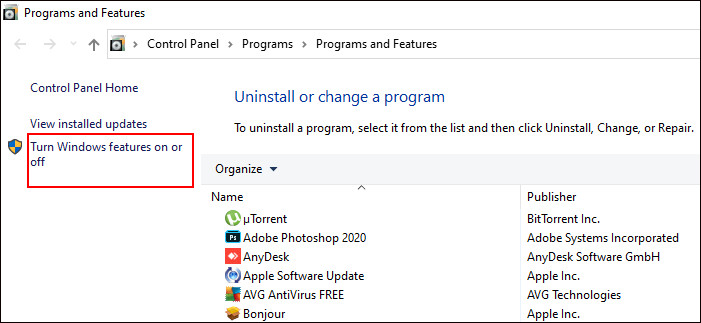
- Now uncheck the box associated with Internet Explorer 11 and hit OK to save the changes.
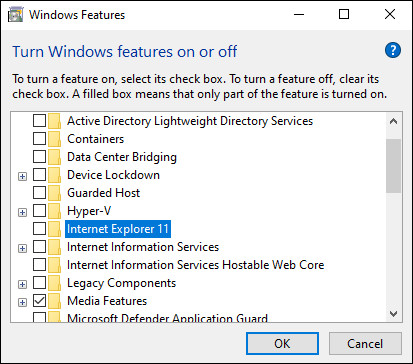
- If a confirmation prompt appears on your screen, click on Yes.
- Once done, restart your PC and check if the issue is resolved.
If doing so resolved the issue, you can re-enable Internet Explorer by following the steps mentioned above again.
4. Try Using CleanMyPC.
Are you diligent about cleaning your computer thoroughly? If you haven’t removed corrupted files in a while, now is the time, since they may cause serious damage to your system. Additionally, junk files in your PC are most likely to blame for the issue at hand.
You can get rid of these files and the problems they cause by using a good PC cleaner.
Online computer cleaners can scan for errors and automatically fix them as they appear. We tested some of the best online cleaners and found CleanMyPC to be the best.
Using CleanMyPC, you can remove all types of junk files from your computer and improve your PC’s performance. CleanMyPC is also quite easy to use. As soon as CleanMyPC runs a scan, it will find the problems within minutes and fix them without needing your input much.
Give your PC a performance boost by installing CleanMyPC!
Try CleanMyPC Now!
5. Clean Install Windows.
If none of the methods above works for you, then this means that the error under consideration cannot be resolved using the conventional troubleshooting methods.
If this scenario is applicable, then we recommend clean installing Windows.
Clean installing Windows will update to the latest version, and you’ll be able to start over without any corrupt files and errors like the one at hand.
This brings us to the end of our guide on fixing the error code 8DDD0020 on Windows. We tried walking you through all the steps in detail and hope that one of the methods mentioned in this post did the trick for you. In case you still have any confusion about the troubleshooting steps, please let us know in the comment section below!
If this guide helped you, please share it. 🙂
-

Zainab Falak is a staff writer for Saint and an expert in Microsoft Windows, having authored more than 200 posts. She has a Bachelors in Actuarial Sciences and her passion for computers extends to exploring various aspects, from UI customization to the Windows registry and exploring error codes. Twitter
LinkedIn

Join 50,000+ subscribers
Stay updated on the latest discounts, exclusive promos, and news articles from Saint.

- Remove From My Forums
-
Question
-
I cannot access the Microsoft Update Catalog website at https://www.catalog.update.microsoft.com
It loads a page with error number 8DDD0020 that looks like the screenshot below. It happens whether I go to the top-level page or follow a link directly to a specific patch.

All replies
-
Hi Bill Braskey,
This forum is for Office 365 Admin Center, as this issue is regarding to this Microsoft Update Catalog website, I suggest you get help from this website.
The reason why we recommend posting appropriately is you will get the most qualified pool of respondents, and other partners who read the forums regularly can either
share their knowledge or learn from your interaction with us. Thank you for your understanding.Besides, you can try to click on “Microsoft Update Catalog” logo to open the home page of this web site
https://www.catalog.update.microsoft.com/home.aspx, check if it works.Best Regards,
Linda Zhang
Please remember to mark the replies as answers if they help.
If you have feedback for TechNet Subscriber Support, contact
tnmff@microsoft.com-
Edited by
Wednesday, May 17, 2017 8:48 AM
-
Edited by
-
Hi Bill Braskey,
This forum is for Office 365 Admin Center, as this issue is regarding to this Microsoft Update Catalog website, I suggest you get help from this website.
The reason why we recommend posting appropriately is you will get the most qualified pool of respondents, and other partners who read the forums regularly can either
share their knowledge or learn from your interaction with us. Thank you for your understanding.Besides, you can try to click on “Microsoft Update Catalog” logo to open the home page of this web site
https://www.catalog.update.microsoft.com/home.aspx, check if it works.1. The forum is titled «Microsoft Online Services». The Microsoft Update Catalog seems like an online service to me. This was the best fit of any forum title available in the dropdown list when I posted.
2. re: «get help from this website». Did you forget to post a link? What website? Please don’t make me go to the kiddie forums where every answer begins with «use a different browser» and ends with «reinstall Windows».
3. As I already stated, all links and direct URL entries result in the same thing. Sometimes it looks like there is a page with content that shows up for a microsecond, then the page redirects to the error page I posted above.
|
0 / 0 / 0 Регистрация: 26.05.2009 Сообщений: 32 |
|
|
1 |
|
|
06.06.2009, 20:25. Показов 27460. Ответов 4
«»»»»»»»»[Код ошибки: 0x80248007] Если при загрузке обновлений или проверке наличия обновлений Центр обновления Windows выдает сообщение об ошибке 80246007, может потребоваться изменение настроек или перезапуск фоновой интеллектуальной службы передачи (BITS). Данная служба позволяет Центру обновления Windows загружать обновления на ваш компьютер. подскажите как исправить эту ошибку чтоб можно было обновляться. см фото битс включен. [ битая ссылка] и фото ошибки
0 |

|
1915 / 1065 / 384 Регистрация: 06.12.2008 Сообщений: 2,802 |
|
|
06.06.2009, 21:01 |
2 |
|
0 |
|
2 / 2 / 0 Регистрация: 04.10.2010 Сообщений: 24 |
|
|
14.02.2011, 12:11 |
3 |
|
[Код ошибки: 0x8DDD0003] Если вы убеждены, что получили это сообщение по ошибке, обратитесь к системному администратору.
0 |
|
377 / 357 / 23 Регистрация: 14.12.2010 Сообщений: 1,265 |
|
|
14.02.2011, 13:01 |
4 |
|
в реестре: HKEY_CURRENT_USERSoftwareMicrosoftWindowsCurrentVersion HKEY_CURRENT_USERSoftwareMicrosoftWindowsCurrentVersion Отлогинься, войди заново, должно все работать
1 |
|
2 / 2 / 0 Регистрация: 04.10.2010 Сообщений: 24 |
|
|
17.02.2011, 13:27 |
5 |
|
[Код ошибки: 0x80072EFF] Удолил——-HKEY_CURRENT_USERSoftwareMicrosoftWindowsCurrentVersion Добавлено через 7 минут
0 |
Вопрос 1: Что означает «Код завершения проверки файловой системы 8»?
Ответ 2: Ошибка «Код завершения проверки файловой системы 8» может быть обнаружена как на внутренних, так и на внешних жестких дисках. Что касается возможных причин кода ошибки Дисковой утилиты 8, вы можете обратить внимание на вирусную атаку, устаревшие драйверы, внезапное отключение питания, повреждение файла каталога, неверный заголовок тома, неправильную настройку параметров системы и многое другое.
Теперь вы можете принять следующие меры, чтобы вручную исправить ошибку «Код проверки файловой системы 8». Это проверенные способы вернуть ваш Mac в нормальное состояние.
6 способов исправить ошибку «File System Check Exit Code is 8» в macOS
Мы предлагаем вам 6 способов исправить ошибку «File System Check Exit Code is 8», и вы можете выполнить действия, чтобы решить эту проблему. Пожалуйста, прочитайте и проверьте.
Следующие способы могут привести к потере данных. Если вы обнаружите, что некоторые из ваших файлов удалены или потеряны после исправления этой ошибки, вы можете перейти к Восстановить удаленные файлы с поврежденного диска после исправления ошибки «Проверка файловой системы: код выхода 8» чтобы найти способ восстановить ваши удаленные файлы.
Способ 1: перезагрузите Mac, чтобы исправить мелкие глюки и ошибки
Это универсальное решение для всех цифровых устройств. После перезапуска Mac предыдущие временные файлы, настройки, кэши и другие параметры будут сброшены в новое состояние. Хочешь верь, хочешь нет. Многие проблемы Mac могут быть решены путем перезагрузки. Вы можете выбрать «Перезагрузить…» из раскрывающегося списка «Apple» в верхнем левом углу экрана.

Способ 2: загрузите Mac в безопасном режиме, чтобы проверить свои диски
Когда вы перезагружаете ваш компьютер Mac, вам нужно долго нажимать клавишу «Shift» на клавиатуре, чтобы загрузиться в безопасном режиме. Ну, вы также можете назвать это «Безопасной загрузкой». Введите пароль экрана блокировки, если вам нужно. Подождите некоторое время, чтобы проверить все диски Mac. Когда процесс завершится, вы можете перезагрузить Mac и проверить, исправлена ли ошибка «Код завершения проверки файловой системы 8» или нет.

Способ 3: запустить первую помощь, чтобы исправить ошибку выхода из утилиты диска 8
Шаг 1. Перезагрузите Mac. Удерживайте и нажимайте клавиши «Command» и «R», пока не появится логотип Apple.
Шаг 2. Выберите «Дисковая утилита» в меню утилит macOS.
Шаг 4. Нажмите «Первая помощь» вверху. Затем выберите «Готово», когда процесс закончится.
Шаг 5. Перезагрузите Mac, чтобы исправить ошибку кода завершения файловой системы 8.

Способ 4. Обновите системы и приложения Mac до последних версий.
Шаг 1. Разверните меню Apple. Выберите «App Store» из своего списка.
Шаг 2. Нажмите «Обновления» на верхней панели.
Шаг 3. Проверьте все доступные обновления. Вы можете обновить iTunes и другие важные программы в первую очередь.
Шаг 4. Установите все обновления, чтобы исправить ошибку «Проверка выхода из файловой системы 8» на Mac.

Способ 5: запустить команду FSCK для восстановления «Ошибка выхода из файловой системы с кодом выхода 8»
Шаг 1. Выключите Mac полностью.
Шаг 2. Включите Mac. Нажмите клавиши «Command» и «S» вместе, чтобы услышать звук загрузки.
Шаг 5. Если отображается сообщение «Громкость ** в порядке», вы можете ввести «перезагрузка», чтобы выйти из однопользовательского режима.
Шаг 6. Ошибка «Код завершения проверки файловой системы 8» должна быть устранена после перезагрузки.

Способ 6: переустановите macOS, чтобы избавиться от поврежденных или поврежденных системных файлов
Шаг 1. Сначала проверьте состояние интернета. Позже перезагрузите Mac.
Шаг 2. Нажмите клавиши «Command» и «R», когда вы видите серый экран во время перезагрузки.
Шаг 3. Выберите «Переустановить macOS» в диалоговом окне «Утилиты macOS».
Шаг 4. Следуйте инструкциям на экране, чтобы переустановить Mac.

Нетрудно решить ошибку «Код завершения проверки файловой системы 8» на Mac. Но вы должны быть осторожны с вашими данными после исправления этой ошибки. Многие пользователи говорят, что некоторые из их файлов были удалены или потеряны после исправления этой ошибки. Если вы не можете найти свои файлы с поврежденного диска, вы также можете использовать инструмент, который поможет вам восстановить удаленные файлы.
Aiseesoft Data Recovery может помочь вам восстановить почти все файлы Mac из-за удаления, отформатированного раздела, проблем с жестким диском и многого другого. На самом деле, ваши удаленные или потерянные файлы все еще существуют в исходном пространстве. Программное обеспечение для восстановления данных Mac может снова сделать эти скрытые файлы видимыми. Таким образом, вы можете восстановить удаленные или потерянные данные с поврежденного диска с помощью «Код завершения проверки файловой системы 8».

Действия по восстановлению удаленных файлов с поврежденного диска с помощью Aiseesoft Data Recovery


Советы по защите Mac от ошибки «File System Check Exit Code is 8»
Установите антивирусное программное обеспечение для защиты Mac от вредоносных программ и вирусных инфекций.
Проверьте, достаточно ли мощности вашего Mac. Кроме того, вам нужно выключить Mac с помощью рекомендуемых способов.
Когда вы освободить дисковое пространство на MacПроверьте, являются ли эти большие и бесполезные файлы важными системными файлами или нет.
Плохие сектора могут также привести к ошибке «Проверка выхода из файловой системы 8». Так что вам лучше регулярно проверять и ремонтировать неисправные сектора.
Извлеките диск перед извлечением его из Mac.
Регулярно создавайте резервные копии файлов Mac. Если вы найдете что-то удаленное или потерянное, вам следует запустить Aiseesoft Data Recovery для восстановить удаленные файлы с Mac как можно быстрее.
Надеемся, что вы можете исправить ошибку «Проверка выхода из файловой системы 8» с помощью вышеуказанных 6 способов. Если некоторые из ваших файлов будут удалены или потеряны, Data Recovery поможет вам восстановить удаленные файлы с поврежденного диска. Таким образом, вы можете преодолеть проблемы потери данных. Если с вашим Mac все еще что-то не так, вы можете связаться с нами.
Что вы думаете об этом посте.
Рейтинг: 4.8 / 5 (на основе голосов 112) Подпишитесь на нас в
Как получить доступ и освободить место на Mac? На этой странице вы можете узнать, как очистить дисковое пространство на Mac.
Как восстановить удаленные фотографии на Mac? Учебник объясняет, как восстановить удаленные фотографии на Mac полезными способами.
Как почистить свой Mac? Эта статья предлагает несколько полезных советов, которые позволят вам с легкостью очистить ваш Mac.
Восстановление данных

[Error Number: 8DDD0020] Проблема с каталогом Центра обновления Майкрософт решена
Некоторые пользователи Windows видят ошибку 8DDD0020 всякий раз, когда пытаются загрузить обновление вручную через каталог Центра обновления Windows. Сообщается, что эта проблема возникает в Windows 7, Windows 8.1 и Windows 10.

После тщательного изучения этой конкретной проблемы выясняется, что существует несколько различных основных причин, которые могут вызвать эту ошибку. Вот краткий список потенциальных виновников, которые могут нести ответственность за эту проблему:
Теперь, когда вам известны все потенциальные ситуации, которые могут вызвать эту ошибку, вот список методов, которые другие затронутые пользователи успешно использовали, чтобы разобраться в этой проблеме:
1. Обновите браузер или используйте Internet Explorer.
Если вы видите эту ошибку только при попытке доступа к каталогу Центра обновления Windows из стороннего браузера, такого как Google Chrome или Mozilla Firefox, вам следует начать с принудительного обновления своего браузера до последней версии.
Скорее всего, вы видите ошибку 8DDD0020 из-за эксплойта безопасности, который еще не был исправлен вашим браузером, поэтому Microsoft отклоняет соединение.
Если вы уже удостоверились, что ваш сторонний браузер обновлен, но по-прежнему видите ту же ошибку, единственный вариант на этом этапе – переключиться на Internet Explorer и попытаться использовать каталог Центра обновления Windows оттуда.
Internet Explorer предустановлен по умолчанию независимо от вашей версии Windows, поэтому вам нечего устанавливать.
Чтобы открыть Internet Explorer, нажмите клавиши Windows + R, чтобы открыть окно «Выполнить». Внутри введите «iexplorer» в текстовое поле и нажмите Enter, чтобы автоматически открыть окно IE.

Как только вы окажетесь в окне Internet Explorer, используйте каталог Центра обновления Майкрософт в обычном режиме и проверьте, по-прежнему ли вы видите ошибку 8ddd0020 при попытке установить обновление из каталога.
Если вы все еще сталкиваетесь с той же проблемой даже при использовании Internet Explorer, перейдите к следующему потенциальному исправлению ниже.
2. Сбросьте кеш параметров Интернета в IE.
Если вы видите ошибку 8DDD0020 при использовании Internet Explorer (IE 8 или более ранней версии), скорее всего, проблема связана с ошибкой ActiveX, которая не позволяет вашему компьютеру установить безопасное соединение с каталогом Центра обновления Windows.
В этом случае исправить просто – вам нужно будет выполнить полный сброс встроенного браузера, открыв вкладку «Дополнительно» в настройках обозревателя и сбросив кеш, содержащий временные файлы ActiveX.
Несколько затронутых пользователей подтвердили, что это исправление наконец позволило им, наконец, нормально использовать каталог Центра обновления Windows.
Следуйте приведенным ниже инструкциям, чтобы сбросить кэш параметров Интернета на вкладке «Дополнительно»:
3. Вернитесь из IE11 (только для Windows 10).
Если вы столкнулись с этой проблемой в Windows 10, скорее всего, проблема возникла из-за сбоя в Internet Explorer 11.
Несколько пользователей, столкнувшихся с той же проблемой, подтвердили, что им удалось решить проблему, отключив IE 11, заставив ОС вернуться к предыдущей версии Internet Explorer.
Мы выявили несколько пользовательских отчетов, в которых затронутым пользователям удалось решить эту проблему с помощью экрана «Функции Windows», чтобы предотвратить использование IE 11 при установке Windows.
Примечание. Это изменение не обязательно должно быть постоянным. Вы можете только временно отключить IE11 и поработать с Каталогом Центра обновления Windows, прежде чем вернуться к последней версии Internet Explorer.
Следуйте приведенным ниже инструкциям, чтобы временно отключить Internet Explorer 11 на экране функций Windows, чтобы получить доступ к каталогу Центра обновления Windows через браузер IE / Edge:
Примечание. Когда вам будет предложено UAC (Контроль учетных записей пользователей), нажмите Да, чтобы предоставить доступ администратора.
Если этот метод не помог в вашем случае, перейдите к следующему потенциальному исправлению ниже.
4. Выполните ремонтную установку / чистую установку.
Если ни один из вышеперечисленных методов не помог вам, очень вероятно, что вы имеете дело с каким-либо типом повреждения базового системного файла, которое возникает на вашем компьютере из-за установления соединения с каталогом Центра обновления Windows.
В этом случае единственное, что вы можете сделать на этом этапе (кроме запроса специализированной помощи), – это сбросить все соответствующие компоненты ОС, связанные с вашей текущей установкой Windows.
И когда дело доходит до этого, есть два разных метода, которые позволят вам это сделать:
Если чистая установка или ремонтная установка недоступны, перейдите к следующему потенциальному исправлению ниже, чтобы узнать, как вы можете связаться с агентом Microsoft LIVE.
5. Обратитесь в службу поддержки Microsoft.
Если ни один из вышеперечисленных методов не помог в вашем случае, последний способ устранения неполадок, который вам следует изучить, – это связаться с агентом поддержки Microsoft и попросить их решить проблему за вас.
Поскольку проблема затрагивает Центр обновления Windows, вам будет назначен эксперт WU, который будет удаленно управлять вашим компьютером и выполнять ряд действий по устранению неполадок, направленных на выявление и устранение ошибки 8ddd0020 с помощью Центра обновления Windows.
Есть несколько способов связаться с агентом Microsoft, но самый быстрый и простой способ получить помощь – это позвонить по бесплатному номеру инструмента, соответствующему вашей стране проживания.

Примечание. Имейте в виду, что в зависимости от региона и количества доступных агентов поддержки может пройти некоторое время, прежде чем вас назначат агенту поддержки. Скорее всего, вам зададут ряд вопросов безопасности, которые подтвердят, являетесь ли вы владельцем лицензии.
Источники:
https://ru. aiseesoft. com/solution/file-system-check-exit-code-8.html
https://ddok. ru/error-number-8ddd0020-problema-s-katalogom-centra-obnovleniya-majkrosoft-reshena/
Добрый вечер!
Ребят, помогите советом, пожалуйста.
Вчера вырубил комп и пошел к другу. У него узнал про новый вирус, и увидел, что бывает при заражении.
(у него заразился комп).
Свой ПК пока не включал, но скорее всего он заразился.
Стоит Вин ХР.
Что делать сейчас?
Задача — не потерять файлы, потому что большой архив фотографий всей моей семьи…(
Вариант:
Загрузиться с ЛайвСД и скопировать все файлы на внешний HDD. Потом внешний винт подцепить к 100% чистому ноуту и пройтись по нему антивирусом со свежими базами.
Исходный комп форматнуть и поставить начисто систему с вышедшей сегодня заплаткой. Вернуть файлы с внешего жд на комп.
Или есть варианты побезопаснее?
Что посоветуете?
Спасибо за ваши советы заранее…
Некоторые пользователи Windows наблюдают ошибку 8DDD0020 при попытке загрузить обновление вручную через каталог Windows Update Catalog. Сообщается, что эта проблема возникает в Windows 7, Windows 8.1, и Windows 10.

После тщательного изучения данной проблемы выяснилось, что существует несколько различных причин, которые могут вызвать эту ошибку. Вот короткий список потенциальных виновников, которые могут быть ответственны за эту проблему:
- Устаревший браузер стороннего производителя – Как выяснилось, вы можете ожидать увидеть этот код ошибки, если соединение с каталогом Windows Update Catalog отклоняется из-за устаревшей версии браузера. В этом случае вы можете решить проблему, обновив версию своего браузера до последней или придерживаясь следующих рекомендаций Internet Explorer при использовании каталога обновлений Windows.
- Поврежденный кэш Internet Options – При определенных обстоятельствах вы можете ожидать появления этой проблемы из-за довольно распространенного Глюк ActiveX что приводит к блокированию соединения с каталогом обновлений Windows. В этом случае проблему можно решить, принудительно очистив кэш Internet Options, связанный с браузером IE.
- Глюк Internet Explorer 11 – Если вы столкнулись с этой проблемой на Windows 10, проблема, скорее всего, вызвана неправильно настроенным протоколом безопасности. Чтобы легко обойти эту проблему (без установки ремонта), вы можете временно отключить IE11, чтобы принудительно использовать более старую версию Internet Explorer при загрузке обновлений из каталога обновлений Windows.
- Повреждение системного файла – При более серьезных обстоятельствах эта проблема может возникнуть из-за повреждения системного файла, которое приводит к завершению работы системы соединение с WUC. В этом случае вам следует выполнить восстановительную установку / чистую установку, если встроенные утилиты не могут устранить проблему.
- Проблема с лицензированием – По словам некоторых пострадавших пользователей, также возможно, что эта ошибка возникает из-за несоответствия лицензирования, которое вы не можете решить самостоятельно. В этом случае вам’ необходимо связаться с агентом поддержки Microsoft и попросить его изучить проблему.
Теперь, когда вы знаете обо всех возможных ситуациях, которые могут вызвать эту ошибку, вот список методов, которые другие пострадавшие пользователи успешно использовали, чтобы разобраться с этой проблемой:
1. Обновить браузер или использовать Internet Explorer
Если вы видите эту ошибку только при попытке доступа к каталогу Windows Update Catalog из стороннего браузера, такого как Google Chrome или Mozilla Firefox, вам следует начать с принудительного обновления браузера до последней версии.
Скорее всего, вы видите ошибку 8DDD0020 из-за эксплойта безопасности, который еще не был исправлен вашим браузером, поэтому Microsoft отклоняет соединение.
Если вы уже убедились, что ваш сторонний браузер обновлен, но вы’ все еще видите ту же ошибку, единственным вариантом на данный момент является использование переключения на Internet Explorer и попытка использовать каталог обновления Windows оттуда.
Internet Explorer предустановлен по умолчанию независимо от версии Windows, поэтому с вашей стороны ничего устанавливать не нужно.
Чтобы открыть Internet Explorer, нажмите кнопку клавиша Windows + R чтобы открыть окно «Выполнить. Внутри, введите ‘iexplorer’ внутри текстового поля и нажмите Enter автоматически открывать окно IE.
Как только вы’ окажетесь в окне Internet Explorer, используйте каталог обновлений Microsoft Update Catalog в обычном режиме и проверьте, по-прежнему ли вы видите ошибку 8ddd0020 при попытке установить обновление из каталога.
Если вы’ все еще сталкиваетесь с той же проблемой даже при использовании Internet Explorer, перейдите к следующему потенциальному исправлению ниже.
2. Сброс кэша параметров Интернета в IE
Если вы видите 8DDD0020 при использовании Internet Explorer (IE 8 или старше), то, скорее всего, проблема связана со сбоем ActiveX, который не позволяет вашему компьютеру установить безопасное соединение с каталогом Windows Update Catalog.
В этом случае исправить проблему очень просто – вам’ нужно сделать полный сброс встроенного браузера, зайдя на вкладку «Дополнительно» в «Параметрах Интернета» и сбросив кэш, содержащий временные файлы ActiveX.
Несколько пострадавших пользователей подтвердили, что это исправление позволило им наконец-то нормально использовать каталог обновлений Windows.
Следуйте приведенным ниже инструкциям, чтобы сбросить кэш Internet Options на вкладке Advanced:
- Нажмите клавиша Windows + R чтобы открыть окно Запустите запрос. Внутри текстового поля введите ‘inetcpl.cpl’ и нажмите Зайдите на сайт чтобы открыть Свойства Интернета меню. Если вам будет предложено UAC (Контроль учетных записей пользователей), нажмите Да предоставить доступ администратора.
Открытие экрана «Параметры Интернета - Как только вы перейдете в Свойства Интернета меню, щелкните Дополнительно вкладку из ленточного меню вверху.
- Внутри Дополнительно вкладку, прокрутите вниз до пункта Сброс настроек Internet Explorer настройки и нажмите на Сброс кнопка.
Сброс параметров IE - При появлении запроса на подтверждение, проверьте Удалить окно личных настроек и нажмите на Сброс очистить текущие Internet Explorer кэш вместе с любыми временными данными, связанными с вашей учетной записью.
Сброс настроек Internet Explorer - После успешной очистки кэша перезагрузите компьютер и проверьте, устранена ли проблема.


3. Возврат к IE11 (только для Windows 10)
Если вы столкнулись с этой проблемой на Windows 10, есть вероятность, что проблема возникла из-за сбоя в Internet Explorer 11.
Несколько пользователей, столкнувшихся с той же проблемой, подтвердили, что они’ смогли решить проблему, отключив IE 11, заставив ОС вернуться к предыдущей версии Internet Explorer
Мы’выявили несколько отчетов пользователей, в которых пострадавшие пользователи смогли устранить эту проблему, используя экран функций Windows, чтобы запретить вашей установке Windows использовать IE 11.
Примечание: Это изменение не обязательно должно быть постоянным. Вы можете отключить IE11 только временно и сделать свои дела с помощью Windows Update Catalog, прежде чем вернуться к последней версии Internet Explorer.
Следуйте приведенным ниже инструкциям, чтобы временно отключить Internet Explorer 11 на экране функций Windows, чтобы иметь возможность доступа к каталогу Windows Update через браузер IE / Edge:
- Нажмите клавиша Windows + R чтобы открыть Запустить диалоговое окно. Далее введите ‘appwiz.cpl’ внутри текстового поля и нажмите Enter чтобы открыть Программы и функции экран.
Открыв экран Программы и функции - Внутри Программы и функции экран, нажмите на Включить или выключить функции Windows (из меню с левой стороны).
Выключение функций Windows Примечание: Когда вам будет предложено UAC (Контроль учетных записей пользователей), нажмите Да для предоставления доступа администратора.
- Внутри экрана «Возможности Windows» снимите флажок, связанный с Internet Explorer 11 и нажмите Да на запрос подтверждения, чтобы эффективно отключить Internet Explorer 11.
Отключить Internet Explorer 11 - После того как Internet Explorer 11 будет отключен, перезагрузите компьютер и проверьте, можете ли вы теперь загружать обновления через Каталог обновлений Windows.
- Если исправление прошло успешно, и вы смогли завершить установку ожидающего обновления через каталог Windows Update Catalog, вы можете продолжить и снова включить Internet Explorer 11, выполнив инструкции, приведенные выше.


Если этот метод не помог в вашем случае, перейдите к следующему потенциальному способу решения проблемы.
4. Выполните восстановительную установку / чистую установку
Если ни один из вышеперечисленных методов не помог вам, очень вероятно, что вы имеете дело с каким-то типом повреждения системного файла, из-за которого ваш компьютер не может установить соединение с каталогом Windows Update.
В этом случае единственное, что вы можете сделать на данный момент (кроме обращения за специализированной помощью), это сбросить все соответствующие компоненты ОС, которые’ связаны с вашей текущей установкой Windows.
И когда дело доходит до этого, есть 2 различных метода, которые позволят вам это сделать:
- Восстановление установки – Это, несомненно, лучший способ сброса всех необходимых компонентов Windows, поскольку он позволяет сделать это, не затрагивая никаких личных файлов, находящихся на диске ОС. Но имейте в виду, что основным недостатком является то, что эта процедура довольно утомительна, и вам потребуется использовать совместимый установочный носитель для выполнения этой операции.
- Чистая установка – Это самая простая процедура, поскольку ее можно инициировать непосредственно из меню GUI вашей установки Windows 10. Но имейте в виду, что если вы не сделаете резервное копирование данных заранее, то ожидайте потери всех личных данных на диске с ОС (приложения, игры, личные медиа, документы и т.д.).)
Если чистая или восстановительная установка не подходит, перейдите к следующему варианту решения проблемы, чтобы узнать, как связаться с агентом Microsoft LIVE.
5. Связаться со службой поддержки Microsoft’
Если ни один из вышеперечисленных методов не сработал в вашем случае, последний способ устранения неполадок, который вы должны изучить, — это связаться с агентом поддержки Microsoft и попросить его решить проблему за вас.
Поскольку проблема затрагивает Windows Update, вы будете направлены к эксперту WU, который возьмет под удаленный контроль вашу машину и выполнит ряд шагов по устранению неполадок, направленных на выявление и устранение ошибки 8ddd0020 с Windows Update.
Существует несколько способов связаться с агентом Microsoft, но самый быстрый и простой способ получить помощь — позвонить по бесплатному номеру службы поддержки, который’ соответствует вашей стране проживания.
Вот официальный список бесплатных номеров поддержки Microsoft.

Примечание: Имейте в виду, что в зависимости от региона и количества доступных агентов поддержки может пройти некоторое время, пока вы будете выделены агенту поддержки. Скорее всего, вам будет задан ряд вопросов безопасности, которые подтвердят, являетесь ли вы владельцем лицензии.
I can’t update windows (Vista)
Windows media Player will attemtpt open same commans, and/or the download either
Hello shalba1,
1. don’t you make changes to the computer before having problems with Windows update?
2. what exactly do you mean when you say that Media Player tries to open orders and downloads?
I suggest that go you through updates and find out what updates fail with error codes.
a. go to the Windows Update Control Panel window. (Click the Start button, click all programs and then click Windows Update).
In the left pane, click Find updates. You can review or select available updates before installing them.
You can check what are the latest updates do not install and what are the exact error codes.
I also suggest to reset the Windows Update components. You can see the bottom of the article that will give you information on this:
http://support.Microsoft.com/kb/971058
You can run the Fixit who will automatically reset the Windows Components update.
Thank you
Irfan H, Engineer Support Microsoft Answers. Visit ourMicrosoft answers feedback Forum and let us know what you think.
Tags: Windows
Similar Questions
-
Vista — Error Code: 646 (cannot install updates of work)
Microsoft Works important updates. error 646?
Here is an article with a fix for updates, get the error code 646 (mainly Office updates):http://support.microsoft.com/kb/2258121.
If this does not work, try the Windows Update Agent to:http://support.microsoft.com/kb/949104/.
If that still does not help, please repost your question in Forum Windows Update:http://social.answers.microsoft.com/Forums/en-US/vistawu/threads , where updates experts will be happy to help you. Please post with the information requested here:what to post in the Windows Update forum
I hope this helps.
Good luck! Lorien — MCSA/MCSE/network + / has + — if this post solves your problem, please click the ‘Mark as answer’ or ‘Useful’ button at the top of this message. Marking a post as answer, or relatively useful, you help others find the answer more quickly.
-
Vista — Error Code: 8007370D (cannot install updates)
My computer says ‘Windows cannot check updates’ when I go to update manually, click on the button to update and it says the same thing, then I get the 8007370D error Code — Windows Update encountered an unknown error. I tried to shoot bad for 2 days now. Installing a stand-alone package and using a system of updating analysis tool. When you try to install Service Pack 2, I also get an error indicating that the string is malformed. How can I fix these errors?
I run Vista Home Premium 64-bit.
When I click on the link 947366, it takes me to the 947821 dfownload, but it says in the name of v10, where the first link says v4. Was this the right link?
Redirect to independent sites
Following the instructions on this site should help you:
http://www.bleepingcomputer.com/virus-removal/remove-TDSS-tdl3-Alureon-rootkit-using-TDSSKiller
-
Vista — Error Code: 8007041D (cannot install updates)
I use Vista 32 bit and it drives me crazy. I’ve never had a problem with the Windows updates until recently when I was bombed by mistake D 8007041 and virtually no updates by installing.
About whenever I boot my laptop, it takes about 30-45 min to start up as a round trip you have windows important updates begins. The updates are downloaded and show as installed until it restarts and I get the message «updates were not correctly configured. Restoration of the changes. Do not turn off your computer.
Later I check the update history, and every update has failed (i.e. 90% of updates) a 8007041D error code.
The latest to be affected are:
KB2158563 KB980436, KB981997 KB975558 KB2160329, KB982799, KB983589, KB981852, KB982214, KB905866.
I tried a fixit from Microsoft with a similar complaint, who reported «the windows service install could not be accessed. This can happen if windows install is not properly installed. Contact us your support staff for assistance. » ???
If anyone has an idiots guide to fix this growing problem, I would be very grateful. However, I speak swahili more as I do computer (I can say hello in Swahili and that it is), then please go easy on me and be silly.
Ta
You should have uninstalled the PC-cillin application & then installed subsequently ZA BEFORE expiry of the free trial period of PC-cillin.
There is a good chance that you see the effects of a hijackware infection!
-
Vista — Error Code: 3712 (cannot install update KB951847)
When I try to install
Microsoft .NET Framework 3.5 Service Pack 1 and the .NET Framework 3.5 Family Update (KB951847) x 86
I do Installation status: failed and the error details: Code 3712
What can I do to fix the problem? Help, please.
http://support.Microsoft.com/kb/923100/en-us
Try the tips on the link above.
If this does not work:
It’s updated operating system Vista, upgraded installation and activate Forum.
You will get the best help for any problem of Update/Service Pack in the Windows Update Forum; the link below:
http://social.answers.Microsoft.com/forums/en-us/vistawu/threads
When you repost here, kindly include the Error Codes, and exactly what is happening when you try to update.
In this way, you will receive the best help.
See you soon.
Mick Murphy — Microsoft partner
-
Vista — Error Code: 80070490 (cannot install updates)
Tried everything but one thing, could you help and tell me what one thing please. I am running Vista Business 32-bit preloaded when bought. problem started 2 weeks ago when I got 3 three updates 1 = update for Windows Vista (KB2158563)
Installation status: failed
Error details: Code 80070490
2 = update for Microsoft Silverlight (KB2416427)
Installation status: failed
Error details: Code 663
3 = update of security for Microsoft .NET Framework 1.1 SP1 on Windows XP, Windows Vista and Windows Server 2008 x 86 (KB2416447)
Installation status: failed
Error details: Code 663
They will not charge and States windows could not search for updates when tring to update.
Any help bullyboy1
Start with the first error — 80070490
0 X 80070490 — ERROR_NOT_FOUND
Corrupted system file; You will need to perform an upgrade on the spot or reinstalling the operating system.The error you receive occurs if there is corruption in the manifest of component maintenance base.
Ignore the title: the «Windows features» dialog box is empty in Windows 7 or Windows Vista, or you receive an error message that includes the following code when you try to use Windows Update: «0 x 80073712».
http://support.Microsoft.com/kb/931712
«Explains the SFC / Scannow.See also: how to use the System File Checker tool to fix the system files missing or corrupted on Windows Vista or Windows 7
http://support.Microsoft.com/kb/929833A repair install is the usual solution of SFC/scannow does not work.
However, a repair (AKA In-Place Upgrade) installation will be not solve the problem if it is due to a hijackware infection.You receive an error code «0 x 80070490» when you use Microsoft Update or Windows Update Web sites to install updates
http://support.Microsoft.com/kb/958044NB: If you have installed SP1 or SP2 for Vista
Uninstall the Service Pack/s: How to uninstall Windows Vista service packs as a troubleshooting step
http://support.Microsoft.com/kb/948537See also:
How to overcome error 0 x 80070490 when installing updates in Windows Vista/Server 2008
http://blogs.msdn.com/andrekl/archive/2008/09/29/how-to-overcome-error-0x80070490-when-installing-updates-in-Windows-Vista-Server-2008.aspxStep 7 (method for Windows Vista), the * UPGRADE option is not available because Service Pack/s are installed and that your operating system is newer than the system you are trying to reinstall, so service pack/s must be removed in this case.
TaurArian [MVP] 2005-2011. The information has been provided * being * with no guarantee or warranty.
-
Vista — Error Code: 8E5E0147 (cannot install updates)
I have 9 important updates
A security update cumulative for Internet Explorer 7 in Windows Vista for x 64 systems (KB953838)
Microsoft .NET Framework 3.5 Service Pack 1 and the .NET Framework 3.5 Family Update (KB951847) x 64
Security Update for Microsoft .NET Framework 3.5 on Windows XP, Windows Server 2003, Windows Vista, Windows Server 2008 for x 64 systems (KB2418240)
Security Update for Microsoft .NET Framework 3.5, Windows Vista SP1 and Windows Server 2008 for x 64 systems (KB2416469)
Update security for Windows Vista for x 64-based systems (KB2286198)
Update security for Windows Vista for x 64-based systems (KB967723)
Update security for Windows Vista for x 64-based systems (KB972270)
Update for Windows Vista for x 64-based systems (KB938371)
Update for Windows Vista for x 64-based systems (KB951978)
Update for Windows Vista for x 64-based systems (KB970430)
Update for Windows Vista for x 64-based systems (KB980248)
I need to update vista to service pack 2 which, if I download the stand-alone version, I get this error code: 0x8e5e0147
I tried chkdisking, run the removal tool for norton that I use avast! for antivirus.
When I try to delete files qmgr*.dat I enter the specified cmd command and cmd tells me that the system does not find the pathI run checksur and he told me he wanteded to install the hotfix kb (947821) it has installed successfully but when I went to update my .net it downloaded all this and still gave me the same error. I then ran checksur once more and he told me that I needed the fix even… did install, I wonder the story says it was installed successfully.
the windows system file shows that I’m under sp1. .net framework 3.5. I just need to find a way to get sp2 on this machine, I can’t reinstall the computer did not come with a cd of vista, there is no cd of restoration either. I’ll try the process of update to boot, but I doubt.
Hi jibbadiah,
See the link below for a thread with the same question and try the steps mentioned by «Marilyn — Support Engineer» on March 11, 2009
http://social.answers.Microsoft.com/forums/en-us/vistawu/thread/a800e4c1-5dcc-4A1B-9948-d87eb6ce7a56
I hope this helps!
Halima S — Microsoft technical support.
Visit our Microsoft answers feedback Forum and let us know what you think.
-
Vista — Error Code: 800f0828 (cannot install updates)
Original title: update issues
Installed a second windows vista after all attempts to repair the previous installation failed. Second installation went to the end and have been invited for the updates. 18 went down to the end but service pack 2 failed four times and a download of the .net client has led to a number of possible causes
1. 1 Windows Update 80070002 error code 2. 2 Windows Update error 80072efd 3. 3 Windows Update, error 8024402C 4. 4 problems with installing updates 5. 5 Windows Update error 80070003 6. 6 Windows Update error 80246007 7. 7 Windows Update error 80070643 8. 8 Windows Update error 80070422, 80244019, or 8DDD0018 9. 9 Windows Update error 80200010 10. 10 error code Windows Update 8024001 11. 11 Windows Update error 800f0828
How we do it with a great number of possibilities? Advice requested
Please answer questions following diagnosis by number in your next reply (no need to quote this post):
1. what application or antivirus security suite has been installed BEFORE you reinstalled Windows and your current subscription?
2. what application or anti-virus security suite is installed now and your current subscription? What anti-spyware (other than Defender) applications? What third-party firewall (if applicable)?
3. do you have a Norton or McAfee free trial come preinstalled on the computer when you bought it? (No matter if you have never used or activated).
~ Robear Dyer (PA Bear) ~ MS MVP (that is to say, mail, security, Windows & Update Services) since 2002 ~ WARNING: MS MVPs represent or work for Microsoft
-
Vista — Error Code: 8007065E (cannot install updates)
When I run my windows update I 8007065E error. … will not install updated… on Vista (I hope not much longer)…
Hello
You can follow the below mentioned article troubleshooting steps:
You cannot install some programs or updates
http://support.Microsoft.com/kb/822798See also: the problems with installing updates
http://Windows.Microsoft.com/en-us/Windows-Vista/troubleshoot-problems-with-installing-updatesIf nothing works, then reset the updated Windows components.
Refer to this article for help:
http://support.Microsoft.com/kb/971058Kind regards
Afzal Taher-Microsoft Support.
Visit our Microsoft answers feedback Forum and let us know what you think. -
Vista — Error Code: 802400D (cannot install updates)
I get the 802400d error code when I try to install an update of safety for my Vista operating system. The explanation is that I need to insert a disk ‘works’, which I did not install the update
http://support.Microsoft.com/kb/836941
Your error Code is listed in the link above.
~~~~~~~~~~~~~~~~~~~~~~~~~~~~~
If the above does not solve it:
Windows Update Forum:
You will get the best help for any problem of Update/Service Pack in the Windows Update Forum; the link below:
http://social.answers.Microsoft.com/forums/en-us/vistawu/threads
When you repost here, kindly include the Error Codes, and exactly what is happening when you try to update.
In this way, you will receive the best help.
See you soon
Mick Murphy — Microsoft partner
-
Vista — Error Code: 8024002D (cannot install updates)
Windows tries to install last updated for Windows Vista. When I boot the Windows CD as requested, I get the above error code and the installation stalls.
Normally a clerical error — you install an Office Update? If so, you will need the Office CD.
Error code: 0x8024002D
means — a full-file patch has failed because the source was necessaryIf you download a patch, repair the Office installation and try the patch or try to install the patch with the Office CD in the installation drive.
Error message when you try to install updates on the Microsoft Update or Windows Update Web site: «0x8024002D».
http://support.Microsoft.com/kb/958041TaurArian [MVP] 2005-2011 — Update Services
-
Vista — Error Code: 1706 (cannot install updates) valid any source not found for product Microsoft works9, which came with my vista
Microsoft Works 9 came with my Windows vista Home Premium April 14,2009, I leave automatic updates do their thing, such as recommended and I was prompted to restart. So I did. Now it always tells me I have the same important updates 3.
(A security update for Microsoft Works 9 (KB2092914) and office 2007 (KB2251419) word and office system (KB2277947).
So now, he tells me when I click on ms works, that the error 1706 no valid source could not trading for the microsoft works product. Windows install cannot continue.
That’s the only change I made to my computer, so I did what I could do,
I contacted HP for help and we have tried everything and to
Discover that now my «D» drive is corrupt also.
I would like to know how I can get back my program without making a recovery or even buy it?
I really hope someone out there can help me.
You know I bought an XP in 2003 and it is still a good kicking.
Thank you
Hello
You can check if the error message you get when you try to use the application is due to the failure of the installation of the update of Windows related to Microsoft Works.
Step 1:
Check in Windows Update history if the installation failed or not for the 3 articles mentioned.
To open Windows Update history
(a) click theStart button,.
(b) go toControl Panel,.
(c) selectprograms, and then, under programs and features.
(d) clickview installed updates.
(e) search for update driver for the printer, get the KB article number.
Step 2:
You can perform a restore of the system on the computer to restore back the previous settings control also if Microsoft Works works.
Note: When you perform the system restore to restore the computer to a previous state, programs and updates that you have installed are removed.
For more information follow the link below.
System Restore: frequently asked questions
http://Windows.Microsoft.com/en-us/Windows7/system-restore-frequently-asked-questions
Step 3:
If the installation fails, try to install the updates manually and check what is happening. Click the links to download the three updates mentioned.
Update of security for Microsoft Works 9 (KB2092914)
http://www.Microsoft.com/downloads/details.aspx?FamilyId=feb121ad-e5f6-40E2-BF12-045ae5c2a754&displaylang=en
Update of security for Microsoft Office Word 2007 (KB2251419)
http://www.Microsoft.com/downloads/details.aspx?FamilyId=0d7210a3-662e-41e7-AFFC-ae94f9d89388&displaylang=en
Update of security for Microsoft Office Word 2007 (KB2251419)
http://www.Microsoft.com/downloads/details.aspx?FamilyId=ed5b9671-651d-41F3-aed3-93ee8a28657f&displaylang=en
Note: Before to install updates manually set the computer to clean up state of startup and then continue with the installation. To configure your computer to clean boot follow the link below.
How to troubleshoot a problem by performing a clean boot in Windows Vista or in Windows 7
http://support.Microsoft.com/kb/929135
Note: Once you have finished installing the updates, follow step 7 article to start on normal startup.
Hope this information is useful.
Amrita M
Microsoft Answers Support Engineer
Visit our Microsoft answers feedback Forum and let us know what you think. -
Vista — Error Code: 8007EFE (cannot install updates)
I get a 8007efe error code when I try to install guard saying try again and when I look at the windows help this code isn’t there
This is compliments of PA bear MS MVP:
You may encounter temporary connection [e.g. 0x80072EFE] errors when you use Windows Update or Microsoft Update to install updates
http://support.Microsoft.com/kb/836941How to reset the Windows Update components?
[Access KB971058 via Internet Explorer (32-bit) only; Run the difficulty in DEFAULT and AGGRESSIVE modes, then restart]
http://support.Microsoft.com/kb/971058Try to download and install manually by download on your desktop and install them one by one. Insert the number of KB to get updates on the right and choose the one corresponding to your version of Vista: http://www.microsoft.com/downloads/en/default.aspx.
If this does not work, try a boot minimum http://support.microsoft.com/kb/929135. If the problem goes away then it’s just a matter of tracking down the culprit at the origin of the problem. Follow the procedures described in the article. Once found, remove, delete, disable or uninstall. Once remember to put Vista in normal status, as described in the procedures. If the problem occurs in clean mode then just restore the system to normal and reboot — this solution will not work.
Also read and execute the steps ofhttp://support.microsoft.com/kb/971058.
If this does not help, please transfer your question in Forum Windows Update:http://social.answers.microsoft.com/Forums/en-US/vistawu/threads where updates experts will be happy to help you. Please post with the information requested here:what to post in the Windows Update forum
I hope this helps.
Good luck! Lorien — MCSA/MCSE/network + / has + — if this post solves your problem, please click the ‘Mark as answer’ or ‘Useful’ button at the top of this message. Marking a post as answer, or relatively useful, you help others find the answer more quickly.
-
Vista — Error Code: 80240016 (cannot install updates)
My laptop is also failing with error code 80240016windows update. It’s on since October 2009, and I have repeatedly «try again» without positive result. I use Windows vista. Please help because I think it makes my system to slow down.
0 x 80240016 is to «try to install so that another installation happens or reboot is pending»
Error message when you try to install the updates on the Windows Update Web site or the Microsoft Update Web site: «0 x 80240016.
http://support.Microsoft.com/kb/957307TaurArian [MVP] 2005-2011 — Update Services
-
Vista — Error Code: 80200053 (cannot install updates for Media Center)
I tried to install the updates for Vista Home Edition and get the error code 80200053 for update to Media Center and Net Client 4. What is the Guide to enable these updates installed. Thanks for the help
Try to download and run this tool Microsoft FixIt . Microsoft Student Partner

Maybe you are looking for
-
Satellite A300 with XP is very slow
Hello… I bought a toshiba A300 and I installed XP SP2 her full license, but the performance is very bad…: -Graphics: all of a sudden, every window is large, a window I’ve got little push on ‘accept’ as it is outside the visible area…-Processor:
-
Skype crashes when I start a call or join a call
After checking, I discovered that KernelBase.dll causes Skype to crash. Name of the failing application: Skype.exe, version: 7.10.85.101, time stamp: 0x55e9908aName of the failed module: KERNELBASE.dll, version: 6.1.7601.18933, time stamp: 0x55a69ec4
-
Satellite A40-702 — does not start
Hi, received by Satellite A40-702. Will not go back further than the logo Windows XP home start.Tried to use always the same CD recovery Thank you
-
What is this function, and where in the list of the palette is it?
As in the title. I’m reconstruting the code of old screenshots, but does not have this function. Any ideas?
-
Communications node DeviceNet Multi?
Hello Can you please help. I wrote a program that reads and writes on a device using devicenet. How to read and write to multiple nodes using devicenet? Thank you.