
If you are having problems with VRChat crashing or refusing to load, you may need a little help to find out what the problem is. There are a number of issues that can cause VRChat to crash or refuse to run, but most of them can be solved fairly easily.
VRChat crashing is often due to problems with temporary cache data and profile data that the game stores. You can delete this in the game, or directly from your computer. Corrupted install files, driver problems, lack of RAM, or insufficient hard drive space can also cause VRChat to crash.
The best way to fix VRChat and stop it from crashing is to work through the most likely causes, fixing any issues as you go. This article covers all the common problems and explains what to do to make sure you get VRChat working again with minimal trouble.
Why Is VRChat Crashing, And How Do I Fix It?
Let’s work through the most common problems that can cause VRChat to crash, and I’ll show you how to fix each one as we go.
Restart Your Headset
If VRChat has only just started crashing, the first thing to do is to restart your VR headset. If you are using a PC-tethered VR headset, then you should also restart your computer. I’ve had a number of issues with VRChat not working, or glitching badly that have been fixed by a simple restart of my computer and headset.
Local Data Causing VRChat To Crash
While playing VRChat, the game will download quite a lot of data, as well as storing profile and avatar data. This data is a common cause of crashes, so if VRChat was previously working well, but has now started to crash, this may be the cause.
If you are able to load VRChat successfully, the first thing you should do is go to the advanced settings menu, where you will be able to clear any downloaded data, profile data, and avatar data.
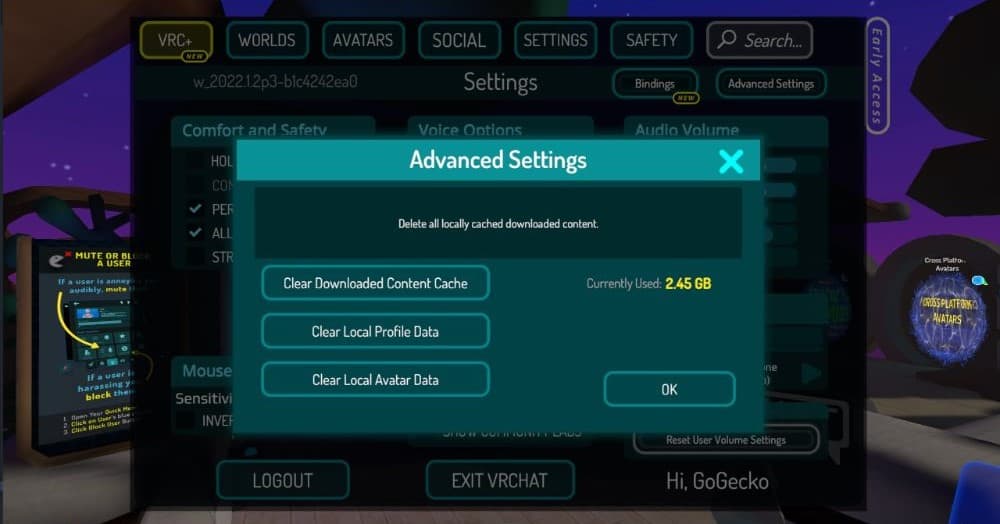
Here are the steps to clear the downloaded content cache, local profile data, and local avatar data within VRChat:
- Load VRChat
- Open the quick menu
- Click on the arrow in the top right corner to open the main menu.
- Click on the “Settings” tab, and then click on “Advanced Settings”
- You will see three buttons marked “Clear Downloaded Content Cache”, “Clear Local Profile Data”, and “Clear Local Avatar Data”.
- Click each of these in turn and confirm that you wish to proceed. Local data will be deleted and you will be logged out of VRChat.
- Restart VRChat and wait to see if this has solved your issue with VRChat crashing.
If the game was crashing in a particular world, or situation, try to recreate this to see if the problem has been resolved.
If you are not able to load VRChat, then you will not be able to clear local data in this way. Another option is to delete local data via the command prompt. Here are the basic steps:
How To Delete Local VRChat Data Via The Command Prompt
- Click on the “Start Menu” in Windows.
- Type “command” to search for the “Command Prompt” app.
- Right click on the Command Prompt App and click “Run as Administrator”.
- Copy the following and paste it into the Command Prompt screen and then press enter.
rmdir /S /Q "%AppData%..LocalLowVRChatvrchatCookies" 2>nul & rmdir /S /Q "%AppData%..LocalLowVRChatvrchatHTTPCache" 2>nul & rmdir /S /Q "%AppData%..LocalLowVRChatvrchatUnity" 2>nul & rmdir /S /Q "%AppData%..LocalLowVRChatvrchatVRCHTTPCache" 2>nul & rmdir /S /Q "%TEMP%VRChat" 2>nul & rmdir /S /Q "%UserProfile%.cacheyoutube-dl" 2>nul & REG DELETE HKCUSoftwareVRChatvrchat /va
You will then be asked if you want to delete all keys under the VRChat key. Type Y and then press Enter to confirm.
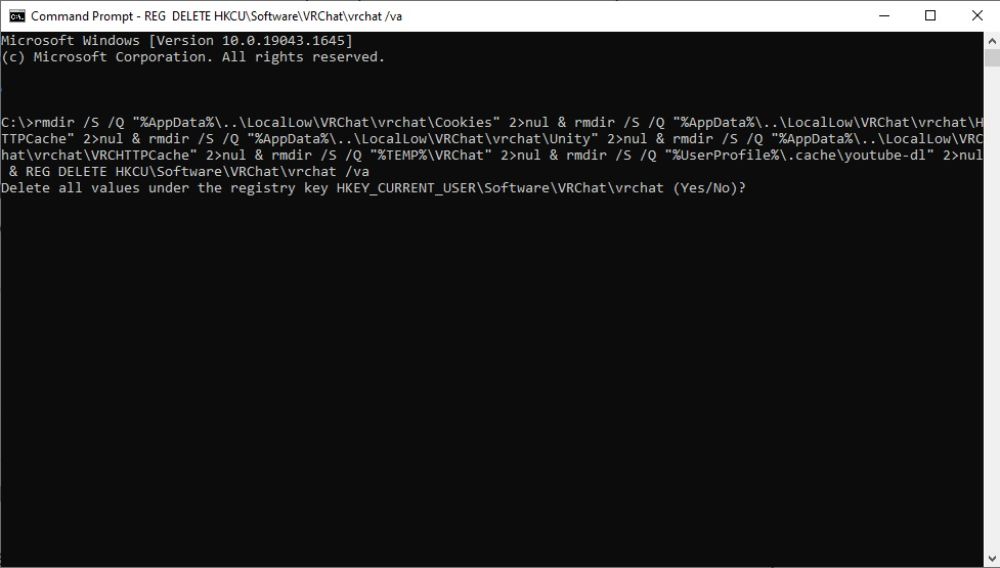
Close the Command Prompt and then run VRChat to see if your issue with crashing has been resolved. If you encountered any problems using the Command Prompt to delete these local files, there is a manual process for doing this that is explained on the VRChat website.
If this hasn’t solved your problem with VRChat crashing, then move onto the next step.
Verify The VRChat Game Files
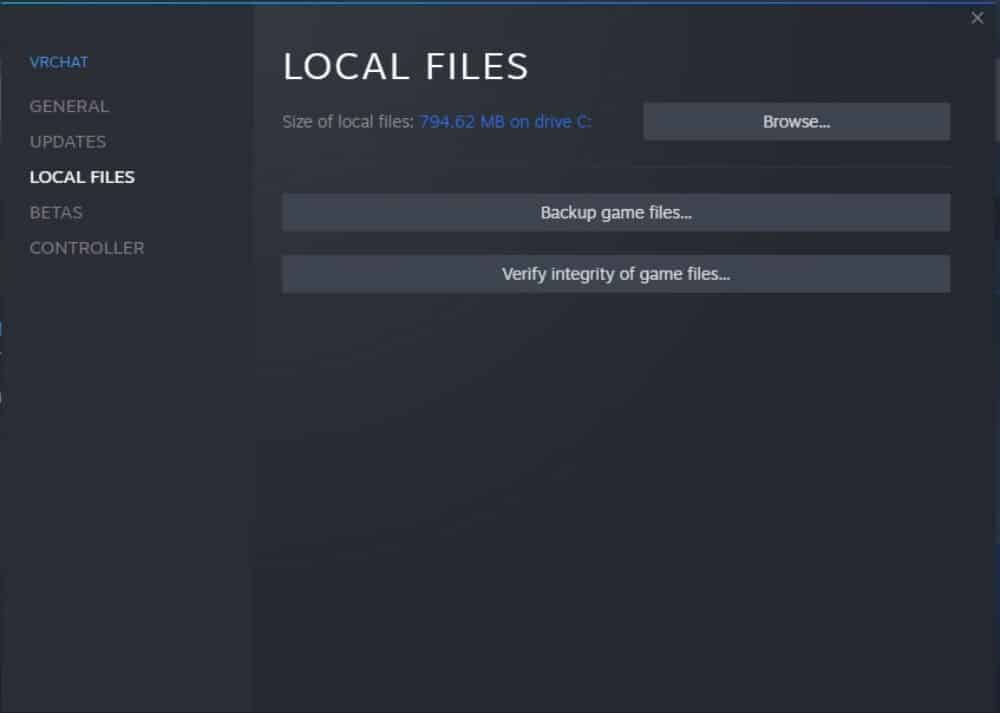
One of the most common issues that can cause VRChat to crash is if there is a problem with one of the game files. You can either reinstall VRChat to ensure that the install files are intact, or you can verify the integrity of the game files within Steam. To do this, follow these steps.
- Find VRChat in your game library.
- Right-click on it and select “Properties”
- Click on “Local Files”, and then click the “verify integrity of game files” button.
- Steam will take a few seconds to check that all the VRChat files are valid, and if any are found to be corrupted or missing, Steam will re-download them and repair the installation.
Reinstall VRChat
The other option to ensure that VRChat has been installed correctly is to reinstall it. This can be done through Steam or the Oculus App.
- On Steam, just right-click on VRChat in your library, hover over “Manage”, and then click “Uninstall”.
- In the Oculus App, go to your library and click on the three dots to the bottom right of the VRChat icon, and then select “Uninstall”.
Once VRChat has been uninstalled, you can simply reinstall it. Whilst this process won’t get rid of absolutely all files that could be causing a problem, it will ensure that all the local installation files are present and working properly.
Insufficient Disk Space Causing VRChat To Crash
Running low on disk space is a reasonably common cause of VRChat crashing. The reason for this is that VRChat will download more data as you play, and this can add up reasonably quickly. You may have had plenty of space on your hard drive when you started playing, but VRChat can easily take up several more GB in a relatively short space of time.
Check your hard drive and make sure you have at least a few GB of space. If not, create some space on your hard drive, and then try VRChat again to see if it is working.
You can also run VRChat and go to the “Advanced Settings” menu, then click on “Clear Downloaded Content Cache” to free up some space that VRChat has been using.
Reset Your VRChat Avatars To Fix VRChat Crashing
The next thing to do to try to stop VRChat from crashing is to reset your Avatars. Go to VRChat.com, log in and go to the “Avatars” section. Click “Reset to Default Avatar”. If one of your Avatars was causing the game to crash, this should fix the problem. Bear in mind that you need to have a VRChat account linked to your Steam or Oculus account for this fix to work.
Update Windows
Make sure that your version of Windows has all updates applied. VRChat will normally be optimized to play on the most recent version of Windows, and if your is out of date, it is possible a bug is causing VRChat to crash.
- Click on the “Start Menu” in Windows and search for “Updates”.
- Click on “Check For Updates” and you will be taken to the Windows Update page. If there are any outstanding Windows updates, install these now.
Update Your GPU Drivers
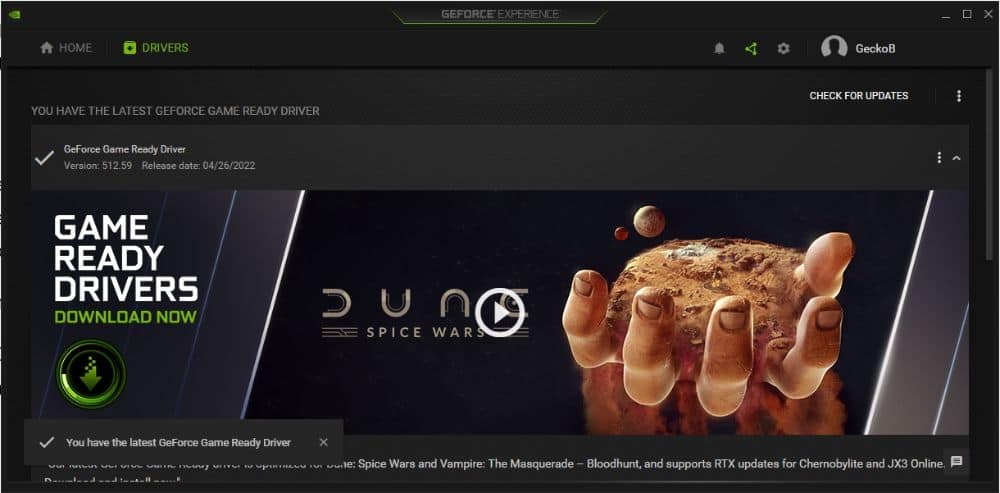
Out-of-date graphics drivers are one of the most common reasons for VRChat crashing, or any game crashing for that matter. The best way to check to see whether your drivers are out of date is to download the graphics update software for your brand of graphics card.
Download the AMD software for driver updates if you have an AMD graphics card.
Download GeForce Experience if you have an NVidia graphics card.
Open the software and check for driver updates. If there is a more recent driver available for your graphics card, you will be able to download and install it. You will also be able to set this software to automatically keep your graphics driver up-to-date.
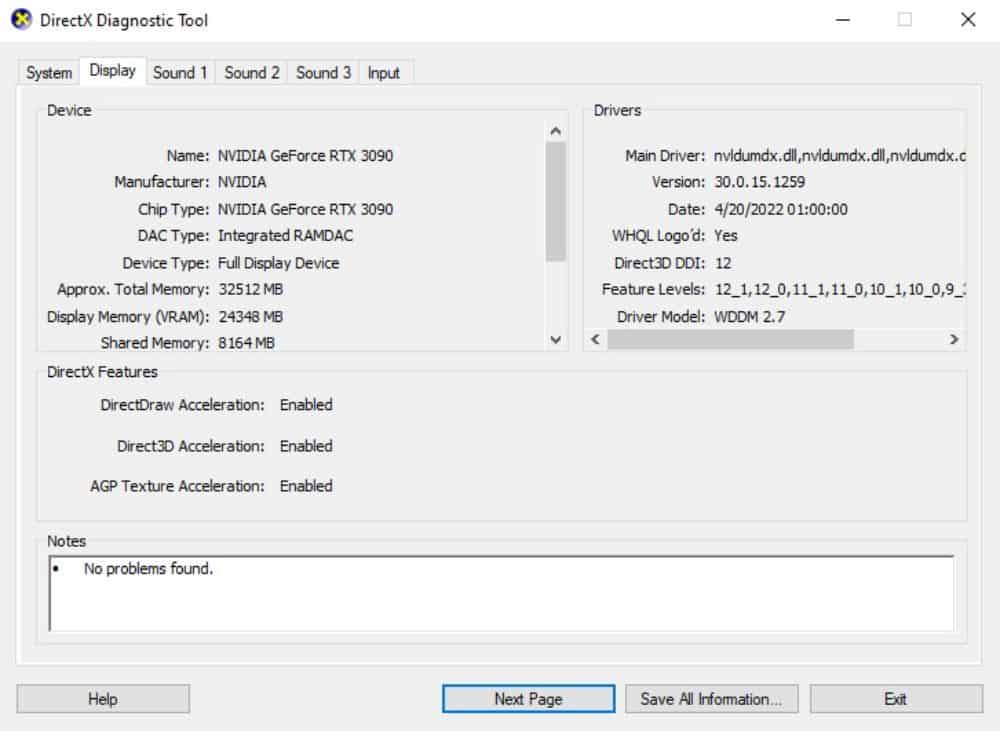
If you aren’t sure what type of graphics card you have, you can find out by doing the following.
- Click on the “Start” menu and type “dxdiag”.
- Click on the “dxdiag” software. This will take a few seconds to load, but will then show you lots of information about your computer’s hardware.
- Click on the “Display” tab and you will be able to see the name and manufacturer of your graphics card.
Try The Beta Version Of VRChat On Steam
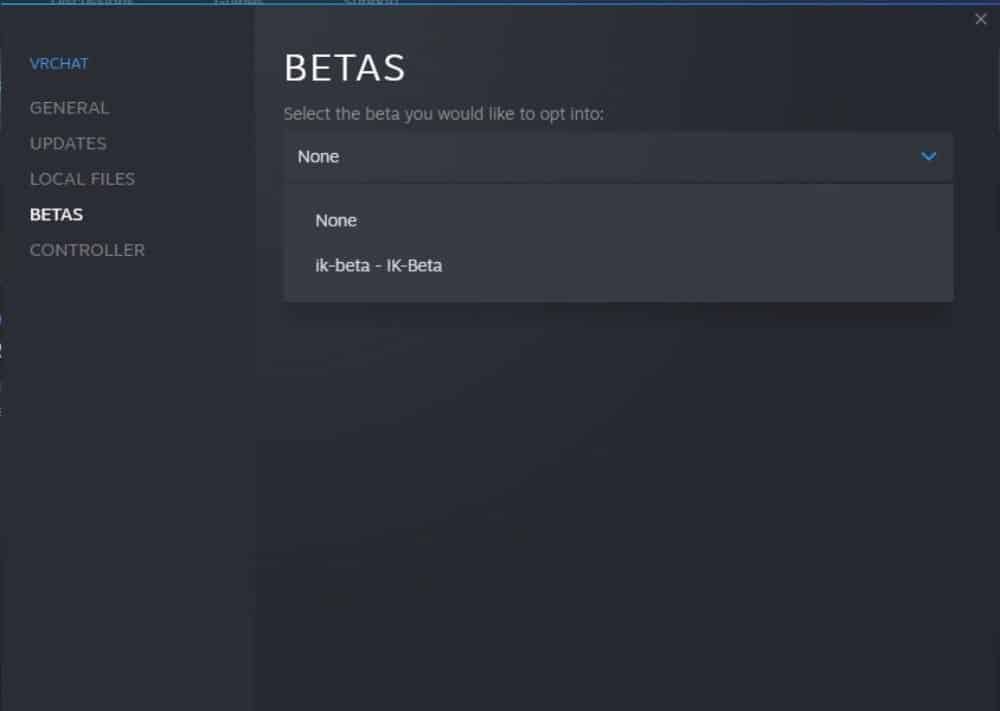
If you are running VRChat through Steam and you still aren’t making progress with stopping VRChat from crashing, you could try changing to the beta version of VRChat. The beta version of VRChat is the most up-to-date version of the software, but it hasn’t been deemed ready to release to everyone. Switching to this version may fix your issue. Here is how you switch to the beat version of VRChat:
- Right-click on VRChat in your Steam library and click “Properties”
- Select “Betas” and then click on the drop-down box to choose the software version that you would like to run. In my case, I have the choice between “none” and “IK-Beta”. Select the beta version that you would like and Steam should immediately start doing an update on VRChat that shouldn’t take more than a minute or two.
- Once the update is complete, you can try running VRChat to see if the crashing issue has been resolved.
It is also possible to have issues with the beta version, so if VRChat is crashing and you are already using the beta version, revert to the standard release version to see if this fixes the issue.
Oculus Servers Down
If VRChat keeps crashing on Quest 2, it is worth checking to see if the Oculus servers are down. These must be up and running to allow you to play VRChat on Oculus/Meta headsets.
If there is any server downtime, VRChat will start to load, but then it will close suddenly. If this happens, there is a good chance it is because you don’t have a connection to the Oculus servers.
You can check the current status of the Oculus servers here.
VRChat Crashing Due To Running Out Of Ram
If you are running VRChat via a PC-tethered headset, you can sometimes run into an issue where all of your computer’s RAM is used up. It is caused by VRChat failing to free up RAM after it has been used, and this can cause the game to run really badly, and can even lead to crashes.
You can check how much RAM your computer is using while playing VRChat by pressing LCtrl + Shift + ESC to load the Task Manager. Look in the processes tab to see exactly how much memory is being used by VRChat, and in the “Performance” tab to see how much RAM is being used in total.
You may be able to identify other programs running at the same time that can be closed to free up RAM. If VRChat appears to be using an excessive amount of RAM, restart VRChat and the memory use should dramatically decrease.
Create A New VRChat Account
If you’re really struggling at this point, I have heard from several people that have had success fixing VRChat crashing problems by creating an entirely new VRChat account. Simply go to VRChat.com, sign up as a new user, and then link your Oculus or Steam account with your VRChat account.
I would recommend working through all of the steps in this list first before you create a new VRChat account, as this will ensure that all other issues have been dealt with.
Other Programs Can Cause VRChat To Crash
If VRChat started crashing just after installing another piece of software, you should try uninstalling that software to see if that fixes the problem. VRChat support highlights that some virtual audio device software can significantly impact performance.
If you use a firewall on your computer, this can also prevent VRChat from loading if it prevents the game from communicating with the VRChat servers. Make sure that VRChat.exe is whitelisted by your Firewall to ensure the game can maintain a connection.
Contact VRChat Support
If you’ve tried all of the steps above, and you are still having issues, I would recommend you to contact the VRChat support team, who may be able to help you further.
VR Lowdown is a participant in the Amazon Services LLC Associates Program, an affiliate advertising program designed to provide a means for sites to earn advertising fees by advertising and linking to Amazon.com. We also participate in other affiliate programs which compensate us for referring traffic.
Last Updated on June 4, 2022
Vrchat SDK error cs0117 is a common issue you may come across when using the SDK.
Continue reading to learn how to solve it easily.
Close Unity and delete any SDK-related folders and their meta files according to the SDK removal instructions.
Under Player > Other Settings, look for Scripting Define Symbols in your Project Settings.
Remove any symbols that aren’t related to the SDK you used to create your project. Remove UDON and VRC SDK3 from applications created with SDK2. VRC SDK2 should be removed from SDK3 projects. The symbols are separated by a semicolon (;). After that, hit Enter to save your changes.
Add the appropriate SDK to the project.
What Is the VRChat SDK and How Does It Work?
The Software Development Kit is what the SDK in the VRChat SDK stands for. And, as the name implies, in an app that was created specifically for the VRChat platform to allow users to build their own avatars, interactive worlds, and other content.
VRChat runs on the Unity 3D game engine, which means that practically all of Unity’s capabilities, such as lighting, navigation mesh, and animations, function effortlessly in VRChat.
The VRChat SDK is available in three distinct versions. The VRChat SDK3 – Avatars is perhaps the most popular. This may be used to make VRChat Avatar 3.0 avatars. This allows you to establish one or more distinct identities for the VRChat platform.
VRChat SDK-created avatars provide unrivaled personalization, facial and bodily expression, and control.
There’s also the VRChat SDK3 – World app, which allows you to develop whole new and fascinating gaming worlds. You may create a variety of relaxed hangout areas and clubs for you and your virtual avatar buddies to meet up and have a good time. You may also make virtual games.
There’s VRChat SDK2. This isn’t as up to date as the VRChat SDK3 applications, and it’s only for supporting old content.
Can I execute “Deletion Reinstalls” for SDK3-Avatars?
State behaviors will be lost if you delete the SDK directories while Unity is closed and then open Unity without the SDK loaded. They’re frail, and they don’t persist through full elimination upgrades. Make regular backups of your work and save/document your state-behavior configurations.
If you need to reinstall your SDK3-Avatars package from scratch, make a backup of your project first. You’ll have to re-create your state behaviors, so make sure they’re carefully documented.
How To Set Up The VRChat SDK
Please keep in mind that the instructions for installing VRChat SDK assume that you are running the essential programs on a Windows PC and not on any other operating system.
Before you get started, the first thing you should do is double-check that you’re using the right Unity version.
However, you should check the VRChat website’s Guides section to see which version is the proper one in case it changes. Please keep in mind that if you want to create content for VRChat on Oculus Quest at this time, you’ll need to configure your Unity app correctly.
Make a project
You’ll need to launch Unity Hub, select Create a new project, and set it to 3D at this stage.
After that, you’re free to start working on your first project. However, as a heads-up, Unity files may be rather enormous, so make sure you save all of your projects to a mass storage system with plenty of capacity.
It’s a good idea to start a new project for each new planet you discover. However, with avatars, this is less of an issue, and it will be completely OK to maintain your multiple avatars in distinct scenes within the same project.
After you’ve opened the project, make sure the title bar ends in PC, Mac, and Linux Standalone DX11>. If it doesn’t, something needs to be done about it.
Install the SDK
Now, open Explorer and double-click on the SDK’s Unity package to open it, with Unity open to your project.
It’s also possible to import it via Assets > Import Package > Custom Package.
Please make sure you’re using the correct SDK.When the import is finished, examine the console window to see if there are any issues that need to be fixed. (There should be no issues unless you downloaded the wrong version of Unity.)
Login
To utilize the SDK, you must first log in with your VRChat information. You’ll need to go to VRChat SDK > Show Control Panel > Authentication to achieve this.
Unfortunately, you cannot upload content using your Steam, Oculus, or Viveport accounts. You’ll also need a VRChat account with at least a New User Trust Rank.
But don’t worry, increasing your trust rank is simple; all you have to do is play VRChat, explore places, and meet new people.

VR has come a long way to the point where it’s a viable consumer experience now. Games like VRChat continue to push the boundaries of what you can do in a virtual world. That said, it’s still a relatively new technology, and some bugs and glitches are to be expected from time to time.
In this article, we’re talking about the “error saving blueprint” in VRChat issue, its causes and what you can do to fix the problem.
What causes this error?
The error can be caused by a number of errors. Common causes include:
- Outdated VRChat SDK version.
- Outdated Unity version.
- Issues with the blueprint itself.
Also read: How to fix UPNP not successful?
How to fix this?
Here are three fixes you can try out.
Update VRChat SDK
The first thing you should do is try and update the VRChat SDK. You can download the latest SDK version from VRChat’s website here. Once the SDK is downloaded, delete the VRCSDK folder and VRCSDK.meta files in the Assets and Plugins folders within your VRChat asset project’s folder. Finally, import the new SDK in Unity by clicking on Assets followed by Import Package and then Custom Package.
Also read: Why is Guided Access not working? Quick Fix
Remove the Animator Controller
Since VRChat assets require motion, a lot of users use the Unity Animator Controller to add animations for motions to their modes. This can sometimes mess with a VRChat blueprint import. Try removing the Animator Controller and importing your model again to see if that resolves the error
Update Unity version
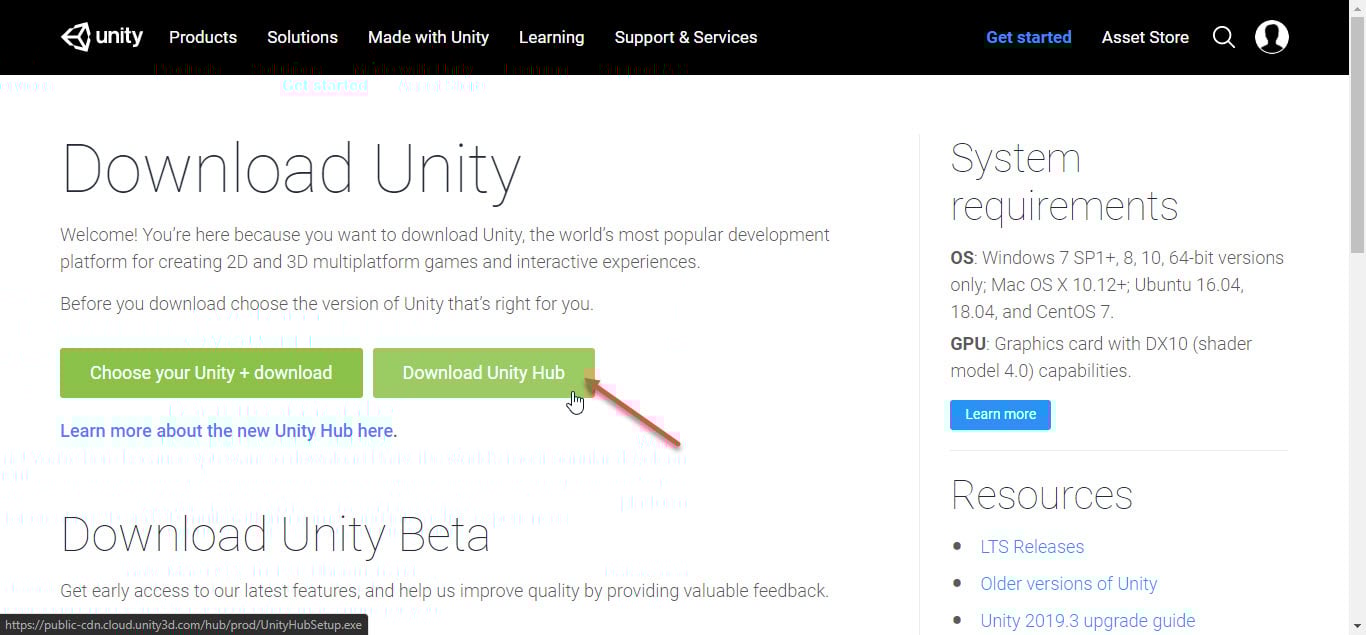
Updating Unity to the latest version can also help resolve the error. While Unity should keep itself updated by default, in case you’ve disabled that behaviour, you can head over to the Unity website and download the latest version. You can chose to keep two separate versions of Unity on your PC but it’s recommended that you use the latest one for VRChat related projects.
Also read: Why is Vizio sound bar not working?

Yadullah is a Computer Science graduate who writes/edits/shoots/codes all things cybersecurity, gaming, and tech hardware. When he’s not, he streams himself racing virtual cars. He’s been writing and reporting on tech and cybersecurity with websites like Candid.Technology and MakeUseOf since 2018.
You can contact him here: [email protected]
Go to VRchat
r/VRchat
r/VRchat
Welcome to the community-driven subreddit for VRChat, a virtual universe home to thousands of unique worlds!
Members
Online
•
by
Swellionite
Following the Unity 2019 I get this error message followed by a start-up crash. Is there anyone else experiencing this issue? I am unable to play VRChat due to this. I’ve updated all graphics drivers and have reinstalled fully my version of VRChat. Any help appreciated.

Archived post. New comments cannot be posted and votes cannot be cast.
More posts you may like
VRChat
MMO
Gaming
Skip to content
В это руководстве мы разберемся как же исправить ошибку в Unity «this avatar has too many polygons».
Иногда при попытке опубликовать аватар в VRChat у вас может возникнуть ошибка «This avatar has too many polygons. It must have less than 20k and should have less than 10k.».

Она обозначает, что количество полигонов у модели вашего аватара превышает допустимый лимит в 20 000. По сути, чтобы исправить эту ошибку, нам нужно увеличить этот лимит.
- Закройте Unity, если программа у вас открыта.
- Теперь перейдите в папку, в которой у вас установлен Unity. У меня это F:Unity
- Оттуда перейдите в папку с вашим сохраненным проектом. (его название и расположение вы выбираете при запуске Unity). У меня это стандартный «New Unity Project».

- Далее перемещаемся по пути AssetsVRCSDKDependenciesVRChatEditor
- Там находим файл VRC_SdkControlPanel.cs и открываем его через блокнот.

- Теперь находим в этом файле число «20000» и меняем его на «65000» и сохраняем файл.

- Готово! Теперь лимит полигонов у нас увеличился до 65000. Можете заходить в Unity и спокойно публиковать свой аватар, ошибки больше нет!


Лимит выше 65000 можете даже не пытаться устанавливать, поскольку Unity физические не принимает модели с таким количеством полигонов.
Гайды